> ## Documentation Index
> Fetch the complete documentation index at: https://docs.alvys.com/llms.txt
> Use this file to discover all available pages before exploring further.
# Create Power BI queries against the Alvys API
> Build Power BI M queries that call Alvys search endpoints like loads, drivers, and fuel to pull filtered records with your access token for reporting.
Once you have the AccessToken, you can use it to query various API endpoints.
### **Loads Search API:`/api/p/v{version}/loads/search`**
1. **Create a New Query** for the `Loads Search` Endpoint:
* Add a new query and give it a descriptive name, such as `Loads Search`, to easily identify its purpose.
* Open the query in **Advanced Editor** and paste the following code:
```
let
// Define the API endpoint URL
url = "https://integrations.alvys.com/api/p/v1/loads/search",
// Define the body of the POST request
requestBody = Text.ToBinary("{
""page"": 0,
""pageSize"": 200,
""dateRange"": {
""startDate"": ""2023-09-09T13:09:30.788Z"",
""endDate"": ""2024-09-09T13:09:30.788Z""
},
""status"": [""Open""]
}"),
// Retrieve the access token from AccessToken query
accessToken = AccessToken,
// Define headers with authorization token
headers = [
#"Authorization" = "Bearer " & accessToken,
#"Content-Type" = "application/json"
],
// Make the POST request
response = Web.Contents(url, [
Headers = headers,
Content = requestBody
]),
// Parse the JSON response
jsonResponse = Json.Document(response)
in
jsonResponse
```
**Save and close the query.**
**Expected Result**:
* The `Loads Search` query will retrieve data from the Alvys API and display the **Loads table** in Power BI.
* You can explore additional details in the query results:
* On the **right-hand pane**, click to expand the JSON response to view total results, nested objects, or other relevant details from the API.
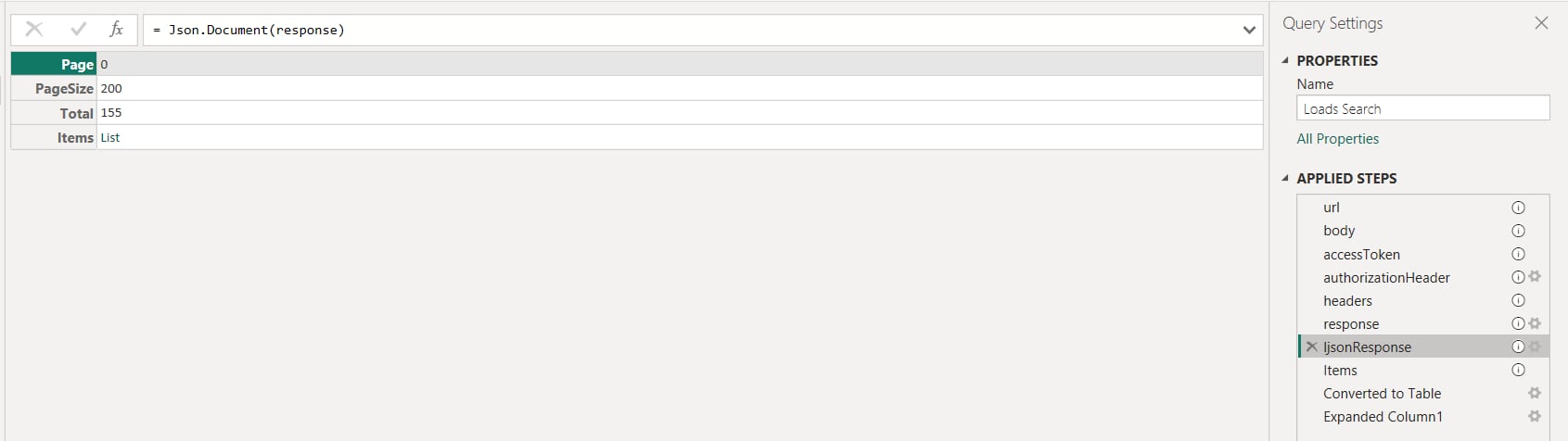
> This query allows you to dynamically retrieve customer data filtered by their statuses or created date range. Modify the request body as needed to include additional filters or adjust the search criteria for more specific results.
### **Drivers Search API:`/api/p/v{version}/drivers/search`**
1. **Create a New Query** for the `Drivers Search` Endpoint:
* Add a new query in Power BI and name it descriptively, such as `Drivers Search`, to clearly identify its purpose.
* Open the query in the **Advanced Editor** and paste the following code:
```
let
// Define the API endpoint URL
url = "https://integrations.alvys.com/api/p/v1/drivers/search",
// Define the body of the POST request
body = Text.ToBinary("{
""page"": 0,
""pageSize"": 50,
""status"": [
""OFF DUTY""
],
""name"": """",
""employeeId"": """",
""fleetName"": """",
""isActive"": true
}"),
// Retrieve the access token from AccessToken query
accessToken = AccessToken,
// Construct the Authorization header
authorizationHeader = "Bearer " & accessToken,
// Define the headers
headers = [
#"Authorization" = authorizationHeader,
#"Content-Type" = "application/json"
],
// Make the POST request
response = Web.Contents(url, [
Headers = headers,
Content = body
]),
// Parse the JSON response
jsonResponse = Json.Document(response),
// Extract the items from the response
drivers = jsonResponse[Items],
// Convert the list to a table
driversTable = Table.FromList(drivers, Splitter.SplitByNothing(), null, null, ExtraValues.Error),
#"Expanded Column1" = Table.ExpandRecordColumn(driversTable, "Column1", {"Id", "PhoneNumber", "Name", "Type", "Status", "Notes", "CreatedAt"}, {"Driver.Id", "Driver.PhoneNumber", "Driver.Name", "Driver.Type", "Driver.Status", "Driver.Notes", "Driver.CreatedAt"})
in
#"Expanded Column1"
```
Save the query and close the Advanced Editor.
**Expected Result**
* The `Drivers Search` query will successfully retrieve data from the Alvys API and display the **Drivers table** in Power BI.
> This query allows you to filter drivers dynamically based on their status or other parameters in the request body. Modify the query as needed to adjust filtering criteria, such as fleet name or active status.
### **Fuel Search API:`/api/p/v{version}/fuel/search`**
**Create a New Query** for the `Fuel Search` Endpoint:
* Add a new query in Power BI and name it descriptively, such as `Fuel Search`, to easily identify its purpose.
* Open the query in the **Advanced Editor** and paste the following code:
```
let
// Define the API endpoint URL
url = "https://integrations.alvys.com/api/p/v1/fuel/search",
// Define the body of the POST request
body = Text.ToBinary("{
""page"": 0,
""pageSize"": 100,
""fuelCardNumber"": """",
""truckNumber"": """",
""transactionRange"": {
""start"": ""2022-07-29T15:33:17.224Z"",
""end"": ""2025-07-29T15:33:17.224Z""
}
}"),
// Retrieve the access token from AccessToken query
accessToken = AccessToken,
// Construct the Authorization header
authorizationHeader = "Bearer " & accessToken,
// Define the headers
headers = [
#"Authorization" = authorizationHeader,
#"Content-Type" = "application/json"
],
// Make the POST request
response = Web.Contents(url, [
Headers = headers,
Content = body
]),
// Parse the JSON response
jsonResponse = Json.Document(response),
// Extract the items from the response
fuelTransactions = jsonResponse[Items],
// Convert the list to a table
fuelTransactionsTable = Table.FromList(fuelTransactions, Splitter.SplitByNothing(), null, null, ExtraValues.Error),
// Expand the table to show all relevant fields
expandedFuelTransactions = Table.ExpandRecordColumn(fuelTransactionsTable, "Column1", {"Id", "FuelCardNumber", "TruckNumber", "TransactionDate", "Amount", "Location", "CreatedAt"}, {"Id", "FuelCardNumber", "TruckNumber", "TransactionDate", "Amount", "Location", "CreatedAt"})
in
expandedFuelTransactions
```
Save the query and close the Advanced Editor.
**Expected Result**
* The `Fuel Search` query will successfully retrieve data from the Alvys API and display the **Fuel Transactions table** in Power BI.
> This query allows you to filter and retrieve fuel transaction data dynamically, using parameters like fuel card number, truck number, and transaction date range. Adjust the query body to refine your search criteria as needed.
### **Invoice Search API:`/api/p/v{version}/invoices/search`**
**Create a New Query** for the `Invoice Search` Endpoint:
* Add a new query in Power BI and name it descriptively, such as `Invoice Search`, to identify its purpose clearly.
* Open the query in the **Advanced Editor** and paste the following code:
```
let
// Define the API endpoint URL
url = "https://integrations.alvys.com/api/p/v1/invoices/search",
// Define the body of the POST request
body = Text.ToBinary("{
""page"": 0,
""pageSize"": 100,
""invoicedDateRange"": {
""start"": ""2023-08-02T09:53:34.251Z"",
""end"": ""2024-08-02T09:53:34.251Z""
},
""paidDateRange"": {
""start"": ""2023-08-02T09:53:34.251Z"",
""end"": ""2024-08-02T09:53:34.251Z""
},
""status"": [""Paid""],
""customerId"": """"
}"),
// Retrieve the access token from AccessToken query
accessToken = AccessToken,
// Construct the Authorization header
authorizationHeader = "Bearer " & accessToken,
// Define the headers
headers = [
#"Authorization" = authorizationHeader,
#"Content-Type" = "application/json"
],
// Make the POST request
response = Web.Contents(url, [
Headers = headers,
Content = body
]),
// Parse the JSON response
jsonResponse = Json.Document(response),
// Extract the items from the response
invoices = jsonResponse[Items],
// Convert the list to a table
invoicesTable = Table.FromList(invoices, Splitter.SplitByNothing(), null, null, ExtraValues.Error),
// Expand the table to show all relevant fields
#"Expanded Column1" = Table.ExpandRecordColumn(invoicesTable, "Column1", {"Id", "Number", "Type", "Status", "CreatedDate", "InvoicedDate", "DueDate", "PaidDate", "Total", "AmountPaid", "RemainingBalance", "OverPaymentAmount", "IsSubmitted", "LastSendDate", "Vendor", "Customer", "LineItems", "Loads", "Payments"}, {"Id", "Number", "Type", "Status", "CreatedDate", "InvoicedDate", "DueDate", "PaidDate", "Total", "AmountPaid", "RemainingBalance", "OverPaymentAmount", "IsSubmitted", "LastSendDate", "Vendor", "Customer", "LineItems", "Loads", "Payments"})
in
#"Expanded Column1"
```
Save the query and close the Advanced Editor.
**Expected Result**
* The `Invoice Search` query will retrieve data from the Alvys API and display the **Invoices table** in Power BI.
> This query provides dynamic filtering options like date ranges, status, and customer ID to fetch specific invoice data. You can adjust the request body to include additional filters or parameters as needed.
### **Maintenance Search API:`/api/p/v{version}/maintenance/search`**
**Create a New Query** for the `Maintenance Search` Endpoint:
* Add a new query in Power BI and name it descriptively, such as `Maintenance Search`, to clearly identify its purpose.
* Open the query in the **Advanced Editor** and paste the following code:
```
let
// Define the API endpoint URL
url = "https://integrations.alvys.com/api/p/v1/maintenance/search",
// Define the body of the POST request
body = Text.ToBinary("{
""page"": 0,
""pageSize"": 100,
""dateRange"": {
""start"": ""2021-01-23T13:36:42.021Z"",
""end"": ""2024-08-23T13:36:42.021Z""
}
}"),
// Retrieve the access token from AccessToken query
accessToken = AccessToken,
// Construct the Authorization header
authorizationHeader = "Bearer " & accessToken,
// Define the headers
headers = [
#"Authorization" = authorizationHeader,
#"Content-Type" = "application/json"
],
// Make the POST request
response = Web.Contents(url, [
Headers = headers,
Content = body
]),
// Parse the JSON response
jsonResponse = Json.Document(response),
// Extract the items from the response
maintenanceItems = jsonResponse[Items],
// Convert the list to a table
maintenanceTable = Table.FromList(maintenanceItems, Splitter.SplitByNothing(), null, null, ExtraValues.Error),
// Expand the table to show all relevant fields
expandedMaintenance = Table.ExpandRecordColumn(maintenanceTable, "Column1", {"Id", "Date", "Description", "TruckNumber", "Status", "Cost", "CreatedAt"}, {"Id", "Date", "Description", "TruckNumber", "Status", "Cost", "CreatedAt"})
in
expandedMaintenance
```
Save the query and close the Advanced Editor.
**Expected Result**
* The `Maintenance Search` query will retrieve data from the Alvys API and display the **Maintenance Records table** in Power BI.
> This query allows you to filter and retrieve maintenance records dynamically based on date ranges or other parameters. You can modify the request body to adjust the search criteria or include additional filters as needed.
### **Toll Search API:`/api/p/v{version}/tolls/search`**
**Create a New Query** for the `Toll Search` Endpoint:
* Add a new query in Power BI and name it descriptively, such as `Toll Search`, to clearly identify its purpose.
* Open the query in the **Advanced Editor** and paste the following code:
```
let
// Define the API endpoint URL
url = "https://integrations.alvys.com/api/p/v1/tolls/search",
// Define the body of the POST request
body = Text.ToBinary("{
""page"": 0,
""pageSize"": 100,
""dateRange"": {
""start"": ""2021-07-23T14:48:05.234Z"",
""end"": ""2024-07-23T14:48:05.234Z""
}
}"),
// Retrieve the access token from AccessToken query
accessToken = AccessToken,
// Construct the Authorization header
authorizationHeader = "Bearer " & accessToken,
// Define the headers
headers = [
#"Authorization" = authorizationHeader,
#"Content-Type" = "application/json"
],
// Make the POST request
response = Web.Contents(url, [
Headers = headers,
Content = body
]),
// Parse the JSON response
jsonResponse = Json.Document(response),
// Extract the items from the response
tollsItems = jsonResponse[Items],
// Convert the list to a table
tollsTable = Table.FromList(tollsItems, Splitter.SplitByNothing(), null, null, ExtraValues.Error),
// Expand the table to show all relevant fields
expandedTolls = Table.ExpandRecordColumn(tollsTable, "Column1", {"Id", "Date", "Amount", "Location", "TruckNumber", "CreatedAt"}, {"Id", "Date", "Amount", "Location", "TruckNumber", "CreatedAt"})
in
expandedTolls
```
Save the query and close the Advanced Editor.
**Expected Result**
* The `Toll Search` query will retrieve data from the Alvys API and display the **Toll Transactions table** in Power BI.
> This query enables you to dynamically retrieve toll transaction data based on date ranges or other parameters. You can adjust the request body to refine your search criteria as needed.
***
### **Trailer Search API:`/api/p/v{version}/trailers/search`**
**Create a New Query** for the `Trailer Search` Endpoint:
* Add a new query in Power BI and name it descriptively, such as `Trailer Search`, to clearly identify its purpose.
* Open the query in the **Advanced Editor** and paste the following code:
```
let
// Define the API endpoint URL
url = "https://integrations.alvys.com/api/p/v1/trailers/search",
// Define the body of the POST request
body = Text.ToBinary("{
""page"": 0,
""pageSize"": 50,
""status"": [""Active""],
""trailerNumber"": """",
""fleetName"": """",
""vinNumber"": """"
}"),
// Retrieve the access token from AccessToken query
accessToken = AccessToken,
// Construct the Authorization header
authorizationHeader = "Bearer " & accessToken,
// Define the headers
headers = [
#"Authorization" = authorizationHeader,
#"Content-Type" = "application/json"
],
// Make the POST request
response = Web.Contents(url, [
Headers = headers,
Content = body
]),
// Parse the JSON response
jsonResponse = Json.Document(response),
// Extract the items from the response
trailersItems = jsonResponse[Items],
// Convert the list to a table
trailersTable = Table.FromList(trailersItems, Splitter.SplitByNothing(), null, null, ExtraValues.Error),
// Expand the table to show all relevant fields
expandedTrailers = Table.ExpandRecordColumn(trailersTable, "Column1", {"Id", "TrailerNumber", "Status", "FleetName", "VinNumber", "CreatedAt"}, {"Id", "TrailerNumber", "Status", "FleetName", "VinNumber", "CreatedAt"})
in
expandedTrailers
```
Save the query and close the Advanced Editor.
**Expected Result**
* The `Trailer Search` query will retrieve data from the Alvys API and display the **Trailers table** in Power BI.
> This query allows you to dynamically retrieve trailer data based on status, fleet name, or trailer number. Adjust the request body to include additional filters or refine your search criteria as needed.
***
### **Trips Search API:`/api/p/v{version}/trips/search`**
**Create a New Query** for the `Trips Search` Endpoint:
* Add a new query in Power BI and name it descriptively, such as `Trips Search`, to clearly identify its purpose.
* Open the query in the **Advanced Editor** and paste the following code:
```
let
// Define the API endpoint URL
url = "https://integrations.alvys.com/api/p/v1/trips/search",
// Define the body of the POST request
body = Text.ToBinary("{
""page"": 0,
""pageSize"": 100,
""status"": [""Covered""]
}"),
// Retrieve the access token from AccessToken query
accessToken = AccessToken,
// Construct the Authorization header
authorizationHeader = "Bearer " & accessToken,
// Define the headers
headers = [
#"Authorization" = authorizationHeader,
#"Content-Type" = "application/json"
],
// Make the POST request
response = Web.Contents(url, [
Headers = headers,
Content = body
]),
// Parse the JSON response
jsonResponse = Json.Document(response),
// Extract the items from the response
tripsItems = jsonResponse[Items],
// Convert the list to a table
tripsTable = Table.FromList(tripsItems, Splitter.SplitByNothing(), null, null, ExtraValues.Error),
// Expand the table to show all relevant fields
expandedTrips = Table.ExpandRecordColumn(tripsTable, "Column1", {"Id", "Status", "DriverName", "TruckNumber", "LoadNumber", "StartDate", "EndDate", "CreatedAt"}, {"Id", "Status", "DriverName", "TruckNumber", "LoadNumber", "StartDate", "EndDate", "CreatedAt"})
in
expandedTrips
```
Save the query and close the Advanced Editor.
**Expected Result**
* The `Trips Search` query will retrieve data from the Alvys API and display the **Trips table** in Power BI.
> This query allows you to dynamically retrieve trip data based on parameters like status or pagination. Adjust the request body to include additional filters or refine your search criteria as needed.
***
### **Trucks Search API:`/api/p/v{version}/trucks/search`**
**Create a New Query** for the `Trucks Search` Endpoint:
* Add a new query in Power BI and name it descriptively, such as `Trucks Search`, to clearly identify its purpose.
* Open the query in the **Advanced Editor** and paste the following code:
```
let
// Define the API endpoint URL
url = "https://integrations.alvys.com/api/p/v1/trucks/search",
// Define the body of the POST request
body = Text.ToBinary("{
""page"": 0,
""pageSize"": 100,
""status"": [""Active""],
""truckNumber"": """",
""fleetName"": """",
""vinNumber"": """",
""isActive"": true,
""registeredName"": """"
}"),
// Retrieve the access token from AccessToken query
accessToken = AccessToken,
// Construct the Authorization header
authorizationHeader = "Bearer " & accessToken,
// Define the headers
headers = [
#"Authorization" = authorizationHeader,
#"Content-Type" = "application/json"
],
// Make the POST request
response = Web.Contents(url, [
Headers = headers,
Content = body
]),
// Parse the JSON response
jsonResponse = Json.Document(response),
// Extract the items from the response
trucksItems = jsonResponse[Items],
// Convert the list to a table
trucksTable = Table.FromList(trucksItems, Splitter.SplitByNothing(), null, null, ExtraValues.Error),
// Expand the table to show all relevant fields
expandedTrucks = Table.ExpandRecordColumn(trucksTable, "Column1", {"Id", "TruckNumber", "Status", "FleetName", "VinNumber", "IsActive", "RegisteredName", "CreatedAt"}, {"Id", "TruckNumber", "Status", "FleetName", "VinNumber", "IsActive", "RegisteredName", "CreatedAt"})
in
expandedTrucks
```
Save the query and close the Advanced Editor.
**Expected Result**
* The `Trucks Search` query will retrieve data from the Alvys API and display the **Trucks table** in Power BI.
> This query allows you to dynamically retrieve truck data based on parameters like status, fleet name, or VIN. Adjust the request body to include additional filters or refine your search criteria as needed.
***
### **User Search API:`/api/p/v{version}/users/search`**
**Create a New Query** for the `User Search` Endpoint:
* Add a new query in Power BI and name it descriptively, such as `User Search`, to clearly identify its purpose.
* Open the query in the **Advanced Editor** and paste the following code:
```
let
// Define the API endpoint URL
url = "https://integrations.alvys.com/api/p/v1/users/search",
// Define the body of the POST request
body = Text.ToBinary("{
""page"": 0,
""pageSize"": 100,
""keyword"": """"
}"),
// Retrieve the access token from AccessToken query
accessToken = AccessToken,
// Construct the Authorization header
authorizationHeader = "Bearer " & accessToken,
// Define the headers
headers = [
#"Authorization" = authorizationHeader,
#"Content-Type" = "application/json"
],
// Make the POST request
response = Web.Contents(url, [
Headers = headers,
Content = body
]),
// Parse the JSON response
jsonResponse = Json.Document(response),
// Extract the items from the response
usersItems = jsonResponse[Items],
// Convert the list to a table
usersTable = Table.FromList(usersItems, Splitter.SplitByNothing(), null, null, ExtraValues.Error),
// Expand the table to show all relevant fields
expandedUsers = Table.ExpandRecordColumn(usersTable, "Column1", {"Id", "Name", "Email", "Role", "Status", "CreatedAt"}, {"Id", "Name", "Email", "Role", "Status", "CreatedAt"})
in
expandedUsers
```
Save the query and close the Advanced Editor.
**Expected Result**
* The `User Search` query will retrieve data from the Alvys API and display the **Users table** in Power BI.
> This query allows you to dynamically retrieve user data based on filters such as keywords or pagination. You can adjust the request body to include specific search criteria to refine your results further.
***
### **Customer Search API:`/api/p/v{version}/customers/search`**
**Create a New Query** for the `Customer Search` Endpoint:
* Add a new query in Power BI and name it descriptively, such as `Customer Search`, to clearly identify its purpose.
* Open the query in the **Advanced Editor** and paste the following code:
```
let
// Define the API endpoint URL
url = "https://integrations.alvys.com/api/p/v1/customers/search",
// Define the body of the POST request
body = Text.ToBinary("{
""page"": 0,
""pageSize"": 100,
""statuses"": [""Active""],
""createdDateRange"": {}
}"),
// Retrieve the access token from AccessToken query
accessToken = AccessToken,
// Construct the Authorization header
authorizationHeader = "Bearer " & accessToken,
// Define the headers
headers = [
#"Authorization" = authorizationHeader,
#"Content-Type" = "application/json"
],
// Make the POST request
response = Web.Contents(url, [
Headers = headers,
Content = body
]),
// Parse the JSON response
jsonResponse = Json.Document(response),
// Extract the items from the response
customersItems = jsonResponse[Items],
// Convert the list to a table
customersTable = Table.FromList(customersItems, Splitter.SplitByNothing(), null, null, ExtraValues.Error),
// Expand the table to show all relevant fields
expandedCustomers = Table.ExpandRecordColumn(customersTable, "Column1", {"Id", "Name", "Status", "CreatedAt"}, {"Id", "Name", "Status", "CreatedAt"})
in
expandedCustomers
```
Save the query and close the Advanced Editor.
**Expected Result**
* The `Customer Search` query will retrieve data from the Alvys API and display the **Customers table** in Power BI.
> This query allows you to dynamically retrieve customer data filtered by their statuses or created date range. Modify the request body as needed to include additional filters or adjust the search criteria for more specific results.
***
### **Visibility Outbound Errors API:`/api/p/v{version}/visibility/outbound/errors`**
**Create a New Query** for the `Visibility Outbound Errors` Endpoint:
* Add a new query in Power BI and name it descriptively, such as `Visibility Errors`, to clearly identify its purpose.
* Open the query in the **Advanced Editor** and paste the following code:
```
let
// Define the API endpoint URL
url = "https://integrations.alvys.com/api/p/v1/visibility/outbound/errors",
// Define the body of the POST request
body = Text.ToBinary("{
""page"": 0,
""pageSize"": 10,
""timeRange"": {
""start"": ""2024-11-05T16:58:54.450Z"",
""end"": ""2024-11-11T16:58:54.450Z""
}
}"),
// Retrieve the access token from AccessToken query
accessToken = AccessToken,
// Construct the Authorization header
authorizationHeader = "Bearer " & accessToken,
// Define the headers
headers = [
#"Authorization" = authorizationHeader,
#"Content-Type" = "application/json"
],
// Make the POST request
response = Web.Contents(url, [
Headers = headers,
Content = body
]),
// Parse the JSON response
jsonResponse = Json.Document(response),
// Extract the items from the response
errorsItems = jsonResponse[Items],
// Convert the list to a table
errorsTable = Table.FromList(errorsItems, Splitter.SplitByNothing(), null, null, ExtraValues.Error),
// Expand the table to show all relevant fields
expandedErrors = Table.ExpandRecordColumn(errorsTable, "Column1", {"Id", "ErrorMessage", "Timestamp", "ErrorDetails"}, {"Id", "ErrorMessage", "Timestamp", "ErrorDetails"})
in
expandedErrors
```
Save the query and close the Advanced Editor.
**Expected Result**
* The `Visibility Outbound Errors` query will retrieve data from the Alvys API and display the **Errors table** in Power BI.
* You can explore the following columns in the result:
* **Id**: Unique identifier for each error record.
* **ErrorMessage**: Description of the error.
* **Timestamp**: The time the error occurred.
* **ErrorDetails**: Additional details about the error, if available.
> This query allows you to dynamically retrieve outbound error data for visibility operations based on a specified time range. Modify the request body to adjust the date range, page size, or other parameters for tailored results.