> ## Documentation Index
> Fetch the complete documentation index at: https://docs.alvys.com/llms.txt
> Use this file to discover all available pages before exploring further.
# Import the preconfigured Alvys Public API.pbix file
> Download and import the Alvys Public API.pbix file into Power BI Desktop, then update the tenant, client ID, and client secret parameters to connect.
If you prefer to use a preconfigured file, you can import the `Alvys Public API.pbix` file, which contains all the queries described in this guide, including the `AccessToken` query. This file simplifies the setup process by providing ready-to-use queries for interacting with the Alvys Public API.
> ⬇️ Download: [Alvys Public API.pbix](https://drive.usercontent.google.com/u/0/uc?id=1ZdsauFy8KY9nHg1vykq5fNv4vE1Yl1Pq\&export=download)
### **Steps to Use the Preconfigured File**
1. **Download and Open the File**:
* Obtain the `Alvys Public API.pbix` file from the source above.
* Open it in Power BI Desktop.
2. **Update the `AccessToken` Query**:
* Click on **Transform Data** from the top menu.
* In the Transform Data view, go to the Parameters (Manage Parameters option or click on these rows from query list) and update the following with your credentials: `tenant_id`, `client_id`, `client_secret`.
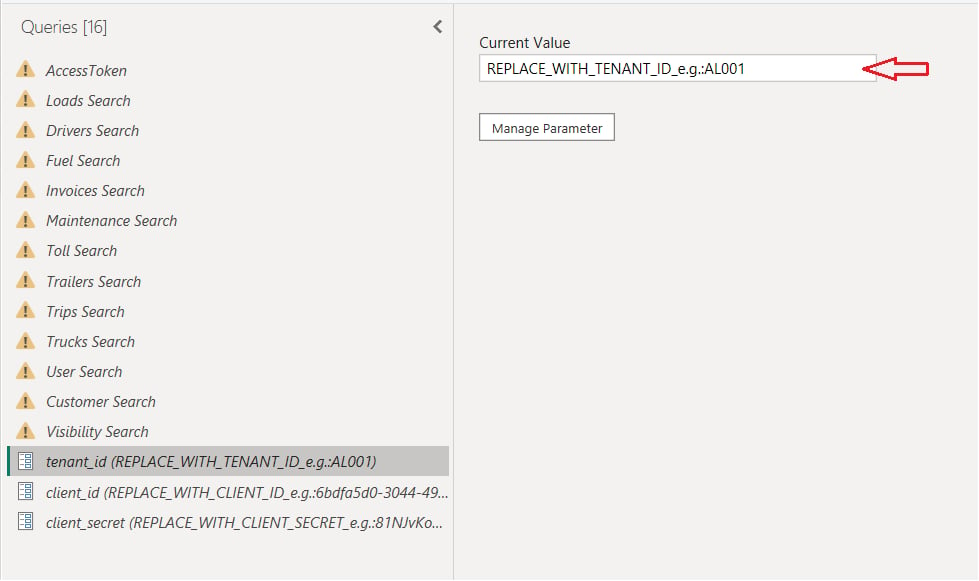 * Go to File > Apply Changes.
3. **Save and Refresh**:
* After updating the credentials, save the changes and refresh the queries.
* Go to File > Apply Changes.
3. **Save and Refresh**:
* After updating the credentials, save the changes and refresh the queries.
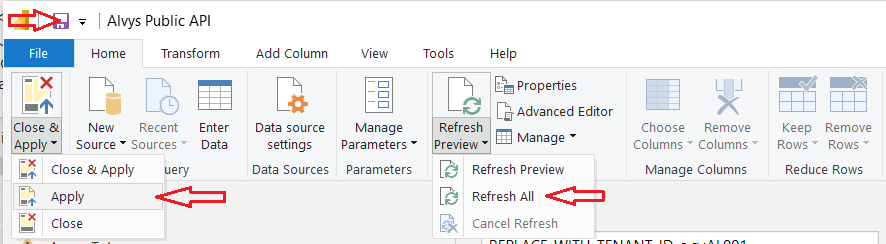 * The file will now fetch data dynamically using your credentials.
4. Whenever you wish to refresh the token, simply select the "Access token" query and click the refresh preview button.
5. To load and see data in the tables:
* In the Queries list, right-click on each relevant query (e.g., Loads Search, Invoices Search, etc.)
* Click on "Enable Load" to Report *(or Properties Select Enable Load to Report)*.
* The file will now fetch data dynamically using your credentials.
4. Whenever you wish to refresh the token, simply select the "Access token" query and click the refresh preview button.
5. To load and see data in the tables:
* In the Queries list, right-click on each relevant query (e.g., Loads Search, Invoices Search, etc.)
* Click on "Enable Load" to Report *(or Properties Select Enable Load to Report)*.
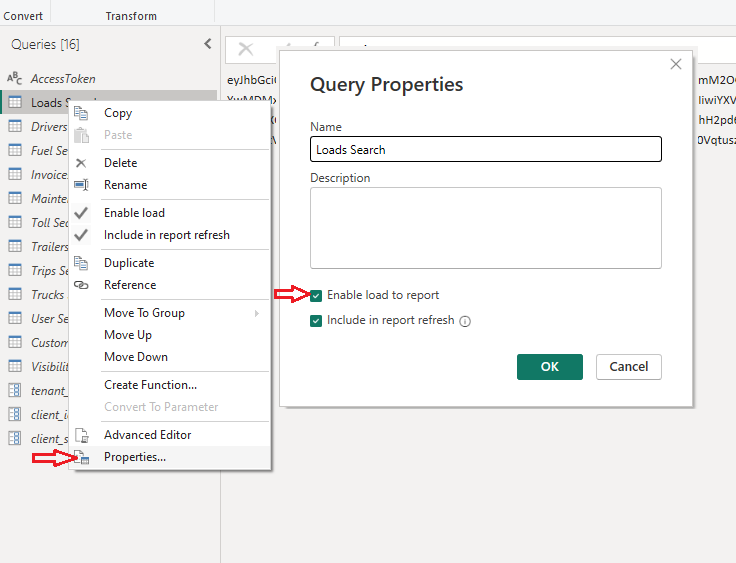 6. To apply the changes, click on "Apply" or "Close & Apply" from the top-left of the Power Query window, or go to File > "Apply Changes".