> ## Documentation Index
> Fetch the complete documentation index at: https://docs.alvys.com/llms.txt
> Use this file to discover all available pages before exploring further.
# Authentication and Global Permissions
> Configure Power BI parameters, retrieve an Alvys API access token, and set global permissions so subsequent queries authenticate against the Public API.
To interact with the Alvys API, you must first retrieve an access token using your API credentials. This token is required for authenticating all subsequent API queries.
## Authentication
### **Create an Access Token Query**:
* Open Power BI Desktop and go to **Home > Transform Data**.
 **Setup API Credentials in Manage Parameters**
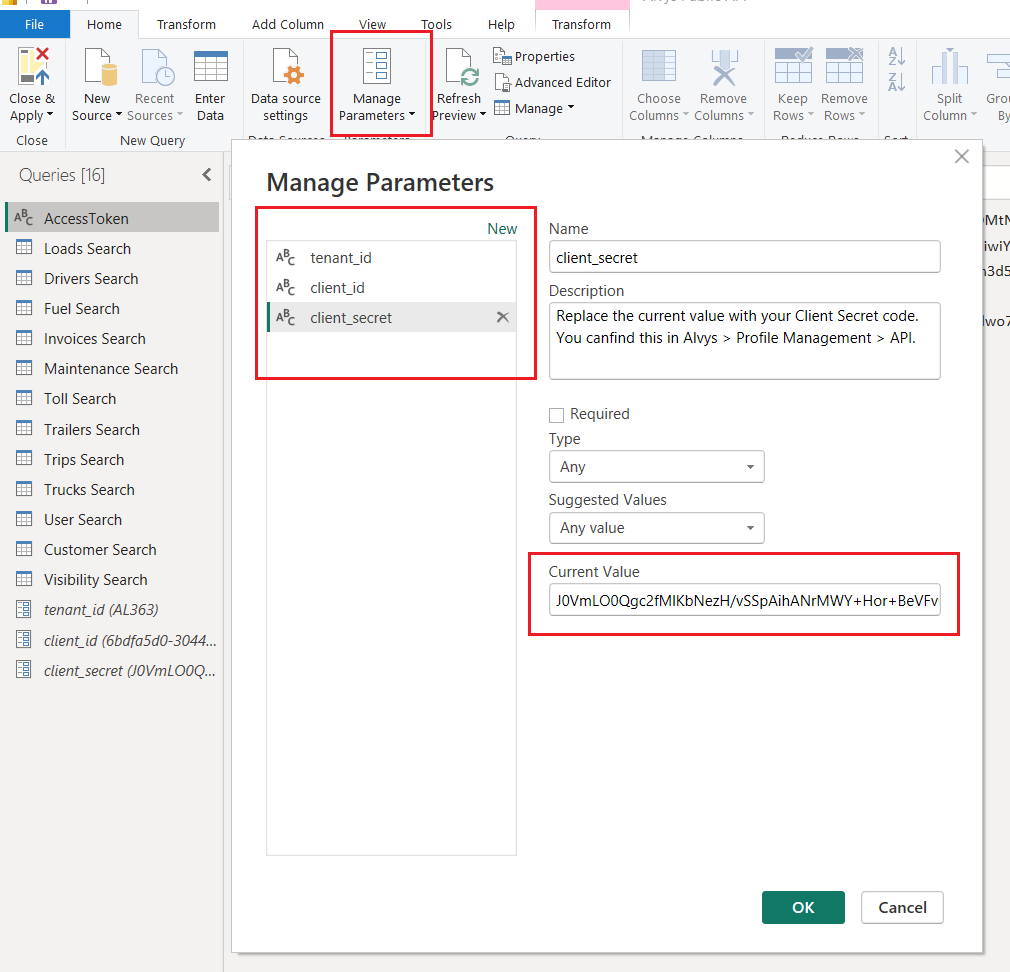
* In Power BI, go to the top ribbon, select **Transform Data > Manage Parameters**.
* **Ensure You Have the Following Parameters**:
* `client_id`: The client ID provided by Alvys.
* `client_secret`: The client secret provided by Alvys.
* **Create New Parameters if Not Present**:
* If these parameters are not already available:
* Click **New** to create a new parameter.
* Use the exact names: `client_id` and `client_secret`.
* Replace the **Current Value** of each parameter with your respective credentials.
> ❗️ Important: Ensure the parameter names match exactly as defined here. If you use different names, you must update them in the `AccessToken` query accordingly.
* Once you've entered your credentials, click **OK** and then **Close & Apply** to save the changes.
**Setup API Credentials in Manage Parameters**
* In Power BI, go to the top ribbon, select **Transform Data > Manage Parameters**.
* **Ensure You Have the Following Parameters**:
* `client_id`: The client ID provided by Alvys.
* `client_secret`: The client secret provided by Alvys.
* **Create New Parameters if Not Present**:
* If these parameters are not already available:
* Click **New** to create a new parameter.
* Use the exact names: `client_id` and `client_secret`.
* Replace the **Current Value** of each parameter with your respective credentials.
> ❗️ Important: Ensure the parameter names match exactly as defined here. If you use different names, you must update them in the `AccessToken` query accordingly.
* Once you've entered your credentials, click **OK** and then **Close & Apply** to save the changes.
* **Add a New Blank Query**:
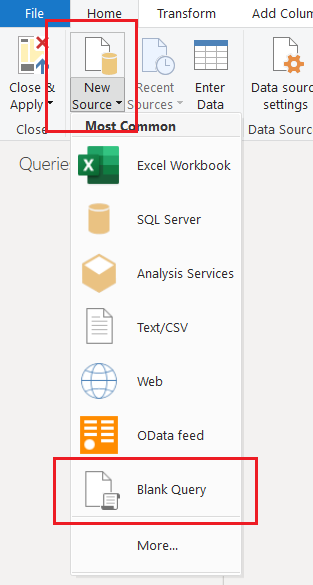
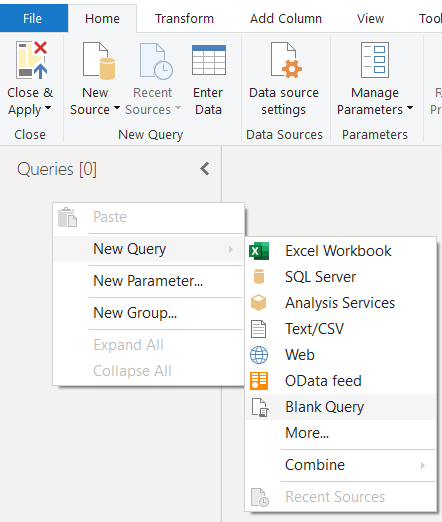
To add a new query, you have two options:
1. **From the Ribbon**: Go to **Home > New Source > Blank Query**.
2. **From the Queries Pane**: Right-click on any existing query (or in the empty space under the list of queries) and select **New Query > Blank Query**.
1. Rename the query to `AccessToken`. In the **Queries Pane**, right-click on the newly created query and select **Rename**.
> ❗️ 📢 **Use exactly this name. The name will be referenced by other queries that require this token for authentication.**
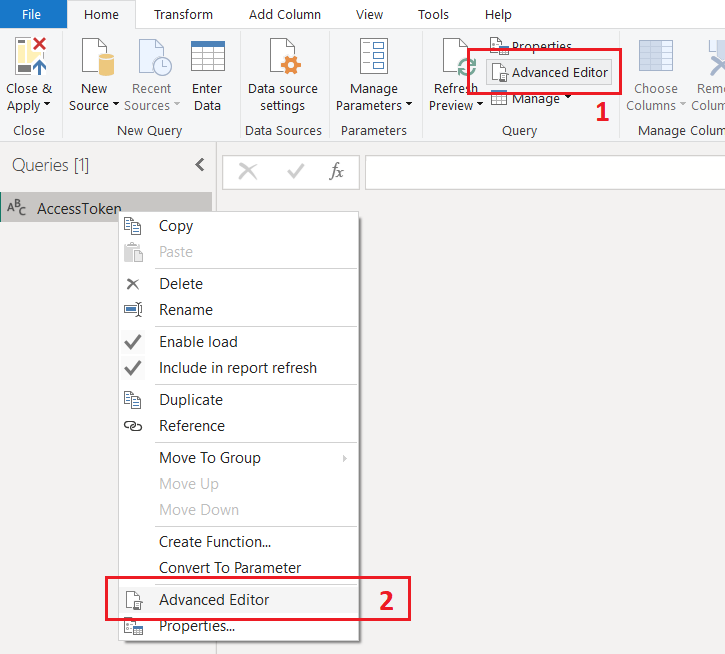
* In the Advanced Editor, add the code below.
```
let
// Define the token endpoint
url = "https://auth.alvys.com/oauth/token",
// URL-encode the client_secret, NOTE: should be used parameters Name for client_secret)
encodedClientSecret = Uri.EscapeDataString(client_secret),
// Construct the form data as a URL-encoded string
formData = "client_id=" & client_id & "&" &
"client_secret=" & encodedClientSecret & "&" &
"audience=" & Uri.EscapeDataString("https://api.alvys.com/public/") & "&" &
"grant_type=client_credentials",
// Make the POST request
binaryFormData = Text.ToBinary(formData),
response = Web.Contents(url, [
Headers = [
#"Content-Type" = "application/x-www-form-urlencoded"
],
Content = binaryFormData
]),
// Parse the JSON response to extract the token
jsonResponse = Json.Document(response),
accessToken = jsonResponse[access_token]
in
accessToken
```
Save and close the query.
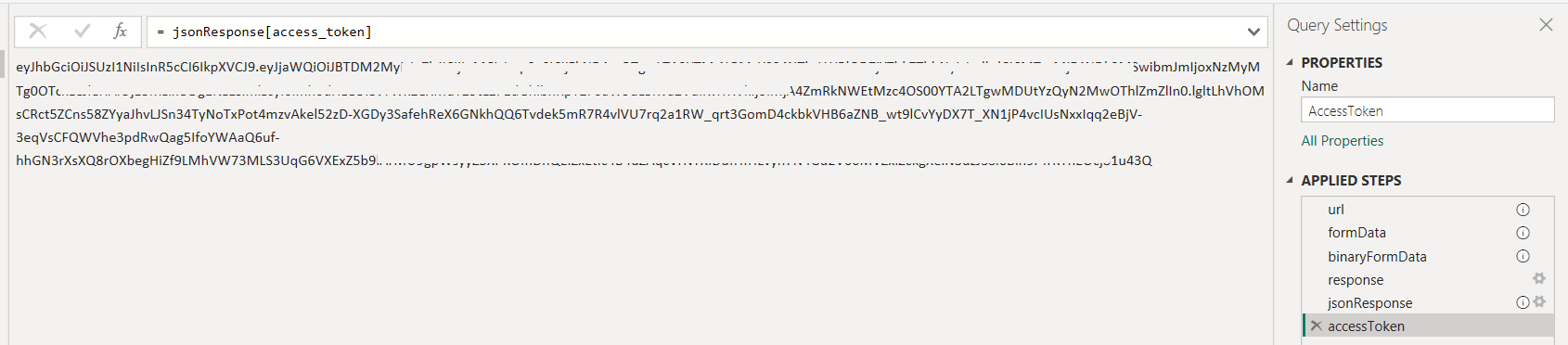
* **Expected Result**: The `AccessToken` query will return the `accessToken`, which can be dynamically used in other API queries.
### Authentication and Global Permissions
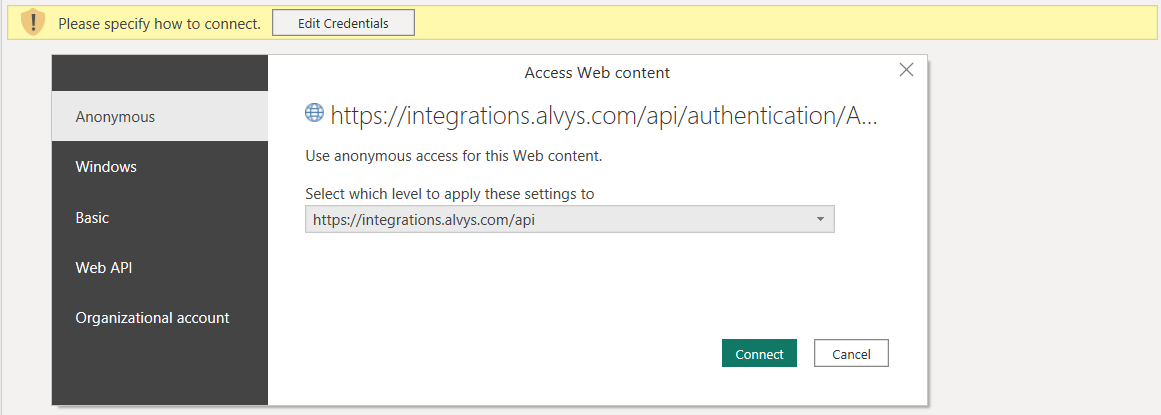
The first time you attempt to connect to the Alvys API in Power BI, you will be prompted to authenticate. Follow these steps to configure the required settings:
1. Choose **Anonymous** for the Web API connection.
2. **Click Connect.** Once these settings are selected, click **Connect** to proceed.
 3. **Privacy Level**: Click on the Data source settings > Global permissions > Edit permissions > in the Privacy Level dropdown, ensure the privacy level is set appropriately (e.g., Organizational or Public) for your environment.
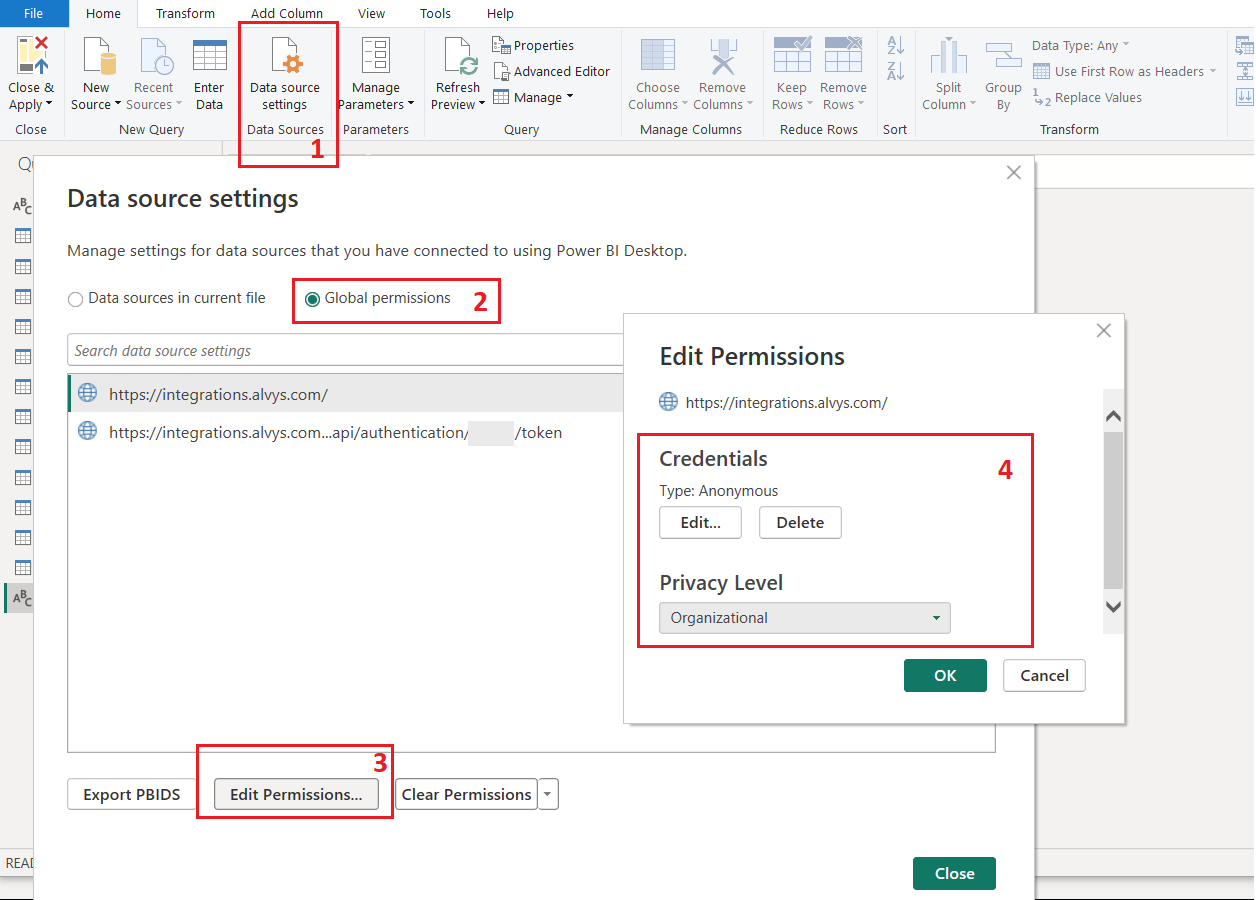
> Note: You might be prompted to repeat this process for other endpoints if they are accessed for the first time. Ensure the same settings are applied for consistency across all queries.