
Overview
Carrier Settlements (also called carrier pay, carrier payables, or carrier statements) in Alvys allows brokers to manage carrier payables, generate carrier payment statements, and sync settlement data to external accounting systems including QuickBooks, Business Central, and NetSuite. If you are a broker or a hybrid who pays carriers for delivered, released, or invoiced trips, Carrier Settlements is where you handle statements in bulk. You can view all your unpaid trips across carriers in one place, review documents, and generate statements that sync to your accounting system. The module also includes Super Settle View for consolidated payable item review, statement status tracking, and automatic trip status updates on statement generation.Getting Started
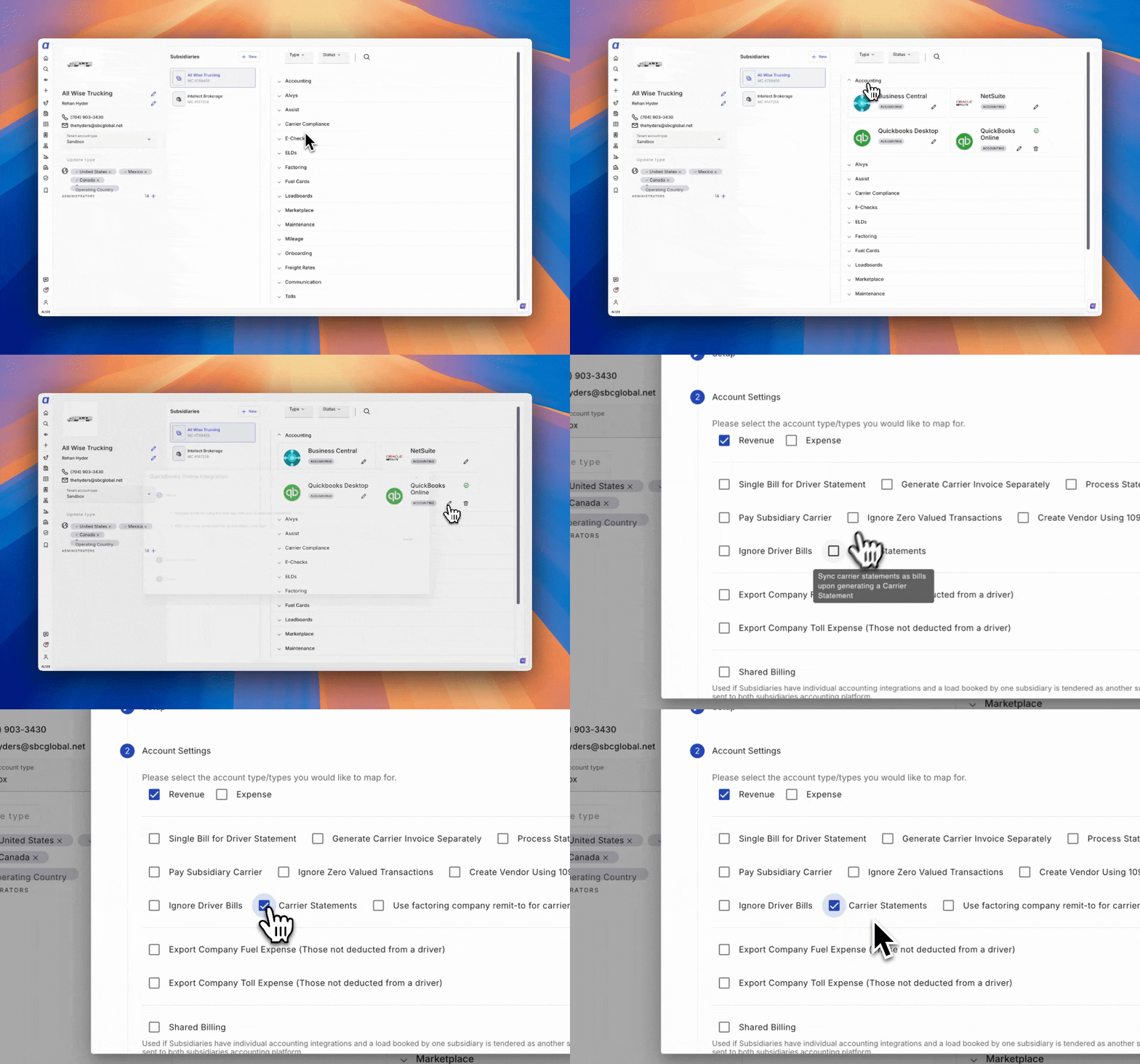
1. Check your external accounting (if applicable). If you sync payment data with QuickBooks Online, QuickBooks Desktop, Business Central, or NetSuite:- Enable Carrier Settlements.
- Disable Generate Carrier Invoice Separately.
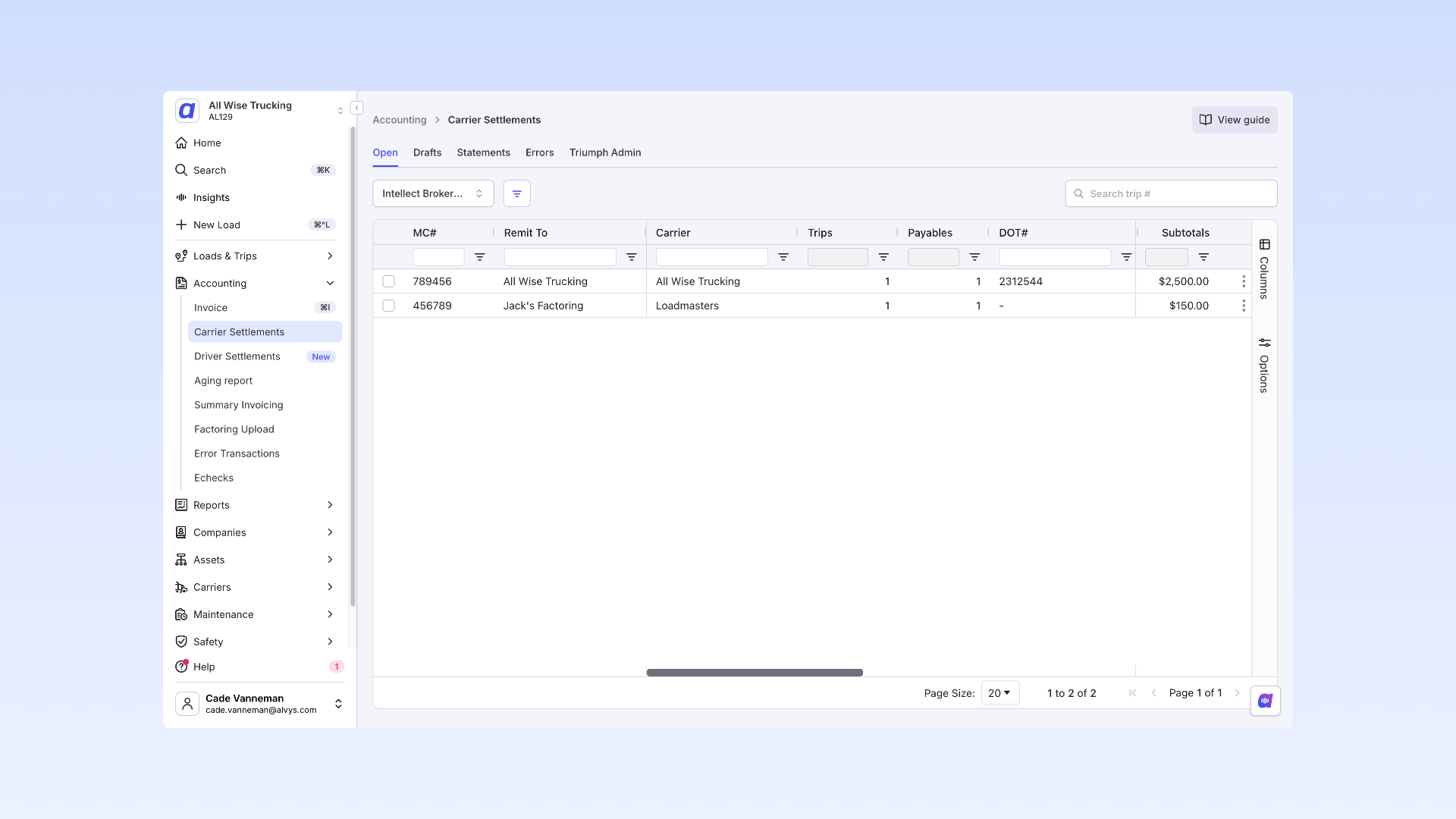
- The statement has a Processed badge.
- Accounting sync says Successful.
Where to Find It
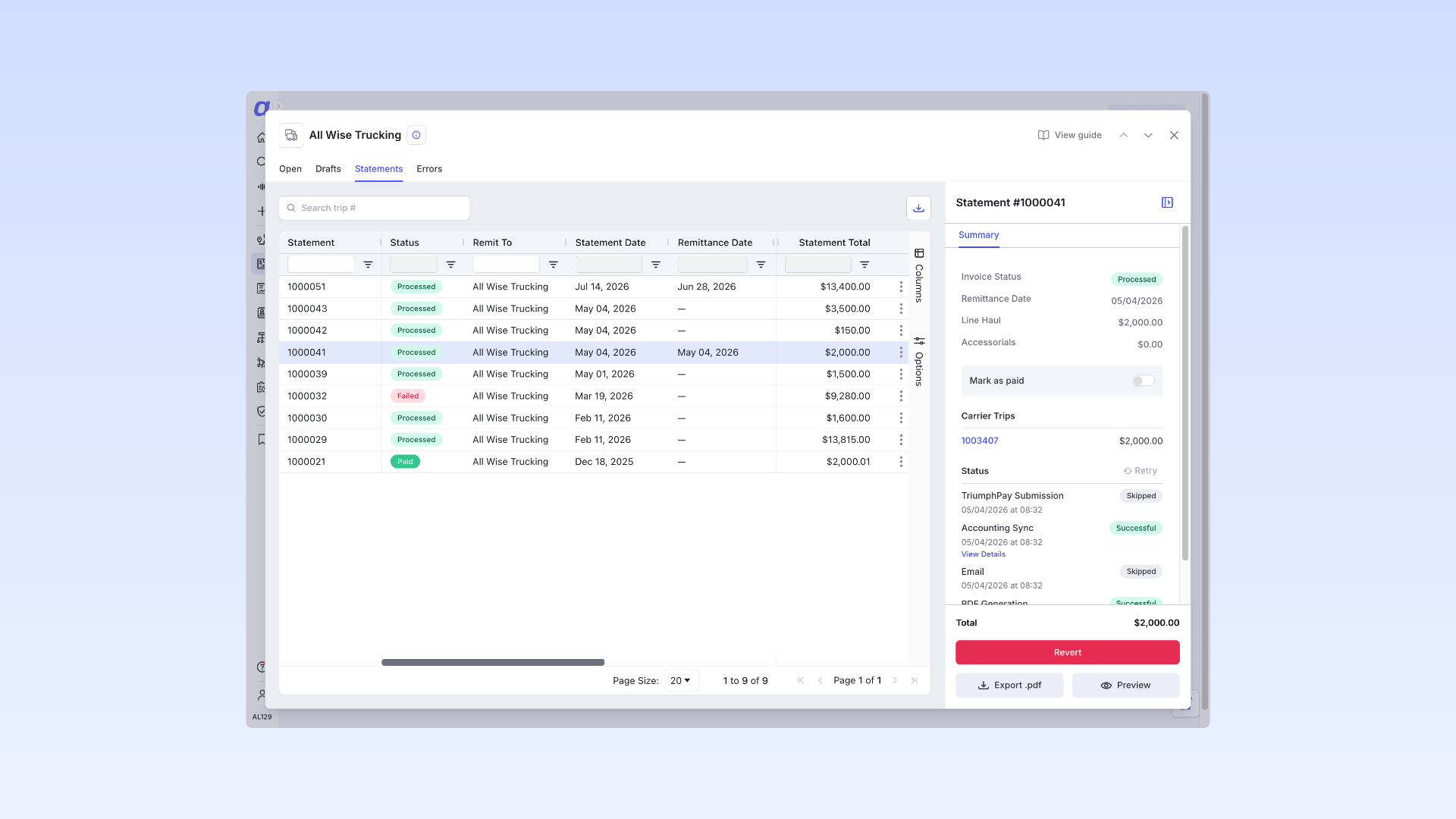
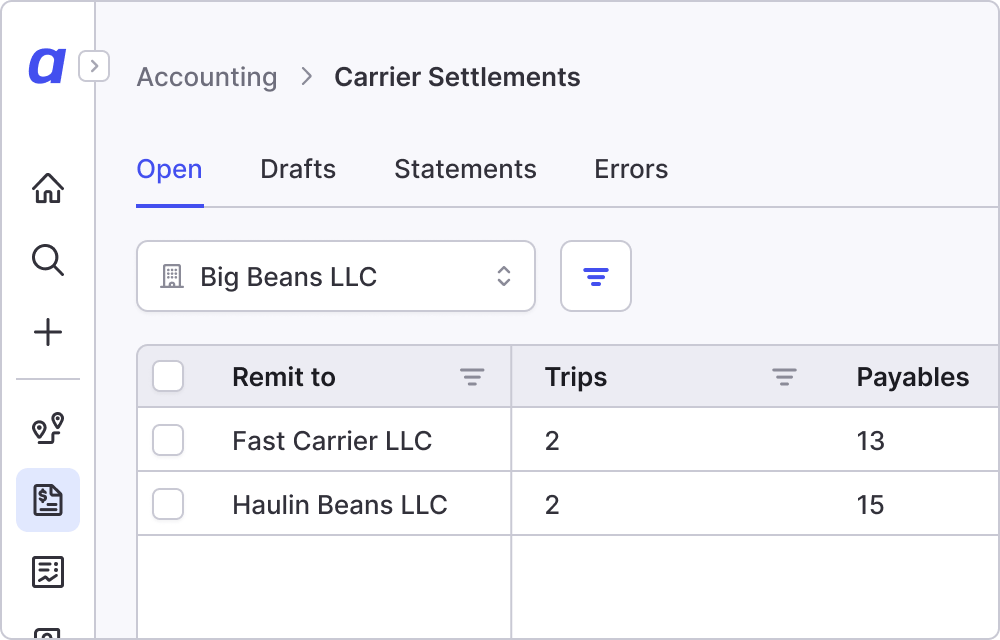
Go to Accounting > Carrier Settlements to view carrier payables. The module includes four tabs:- Open — Unpaid trips and transactions.
- Drafts — Approved transactions pending statement generation.
- Statements — Generated statements with paid trips.
- Errors — Any failed emails, PDFs, or transactions that did not sync.
Key Concepts
Payable items
Payable items are the individual line items associated with a carrier’s trip. Within Carrier Settlements, each item can be in one of three states: Open (pending review), Approved (approved for payment), or Disputed (flagged for review).Carrier settlement statements
A carrier settlement statement consolidates one or more approved payable items into a single payment record for a carrier. Statements can be downloaded as PDFs or emailed directly to the carrier from within Alvys.Statement statuses
Statements move through four statuses: Queued (being processed), Processed (generation complete), Paid (marked as paid), and Failed (an error occurred during processing).How to Generate a Carrier Statement
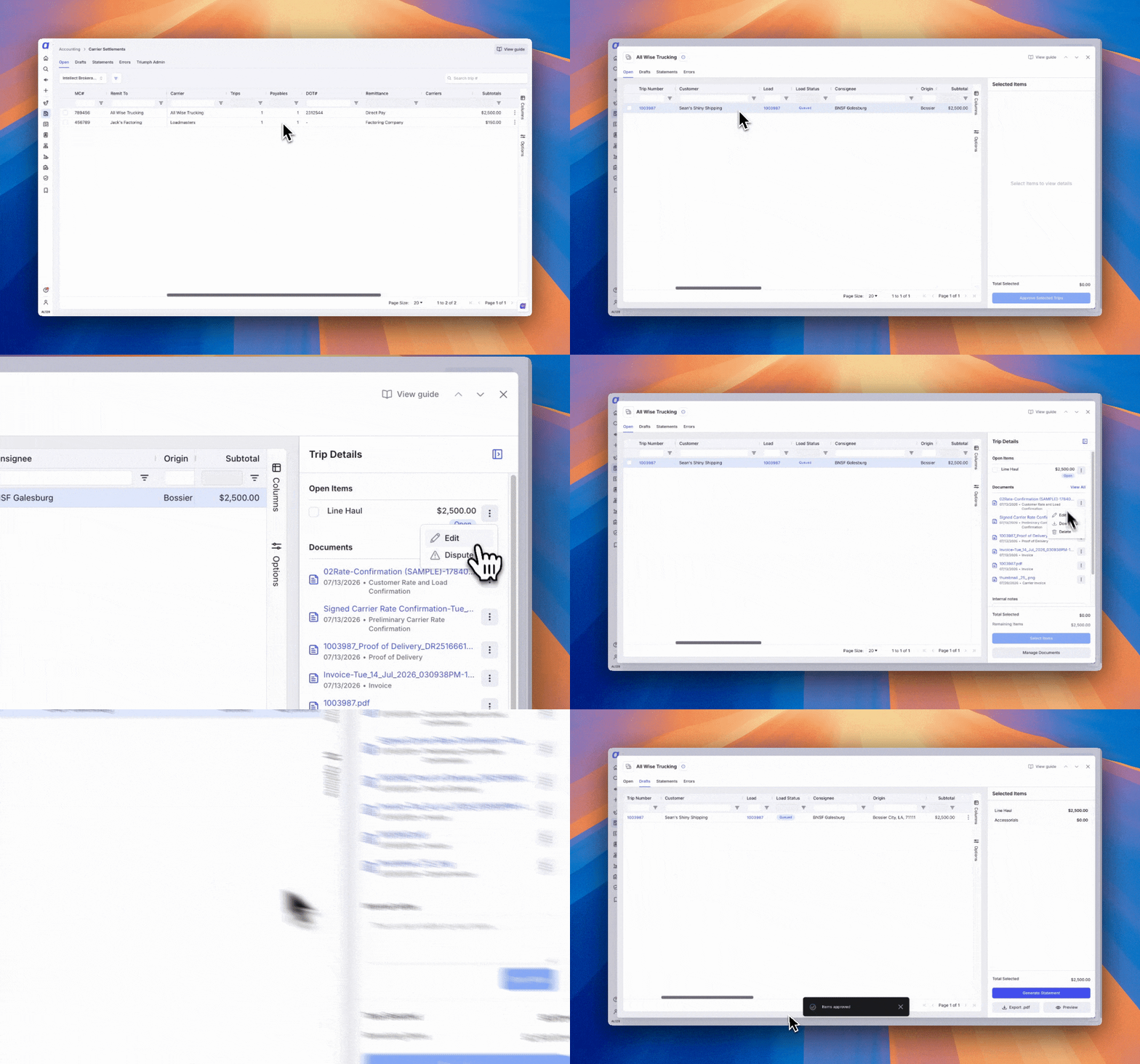
Select an unpaid carrier
From the carrier view you can see all trips and settlements related to a specific carrier, which makes it easy to review open trips and approve them onto a draft statement. From here you can:- Select a trip to review payables.
- Manage documents uploaded to the trip.
- Edit the carrier’s linehaul amount.
- Dispute the rate.
Review approved trips in Drafts
Any transactions or trips you have approved land in Drafts. This lets you keep track of trips that are ready to be paid. You can also use internal notes on the trip to record why something is disputed, so you can unapprove any trips with issues.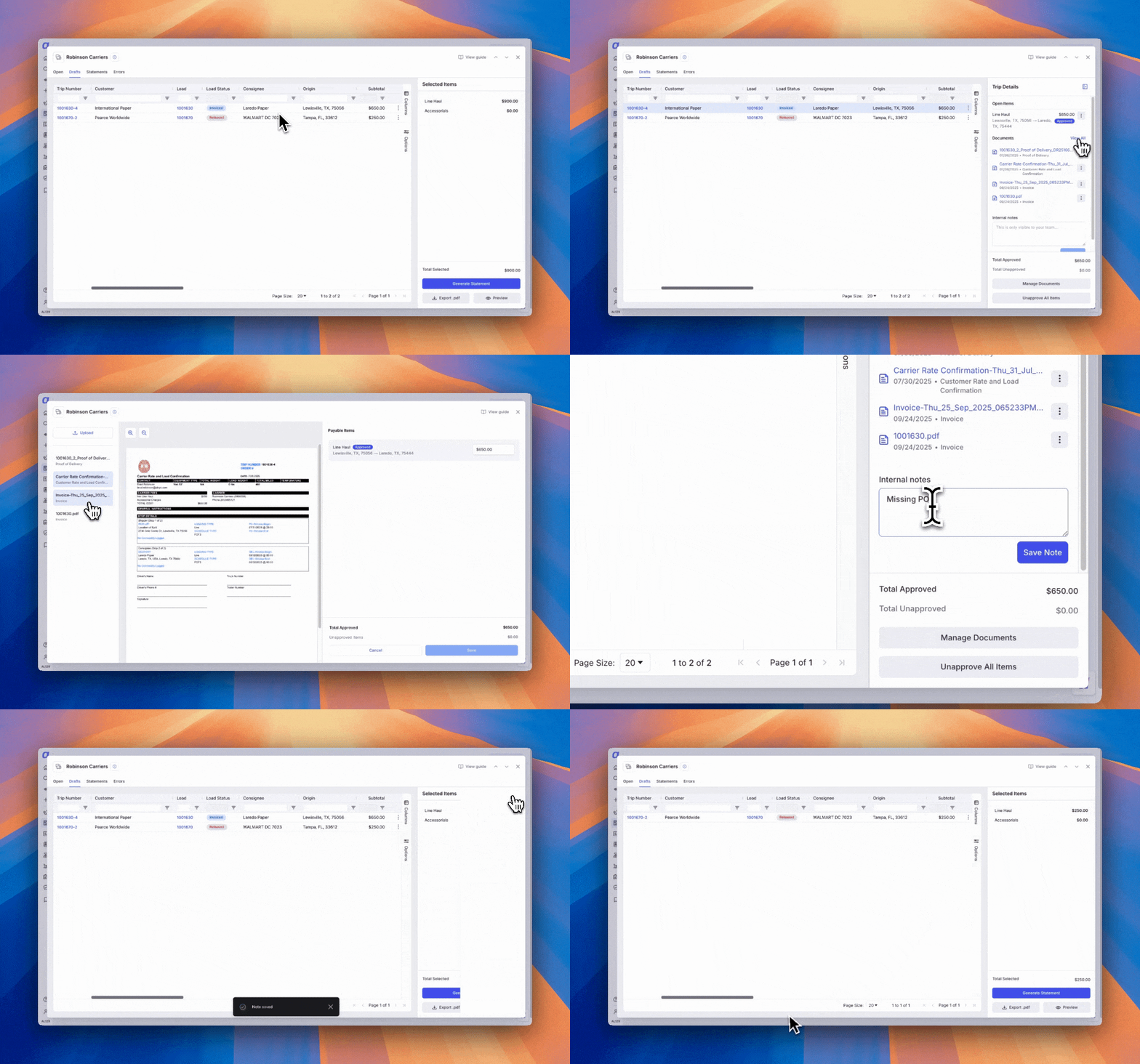
Finalize and generate the settlement
Once you are ready to create a statement, select Generate, set the remittance date, and select a carrier email to share it with if needed. This kicks off the process to sync your statement with your accounting system (if enabled).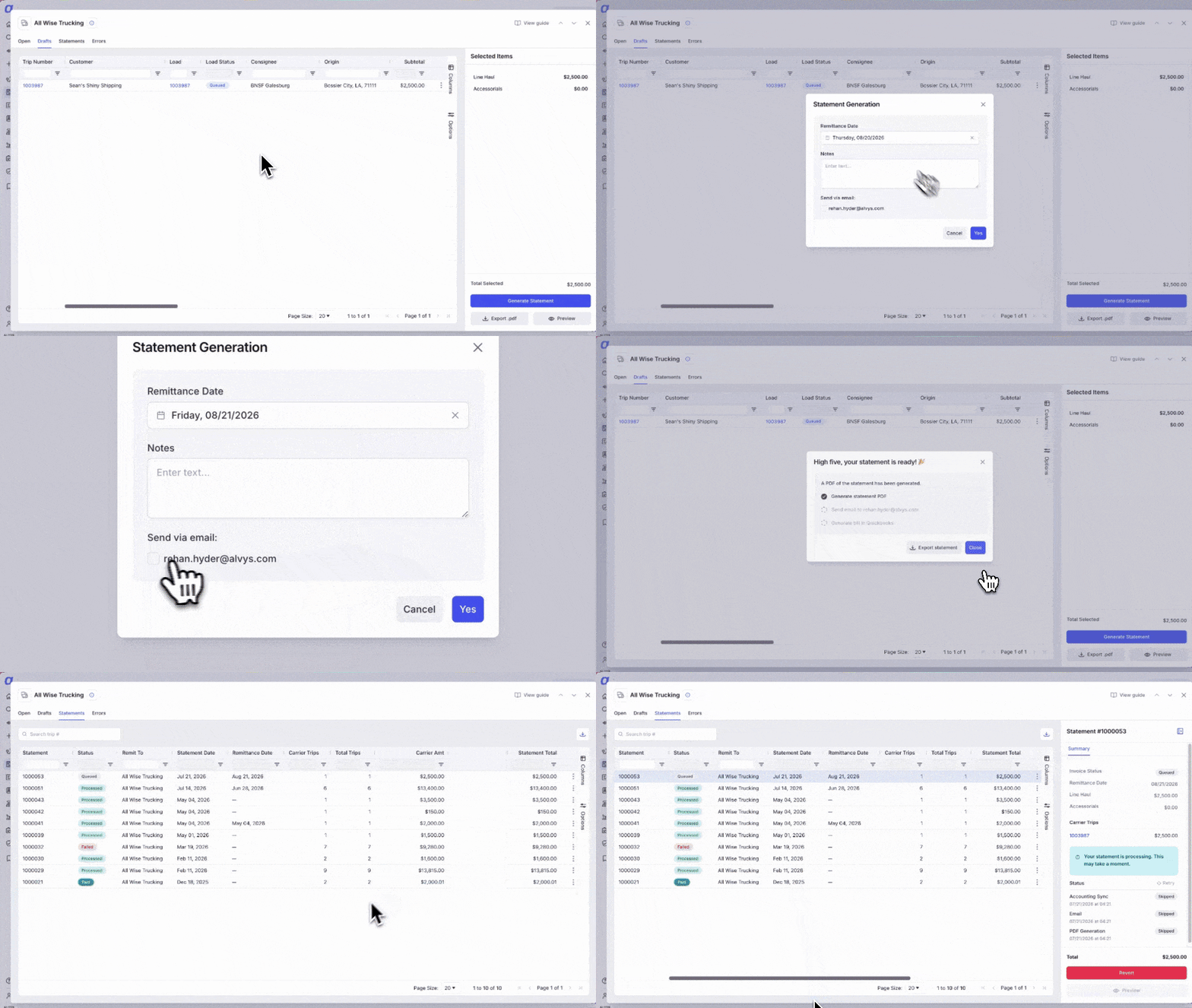
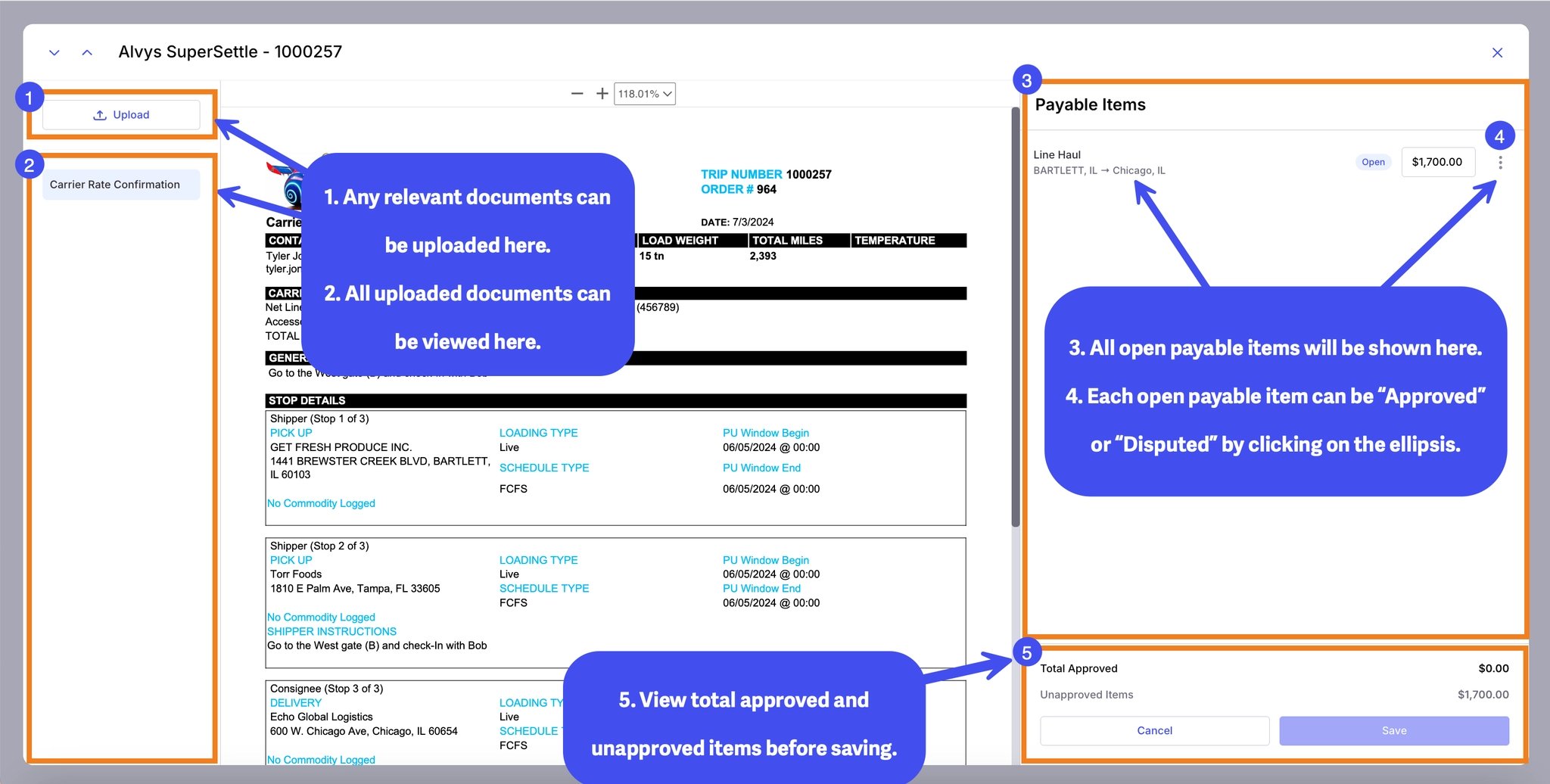
Reviewing payable items with Super Settle View
Super Settle View provides an expanded view for reviewing, approving, and disputing all payable items for a single trip in one place, alongside the trip’s documents.- From the Open or Drafts tab, select a trip.
- Click View All to open Super Settle View.
- Review attached documents in the Document Management section.
- Review payable items grouped by status (Open, Approved, Disputed).
- Click Approve on any item to approve it, or click Dispute to flag it for review.
Advanced Workflows
Remittance dates and payment terms
Remittance dates reflect when the carrier will be paid — the “term date”. To change the defaults, update the payment terms on the carrier’s profile. You can also set a custom remittance date while generating a statement.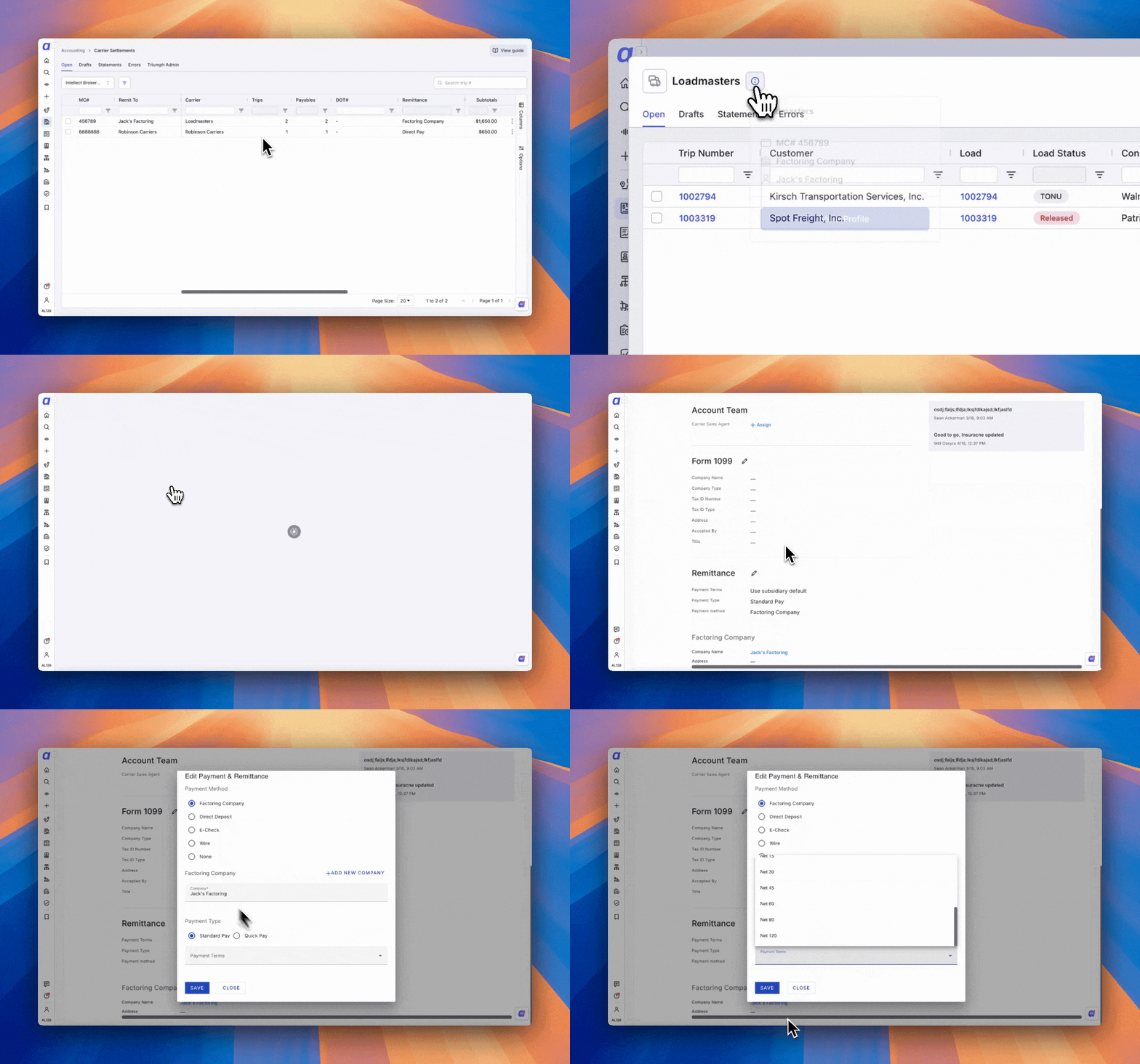
Add a remittance memo for a carrier
A remittance memo is a short optional note that prints on the carrier’s settlement statement so the carrier can recognize the payment when it arrives. It is meant as a hint the carrier already knows, such as a short reference they use for you. Do not enter a full bank account number. To add or change a memo:- Open the carrier’s profile and go to the Remittance section.
- Click Edit Payment & Remittance.
- Enter the note in the Memo field. It holds up to 64 characters.
- Save.
Show or hide the memo on carrier statements
Whether the memo prints on carrier statement PDFs is set for your whole company, not per carrier. Go to Settings > Carrier Settlements and use the Show carrier memo on statements setting. It is on by default. If you turn the setting off, the memo stops appearing on generated statement PDFs. The value you entered stays on the carrier profile and on the statement record, so turning the setting back on later needs no rework and nothing has to be re-entered.View carrier settlement status from the load
For brokered trips already on a carrier settlement statement, open the trip’s Load Detail Page and look for the Carrier Settlement panel. It shows the statement’s status, statement number, payment provider, date, Total / Paid / Remaining, the full list of Trips on this Statement (with the current trip highlighted), and the Payments ledger — all inline. Click the statement number to jump straight to that statement in Carrier Settlements.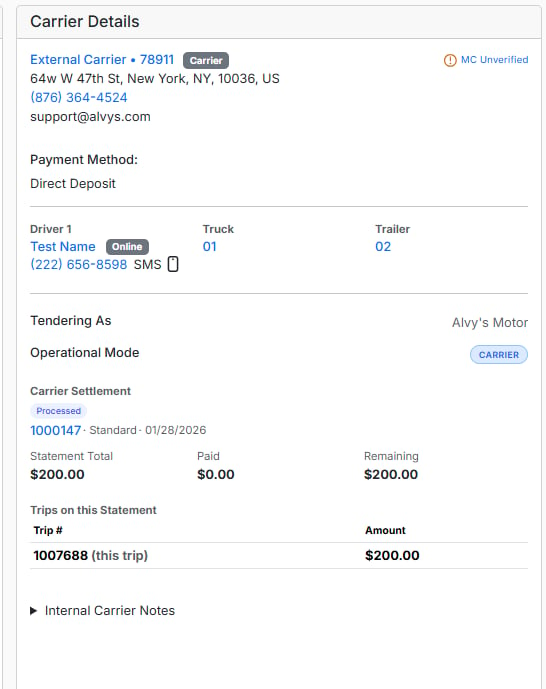
Once a trip is added to a statement, the old per-trip Payments table and Add Carrier Payments option are hidden, since payment is now managed at the statement level. The Carrier Invoice # still displays on the Load Detail Page.
Marking a statement as paid
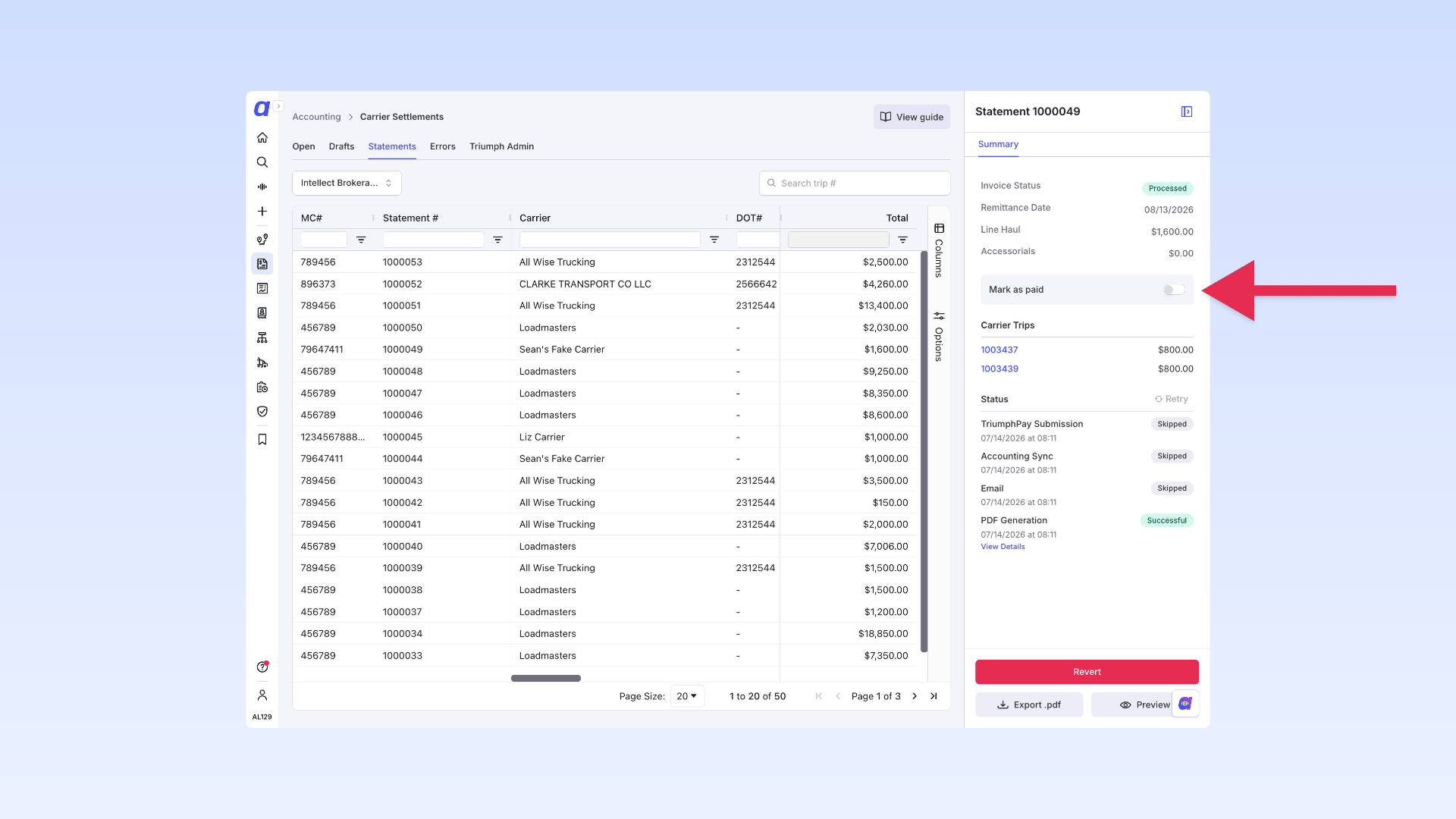
Statements are normally marked paid automatically when the matching carrier bill is paid in your accounting system. To update a carrier settlement statement manually:- Go to Accounting > Carrier Settlements and open the Statements tab.
- Locate the statement you want to update.
- Click the Mark as Paid action in the sidebar.
Settings & Permissions
Carrier Settlements access is enabled or disabled per user from the Billing column in the user’s profile.💡 View Carrier Rate and View Payable Amount permissions are not yet supported in Carrier Settlements. These are on the roadmap.
Limits & Behavior
Trip status updates on statement generation
When a carrier settlement statement is generated, trip statuses update automatically: A trip in Delivered or Released status moves to Invoiced when a statement is generated. It moves to Completed once the statement is marked paid. This only applies when every transaction on the trip is included in the statement.Carrier bill paid status syncs from accounting
When a carrier bill is marked paid in your accounting system (QuickBooks Online, and so on), the matching carrier statement in Alvys updates to paid automatically — you no longer need to manually mark statements as paid in Carrier Settlements to track it. This applies to carrier settlements only; customer invoicing is unchanged.Syncing with external accounting systems
Option 1: Turn on Carrier Settlements, which integrates with QuickBooks, Business Central, and NetSuite through your existing accounting integration settings. When both Carrier Settlements and Generate Carrier Invoice Separately are enabled, the Carrier Settlements setting takes precedence. [Legacy] Option 2: “Generate Carrier Invoice Separately” is a legacy option that creates a bill in your accounting system when a carrier invoice is uploaded to the trip. When using this option, disable the Carrier Settlements setting so that payments recorded in your accounting system flow back into Alvys.