> ## Documentation Index
> Fetch the complete documentation index at: https://docs.alvys.com/llms.txt
> Use this file to discover all available pages before exploring further.
# Pay Dispatchers
> Run dispatcher commission statements in the Pay Dispatchers module: assign dispatchers to trips, set the global statement and cutoff dates, and process pay.
📋 **Module:** Accounting > Pay Dispatchers
⚠️ Pay Dispatchers is an optional module that is not enabled by default. Contact Alvys support to request activation at the account level.
## Overview
The Pay Dispatchers module (dispatcher pay, dispatcher commissions, dispatcher payouts) manages dispatcher commission calculations and payment statements directly within Alvys. Once enabled, it appears under **Accounting** and lets you assign dispatchers to trips, configure commission rates, generate pay statements, and track payment status.
## Where to Find It
Go to **Accounting > Pay Dispatchers** after the module has been enabled for your account. The module has two primary areas: the **Unassigned** tab for trips without a dispatcher assigned, and individual dispatcher tabs showing each dispatcher's trips, commissions, and statement history. The **Statements** tab shows all generated statements.
## Key Concepts
### Statement statuses
Dispatcher pay statements move through four statuses:
**Unpaid** is the initial state. Trips and accessorials are available but no statement has been created.
**Draft** is the editing phase. A draft is created by selecting trips and accessorials and clicking **Save as Draft**. Drafts can be edited, emailed, downloaded, or reverted. A draft can be downloaded immediately after creation or from the Statements tab.
**Processed** means the statement has been finalized. Processed statements cannot be edited. They can be reverted, emailed, or downloaded. A statement moves to Processed by clicking **Generate Statement** from a draft, or directly from unpaid trips.
**Paid** is set manually. To mark a statement as paid, open the dispatcher profile, go to the **Statements** tab, open the dropdown next to the statement, select **Paid**, complete the **Change Paystub Status to Paid** dialog, and click **Save**.
### Global Statement Date and local statement date
The **Global Statement Date** applies to all dispatchers in a payment run unless overridden. A **local statement date** set on an individual dispatcher's tab applies only to that dispatcher's statement and overrides the global date for them.
### Cutoff Date
The Cutoff Date filters which trips appear for payment. Only trips with a delivery date on or before the Cutoff Date are included in the current run.
## How to Use It
### Assigning a dispatcher to unassigned trips
Trips that have no dispatcher assigned appear in the **Unassigned** tab. These trips can carry any of the following statuses: **TONU**, **Delivered**, **Released**, **Queued**, **Invoiced**, **Financed**, or **Completed**.
1. Select the trips you want to assign using the checkboxes.
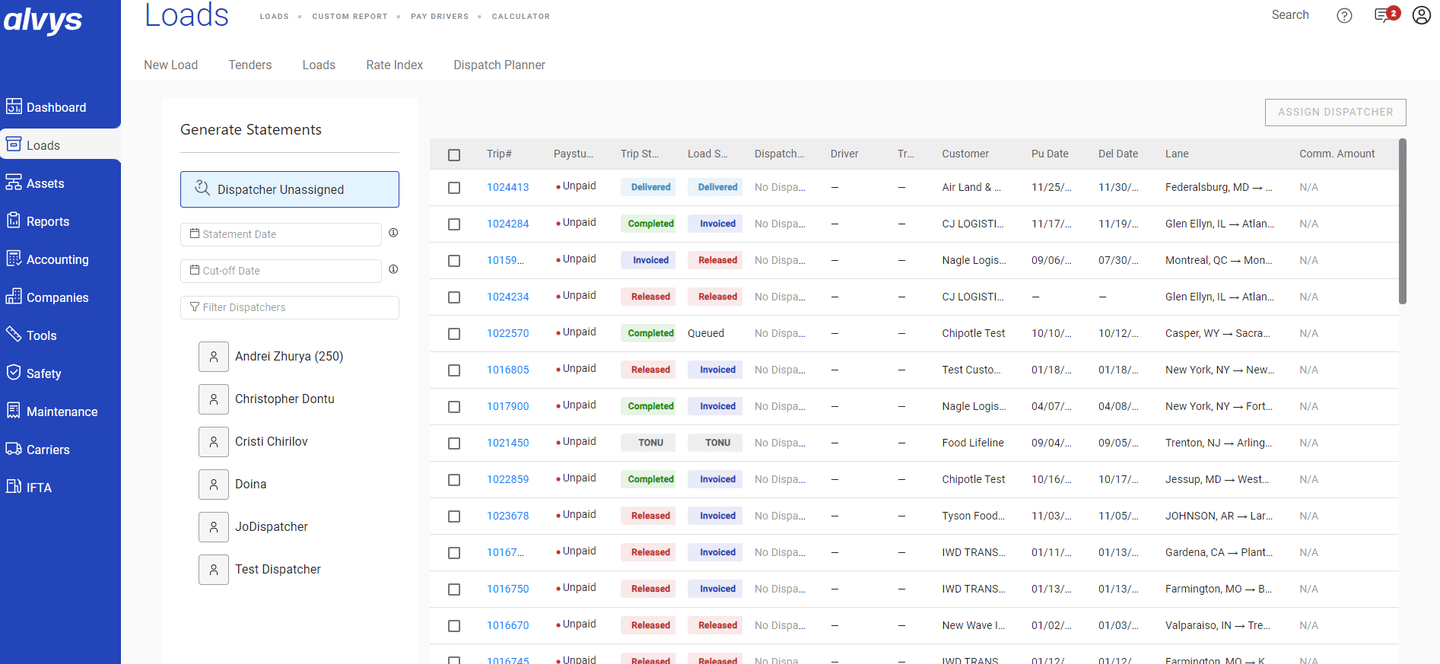 *Image showing trip rows selected via checkboxes in the Unassigned tab.*
2. Click **Assign Dispatcher**.
3. Select a dispatcher from the dropdown.
4. Click **Save**.
*Image showing trip rows selected via checkboxes in the Unassigned tab.*
*Image showing trip rows selected via checkboxes in the Unassigned tab.*
2. Click **Assign Dispatcher**.
3. Select a dispatcher from the dropdown.
4. Click **Save**.
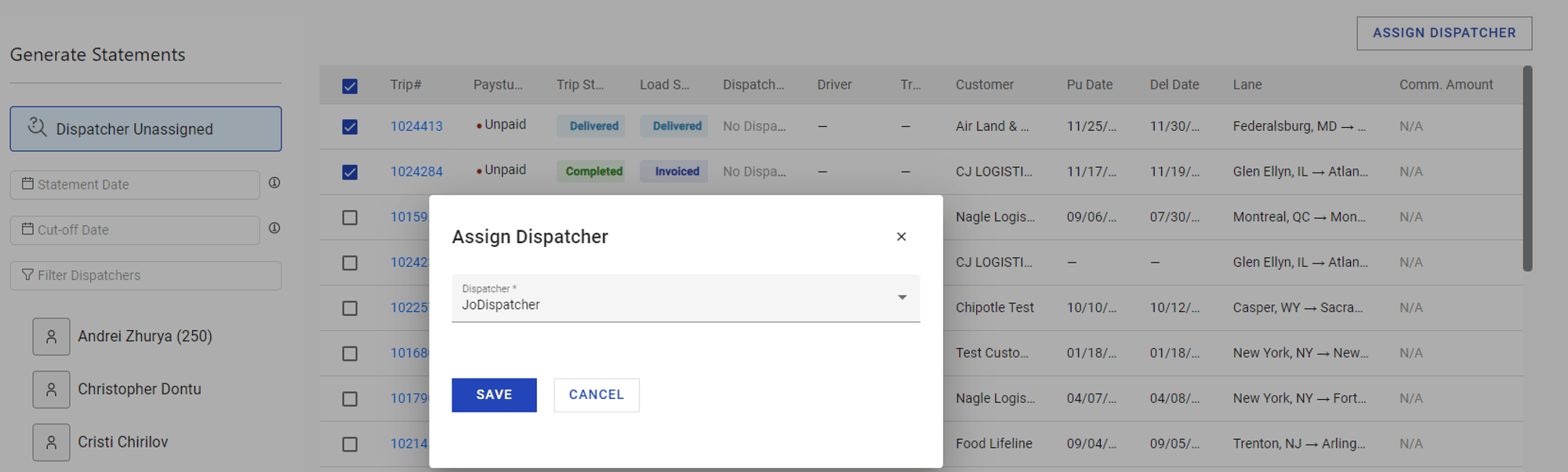 *Image showing the Assign Dispatcher dropdown with a dispatcher selected and the Save button.*
A success message confirms the assignment. The trips move from the Unassigned tab to the assigned dispatcher's tab.
*Image showing the Assign Dispatcher dropdown with a dispatcher selected and the Save button.*
A success message confirms the assignment. The trips move from the Unassigned tab to the assigned dispatcher's tab.
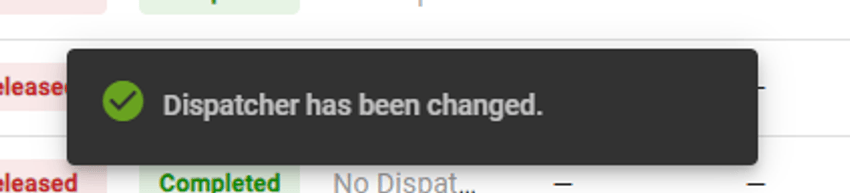 *Image showing the success confirmation message after assigning a dispatcher to trips.*
### Setting the Global Statement Date and Cutoff Date
1. Enter a date in the **Global Statement Date** field at the top of the module. Tooltips explain the effect of each date field.
2. Enter a date in the **Cutoff Date** field. Only trips delivered on or before this date are included in the run.
*Image showing the success confirmation message after assigning a dispatcher to trips.*
### Setting the Global Statement Date and Cutoff Date
1. Enter a date in the **Global Statement Date** field at the top of the module. Tooltips explain the effect of each date field.
2. Enter a date in the **Cutoff Date** field. Only trips delivered on or before this date are included in the run.
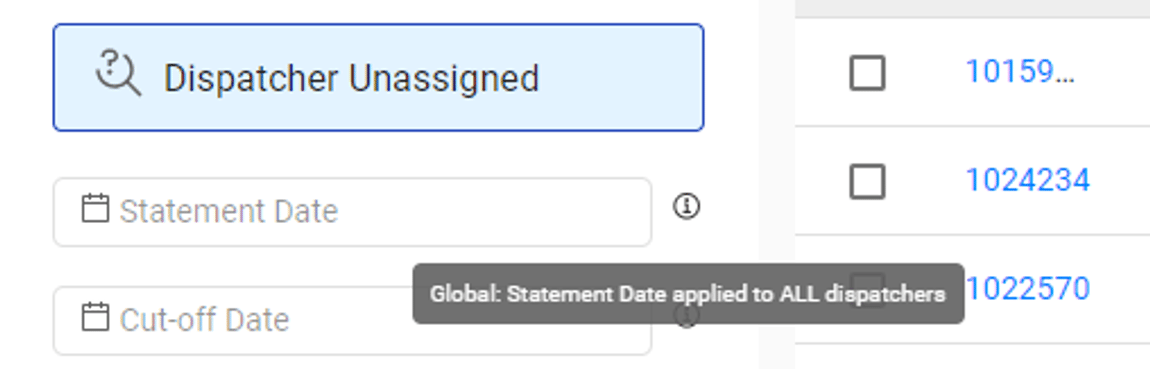 *Image showing the Global Statement Date and Cutoff Date fields with tooltips visible.*
### Filtering dispatchers
Use the dispatcher filter to navigate when working with a large number of dispatchers.
*Image showing the Global Statement Date and Cutoff Date fields with tooltips visible.*
### Filtering dispatchers
Use the dispatcher filter to navigate when working with a large number of dispatchers.
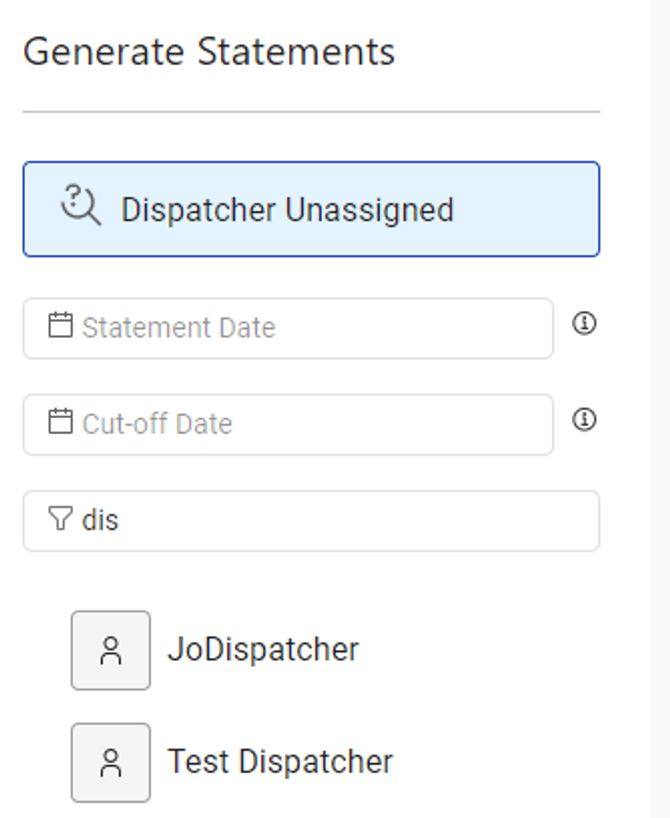 *Image showing the dispatcher filter in use.*
### Configuring commission rates for a dispatcher
A dispatcher tab appears for each user who meets all three conditions: active account, Dispatcher role, and payment details configured on their profile.
1. Open the dispatcher's tab.
2. Set the **trip commission**: either a fixed amount per trip or a percentage of the trip value.
3. Set the **accessorial commission**: percentage of accessorial value only.
4. Select the accessorials to include using the checkboxes.
5. Click **Save**.
*Image showing the dispatcher filter in use.*
### Configuring commission rates for a dispatcher
A dispatcher tab appears for each user who meets all three conditions: active account, Dispatcher role, and payment details configured on their profile.
1. Open the dispatcher's tab.
2. Set the **trip commission**: either a fixed amount per trip or a percentage of the trip value.
3. Set the **accessorial commission**: percentage of accessorial value only.
4. Select the accessorials to include using the checkboxes.
5. Click **Save**.
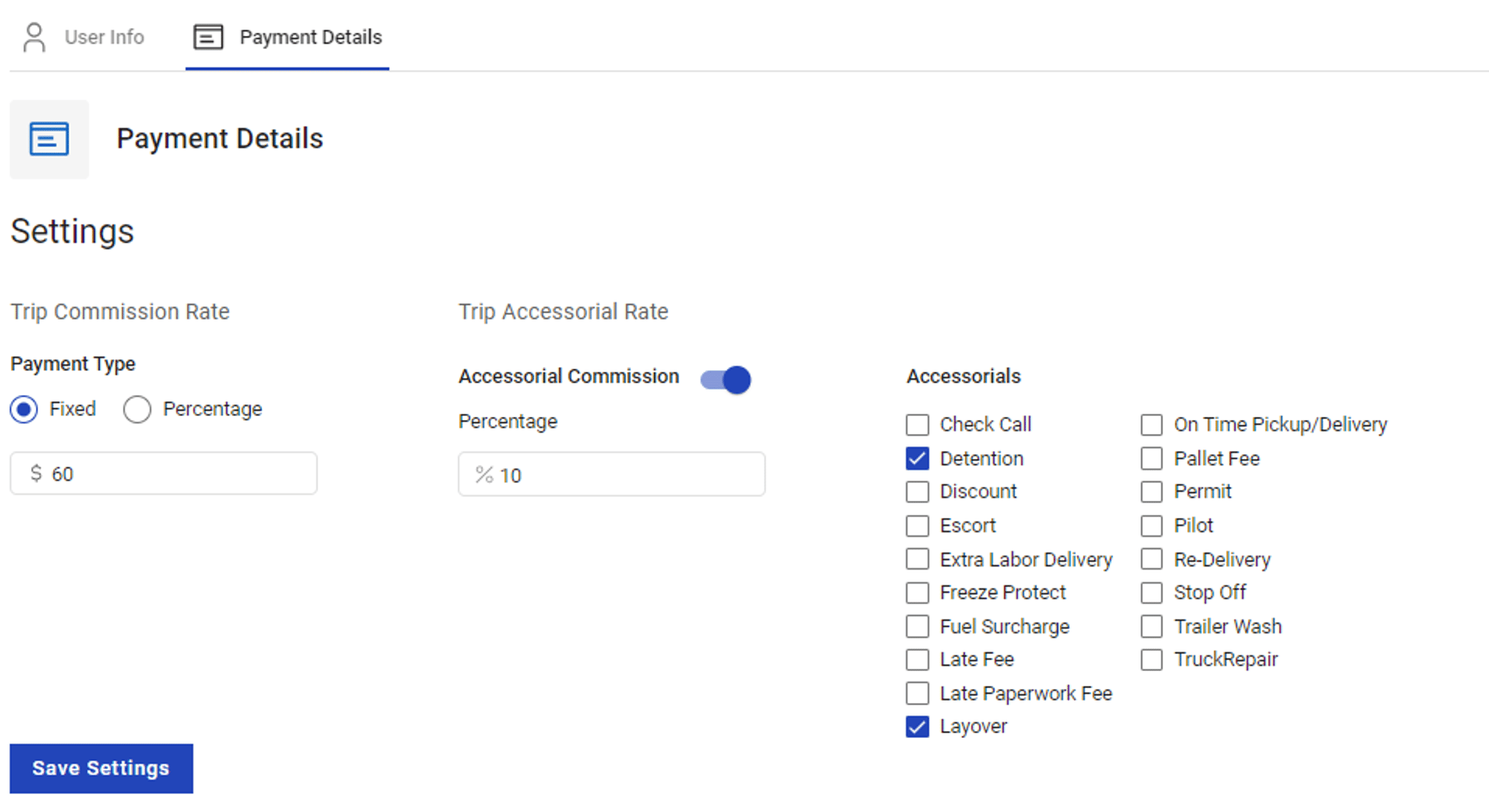 *Image showing the trip commission field, accessorial commission field, and accessorial checkboxes.*
### Setting a local statement date
Enter a date in the **local statement date** field on the individual dispatcher's tab. This overrides the Global Statement Date for that dispatcher's statement only.
*Image showing the trip commission field, accessorial commission field, and accessorial checkboxes.*
### Setting a local statement date
Enter a date in the **local statement date** field on the individual dispatcher's tab. This overrides the Global Statement Date for that dispatcher's statement only.
 *Image showing the local statement date field on an individual dispatcher tab.*
### Creating a draft statement
1. From a dispatcher's tab, select the trips and accessorials to include.
2. Click **Save as Draft**.
*Image showing the local statement date field on an individual dispatcher tab.*
### Creating a draft statement
1. From a dispatcher's tab, select the trips and accessorials to include.
2. Click **Save as Draft**.
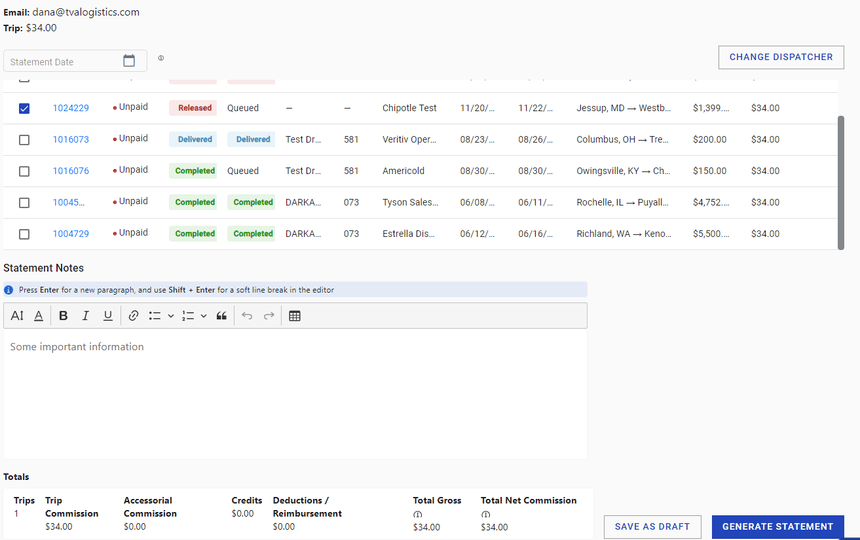 *Image showing selected trips and accessorials with the Save as Draft button.*
The draft appears in the Statements tab and can be edited, emailed, or downloaded immediately.
*Image showing selected trips and accessorials with the Save as Draft button.*
The draft appears in the Statements tab and can be edited, emailed, or downloaded immediately.
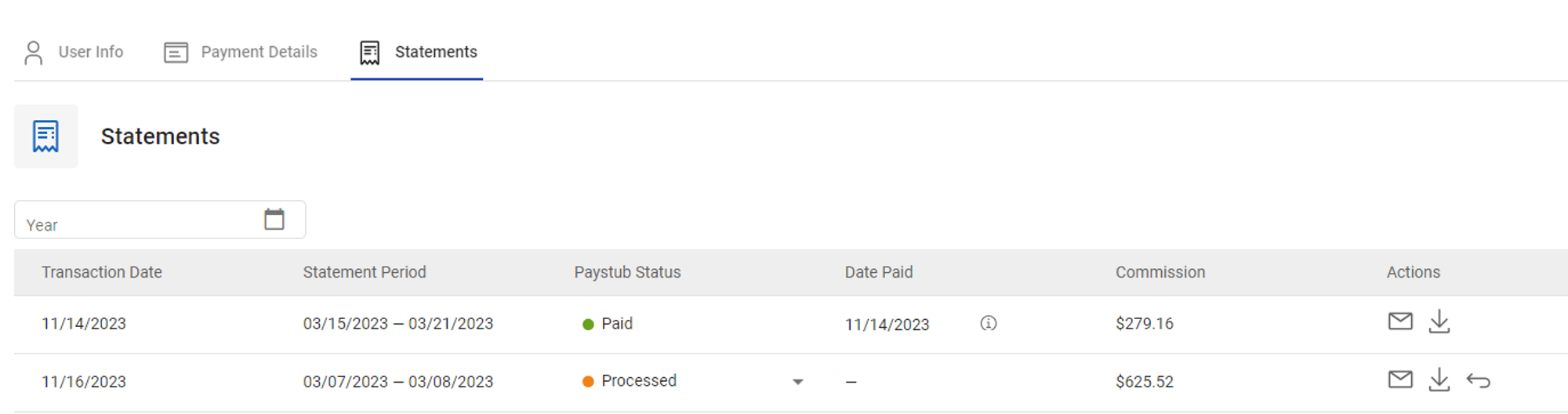 *Image showing a draft statement in the Statements tab with Edit, Email, Download, and Revert actions.*
### Generating a processed statement
To generate from a draft, open the draft and click **Generate Statement**. To generate from unpaid trips directly, select trips and accessorials and click **Generate Statement** without saving a draft first.
The statement moves to **Processed** status and can be emailed or downloaded. Use **Revert** to move it back to Draft if changes are needed.
### Marking a statement as paid
1. Open the dispatcher profile and go to the **Statements** tab.
2. Open the dropdown next to the statement and select **Paid**.
3. Complete the **Change Paystub Status to Paid** dialog.
4. Click **Save**.
*Image showing a draft statement in the Statements tab with Edit, Email, Download, and Revert actions.*
### Generating a processed statement
To generate from a draft, open the draft and click **Generate Statement**. To generate from unpaid trips directly, select trips and accessorials and click **Generate Statement** without saving a draft first.
The statement moves to **Processed** status and can be emailed or downloaded. Use **Revert** to move it back to Draft if changes are needed.
### Marking a statement as paid
1. Open the dispatcher profile and go to the **Statements** tab.
2. Open the dropdown next to the statement and select **Paid**.
3. Complete the **Change Paystub Status to Paid** dialog.
4. Click **Save**.
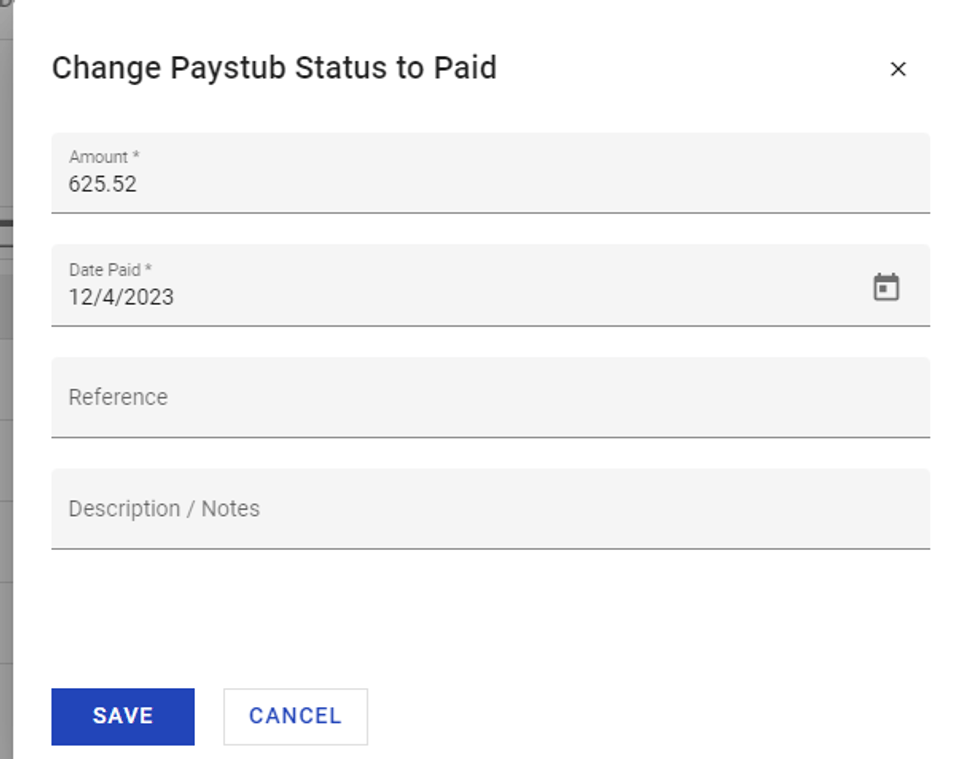 *Change Paystub Status to Paid dialog*
## Settings & Permissions
Pay Dispatchers is enabled at the account level upon request. Contact Alvys support to request activation. Once enabled, generating and managing dispatcher pay statements requires the relevant pay permissions: **"PayDriver"** and **"EditPaystubs"** to create and edit statements, and **"ViewPaystubs"** to view them. Contact your Alvys Admin if any action is unavailable.
## Limits & Behavior
A dispatcher tab only appears for users who meet all three conditions: active account, Dispatcher role, and payment details configured on their profile.
Accessorial commissions are percentage-based only. Trip commissions can be set as either a fixed amount per trip or a percentage of the trip value.
A draft statement can be downloaded immediately after creation without navigating to the Statements tab.
A Processed statement cannot be edited. Click **Revert** to move it back to Draft status, make changes, and generate it again.
## FAQs
**Q:** How do I get Pay Dispatchers enabled for my account?
**A:** Contact Alvys support to request activation. Pay Dispatchers is not enabled by default and is activated at the account level upon request.
**Q:** Why is a dispatcher not appearing in the Pay Dispatchers module?
**A:** A dispatcher only appears when all three conditions are met: their account is active, their user role is set to Dispatcher, and payment details are configured on their profile. Check each of these if a dispatcher is missing.
**Q:** Can I set different commission rates for different dispatchers?
**A:** Yes. Commission rates are configured per dispatcher from each dispatcher's individual tab within the module.
**Q:** What is the difference between the Global Statement Date and the local statement date?
**A:** The Global Statement Date applies to all dispatchers in a payment run. A local statement date set on an individual dispatcher's tab applies only to that dispatcher and overrides the global date for their statement.
**Q:** Can I revert a statement that has already been sent to a dispatcher?
**A:** Yes. A Processed statement can be reverted to Draft status using the **Revert** action. After reverting, you can edit the draft and generate a new statement.
*Change Paystub Status to Paid dialog*
## Settings & Permissions
Pay Dispatchers is enabled at the account level upon request. Contact Alvys support to request activation. Once enabled, generating and managing dispatcher pay statements requires the relevant pay permissions: **"PayDriver"** and **"EditPaystubs"** to create and edit statements, and **"ViewPaystubs"** to view them. Contact your Alvys Admin if any action is unavailable.
## Limits & Behavior
A dispatcher tab only appears for users who meet all three conditions: active account, Dispatcher role, and payment details configured on their profile.
Accessorial commissions are percentage-based only. Trip commissions can be set as either a fixed amount per trip or a percentage of the trip value.
A draft statement can be downloaded immediately after creation without navigating to the Statements tab.
A Processed statement cannot be edited. Click **Revert** to move it back to Draft status, make changes, and generate it again.
## FAQs
**Q:** How do I get Pay Dispatchers enabled for my account?
**A:** Contact Alvys support to request activation. Pay Dispatchers is not enabled by default and is activated at the account level upon request.
**Q:** Why is a dispatcher not appearing in the Pay Dispatchers module?
**A:** A dispatcher only appears when all three conditions are met: their account is active, their user role is set to Dispatcher, and payment details are configured on their profile. Check each of these if a dispatcher is missing.
**Q:** Can I set different commission rates for different dispatchers?
**A:** Yes. Commission rates are configured per dispatcher from each dispatcher's individual tab within the module.
**Q:** What is the difference between the Global Statement Date and the local statement date?
**A:** The Global Statement Date applies to all dispatchers in a payment run. A local statement date set on an individual dispatcher's tab applies only to that dispatcher and overrides the global date for their statement.
**Q:** Can I revert a statement that has already been sent to a dispatcher?
**A:** Yes. A Processed statement can be reverted to Draft status using the **Revert** action. After reverting, you can edit the draft and generate a new statement.