
📋 Applies to: Admins · Partner Admins · SupportModule: Administration > BillingSwitch your Alvys billing payment method from credit or debit card to ACH bank transfer to avoid the 2.9% card processing fee that applies starting May 1, 2026.
Overview
ACH (Automated Clearing House) payments, also called bank draft, direct debit, or ACH payment, let you pay your Alvys subscription directly from a bank account with no additional processing charge. Starting May 1, 2026, a 2.9% processing fee applies to all credit card and debit card payments made to Alvys. This fee is charged by the card processor, not by Alvys, and reflects standard card processing costs. Switching to ACH removes this fee entirely. Alvys uses Stripe to process ACH payments through a secure, encrypted connection. Your bank account is verified either instantly (by logging in through Stripe’s portal) or manually (via small micro-deposits sent to your account).Before You Start
Required role: Admin, Partner Admin, or Support. Access to the Billing page is restricted to these roles. If you do not see a Billing option in your user menu, your account does not have the required role. Contact support@alvys.com for assistance. Have your bank account number and routing number available before you begin. If your bank does not support Stripe instant verification, you will need to complete a Bank Draft (ACH) Authorization Form instead (see the manual verification path below).Steps
- Open the Billing page
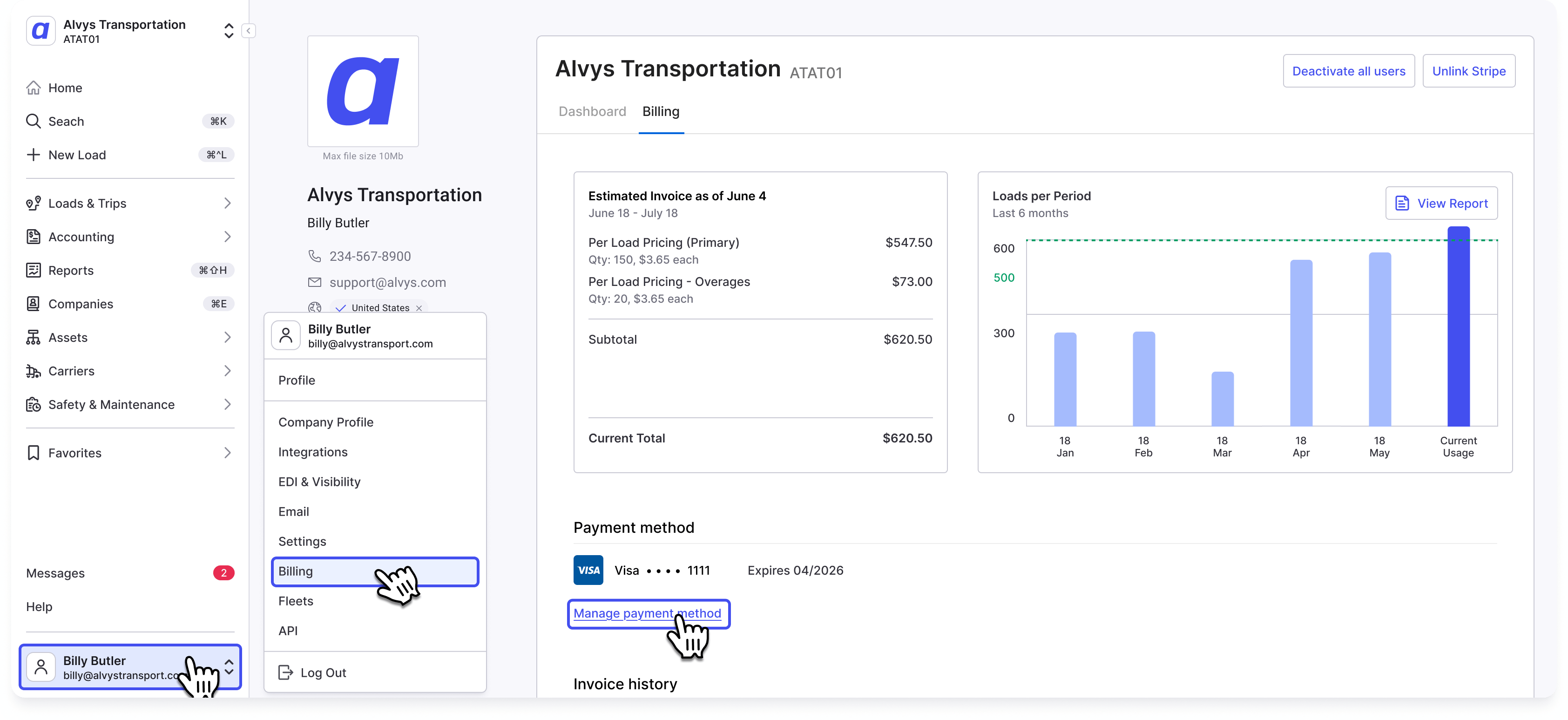
Click your user icon in the bottom-left corner of Alvys and select Billing. You can also navigate directly to Administration > Billing.
- Open Manage Payment Methods
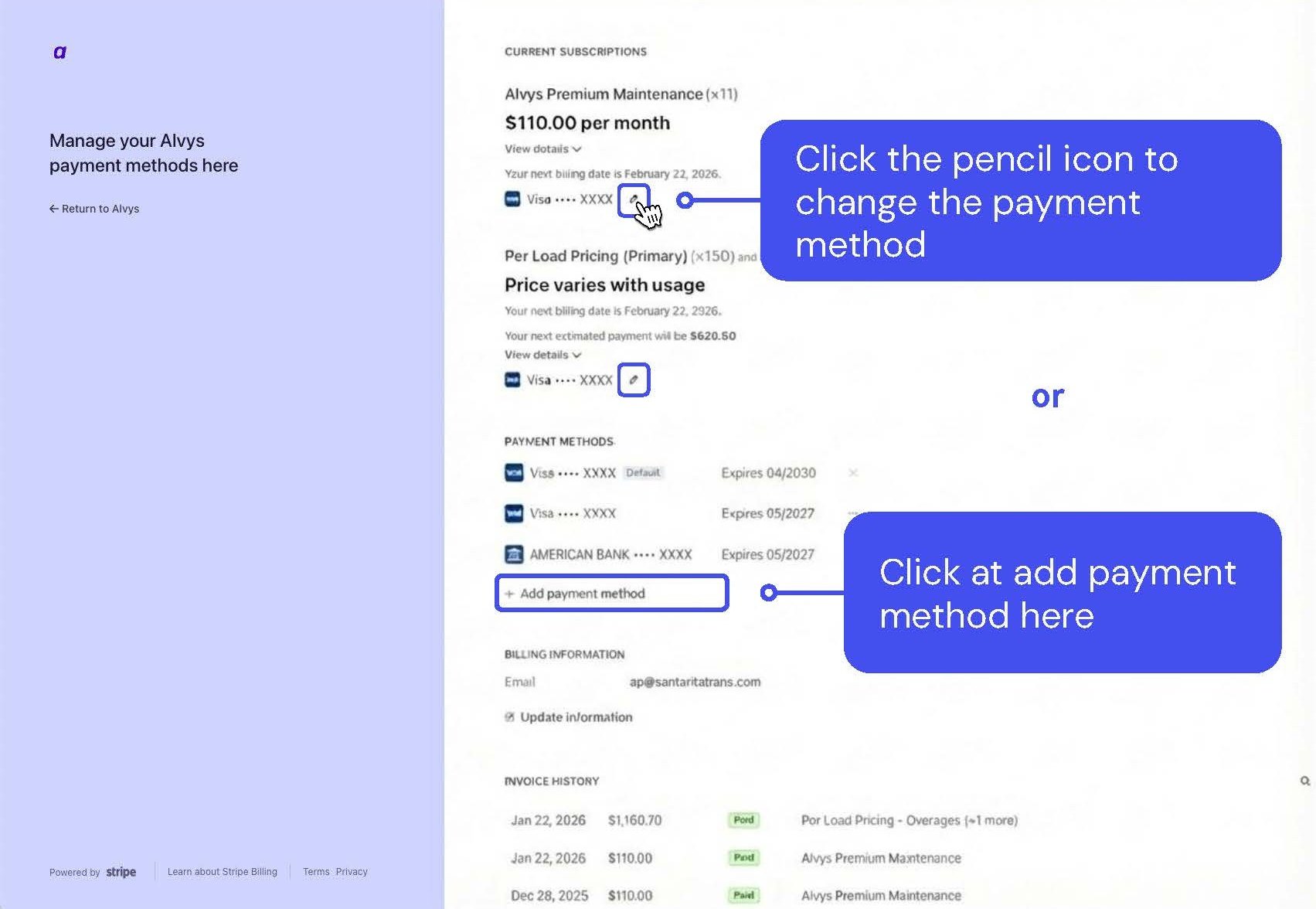
Find the Manage Payment Methods section at the center of the Billing page. Click it to be redirected to the Stripe payment portal. From this portal, you can update the payment method for each active subscription on your account. Note: each subscription can have its own payment method, so you may need to update multiple subscriptions.
- Add a bank account
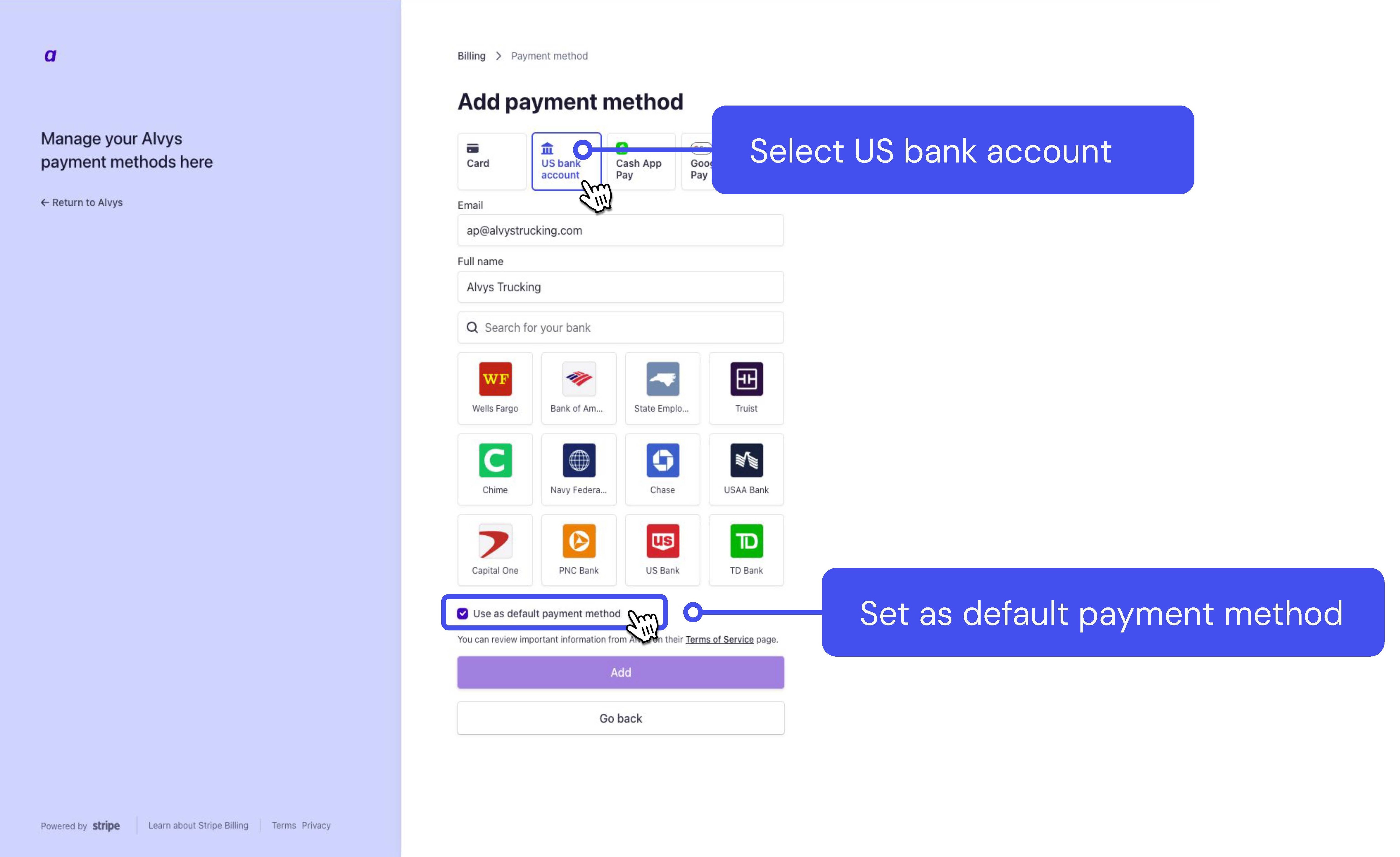
Click Add payment method. Select US Bank account for US-based accounts, or Pre-Authorized Debit for non-US-based accounts.
- Verify your bank account
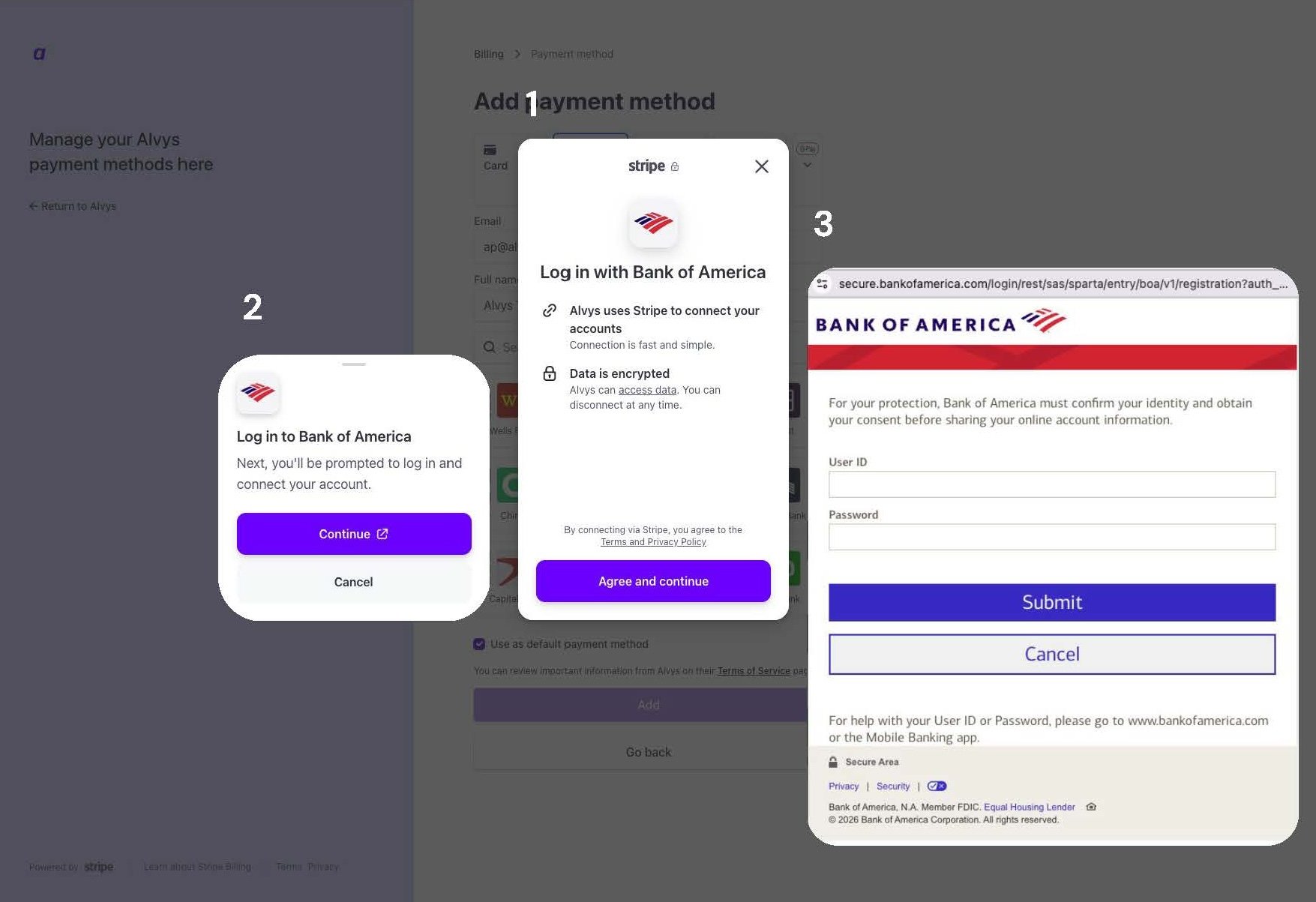
- Set the bank account as your default payment method Once verified, set your bank account as the default payment method. This is important because each active subscription on your account can have its own payment method assigned. Only subscriptions with a bank account set as default are exempt from the 2.9% credit card processing surcharge. Subscriptions that retain a card on file will continue to incur the surcharge.
- Remove your previous payment method (optional)