> ## Documentation Index
> Fetch the complete documentation index at: https://docs.alvys.com/llms.txt
> Use this file to discover all available pages before exploring further.
# A partner says they never received a message
> Use the EDI Activity page to find out whether Alvys delivered an EDI message to your trading partner, what the partner's system said about it, and what to do next.
If a trading partner says they never received an EDI message, find the message on the **EDI Activity** page and read its **Delivery Status**. That tells you whether Alvys sent it. The **Acknowledgment Status** tells you what your partner's system did with it.
## Before you start
* You need the **"ParticipateInTender"** permission to see **EDI Activity**. If you do not see it, ask an Admin to check your permissions.
* **EDI Activity** is rolling out to accounts in stages. If your account does not have it yet, you will not see the tab.
* Have the partner's Shipment ID or the load details ready, so you can find the message quickly.
## Find the message
1. Click your username in the bottom-left corner and select **EDI & Visibility**.
2. Click the **EDI Activity** tab.
3. Find the message by **Customer**, **Transaction Type**, or **Shipment ID**.
4. Read **Delivery Status** on that row. Then follow the section below that matches it.
To see **Acknowledgment Status**, click **Columns** on the right side of the page and select **Acknowledgment Status**. This column is off by default.
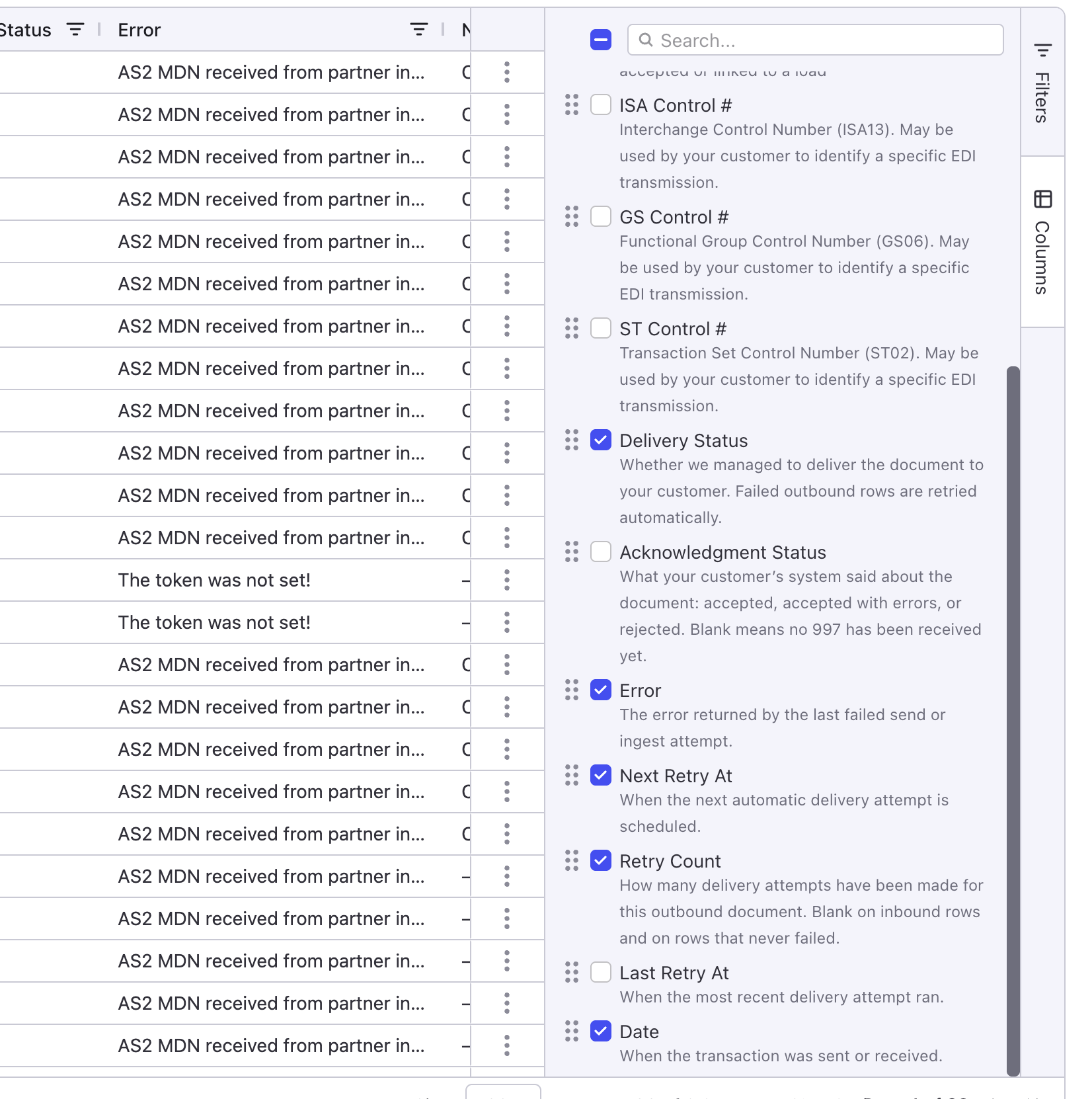 *The Columns panel. Acknowledgment Status is off by default.*
## The Delivery Status is Delivered
Alvys sent the message and the connection did not report a problem. Now check what your partner's system did with it.
1. Read **Acknowledgment Status** on the row.
2. Match it to one of these results:
| Acknowledgment Status | What it means | What to do |
| - | - | - |
| **Rejected** | Your partner's system received the message but refused to process it. | Download the 997 to see why, then share it with your partner. See [Download the 997](#download-the-997). |
| Blank | Your partner's system has not sent a reply yet. | Wait, then check again. If it stays blank, ask your partner whether they received the message. |
| **Accepted** | Your partner's system received the message and accepted it. | Ask your partner to look again on their side. They may be checking the wrong place or the wrong date. |
| **AcceptedWithErrors** | Your partner's system received the message but found problems in it. | Download the 997 to see the problems, then send them to your partner. |
## The Delivery Status is Failed
Alvys could not deliver the message, so your partner did not receive it.
1. Read the **Error** column to see the reason.
2. Check **Next Retry At** and **Retry Count**. Alvys retries failed messages automatically, so a retry may already be on the way. If **Next Retry At** is empty and the **Error** starts with "Automatic retries have ended", Alvys has stopped trying and the message needs a resend.
3. To send it now, click the three dots at the end of the row and click **Resend**. See [How to resend a failed EDI delivery](/en/help/integrations/how-to-resend-a-failed-edi-delivery) for the full steps.
4. Check that **Delivery Status** changes to **Delivered**.
If the message keeps failing after a resend, see [If none of this fixes it](#if-none-of-this-fixes-it).
## The Delivery Status is Pending
Alvys is still working on the message and has not finished sending it.
1. Check the row again later.
2. If it stays **Pending**, see [If none of this fixes it](#if-none-of-this-fixes-it).
## Confirm what Alvys sent
To show your partner exactly what was sent, download the EDI file.
1. Click the three dots at the end of the row, or right-click the row.
2. Click **Export EDI File**.
3. Send the file to your partner, or open it to check its contents.
*The Columns panel. Acknowledgment Status is off by default.*
## The Delivery Status is Delivered
Alvys sent the message and the connection did not report a problem. Now check what your partner's system did with it.
1. Read **Acknowledgment Status** on the row.
2. Match it to one of these results:
| Acknowledgment Status | What it means | What to do |
| - | - | - |
| **Rejected** | Your partner's system received the message but refused to process it. | Download the 997 to see why, then share it with your partner. See [Download the 997](#download-the-997). |
| Blank | Your partner's system has not sent a reply yet. | Wait, then check again. If it stays blank, ask your partner whether they received the message. |
| **Accepted** | Your partner's system received the message and accepted it. | Ask your partner to look again on their side. They may be checking the wrong place or the wrong date. |
| **AcceptedWithErrors** | Your partner's system received the message but found problems in it. | Download the 997 to see the problems, then send them to your partner. |
## The Delivery Status is Failed
Alvys could not deliver the message, so your partner did not receive it.
1. Read the **Error** column to see the reason.
2. Check **Next Retry At** and **Retry Count**. Alvys retries failed messages automatically, so a retry may already be on the way. If **Next Retry At** is empty and the **Error** starts with "Automatic retries have ended", Alvys has stopped trying and the message needs a resend.
3. To send it now, click the three dots at the end of the row and click **Resend**. See [How to resend a failed EDI delivery](/en/help/integrations/how-to-resend-a-failed-edi-delivery) for the full steps.
4. Check that **Delivery Status** changes to **Delivered**.
If the message keeps failing after a resend, see [If none of this fixes it](#if-none-of-this-fixes-it).
## The Delivery Status is Pending
Alvys is still working on the message and has not finished sending it.
1. Check the row again later.
2. If it stays **Pending**, see [If none of this fixes it](#if-none-of-this-fixes-it).
## Confirm what Alvys sent
To show your partner exactly what was sent, download the EDI file.
1. Click the three dots at the end of the row, or right-click the row.
2. Click **Export EDI File**.
3. Send the file to your partner, or open it to check its contents.
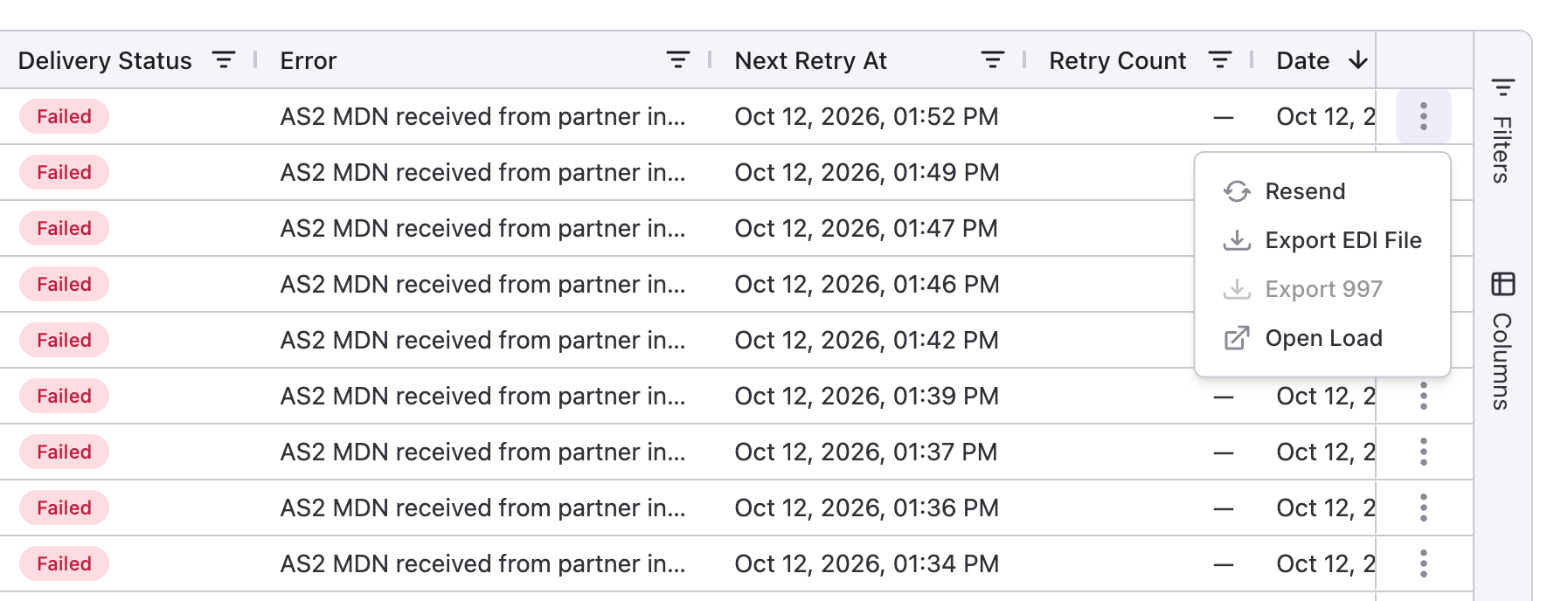 *The row menu. Export 997 is greyed out when no reply has come back.*
If **Export EDI File** is greyed out, the file is not available for that message.
## Download the 997
The 997 is your partner's reply. It says whether they accepted the message and lists any problems.
1. Click the three dots at the end of the row, or right-click the row.
2. Click **Export 997**.
If **Export 997** is greyed out, your partner has not sent a reply for that message yet.
## If none of this fixes it
Contact Alvys Support. Include the **Shipment ID**, the **Transaction Type**, the date shown in the **Date** column, and the **Delivery Status** and **Error** you see. See [How to contact Alvys Support](/en/help/getting-started/how-to-contact-alvys-support).
## Go deeper
* [How to resend a failed EDI delivery](/en/help/integrations/how-to-resend-a-failed-edi-delivery)
* [EDI Overview](/en/help/integrations/edi-overview)
*The row menu. Export 997 is greyed out when no reply has come back.*
If **Export EDI File** is greyed out, the file is not available for that message.
## Download the 997
The 997 is your partner's reply. It says whether they accepted the message and lists any problems.
1. Click the three dots at the end of the row, or right-click the row.
2. Click **Export 997**.
If **Export 997** is greyed out, your partner has not sent a reply for that message yet.
## If none of this fixes it
Contact Alvys Support. Include the **Shipment ID**, the **Transaction Type**, the date shown in the **Date** column, and the **Delivery Status** and **Error** you see. See [How to contact Alvys Support](/en/help/getting-started/how-to-contact-alvys-support).
## Go deeper
* [How to resend a failed EDI delivery](/en/help/integrations/how-to-resend-a-failed-edi-delivery)
* [EDI Overview](/en/help/integrations/edi-overview)