> ## Documentation Index
> Fetch the complete documentation index at: https://docs.alvys.com/llms.txt
> Use this file to discover all available pages before exploring further.
# Carrier Settlements
> Approve carrier payable items, generate carrier settlement statements, email statements to carriers, and sync carrier pay to QuickBooks or NetSuite.
## Overview
Carrier Settlements (also called carrier pay, carrier payables, or carrier statements) in Alvys allows brokers to manage carrier payables, generate carrier payment statements, and sync settlement data to external accounting systems including QuickBooks, Business Central, and NetSuite. The module provides a centralized place to review and approve carrier payable items, generate settlement statements, email statements directly to carriers, and sync payment data to external accounting systems. The module includes Super Settle View for consolidated payable item review, statement status tracking, and automatic trip status updates on statement generation.
## Where to Find It
Go to **Accounting > Carrier Settlements** to access the module. The module includes four tabs: **Open** (items pending review), **Drafts** (approved items pending statement generation), **Statements** (completed statements), and **Errors** (failed transactions).
## Key Concepts
### Payable items
Payable items are the individual line items associated with a carrier's trip. Within Carrier Settlements, each item can be in one of three states: **Open** (pending review), **Approved** (approved for payment), or **Disputed** (flagged for review).
### Carrier settlement statements
A carrier settlement statement consolidates one or more approved payable items into a single payment record for a carrier. Statements can be downloaded as PDFs or emailed directly to the carrier from within Alvys.
### Statement statuses
Statements move through four statuses: **Queued** (being processed), **Processed** (generation complete), **Paid** (manually marked as paid in Alvys), and **Failed** (an error occurred during processing).
## How to Use It
### Reviewing payable items with Super Settle View
Super Settle View provides an expanded view for reviewing, approving, and disputing all payable items for a single trip in one place, alongside the trip's documents.
1. From the **Open** or **Drafts** tab, select a trip.
2. Click **View All** to open Super Settle View.
3. Review attached documents in the Document Management section.
4. Review payable items grouped by status (Open, Approved, Disputed).
5. Click **Approve** on any item to approve it, or click **Dispute** to flag it for review.
Image showing Super Settle View with payable items, document management, and the approval and dispute action buttons.
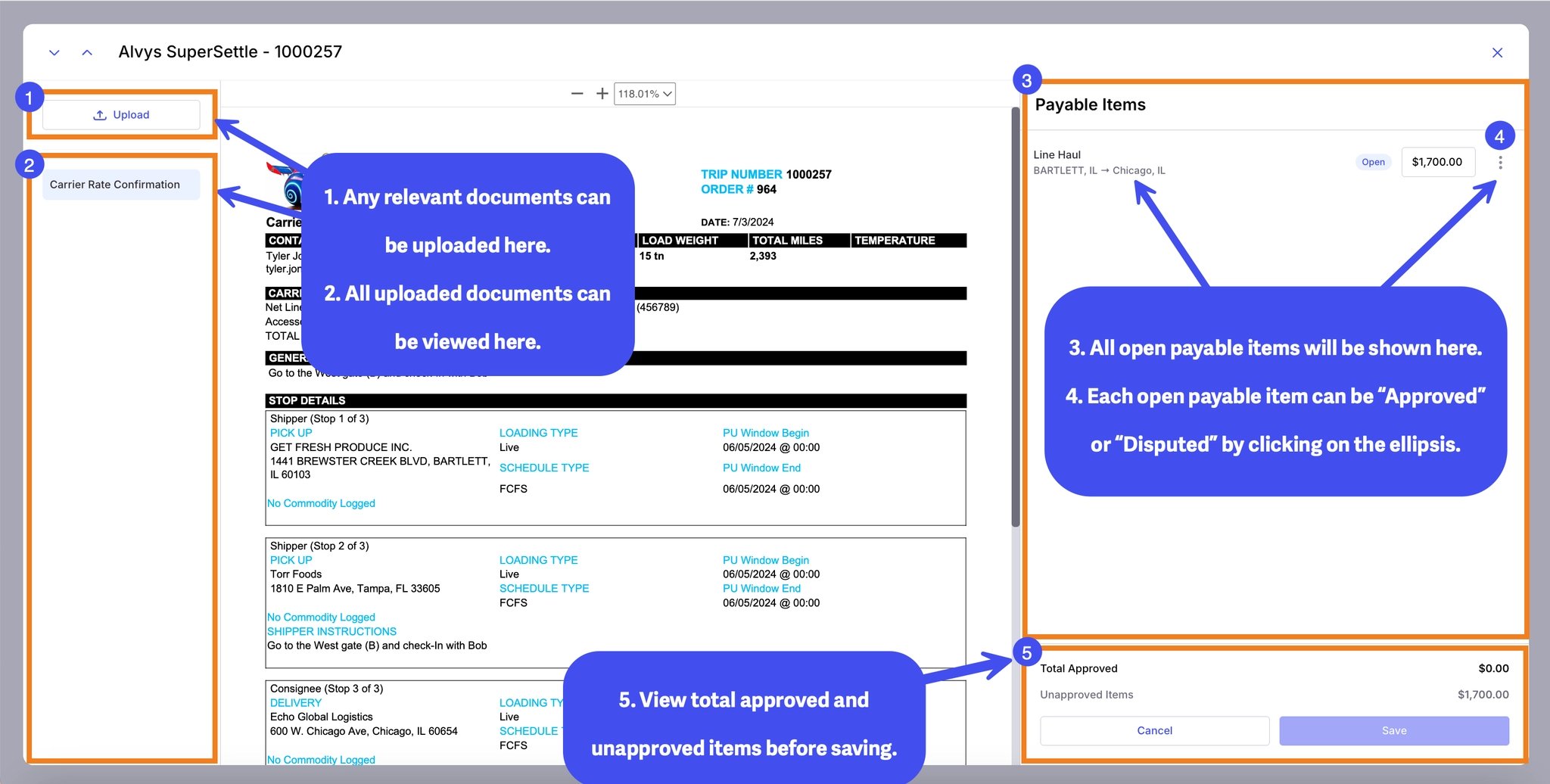 ### Generating and emailing a carrier settlement statement
1. From the **Drafts** tab, select a carrier.
2. Click **Generate Statement** to create a settlement statement.
3. Use the email option to send the statement directly to the carrier's email address.
### Marking a statement as paid
Payments recorded in a third-party accounting system do not sync back to Alvys when Carrier Settlements is enabled. To mark a statement as paid directly in Alvys:
1. Go to **Accounting > Carrier Settlements** and open the **Statements** tab.
2. Find the statement you want to update.
3. Click **Mark as Paid**.
## Settings & Permissions
Four permissions control access to Carrier Settlements features:
**"ApprovePayableItems"** allows the user to approve or dispute payable items on a carrier trip. Available to Admin and Biller roles.
**"CreateCarrierStatement"** allows the user to generate carrier settlement statements. Available to Admin and Biller roles.
**"RevertCarrierStatement"** allows the user to revert a generated carrier settlement statement. Available to Admin roles only.
**"EditCarrierRate"** allows the user to modify carrier linehaul charges. Available to Admin and Biller roles.
Carrier Settlements access is enabled or disabled per user from the **Billing** column in the user's profile.
💡 View Carrier Rate and View Payable Amount permissions are not yet supported in Carrier Settlements. These are on the roadmap.
## Limits & Behavior
### Trip status updates on statement generation
When a carrier settlement statement is generated, trip statuses update automatically:
A trip in **Delivered** or **Released** status moves to **Invoiced** when a statement is generated. A trip in **Invoiced** status moves to **Completed** when the statement is marked as paid. These status changes only apply when all transactions on the trip are included in statements.
### Syncing with external accounting systems
Carrier Settlements integrates with QuickBooks, Business Central, and NetSuite through your existing accounting integration settings.
When both Carrier Settlements and **Generate Carrier Invoice Separately** are enabled, the Carrier Settlements setting takes precedence.
Payments recorded in a third-party accounting system do not sync back to Alvys when Carrier Settlements is enabled. To record payment in Alvys, use **Mark as Paid** from the Statements tab.
To allow payment sync from your accounting system to Alvys, disable the Carrier Settlements setting. This changes the sync direction so that payments recorded in your accounting system flow back into Alvys.
### Generating and emailing a carrier settlement statement
1. From the **Drafts** tab, select a carrier.
2. Click **Generate Statement** to create a settlement statement.
3. Use the email option to send the statement directly to the carrier's email address.
### Marking a statement as paid
Payments recorded in a third-party accounting system do not sync back to Alvys when Carrier Settlements is enabled. To mark a statement as paid directly in Alvys:
1. Go to **Accounting > Carrier Settlements** and open the **Statements** tab.
2. Find the statement you want to update.
3. Click **Mark as Paid**.
## Settings & Permissions
Four permissions control access to Carrier Settlements features:
**"ApprovePayableItems"** allows the user to approve or dispute payable items on a carrier trip. Available to Admin and Biller roles.
**"CreateCarrierStatement"** allows the user to generate carrier settlement statements. Available to Admin and Biller roles.
**"RevertCarrierStatement"** allows the user to revert a generated carrier settlement statement. Available to Admin roles only.
**"EditCarrierRate"** allows the user to modify carrier linehaul charges. Available to Admin and Biller roles.
Carrier Settlements access is enabled or disabled per user from the **Billing** column in the user's profile.
💡 View Carrier Rate and View Payable Amount permissions are not yet supported in Carrier Settlements. These are on the roadmap.
## Limits & Behavior
### Trip status updates on statement generation
When a carrier settlement statement is generated, trip statuses update automatically:
A trip in **Delivered** or **Released** status moves to **Invoiced** when a statement is generated. A trip in **Invoiced** status moves to **Completed** when the statement is marked as paid. These status changes only apply when all transactions on the trip are included in statements.
### Syncing with external accounting systems
Carrier Settlements integrates with QuickBooks, Business Central, and NetSuite through your existing accounting integration settings.
When both Carrier Settlements and **Generate Carrier Invoice Separately** are enabled, the Carrier Settlements setting takes precedence.
Payments recorded in a third-party accounting system do not sync back to Alvys when Carrier Settlements is enabled. To record payment in Alvys, use **Mark as Paid** from the Statements tab.
To allow payment sync from your accounting system to Alvys, disable the Carrier Settlements setting. This changes the sync direction so that payments recorded in your accounting system flow back into Alvys.
 *Screenshot of the Accounting Integration settings*
## FAQs
**Q: Can I use Carrier Settlements if Generate Carrier Invoice Separately is also enabled?**
**A:** Yes, but the Carrier Settlements setting takes precedence. When both settings are active, carrier settlement statements are used rather than separate carrier invoices.
**Q: Why do payments I record in my accounting system not appear in Alvys?**
**A:** When Carrier Settlements is enabled, payment data does not sync from your accounting system back to Alvys. To record a payment in Alvys, go to **Accounting > Carrier Settlements > Statements**, find the statement, and click **Mark as Paid**. Alternatively, disable the Carrier Settlements setting to allow payment sync from your accounting system to Alvys.
**Q: Which roles can revert a carrier settlement statement?**
**A:** Only users with the Admin role and the **"RevertCarrierStatement"** permission can revert a carrier settlement statement. Biller users cannot revert statements.
**Q: What happens to a payable item in Disputed status?**
**A:** Disputed items are flagged for review and are not included in the next statement generation until resolved. They remain visible in Super Settle View and can be approved or left in Disputed status.
**Q: What does it mean when a statement shows a Failed status?**
**A:** A Failed status means an error occurred during statement processing. Contact Alvys support with the statement details so the team can investigate the cause and help you regenerate it.
*Screenshot of the Accounting Integration settings*
## FAQs
**Q: Can I use Carrier Settlements if Generate Carrier Invoice Separately is also enabled?**
**A:** Yes, but the Carrier Settlements setting takes precedence. When both settings are active, carrier settlement statements are used rather than separate carrier invoices.
**Q: Why do payments I record in my accounting system not appear in Alvys?**
**A:** When Carrier Settlements is enabled, payment data does not sync from your accounting system back to Alvys. To record a payment in Alvys, go to **Accounting > Carrier Settlements > Statements**, find the statement, and click **Mark as Paid**. Alternatively, disable the Carrier Settlements setting to allow payment sync from your accounting system to Alvys.
**Q: Which roles can revert a carrier settlement statement?**
**A:** Only users with the Admin role and the **"RevertCarrierStatement"** permission can revert a carrier settlement statement. Biller users cannot revert statements.
**Q: What happens to a payable item in Disputed status?**
**A:** Disputed items are flagged for review and are not included in the next statement generation until resolved. They remain visible in Super Settle View and can be approved or left in Disputed status.
**Q: What does it mean when a statement shows a Failed status?**
**A:** A Failed status means an error occurred during statement processing. Contact Alvys support with the statement details so the team can investigate the cause and help you regenerate it.