> ## Documentation Index
> Fetch the complete documentation index at: https://docs.alvys.com/llms.txt
> Use this file to discover all available pages before exploring further.
# How to Request Detention Payment by Email
> Send a customer detention payment request email straight from a load stop in Alvys, using pre-filled stop details and your configured billing contacts.
Send a detention payment request email directly from a stop on a load. The email is pre-filled with stop details and uses your company's configured detention email settings for the From, To, and CC addresses.
## Overview
When a driver is delayed at a pickup or delivery stop beyond the scheduled appointment time, you can request detention payment from the customer without leaving the load. Alvys generates the email automatically using the stop's details and your company's Email Management settings.
Detention request email is also called: detention billing email, stop detention email, driver detention request.
## Before You Start
* The stop must be checked out. The **Request Detention** button appears only when the stop status is **PickedUp** (pickup stops) or **Empty** (delivery stops).
* Stops that were auto-completed, where arrival and departure were stamped at the same time with zero dwell time, are not eligible for detention billing and do not show the **Request Detention** button.
* An Admin or Partner Admin must configure detention email defaults in Company Profile before anyone on the team can send detention requests. If no defaults are configured, the To and CC fields in the email draft will be empty.
## Steps
1. Configure detention email defaults. This step is completed by an Admin or Partner Admin only.
2. Select your username in the upper-right corner and choose **Company Profile**.
3. Select the **Subsidiaries** tab and click the subsidiary you want to configure.
4. Click the **Email Management** tab.
5. Scroll to the **Detention** section and set the following fields:
* **From:** Choose one of three options. **Default** sends from [no-reply@alvys.com](mailto:no-reply@alvys.com). **User** sends from the logged-in user's email address. **Custom** lets you enter a specific outbound email address for detention requests.
* **To:** Enter the default recipient email for detention requests (typically the customer's operations or billing contact).
* **CC:** Enter any email addresses to be copied on every detention request.
6. Click **Save**.
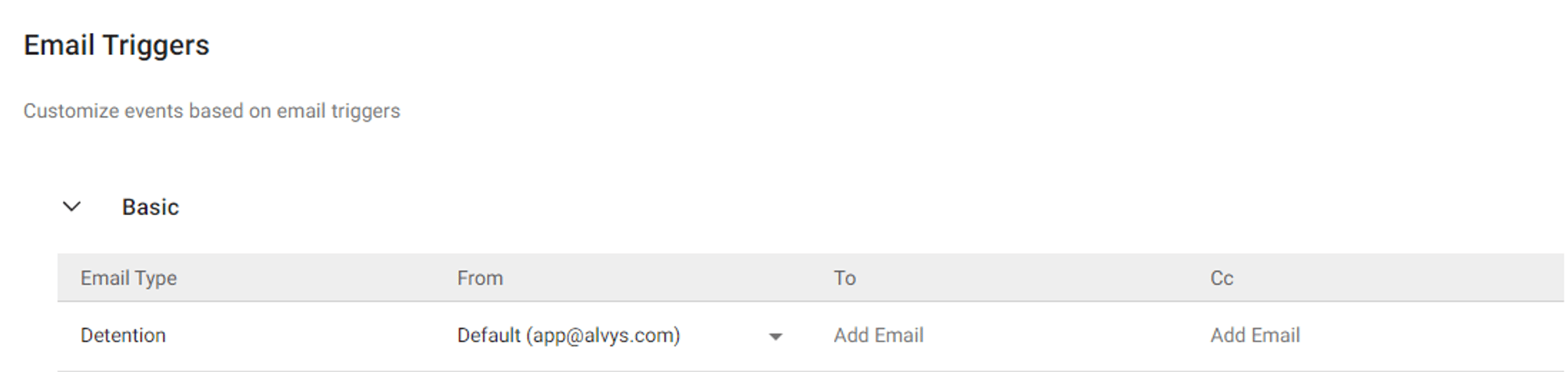 *Screenshot of the Email Management tab showing the Detention section with From, To, and CC fields*
7. Send a detention request from a stop.
8. Open the load and scroll to the **Stops** section on the load details page.
9. Locate the stop where detention occurred. The **Request Detention** button appears only when the stop status is **PickedUp** or **Empty**.
10. Click **Request Detention**.
*Screenshot of the Email Management tab showing the Detention section with From, To, and CC fields*
7. Send a detention request from a stop.
8. Open the load and scroll to the **Stops** section on the load details page.
9. Locate the stop where detention occurred. The **Request Detention** button appears only when the stop status is **PickedUp** or **Empty**.
10. Click **Request Detention**.
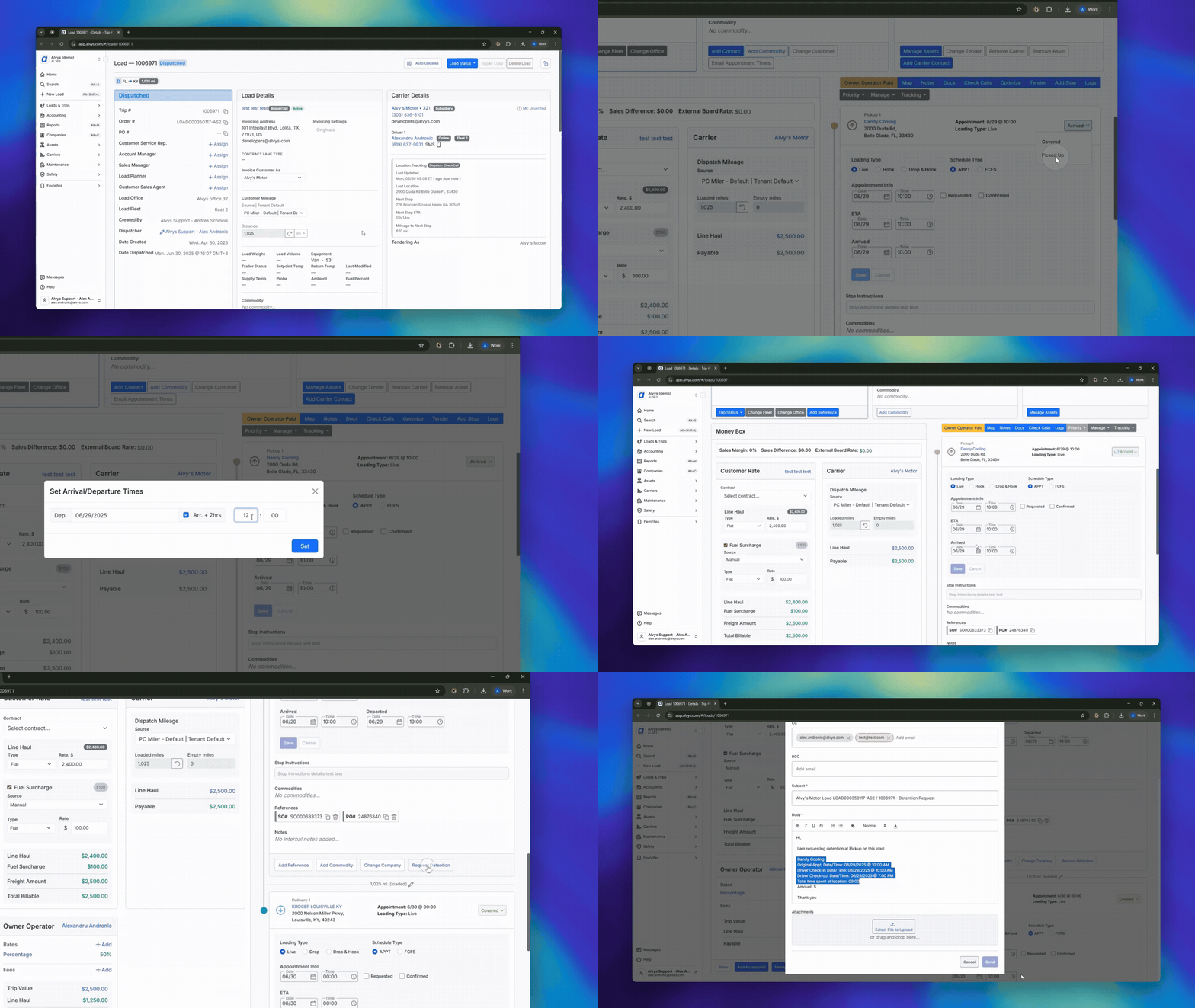 \*Screenshot of the Email Management tab showing the Detention section with From, To, and CC fields. \*
11. Review the pre-filled email draft. The subject line and body are generated automatically and include the load number, stop company name, original appointment date and time, and driver check-in and check-out times.
* The From address reflects the Email Management setting for your subsidiary.
* The To field is pre-filled with the customer's operations email and the Detention To address from Email Management.
* The CC field uses the Detention CC address from Email Management.
12. Edit the draft as needed, then click **Send**.
## Result
The detention request email is sent to the customer. The load record reflects that a detention request was submitted for that stop.
## Troubleshooting
### Request Detention button is not visible
1. Confirm the stop has been checked out. The button appears only when the stop status is **PickedUp** or **Empty**. If the stop has not yet been checked out, the button does not appear.
2. Check whether the stop was auto-completed. Stops where arrival and departure were stamped at the same time (zero dwell time) are not eligible for detention billing.
3. If the stop is checked out, was not auto-completed, and the button still does not appear, contact Alvys support.
### Email draft is missing To or CC addresses
1. Confirm that the Detention To and CC fields are configured in Email Management for your subsidiary. Go to your username > **Company Profile** > **Subsidiaries** > select your subsidiary > **Email Management** > **Detention**.
2. Confirm the load's **Invoice As** subsidiary matches the subsidiary where you configured the settings. Each subsidiary has its own Email Management configuration.
## FAQs
**Q: Can I send a detention request before the driver checks out?**
**A:** No. The Request Detention button only appears after the driver has checked out of the stop, when the stop status is **PickedUp** or **Empty**.
**Q: What email address does the detention request come from?**
**A:** This depends on the From setting in Email Management for your subsidiary. **Default** sends from [no-reply@alvys.com](mailto:no-reply@alvys.com), **User** sends from the logged-in user's email address, and **Custom** sends from the address your admin configured.
**Q: Why is a stop not eligible for detention billing?**
**A:** Stops that were auto-completed have the same arrival and departure timestamp, meaning the actual dwell time at the stop is unknown. These stops cannot be used for detention billing.
\*Screenshot of the Email Management tab showing the Detention section with From, To, and CC fields. \*
11. Review the pre-filled email draft. The subject line and body are generated automatically and include the load number, stop company name, original appointment date and time, and driver check-in and check-out times.
* The From address reflects the Email Management setting for your subsidiary.
* The To field is pre-filled with the customer's operations email and the Detention To address from Email Management.
* The CC field uses the Detention CC address from Email Management.
12. Edit the draft as needed, then click **Send**.
## Result
The detention request email is sent to the customer. The load record reflects that a detention request was submitted for that stop.
## Troubleshooting
### Request Detention button is not visible
1. Confirm the stop has been checked out. The button appears only when the stop status is **PickedUp** or **Empty**. If the stop has not yet been checked out, the button does not appear.
2. Check whether the stop was auto-completed. Stops where arrival and departure were stamped at the same time (zero dwell time) are not eligible for detention billing.
3. If the stop is checked out, was not auto-completed, and the button still does not appear, contact Alvys support.
### Email draft is missing To or CC addresses
1. Confirm that the Detention To and CC fields are configured in Email Management for your subsidiary. Go to your username > **Company Profile** > **Subsidiaries** > select your subsidiary > **Email Management** > **Detention**.
2. Confirm the load's **Invoice As** subsidiary matches the subsidiary where you configured the settings. Each subsidiary has its own Email Management configuration.
## FAQs
**Q: Can I send a detention request before the driver checks out?**
**A:** No. The Request Detention button only appears after the driver has checked out of the stop, when the stop status is **PickedUp** or **Empty**.
**Q: What email address does the detention request come from?**
**A:** This depends on the From setting in Email Management for your subsidiary. **Default** sends from [no-reply@alvys.com](mailto:no-reply@alvys.com), **User** sends from the logged-in user's email address, and **Custom** sends from the address your admin configured.
**Q: Why is a stop not eligible for detention billing?**
**A:** Stops that were auto-completed have the same arrival and departure timestamp, meaning the actual dwell time at the stop is unknown. These stops cannot be used for detention billing.