> ## Documentation Index
> Fetch the complete documentation index at: https://docs.alvys.com/llms.txt
> Use this file to discover all available pages before exploring further.
# Paystub Layout Templates
> Preview and switch the active Alvys paystub layout template used for driver, owner operator, and truck statements from your Company Profile settings.
Alvys offers multiple paystub layout template options (paystub designs, statement layouts) for driver statements. Admins and PartnerAdmins can preview and switch the active layout at any time from Company Profile.
## Overview
Alvys offers several layout options for the design of driver paystubs, owner operator paystubs, and truck paystubs. The active layout is applied whenever a paystub is generated. The preferred layout can be changed at any time.
## How It Works
The active paystub layout is stored at the company level and applied automatically whenever a paystub is generated. The process of generating paystubs remains unchanged; the system checks the active layout in the background. Changing the layout takes effect for paystubs generated after the change and does not alter paystubs that were already produced. The same active layout applies to all Driver, Owner Operator, and Truck paystubs across the company.
## How to Use It
You must have the **Admin** or **PartnerAdmin** role to access Company Profile settings.
1. Click your user profile icon in the bottom left corner of Alvys.
2. Select **Company Profile** from the menu.
3. On the Company Profile page, click the **General Info** tab.
4. Scroll to the bottom of the tab to find the **Driver Paystub Templates** section.
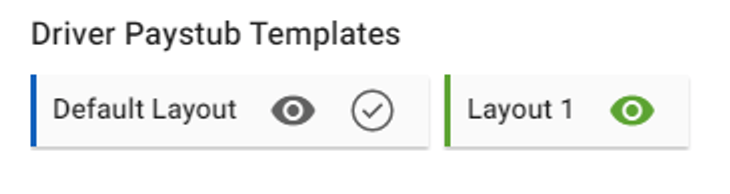 *Image showing the Driver Paystub Templates section in Company Profile > General Info, with layout cards visible*
5. To preview a layout before selecting it, click the **eye icon** on any layout card.
6. To select a layout, click the **tick icon** on the layout card you want to activate.
7. Click **Yes** on the confirmation screen to confirm your selection.
*Image showing the Driver Paystub Templates section in Company Profile > General Info, with layout cards visible*
5. To preview a layout before selecting it, click the **eye icon** on any layout card.
6. To select a layout, click the **tick icon** on the layout card you want to activate.
7. Click **Yes** on the confirmation screen to confirm your selection.
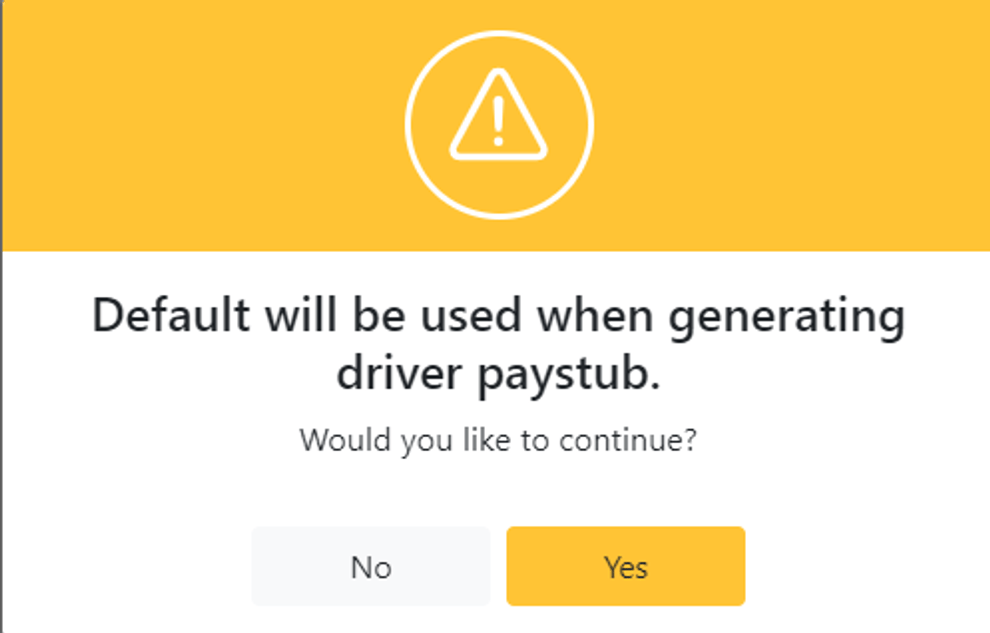 *Image showing the confirmation screen after clicking the tick icon to select a paystub layout*
After confirming, the active layout is indicated by a green card and a green eye icon in the Driver Paystub Templates section. The selected layout is applied to all Driver, Owner Operator, and Truck paystubs going forward.
To change the layout later, return to **Management > Company Profile > General Info > Driver Paystub Templates** and repeat these steps to select a different layout.
## Troubleshooting
### Layout change does not appear on a recently generated paystub
Confirm the new layout was set to active before the paystub was generated. A layout change only applies to paystubs generated after the change was made. Regenerate the paystub to apply the updated layout.
### Driver Paystub Templates section is not visible
Confirm you are on the **General Info** tab in Company Profile, not a different tab. Scroll to the very bottom of the General Info tab, where the section appears at the end of the page. Contact Alvys support if the section is still not visible after scrolling to the bottom.
### Tick icon is not responding
Confirm you have the **Admin** or **PartnerAdmin** role. Users without these roles cannot change the paystub layout template. Refresh the page and try again. Contact Alvys support if the issue persists.
## FAQs
**Q: Does changing the layout affect paystubs that have already been generated?**
**A:** No. The layout change only applies to paystubs generated after the change is made. Paystubs that were already generated retain the layout that was active at the time they were created.
**Q: Can different drivers use different paystub layouts?**
**A:** No. The selected layout applies to all paystubs across the company, including Driver, Owner Operator, and Truck paystubs.
**Q: How do I know which layout is currently active?**
**A:** The active layout is indicated by a green card with a green eye icon in the Driver Paystub Templates section.
## Go Deeper
* [Driver Settlements](/help/accounting-settlements/driver-settlements-faq)
*Image showing the confirmation screen after clicking the tick icon to select a paystub layout*
After confirming, the active layout is indicated by a green card and a green eye icon in the Driver Paystub Templates section. The selected layout is applied to all Driver, Owner Operator, and Truck paystubs going forward.
To change the layout later, return to **Management > Company Profile > General Info > Driver Paystub Templates** and repeat these steps to select a different layout.
## Troubleshooting
### Layout change does not appear on a recently generated paystub
Confirm the new layout was set to active before the paystub was generated. A layout change only applies to paystubs generated after the change was made. Regenerate the paystub to apply the updated layout.
### Driver Paystub Templates section is not visible
Confirm you are on the **General Info** tab in Company Profile, not a different tab. Scroll to the very bottom of the General Info tab, where the section appears at the end of the page. Contact Alvys support if the section is still not visible after scrolling to the bottom.
### Tick icon is not responding
Confirm you have the **Admin** or **PartnerAdmin** role. Users without these roles cannot change the paystub layout template. Refresh the page and try again. Contact Alvys support if the issue persists.
## FAQs
**Q: Does changing the layout affect paystubs that have already been generated?**
**A:** No. The layout change only applies to paystubs generated after the change is made. Paystubs that were already generated retain the layout that was active at the time they were created.
**Q: Can different drivers use different paystub layouts?**
**A:** No. The selected layout applies to all paystubs across the company, including Driver, Owner Operator, and Truck paystubs.
**Q: How do I know which layout is currently active?**
**A:** The active layout is indicated by a green card with a green eye icon in the Driver Paystub Templates section.
## Go Deeper
* [Driver Settlements](/help/accounting-settlements/driver-settlements-faq)