> ## Documentation Index
> Fetch the complete documentation index at: https://docs.alvys.com/llms.txt
> Use this file to discover all available pages before exploring further.
# Time Based Pay in Driver Settlements
> Pay drivers by hours worked or by day in driver settlements, combine time based pay with mileage and per diem rate types, and surface the Hours Worked column.
📋 **Module:** Accounting > Driver Settlements
💡 If you are new to Driver Settlements, read the [Driver Settlements](/help/accounting-settlements/driver-settlements) article before starting this one.
## Overview
Time-based pay (time-based compensation, hourly and per-diem pay) in Driver Settlements lets you compensate drivers using hourly, daily, or per-diem rates instead of, or alongside, trip-based pay. Driver Settlements supports four time-based rate types: **Hourly Pay**, **Daily Pay**, **Daily Per Diem**, and **Mileage Per Diem**.
Hourly Pay is entered per trip through the Hours Worked column in the Trips table. Daily Pay and Daily Per Diem are added per calendar day from within Driver Settlements. Mileage Per Diem calculates automatically based on miles driven.
## Before You Start
To add driver rates and access Driver Settlements you need the relevant pay permissions. Adding and editing pay plans requires the **"ViewPayPlans"** and **"EditPayPlans"** permissions, and generating or editing settlements requires the **"PayDriver"** and **"EditPaystubs"** permissions. Contact your Alvys Admin if any action is unavailable.
The driver must have at least one rate of type **Hourly Pay**, **Daily Pay**, **Daily Per Diem**, or **Mileage Per Diem** configured on their profile before time-based payables appear in Driver Settlements.
## Steps
1. Open the driver record.
2. Go to **Drivers** and select the driver you want to configure.
3. Scroll to the **Rates** section on the driver profile.
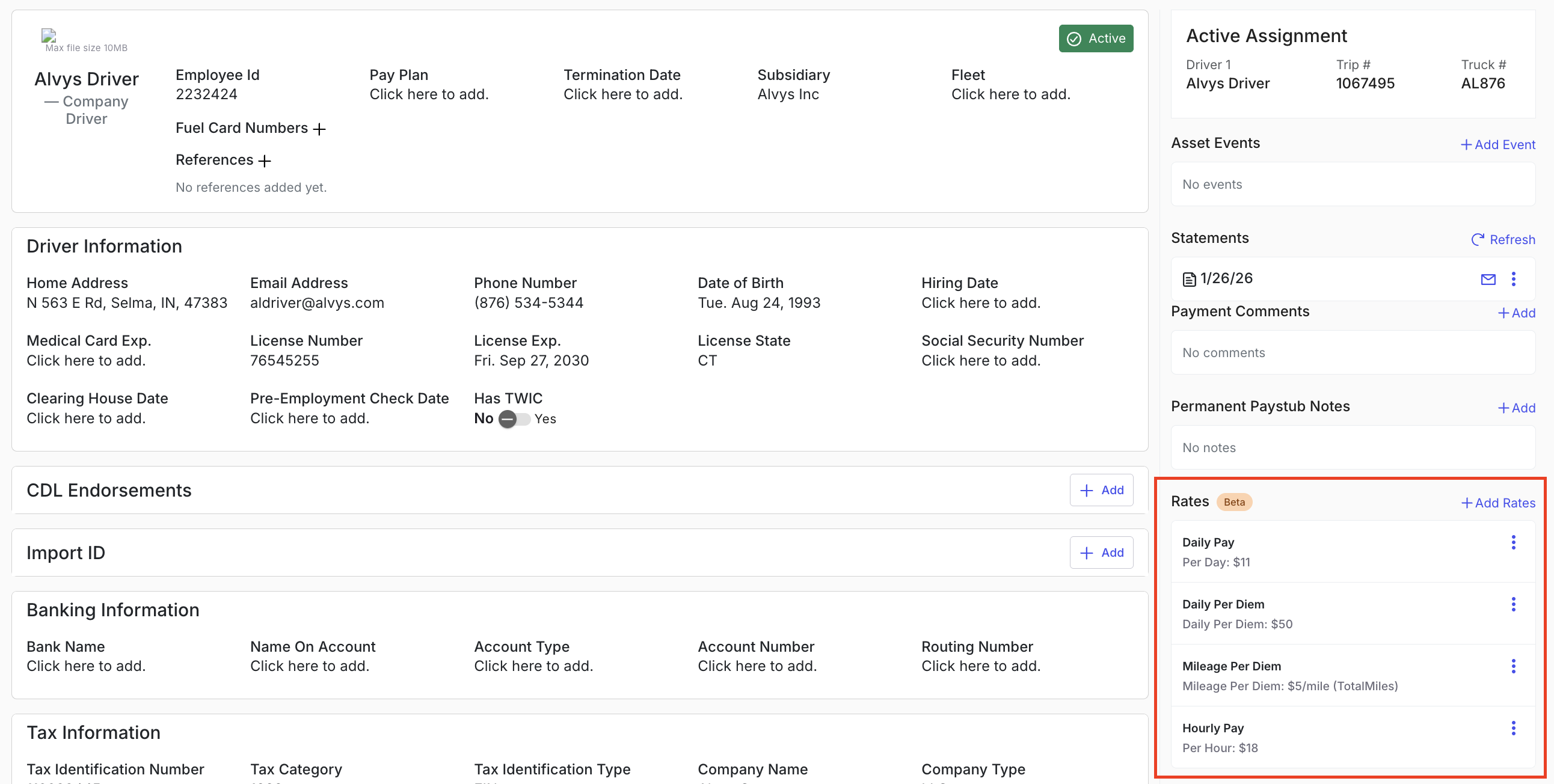 *Image showing the Rates section on a driver profile.*
4. Add a time-based rate.
5. Click **Add Rate**.
6. Choose one of the four time-based rate types: **Hourly Pay**, **Daily Pay**, **Daily Per Diem**, or **Mileage Per Diem**.
7. Enter the pay amount for the selected rate type.
8. For **Mileage Per Diem** only, select the mileage type to use as the basis for calculation (**Total Miles**, **Loaded Miles**, or **Empty Miles**).
9. Click **Save**. The rate appears immediately in the Rates section and is available in Driver Settlements.
*Image showing the Rates section on a driver profile.*
4. Add a time-based rate.
5. Click **Add Rate**.
6. Choose one of the four time-based rate types: **Hourly Pay**, **Daily Pay**, **Daily Per Diem**, or **Mileage Per Diem**.
7. Enter the pay amount for the selected rate type.
8. For **Mileage Per Diem** only, select the mileage type to use as the basis for calculation (**Total Miles**, **Loaded Miles**, or **Empty Miles**).
9. Click **Save**. The rate appears immediately in the Rates section and is available in Driver Settlements.
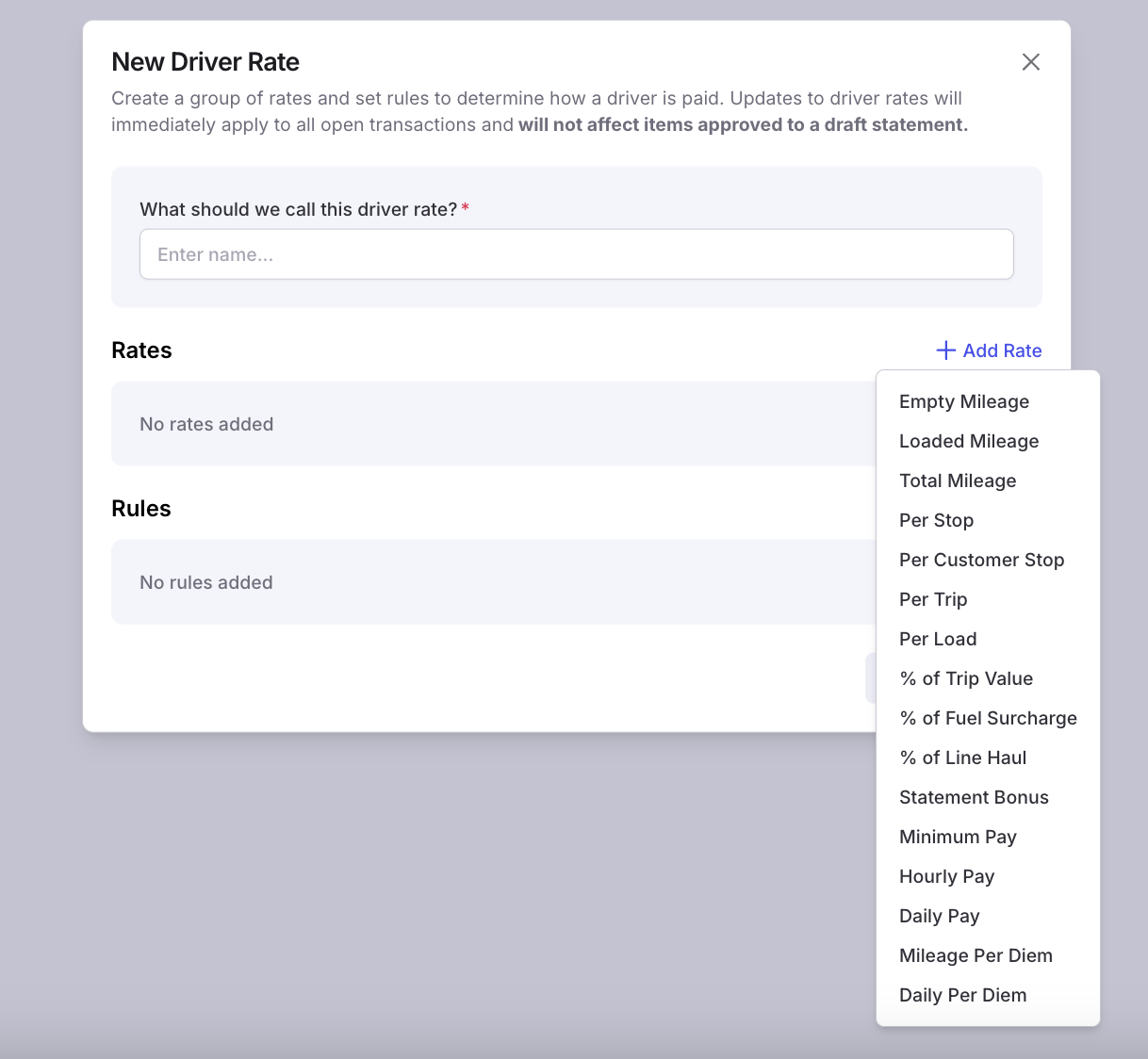 *Image showing the Add Rate dialog with time-based rate type options selected.*
10. Add daily pay or per diem days in Driver Settlements. This applies to **Daily Pay** and **Daily Per Diem** rate types only. For Hourly Pay and Mileage Per Diem, continue to the next step.
11. Go to **Accounting > Driver Settlements** and select the driver.
12. Locate the **Daily Pay** or **Per Diem** section in the driver's settlement view.
13. Click **Manage Calendar**.
14. Select the days to apply the daily pay or per diem.
15. Click **Save**. Each selected day generates a separate payable row in the driver's settlement.
*Image showing the Add Rate dialog with time-based rate type options selected.*
10. Add daily pay or per diem days in Driver Settlements. This applies to **Daily Pay** and **Daily Per Diem** rate types only. For Hourly Pay and Mileage Per Diem, continue to the next step.
11. Go to **Accounting > Driver Settlements** and select the driver.
12. Locate the **Daily Pay** or **Per Diem** section in the driver's settlement view.
13. Click **Manage Calendar**.
14. Select the days to apply the daily pay or per diem.
15. Click **Save**. Each selected day generates a separate payable row in the driver's settlement.
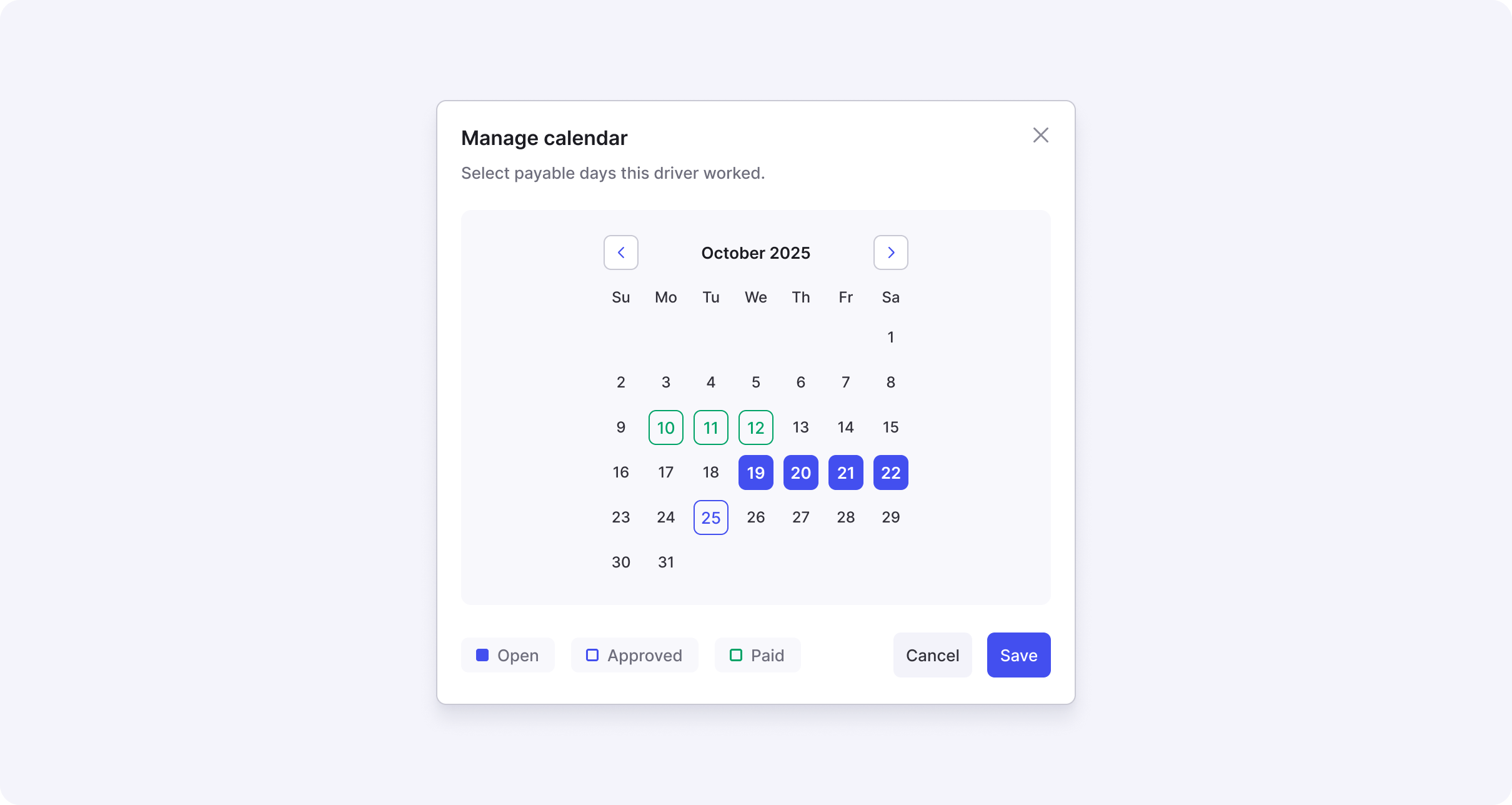 *Image showing the Manage Calendar view with days selected for Daily Pay or Per Diem.*
16. Enter hours worked on a trip. This applies to **Hourly Pay** rate types.
17. In the Trips table within Driver Settlements, locate the **Hours Worked** column. If the column is not visible, drag the column separator to expand it into view.
18. Click on the trip to open the **Edit Trip** modal.
19. Enter the hours and minutes worked on that trip.
20. Click **Save**. The system converts the time entry automatically and calculates the hourly payable based on the driver's configured Hourly Pay rate.
*Image showing the Manage Calendar view with days selected for Daily Pay or Per Diem.*
16. Enter hours worked on a trip. This applies to **Hourly Pay** rate types.
17. In the Trips table within Driver Settlements, locate the **Hours Worked** column. If the column is not visible, drag the column separator to expand it into view.
18. Click on the trip to open the **Edit Trip** modal.
19. Enter the hours and minutes worked on that trip.
20. Click **Save**. The system converts the time entry automatically and calculates the hourly payable based on the driver's configured Hourly Pay rate.
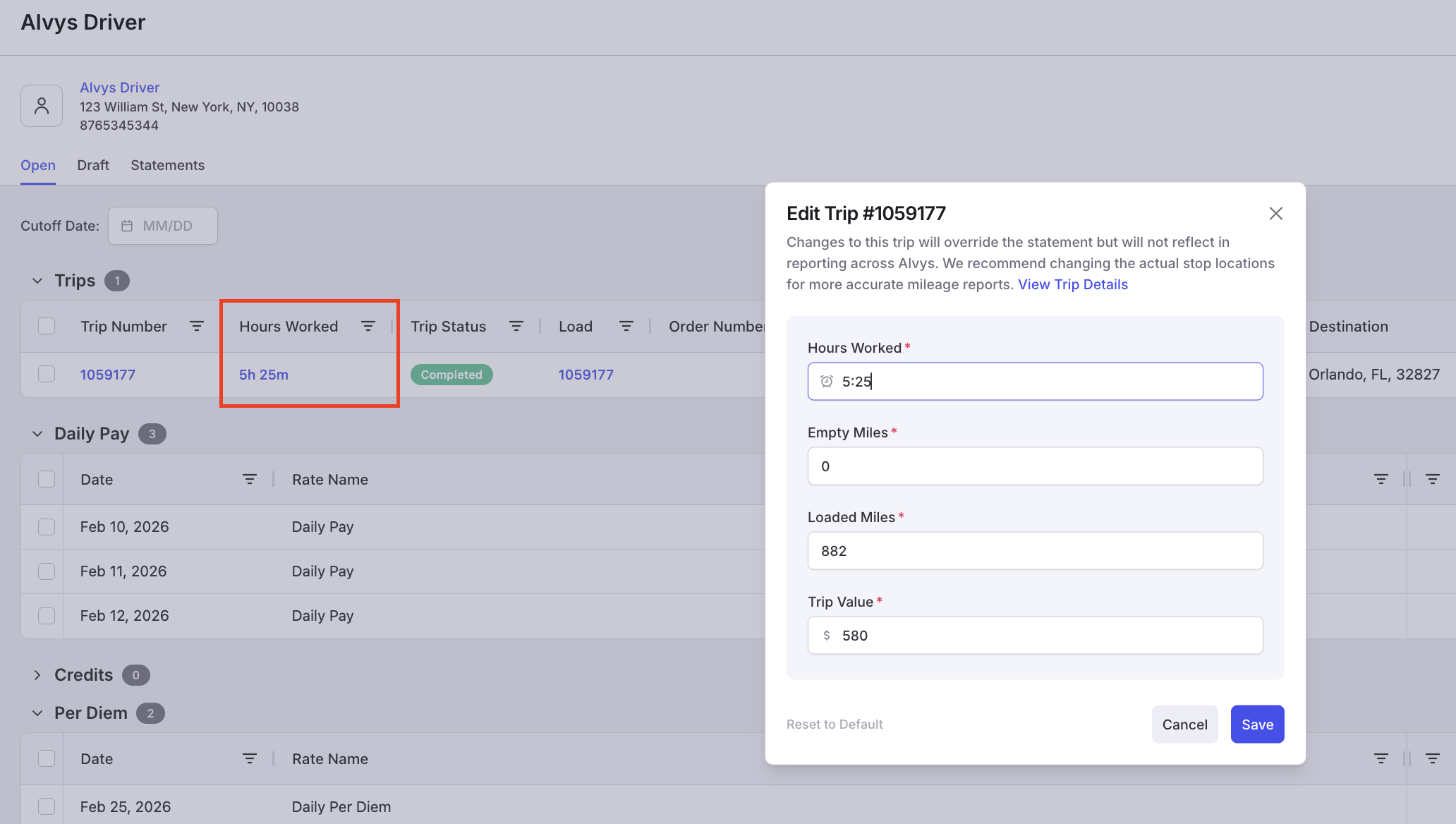 *Image showing the Hours Worked column in the Trips table and the Edit Trip modal with hours and minutes fields.*
21. Review generated payables.
22. Open the trip in Driver Settlements.
23. Review the generated payable rows. Hourly Pay produces a per-hour pay row calculated from the hours entered in the previous step. Mileage Per Diem produces a mileage-based row calculated from the mileage type selected when the rate was added.
24. Select the payables you want to include.
25. Add them to a pay period, a draft, or a bulk statement.
## Result
Time-based payable rows appear in the driver's settlement alongside trip-based payables. They can be included in any pay period, draft, or bulk statement using the same workflow as standard payables.
## Variations
### Using Mileage Per Diem instead of Daily Per Diem
Mileage Per Diem calculates automatically from trip mileage and does not require calendar day selection. Configure the mileage type (Total, Loaded, or Empty Miles) on the rate when adding it, and payable rows appear automatically based on trips in the settlement.
### Combining rate types
A single driver can have multiple time-based rates configured simultaneously. For example, a driver can have both Hourly Pay and Daily Per Diem active at the same time. Each rate generates its own payable rows in Driver Settlements.
## Troubleshooting
### Hours Worked column is not visible in the Trips table
1. Scroll horizontally across the Trips table. The Hours Worked column may be positioned to the right of the visible columns.
2. If the column is collapsed, drag the column separator toward the right to expand it into view.
3. Right-click any column header and select **Configure Columns** to confirm that Hours Worked is enabled. If it is not listed, contact Alvys support.
### Daily Pay or Per Diem section is not visible in the driver's settlement
1. Confirm the driver has a **Daily Pay** or **Daily Per Diem** rate configured on their profile. The section only appears when at least one of these rate types is active.
2. Verify the rate was saved correctly by returning to **Drivers > \[Driver Name] > Rates**.
3. Contact Alvys support if the section is still not visible after confirming the rate is configured.
### Payable rows are not appearing after saving calendar days
1. Confirm you clicked **Save** in the Manage Calendar view. Changes are not applied until saved.
2. Refresh the Driver Settlements page and check the driver's settlement again.
3. Contact Alvys support if the payable rows are still missing after saving and refreshing.
## FAQs
**Q:** Can I add a layover pay rate or a per-hour detention rate?
**A:** Layover pay and per-hour detention rates are not available as native time-based rate types today. As a workaround, add them as manual line items using **New Transaction** on the driver's settlement. Native rate type support for layover and detention is on the roadmap.
**Q:** Can I apply a time-based rate to only certain trips and not others?
**A:** Mileage Per Diem applies automatically to all trips that match the selected mileage type. Hourly Pay applies only to trips where you manually enter hours in the Hours Worked column. Daily Pay and Daily Per Diem apply to the calendar days you select in Manage Calendar, independent of specific trips.
## Go Deeper
* [Driver Settlements](/help/accounting-settlements/driver-settlements)
*Image showing the Hours Worked column in the Trips table and the Edit Trip modal with hours and minutes fields.*
21. Review generated payables.
22. Open the trip in Driver Settlements.
23. Review the generated payable rows. Hourly Pay produces a per-hour pay row calculated from the hours entered in the previous step. Mileage Per Diem produces a mileage-based row calculated from the mileage type selected when the rate was added.
24. Select the payables you want to include.
25. Add them to a pay period, a draft, or a bulk statement.
## Result
Time-based payable rows appear in the driver's settlement alongside trip-based payables. They can be included in any pay period, draft, or bulk statement using the same workflow as standard payables.
## Variations
### Using Mileage Per Diem instead of Daily Per Diem
Mileage Per Diem calculates automatically from trip mileage and does not require calendar day selection. Configure the mileage type (Total, Loaded, or Empty Miles) on the rate when adding it, and payable rows appear automatically based on trips in the settlement.
### Combining rate types
A single driver can have multiple time-based rates configured simultaneously. For example, a driver can have both Hourly Pay and Daily Per Diem active at the same time. Each rate generates its own payable rows in Driver Settlements.
## Troubleshooting
### Hours Worked column is not visible in the Trips table
1. Scroll horizontally across the Trips table. The Hours Worked column may be positioned to the right of the visible columns.
2. If the column is collapsed, drag the column separator toward the right to expand it into view.
3. Right-click any column header and select **Configure Columns** to confirm that Hours Worked is enabled. If it is not listed, contact Alvys support.
### Daily Pay or Per Diem section is not visible in the driver's settlement
1. Confirm the driver has a **Daily Pay** or **Daily Per Diem** rate configured on their profile. The section only appears when at least one of these rate types is active.
2. Verify the rate was saved correctly by returning to **Drivers > \[Driver Name] > Rates**.
3. Contact Alvys support if the section is still not visible after confirming the rate is configured.
### Payable rows are not appearing after saving calendar days
1. Confirm you clicked **Save** in the Manage Calendar view. Changes are not applied until saved.
2. Refresh the Driver Settlements page and check the driver's settlement again.
3. Contact Alvys support if the payable rows are still missing after saving and refreshing.
## FAQs
**Q:** Can I add a layover pay rate or a per-hour detention rate?
**A:** Layover pay and per-hour detention rates are not available as native time-based rate types today. As a workaround, add them as manual line items using **New Transaction** on the driver's settlement. Native rate type support for layover and detention is on the roadmap.
**Q:** Can I apply a time-based rate to only certain trips and not others?
**A:** Mileage Per Diem applies automatically to all trips that match the selected mileage type. Hourly Pay applies only to trips where you manually enter hours in the Hours Worked column. Daily Pay and Daily Per Diem apply to the calendar days you select in Manage Calendar, independent of specific trips.
## Go Deeper
* [Driver Settlements](/help/accounting-settlements/driver-settlements)