> ## Documentation Index
> Fetch the complete documentation index at: https://docs.alvys.com/llms.txt
> Use this file to discover all available pages before exploring further.
# How to Switch to ACH Payments for Alvys Billing
> Move your Alvys subscription from card to ACH bank transfer in the Stripe portal to avoid the card processing fee, and fix failed bank verification.
📋 **Applies to:** Admins · Partner Admins · Support
**Module:** Administration > Billing
Switch your Alvys billing payment method from credit or debit card to ACH bank transfer to avoid the 2.9% card processing fee that applies starting May 1, 2026.
## Overview
ACH (Automated Clearing House) payments, also called bank draft, direct debit, or ACH payment, let you pay your Alvys subscription directly from a bank account with no additional processing charge. Starting May 1, 2026, a 2.9% processing fee applies to all credit card and debit card payments made to Alvys. This fee is charged by the card processor, not by Alvys, and reflects standard card processing costs. Switching to ACH removes this fee entirely.
Alvys uses Stripe to process ACH payments through a secure, encrypted connection. Your bank account is verified either instantly (by logging in through Stripe's portal) or manually (via small micro-deposits sent to your account).
## Before You Start
Required role: Admin, Partner Admin, or Support. Access to the Billing page is restricted to these roles. If you do not see a Billing option in your user menu, your account does not have the required role. Contact [support@alvys.com](mailto:support@alvys.com) for assistance.
Have your bank account number and routing number available before you begin. If your bank does not support Stripe instant verification, you will need to complete a Bank Draft (ACH) Authorization Form instead (see the manual verification path below).
## Steps
1. **Open the Billing page**
Click your user icon in the bottom-left corner of Alvys and select **Billing**. You can also navigate directly to Administration > Billing.
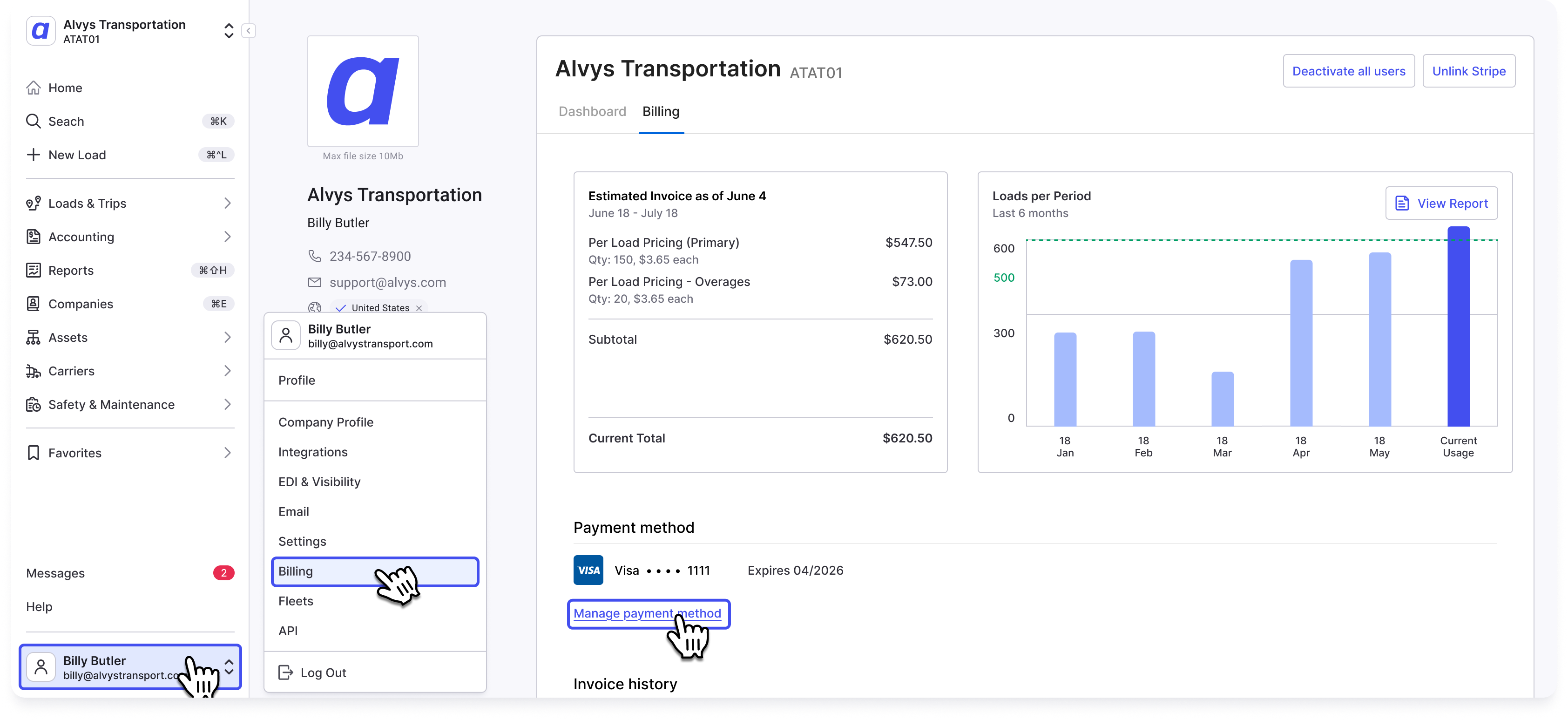 *Opening the Billing page from the user menu*
2. **Open Manage Payment Methods**
Find the **Manage Payment Methods** section at the center of the Billing page. Click it to be redirected to the Stripe payment portal. From this portal, you can update the payment method for each active subscription on your account. Note: each subscription can have its own payment method, so you may need to update multiple subscriptions.
*Opening the Billing page from the user menu*
2. **Open Manage Payment Methods**
Find the **Manage Payment Methods** section at the center of the Billing page. Click it to be redirected to the Stripe payment portal. From this portal, you can update the payment method for each active subscription on your account. Note: each subscription can have its own payment method, so you may need to update multiple subscriptions.
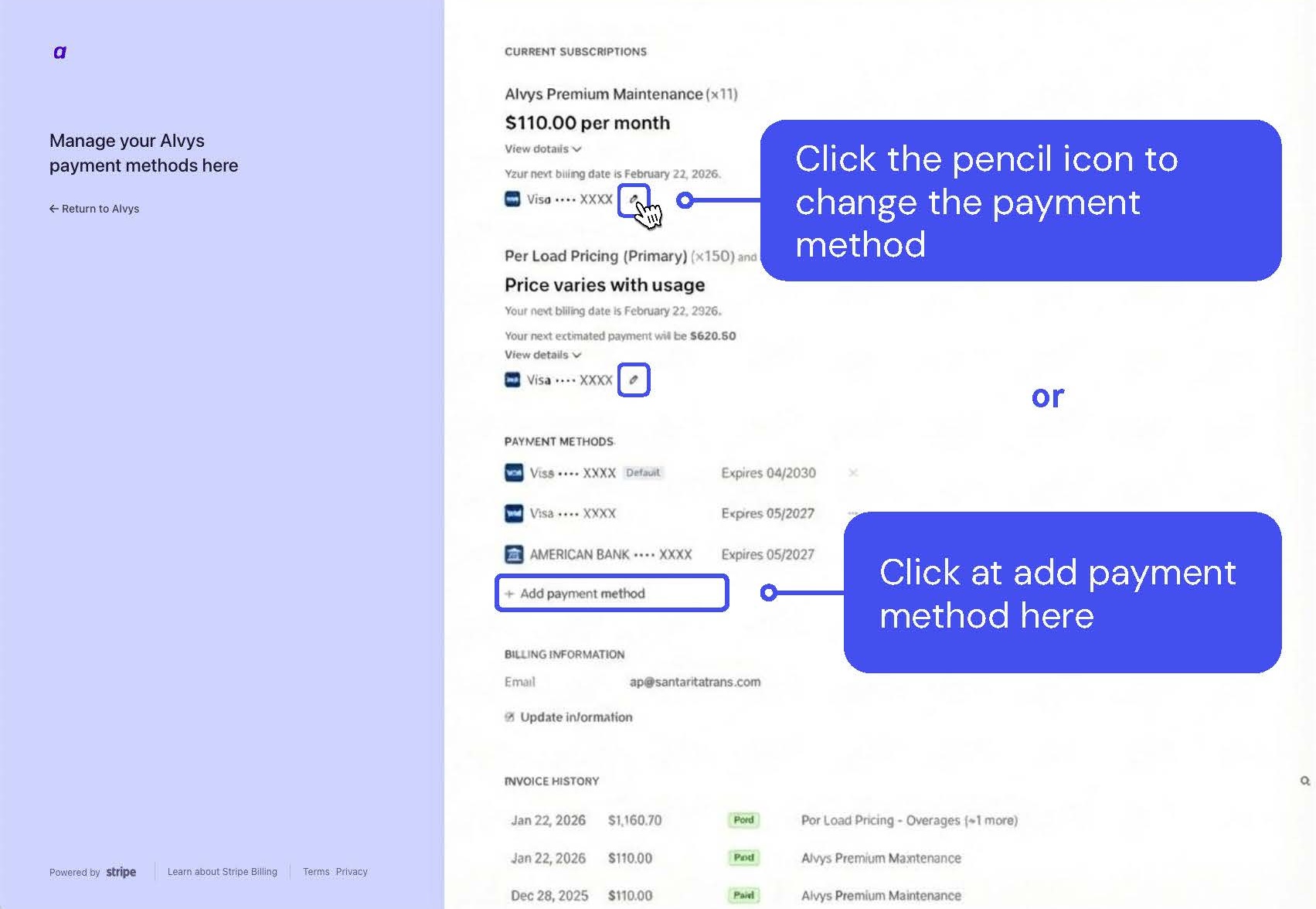 *Stripe portal: managing payment methods*
3. **Add a bank account**
Click **Add payment method**. Select **US Bank account** for US-based accounts, or **Pre-Authorized Debit** for non-US-based accounts.
*Stripe portal: managing payment methods*
3. **Add a bank account**
Click **Add payment method**. Select **US Bank account** for US-based accounts, or **Pre-Authorized Debit** for non-US-based accounts.
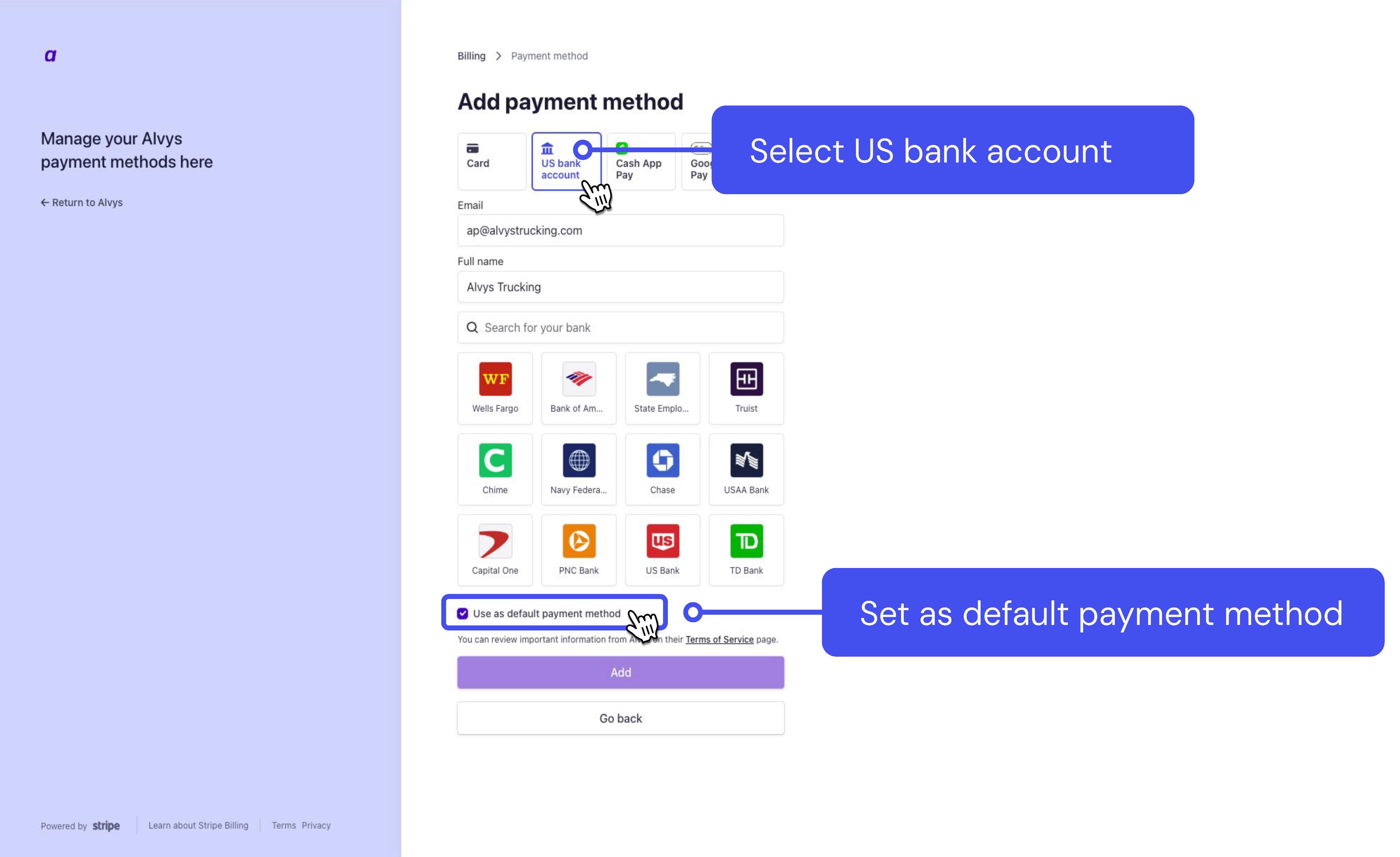 *Adding a bank account as a payment method*
4. **Verify your bank account**
Enter your bank details to verify your account. Two verification paths are available depending on your bank institution.
**Instant Verification:** Log in to your bank through Stripe's secure portal. Your account is ready for ACH payments immediately after login.
**Manual Verification (micro-deposits):** If instant verification is not available for your institution, fill out the [Bank Draft (ACH) Authorization Form](https://eform.pandadoc.com/) so the Alvys billing team can securely enter your bank information in Stripe. The billing team will reach out to continue the verification process. You will then receive two small micro-deposits (typically under \$1.00 each) within 2-3 business days. Each deposit will include a unique 6-digit descriptor code in the transaction description, similar to "SMFM8E-Alvys ACCTVERIFY." Once you see the deposits, return to your Billing page, open Manage Payment Methods, click **Edit** on the account pending verification, and enter the deposit amounts to complete verification. Contact [billing@alvys.com](mailto:billing@alvys.com) with any questions during this process.
*Adding a bank account as a payment method*
4. **Verify your bank account**
Enter your bank details to verify your account. Two verification paths are available depending on your bank institution.
**Instant Verification:** Log in to your bank through Stripe's secure portal. Your account is ready for ACH payments immediately after login.
**Manual Verification (micro-deposits):** If instant verification is not available for your institution, fill out the [Bank Draft (ACH) Authorization Form](https://eform.pandadoc.com/) so the Alvys billing team can securely enter your bank information in Stripe. The billing team will reach out to continue the verification process. You will then receive two small micro-deposits (typically under \$1.00 each) within 2-3 business days. Each deposit will include a unique 6-digit descriptor code in the transaction description, similar to "SMFM8E-Alvys ACCTVERIFY." Once you see the deposits, return to your Billing page, open Manage Payment Methods, click **Edit** on the account pending verification, and enter the deposit amounts to complete verification. Contact [billing@alvys.com](mailto:billing@alvys.com) with any questions during this process.
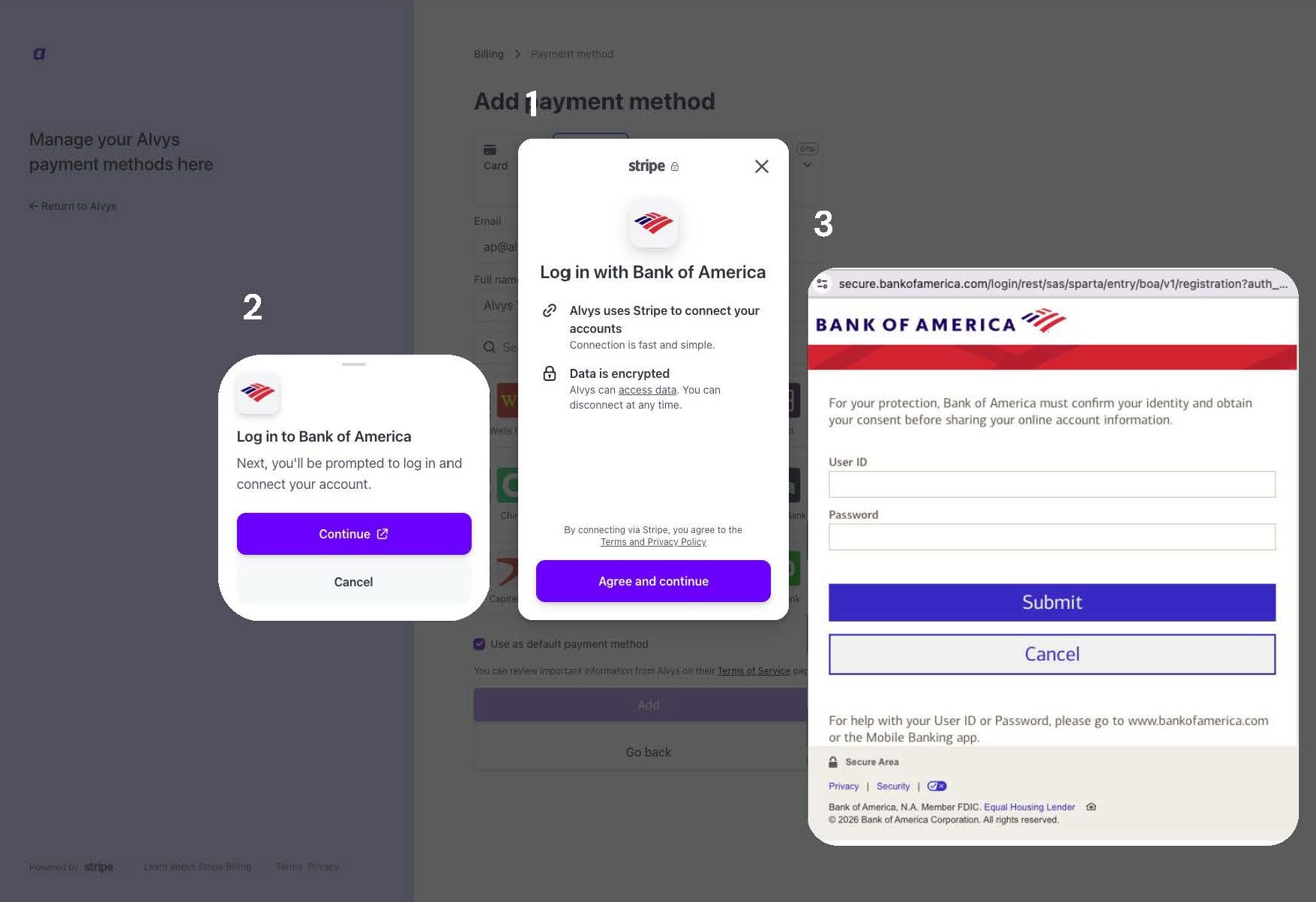 *Instant verification: logging in to your bank via Stripe*
1. **Set the bank account as your default payment method**
Once verified, set your bank account as the **default** payment method. This is important because each active subscription on your account can have its own payment method assigned. Only subscriptions with a bank account set as default are exempt from the 2.9% credit card processing surcharge. Subscriptions that retain a card on file will continue to incur the surcharge.
⚠️ **Notice:** By clicking accept, you authorize Alvys to debit the bank account specified for any amount owed for recurring charges arising from your subscription as outlined in your Alvys contractual agreement, pursuant to the Alvys Master Services Agreement, the Terms of Use, and our Privacy Policy, until this authorization is revoked. You may amend or cancel this authorization at any time by removing your bank account on the Billing page or by providing 30 days notice to Alvys.
2. **Remove your previous payment method (optional)**
After your bank account is added and confirmed as the default, you can remove your previous credit or debit card from the Stripe portal.
## Result
Your bank account is set as the default payment method for your Alvys subscription. Future charges are debited via ACH at no additional processing fee. ACH payments take 3-5 business days to settle an invoice as paid. Alvys will not reattempt any collection for a payment already pending settlement.
## Variations
**Enterprise plan customers:** If you are on the Enterprise plan and have been approved to pay by invoice with extended terms, you can select your preferred payment method each time you pay via the **Pay Online** link provided with your PDF invoice.
**Non-US accounts:** Select **Pre-Authorized Debit** in the add-bank-account step instead of US Bank account.
## Troubleshooting
### Bank is not available for instant Stripe verification
Fill out the [Bank Draft (ACH) Authorization Form](https://eform.pandadoc.com/). The Alvys billing team will enter your bank information and initiate micro-deposit verification. Contact [billing@alvys.com](mailto:billing@alvys.com) for assistance with the process.
### ACH debit is being blocked by your bank
Your bank may be filtering or blocking Stripe ACH debits. Contact your bank and ask them to whitelist Stripe's ACH company IDs: **1800948598** and **4270465600** (Stripe Payments Company). You can also add Stripe to your Positive Pay authorized list. See [Allowing Stripe ACH debits and deposits](https://support.stripe.com/questions/ach-direct-debit-company-ids-for-stripe) for details.
### Payment collection fails
Stripe automatically reattempts failed drafts up to 2 additional times. If payment still fails after all reattempts, navigate to your open invoice and click **Pay online** to manually initiate a draft. Continued failures on your open balance may restrict your ability to pay via ACH to avoid credit card surcharges.
## FAQs
**Q: When should I expect my account to be drafted?**
**A:** Your account will be drafted on the invoice due date, the same as current credit card charge behavior. Alvys recommends switching to ACH 2-3 days before your next invoice due date to avoid card fees or late payments during the transition.
**Q: What if my payment fails?**
**A:** If payment collection fails (due to insufficient funds or other bank rejection reasons), Stripe will automatically reattempt to draft your account 2 times. If payment still fails, navigate to your open invoice and select **Pay online** to manually initiate a draft. Continued draft failures on your open balance will result in restriction on your ability to pay via ACH to avoid credit card surcharges.
**Q: When will my payments be applied?**
**A:** Payments are automatically linked to your Stripe account and applied to open invoices. Payments can take 3-5 business days to settle an invoice as paid. Alvys will not reattempt any payment collection for a pending payment.
**Q: Can I opt out of draft ACH? Can I initiate ACH payments from my own bank instead?**
**A:** ACH push payments (initiated from your own bank) are not supported at this time. Work with your Alvys account manager if you have concerns about this.
**Q: Can I initiate payments on my own?**
**A:** If you are on the Enterprise plan and have been approved to pay by invoice with extended terms, you can select your preferred payment method each time you pay via the Pay Online link provided with your PDF invoice.
**Q: What if my bank is not available for Instant Verification via Stripe?**
**A:** Fill out the [Bank Draft (ACH) Authorization Form](https://eform.pandadoc.com/) so the Alvys billing team can securely enter your bank information in Stripe. The billing team will reach out to continue the verification process via micro-deposit confirmation.
**Q: How long before my account is activated for ACH payments?**
**A:** If you use Stripe's Instant Verification by logging in to your bank, your account is ready immediately. If you submit a Bank Draft (ACH) Authorization Form: you will receive two small micro-deposits (typically under \$1.00 each) within 2-3 business days; each deposit includes a unique 6-digit descriptor code similar to "SMFM8E-Alvys ACCTVERIFY"; once you see the deposits, return to your Billing page, open Manage Payment Methods, click Edit on the account pending verification, and enter the deposit amounts; your account will be immediately ready once the amounts are verified. Contact [billing@alvys.com](mailto:billing@alvys.com) with any questions.
**Q: How do I prevent potential failed debits due to unauthorized transaction failures?**
**A:** Contact your bank and ask them to whitelist Stripe's ACH company IDs: **1800948598** and **4270465600** (Stripe Payments Company). You can also add Stripe to your Positive Pay authorized list. See [Allowing Stripe ACH debits and deposits](https://support.stripe.com/questions/ach-direct-debit-company-ids-for-stripe) for details.
## Go Deeper
[How to Manage Your Alvys Subscription](/help/administration/how-to-manage-your-alvys-subscription)
*Instant verification: logging in to your bank via Stripe*
1. **Set the bank account as your default payment method**
Once verified, set your bank account as the **default** payment method. This is important because each active subscription on your account can have its own payment method assigned. Only subscriptions with a bank account set as default are exempt from the 2.9% credit card processing surcharge. Subscriptions that retain a card on file will continue to incur the surcharge.
⚠️ **Notice:** By clicking accept, you authorize Alvys to debit the bank account specified for any amount owed for recurring charges arising from your subscription as outlined in your Alvys contractual agreement, pursuant to the Alvys Master Services Agreement, the Terms of Use, and our Privacy Policy, until this authorization is revoked. You may amend or cancel this authorization at any time by removing your bank account on the Billing page or by providing 30 days notice to Alvys.
2. **Remove your previous payment method (optional)**
After your bank account is added and confirmed as the default, you can remove your previous credit or debit card from the Stripe portal.
## Result
Your bank account is set as the default payment method for your Alvys subscription. Future charges are debited via ACH at no additional processing fee. ACH payments take 3-5 business days to settle an invoice as paid. Alvys will not reattempt any collection for a payment already pending settlement.
## Variations
**Enterprise plan customers:** If you are on the Enterprise plan and have been approved to pay by invoice with extended terms, you can select your preferred payment method each time you pay via the **Pay Online** link provided with your PDF invoice.
**Non-US accounts:** Select **Pre-Authorized Debit** in the add-bank-account step instead of US Bank account.
## Troubleshooting
### Bank is not available for instant Stripe verification
Fill out the [Bank Draft (ACH) Authorization Form](https://eform.pandadoc.com/). The Alvys billing team will enter your bank information and initiate micro-deposit verification. Contact [billing@alvys.com](mailto:billing@alvys.com) for assistance with the process.
### ACH debit is being blocked by your bank
Your bank may be filtering or blocking Stripe ACH debits. Contact your bank and ask them to whitelist Stripe's ACH company IDs: **1800948598** and **4270465600** (Stripe Payments Company). You can also add Stripe to your Positive Pay authorized list. See [Allowing Stripe ACH debits and deposits](https://support.stripe.com/questions/ach-direct-debit-company-ids-for-stripe) for details.
### Payment collection fails
Stripe automatically reattempts failed drafts up to 2 additional times. If payment still fails after all reattempts, navigate to your open invoice and click **Pay online** to manually initiate a draft. Continued failures on your open balance may restrict your ability to pay via ACH to avoid credit card surcharges.
## FAQs
**Q: When should I expect my account to be drafted?**
**A:** Your account will be drafted on the invoice due date, the same as current credit card charge behavior. Alvys recommends switching to ACH 2-3 days before your next invoice due date to avoid card fees or late payments during the transition.
**Q: What if my payment fails?**
**A:** If payment collection fails (due to insufficient funds or other bank rejection reasons), Stripe will automatically reattempt to draft your account 2 times. If payment still fails, navigate to your open invoice and select **Pay online** to manually initiate a draft. Continued draft failures on your open balance will result in restriction on your ability to pay via ACH to avoid credit card surcharges.
**Q: When will my payments be applied?**
**A:** Payments are automatically linked to your Stripe account and applied to open invoices. Payments can take 3-5 business days to settle an invoice as paid. Alvys will not reattempt any payment collection for a pending payment.
**Q: Can I opt out of draft ACH? Can I initiate ACH payments from my own bank instead?**
**A:** ACH push payments (initiated from your own bank) are not supported at this time. Work with your Alvys account manager if you have concerns about this.
**Q: Can I initiate payments on my own?**
**A:** If you are on the Enterprise plan and have been approved to pay by invoice with extended terms, you can select your preferred payment method each time you pay via the Pay Online link provided with your PDF invoice.
**Q: What if my bank is not available for Instant Verification via Stripe?**
**A:** Fill out the [Bank Draft (ACH) Authorization Form](https://eform.pandadoc.com/) so the Alvys billing team can securely enter your bank information in Stripe. The billing team will reach out to continue the verification process via micro-deposit confirmation.
**Q: How long before my account is activated for ACH payments?**
**A:** If you use Stripe's Instant Verification by logging in to your bank, your account is ready immediately. If you submit a Bank Draft (ACH) Authorization Form: you will receive two small micro-deposits (typically under \$1.00 each) within 2-3 business days; each deposit includes a unique 6-digit descriptor code similar to "SMFM8E-Alvys ACCTVERIFY"; once you see the deposits, return to your Billing page, open Manage Payment Methods, click Edit on the account pending verification, and enter the deposit amounts; your account will be immediately ready once the amounts are verified. Contact [billing@alvys.com](mailto:billing@alvys.com) with any questions.
**Q: How do I prevent potential failed debits due to unauthorized transaction failures?**
**A:** Contact your bank and ask them to whitelist Stripe's ACH company IDs: **1800948598** and **4270465600** (Stripe Payments Company). You can also add Stripe to your Positive Pay authorized list. See [Allowing Stripe ACH debits and deposits](https://support.stripe.com/questions/ach-direct-debit-company-ids-for-stripe) for details.
## Go Deeper
[How to Manage Your Alvys Subscription](/help/administration/how-to-manage-your-alvys-subscription)