> ## Documentation Index
> Fetch the complete documentation index at: https://docs.alvys.com/llms.txt
> Use this file to discover all available pages before exploring further.
# Marketplace Permissions
> Grant Marketplace permissions that let users search, book, bid on, and post loads through the Alvys, DAT, Uber Freight, or Truckstop integrated load boards.
👥 **Primary Audience:** **Admins**, **Partner Admins**, **Office Admins**, **Operation Managers**, **Dispatchers**
📁[Return to User Roles & Permissions Collection ](/help/administration/user-roles-permissions-collection)
### Overview
The Marketplace Permissions category in Alvys controls access to the system's load marketplace functionality (also called a load board). The Carrier Marketplace is an integrated load board built directly into the TMS. It lets carriers and brokers search for available freight, book or bid on loads, and post their own loads for other carriers to pick up, all without leaving Alvys.
Because the Marketplace connects your organization to external brokers and carriers, access (rights, entitlements) is managed through dedicated permissions that define exactly what each user can see and do. This article explains each Marketplace permission, what it enables, why it is important, and which roles typically require it.
⚠️ To use the Marketplace, the subsidiary must have an active integration with one of the following sources: **Alvys Marketplace**, **DAT Marketplace**, **Uber Freight**, or **Truckstop Marketplace**.
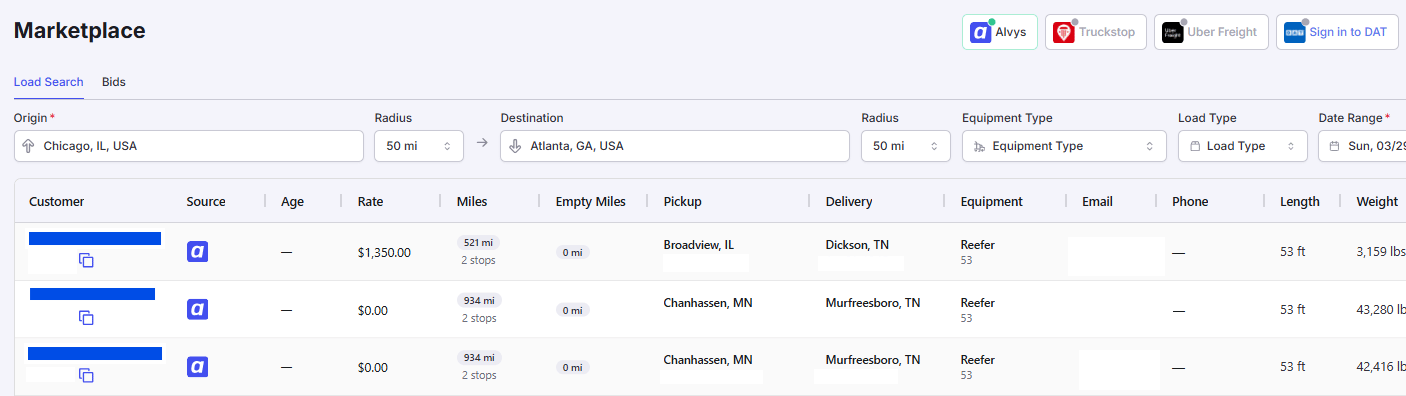 *Marketplace search page.*
### Where to Find It
Marketplace permissions are configured at the individual user level within the User Management interface.
⚠️ To modify these permissions, the logged-in user must have the **"Set Permission"** permission, located within the Management category. Without **"Set Permission"**, a user can view the user profile or form but cannot adjust any permissions. For more information, refer to the [Management & Privacy Permissions article](/help/administration/management-privacy-permissions).
To adjust Marketplace permissions:
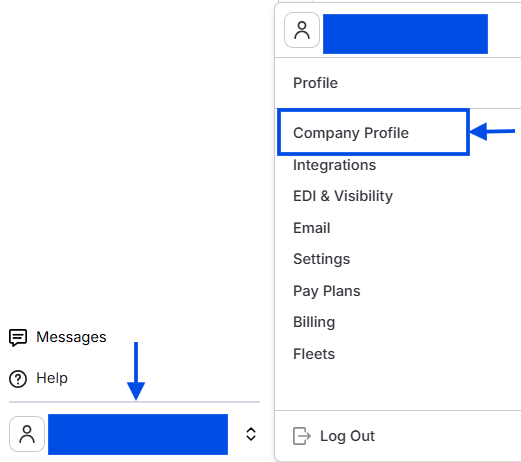
1. Select your **Username** in the bottom left corner.
2. Navigate to **Company Profile** and select the **Users** tab.
*Marketplace search page.*
### Where to Find It
Marketplace permissions are configured at the individual user level within the User Management interface.
⚠️ To modify these permissions, the logged-in user must have the **"Set Permission"** permission, located within the Management category. Without **"Set Permission"**, a user can view the user profile or form but cannot adjust any permissions. For more information, refer to the [Management & Privacy Permissions article](/help/administration/management-privacy-permissions).
To adjust Marketplace permissions:
1. Select your **Username** in the bottom left corner.
2. Navigate to **Company Profile** and select the **Users** tab.
 3. Select an existing user to edit, or click **Create New User**.
4. Scroll to the **Permissions** section and locate the **Marketplace** category. You will see four individual checkboxes: **"View Marketplace Loads"**, **"Book Marketplace Loads"**, **"Bid on Marketplace Loads"**, and **"Post Loads to Marketplace"**.
3. Select an existing user to edit, or click **Create New User**.
4. Scroll to the **Permissions** section and locate the **Marketplace** category. You will see four individual checkboxes: **"View Marketplace Loads"**, **"Book Marketplace Loads"**, **"Bid on Marketplace Loads"**, and **"Post Loads to Marketplace"**.
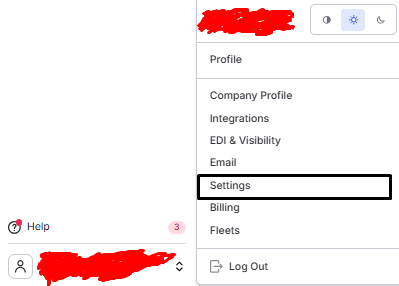 *Marketplace permissions overview screenshot.*
### Key Concepts
The four Marketplace permissions are independent and can be granted in any combination. They control progressively more powerful actions on the Marketplace:
* **"View Marketplace Loads"** is the baseline permission required to access the Marketplace page at all. Having any of **"View Marketplace Loads"**, **"Book Marketplace Loads"**, or **"Bid on Marketplace Loads"** causes the Marketplace sidebar item to appear under Loads and Trips.
* **"Book Marketplace Loads"** allows accepting a load at the listed rate without negotiation.
* **"Bid on Marketplace Loads"** allows submitting a counter-offer on a load. Users with **"Bid on Marketplace Loads"** also have the ability to book marketplace loads. This is because the system's booking authorization accepts either the **"Book Marketplace Loads"** or **"Bid on Marketplace Loads"** permission — granting bidding access inherently includes booking capability.
* **"Post Loads to Marketplace"** allows making the company's own loads visible to external carriers on load boards, and removing them (unposting).
The ability to bid or book directly through Alvys depends on the integration capabilities of each load provider. Truckstop currently requires offline negotiation. Uber Freight and certain DAT loads support instant booking or bidding.
### How to Use It
For step-by-step workflows on searching, booking, bidding, and posting in the Marketplace, see:
* [Understanding the Marketplace](/help/integrations/alvys-carrier-marketplace)
* Alvys Internal Marketplace
### Settings & Permissions
#### "View Marketplace Loads"
**"View Marketplace Loads"** is a read-only permission. It grants users the ability to access the Marketplace, search for available loads, view load details (origin, destination, equipment type, rate), and evaluate whether loads match their capacity needs. A user with this permission cannot take any action on a load.
The Marketplace is accessed from the left navigation by selecting **Loads and Trips**, then the **Marketplace** menu item.
*Marketplace permissions overview screenshot.*
### Key Concepts
The four Marketplace permissions are independent and can be granted in any combination. They control progressively more powerful actions on the Marketplace:
* **"View Marketplace Loads"** is the baseline permission required to access the Marketplace page at all. Having any of **"View Marketplace Loads"**, **"Book Marketplace Loads"**, or **"Bid on Marketplace Loads"** causes the Marketplace sidebar item to appear under Loads and Trips.
* **"Book Marketplace Loads"** allows accepting a load at the listed rate without negotiation.
* **"Bid on Marketplace Loads"** allows submitting a counter-offer on a load. Users with **"Bid on Marketplace Loads"** also have the ability to book marketplace loads. This is because the system's booking authorization accepts either the **"Book Marketplace Loads"** or **"Bid on Marketplace Loads"** permission — granting bidding access inherently includes booking capability.
* **"Post Loads to Marketplace"** allows making the company's own loads visible to external carriers on load boards, and removing them (unposting).
The ability to bid or book directly through Alvys depends on the integration capabilities of each load provider. Truckstop currently requires offline negotiation. Uber Freight and certain DAT loads support instant booking or bidding.
### How to Use It
For step-by-step workflows on searching, booking, bidding, and posting in the Marketplace, see:
* [Understanding the Marketplace](/help/integrations/alvys-carrier-marketplace)
* Alvys Internal Marketplace
### Settings & Permissions
#### "View Marketplace Loads"
**"View Marketplace Loads"** is a read-only permission. It grants users the ability to access the Marketplace, search for available loads, view load details (origin, destination, equipment type, rate), and evaluate whether loads match their capacity needs. A user with this permission cannot take any action on a load.
The Marketplace is accessed from the left navigation by selecting **Loads and Trips**, then the **Marketplace** menu item.
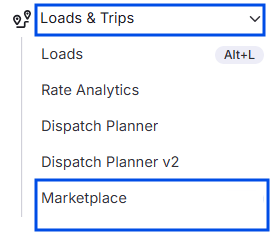 *Left navigation showing Loads and Trips > Marketplace.*
 *Market place search page*
💡 Having **"View Marketplace Loads"**, **"Book Marketplace Loads"**, or **"Bid on Marketplace Loads"** causes the Marketplace sidebar item to appear, allowing the user to access the marketplace page. Use **"View Marketplace Loads"** alone when the goal is read-only access.
By default, this permission is granted to Partner Admin, Admin, Operation Manager, Dispatcher, and Office Admin roles. It is not assigned by default to the Biller, Sales Agent, Data Entry, Safety, or Driver roles.
💡 **Best Practice:** Grant **"View Marketplace Loads"** to all users who actively search for and evaluate available loads, such as Dispatchers, Load Planners, and Operations Managers. Any user with Book, Bid, or Post permissions should also have **"View Marketplace Loads"** as a baseline.
#### "Book Marketplace Loads"
**"Book Marketplace Loads"** determines whether a user can accept a load from marketplace sources at the listed rate in a single action, bypassing negotiation. Users with this permission can click the **Book Now** button (or **Submit Booking** for DAT sources) to submit a booking request immediately. Booking a load commits the company to haul the freight at the specified price and terms.
The **Book Now** button appears in the marketplace table for each result, and also in the side panel action controls when a user selects a load to view its details.
*Market place search page*
💡 Having **"View Marketplace Loads"**, **"Book Marketplace Loads"**, or **"Bid on Marketplace Loads"** causes the Marketplace sidebar item to appear, allowing the user to access the marketplace page. Use **"View Marketplace Loads"** alone when the goal is read-only access.
By default, this permission is granted to Partner Admin, Admin, Operation Manager, Dispatcher, and Office Admin roles. It is not assigned by default to the Biller, Sales Agent, Data Entry, Safety, or Driver roles.
💡 **Best Practice:** Grant **"View Marketplace Loads"** to all users who actively search for and evaluate available loads, such as Dispatchers, Load Planners, and Operations Managers. Any user with Book, Bid, or Post permissions should also have **"View Marketplace Loads"** as a baseline.
#### "Book Marketplace Loads"
**"Book Marketplace Loads"** determines whether a user can accept a load from marketplace sources at the listed rate in a single action, bypassing negotiation. Users with this permission can click the **Book Now** button (or **Submit Booking** for DAT sources) to submit a booking request immediately. Booking a load commits the company to haul the freight at the specified price and terms.
The **Book Now** button appears in the marketplace table for each result, and also in the side panel action controls when a user selects a load to view its details.
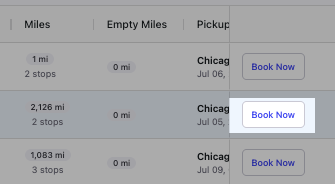 *Book Now button in marketplace table and side panel.*
By default, this permission is granted to Partner Admin, Admin, Operation Manager, Dispatcher, and Office Admin roles. It is not assigned by default to the Biller, Sales Agent, Data Entry, Safety, or Driver roles.
💡 **Best Practice:** Grant **"Book Marketplace Loads"** to users such as Dispatchers and Operations Managers who have the authority to commit the company to hauling freight. Note that users with **"Bid on Marketplace Loads"** also have booking capability.
#### "Bid on Marketplace Loads"
**"Bid on Marketplace Loads"** allows a user to submit a bid or counter-offer on a marketplace load. Unlike booking, which accepts the listed rate, bidding lets the user propose an alternative rate, which the shipper or broker can accept, reject, or counter.
Users with **"Bid on Marketplace Loads"** also have the ability to book marketplace loads. The system's booking authorization accepts either the **"Book Marketplace Loads"** or **"Bid on Marketplace Loads"** permission, so bidding access inherently includes booking capability.
💡 The ability to bid or book directly through Alvys depends on the integration capabilities of each load provider. Truckstop currently requires offline negotiation. Uber Freight and certain DAT loads support instant booking or bidding.
The **Submit Bid** button appears in the marketplace table within the row of each load result. The **Bid** button is also available in the side panel footer when a user selects a load to view its details.
*Book Now button in marketplace table and side panel.*
By default, this permission is granted to Partner Admin, Admin, Operation Manager, Dispatcher, and Office Admin roles. It is not assigned by default to the Biller, Sales Agent, Data Entry, Safety, or Driver roles.
💡 **Best Practice:** Grant **"Book Marketplace Loads"** to users such as Dispatchers and Operations Managers who have the authority to commit the company to hauling freight. Note that users with **"Bid on Marketplace Loads"** also have booking capability.
#### "Bid on Marketplace Loads"
**"Bid on Marketplace Loads"** allows a user to submit a bid or counter-offer on a marketplace load. Unlike booking, which accepts the listed rate, bidding lets the user propose an alternative rate, which the shipper or broker can accept, reject, or counter.
Users with **"Bid on Marketplace Loads"** also have the ability to book marketplace loads. The system's booking authorization accepts either the **"Book Marketplace Loads"** or **"Bid on Marketplace Loads"** permission, so bidding access inherently includes booking capability.
💡 The ability to bid or book directly through Alvys depends on the integration capabilities of each load provider. Truckstop currently requires offline negotiation. Uber Freight and certain DAT loads support instant booking or bidding.
The **Submit Bid** button appears in the marketplace table within the row of each load result. The **Bid** button is also available in the side panel footer when a user selects a load to view its details.
 *Submit Bid button in marketplace table row.*
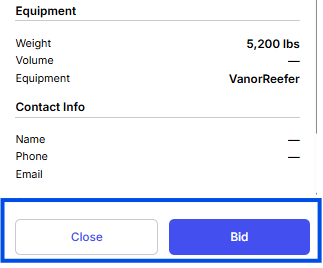 \*Bid button in side panel footer. \*
This permission also controls whether users can access the **Bids** tab within the Marketplace to view their bid history, submit new bids with custom rates, and manage counter-offers.
\*Bid button in side panel footer. \*
This permission also controls whether users can access the **Bids** tab within the Marketplace to view their bid history, submit new bids with custom rates, and manage counter-offers.
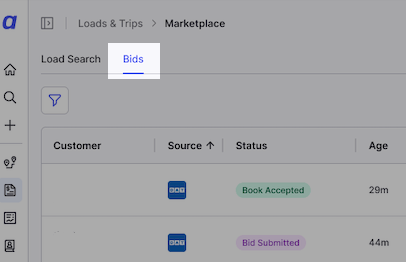 *Bids tab in the Marketplace.*
By default, this permission is extended to the Partner Admin, Admin, Operation Manager, Dispatcher, and Office Admin roles. Conversely, this permission is not assigned by default to the Biller, Sales Agent, Data Entry, Safety, or Driver roles.
✅ Grant the Bid on Marketplace Loads permission to Dispatchers, Sales Agents (when applicable), and Operations Managers who are responsible for negotiating rates and managing bids on marketplace loads. Because bidding involves rate negotiation, assign this permission only to staff familiar with your cost structure, fuel expenses, and lane-specific market conditions. Note that granting this permission also provides the ability to book loads, so users with bidding access can automatically book as well.
### Post Loads to Marketplace
The Post Loads to Marketplace permission controls whether a user can make the company's loads available on external marketplace load boards for carriers to discover. Unlike the browse-and-book workflow, where users search for loads to haul, this permission allows a user to post the company's freight for others to bid on or accept.
This permission also includes the ability to unpost, or remove, loads from the marketplace. Without it, users cannot make loads visible to external carriers. Restricting access ensures that only authorized users can manage the company’s marketplace presence, preventing accidental exposure of internal loads or posting of incorrect rates.The “**Post load**” button can be found on the individual load details page at the footer of the Carrier Information card (next to the load details card).
*Bids tab in the Marketplace.*
By default, this permission is extended to the Partner Admin, Admin, Operation Manager, Dispatcher, and Office Admin roles. Conversely, this permission is not assigned by default to the Biller, Sales Agent, Data Entry, Safety, or Driver roles.
✅ Grant the Bid on Marketplace Loads permission to Dispatchers, Sales Agents (when applicable), and Operations Managers who are responsible for negotiating rates and managing bids on marketplace loads. Because bidding involves rate negotiation, assign this permission only to staff familiar with your cost structure, fuel expenses, and lane-specific market conditions. Note that granting this permission also provides the ability to book loads, so users with bidding access can automatically book as well.
### Post Loads to Marketplace
The Post Loads to Marketplace permission controls whether a user can make the company's loads available on external marketplace load boards for carriers to discover. Unlike the browse-and-book workflow, where users search for loads to haul, this permission allows a user to post the company's freight for others to bid on or accept.
This permission also includes the ability to unpost, or remove, loads from the marketplace. Without it, users cannot make loads visible to external carriers. Restricting access ensures that only authorized users can manage the company’s marketplace presence, preventing accidental exposure of internal loads or posting of incorrect rates.The “**Post load**” button can be found on the individual load details page at the footer of the Carrier Information card (next to the load details card).
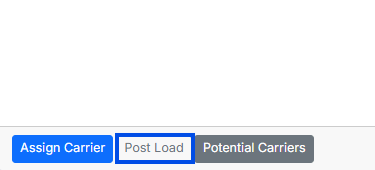 \*Post load button on load details page. \*
By default, this authorization is extended to the **Partner Admin**, **Admin**, **Operation Manager**, **Dispatcher**, and **Office Admin** roles. Conversely, this permission is not assigned by default to the **Biller**, **Sales Agent**, **Data Entry**, **Safety**, or **Driver** roles.
✅ **Best Practice:** Grant Post Loads to Marketplace only to users, such as Dispatchers, Load Planners, or Operations Managers, who are responsible for managing the company’s marketplace load postings. Establish clear internal guidelines for when loads should be posted externally versus handled internally, and define appropriate rate ranges to maintain consistency and control
### Limits & Behavior
* The Marketplace sidebar item appears only when a user has **"View Marketplace Loads"**, **"Book Marketplace Loads"**, or **"Bid on Marketplace Loads"**. Without any of these three, the Marketplace page is not accessible.
* **"Bid on Marketplace Loads"** grants both bidding and booking capability. The system's booking endpoint accepts either **"Book Marketplace Loads"** or **"Bid on Marketplace Loads"**, so a user with bidding permission can also book loads at the listed rate.
* **"Post Loads to Marketplace"** covers both posting and unposting. There is no separate permission to remove loads once posted.
* The subsidiary must have an active integration with a supported source (Alvys Marketplace, DAT, Uber Freight, or Truckstop) before any Marketplace functionality is available, regardless of user permissions.
* Bidding and instant booking availability depends on the load provider. Truckstop requires offline negotiation. Uber Freight and certain DAT loads support instant booking and bidding within Alvys.
* Sales Agents are excluded from default Marketplace permissions. Even though Sales Agents may have dispatch permissions, Marketplace access is treated as a separate set of responsibilities and must be explicitly assigned.
### FAQs
**Q:** Do I need to grant all four Marketplace permissions at once, or can I grant them individually?
**A:** You can grant them individually for granular control. For example, you can allow a user to search and bid without giving them the authority to post company freight. Note that the **"Bid on Marketplace Loads"** permission effectively includes booking access.
**Q:** Which roles are granted Marketplace permissions by default?
**A:** By default, these permissions are granted to Partner Admin, Admin, Operation Manager, Dispatcher, and Office Admin roles. Biller, Sales Agent, Data Entry, Safety, and Driver roles do not receive Marketplace access by default.
**Q:** Why are Sales Agents excluded from default Marketplace permissions?
**A:** Marketplace access is treated as a separate set of responsibilities from dispatch functions. If a Sales Agent needs to interact with the Marketplace, an administrator must explicitly assign the required permissions.
**Q:** What does it mean to unpost a load, and which permission is required?
**A:** Unposting removes your company's freight from external boards so it is no longer visible to other carriers. This action is covered by the **"Post Loads to Marketplace"** permission, which controls both making a load public and removing it.
**Q:** Should Marketplace permissions be granted to Accounting or Billing staff?
**A:** Generally, no. Marketplace activity is an operational function for finding and committing to freight. Billing staff focused on invoicing and settlements rarely need the ability to book or post loads.
**Q:** What is required at the company level to use Marketplace features?
**A:** Beyond user permissions, the subsidiary must have an active integration with a supported source: Alvys Marketplace, DAT, Uber Freight, or Truckstop.
### Troubleshooting
#### The Marketplace item does not appear in the sidebar
The user is missing all three access permissions. Grant at least one of **"View Marketplace Loads"**, **"Book Marketplace Loads"**, or **"Bid on Marketplace Loads"** to surface the Marketplace page.
#### A user can view loads but the Book Now and Submit Bid buttons are missing
The user holds **"View Marketplace Loads"** only. Grant **"Book Marketplace Loads"** for booking or **"Bid on Marketplace Loads"** for bidding (which also enables booking).
#### The Post load button does not appear on a load
The user is missing **"Post Loads to Marketplace"**, which controls both posting and unposting.
#### No loads appear in the Marketplace at all
Confirm the subsidiary has an active integration with a supported source (Alvys Marketplace, DAT, Uber Freight, or Truckstop). Without an integration, no Marketplace functionality is available regardless of permissions.
### Go Deeper
* [Understanding the Marketplace](/help/integrations/alvys-carrier-marketplace)
* Alvys Internal Marketplace
* [Management & Privacy Permissions](/help/administration/management-privacy-permissions)
* [User Roles & Permissions Collection](/help/administration/user-roles-permissions-collection)
* [Customer Management Permissions](/help/administration/customer-management-permissions)
## Next Steps
⏭️ Proceed to the [Customer Management Permissions](/help/administration/customer-management-permissions) article to learn how to assign and manage permissions for creating, editing, activating, and deleting customer records. This will help ensure that only authorized users handle sensitive customer information and maintain accurate records in Alvys.
## Return to Collection
📁 [Back to User Roles & Permissions Collection](/help/administration/user-roles-permissions-collection)
\*Post load button on load details page. \*
By default, this authorization is extended to the **Partner Admin**, **Admin**, **Operation Manager**, **Dispatcher**, and **Office Admin** roles. Conversely, this permission is not assigned by default to the **Biller**, **Sales Agent**, **Data Entry**, **Safety**, or **Driver** roles.
✅ **Best Practice:** Grant Post Loads to Marketplace only to users, such as Dispatchers, Load Planners, or Operations Managers, who are responsible for managing the company’s marketplace load postings. Establish clear internal guidelines for when loads should be posted externally versus handled internally, and define appropriate rate ranges to maintain consistency and control
### Limits & Behavior
* The Marketplace sidebar item appears only when a user has **"View Marketplace Loads"**, **"Book Marketplace Loads"**, or **"Bid on Marketplace Loads"**. Without any of these three, the Marketplace page is not accessible.
* **"Bid on Marketplace Loads"** grants both bidding and booking capability. The system's booking endpoint accepts either **"Book Marketplace Loads"** or **"Bid on Marketplace Loads"**, so a user with bidding permission can also book loads at the listed rate.
* **"Post Loads to Marketplace"** covers both posting and unposting. There is no separate permission to remove loads once posted.
* The subsidiary must have an active integration with a supported source (Alvys Marketplace, DAT, Uber Freight, or Truckstop) before any Marketplace functionality is available, regardless of user permissions.
* Bidding and instant booking availability depends on the load provider. Truckstop requires offline negotiation. Uber Freight and certain DAT loads support instant booking and bidding within Alvys.
* Sales Agents are excluded from default Marketplace permissions. Even though Sales Agents may have dispatch permissions, Marketplace access is treated as a separate set of responsibilities and must be explicitly assigned.
### FAQs
**Q:** Do I need to grant all four Marketplace permissions at once, or can I grant them individually?
**A:** You can grant them individually for granular control. For example, you can allow a user to search and bid without giving them the authority to post company freight. Note that the **"Bid on Marketplace Loads"** permission effectively includes booking access.
**Q:** Which roles are granted Marketplace permissions by default?
**A:** By default, these permissions are granted to Partner Admin, Admin, Operation Manager, Dispatcher, and Office Admin roles. Biller, Sales Agent, Data Entry, Safety, and Driver roles do not receive Marketplace access by default.
**Q:** Why are Sales Agents excluded from default Marketplace permissions?
**A:** Marketplace access is treated as a separate set of responsibilities from dispatch functions. If a Sales Agent needs to interact with the Marketplace, an administrator must explicitly assign the required permissions.
**Q:** What does it mean to unpost a load, and which permission is required?
**A:** Unposting removes your company's freight from external boards so it is no longer visible to other carriers. This action is covered by the **"Post Loads to Marketplace"** permission, which controls both making a load public and removing it.
**Q:** Should Marketplace permissions be granted to Accounting or Billing staff?
**A:** Generally, no. Marketplace activity is an operational function for finding and committing to freight. Billing staff focused on invoicing and settlements rarely need the ability to book or post loads.
**Q:** What is required at the company level to use Marketplace features?
**A:** Beyond user permissions, the subsidiary must have an active integration with a supported source: Alvys Marketplace, DAT, Uber Freight, or Truckstop.
### Troubleshooting
#### The Marketplace item does not appear in the sidebar
The user is missing all three access permissions. Grant at least one of **"View Marketplace Loads"**, **"Book Marketplace Loads"**, or **"Bid on Marketplace Loads"** to surface the Marketplace page.
#### A user can view loads but the Book Now and Submit Bid buttons are missing
The user holds **"View Marketplace Loads"** only. Grant **"Book Marketplace Loads"** for booking or **"Bid on Marketplace Loads"** for bidding (which also enables booking).
#### The Post load button does not appear on a load
The user is missing **"Post Loads to Marketplace"**, which controls both posting and unposting.
#### No loads appear in the Marketplace at all
Confirm the subsidiary has an active integration with a supported source (Alvys Marketplace, DAT, Uber Freight, or Truckstop). Without an integration, no Marketplace functionality is available regardless of permissions.
### Go Deeper
* [Understanding the Marketplace](/help/integrations/alvys-carrier-marketplace)
* Alvys Internal Marketplace
* [Management & Privacy Permissions](/help/administration/management-privacy-permissions)
* [User Roles & Permissions Collection](/help/administration/user-roles-permissions-collection)
* [Customer Management Permissions](/help/administration/customer-management-permissions)
## Next Steps
⏭️ Proceed to the [Customer Management Permissions](/help/administration/customer-management-permissions) article to learn how to assign and manage permissions for creating, editing, activating, and deleting customer records. This will help ensure that only authorized users handle sensitive customer information and maintain accurate records in Alvys.
## Return to Collection
📁 [Back to User Roles & Permissions Collection](/help/administration/user-roles-permissions-collection)