> ## Documentation Index
> Fetch the complete documentation index at: https://docs.alvys.com/llms.txt
> Use this file to discover all available pages before exploring further.
# Driver Companion Mobile App
> Install the Alvys Driver Companion app to log in by phone, view trips, check in at facilities, upload BOL and POD, and submit eChecks on the go.
The Driver Companion mobile app lets drivers log in by phone number, set their availability, view assigned trips, check in and out at facilities, upload documents, and submit eChecks from their phone.
## Overview
The Driver Companion mobile app (also called the Alvys driver app, the mobile app, or the driver companion app) is the driver-facing mobile app for Alvys. It is built for a mobile phone and gives drivers everything they need on the road: setting online or offline availability, viewing assigned and upcoming trips, opening load details, uploading documents such as Bill of Lading and Proof of Delivery, checking in and out at facilities, viewing paystubs, and generating eChecks.
Before you log in, your company's designated admin must have set up a driver profile for you. Your cell phone number is your login credential and identifies the account your admin created in Alvys.
Are you ready to take your driving experience to the next level? Whether you're a seasoned driver or just getting started, our mobile app is designed to streamline your journey, providing convenience, efficiency, and safety every step of the way.
**Before you login, it's important to ensure that your company’s designated admin has set up a driver profile for you.**
In this guide, we'll walk you through the ins and outs of our driver mobile app, from installation to advanced features. By the end, you'll be equipped with the knowledge and tools to make the most out of your driving experience.
Let's dive in!
## Getting logged in:
**Step 1: Installation**
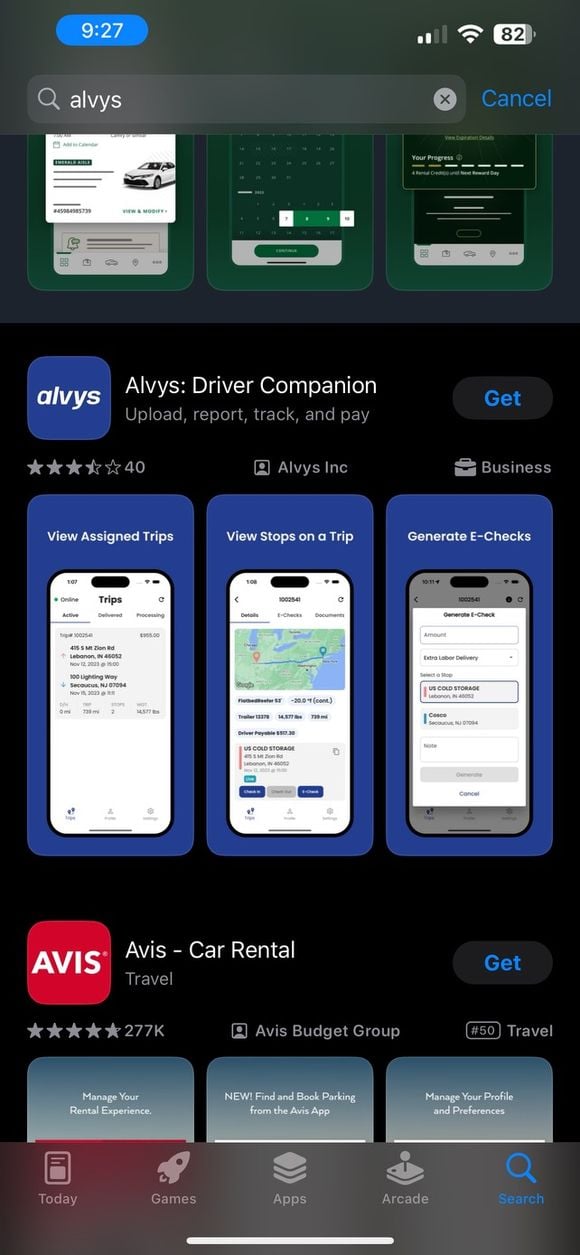
First things first, let's get the app installed on your device. Use the QR codes below, or head over to your app store (Google Play Store for Android or the App Store for iOS) and search for "Alvys." Once you find it, simply tap on the "Install" button and wait for the download to complete.
[Click here or scan below to open Alvys in the Google Play Store](https://play.google.com/store/apps/details?id=io.alvys.alvys)
Open Alvys in the Apple App Store: [https://apps.apple.com/us/app/alvys-driver-companion/id1532778131](https://apps.apple.com/us/app/alvys-driver-companion/id1532778131)
### Logging in with your phone number
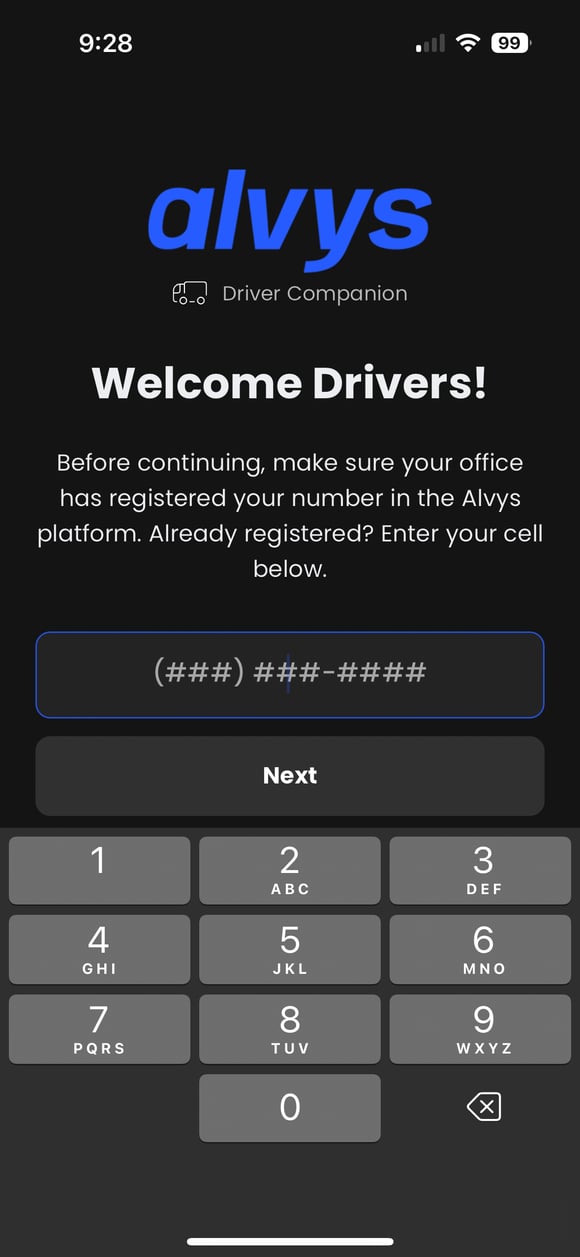
Your cell phone number serves as your login credential and identifies your account created in Alvys by your company's admin. Enter your cell phone number to log in. If your account has not been set up by the admin, you will not be able to proceed.
Be sure to accept any and all permissions from the app upon logging in.
\*Phone number login screen. \*
### Online or offline availability
In the top left-hand corner of the app, there is a toggle button to set yourself either online or offline. This feature indicates your current availability to dispatchers and admins.
When you set yourself as **Online**, you are actively working and available for assignments. Dispatchers and admins will see your status as available and can assign trips accordingly.
*Online status toggle*
When you set yourself as **Offline**, you are taking a break or refreshing on hours. During this time you will not receive trip assignments, and your status will display as unavailable to dispatchers and admins.
*Offline status toggle.*
Using this feature lets you manage your work hours and availability for a balanced and efficient workflow.
### Load visibility on the home screen
Staying on top of your assigned and upcoming trips is key to a smooth journey. The app gives you access to the information you need right from the home screen.
Upon logging in, the home screen provides a snapshot of your current workload. You will find a list of assigned and upcoming trips displayed for quick access.
*Home screen trip list.*
Each trip listed on the home screen contains essential details such as pickup and delivery locations, scheduled times, and any specific instructions.
*Trip details preview.*
* **Accessing Load Details and Uploading Documents**
With a simple tap on any trip from the home screen, you can access comprehensive load details and manage important documents seamlessly.
* **Load Details**: Dive deeper into each trip to view essential information such as pickup/delivery locations, scheduled times, and load specifics.
* **Document Upload**: Need to upload crucial documents like accessorial receipts, Bill of Lading (BOL), or Proof of Delivery (POD)? Our app allows you to upload and store these documents securely, ensuring compliance and transparency every step of the way.
For detailed instructions on how to upload documents, check out our guide [here](https://alvys.com/help/mobile-application/driver-app-how-to-upload-multiple-documents/).
* **Facility Check-In/Out**
* **Check-In:** Once you are within 10 miles of the facility, you can update your status to notify dispatchers and administrators of your arrival. If you attempt to check in outside of this radius, the app will prompt you to move closer to the facility.
* **Check-Out:** There is no radius requirement for Check-Out. Drivers can update their status regardless of location once work at the facility is completed.
*Facility check-in and check-out screen.*
## How to Use It
1. **Log in with your phone number.** Open the app and enter the cell phone number your admin used to set up your driver profile. Accept any and all permissions the app requests so features such as availability status and tracking work correctly.
2. **Set your availability.** Use the toggle in the top left-hand corner to set yourself **Online** when you are available for assignments, or **Offline** when you are on a break or refreshing on hours.
3. **Review your trips.** From the home screen, review your assigned and upcoming trips, including pickup and delivery locations, scheduled times, and any specific instructions.
4. **Open load details.** Tap any trip from the home screen to open Load Details and view essential information such as pickup and delivery locations, scheduled times, and load specifics.
5. **Upload documents.** From a load, upload and store files such as accessorial receipts, Bill of Lading (BOL), and Proof of Delivery (POD) securely, supporting compliance and transparency. For detailed instructions on uploading documents, see the document upload guide at [https://alvys.com/help/mobile-application/driver-app-how-to-upload-multiple-documents/](https://alvys.com/help/mobile-application/driver-app-how-to-upload-multiple-documents/).
6. **Check in at a facility.** When you reach the facility, update your status to notify dispatchers and administrators of your arrival. The app uses your location to confirm you are at the facility; if you are too far away, it will prompt you to move closer before you can check in.
7. **Check out at a facility.** When your work at the facility is complete, update your status to checked out. There is no location requirement for check-out, so you can do this regardless of where you are.
💡 Access to the Driver Companion mobile app is limited to users with the **"Driver"** role. Your company's designated admin sets up your driver profile before you can log in.
## Troubleshooting
### "This app won't work for your device." message
The mobile app is designed for a mobile phone device, but can be used on some tablets. The lowest supported platform versions (as of September 10, 2025) are Android 8 and iOS 15. If you see the message "This app won't work for your device.", the app is unable to run on that device due to compatibility restrictions. This typically happens for one or more of the following reasons:
* The device is too old and no longer supported.
* The device is running an unsupported operating system (OS) version.
* The device has been modified or compromised, such as rooted Android devices or jailbroken devices (iOS or Android equivalents).
### Cannot log in
Your cell phone number is your login credential, and your account must exist before you can log in.
1. Confirm your company's designated admin has set up a driver profile for you in Alvys.
2. Enter the exact cell phone number your admin used for your profile, then try again.
### Check-in is blocked
Check-in confirms you are at the facility before it updates your status.
1. Make sure you have arrived at the facility and have accepted the app's location permissions.
2. If the app prompts you to move closer, move toward the facility and try the check-in again. Check-out has no location requirement.
## FAQs
**Q:** Are all mobile devices supported?
**A:** The mobile app is designed for a mobile phone device, but can be used on some tablets. The lowest supported platform versions (as of September 10, 2025) are Android 8 and iOS 15.
**Q:** What do I use to log in?
**A:** Your cell phone number is your login credential. It identifies the account your company's admin created for you in Alvys. If your profile has not been set up yet, you will not be able to proceed.
**Q:** Who can use the Driver Companion mobile app?
**A:** Access is limited to users with the **"Driver"** role, and your company's designated admin sets up your driver profile before you can log in.

 Open Alvys in the Apple App Store: [https://apps.apple.com/us/app/alvys-driver-companion/id1532778131](https://apps.apple.com/us/app/alvys-driver-companion/id1532778131)

 \*Phone number login screen. \*
### Online or offline availability
In the top left-hand corner of the app, there is a toggle button to set yourself either online or offline. This feature indicates your current availability to dispatchers and admins.
When you set yourself as **Online**, you are actively working and available for assignments. Dispatchers and admins will see your status as available and can assign trips accordingly.
\*Phone number login screen. \*
### Online or offline availability
In the top left-hand corner of the app, there is a toggle button to set yourself either online or offline. This feature indicates your current availability to dispatchers and admins.
When you set yourself as **Online**, you are actively working and available for assignments. Dispatchers and admins will see your status as available and can assign trips accordingly.
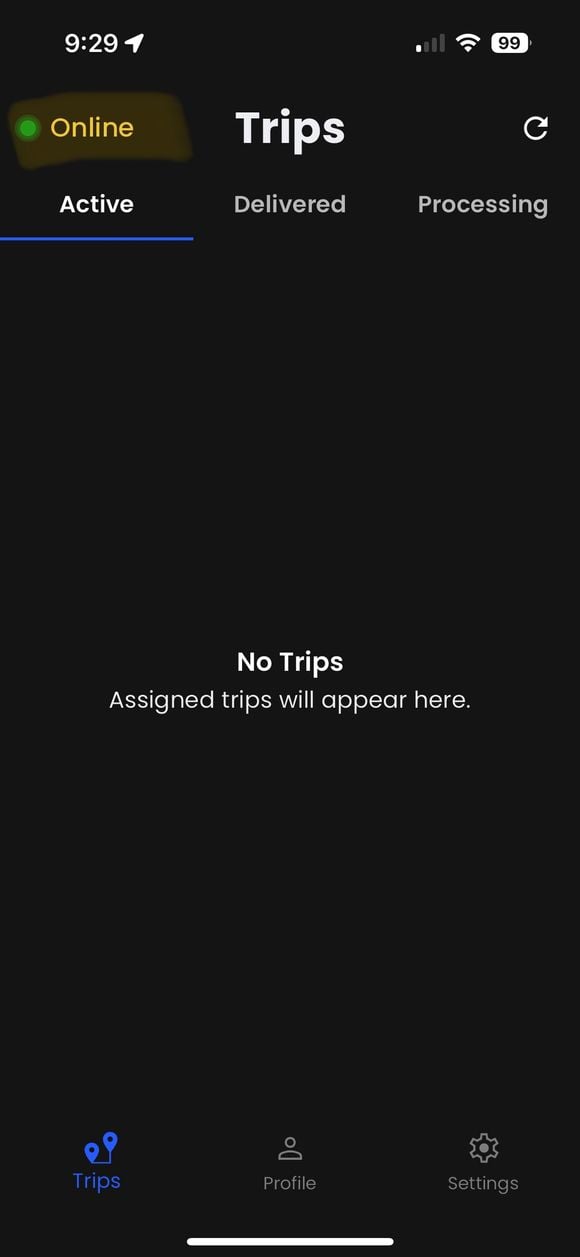 *Online status toggle*
When you set yourself as **Offline**, you are taking a break or refreshing on hours. During this time you will not receive trip assignments, and your status will display as unavailable to dispatchers and admins.
*Online status toggle*
When you set yourself as **Offline**, you are taking a break or refreshing on hours. During this time you will not receive trip assignments, and your status will display as unavailable to dispatchers and admins.
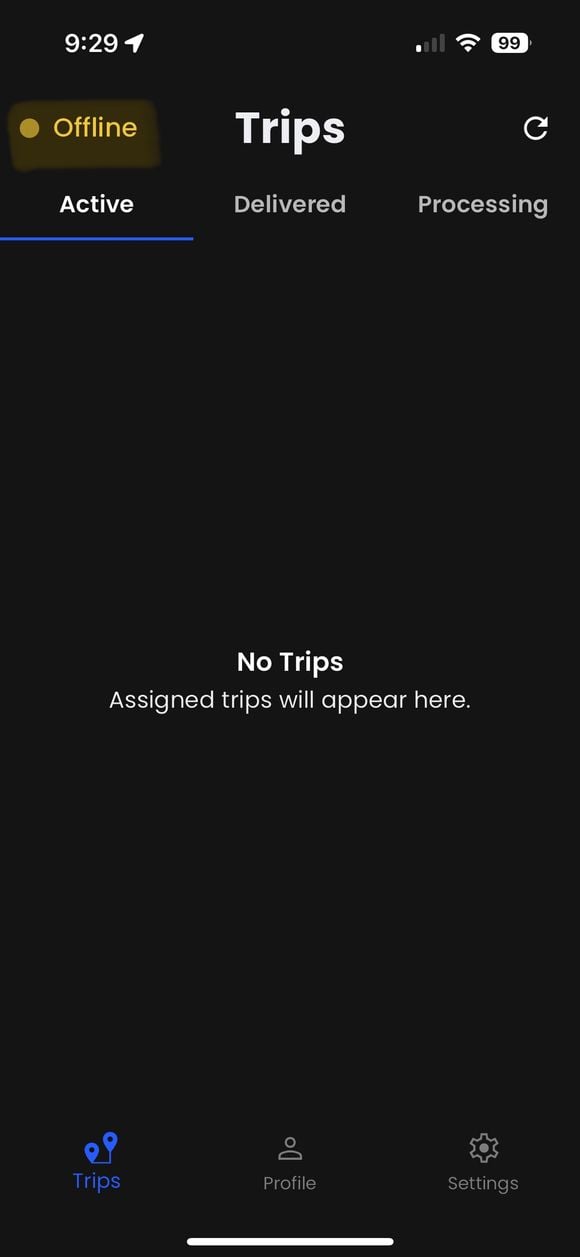 *Offline status toggle.*
Using this feature lets you manage your work hours and availability for a balanced and efficient workflow.
### Load visibility on the home screen
Staying on top of your assigned and upcoming trips is key to a smooth journey. The app gives you access to the information you need right from the home screen.
Upon logging in, the home screen provides a snapshot of your current workload. You will find a list of assigned and upcoming trips displayed for quick access.
*Offline status toggle.*
Using this feature lets you manage your work hours and availability for a balanced and efficient workflow.
### Load visibility on the home screen
Staying on top of your assigned and upcoming trips is key to a smooth journey. The app gives you access to the information you need right from the home screen.
Upon logging in, the home screen provides a snapshot of your current workload. You will find a list of assigned and upcoming trips displayed for quick access.
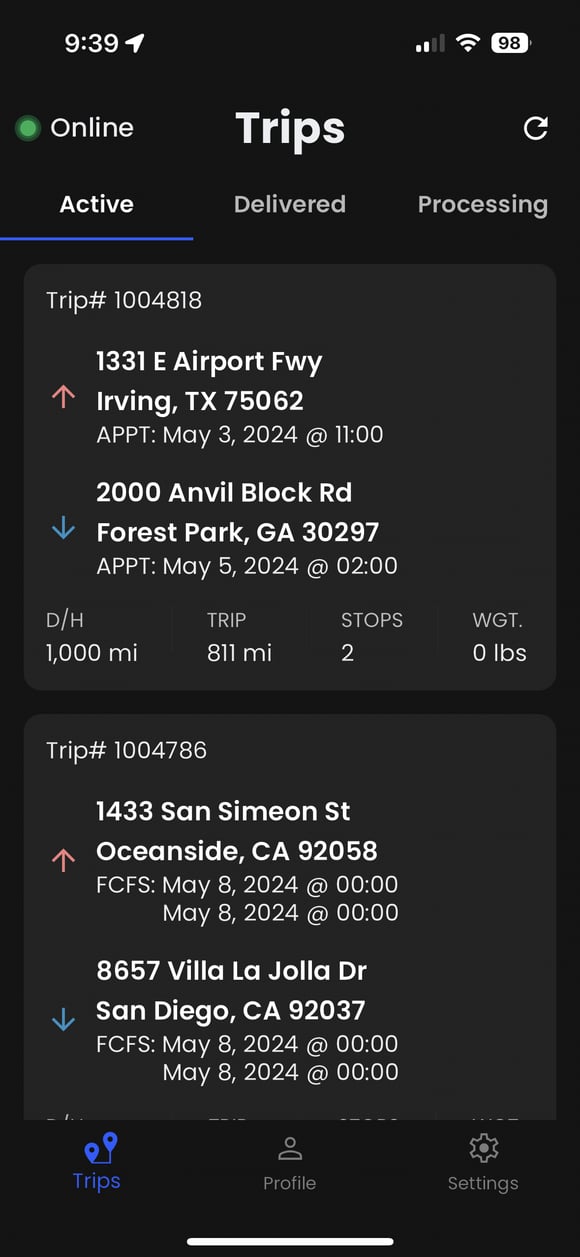 *Home screen trip list.*
Each trip listed on the home screen contains essential details such as pickup and delivery locations, scheduled times, and any specific instructions.
*Home screen trip list.*
Each trip listed on the home screen contains essential details such as pickup and delivery locations, scheduled times, and any specific instructions.
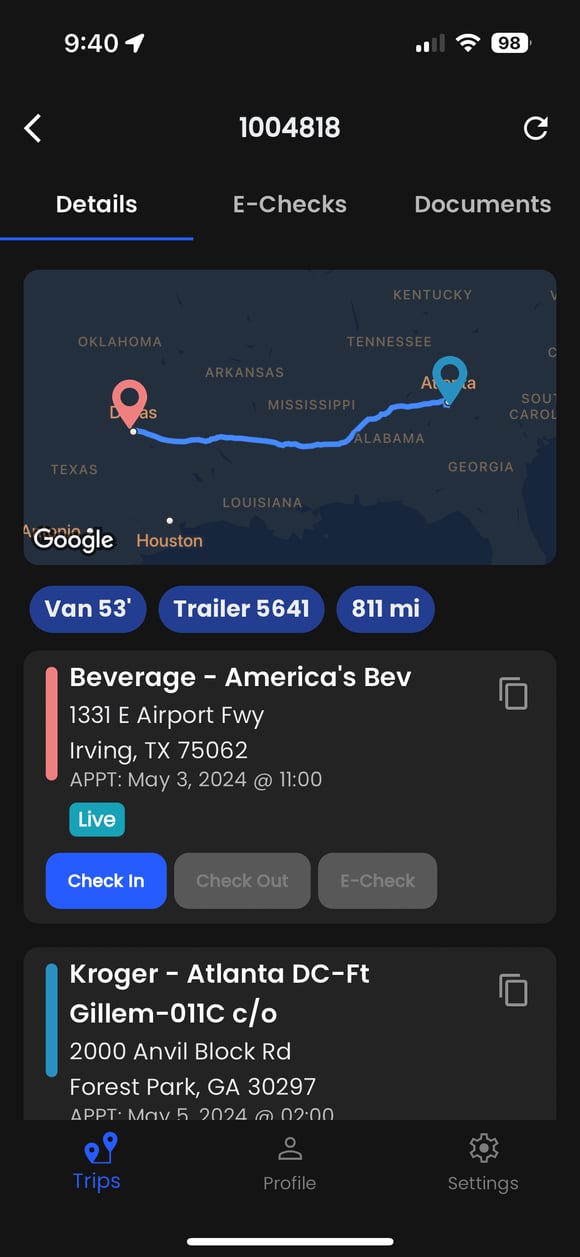 *Trip details preview.*
* **Accessing Load Details and Uploading Documents**
With a simple tap on any trip from the home screen, you can access comprehensive load details and manage important documents seamlessly.
* **Load Details**: Dive deeper into each trip to view essential information such as pickup/delivery locations, scheduled times, and load specifics.
* **Document Upload**: Need to upload crucial documents like accessorial receipts, Bill of Lading (BOL), or Proof of Delivery (POD)? Our app allows you to upload and store these documents securely, ensuring compliance and transparency every step of the way.
For detailed instructions on how to upload documents, check out our guide [here](https://alvys.com/help/mobile-application/driver-app-how-to-upload-multiple-documents/).
* **Facility Check-In/Out**
* **Check-In:** Once you are within 10 miles of the facility, you can update your status to notify dispatchers and administrators of your arrival. If you attempt to check in outside of this radius, the app will prompt you to move closer to the facility.
* **Check-Out:** There is no radius requirement for Check-Out. Drivers can update their status regardless of location once work at the facility is completed.
*Trip details preview.*
* **Accessing Load Details and Uploading Documents**
With a simple tap on any trip from the home screen, you can access comprehensive load details and manage important documents seamlessly.
* **Load Details**: Dive deeper into each trip to view essential information such as pickup/delivery locations, scheduled times, and load specifics.
* **Document Upload**: Need to upload crucial documents like accessorial receipts, Bill of Lading (BOL), or Proof of Delivery (POD)? Our app allows you to upload and store these documents securely, ensuring compliance and transparency every step of the way.
For detailed instructions on how to upload documents, check out our guide [here](https://alvys.com/help/mobile-application/driver-app-how-to-upload-multiple-documents/).
* **Facility Check-In/Out**
* **Check-In:** Once you are within 10 miles of the facility, you can update your status to notify dispatchers and administrators of your arrival. If you attempt to check in outside of this radius, the app will prompt you to move closer to the facility.
* **Check-Out:** There is no radius requirement for Check-Out. Drivers can update their status regardless of location once work at the facility is completed.
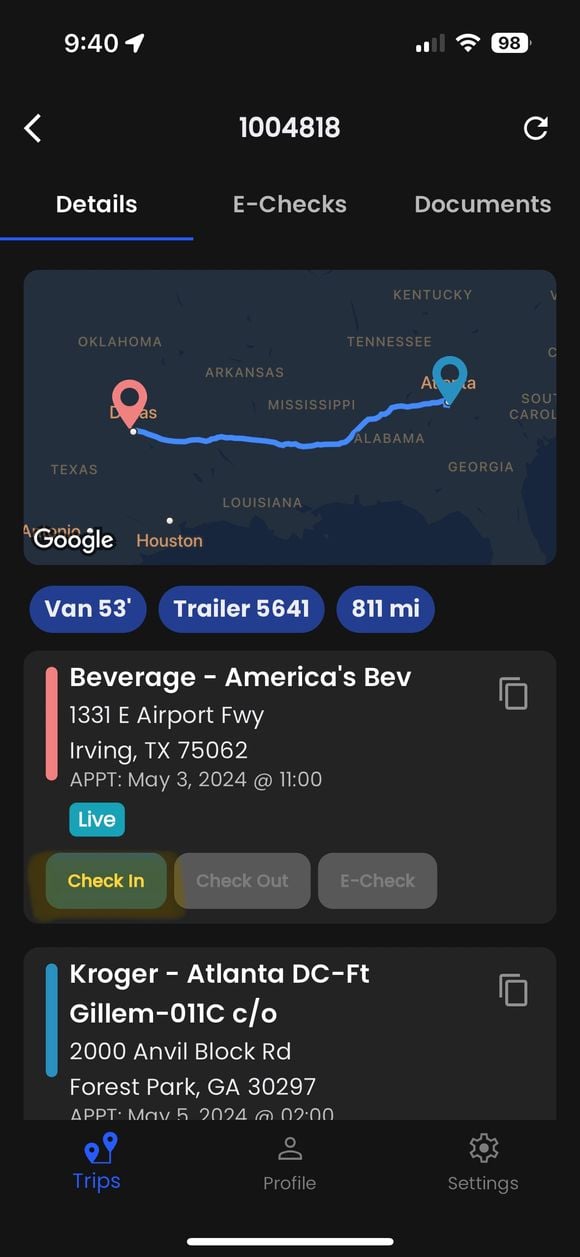 *Facility check-in and check-out screen.*
## How to Use It
1. **Log in with your phone number.** Open the app and enter the cell phone number your admin used to set up your driver profile. Accept any and all permissions the app requests so features such as availability status and tracking work correctly.
2. **Set your availability.** Use the toggle in the top left-hand corner to set yourself **Online** when you are available for assignments, or **Offline** when you are on a break or refreshing on hours.
3. **Review your trips.** From the home screen, review your assigned and upcoming trips, including pickup and delivery locations, scheduled times, and any specific instructions.
4. **Open load details.** Tap any trip from the home screen to open Load Details and view essential information such as pickup and delivery locations, scheduled times, and load specifics.
5. **Upload documents.** From a load, upload and store files such as accessorial receipts, Bill of Lading (BOL), and Proof of Delivery (POD) securely, supporting compliance and transparency. For detailed instructions on uploading documents, see the document upload guide at [https://alvys.com/help/mobile-application/driver-app-how-to-upload-multiple-documents/](https://alvys.com/help/mobile-application/driver-app-how-to-upload-multiple-documents/).
6. **Check in at a facility.** When you reach the facility, update your status to notify dispatchers and administrators of your arrival. The app uses your location to confirm you are at the facility; if you are too far away, it will prompt you to move closer before you can check in.
7. **Check out at a facility.** When your work at the facility is complete, update your status to checked out. There is no location requirement for check-out, so you can do this regardless of where you are.
*Facility check-in and check-out screen.*
## How to Use It
1. **Log in with your phone number.** Open the app and enter the cell phone number your admin used to set up your driver profile. Accept any and all permissions the app requests so features such as availability status and tracking work correctly.
2. **Set your availability.** Use the toggle in the top left-hand corner to set yourself **Online** when you are available for assignments, or **Offline** when you are on a break or refreshing on hours.
3. **Review your trips.** From the home screen, review your assigned and upcoming trips, including pickup and delivery locations, scheduled times, and any specific instructions.
4. **Open load details.** Tap any trip from the home screen to open Load Details and view essential information such as pickup and delivery locations, scheduled times, and load specifics.
5. **Upload documents.** From a load, upload and store files such as accessorial receipts, Bill of Lading (BOL), and Proof of Delivery (POD) securely, supporting compliance and transparency. For detailed instructions on uploading documents, see the document upload guide at [https://alvys.com/help/mobile-application/driver-app-how-to-upload-multiple-documents/](https://alvys.com/help/mobile-application/driver-app-how-to-upload-multiple-documents/).
6. **Check in at a facility.** When you reach the facility, update your status to notify dispatchers and administrators of your arrival. The app uses your location to confirm you are at the facility; if you are too far away, it will prompt you to move closer before you can check in.
7. **Check out at a facility.** When your work at the facility is complete, update your status to checked out. There is no location requirement for check-out, so you can do this regardless of where you are.