> ## Documentation Index
> Fetch the complete documentation index at: https://docs.alvys.com/llms.txt
> Use this file to discover all available pages before exploring further.
# Alvys Insights - Getting Started
> Find Alvys Intelligence in your TMS, understand what Insights can answer, and check the View Insights permission before you ask your first question.
**Applies to:** Admin · Partner Admin (users with the **"View Insights"** permission for Insights)
**Module:** Reports & Analytics
Alvys Intelligence is the built-in analytics layer of your TMS, combining Insights (ask operations questions in plain English and get instant charts and answers from live data) with custom Business Intelligence dashboards and Reports built natively inside Alvys.
## Overview
Alvys Intelligence is the embedded analytics and business intelligence capability inside your TMS. It brings two connected tools together so you can understand performance without exporting data or building spreadsheets elsewhere: Insights, a conversational analytics tool where you ask a question in everyday language and get back live answers and charts; and Business Intelligence dashboards and Reports, custom dashboards and reports built natively inside Alvys so your operational, financial, and asset data is visualized in one place. If you signed up for early access to Alvys Intelligence, these features are rolling out to your account now. Early access for the custom dashboards and reports began May 1st.
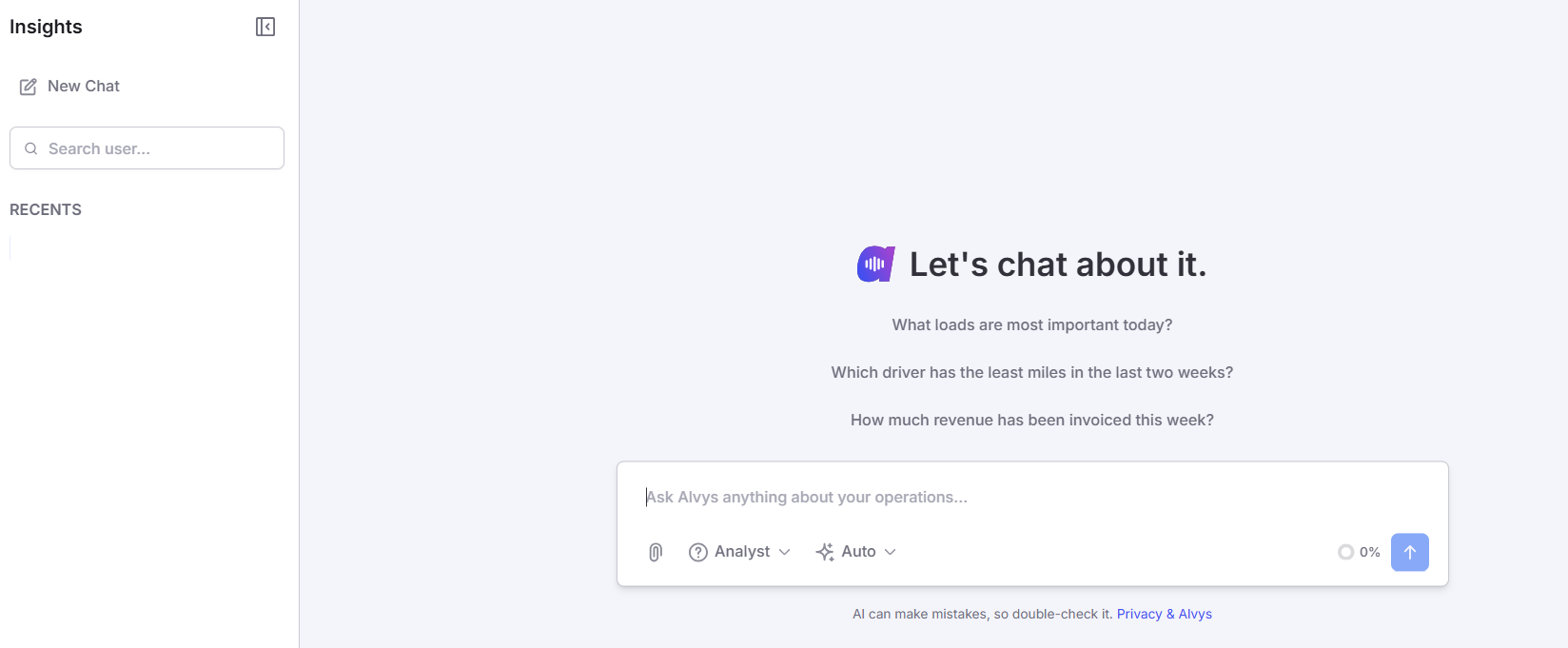 *Image displaying Alvys Insights Page*
## Where to find it
**Insights** lives in the main left navigation as the **Al Intelligence** item, which opens the **Insights** chat experience.
*Image displaying Alvys Insights Page*
## Where to find it
**Insights** lives in the main left navigation as the **Al Intelligence** item, which opens the **Insights** chat experience.
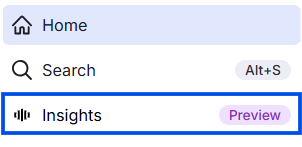 *Image displaying the Insights left navigation menu item.*
You can use it as a floating panel in the lower corner of the screen, as a side panel, or full screen. **Reports** lives in the main left navigation under **Reports**. Custom dashboards and reports you and your team build appear there under **Custom Reports**.
*Image displaying the Insights left navigation menu item.*
You can use it as a floating panel in the lower corner of the screen, as a side panel, or full screen. **Reports** lives in the main left navigation under **Reports**. Custom dashboards and reports you and your team build appear there under **Custom Reports**.
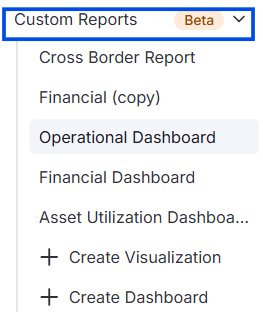 *Image displaying the Custom Reports left navigation menu item and sub reports.*
## Key concepts
**Insights (conversational analytics).** Type a question the way you would ask a colleague, and Insights answers from your live operational data. Example questions you can try: Revenue by lane; On-time trends; Driver utilization; "What loads are most important today?"; "Which driver has the least miles in the last two weeks?"; "How much revenue has been invoiced this week?" You get charts and written answers back instantly; there is nothing to configure first.
**Business Intelligence dashboards and Reports.** Custom dashboards and reports are built natively inside Alvys. They cover financial, operational, and asset views of your business and update from your live data, so the numbers you see match what is happening in your operation.
## How to use it
Insights and Reports each have dedicated step-by-step guides:
* Using Alvys Insights: [https://help.alvys.com/en/articles/14375983-using-alvys-insights](/help/insights/how-to-use-alvys-insights)
## Settings and permissions
**Insights** is controlled by the **"View Insights"** permission. A user must have **"View Insights"** granted to open the Insights chat experience; without it, the tool is not available. Insights rolls out to Admins and Partner Admins first. If you hold the **Admin** or **Partner Admin** role, this feature becomes available to you before your broader team. This gives you a chance to get familiar with the tool and share feedback before you grant the **"View Insights"** permission to other team members. Business Intelligence dashboards and Reports are available to users with the **Admin**, **Partner Admin**, or **Support** role, and to other team members once a reporting role (analytic or viewer) is assigned to them. Admins and Partner Admins have reporting access by default.
## Limits and behavior
* Alvys Intelligence is rolling out to early access accounts; if you did not sign up for early access, the features may not yet appear in your account.
* Custom dashboards and reports began rolling out May 1st as part of early access.
* Insights becomes visible to a user only when both the feature is enabled for the account and that user has the **"View Insights"** permission.
## FAQs
**Q: What can I ask Alvys Insights?**
**A:** Ask anything about your live operations in plain English, such as revenue by lane, on-time trends, driver utilization, which driver has the least miles in the last two weeks, or how much revenue has been invoiced this week. You get charts and answers back instantly.
**Q: Who gets Insights first?**
**A:** Admins and Partner Admins get Insights first. This lets you get familiar with the tool and give feedback before you grant the "View Insights" permission to your broader team.
**Q: When did the custom dashboards and reports become available?**
**A:** Custom Business Intelligence dashboards and reports built natively inside Alvys began rolling out for early access on May 1st.
**Q: I signed up for early access but do not see these features yet. What should I do?**
**A:** The features roll out gradually to early access accounts. If you signed up and still do not see Insights or the custom Reports after the rollout window, confirm you have the "View Insights" permission for Insights, or a reporting role for dashboards; if access still does not appear, reach out to Support.
## Go Deeper
* [Using Alvys Insights](/help/insights/how-to-use-alvys-insights)
*Image displaying the Custom Reports left navigation menu item and sub reports.*
## Key concepts
**Insights (conversational analytics).** Type a question the way you would ask a colleague, and Insights answers from your live operational data. Example questions you can try: Revenue by lane; On-time trends; Driver utilization; "What loads are most important today?"; "Which driver has the least miles in the last two weeks?"; "How much revenue has been invoiced this week?" You get charts and written answers back instantly; there is nothing to configure first.
**Business Intelligence dashboards and Reports.** Custom dashboards and reports are built natively inside Alvys. They cover financial, operational, and asset views of your business and update from your live data, so the numbers you see match what is happening in your operation.
## How to use it
Insights and Reports each have dedicated step-by-step guides:
* Using Alvys Insights: [https://help.alvys.com/en/articles/14375983-using-alvys-insights](/help/insights/how-to-use-alvys-insights)
## Settings and permissions
**Insights** is controlled by the **"View Insights"** permission. A user must have **"View Insights"** granted to open the Insights chat experience; without it, the tool is not available. Insights rolls out to Admins and Partner Admins first. If you hold the **Admin** or **Partner Admin** role, this feature becomes available to you before your broader team. This gives you a chance to get familiar with the tool and share feedback before you grant the **"View Insights"** permission to other team members. Business Intelligence dashboards and Reports are available to users with the **Admin**, **Partner Admin**, or **Support** role, and to other team members once a reporting role (analytic or viewer) is assigned to them. Admins and Partner Admins have reporting access by default.
## Limits and behavior
* Alvys Intelligence is rolling out to early access accounts; if you did not sign up for early access, the features may not yet appear in your account.
* Custom dashboards and reports began rolling out May 1st as part of early access.
* Insights becomes visible to a user only when both the feature is enabled for the account and that user has the **"View Insights"** permission.
## FAQs
**Q: What can I ask Alvys Insights?**
**A:** Ask anything about your live operations in plain English, such as revenue by lane, on-time trends, driver utilization, which driver has the least miles in the last two weeks, or how much revenue has been invoiced this week. You get charts and answers back instantly.
**Q: Who gets Insights first?**
**A:** Admins and Partner Admins get Insights first. This lets you get familiar with the tool and give feedback before you grant the "View Insights" permission to your broader team.
**Q: When did the custom dashboards and reports become available?**
**A:** Custom Business Intelligence dashboards and reports built natively inside Alvys began rolling out for early access on May 1st.
**Q: I signed up for early access but do not see these features yet. What should I do?**
**A:** The features roll out gradually to early access accounts. If you signed up and still do not see Insights or the custom Reports after the rollout window, confirm you have the "View Insights" permission for Insights, or a reporting role for dashboards; if access still does not appear, reach out to Support.
## Go Deeper
* [Using Alvys Insights](/help/insights/how-to-use-alvys-insights)