> ## Documentation Index
> Fetch the complete documentation index at: https://docs.alvys.com/llms.txt
> Use this file to discover all available pages before exploring further.
# BestPass Toll Integration
> Connect BestPass to Alvys to import toll transactions nightly through the new REST API and link each transponder to the correct truck in your fleet.
Automatically import BestPass toll transactions into Alvys nightly by connecting your BestPass account and linking each transponder to its corresponding truck.
## Overview
BestPass is a toll tracking integration (toll transponder sync, toll transaction import) that automatically imports toll transactions for your fleet assets into Alvys nightly. BestPass migrated from a legacy SOAP API to a new REST API, labeled **"BestPass new"** in Alvys. This article covers the current **"BestPass new"** version only.
The integration is one-way: data flows from BestPass into Alvys only. Setup requires two actions: adding an Alvys contact to your BestPass account, and linking each BestPass transponder to its corresponding truck in Alvys.
## Prerequisites
**Before you begin:**
* You must have an active BestPass account with admin access to add contacts.
* You must have your BestPass Account ID available.
* You must have access to the Alvys Management > Integrations page.
## How to connect
1. Log in to your BestPass account portal.
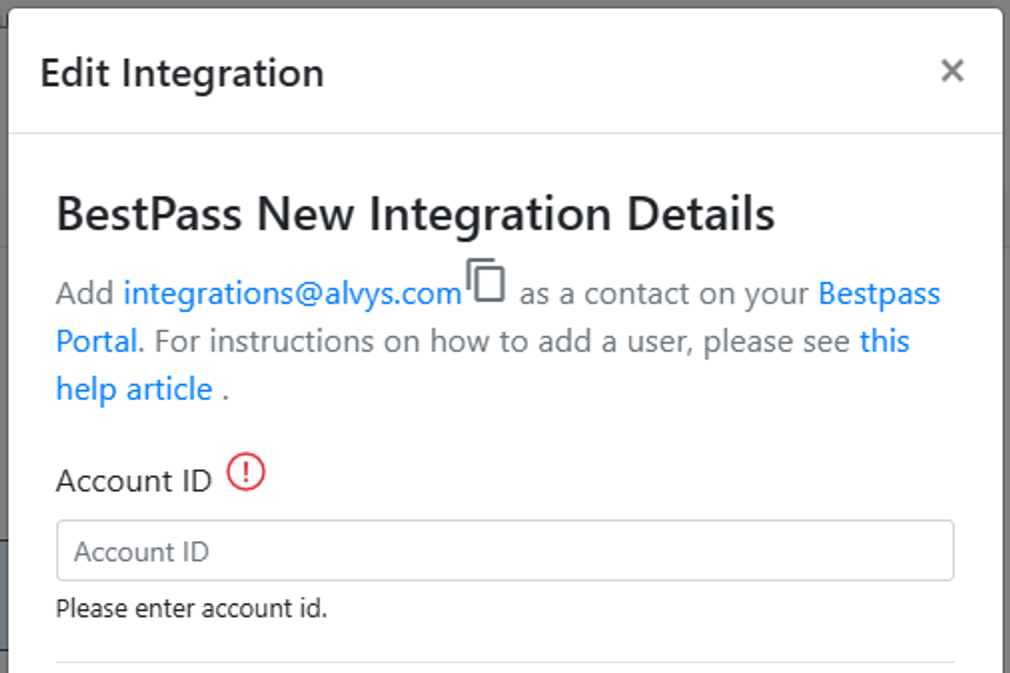
2. Navigate to the Contacts section and add [integrations@alvys.com](mailto:integrations@alvys.com) as a contact. BestPass requires this contact before Alvys can authenticate and retrieve your toll data.
3. In Alvys, click your username in the upper left corner and select **Integrations** (or navigate to **Management** and select the **Integrations** tab).
4. Go to the **Tolls** section and click the pencil icon next to **BestPass new**.
 *This image shows the Alvys Integrations page with the Tolls section expanded and the BestPass new pencil icon visible.*
1. Enter your **BestPass Account ID** in the integration settings field.
2. Select which subsidiaries you want this integration to apply to.
3. Click **Save** at the bottom.
**For toll transactions to be attributed to the correct truck, each BestPass transponder must be linked to its corresponding truck in Alvys:**
4. From the blue toolbar on the left, navigate to **Assets** and select **Trucks**.
5. Find and select the truck that corresponds to the transponder you want to add.
6. Scroll down to the **Pass Details** section.
7. Select whether or not to deduct tolls from driver pay.
8. Choose **BestPass new** in the **Issued By** field.
9. Enter the transponder ID in the **Pass Number** field.
10. Click **Add Pass**.
*This image shows the Alvys Integrations page with the Tolls section expanded and the BestPass new pencil icon visible.*
1. Enter your **BestPass Account ID** in the integration settings field.
2. Select which subsidiaries you want this integration to apply to.
3. Click **Save** at the bottom.
**For toll transactions to be attributed to the correct truck, each BestPass transponder must be linked to its corresponding truck in Alvys:**
4. From the blue toolbar on the left, navigate to **Assets** and select **Trucks**.
5. Find and select the truck that corresponds to the transponder you want to add.
6. Scroll down to the **Pass Details** section.
7. Select whether or not to deduct tolls from driver pay.
8. Choose **BestPass new** in the **Issued By** field.
9. Enter the transponder ID in the **Pass Number** field.
10. Click **Add Pass**.
 *The truck profile in Alvys with the Pass Details section expanded, showing the Issued By field set to BestPass new and a Pass Number field*
Repeat the transponder steps for all trucks that use BestPass transponders.
💡 **Tip:** Transponder IDs are typically associated with trucks because the transponder device is physically mounted in the truck. · You can add pass details to other asset types if your setup requires it.
## What syncs
* Toll data updates automatically each night via the BestPass REST API.
* New toll transactions appear in Alvys the day after they occur.
* There is no manual upload step once the integration is configured and transponder IDs are added.
* The integration is one-way: data flows from BestPass into Alvys only.
### To confirm the sync is working:
1. From the Alvys toolbar, select **Reports** and navigate to the **Toll Report**.
2. Enter at least one search parameter (such as a date range or truck) and click **Search**.
3. Confirm that toll transactions appear for your assets.
*The truck profile in Alvys with the Pass Details section expanded, showing the Issued By field set to BestPass new and a Pass Number field*
Repeat the transponder steps for all trucks that use BestPass transponders.
💡 **Tip:** Transponder IDs are typically associated with trucks because the transponder device is physically mounted in the truck. · You can add pass details to other asset types if your setup requires it.
## What syncs
* Toll data updates automatically each night via the BestPass REST API.
* New toll transactions appear in Alvys the day after they occur.
* There is no manual upload step once the integration is configured and transponder IDs are added.
* The integration is one-way: data flows from BestPass into Alvys only.
### To confirm the sync is working:
1. From the Alvys toolbar, select **Reports** and navigate to the **Toll Report**.
2. Enter at least one search parameter (such as a date range or truck) and click **Search**.
3. Confirm that toll transactions appear for your assets.
 *The Alvys Toll Report page with search criteria entered and toll transactions displayed in the results*
⚠️ Toll data imports once per night. **·** Real-time or on-demand imports are not supported. **·** Transactions from today will not appear until the following day.
## Troubleshooting
### Toll transactions not appearing in the Toll Report
1. Confirm that [integrations@alvys.com](mailto:integrations@alvys.com) has been added as a contact in your BestPass account. If this step was missed, the integration cannot authenticate with BestPass.
2. Verify that the BestPass Account ID entered in Alvys is correct. Go to Management > Integrations > Tolls > BestPass new and confirm the Account ID.
3. Verify that transponder IDs are correctly entered on each truck's Pass Details section in Alvys. The Pass Number must match the transponder ID exactly as it appears in BestPass.
4. Check the date range on the Toll Report. Transactions import nightly, so transactions from today will not appear until the following day.
5. If none of the above resolves the issue, contact Alvys support.
### Integration shows BestPass but not BestPass new
* The original BestPass integration used a legacy SOAP API that is being phased out. Locate **BestPass new** in the Tolls section of Integrations. If you previously set up the legacy integration, complete the new setup steps in this article to migrate to the REST API version.
## FAQs
**Q: What is the difference between BestPass and BestPass new?**
**A:** BestPass new uses the updated REST API, which is the current supported version. The legacy SOAP API integration (labeled simply "BestPass") is being phased out. New setups must use BestPass new.
**Q: Why do I need to add \[**[integrations@alvys.com](mailto:integrations@alvys.com)**] to my BestPass account?**
**A:** This email address allows Alvys to authenticate and access your toll data through the REST API. It is required for the integration to function.
**Q: How often does toll data update in Alvys?**
**A:** The integration automatically updates toll data nightly via API. New transactions appear the following day.
**Q: Do I need to add transponder IDs for trailers?**
**A:** Transponder IDs are typically associated with trucks because that is where the transponder device is mounted. However, you can add pass details to any asset type in Alvys if your setup requires it.
**Q: Can I use BestPass for multiple subsidiaries?**
**A:** Yes. During setup, you can select which subsidiaries the integration applies to before clicking Save.
*The Alvys Toll Report page with search criteria entered and toll transactions displayed in the results*
⚠️ Toll data imports once per night. **·** Real-time or on-demand imports are not supported. **·** Transactions from today will not appear until the following day.
## Troubleshooting
### Toll transactions not appearing in the Toll Report
1. Confirm that [integrations@alvys.com](mailto:integrations@alvys.com) has been added as a contact in your BestPass account. If this step was missed, the integration cannot authenticate with BestPass.
2. Verify that the BestPass Account ID entered in Alvys is correct. Go to Management > Integrations > Tolls > BestPass new and confirm the Account ID.
3. Verify that transponder IDs are correctly entered on each truck's Pass Details section in Alvys. The Pass Number must match the transponder ID exactly as it appears in BestPass.
4. Check the date range on the Toll Report. Transactions import nightly, so transactions from today will not appear until the following day.
5. If none of the above resolves the issue, contact Alvys support.
### Integration shows BestPass but not BestPass new
* The original BestPass integration used a legacy SOAP API that is being phased out. Locate **BestPass new** in the Tolls section of Integrations. If you previously set up the legacy integration, complete the new setup steps in this article to migrate to the REST API version.
## FAQs
**Q: What is the difference between BestPass and BestPass new?**
**A:** BestPass new uses the updated REST API, which is the current supported version. The legacy SOAP API integration (labeled simply "BestPass") is being phased out. New setups must use BestPass new.
**Q: Why do I need to add \[**[integrations@alvys.com](mailto:integrations@alvys.com)**] to my BestPass account?**
**A:** This email address allows Alvys to authenticate and access your toll data through the REST API. It is required for the integration to function.
**Q: How often does toll data update in Alvys?**
**A:** The integration automatically updates toll data nightly via API. New transactions appear the following day.
**Q: Do I need to add transponder IDs for trailers?**
**A:** Transponder IDs are typically associated with trucks because that is where the transponder device is mounted. However, you can add pass details to any asset type in Alvys if your setup requires it.
**Q: Can I use BestPass for multiple subsidiaries?**
**A:** Yes. During setup, you can select which subsidiaries the integration applies to before clicking Save.