> ## Documentation Index
> Fetch the complete documentation index at: https://docs.alvys.com/llms.txt
> Use this file to discover all available pages before exploring further.
# Connect TFM to Alvys
> Connect TFM ELD to Alvys with a token to pull real-time truck and trailer locations and driver Hours of Service data into your dispatch workflow.
TFM is a one-way ELD and telematics integration: TFM sends truck and trailer location and Hours of Service data to Alvys once assets are mapped.
## Overview
TFM is an electronic logging device (ELD) solution, also known as a telematics or GPS tracking provider, that tracks driver Hours of Service and vehicle locations. The TFM integration lets Alvys pull live location data from your TFM-equipped trucks and trailers, giving you visibility on the Asset Map and in dispatch planning.
To complete setup, you will generate a token in your TFM account, configure the integration in Alvys, and then map each truck or trailer to its TFM asset ID.
## Prerequisites
Before connecting TFM to Alvys:
* You must have an active TFM account with permission to generate tokens.
* Each truck or trailer you want to track must already be set up in your TFM account.
* You must have the **"Admin"**, **"Partner Admin"**, or **"Support"** role in Alvys. These roles can access **Company Profile > Integrations**.
* If you manage multiple subsidiaries, complete the steps below once for each subsidiary you want to enable.
## How to connect
### Generate your TFM token
1. Log into your TFM account.
2. Navigate to **Management** and select **API Tokens**.
3. Click **Generate Token**.
 *TFM account: Management > API Tokens screen showing the Generate Token button.*
4. Enter a token name (for example, "Alvys Integration") and click **OK**.
*TFM account: Management > API Tokens screen showing the Generate Token button.*
4. Enter a token name (for example, "Alvys Integration") and click **OK**.
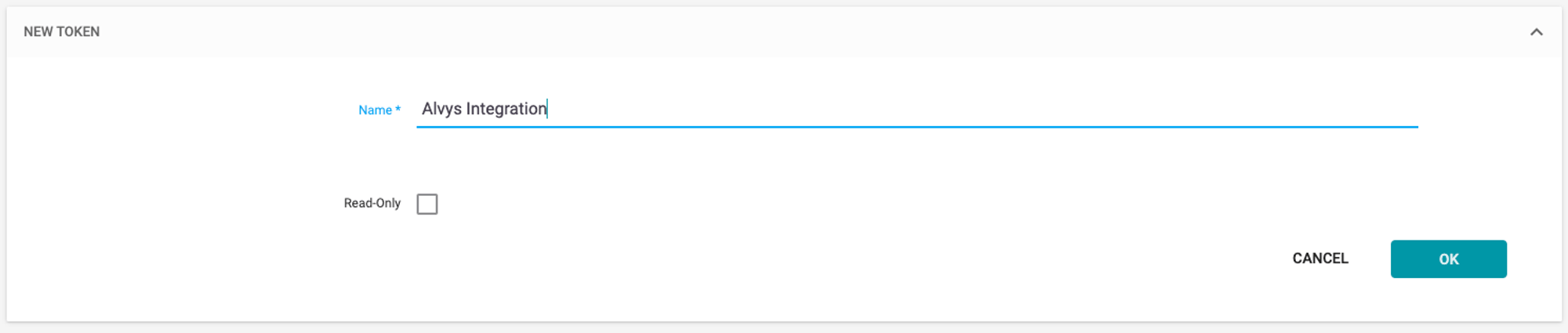 *TFM token name entry dialog with OK button.*
5. The page refreshes and displays your new integration token. Copy this token; you will need it in the next section.
### Enter your token in Alvys
1. In Alvys, click your profile icon in the lower-left corner to open **Company Profile**.
2. Select the subsidiary you want to configure.
3. Click the **Integrations** tab.
4. Expand the **ELD** section.
5. Click the pencil icon on the TFM card.
*TFM token name entry dialog with OK button.*
5. The page refreshes and displays your new integration token. Copy this token; you will need it in the next section.
### Enter your token in Alvys
1. In Alvys, click your profile icon in the lower-left corner to open **Company Profile**.
2. Select the subsidiary you want to configure.
3. Click the **Integrations** tab.
4. Expand the **ELD** section.
5. Click the pencil icon on the TFM card.
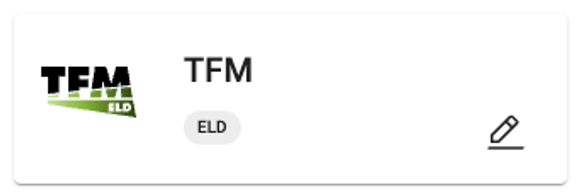 *Alvys Integrations tab with ELD section expanded and TFM card pencil icon visible.*
6. Enter your TFM **API Token** in the field provided.
7. Click **Save**.
Alvys validates your credentials immediately. If the token is accepted, the TFM integration becomes active for that subsidiary.
### Map each asset to its TFM asset ID
After the integration is active, you map individual trucks and trailers in Alvys to their corresponding asset IDs in TFM. This mapping tells Alvys which TFM asset to pull location data from for each vehicle.
The **Integration ID** field in Alvys corresponds to the asset ID in your TFM account. To find an asset's TFM ID, open the asset in your TFM account and look at the URL. The number at the end of the URL path is the asset ID. For example, if the URL is [app.tfmeld.com/client/trucks/25236](http://app.tfmeld.com/client/trucks/25236), the asset ID is 25236.
1. Go to **Assets** in the left navigation menu and select **Trucks** or **Trailers**.
2. Double-click the asset you want to configure to open its profile.
3. Scroll down to the **ELD Integrations** section and click **Add Integration**.
4. Select **TFM** from the dropdown.
5. Enter the TFM asset ID in the **Integration ID** field.
6. Click **Save**.
Repeat for each truck or trailer you want to track.
## What syncs / data flow
* Data flows one way: TFM sends location and Hours of Service data to Alvys. Alvys does not send data back to TFM.
* Once an asset is mapped, Alvys pulls its location automatically and displays it on the Asset Map and in dispatch planning.
* Each subsidiary's TFM integration is configured and synced independently.
### Verify it is working
1. Go to **Assets** in the left navigation and select **Trucks** or **Trailers**.
2. Open a truck or trailer you have mapped.
3. Confirm the **ELD Integrations** section shows TFM with the asset ID you entered.
4. Open the **Asset Map** in Alvys and confirm the truck or trailer is showing a current location.
📋 **Limits / unsupported:** Each subsidiary requires its own TFM token; a single token cannot be shared across subsidiaries. · Alvys does not write dispatch data, load assignments, or any other information back to TFM — the sync is one-way from TFM into Alvys. · Temperature sensor data from TFM is not surfaced in Alvys.
## Troubleshooting
### Token rejected at save
1. Confirm you copied the full token from TFM without any leading or trailing spaces.
2. Return to your TFM account under **Management > API Tokens** and generate a new token, then re-enter it in Alvys.
3. If the error persists, confirm your TFM account has permission to create tokens. Contact Alvys support if none of these reasons apply.
### Asset location not appearing on the Asset Map after mapping
1. Confirm the asset ID you entered in Alvys matches exactly the number shown at the end of the URL path for that asset in your TFM account.
2. Confirm the asset is currently active and reporting in your TFM account.
3. Allow a few minutes for the first location update to sync after saving the mapping.
4. If the asset is active in TFM and the ID is correct but no location appears, contact Alvys support.
### ELD section or TFM card not visible in Alvys
1. Confirm you are signed in with an Admin, Partner Admin, or Support role. The Integrations tab is not visible to other roles.
2. Confirm you are viewing a subsidiary, not the top-level company profile.
3. If you have the correct role and are on a subsidiary but the TFM card is still not visible, contact Alvys support.
## FAQs
**Q: Where do I find my TFM asset IDs?**
**A:** Open the asset in your TFM account. The asset ID is the number at the end of the URL path. For example, if the URL is [app.tfmeld.com/client/trucks/25236](http://app.tfmeld.com/client/trucks/25236), the asset ID is 25236.
**Q: Can I track both trucks and trailers with TFM?**
**A:** Yes. You can add the TFM integration to both trucks and trailers by mapping each asset separately under Assets > Trucks or Assets > Trailers.
**Q: What happens if I enter an invalid token?**
**A:** Alvys validates credentials before saving. If the token is incorrect, you will see an error immediately and the integration will not activate.
**Q: Can I use TFM for multiple subsidiaries?**
**A:** Yes. Repeat the connection and asset mapping steps for each subsidiary. Each subsidiary requires its own TFM token configuration.
## Go Deeper
* [FleetLocate ELD/Telematics](/help/integrations/fleetlocate-eld-telematics-integration)
* [Samsara ELD/Telematics](/help/integrations/connecting-samsara-to-alvys)
* [ELD Rider ELD/Telematics](/help/integrations/eld-rider-eld-telematics-integration)
*Alvys Integrations tab with ELD section expanded and TFM card pencil icon visible.*
6. Enter your TFM **API Token** in the field provided.
7. Click **Save**.
Alvys validates your credentials immediately. If the token is accepted, the TFM integration becomes active for that subsidiary.
### Map each asset to its TFM asset ID
After the integration is active, you map individual trucks and trailers in Alvys to their corresponding asset IDs in TFM. This mapping tells Alvys which TFM asset to pull location data from for each vehicle.
The **Integration ID** field in Alvys corresponds to the asset ID in your TFM account. To find an asset's TFM ID, open the asset in your TFM account and look at the URL. The number at the end of the URL path is the asset ID. For example, if the URL is [app.tfmeld.com/client/trucks/25236](http://app.tfmeld.com/client/trucks/25236), the asset ID is 25236.
1. Go to **Assets** in the left navigation menu and select **Trucks** or **Trailers**.
2. Double-click the asset you want to configure to open its profile.
3. Scroll down to the **ELD Integrations** section and click **Add Integration**.
4. Select **TFM** from the dropdown.
5. Enter the TFM asset ID in the **Integration ID** field.
6. Click **Save**.
Repeat for each truck or trailer you want to track.
## What syncs / data flow
* Data flows one way: TFM sends location and Hours of Service data to Alvys. Alvys does not send data back to TFM.
* Once an asset is mapped, Alvys pulls its location automatically and displays it on the Asset Map and in dispatch planning.
* Each subsidiary's TFM integration is configured and synced independently.
### Verify it is working
1. Go to **Assets** in the left navigation and select **Trucks** or **Trailers**.
2. Open a truck or trailer you have mapped.
3. Confirm the **ELD Integrations** section shows TFM with the asset ID you entered.
4. Open the **Asset Map** in Alvys and confirm the truck or trailer is showing a current location.
📋 **Limits / unsupported:** Each subsidiary requires its own TFM token; a single token cannot be shared across subsidiaries. · Alvys does not write dispatch data, load assignments, or any other information back to TFM — the sync is one-way from TFM into Alvys. · Temperature sensor data from TFM is not surfaced in Alvys.
## Troubleshooting
### Token rejected at save
1. Confirm you copied the full token from TFM without any leading or trailing spaces.
2. Return to your TFM account under **Management > API Tokens** and generate a new token, then re-enter it in Alvys.
3. If the error persists, confirm your TFM account has permission to create tokens. Contact Alvys support if none of these reasons apply.
### Asset location not appearing on the Asset Map after mapping
1. Confirm the asset ID you entered in Alvys matches exactly the number shown at the end of the URL path for that asset in your TFM account.
2. Confirm the asset is currently active and reporting in your TFM account.
3. Allow a few minutes for the first location update to sync after saving the mapping.
4. If the asset is active in TFM and the ID is correct but no location appears, contact Alvys support.
### ELD section or TFM card not visible in Alvys
1. Confirm you are signed in with an Admin, Partner Admin, or Support role. The Integrations tab is not visible to other roles.
2. Confirm you are viewing a subsidiary, not the top-level company profile.
3. If you have the correct role and are on a subsidiary but the TFM card is still not visible, contact Alvys support.
## FAQs
**Q: Where do I find my TFM asset IDs?**
**A:** Open the asset in your TFM account. The asset ID is the number at the end of the URL path. For example, if the URL is [app.tfmeld.com/client/trucks/25236](http://app.tfmeld.com/client/trucks/25236), the asset ID is 25236.
**Q: Can I track both trucks and trailers with TFM?**
**A:** Yes. You can add the TFM integration to both trucks and trailers by mapping each asset separately under Assets > Trucks or Assets > Trailers.
**Q: What happens if I enter an invalid token?**
**A:** Alvys validates credentials before saving. If the token is incorrect, you will see an error immediately and the integration will not activate.
**Q: Can I use TFM for multiple subsidiaries?**
**A:** Yes. Repeat the connection and asset mapping steps for each subsidiary. Each subsidiary requires its own TFM token configuration.
## Go Deeper
* [FleetLocate ELD/Telematics](/help/integrations/fleetlocate-eld-telematics-integration)
* [Samsara ELD/Telematics](/help/integrations/connecting-samsara-to-alvys)
* [ELD Rider ELD/Telematics](/help/integrations/eld-rider-eld-telematics-integration)