> ## Documentation Index
> Fetch the complete documentation index at: https://docs.alvys.com/llms.txt
> Use this file to discover all available pages before exploring further.
# Connect FleetLocate to Alvys
> Connect FleetLocate by Spireon to Alvys to pull real-time truck and trailer GPS locations into the Asset Map for dispatch and operations visibility.
FleetLocate by Spireon is a telematics provider that connects with Alvys to bring real-time truck and trailer GPS locations into your dispatch workflow: also known as FleetLocate GPS tracking, Spireon FleetLocate, or Spireon telematics.
### Overview
FleetLocate, also known as Spireon FleetLocate, is a telematics provider that connects with Alvys to bring real-time truck and trailer locations directly into your dispatch workflow, also known as GPS tracking, fleet tracking, or telematics integration. The integration is one-way: Alvys pulls location data from FleetLocate.
Connecting FleetLocate to Alvys allows your dispatch and operations team to see current truck and trailer locations without leaving Alvys. Unlike most other ELD integrations, FleetLocate supports both truck and trailer tracking.
📋 Hours of Service (HOS) data and IFTA mileage data are not available through FleetLocate. Only location data is synced.
### Prerequisites
Before connecting, confirm you have the following:
* An active FleetLocate (Spireon) account with API access. To request REST API credentials (username, password, and application token), contact FleetLocate support at [ATI-Support@spireon.com](mailto:ATI-Support@spireon.com).
* Your FleetLocate username, password, and application token (all three are required)
* An **"Admin"**, **"Operations Manager"**, or **"Dispatcher"** role in Alvys
FleetLocate requires three credentials to connect: a username, a password, and an application token provided by Spireon.
### How to connect?
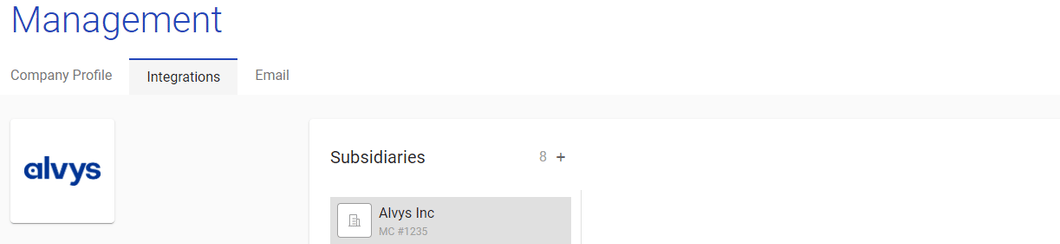
1. Open Integrations. Go to **"Management > Integrations"** in the top navigation.
 2. Select FleetLocate. Find FleetLocate in the list of available integrations and click to open it.
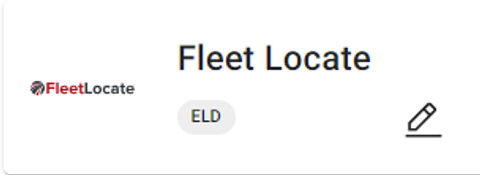 3. Enter your credentials. Enter your FleetLocate username, password, and the application token from your Spireon account. All three fields are required.
4. Save and activate. Click **"Save"**. Alvys will verify the credentials. Once confirmed, the integration status changes to active
**After activation, map each truck or trailer to its FleetLocate asset ID:**
Go to **Assets** in the left menu and select **Trucks** or **Trailers**.
3. Enter your credentials. Enter your FleetLocate username, password, and the application token from your Spireon account. All three fields are required.
4. Save and activate. Click **"Save"**. Alvys will verify the credentials. Once confirmed, the integration status changes to active
**After activation, map each truck or trailer to its FleetLocate asset ID:**
Go to **Assets** in the left menu and select **Trucks** or **Trailers**.
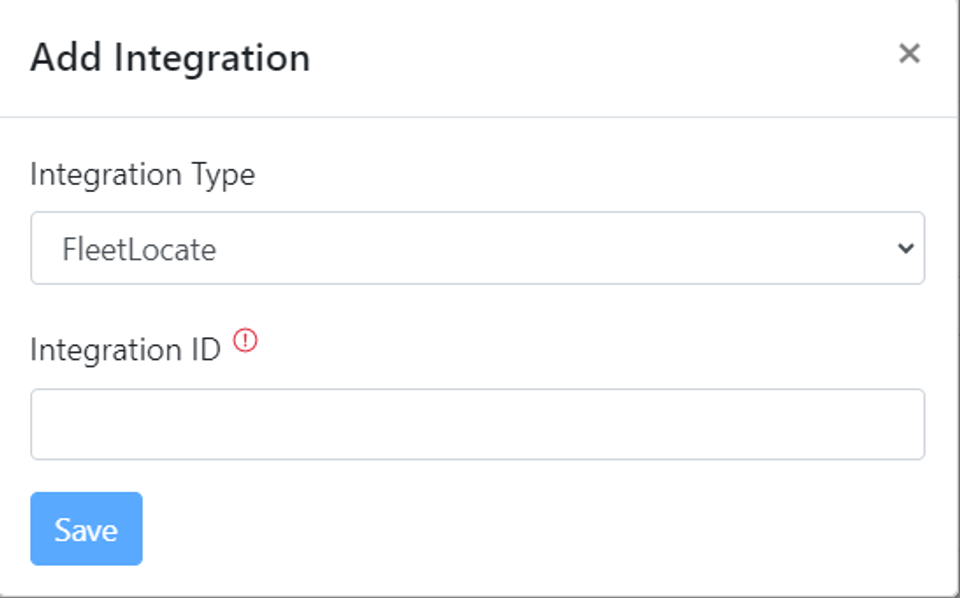
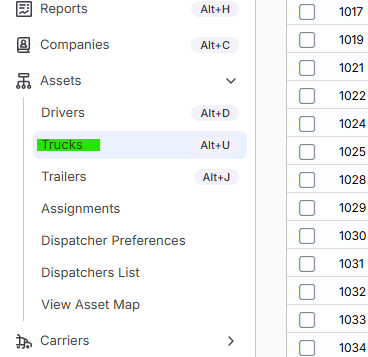 Double-click the asset you want to configure, then scroll down to the **ELD Integrations** section and click **Add Integration**.
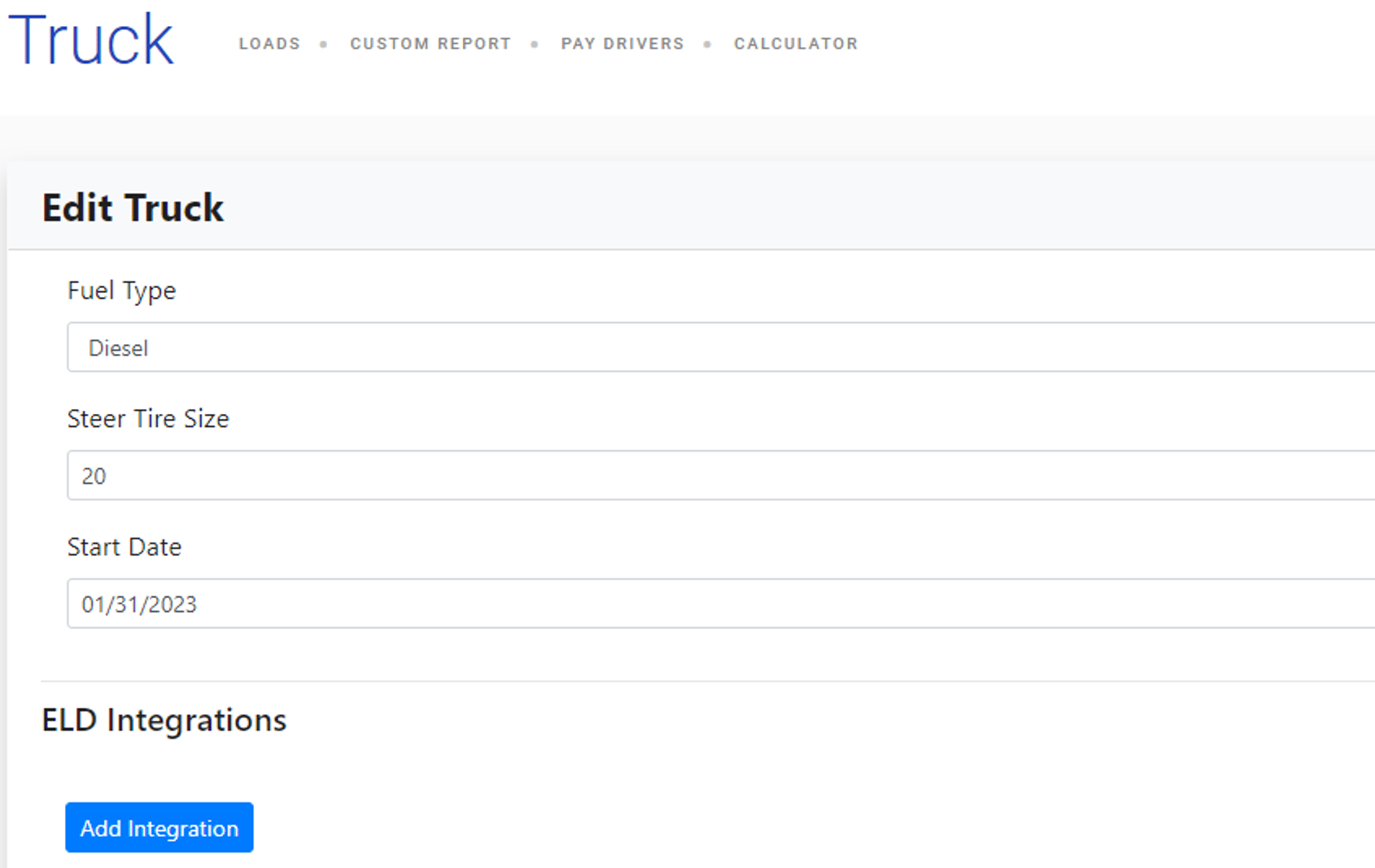 Select **FleetLocate** from the dropdown, enter the **FleetLocate asset ID** in the Integration ID field, and click **Save**.
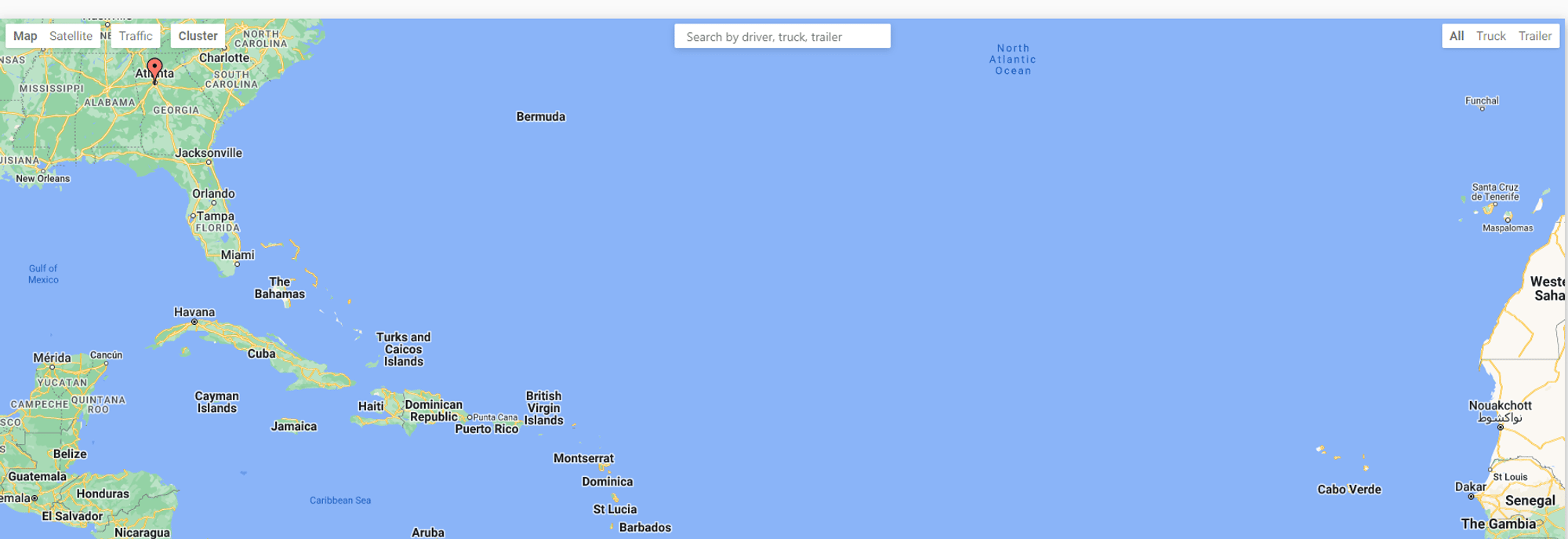
 Repeat this process for each truck or trailer you want to track with FleetLocate. Once configured, you can view real-time locations on the **Asset Map**.
 #### Verify it's working?
1. Open a load with an assigned truck. Go to **"Loads"** and open a load that has a truck assigned.
2. Check the tracking map. Look for the truck location on the map or in the asset tracking section. If the integration is active and the truck has a FleetLocate device, the current location should be visible.
3. Confirm trailer location (if applicable). If a trailer is assigned to the load and has a FleetLocate device, its location should also appear in the tracking view.
### What syncs?
The following data is pulled from FleetLocate into Alvys:
* **Truck location:** Current GPS coordinates for each truck asset
* **Trailer location:** Current GPS coordinates for each trailer asset. FleetLocate is one of the few telematics providers that supports trailer tracking in Alvys
Alvys requests updated location data from FleetLocate on a regular basis. Both truck and trailer locations reflect the most recent values reported by the FleetLocate device.
### Troubleshooting
#### Truck or trailer location is not showing?
1. Confirm the asset has a FleetLocate device installed and powered on.
2. Verify all three credentials in Alvys (username, password, and application token) are correct and match your Spireon account. A mismatch on any one of the three will prevent the integration from connecting.
3. Check that the integration status in **"Management > Integrations"** shows as active.
#### Trailer location is missing even though the truck shows?
1. Confirm the trailer has its own FleetLocate device. Trailer tracking requires a separate device on the trailer asset.
2. Verify the trailer is active in your FleetLocate account.
#### HOS clocks are not visible
HOS data is not supported by FleetLocate. This is expected behavior and cannot be resolved through configuration.
### FAQs
**Q: Can I see trailer locations with FleetLocate?**
**A:** Yes. FleetLocate supports both truck and trailer location tracking. This is not available with most other telematics integrations in Alvys.
**Q: Why is HOS not showing for my drivers?**
**A:** FleetLocate does not return HOS data. If you need HOS visibility in Alvys, you will need a telematics provider that supports it, such as Geotab or Motive.
**Q: I entered all three credentials but the connection failed. What should I check?**
**A:** Verify that the application token is correct. The token is provided by Spireon and is separate from your login credentials. Contact FleetLocate support if you are unsure which token to use.
### Go Deeper
Setting Up ELD / Telematics Integrations
## FAQ
**Where do I find my FleetLocate asset IDs?**
Your FleetLocate asset IDs should be available in your FleetLocate portal, or you can request them from FleetLocate support.
**Can I track both trucks and trailers?**
Yes, you can configure FleetLocate tracking for both trucks and trailers by adding the integration to each asset type.
**What happens if I enter invalid credentials?**
As of February 2025, Alvys validates credentials before saving, so you'll see an error immediately if your credentials are incorrect.
#### Verify it's working?
1. Open a load with an assigned truck. Go to **"Loads"** and open a load that has a truck assigned.
2. Check the tracking map. Look for the truck location on the map or in the asset tracking section. If the integration is active and the truck has a FleetLocate device, the current location should be visible.
3. Confirm trailer location (if applicable). If a trailer is assigned to the load and has a FleetLocate device, its location should also appear in the tracking view.
### What syncs?
The following data is pulled from FleetLocate into Alvys:
* **Truck location:** Current GPS coordinates for each truck asset
* **Trailer location:** Current GPS coordinates for each trailer asset. FleetLocate is one of the few telematics providers that supports trailer tracking in Alvys
Alvys requests updated location data from FleetLocate on a regular basis. Both truck and trailer locations reflect the most recent values reported by the FleetLocate device.
### Troubleshooting
#### Truck or trailer location is not showing?
1. Confirm the asset has a FleetLocate device installed and powered on.
2. Verify all three credentials in Alvys (username, password, and application token) are correct and match your Spireon account. A mismatch on any one of the three will prevent the integration from connecting.
3. Check that the integration status in **"Management > Integrations"** shows as active.
#### Trailer location is missing even though the truck shows?
1. Confirm the trailer has its own FleetLocate device. Trailer tracking requires a separate device on the trailer asset.
2. Verify the trailer is active in your FleetLocate account.
#### HOS clocks are not visible
HOS data is not supported by FleetLocate. This is expected behavior and cannot be resolved through configuration.
### FAQs
**Q: Can I see trailer locations with FleetLocate?**
**A:** Yes. FleetLocate supports both truck and trailer location tracking. This is not available with most other telematics integrations in Alvys.
**Q: Why is HOS not showing for my drivers?**
**A:** FleetLocate does not return HOS data. If you need HOS visibility in Alvys, you will need a telematics provider that supports it, such as Geotab or Motive.
**Q: I entered all three credentials but the connection failed. What should I check?**
**A:** Verify that the application token is correct. The token is provided by Spireon and is separate from your login credentials. Contact FleetLocate support if you are unsure which token to use.
### Go Deeper
Setting Up ELD / Telematics Integrations
## FAQ
**Where do I find my FleetLocate asset IDs?**
Your FleetLocate asset IDs should be available in your FleetLocate portal, or you can request them from FleetLocate support.
**Can I track both trucks and trailers?**
Yes, you can configure FleetLocate tracking for both trucks and trailers by adding the integration to each asset type.
**What happens if I enter invalid credentials?**
As of February 2025, Alvys validates credentials before saving, so you'll see an error immediately if your credentials are incorrect.