> ## Documentation Index
> Fetch the complete documentation index at: https://docs.alvys.com/llms.txt
> Use this file to discover all available pages before exploring further.
# FourKites Outbound Integration
> Send real-time location updates and shipment milestones from Alvys to FourKites so customers can track outbound loads directly in their FourKites portal.
Share real-time load location and status updates from Alvys to FourKites so customers can track shipments in their FourKites portal without contacting your team.
## Overview
Share real-time load location and status updates from Alvys to **FourKites** (also called 4Kites) so customers can track shipments in their FourKites portal without contacting your team.
Synonyms: FourKites outbound, 4Kites, outbound visibility, customer tracking, location sharing, shipment milestones.
The FourKites Outbound integration connects Alvys to FourKites using basic authentication credentials provided by FourKites. Once connected and activated for a customer, Alvys automatically sends location updates and shipment milestones to FourKites based on the sharing preferences you configure for that customer.
This integration enables your customers who use FourKites to receive real-time visibility into load progress, including location coordinates, delivery status, and delivery confirmation.
This is a one-way integration. Data flows in one direction, from Alvys to FourKites.
## Prerequisites
Before setting up this integration you will need:
* An active FourKites account.
* Basic authentication credentials (username and password) from FourKites. Contact [support@fourkites.com](mailto:support@fourkites.com) to request these credentials.
* The Alvys Customer ID for each customer you want to activate data sharing for.
* Admin, Partner Admin, or Support access in Alvys.
## How to connect
Open the integration settings.
Navigate to **Management > EDI & Visibility** in Alvys. Select the subsidiary you want to configure and click the pencil icon.
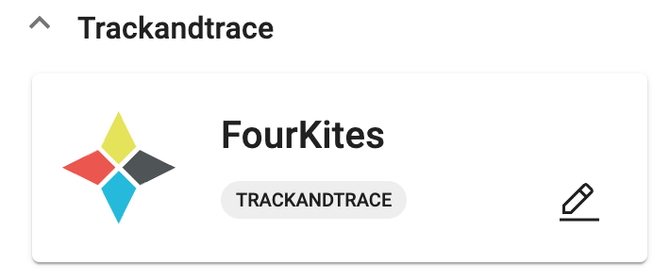 *Management > EDI & Visibility page with subsidiary selector and pencil icon*
Enter FourKites credentials.
Enter the username and password provided by FourKites, select the subsidiaries to enable, and click **Save**.
*Management > EDI & Visibility page with subsidiary selector and pencil icon*
Enter FourKites credentials.
Enter the username and password provided by FourKites, select the subsidiaries to enable, and click **Save**.
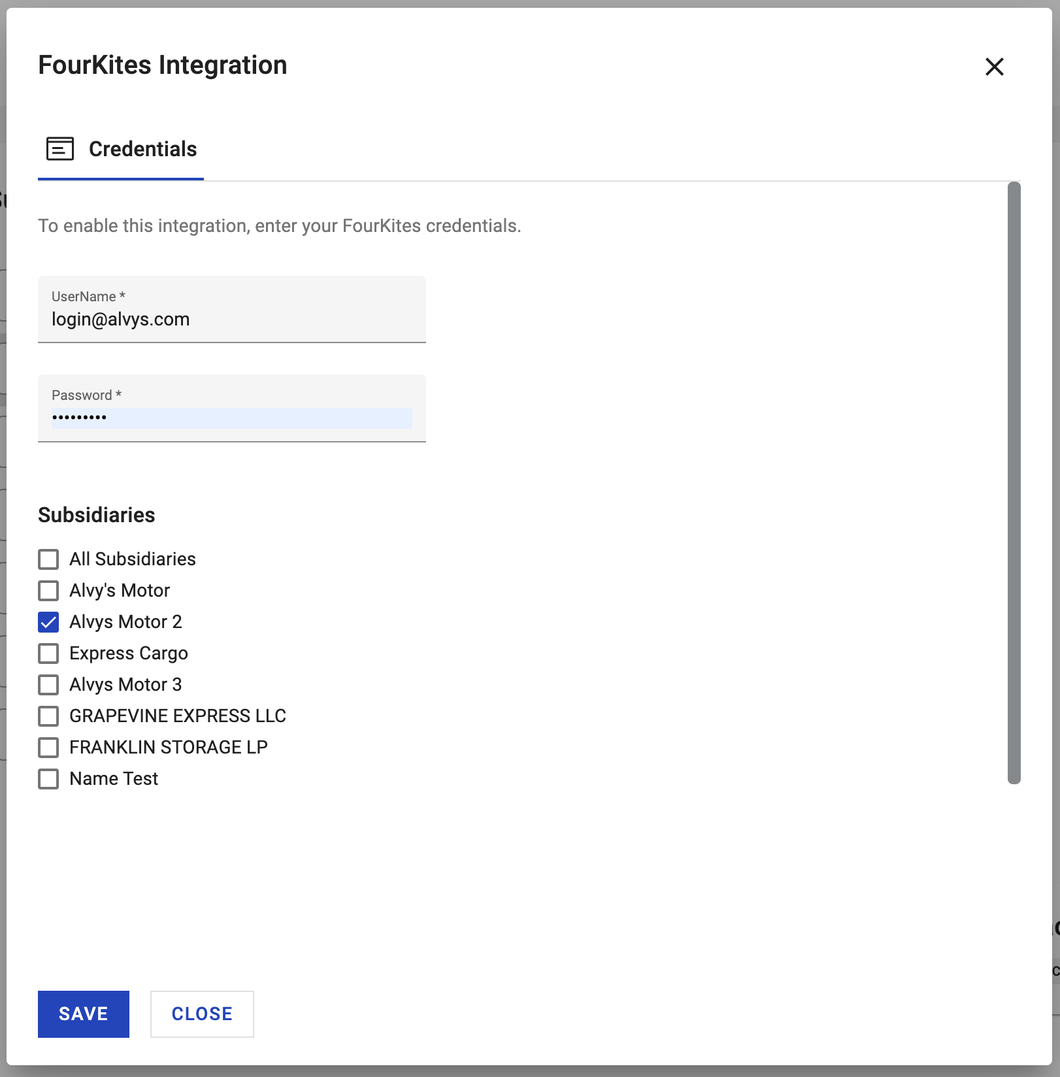 *FourKites credentials entry showing username, password, and subsidiary selection*
Find the Alvys Customer ID.
Open a customer profile in Alvys from any load where the customer has been set, or from **Companies > Customers**. The Alvys Customer ID is the long identifier in the address bar of the customer profile page.
For example, in the address `https://app.alvys.com/#/companies/affa5b56ceaeb45dc44z9af3cf855e8c6c12b/edit`, the Alvys Customer ID is `affa5b56ceaeb45dc44z9af3cf855e8c6c12b`.
Link the customer in FourKites.
Add the Alvys Customer ID to the Customer Bill-to codes in the FourKites customer settings. You can do this at [app.fourkites.com/self-service/carrier/customers](http://app.fourkites.com/self-service/carrier/customers) following the instructions in the FourKites Connect Carrier Flow guide, or provide the Alvys Customer ID to the FourKites contact who gave you your integration credentials.
*FourKites credentials entry showing username, password, and subsidiary selection*
Find the Alvys Customer ID.
Open a customer profile in Alvys from any load where the customer has been set, or from **Companies > Customers**. The Alvys Customer ID is the long identifier in the address bar of the customer profile page.
For example, in the address `https://app.alvys.com/#/companies/affa5b56ceaeb45dc44z9af3cf855e8c6c12b/edit`, the Alvys Customer ID is `affa5b56ceaeb45dc44z9af3cf855e8c6c12b`.
Link the customer in FourKites.
Add the Alvys Customer ID to the Customer Bill-to codes in the FourKites customer settings. You can do this at [app.fourkites.com/self-service/carrier/customers](http://app.fourkites.com/self-service/carrier/customers) following the instructions in the FourKites Connect Carrier Flow guide, or provide the Alvys Customer ID to the FourKites contact who gave you your integration credentials.
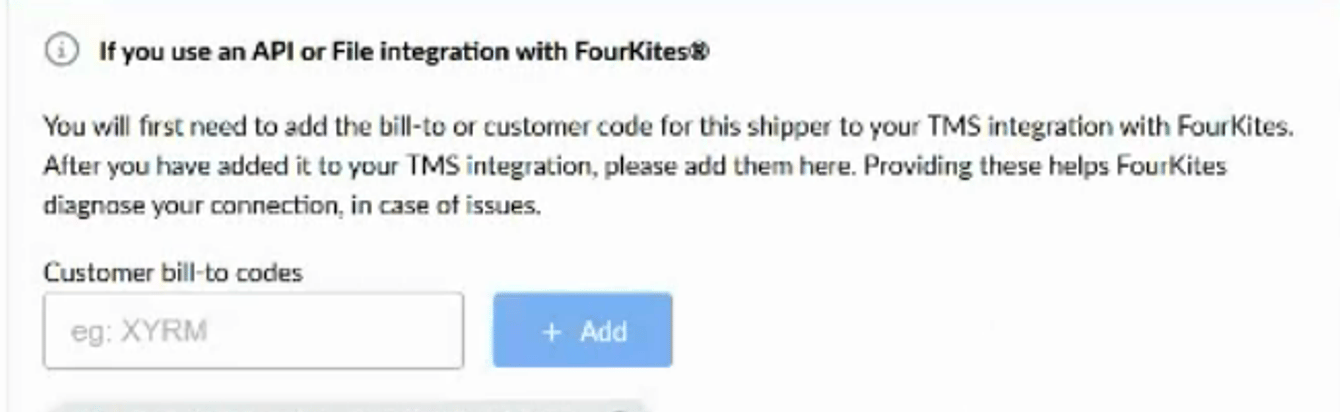 *Customer profile address bar showing the location of the Alvys Customer ID*
Configure sharing preferences for the customer.
On the right side of the customer profile in Alvys, find the **FourKites** banner under integration settings and click it to open sharing preferences.
*Customer profile address bar showing the location of the Alvys Customer ID*
Configure sharing preferences for the customer.
On the right side of the customer profile in Alvys, find the **FourKites** banner under integration settings and click it to open sharing preferences.
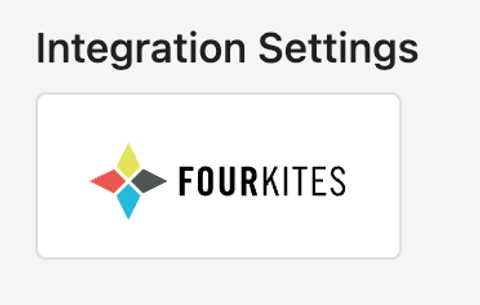 *Customer profile showing the FourKites banner in the integration settings*
Adjust your sharing preferences and click **Save**.
*Customer profile showing the FourKites banner in the integration settings*
Adjust your sharing preferences and click **Save**.
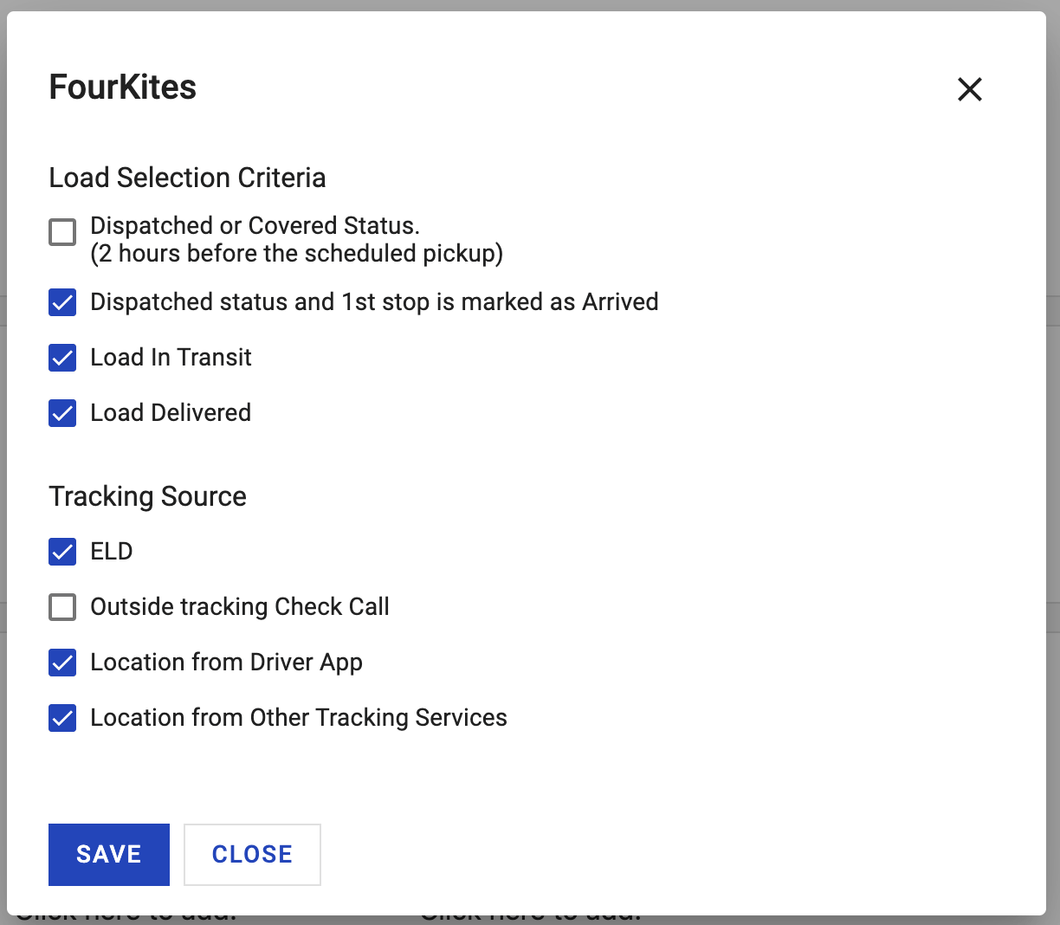 *FourKites sharing preferences panel with the eight location sharing options*
## What syncs
When a load is shared with FourKites, Alvys sends the following data:
* The Alvys Customer ID is used by FourKites to identify which customer this load is shared with. The load order number is submitted as the bill of lading value. The load PO number is submitted as the load identifier. Last known location coordinates, city, state, and country are included. Delivery status is sent as confirmed or not confirmed. Delivery time from the empty time at the last location is included when the load reaches a delivered state.
* Location updates are sent to FourKites automatically based on the sharing preferences configured for each customer. Each customer has eight sharing preference options:
* **Dispatched or Covered status:** Sends updates when the load is in **Dispatched** or **Covered** status and it is two hours or less before the scheduled pickup.
* **Dispatched status and 1st stop is marked as Arrived:** Starts sending updates when an arrival time has been recorded at the first stop.
* **Load In Transit:** Sends updates for loads in **In Transit** status.
* **Load Delivered:** Sends updates for loads in **Delivered** status. This option must be enabled to notify FourKites when a load has been delivered.
* **ELD:** Parses location information from ELD sources you have integrated with FourKites.
* **Outside Tracking Check Call:** Sends location updates from third-party tracking sources that support stop status events.
* **Location from the Driver App:** Sends location updates when the driver assigned to the trip is using the Alvys Driver Companion app.
* **Location from Other Tracking Services:** Sends location from other tracking service providers such as MacroPoint, FourKites tracking, Trucker Tools, or Project44.
### Managing updates per load
You can pause or resume data sharing for a specific load directly from the load detail page. Auto-updates are on by default for loads where the assigned customer has data sharing enabled.
*FourKites sharing preferences panel with the eight location sharing options*
## What syncs
When a load is shared with FourKites, Alvys sends the following data:
* The Alvys Customer ID is used by FourKites to identify which customer this load is shared with. The load order number is submitted as the bill of lading value. The load PO number is submitted as the load identifier. Last known location coordinates, city, state, and country are included. Delivery status is sent as confirmed or not confirmed. Delivery time from the empty time at the last location is included when the load reaches a delivered state.
* Location updates are sent to FourKites automatically based on the sharing preferences configured for each customer. Each customer has eight sharing preference options:
* **Dispatched or Covered status:** Sends updates when the load is in **Dispatched** or **Covered** status and it is two hours or less before the scheduled pickup.
* **Dispatched status and 1st stop is marked as Arrived:** Starts sending updates when an arrival time has been recorded at the first stop.
* **Load In Transit:** Sends updates for loads in **In Transit** status.
* **Load Delivered:** Sends updates for loads in **Delivered** status. This option must be enabled to notify FourKites when a load has been delivered.
* **ELD:** Parses location information from ELD sources you have integrated with FourKites.
* **Outside Tracking Check Call:** Sends location updates from third-party tracking sources that support stop status events.
* **Location from the Driver App:** Sends location updates when the driver assigned to the trip is using the Alvys Driver Companion app.
* **Location from Other Tracking Services:** Sends location from other tracking service providers such as MacroPoint, FourKites tracking, Trucker Tools, or Project44.
### Managing updates per load
You can pause or resume data sharing for a specific load directly from the load detail page. Auto-updates are on by default for loads where the assigned customer has data sharing enabled.
 *FourKites auto-update toggle on a load detail page*
### Verify it is working
1. Open a load assigned to a customer you have activated FourKites sharing for.
2. Confirm that auto-updates are active on the load.
3. Log in to FourKites and confirm the load is receiving location updates.
If the load is not appearing in FourKites or is not receiving updates, review the Troubleshooting section below.
## Troubleshooting
### No updates are reaching FourKites for a customer
1. Confirm the FourKites Outbound integration credentials are saved correctly in **Management > EDI & Visibility**.
2. Confirm the customer profile in Alvys has sharing preferences configured. The FourKites banner must be visible in the customer profile integration settings.
3. Confirm the Alvys Customer ID is linked to the correct customer in FourKites.
4. Confirm at least one sharing preference option is enabled for the customer.
5. If updates are still not reaching FourKites after confirming the above, contact Alvys support.
### FourKites banner is not visible on a customer profile
1. Confirm the FourKites Outbound integration is set up and saved in **Management > EDI & Visibility** for the subsidiary associated with the customer.
2. Confirm the customer is assigned to the subsidiary that has FourKites enabled.
3. If the banner is still not appearing after confirming the above, contact Alvys support.
## Limits and unsupported
* Data flows from Alvys to FourKites only. FourKites cannot update load status or modify any data in Alvys.
* The integration must be configured separately for each subsidiary.
## FAQs
**Q: Can I pause updates for a specific load without disabling the integration?**
**A:** Yes. You can pause or resume data sharing for individual loads directly from the load detail page. Auto-updates are on by default for loads where the customer has sharing enabled.
**Q: Why is the FourKites banner not visible on a customer profile?**
**A:** The FourKites banner appears only when the FourKites Outbound integration is configured in **Management > EDI & Visibility** for the subsidiary that the customer belongs to. Confirm the integration setup and that the customer is assigned to the correct subsidiary.
**Q: Which sharing preferences should I enable?**
**A:** This depends on your customer's requirements. Most carriers enable Load In Transit, Load Delivered, and Location from the Driver App at minimum. Contact your FourKites account representative for guidance on which options your customer requires.
## Go Deeper
* [FourKites Inbound Integration](/help/integrations/fourkites-inbound-integration)
*FourKites auto-update toggle on a load detail page*
### Verify it is working
1. Open a load assigned to a customer you have activated FourKites sharing for.
2. Confirm that auto-updates are active on the load.
3. Log in to FourKites and confirm the load is receiving location updates.
If the load is not appearing in FourKites or is not receiving updates, review the Troubleshooting section below.
## Troubleshooting
### No updates are reaching FourKites for a customer
1. Confirm the FourKites Outbound integration credentials are saved correctly in **Management > EDI & Visibility**.
2. Confirm the customer profile in Alvys has sharing preferences configured. The FourKites banner must be visible in the customer profile integration settings.
3. Confirm the Alvys Customer ID is linked to the correct customer in FourKites.
4. Confirm at least one sharing preference option is enabled for the customer.
5. If updates are still not reaching FourKites after confirming the above, contact Alvys support.
### FourKites banner is not visible on a customer profile
1. Confirm the FourKites Outbound integration is set up and saved in **Management > EDI & Visibility** for the subsidiary associated with the customer.
2. Confirm the customer is assigned to the subsidiary that has FourKites enabled.
3. If the banner is still not appearing after confirming the above, contact Alvys support.
## Limits and unsupported
* Data flows from Alvys to FourKites only. FourKites cannot update load status or modify any data in Alvys.
* The integration must be configured separately for each subsidiary.
## FAQs
**Q: Can I pause updates for a specific load without disabling the integration?**
**A:** Yes. You can pause or resume data sharing for individual loads directly from the load detail page. Auto-updates are on by default for loads where the customer has sharing enabled.
**Q: Why is the FourKites banner not visible on a customer profile?**
**A:** The FourKites banner appears only when the FourKites Outbound integration is configured in **Management > EDI & Visibility** for the subsidiary that the customer belongs to. Confirm the integration setup and that the customer is assigned to the correct subsidiary.
**Q: Which sharing preferences should I enable?**
**A:** This depends on your customer's requirements. Most carriers enable Load In Transit, Load Delivered, and Location from the Driver App at minimum. Contact your FourKites account representative for guidance on which options your customer requires.
## Go Deeper
* [FourKites Inbound Integration](/help/integrations/fourkites-inbound-integration)