> ## Documentation Index
> Fetch the complete documentation index at: https://docs.alvys.com/llms.txt
> Use this file to discover all available pages before exploring further.
# Highway Integration
> Automate carrier compliance with Alvys and Highway—seamless onboarding, real-time updates, and better visibility for smoother operations.
Connect your Highway account to Alvys to automate carrier compliance checks, import onboarded carriers, and receive real-time status updates without leaving your TMS.
## Overview
The Highway integration (also called carrier compliance integration or carrier vetting integration) connects Alvys to Highway's carrier compliance platform. Once connected, Alvys syncs with Highway every five minutes to keep carrier data current. Carriers who complete onboarding in Highway are automatically created in Alvys, and status changes are reflected in near real time. This eliminates manual carrier entry and ensures your team always has accurate compliance information before assigning a carrier to a load.
 *Highway logo*
## Prerequisites
Before you begin, you need an active Highway account and an Alvys integration key from Highway.
If you are switching from another TMS, revoke your Highway connection in that TMS before connecting to Alvys. Running two active connections simultaneously can cause sync conflicts.
Once your Highway contact confirms the integration key is ready, all of your previously onboarded carriers will automatically sync into Alvys after you complete the setup below.
## How to connect?
* Open Integrations in Alvys. Click your profile icon in the bottom left corner of Alvys and select **Integrations**. Under the **Carrier Compliance** section, locate the **Highway** card and click it to open the configuration.
* Enter your API key and select subsidiaries. Enter the API key provided by your Highway representative. Then select which subsidiaries you want the integration to apply to. Alvys validates your API key automatically. If the key is invalid or expired, a banner appears prompting you to re-enter your credentials.
*Highway logo*
## Prerequisites
Before you begin, you need an active Highway account and an Alvys integration key from Highway.
If you are switching from another TMS, revoke your Highway connection in that TMS before connecting to Alvys. Running two active connections simultaneously can cause sync conflicts.
Once your Highway contact confirms the integration key is ready, all of your previously onboarded carriers will automatically sync into Alvys after you complete the setup below.
## How to connect?
* Open Integrations in Alvys. Click your profile icon in the bottom left corner of Alvys and select **Integrations**. Under the **Carrier Compliance** section, locate the **Highway** card and click it to open the configuration.
* Enter your API key and select subsidiaries. Enter the API key provided by your Highway representative. Then select which subsidiaries you want the integration to apply to. Alvys validates your API key automatically. If the key is invalid or expired, a banner appears prompting you to re-enter your credentials.
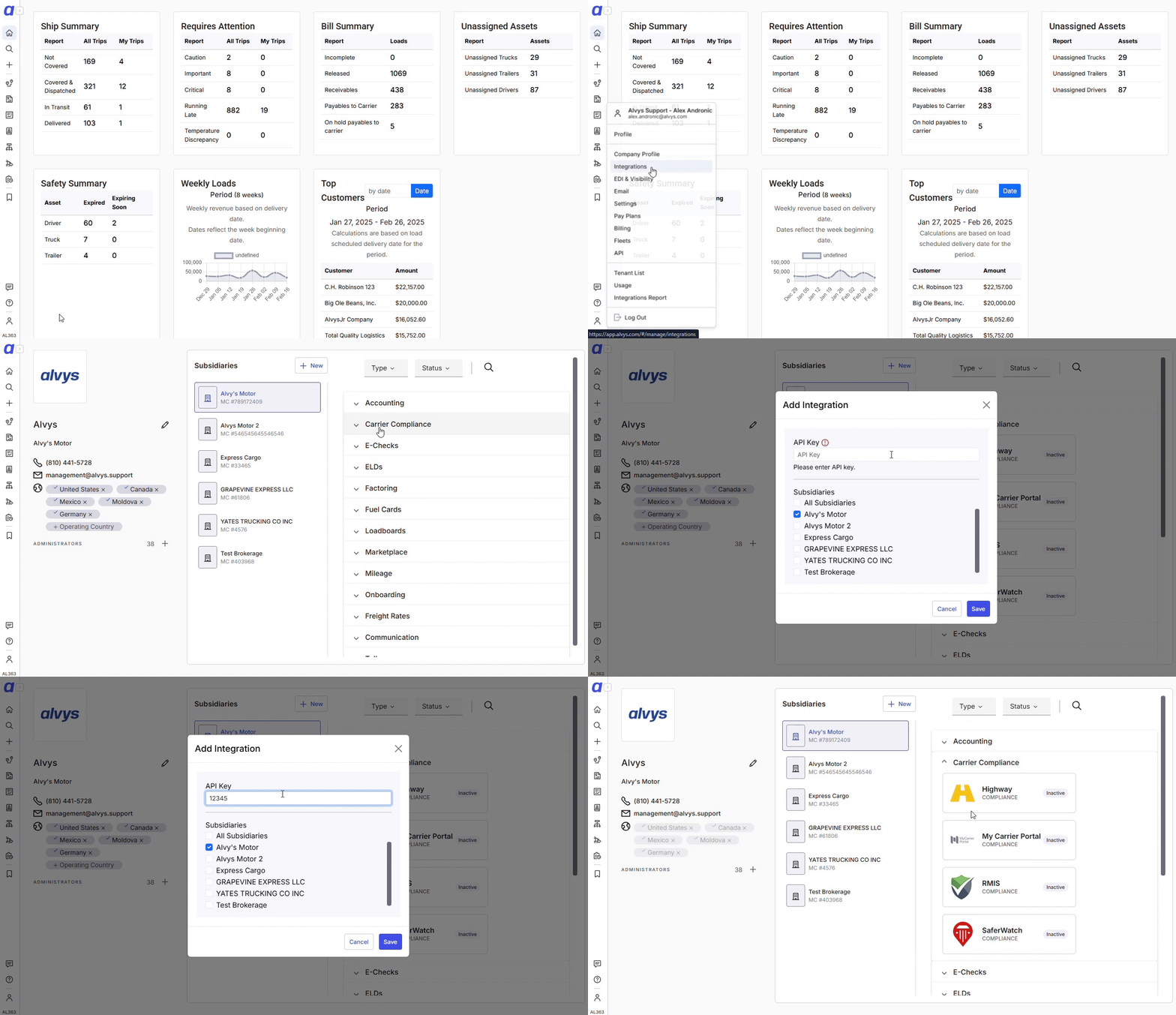 *Highway setup GIF showing entering the API key and selecting subsidiaries*
* Confirm the integration is active. Once the API key is accepted, the Highway integration status changes to active. Previously onboarded carriers from Highway will begin syncing into Alvys automatically.
## What syncs?
When a carrier completes onboarding in Highway, Highway sends the following data to Alvys: carrier name, MC/DOT number, address, insurance details, and compliance status. These fields are mapped to the corresponding carrier record in Alvys. Alvys does not push carrier records to Highway; Highway is the system of record for carrier creation.
Real-time updates from Highway include insurance changes, address updates, and compliance status modifications. Each update is applied to the matching carrier record in Alvys.
Alvys polls Highway every five minutes for compliance status changes and new carrier records.
⚠️ It is strongly recommended that you avoid adding carriers directly in Alvys when the Highway integration is active. Carriers created directly in Alvys will not be monitored by Highway, which means compliance updates will not be received for those carriers.
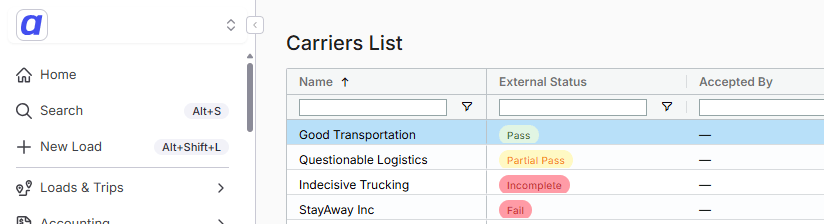
To confirm the integration is working, go to your carrier list and look for carriers that were already onboarded in Highway. They should appear automatically in Alvys within five minutes of the integration becoming active. Each carrier should display a Highway compliance status (**Pass**, **Partial Pass**, **Incomplete**, or **Fail**) on their carrier record. If carriers are not appearing, confirm that your Highway representative has marked the integration setup as complete on their side.
*Highway setup GIF showing entering the API key and selecting subsidiaries*
* Confirm the integration is active. Once the API key is accepted, the Highway integration status changes to active. Previously onboarded carriers from Highway will begin syncing into Alvys automatically.
## What syncs?
When a carrier completes onboarding in Highway, Highway sends the following data to Alvys: carrier name, MC/DOT number, address, insurance details, and compliance status. These fields are mapped to the corresponding carrier record in Alvys. Alvys does not push carrier records to Highway; Highway is the system of record for carrier creation.
Real-time updates from Highway include insurance changes, address updates, and compliance status modifications. Each update is applied to the matching carrier record in Alvys.
Alvys polls Highway every five minutes for compliance status changes and new carrier records.
⚠️ It is strongly recommended that you avoid adding carriers directly in Alvys when the Highway integration is active. Carriers created directly in Alvys will not be monitored by Highway, which means compliance updates will not be received for those carriers.
To confirm the integration is working, go to your carrier list and look for carriers that were already onboarded in Highway. They should appear automatically in Alvys within five minutes of the integration becoming active. Each carrier should display a Highway compliance status (**Pass**, **Partial Pass**, **Incomplete**, or **Fail**) on their carrier record. If carriers are not appearing, confirm that your Highway representative has marked the integration setup as complete on their side.
 * Carriers added directly in Alvys (not through Highway) will not be monitored for compliance updates by Highway.
* Deleting a carrier from Alvys does not delete or remove the carrier from Highway; Highway remains the system of record for carrier compliance data.
* The integration does not support manual one-off compliance checks from within Alvys; all checks are driven by Highway's sync schedule.
## Troubleshooting
### API key validation error on save
1. Confirm you have copied the full API key from your Highway representative with no extra spaces.
2. Ask your Highway representative to generate a new integration key and try again.
3. If the error persists after entering a valid key, contact Alvys Support. The credential validation step may not be reaching Highway's API.
### Carriers not syncing after setup
1. Confirm your Highway representative has completed their side of the integration setup.
2. Wait up to five minutes. The sync interval is five minutes between polls.
3. If carriers that are fully onboarded in Highway are still missing after 10 minutes, contact Alvys Support.
### Carrier with Incomplete or Fail status cannot be assigned to a load
* Carriers with **Incomplete** or **Fail** status are blocked from load assignment by default. This is the expected behavior when the Highway integration is active. If your account has the **"OverrideCarrier"** permission enabled, you can proceed with the assignment at your discretion.
## FAQs
**Q: What happens if I add a carrier directly in Alvys instead of through Highway?**
**A:** Carriers added directly in Alvys are not monitored by Highway. You will not receive compliance status updates for those carriers.
**Q: How often does Alvys sync with Highway?**
**A:** Alvys syncs with Highway every five minutes.
**Q: Can I assign a carrier with Fail status to a load?**
**A:** By default, carriers with **Fail** status are blocked from load assignment. If your account has the **"OverrideCarrier"** permission enabled, you can proceed with the assignment at your discretion.
**Q: What are the four Highway compliance statuses?**
**A:** The four statuses are **Pass** (all requirements met, assignment allowed), **Partial Pass** (some requirements met, assignment allowed), **Incomplete** (documentation not yet complete, assignment blocked by default), and **Fail** (compliance requirements not met, assignment blocked by default).
**Q: If I was using Highway with a different TMS, what do I need to do before connecting to Alvys?**
**A:** You must revoke the Highway connection in your previous TMS before connecting in Alvys. Failing to do so can cause sync conflicts.
* Carriers added directly in Alvys (not through Highway) will not be monitored for compliance updates by Highway.
* Deleting a carrier from Alvys does not delete or remove the carrier from Highway; Highway remains the system of record for carrier compliance data.
* The integration does not support manual one-off compliance checks from within Alvys; all checks are driven by Highway's sync schedule.
## Troubleshooting
### API key validation error on save
1. Confirm you have copied the full API key from your Highway representative with no extra spaces.
2. Ask your Highway representative to generate a new integration key and try again.
3. If the error persists after entering a valid key, contact Alvys Support. The credential validation step may not be reaching Highway's API.
### Carriers not syncing after setup
1. Confirm your Highway representative has completed their side of the integration setup.
2. Wait up to five minutes. The sync interval is five minutes between polls.
3. If carriers that are fully onboarded in Highway are still missing after 10 minutes, contact Alvys Support.
### Carrier with Incomplete or Fail status cannot be assigned to a load
* Carriers with **Incomplete** or **Fail** status are blocked from load assignment by default. This is the expected behavior when the Highway integration is active. If your account has the **"OverrideCarrier"** permission enabled, you can proceed with the assignment at your discretion.
## FAQs
**Q: What happens if I add a carrier directly in Alvys instead of through Highway?**
**A:** Carriers added directly in Alvys are not monitored by Highway. You will not receive compliance status updates for those carriers.
**Q: How often does Alvys sync with Highway?**
**A:** Alvys syncs with Highway every five minutes.
**Q: Can I assign a carrier with Fail status to a load?**
**A:** By default, carriers with **Fail** status are blocked from load assignment. If your account has the **"OverrideCarrier"** permission enabled, you can proceed with the assignment at your discretion.
**Q: What are the four Highway compliance statuses?**
**A:** The four statuses are **Pass** (all requirements met, assignment allowed), **Partial Pass** (some requirements met, assignment allowed), **Incomplete** (documentation not yet complete, assignment blocked by default), and **Fail** (compliance requirements not met, assignment blocked by default).
**Q: If I was using Highway with a different TMS, what do I need to do before connecting to Alvys?**
**A:** You must revoke the Highway connection in your previous TMS before connecting in Alvys. Failing to do so can cause sync conflicts.