> ## Documentation Index
> Fetch the complete documentation index at: https://docs.alvys.com/llms.txt
> Use this file to discover all available pages before exploring further.
# Business Central: Account mappings
> Map Alvys revenue, expense, fuel, and toll transactions to Business Central GL accounts so exported invoices, bills, and paystubs post correctly.
Account mappings connect Alvys transaction types to Business Central General Ledger accounts, ensuring every exported transaction posts to the correct account. This article covers required default accounts and optional specific mappings for individual transaction categories.
### Overview
Account mappings tell Business Central where to post each type of transaction exported from Alvys. There are two levels of mapping: default account mappings, which apply to all transactions of a given type if no more specific mapping exists, and specific account mappings, which apply to individual transaction categories such as fuel, tolls, or specific accessorials.
**Synonyms:** account mapping, GL mapping, General Ledger mapping, account setup, chart of accounts mapping.
### Before You Start
You must have the **"CompanyProfileManager"** permission. Users with the **"Admin"**, **"Support"**, or **"Partner Admin"** role have this permission.
The Business Central connection must already be authenticated before configuring account mappings. Open the account mappings dialog from Integrations > Accounting > Business Central.
### Steps
1. **Open the account mappings dialog.** Navigate to Accounting > Integrations and open the Business Central integration settings. Proceed to the account mappings step in the setup dialog.
2. **Configure Default Account Mappings.**
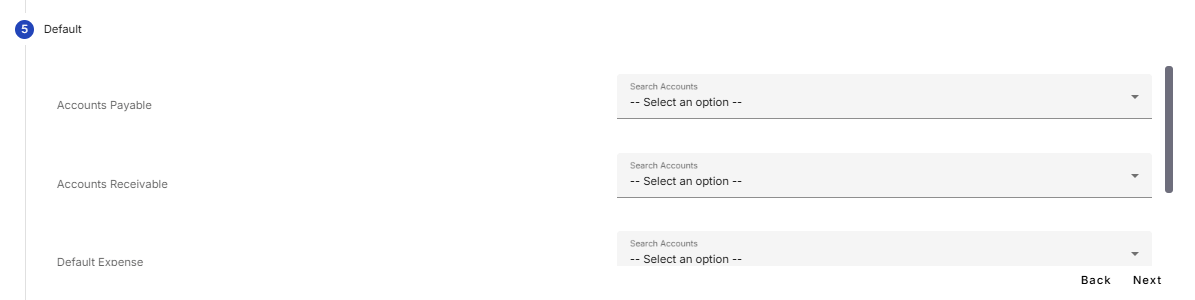 \*Image showing Default Account Mappings section overview. \*
Default accounts are required and serve as primary fallback accounts for any transactions that are not explicitly mapped to a specific account. These mappings ensure transactions can always be exported successfully and prevent errors caused by unmapped accounts. Four default accounts are required before the integration can be saved.
\*Image showing Default Account Mappings section overview. \*
Default accounts are required and serve as primary fallback accounts for any transactions that are not explicitly mapped to a specific account. These mappings ensure transactions can always be exported successfully and prevent errors caused by unmapped accounts. Four default accounts are required before the integration can be saved.
 \*Image showing the Revenue and Expense account settings \*
When Revenue is selected, both an Accounts Receivable account and a Default Revenue account must be mapped. From an invoice perspective, each individual invoice line item, such as customer linehaul, fuel surcharge, or accessorial charges, is posted to the mapped revenue account. The accumulated invoice total is then posted to the Accounts Receivable account, which represents the amount owed by the customer.
\*Image showing the Revenue and Expense account settings \*
When Revenue is selected, both an Accounts Receivable account and a Default Revenue account must be mapped. From an invoice perspective, each individual invoice line item, such as customer linehaul, fuel surcharge, or accessorial charges, is posted to the mapped revenue account. The accumulated invoice total is then posted to the Accounts Receivable account, which represents the amount owed by the customer.
 \*Image showing Revenue default account mapping flow. \*
When Expense is selected, both an Accounts Payable account and a Default Expense account must be mapped. From a bill perspective, each bill line item, such as driver pay rates, carrier linehaul, fuel, or toll charges, is posted to the mapped expense account. The total bill amount is then posted to the Accounts Payable account, which represents the amount owed to the vendor or carrier.
\*Image showing Revenue default account mapping flow. \*
When Expense is selected, both an Accounts Payable account and a Default Expense account must be mapped. From a bill perspective, each bill line item, such as driver pay rates, carrier linehaul, fuel, or toll charges, is posted to the mapped expense account. The total bill amount is then posted to the Accounts Payable account, which represents the amount owed to the vendor or carrier.
 *Image showing Expense default account mapping flow*
This mirrors how Business Central processes transactions: revenue and expense amounts are recorded at the line-item level, while the total balance due from customers is tracked in Accounts Receivable and the total amount owed to vendors is tracked separately in Accounts Payable.
💡 Once the default accounts are configured, they function as fallback accounts. If specific accounts are not set up for individual transaction types, such as fuel surcharges or specialized trip rates, the system automatically uses the default revenue or expense accounts to ensure the transaction exports successfully.
⚠️ Users must map default accounts to the correct accounts in the Business Central **Chart of Accounts**. Selecting an account with the wrong type, for example mapping an Expense account to a Revenue field, will cause export errors.
If you do not have any specific accounts created in Business Central, once you have configured the default accounts you can click through the remaining integration steps, then click Save. Your integration will be successfully added.
### Specific Account Mappings
Specific account mapping provides granular control over which Business Central accounts each transaction line-item posts to. This feature is optional but recommended if you have dedicated accounts for individual transaction types in your Business Central Chart of Accounts.
For each transaction category, you can map a default account specific to that category. If you have created a dedicated default account for a category, such as a Default Load Account, map it there. This ensures all transactions within that category are posted consistently. If you do not have a category-specific default account, the system will fall back to the general default revenue or expense account configured in the integration. Below is a detailed explanation of the transaction categories and specific line items available for mapping.
#### Configure Load mappings
*Image showing Expense default account mapping flow*
This mirrors how Business Central processes transactions: revenue and expense amounts are recorded at the line-item level, while the total balance due from customers is tracked in Accounts Receivable and the total amount owed to vendors is tracked separately in Accounts Payable.
💡 Once the default accounts are configured, they function as fallback accounts. If specific accounts are not set up for individual transaction types, such as fuel surcharges or specialized trip rates, the system automatically uses the default revenue or expense accounts to ensure the transaction exports successfully.
⚠️ Users must map default accounts to the correct accounts in the Business Central **Chart of Accounts**. Selecting an account with the wrong type, for example mapping an Expense account to a Revenue field, will cause export errors.
If you do not have any specific accounts created in Business Central, once you have configured the default accounts you can click through the remaining integration steps, then click Save. Your integration will be successfully added.
### Specific Account Mappings
Specific account mapping provides granular control over which Business Central accounts each transaction line-item posts to. This feature is optional but recommended if you have dedicated accounts for individual transaction types in your Business Central Chart of Accounts.
For each transaction category, you can map a default account specific to that category. If you have created a dedicated default account for a category, such as a Default Load Account, map it there. This ensures all transactions within that category are posted consistently. If you do not have a category-specific default account, the system will fall back to the general default revenue or expense account configured in the integration. Below is a detailed explanation of the transaction categories and specific line items available for mapping.
#### Configure Load mappings
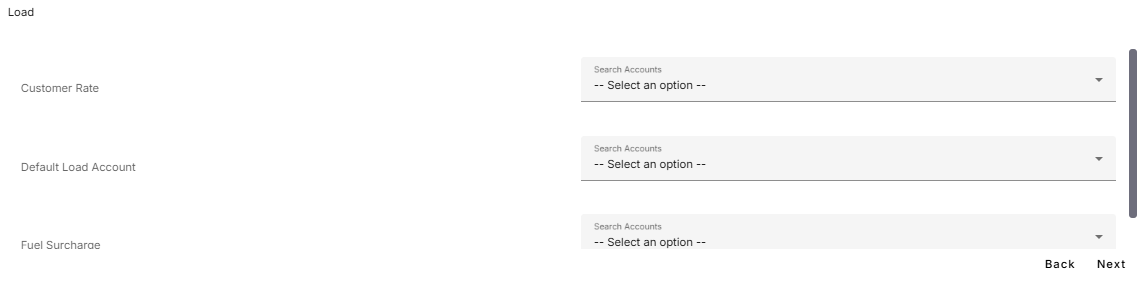 *Image showing Load account mapping step*
The Load category represents **revenue transaction line items** that appear on customer invoices. Each line item on a load, such as linehaul or fuel surcharge, can be mapped to a specific Business Central account if one exists.
If you have dedicated accounts in your Business Central Chart of Accounts, such as **Customer Linehaul** or **Customer Fuel Surcharge**, map each line item accordingly. If you only have a general account for load revenue, map it to the **Default Load Account**.
#### Configure Trip mappings
*Image showing Load account mapping step*
The Load category represents **revenue transaction line items** that appear on customer invoices. Each line item on a load, such as linehaul or fuel surcharge, can be mapped to a specific Business Central account if one exists.
If you have dedicated accounts in your Business Central Chart of Accounts, such as **Customer Linehaul** or **Customer Fuel Surcharge**, map each line item accordingly. If you only have a general account for load revenue, map it to the **Default Load Account**.
#### Configure Trip mappings
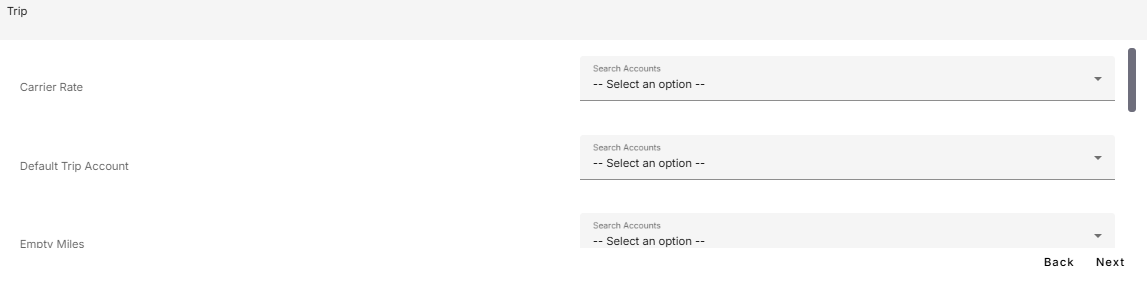 *Image showing Trip account mapping step*
The Trip category represents **expense transaction line items** that appear on bills. Each line item, such as driver pay rates or carrier linehaul, can be mapped to a specific Business Central account if one exists. If you have dedicated accounts in your Business Central Chart of Accounts, such as Carrier Linehaul or individual Driver Rate accounts, map each line item accordingly. If you only have a general account for trip expenses, map it to the Default Trip Account. If neither category-specific nor default trip accounts are available, the integration will fall back to the general default expense account configured in a prior step.
Trips can be associated with internal assets, subsidiary carriers only, or external carriers. For trips using internal assets (company drivers or owner-operators), the trip category line items on the bill represent driver rates. For trips using subsidiary or external carriers, the trip category line items on the trip bill represent carrier rates.
#### Configure Accessorial mappings
Accessorials represent additional charges or fees that can be applied to both customers (revenue) and drivers or carriers (expense). As such, they can impact both revenue and expense accounts in Business Central.
*Image showing Trip account mapping step*
The Trip category represents **expense transaction line items** that appear on bills. Each line item, such as driver pay rates or carrier linehaul, can be mapped to a specific Business Central account if one exists. If you have dedicated accounts in your Business Central Chart of Accounts, such as Carrier Linehaul or individual Driver Rate accounts, map each line item accordingly. If you only have a general account for trip expenses, map it to the Default Trip Account. If neither category-specific nor default trip accounts are available, the integration will fall back to the general default expense account configured in a prior step.
Trips can be associated with internal assets, subsidiary carriers only, or external carriers. For trips using internal assets (company drivers or owner-operators), the trip category line items on the bill represent driver rates. For trips using subsidiary or external carriers, the trip category line items on the trip bill represent carrier rates.
#### Configure Accessorial mappings
Accessorials represent additional charges or fees that can be applied to both customers (revenue) and drivers or carriers (expense). As such, they can impact both revenue and expense accounts in Business Central.
 *Image showing Accessorial account mapping revenue and expense views*
The list of accessorial types available for mapping is pulled from the custom accessorials configured by the tenant in Alvys. To configure custom accessorials, refer to the following Help Center article: [Custom Accessorials ](/help/loads-trips/how-to-create-and-add-accessorials). Each accessorial type includes two columns for mapping. The Revenue column is used to map the account for income generated from the accessorial when charged to customers. The Expense column is used to map the account for costs associated with the accessorial when charged to drivers or carriers.
Once the list is displayed, you can map each accessorial line item to its corresponding Business Central account if dedicated accounts exist. However, if your accounting process only includes a general revenue account and a general expense account for all accessorials, you may map those to the Default Accessorial Account option.
*Image showing Accessorial account mapping revenue and expense views*
The list of accessorial types available for mapping is pulled from the custom accessorials configured by the tenant in Alvys. To configure custom accessorials, refer to the following Help Center article: [Custom Accessorials ](/help/loads-trips/how-to-create-and-add-accessorials). Each accessorial type includes two columns for mapping. The Revenue column is used to map the account for income generated from the accessorial when charged to customers. The Expense column is used to map the account for costs associated with the accessorial when charged to drivers or carriers.
Once the list is displayed, you can map each accessorial line item to its corresponding Business Central account if dedicated accounts exist. However, if your accounting process only includes a general revenue account and a general expense account for all accessorials, you may map those to the Default Accessorial Account option.
 *Image showing Default Accessorial account mapping item for revenue and expense views*
#### Configure E-Check mappings.
An e-check (also called an electronic check) is a digital payment issued to a driver or external carrier as an alternative to a physical check. Map each e-check type to a Business Central account if one exists.
*Image showing Default Accessorial account mapping item for revenue and expense views*
#### Configure E-Check mappings.
An e-check (also called an electronic check) is a digital payment issued to a driver or external carrier as an alternative to a physical check. Map each e-check type to a Business Central account if one exists.
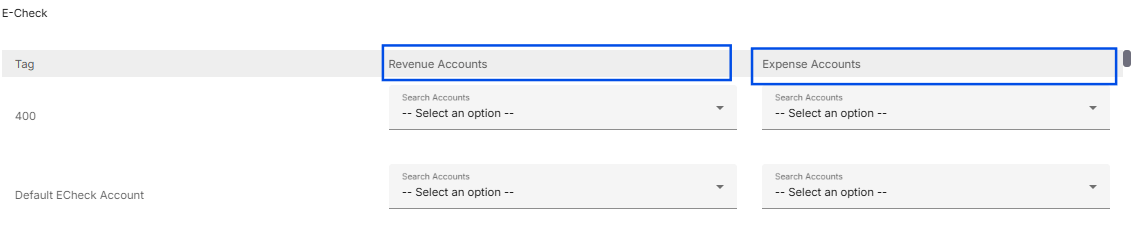 *Image showing E-Check account mapping for revenue and expense views*
The E-Check category itself includes a default revenue account and a default expense account, which are used if specific accounts are not assigned. Each individual e-check type has its own revenue and expense columns for mapping. The revenue column represents the e-check fee charged to drivers or carriers and is recorded as income for the company.
The e-check fee is configured by the tenant based on the E-check type from the [company profile](https://app.alvys.com/#/manage/company-profile) and can have a minimum, maximum, or percentage-based value.
*Image showing E-Check account mapping for revenue and expense views*
The E-Check category itself includes a default revenue account and a default expense account, which are used if specific accounts are not assigned. Each individual e-check type has its own revenue and expense columns for mapping. The revenue column represents the e-check fee charged to drivers or carriers and is recorded as income for the company.
The e-check fee is configured by the tenant based on the E-check type from the [company profile](https://app.alvys.com/#/manage/company-profile) and can have a minimum, maximum, or percentage-based value.
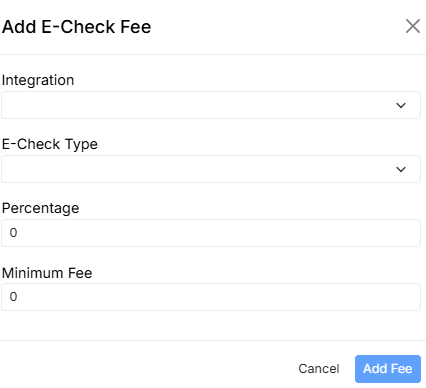 *Image showing E-Check fee configuration in company/ tenant profile*
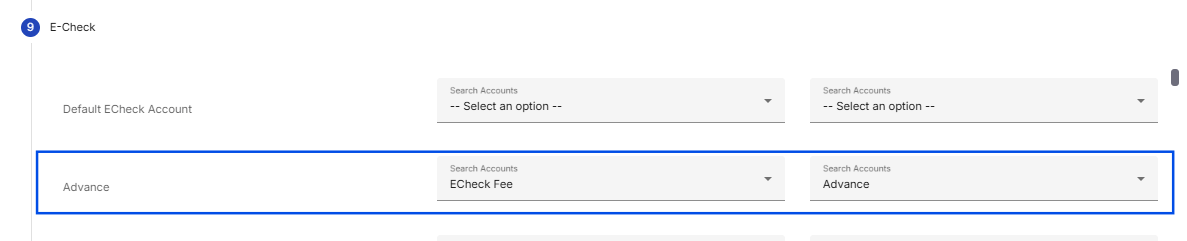 *Image showing E-Check fee mapping in revenue column*
The expense column represents the actual e-check amount issued to the driver or carrier.
E-check fees are treated as revenue because, although they appear as an expense on a driver or carrier bill, they reimburse the company and are therefore considered income.
⚠️ A bill can fail to export if it includes e-checks with fees and the revenue account for the e-check fee is not mapped, especially when the configuration is set to export expenses only. This can be resolved by mapping the e-check fee to a specific e-check revenue account or by using Alvys’ default e-check revenue account.
💡 When e-checks are issued to a driver or an external carrier, an associated accessorial may also be created for the driver and the customer. Any accessorials associated with e-checks should be mapped under the Accessorials category if the specific accounts exist.
#### Configure Driver Deductions Mappings
Alvys provides a predefined list of deduction types. If you have specific accounts in your Business Central chart of accounts for any of these deduction types, you can map them accordingly. If you only have a general account for all driver deductions, you may map it to the **Default Deduction Account**.
*Image showing E-Check fee mapping in revenue column*
The expense column represents the actual e-check amount issued to the driver or carrier.
E-check fees are treated as revenue because, although they appear as an expense on a driver or carrier bill, they reimburse the company and are therefore considered income.
⚠️ A bill can fail to export if it includes e-checks with fees and the revenue account for the e-check fee is not mapped, especially when the configuration is set to export expenses only. This can be resolved by mapping the e-check fee to a specific e-check revenue account or by using Alvys’ default e-check revenue account.
💡 When e-checks are issued to a driver or an external carrier, an associated accessorial may also be created for the driver and the customer. Any accessorials associated with e-checks should be mapped under the Accessorials category if the specific accounts exist.
#### Configure Driver Deductions Mappings
Alvys provides a predefined list of deduction types. If you have specific accounts in your Business Central chart of accounts for any of these deduction types, you can map them accordingly. If you only have a general account for all driver deductions, you may map it to the **Default Deduction Account**.
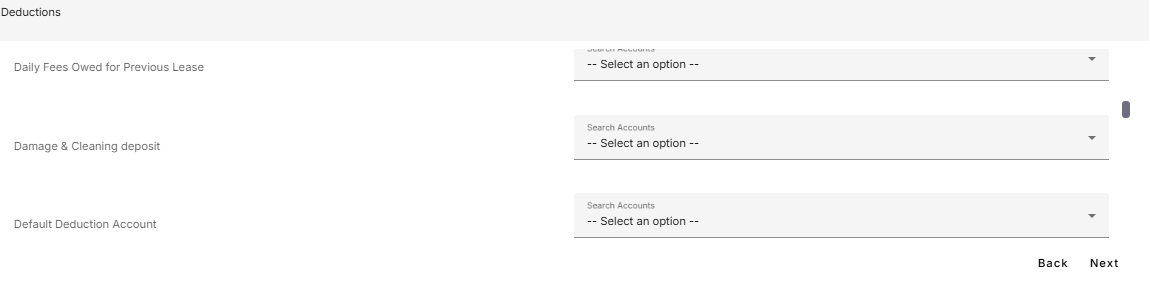 *Image showing Deduction account mapping*
#### Configure Fuel mappings.
The Fuel category includes fuel transactions, such as diesel, linked to drivers or owner-operators. Each fuel type can be mapped to a specific Business Central account if one exists. If no specific account exists but a Default Fuel Account exists, the transaction will use the Default Fuel Account. If neither a specific nor a Default Fuel Account exists, the transaction will fall back to the Default Expense Account configured in the default account mapping.
*Image showing Deduction account mapping*
#### Configure Fuel mappings.
The Fuel category includes fuel transactions, such as diesel, linked to drivers or owner-operators. Each fuel type can be mapped to a specific Business Central account if one exists. If no specific account exists but a Default Fuel Account exists, the transaction will use the Default Fuel Account. If neither a specific nor a Default Fuel Account exists, the transaction will fall back to the Default Expense Account configured in the default account mapping.
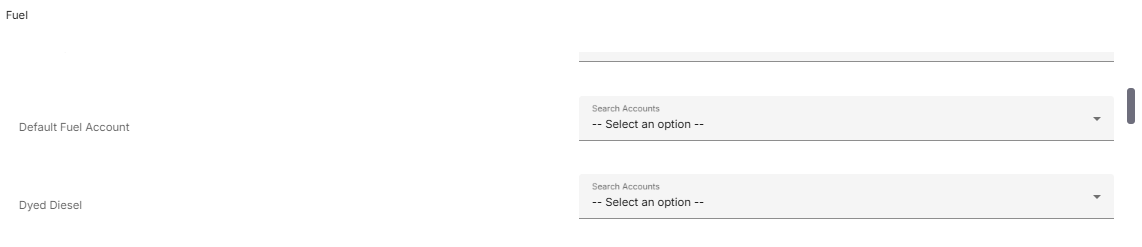 *Image showing Fuel account mapping*
#### Configure Toll mappings.
Map toll charge line items to a dedicated Business Central account if one exists. If no specific Toll account is mapped, toll transactions fall back to the Default Expense account.
*Image showing Fuel account mapping*
#### Configure Toll mappings.
Map toll charge line items to a dedicated Business Central account if one exists. If no specific Toll account is mapped, toll transactions fall back to the Default Expense account.
 *Image showing Toll account mapping*
⚠️ The Tax category is deprecated. Please skip this step.
*Image showing Toll account mapping*
⚠️ The Tax category is deprecated. Please skip this step.
 The Tax mapping category is no longer in active use. Tax line items are handled through other transaction categories. No action is required on this step unless instructed by Alvys Support.
#### Configure Escrow mappings.
Escrow accounts hold funds on behalf of drivers. These accounts are created on driver profiles, and deposits or withdrawals are reflected when driver statements or paystubs are generated.
The Tax mapping category is no longer in active use. Tax line items are handled through other transaction categories. No action is required on this step unless instructed by Alvys Support.
#### Configure Escrow mappings.
Escrow accounts hold funds on behalf of drivers. These accounts are created on driver profiles, and deposits or withdrawals are reflected when driver statements or paystubs are generated.
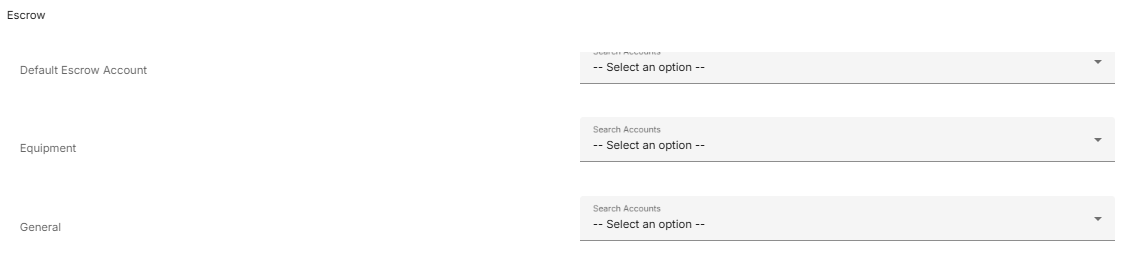 *Image showing Escrow account mapping*
When mapping Escrow accounts, if specific Escrow accounts exist in your Business Central Chart of Accounts for one or more Escrow account types, map those accounts. If no specific account exists but a **Default Escrow Account** exists for the Escrow category, map to the default. If neither exists, the transaction will fall back to the **Default Liability Account**.
💡 Escrow account mappings must be linked to a **liability account** in Business Central because these funds are held temporarily on behalf of drivers and do not represent a company expense.
#### Save and complete setup.
After all required account mappings are configured, click **Save** to complete the integration setup. A green checkmark confirms the integration is active.
*Image showing Escrow account mapping*
When mapping Escrow accounts, if specific Escrow accounts exist in your Business Central Chart of Accounts for one or more Escrow account types, map those accounts. If no specific account exists but a **Default Escrow Account** exists for the Escrow category, map to the default. If neither exists, the transaction will fall back to the **Default Liability Account**.
💡 Escrow account mappings must be linked to a **liability account** in Business Central because these funds are held temporarily on behalf of drivers and do not represent a company expense.
#### Save and complete setup.
After all required account mappings are configured, click **Save** to complete the integration setup. A green checkmark confirms the integration is active.
 *Image showing Active business Central Integration*
### Result
After saving, the Business Central integration is active and Alvys begins exporting transactions to the configured General Ledger accounts. Each transaction type routes to the most specific account available, falling back to the relevant default account if no specific mapping has been set.
### Troubleshooting
#### Green checkmark does not appear after saving
**Step 1:** Verify that all four required default accounts (A/R, A/P, Default Revenue, Default Expense) have been mapped before clicking Save.
**Step 2:** Confirm that each mapped account exists in Business Central and is active.
**Step 3:** Check that accounts are mapped to the correct type: A/R and Default Revenue for revenue transactions; A/P and Default Expense for expense transactions. Mapping an account to the wrong type prevents the integration from activating.
If the green checkmark still does not appear after verifying the above, contact Alvys Support.
#### Export errors appear after saving account mappings
A transaction export error after completing setup typically means a required account has been deleted or deactivated in Business Central since the mapping was saved. Open the Error Transactions page at Accounting > Error Transactions to view the specific error and identify which account needs to be updated.
## FAQs
**Q: What if I don’t see the green checkmark after submitting the integration setup?** \*\*A: \*\*Refresh the Alvys Integrations page. If the green checkmark still does not appear next to Business Central, reopen the integration dialog, reconnect using the Login button, confirm all settings and mappings, and click Save. If the issue persists, contact Alvys Support.
**Q: What happens if I update my Chart of Accounts in Business Central later?**
**A:** Account mappings in Alvys can be updated at any time. Open the Business Central integration dialog, navigate to the account mapping step, select the updated G/L account from the dropdown, and save the integration to apply the changes.
**Q: What are default account mappings, and why are they required?**
**A:** Default account mappings act as fallback G/L accounts for transactions not explicitly mapped to a specific line item. They ensure that all revenue (Sales Invoices) and expenses (Purchase Invoices) exported to Business Central post successfully, preventing sync errors due to unmapped financial data.
**Q: When should I use specific account mappings?**
**A:** Specific account mappings are recommended when dedicated Business Central G/L accounts exist for individual transaction types, such as fuel surcharges, driver pay, or detention. These provide granular control over your General Ledger, ensuring consistent and accurate financial reporting for different revenue and cost streams.
**Q: What happens if a required default account is mapped incorrectly?**
A: Mapping a default account to the wrong type such as using an Expense G/L account for a Revenue line will cause export errors in Business Central.
**Q: Can I skip setting up specific accounts and rely only on default accounts?**
A: Yes. If specific G/L accounts do not exist for every line item, transactions will fall back to the default accounts configured during setup. This allows the integration to function successfully without needing a highly granular Chart of Accounts.
**Q: How do escrow transactions need to be mapped in Business Central?**
A: Escrow accounts must be linked to a Liability account in Business Central. Because escrow funds are temporary holdings for drivers or carriers and not company expenses, mapping them to an expense account will misstate your financial statements and cause reconciliation issues.
**Q: Can I map both revenue and expense lines for accessorials?**
A: Yes. Each accessorial type in the mapping step includes a Revenue column for customer charges and an Expense column for carrier or driver costs. If dedicated G/L accounts do not exist for a specific accessorial, they can be mapped to the Default Accessorial Account.
**Q: What should I do if I only have general accounts for deductions, fuel, or tolls?**
A: If dedicated G/L accounts do not exist for specific categories like deductions, fuel, or tolls, map these transaction lines to the corresponding default account configured during the setup process. This ensures the transactions still export to Business Central under a broader category.
### Go Deeper
* [Business Central: Transaction Export and Modification Workflow](/help/integrations/business-central-transaction-export-and-modification-workflow)
* [Business Central: Identifying and Resolving Failed Transactions](/help/integrations/how-to-resolve-business-central-transaction-export-errors)
* [Business Central Integration Collection](/help/integrations/business-central-integration-collection)
*Image showing Active business Central Integration*
### Result
After saving, the Business Central integration is active and Alvys begins exporting transactions to the configured General Ledger accounts. Each transaction type routes to the most specific account available, falling back to the relevant default account if no specific mapping has been set.
### Troubleshooting
#### Green checkmark does not appear after saving
**Step 1:** Verify that all four required default accounts (A/R, A/P, Default Revenue, Default Expense) have been mapped before clicking Save.
**Step 2:** Confirm that each mapped account exists in Business Central and is active.
**Step 3:** Check that accounts are mapped to the correct type: A/R and Default Revenue for revenue transactions; A/P and Default Expense for expense transactions. Mapping an account to the wrong type prevents the integration from activating.
If the green checkmark still does not appear after verifying the above, contact Alvys Support.
#### Export errors appear after saving account mappings
A transaction export error after completing setup typically means a required account has been deleted or deactivated in Business Central since the mapping was saved. Open the Error Transactions page at Accounting > Error Transactions to view the specific error and identify which account needs to be updated.
## FAQs
**Q: What if I don’t see the green checkmark after submitting the integration setup?** \*\*A: \*\*Refresh the Alvys Integrations page. If the green checkmark still does not appear next to Business Central, reopen the integration dialog, reconnect using the Login button, confirm all settings and mappings, and click Save. If the issue persists, contact Alvys Support.
**Q: What happens if I update my Chart of Accounts in Business Central later?**
**A:** Account mappings in Alvys can be updated at any time. Open the Business Central integration dialog, navigate to the account mapping step, select the updated G/L account from the dropdown, and save the integration to apply the changes.
**Q: What are default account mappings, and why are they required?**
**A:** Default account mappings act as fallback G/L accounts for transactions not explicitly mapped to a specific line item. They ensure that all revenue (Sales Invoices) and expenses (Purchase Invoices) exported to Business Central post successfully, preventing sync errors due to unmapped financial data.
**Q: When should I use specific account mappings?**
**A:** Specific account mappings are recommended when dedicated Business Central G/L accounts exist for individual transaction types, such as fuel surcharges, driver pay, or detention. These provide granular control over your General Ledger, ensuring consistent and accurate financial reporting for different revenue and cost streams.
**Q: What happens if a required default account is mapped incorrectly?**
A: Mapping a default account to the wrong type such as using an Expense G/L account for a Revenue line will cause export errors in Business Central.
**Q: Can I skip setting up specific accounts and rely only on default accounts?**
A: Yes. If specific G/L accounts do not exist for every line item, transactions will fall back to the default accounts configured during setup. This allows the integration to function successfully without needing a highly granular Chart of Accounts.
**Q: How do escrow transactions need to be mapped in Business Central?**
A: Escrow accounts must be linked to a Liability account in Business Central. Because escrow funds are temporary holdings for drivers or carriers and not company expenses, mapping them to an expense account will misstate your financial statements and cause reconciliation issues.
**Q: Can I map both revenue and expense lines for accessorials?**
A: Yes. Each accessorial type in the mapping step includes a Revenue column for customer charges and an Expense column for carrier or driver costs. If dedicated G/L accounts do not exist for a specific accessorial, they can be mapped to the Default Accessorial Account.
**Q: What should I do if I only have general accounts for deductions, fuel, or tolls?**
A: If dedicated G/L accounts do not exist for specific categories like deductions, fuel, or tolls, map these transaction lines to the corresponding default account configured during the setup process. This ensures the transactions still export to Business Central under a broader category.
### Go Deeper
* [Business Central: Transaction Export and Modification Workflow](/help/integrations/business-central-transaction-export-and-modification-workflow)
* [Business Central: Identifying and Resolving Failed Transactions](/help/integrations/how-to-resolve-business-central-transaction-export-errors)
* [Business Central Integration Collection](/help/integrations/business-central-integration-collection)