> ## Documentation Index
> Fetch the complete documentation index at: https://docs.alvys.com/llms.txt
> Use this file to discover all available pages before exploring further.
# MacroPoint Tracking Integration
> Configure two-way MacroPoint (Descartes) visibility in Alvys for inbound carrier tracking and outbound load status sharing with shippers and trading partners.
The MacroPoint integration enables both inbound and outbound load visibility: inbound tracking pulls carrier location and status updates into Alvys, and outbound tracking automatically shares load location and status data with trading partners who use MacroPoint.
## Overview
**MacroPoint** integration provides both inbound and outbound visibility for your loads. Inbound visibility gives you more control over tracking request creation and processing. Outbound visibility automatically shares location and status data with your trading partners who use MacroPoint for tracking.
**Synonyms:** MacroPoint tracking, Descartes MacroPoint, inbound visibility, outbound visibility, two-way visibility, carrier tracking.
MacroPoint integrates with Alvys to provide two-way shipment visibility. Inbound visibility (MacroPoint to Alvys) pulls carrier location updates into Alvys so you can monitor tracking requests directly from the load. Outbound visibility (Alvys to MacroPoint) pushes your load location and status data out to customers who use MacroPoint to track their freight.
This article covers how to set up and use both directions of the MacroPoint integration.
## Prerequisites
Before configuring the MacroPoint inbound integration, you need three credentials from MacroPoint:
* **MacroPoint ID:** your company's MacroPoint account identifier
* **API Password:** used to authenticate tracking requests
* **FTP Password:** used to submit carrier details to MacroPoint via SFTP
Request these credentials by email at [servicedesk@descartes.com](mailto:servicedesk@descartes.com) or by phone at 1-888-544-3844, Option 2.
MacroPoint inbound integration requires a paid plan with MacroPoint. MacroPoint outbound integration only requires the customer receiving the updates to have a paid plan with MacroPoint.
## How to connect
### Inbound: Configure MacroPoint in Alvys
Once you have your MacroPoint credentials, navigate to Management and click the EDI & Visibility tab.
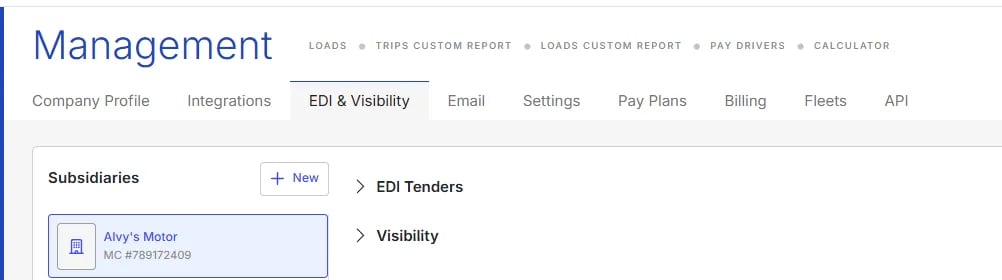 *Image showing Management > EDI & Visibility tab*
Select the subsidiary you want to integrate with MacroPoint and click the Visibility drop-down menu. Choose MacroPoint Inbound. In the configuration window, enter your MacroPoint ID, API Password, and FTP Password, then click Save.
### Inbound: Configure Webhooks in MacroPoint
To enable MacroPoint to send tracking data to Alvys, configure the following webhook URLs on your MacroPoint Company Preferences page. \*\*Replace \*\*\*\*XXXXX \*\***with your Alvys Tenant ID.**
* **Location Updates:** `https://api.alvys.com/api/macropoint/locationUpdates/XXXXX`
* **Order Status:** `https://api.alvys.com/api/macropoint/orderStatus/XXXXX`
* **Trip Events:** `https://api.alvys.com/api/macropoint/tripEvents/XXXXX`
* **Form Submits:** `https://api.alvys.com/api/macropoint/formSubmits/XXXXX`
Add these URLs to the appropriate settings in your MacroPoint account at the MacroPoint Company Preferences page ([https://macropoint-lite.com/Secure/Company.aspx](https://macropoint-lite.com/Secure/Company.aspx)).
### Inbound: Configure Tracking Defaults
After entering your credentials, you can customize the default behavior of tracking requests. These defaults apply to every new tracking request so you do not need to manually configure each one.
*Image showing Management > EDI & Visibility tab*
Select the subsidiary you want to integrate with MacroPoint and click the Visibility drop-down menu. Choose MacroPoint Inbound. In the configuration window, enter your MacroPoint ID, API Password, and FTP Password, then click Save.
### Inbound: Configure Webhooks in MacroPoint
To enable MacroPoint to send tracking data to Alvys, configure the following webhook URLs on your MacroPoint Company Preferences page. \*\*Replace \*\*\*\*XXXXX \*\***with your Alvys Tenant ID.**
* **Location Updates:** `https://api.alvys.com/api/macropoint/locationUpdates/XXXXX`
* **Order Status:** `https://api.alvys.com/api/macropoint/orderStatus/XXXXX`
* **Trip Events:** `https://api.alvys.com/api/macropoint/tripEvents/XXXXX`
* **Form Submits:** `https://api.alvys.com/api/macropoint/formSubmits/XXXXX`
Add these URLs to the appropriate settings in your MacroPoint account at the MacroPoint Company Preferences page ([https://macropoint-lite.com/Secure/Company.aspx](https://macropoint-lite.com/Secure/Company.aspx)).
### Inbound: Configure Tracking Defaults
After entering your credentials, you can customize the default behavior of tracking requests. These defaults apply to every new tracking request so you do not need to manually configure each one.
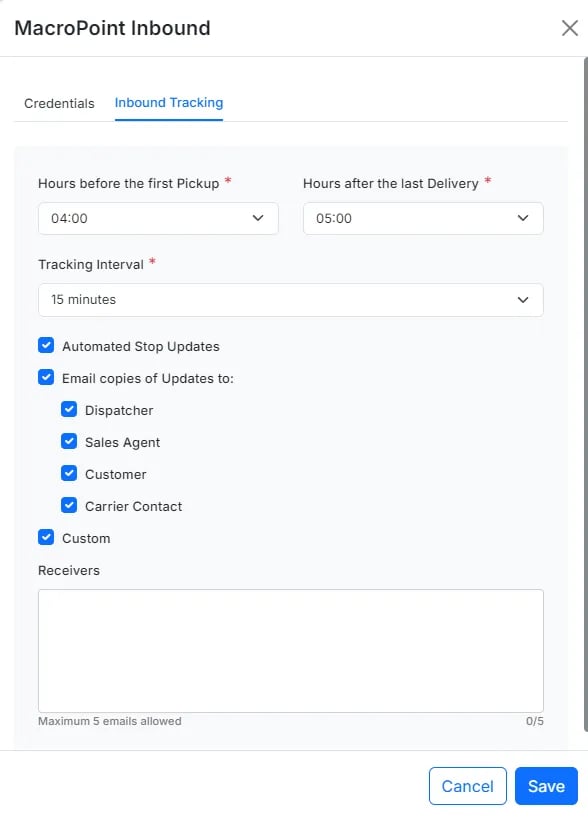 * Image showing Macropoint Inbound form with Inbound visibility settings\*
### Outbound: Configure MacroPoint Outbound in Alvys
The outbound visibility service sends location and status data to trading partners across multiple providers. The same service that sends data to MacroPoint also supports Project44 and FourKites. MacroPoint outbound configuration is done within this shared visibility service.
Navigate to **Management > Integrations > Visibility > Outbound**. Enter your MacroPoint ID and Password. Select the relevant subsidiaries for outbound visibility and configure outbound sharing settings such as which locations, statuses, and update frequency to share.
* Image showing Macropoint Inbound form with Inbound visibility settings\*
### Outbound: Configure MacroPoint Outbound in Alvys
The outbound visibility service sends location and status data to trading partners across multiple providers. The same service that sends data to MacroPoint also supports Project44 and FourKites. MacroPoint outbound configuration is done within this shared visibility service.
Navigate to **Management > Integrations > Visibility > Outbound**. Enter your MacroPoint ID and Password. Select the relevant subsidiaries for outbound visibility and configure outbound sharing settings such as which locations, statuses, and update frequency to share.
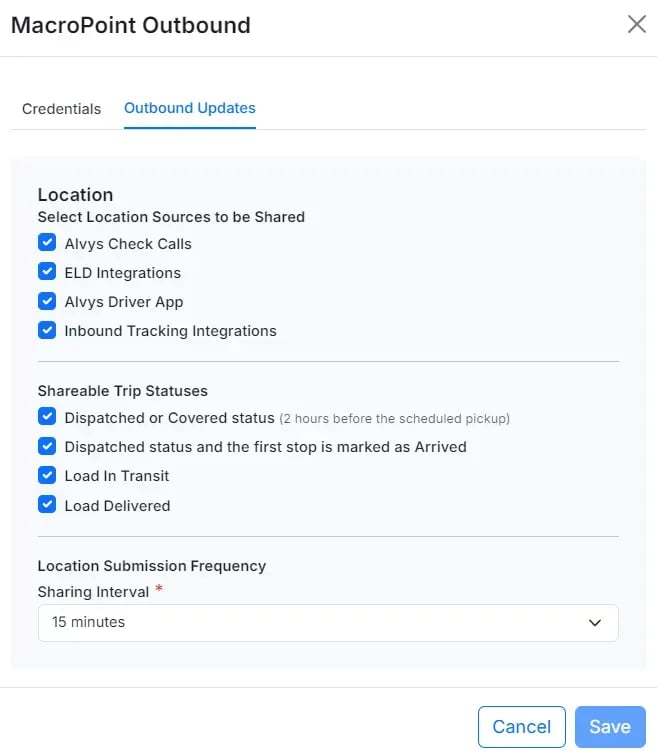 Once configured, automatic updates can be set up directly within the customer profile, similar to the process described in EDI Auto Update Settings.
## What syncs
### Inbound data received from MacroPoint
MacroPoint sends the following data to Alvys via the configured webhook URLs:
* **Location updates:** GPS latitude and longitude, timestamp, data source, and locator information for the carrier's current position
* **Order status:** tracking request status codes and messages
* **Trip events:** stop arrivals and departures with timestamp, location, and event type
* **Form submits:** driver form submissions associated with the tracking request
### Outbound data sent to MacroPoint
Alvys sends the following data outbound to MacroPoint for customer visibility:
* **Location data:** GPS coordinates sourced from ELD, check calls, and inbound tracking updates
* **Load statuses:** the four configurable outbound statuses are **Dispatched or Covered** (before pickup), **Dispatched After 1st Pickup** (when the first stop is arrived), **In Transit**, and **Delivered**
Each status can be toggled on or off in the outbound configuration. Only statuses that are enabled will be shared with the customer's MacroPoint account.
### Inbound sync
MacroPoint polls carrier GPS devices at a configured interval and sends location updates to Alvys. Alvys processes each update and records the carrier's current position, estimated arrival time, and stop arrival or departure events against the active tracking request on the load.
The inbound integration updates the tracking request state when the carrier arrives at or departs from a pickup or delivery stop. These updates are visible on the load's tracking panel.
### Outbound sync
Alvys pushes location and status data to MacroPoint on a scheduled basis. The outbound service reads the current load position from ELD, check calls, or inbound tracking data and transmits it to MacroPoint. Status events (such as when a load moves to **In Transit**) are sent as they occur.
### Verify inbound is working
After configuring MacroPoint inbound and initiating a tracking request on a load:
1. Open the load and click the Tracking option in the Action Ribbon.
Once configured, automatic updates can be set up directly within the customer profile, similar to the process described in EDI Auto Update Settings.
## What syncs
### Inbound data received from MacroPoint
MacroPoint sends the following data to Alvys via the configured webhook URLs:
* **Location updates:** GPS latitude and longitude, timestamp, data source, and locator information for the carrier's current position
* **Order status:** tracking request status codes and messages
* **Trip events:** stop arrivals and departures with timestamp, location, and event type
* **Form submits:** driver form submissions associated with the tracking request
### Outbound data sent to MacroPoint
Alvys sends the following data outbound to MacroPoint for customer visibility:
* **Location data:** GPS coordinates sourced from ELD, check calls, and inbound tracking updates
* **Load statuses:** the four configurable outbound statuses are **Dispatched or Covered** (before pickup), **Dispatched After 1st Pickup** (when the first stop is arrived), **In Transit**, and **Delivered**
Each status can be toggled on or off in the outbound configuration. Only statuses that are enabled will be shared with the customer's MacroPoint account.
### Inbound sync
MacroPoint polls carrier GPS devices at a configured interval and sends location updates to Alvys. Alvys processes each update and records the carrier's current position, estimated arrival time, and stop arrival or departure events against the active tracking request on the load.
The inbound integration updates the tracking request state when the carrier arrives at or departs from a pickup or delivery stop. These updates are visible on the load's tracking panel.
### Outbound sync
Alvys pushes location and status data to MacroPoint on a scheduled basis. The outbound service reads the current load position from ELD, check calls, or inbound tracking data and transmits it to MacroPoint. Status events (such as when a load moves to **In Transit**) are sent as they occur.
### Verify inbound is working
After configuring MacroPoint inbound and initiating a tracking request on a load:
1. Open the load and click the Tracking option in the Action Ribbon.
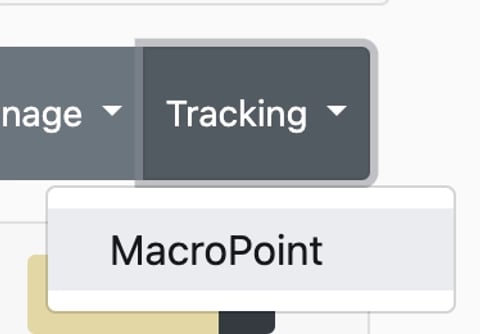 2. In the tracking request panel, adjust the phone number, track duration, interval, and other request details as needed.
3. Click **Track** to submit the tracking request to MacroPoint and begin monitoring.
2. In the tracking request panel, adjust the phone number, track duration, interval, and other request details as needed.
3. Click **Track** to submit the tracking request to MacroPoint and begin monitoring.
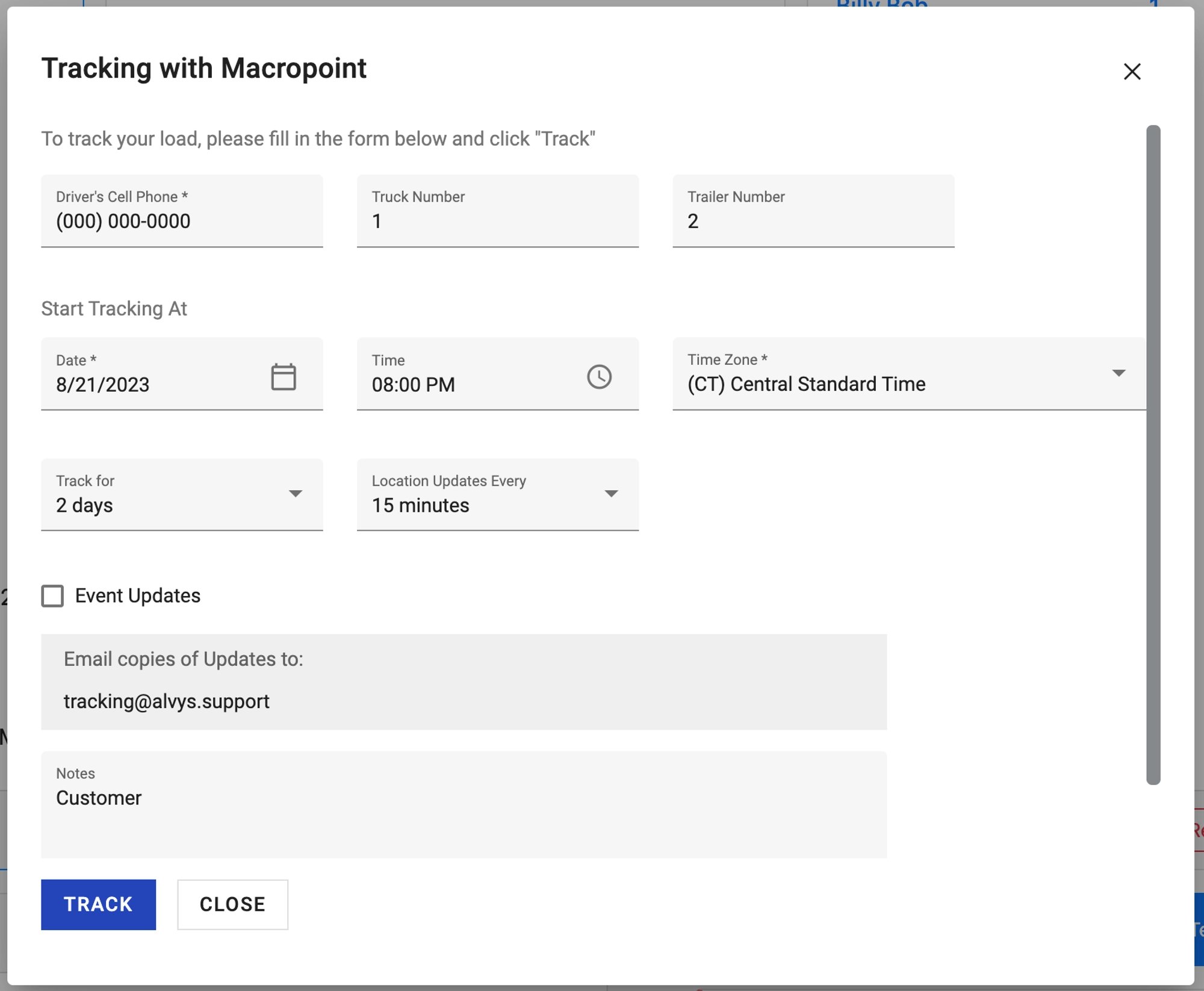 *Image showing Tracking request form*
Once the tracking request is active, MacroPoint begins sending location updates to Alvys. You can manage the active request from the Action Ribbon: options to pause, resume, or stop tracking are available there.
*Image showing Tracking request form*
Once the tracking request is active, MacroPoint begins sending location updates to Alvys. You can manage the active request from the Action Ribbon: options to pause, resume, or stop tracking are available there.
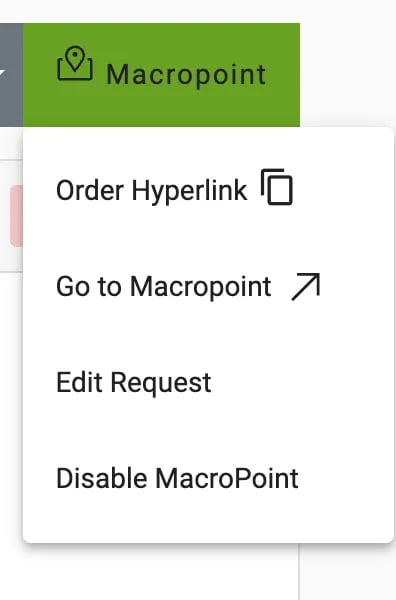 *Image showing Tracking management options on load details page*
### Verify outbound is working
After configuring MacroPoint outbound, open a load that matches one of your enabled outbound statuses (for example, a load in **In Transit** status). Check the customer's MacroPoint account to confirm the load location and status are appearing as expected.
## Troubleshooting
### Tracking request fails to submit
Cause: The MacroPoint ID or API Password entered in Alvys does not match the credentials provided by MacroPoint.
1. Verify that the MacroPoint ID and API Password entered in Alvys match the credentials provided by MacroPoint.
2. If the credentials were recently changed in MacroPoint, update them in Alvys under **Management > EDI & Visibility** on the relevant subsidiary's Visibility configuration.
### Carrier not found in MacroPoint
Cause: MacroPoint requires carrier details to be registered in their system before a tracking request can be accepted. When you initiate a tracking request, Alvys automatically submits carrier details to MacroPoint using the FTP Password configured in the inbound setup.
1. If the carrier registration fails, verify that the FTP Password is entered correctly in the MacroPoint Inbound configuration screen.
### No location updates appearing on the load
Cause: One of the required conditions for inbound data delivery is not met.
1. Confirm the tracking request status is Active, not Pending or Error, on the load's tracking panel.
2. Confirm the webhook URLs are correctly entered in your MacroPoint Company Preferences page with your Alvys Tenant ID replacing XXXXX.
3. Check that MacroPoint is successfully reaching the configured webhook endpoint. If MacroPoint cannot reach Alvys, location updates will not be received regardless of the tracking request status.
4. If none of these conditions apply, contact Alvys support.
### Tracking request validation error at pickup or delivery stop
Cause: MacroPoint requires GPS coordinates (latitude and longitude) on all pickup and delivery stops when creating a tracking request. A stop can have a complete street address but still fail if the address was never geocoded.
1. Verify that each stop address has been geocoded (coordinates assigned) in the company record.
2. If coordinates are missing, edit the stop's company address to trigger geocoding, then retry the tracking request.
### Outbound status not reaching the customer's MacroPoint account
Cause: The relevant load status is not enabled in the outbound configuration, or the load's subsidiary is not selected.
1. Verify that the relevant load status (**Dispatched or Covered**, **Dispatched After 1st Pickup**, **In Transit**, or **Delivered**) is enabled in the outbound visibility configuration under **Management > Integrations > Visibility > Outbound**.
2. Confirm that the subsidiary assigned to the load matches a subsidiary selected in the outbound configuration.
3. If none of these conditions apply, contact Alvys support.
## Limits and unsupported
* Waypoint stops are not supported in MacroPoint tracking requests. Only pickup and delivery stops are included in the trip sheet sent to MacroPoint.
* Outbound visibility sends data for MacroPoint, Project44, and FourKites through the same shared service. Each provider is configured separately within **Management > Integrations > Visibility > Outbound**.
* If a stop's address has not been geocoded (no GPS coordinates assigned), MacroPoint will reject the tracking request with a validation error.
## FAQs
**Q: What is the difference between inbound and outbound visibility?**
**A:** Inbound lets you request and manage carrier tracking from MacroPoint and receive location updates in Alvys. Outbound automatically shares your load location and status data with customers who use MacroPoint to track their freight.
**Q: Do I need a MacroPoint paid plan for both inbound and outbound?**
**A:** Inbound requires your company to have a paid MacroPoint plan. Outbound only requires the customer receiving the updates to have a paid MacroPoint plan.
**Q: Can I pause tracking for individual loads?**
**A:** Yes. Once a tracking request is active, you can pause, resume, or stop it from the Action Ribbon on the load.
**Q: Which statuses does MacroPoint outbound share with customers?**
**A:** MacroPoint outbound can share four load statuses: **Dispatched or Covered**, **Dispatched After 1st Pickup**, **In Transit**, and **Delivered**. Each status can be individually enabled or disabled in the outbound visibility configuration.
**Q: Why is the FTP Password required for inbound setup?**
**A:** Alvys uses the FTP Password to submit carrier details to MacroPoint via SFTP when a tracking request is initiated. Without this credential, MacroPoint cannot register the carrier in their system and tracking requests will fail.
## Go Deeper
[Understanding MacroPoint Inbound Visibility](/help/integrations/macropoint-inbound-visibility-tracking-data-not-appearing)
*Image showing Tracking management options on load details page*
### Verify outbound is working
After configuring MacroPoint outbound, open a load that matches one of your enabled outbound statuses (for example, a load in **In Transit** status). Check the customer's MacroPoint account to confirm the load location and status are appearing as expected.
## Troubleshooting
### Tracking request fails to submit
Cause: The MacroPoint ID or API Password entered in Alvys does not match the credentials provided by MacroPoint.
1. Verify that the MacroPoint ID and API Password entered in Alvys match the credentials provided by MacroPoint.
2. If the credentials were recently changed in MacroPoint, update them in Alvys under **Management > EDI & Visibility** on the relevant subsidiary's Visibility configuration.
### Carrier not found in MacroPoint
Cause: MacroPoint requires carrier details to be registered in their system before a tracking request can be accepted. When you initiate a tracking request, Alvys automatically submits carrier details to MacroPoint using the FTP Password configured in the inbound setup.
1. If the carrier registration fails, verify that the FTP Password is entered correctly in the MacroPoint Inbound configuration screen.
### No location updates appearing on the load
Cause: One of the required conditions for inbound data delivery is not met.
1. Confirm the tracking request status is Active, not Pending or Error, on the load's tracking panel.
2. Confirm the webhook URLs are correctly entered in your MacroPoint Company Preferences page with your Alvys Tenant ID replacing XXXXX.
3. Check that MacroPoint is successfully reaching the configured webhook endpoint. If MacroPoint cannot reach Alvys, location updates will not be received regardless of the tracking request status.
4. If none of these conditions apply, contact Alvys support.
### Tracking request validation error at pickup or delivery stop
Cause: MacroPoint requires GPS coordinates (latitude and longitude) on all pickup and delivery stops when creating a tracking request. A stop can have a complete street address but still fail if the address was never geocoded.
1. Verify that each stop address has been geocoded (coordinates assigned) in the company record.
2. If coordinates are missing, edit the stop's company address to trigger geocoding, then retry the tracking request.
### Outbound status not reaching the customer's MacroPoint account
Cause: The relevant load status is not enabled in the outbound configuration, or the load's subsidiary is not selected.
1. Verify that the relevant load status (**Dispatched or Covered**, **Dispatched After 1st Pickup**, **In Transit**, or **Delivered**) is enabled in the outbound visibility configuration under **Management > Integrations > Visibility > Outbound**.
2. Confirm that the subsidiary assigned to the load matches a subsidiary selected in the outbound configuration.
3. If none of these conditions apply, contact Alvys support.
## Limits and unsupported
* Waypoint stops are not supported in MacroPoint tracking requests. Only pickup and delivery stops are included in the trip sheet sent to MacroPoint.
* Outbound visibility sends data for MacroPoint, Project44, and FourKites through the same shared service. Each provider is configured separately within **Management > Integrations > Visibility > Outbound**.
* If a stop's address has not been geocoded (no GPS coordinates assigned), MacroPoint will reject the tracking request with a validation error.
## FAQs
**Q: What is the difference between inbound and outbound visibility?**
**A:** Inbound lets you request and manage carrier tracking from MacroPoint and receive location updates in Alvys. Outbound automatically shares your load location and status data with customers who use MacroPoint to track their freight.
**Q: Do I need a MacroPoint paid plan for both inbound and outbound?**
**A:** Inbound requires your company to have a paid MacroPoint plan. Outbound only requires the customer receiving the updates to have a paid MacroPoint plan.
**Q: Can I pause tracking for individual loads?**
**A:** Yes. Once a tracking request is active, you can pause, resume, or stop it from the Action Ribbon on the load.
**Q: Which statuses does MacroPoint outbound share with customers?**
**A:** MacroPoint outbound can share four load statuses: **Dispatched or Covered**, **Dispatched After 1st Pickup**, **In Transit**, and **Delivered**. Each status can be individually enabled or disabled in the outbound visibility configuration.
**Q: Why is the FTP Password required for inbound setup?**
**A:** Alvys uses the FTP Password to submit carrier details to MacroPoint via SFTP when a tracking request is initiated. Without this credential, MacroPoint cannot register the carrier in their system and tracking requests will fail.
## Go Deeper
[Understanding MacroPoint Inbound Visibility](/help/integrations/macropoint-inbound-visibility-tracking-data-not-appearing)