> ## Documentation Index
> Fetch the complete documentation index at: https://docs.alvys.com/llms.txt
> Use this file to discover all available pages before exploring further.
# Connect Orbcomm Cargowatch to Alvys
> Connect Orbcomm Cargowatch to Alvys with XML credentials to pull real-time GPS locations from your trucks and trailers into the Asset Map and dispatch board.
**This integration is retired.** Orbcomm retired its older CargoWatch connection, and Alvys has moved to the newer [Orbcomm Platform integration](/help/integrations/connecting-orbcomm-platform-to-alvys). If you are setting up Orbcomm for the first time, use Orbcomm Platform instead. This page remains for reference if you still have the legacy CargoWatch card in your account.
Connect Orbcomm Cargowatch to Alvys to pull real-time GPS location data from your Orbcomm-equipped trucks and trailers automatically, giving you live asset visibility on the Asset Map and in dispatch planning.
## Overview
Orbcomm Cargowatch (also called the Orbcomm ELD or telematics integration) is a telematics solution that provides real-time GPS tracking for trucks and trailers. Once connected, Alvys automatically pulls location data from your Orbcomm-equipped assets, making that data visible on the Asset Map and available for dispatch planning.
⚠️ Orbcomm Cargowatch uses XML credentials (a username and password). If your Orbcomm account uses the newer RESTful API, you are on Orbcomm Platform, not Orbcomm Cargowatch. Check with your Orbcomm representative if you are unsure which version you have.
## Prerequisites
Before you begin, you need XML credentials from Orbcomm: a username and a password.
Contact Orbcomm at [customer.care@orbcomm.com](mailto:customer.care@orbcomm.com) and request XML credentials. Keep these credentials ready for the connection step below.
You also need the Orbcomm Unit number and Gateway ID for each truck or trailer you want to track. These are available in your Orbcomm portal or by request from Orbcomm support.
## How to connect
* Click your profile icon in the lower left corner of Alvys.
* Select the subsidiary you want to configure and click the **Integrations** tab.
* Expand the **ELD** section. Locate the **Orbcomm Cargowatch** card and click the pencil icon to open the configuration.
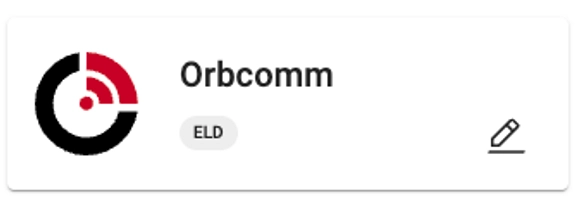 *Image showing the ELD section with the Orbcomm Cargowatch card and pencil icon.*
* Enter your XML credentials. Enter your Orbcomm Cargowatch **XML Username** and **Password**, then click **Save**. Alvys validates your credentials automatically. If the credentials are accepted, the integration becomes active.
*Image showing the ELD section with the Orbcomm Cargowatch card and pencil icon.*
* Enter your XML credentials. Enter your Orbcomm Cargowatch **XML Username** and **Password**, then click **Save**. Alvys validates your credentials automatically. If the credentials are accepted, the integration becomes active.
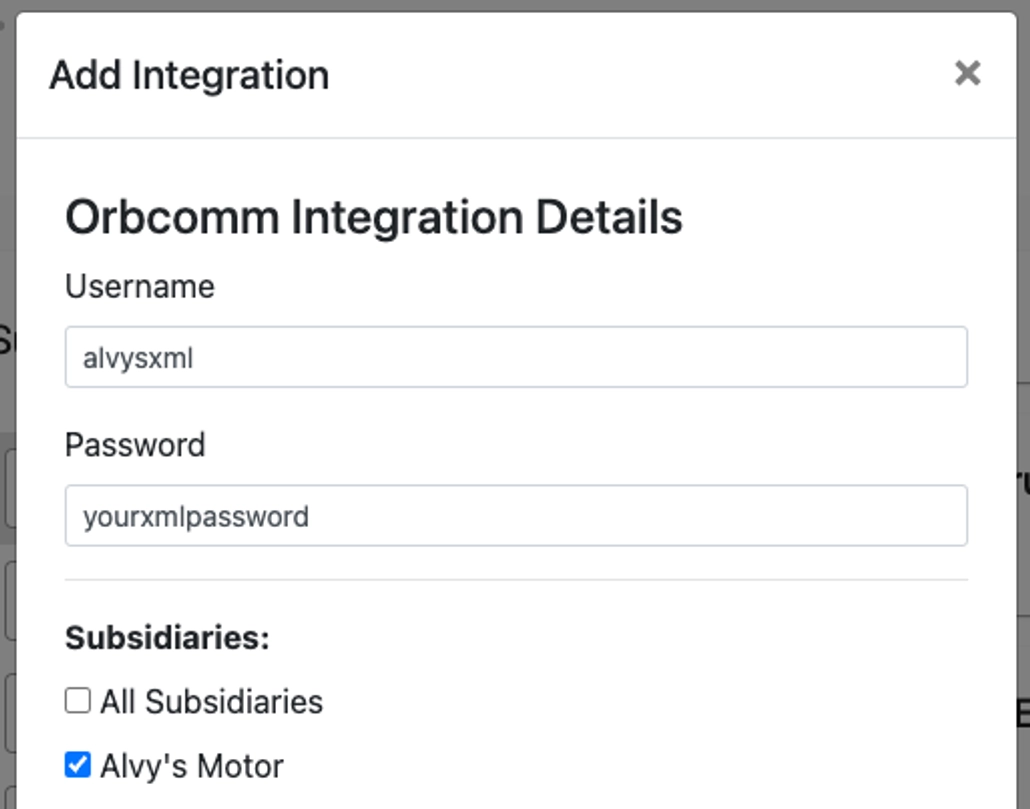 *Image showing the XML Username and Password fields for Orbcomm Cargowatch configuration.*
## What syncs
Orbcomm sends GPS location data to Alvys for each asset that has been mapped. The data includes the asset's current location coordinates, which Alvys uses to update the Asset Map and to support dispatch planning. Alvys does not send data back to Orbcomm. Location data flows one way: from Orbcomm into Alvys.
Only assets that have been explicitly mapped to an Orbcomm Unit number and Gateway ID will appear on the Asset Map.
### Map assets for location tracking
After connecting, you need to tell Alvys which Orbcomm Unit ID and Gateway ID correspond to each truck or trailer.
* Go to **Assets** in the left navigation and select **Trucks** or **Trailers**.
*Image showing the XML Username and Password fields for Orbcomm Cargowatch configuration.*
## What syncs
Orbcomm sends GPS location data to Alvys for each asset that has been mapped. The data includes the asset's current location coordinates, which Alvys uses to update the Asset Map and to support dispatch planning. Alvys does not send data back to Orbcomm. Location data flows one way: from Orbcomm into Alvys.
Only assets that have been explicitly mapped to an Orbcomm Unit number and Gateway ID will appear on the Asset Map.
### Map assets for location tracking
After connecting, you need to tell Alvys which Orbcomm Unit ID and Gateway ID correspond to each truck or trailer.
* Go to **Assets** in the left navigation and select **Trucks** or **Trailers**.
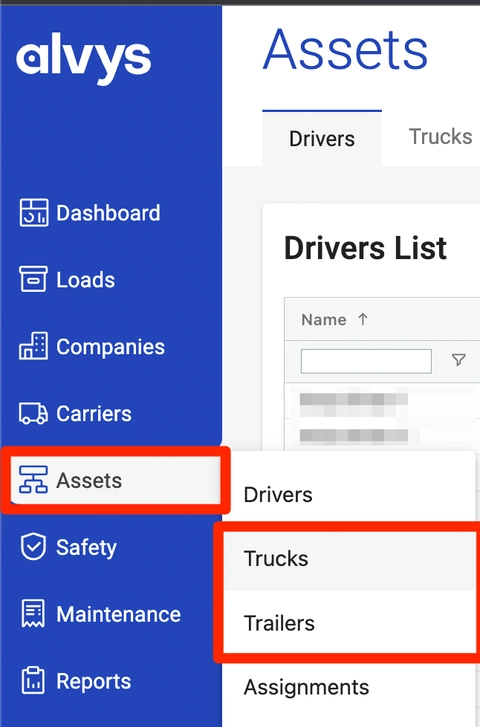 *Image showing the Assets section with the Trucks and Trailers options in the left menu.*
* Double-click the asset you want to configure, then scroll down to the **ELD Integrations** section and click **Add Integration**.
* Select **Orbcomm** from the dropdown.
* Enter the **Orbcomm Unit #** in the Integration ID field and the **Gateway ID** in the Gateway ID field, then click **Save**.
*Image showing the Assets section with the Trucks and Trailers options in the left menu.*
* Double-click the asset you want to configure, then scroll down to the **ELD Integrations** section and click **Add Integration**.
* Select **Orbcomm** from the dropdown.
* Enter the **Orbcomm Unit #** in the Integration ID field and the **Gateway ID** in the Gateway ID field, then click **Save**.
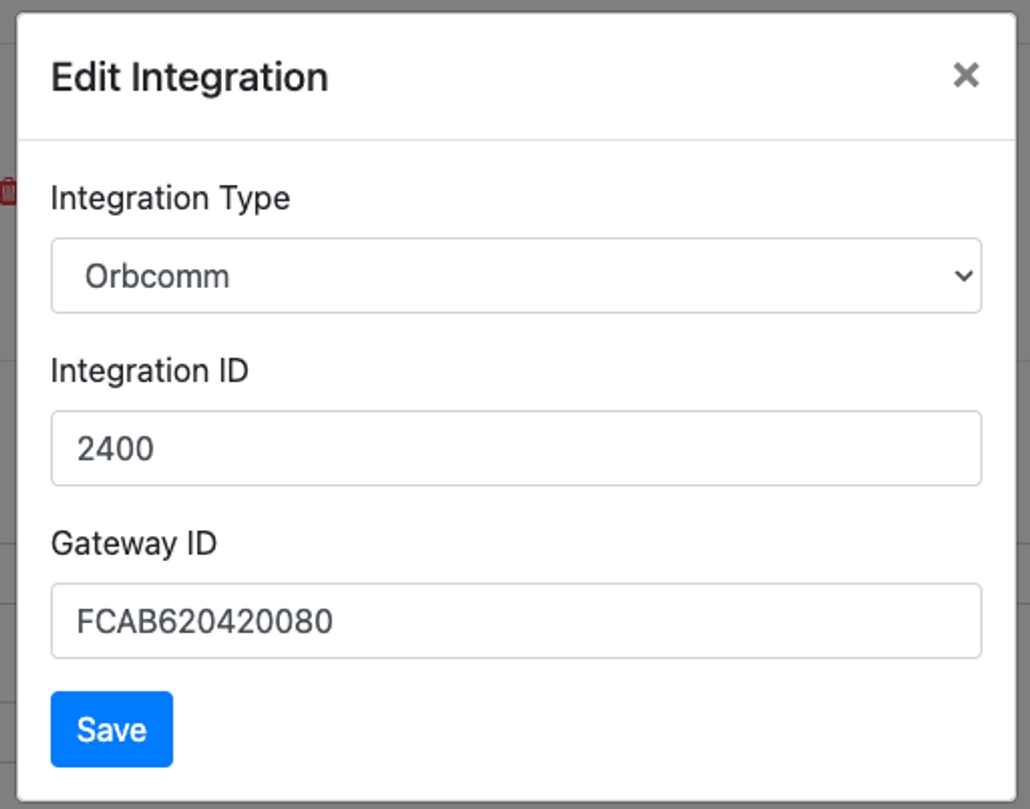 \*Image showing the ELD Integrations section with the Add Integration dialog, Orbcomm selected, and the Unit # and Gateway ID fields. \*
Repeat this process for each truck or trailer you want to track. After saving, the asset should begin appearing on the Asset Map within a few minutes if the integration is active.
⚠️ Only assets with a mapped Orbcomm Unit number and Gateway ID will appear on the Asset Map; assets that are not mapped in Alvys will not receive location updates regardless of the integration being active.
## Troubleshooting
### Asset is not appearing on the Asset Map after mapping
1. Confirm the Orbcomm Unit number and Gateway ID entered in Alvys exactly match what is shown in your Orbcomm portal. A mismatch will prevent location data from being received.
2. Confirm the integration is active by checking the Orbcomm Cargowatch card in the ELD section under Integrations. It should show a connected state.
3. If the asset still does not appear, contact Orbcomm support to confirm the unit is transmitting location data from the vehicle.
4. If location data is transmitting from Orbcomm but the asset is still missing from the Asset Map in Alvys, contact Alvys Support.
### Cannot find the Orbcomm Unit number or Gateway ID
Your Orbcomm Unit numbers and Gateway IDs are available in your Orbcomm portal. If you cannot locate them, contact Orbcomm at [customer.care@orbcomm.com](mailto:customer.care@orbcomm.com).
## FAQs
**Q: Where do I find my Orbcomm Unit numbers and Gateway IDs?**
**A:** Your Orbcomm Unit numbers and Gateway IDs are available in your Orbcomm portal. You can also request them from Orbcomm support at [customer.care@orbcomm.com](mailto:customer.care@orbcomm.com).
**Q: Can I track both trucks and trailers with Orbcomm Cargowatch?**
**A:** Yes. You can configure Orbcomm Cargowatch tracking for both trucks and trailers by adding the integration to each asset individually.
**Q: What is the difference between Orbcomm Cargowatch and Orbcomm Platform?**
**A:** Orbcomm Cargowatch uses XML credentials (a username and password) and connects via an older API. Orbcomm Platform uses the newer RESTful API with different credentials. Check with your Orbcomm representative to confirm which version your account uses.
**Q: Does Alvys send any data back to Orbcomm?**
**A:** No. Location data flows one way: from Orbcomm into Alvys. Alvys does not send data to Orbcomm.
\*Image showing the ELD Integrations section with the Add Integration dialog, Orbcomm selected, and the Unit # and Gateway ID fields. \*
Repeat this process for each truck or trailer you want to track. After saving, the asset should begin appearing on the Asset Map within a few minutes if the integration is active.
⚠️ Only assets with a mapped Orbcomm Unit number and Gateway ID will appear on the Asset Map; assets that are not mapped in Alvys will not receive location updates regardless of the integration being active.
## Troubleshooting
### Asset is not appearing on the Asset Map after mapping
1. Confirm the Orbcomm Unit number and Gateway ID entered in Alvys exactly match what is shown in your Orbcomm portal. A mismatch will prevent location data from being received.
2. Confirm the integration is active by checking the Orbcomm Cargowatch card in the ELD section under Integrations. It should show a connected state.
3. If the asset still does not appear, contact Orbcomm support to confirm the unit is transmitting location data from the vehicle.
4. If location data is transmitting from Orbcomm but the asset is still missing from the Asset Map in Alvys, contact Alvys Support.
### Cannot find the Orbcomm Unit number or Gateway ID
Your Orbcomm Unit numbers and Gateway IDs are available in your Orbcomm portal. If you cannot locate them, contact Orbcomm at [customer.care@orbcomm.com](mailto:customer.care@orbcomm.com).
## FAQs
**Q: Where do I find my Orbcomm Unit numbers and Gateway IDs?**
**A:** Your Orbcomm Unit numbers and Gateway IDs are available in your Orbcomm portal. You can also request them from Orbcomm support at [customer.care@orbcomm.com](mailto:customer.care@orbcomm.com).
**Q: Can I track both trucks and trailers with Orbcomm Cargowatch?**
**A:** Yes. You can configure Orbcomm Cargowatch tracking for both trucks and trailers by adding the integration to each asset individually.
**Q: What is the difference between Orbcomm Cargowatch and Orbcomm Platform?**
**A:** Orbcomm Cargowatch uses XML credentials (a username and password) and connects via an older API. Orbcomm Platform uses the newer RESTful API with different credentials. Check with your Orbcomm representative to confirm which version your account uses.
**Q: Does Alvys send any data back to Orbcomm?**
**A:** No. Location data flows one way: from Orbcomm into Alvys. Alvys does not send data to Orbcomm.