> ## Documentation Index
> Fetch the complete documentation index at: https://docs.alvys.com/llms.txt
> Use this file to discover all available pages before exploring further.
# Pilot Flying J Fuel Integration
> Import Pilot Flying J fuel card transactions into the Alvys Fuel Report by uploading the Excel statement; Alvys matches purchases to drivers by card number.
The Pilot Flying J fuel integration lets you import fuel transaction data from your Pilot Flying J fuel card account into the Alvys Fuel Report by downloading a transaction file from the Pilot Flying J portal and uploading it to Alvys.
## What This Integration Does
The Pilot Flying J fuel integration lets you import fuel transaction data from your Pilot Flying J fuel card (fuel network) account into the Alvys Fuel Report. Transactions are matched to driver profiles using each driver's fuel card number. This is a one-way, manual import: you download a transaction report (statement) from the Pilot Flying J Fuel Card portal and upload the Excel file to Alvys. Alvys matches transactions to drivers using the last 3 digits of each fuel card number.
💡 This integration is sometimes called the Pilot Flying J fuel card import, fuel network sync, or fuel transaction upload. · It is manual and one-way (Pilot Flying J to Alvys) with no scheduled or automatic sync.
## Prerequisites
Before configuring this integration, confirm the following:
* You have **"Admin"**, **"Support"**, or **"Partner Admin"** access in Alvys (set on your user role in the Company Profile).
* Your drivers have been added to Alvys.
* You have access to the Pilot Flying J Fuel Card portal.
* You know the last 3 digits of each driver's Pilot Flying J fuel card number.
## Connect and Authenticate
1. Click your username in the bottom left corner of Alvys, then select **Management**.
2. Select the subsidiary you want to integrate with Pilot Flying J.
3. Click the blue **Integrate** button.
4. In the pop-up window, open the **Integration Type** drop-down menu.
5. Scroll down to find **PilotFlyingJ** and select it.
6. Select the subsidiary that should use this integration.
7. Click **Save**.
8. Add each driver's fuel card number to their profile so Alvys can match transactions:
9. From the blue Alvys toolbar, select **Assets**, then choose **Drivers**.
10. Find and double-click a driver to open their profile.
11. In the first section of the profile, click the plus sign next to **Fuel Card Numbers**.
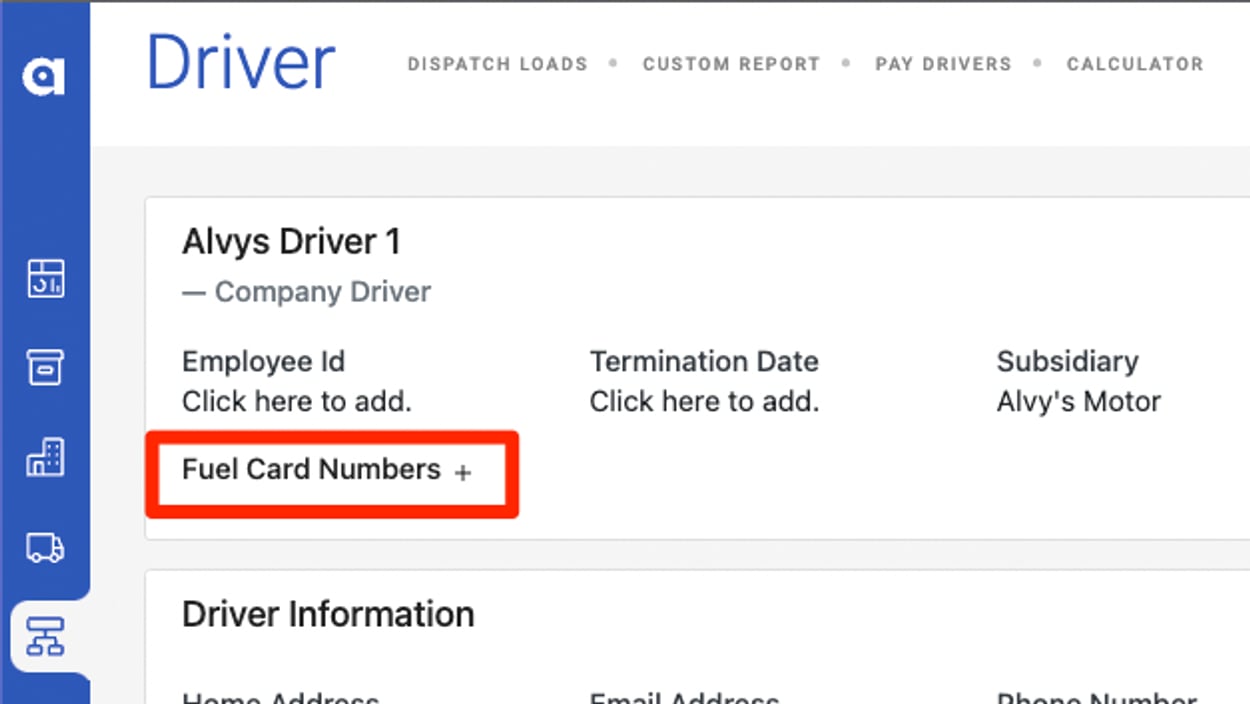 *Driver profile with the Fuel Card Numbers (+) option highlighted*
12. Enter the fuel card number. For Pilot Flying J manual import, enter only the **last 3 digits** of the fuel card number.
*Driver profile with the Fuel Card Numbers (+) option highlighted*
12. Enter the fuel card number. For Pilot Flying J manual import, enter only the **last 3 digits** of the fuel card number.
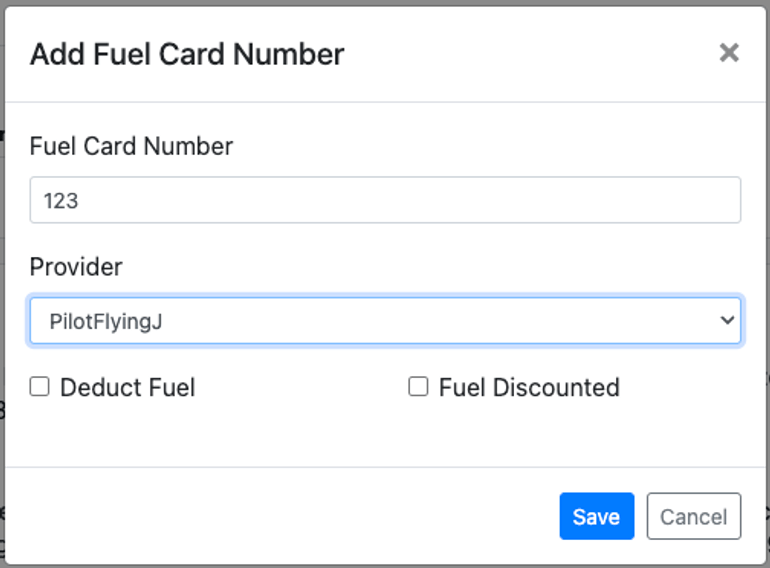 *Add Fuel Card Number pop-up with the PilotFlyingJ provider*
13. Select **PilotFlyingJ** in the Provider drop-down menu.
14. Check the applicable boxes if you want to deduct fuel or if fuel is discounted for this driver.
15. Click **Save**.
16. Repeat for each driver who has a Pilot Flying J fuel card.
17. Download the fuel transaction report from Pilot Flying J:
18. Log in to the Pilot Flying J Fuel Card portal.
19. Navigate to **Fuel Card > Reporting/Statements > Transactions**.
*Add Fuel Card Number pop-up with the PilotFlyingJ provider*
13. Select **PilotFlyingJ** in the Provider drop-down menu.
14. Check the applicable boxes if you want to deduct fuel or if fuel is discounted for this driver.
15. Click **Save**.
16. Repeat for each driver who has a Pilot Flying J fuel card.
17. Download the fuel transaction report from Pilot Flying J:
18. Log in to the Pilot Flying J Fuel Card portal.
19. Navigate to **Fuel Card > Reporting/Statements > Transactions**.
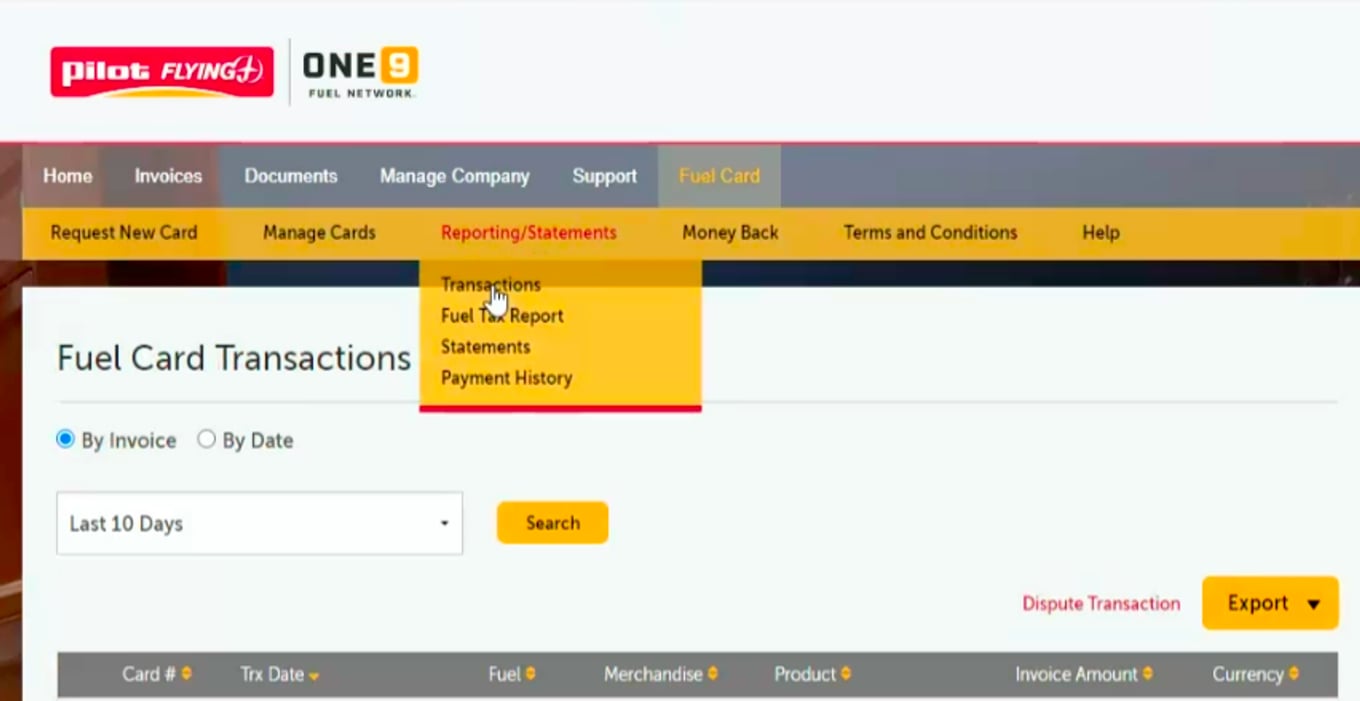 *Pilot portal: Fuel Card > Reporting/Statements > Transactions*
20. Choose whether to view the report **By Invoice** or **By Date**, select the period, and click **Search**.
21. After the report generates, click **Export**, select **Excel**, and save the file to your device.
*Pilot portal: Fuel Card > Reporting/Statements > Transactions*
20. Choose whether to view the report **By Invoice** or **By Date**, select the period, and click **Search**.
21. After the report generates, click **Export**, select **Excel**, and save the file to your device.
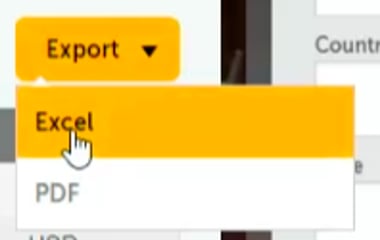 *Exporting the transactions report to Excel*
22. Upload the fuel transaction file to Alvys. Before uploading, confirm each driver has the correct fuel card number (last 3 digits) entered in their profile.
23. From the blue Alvys toolbar, select **Reports**, then choose **Fuel Report**.
*Exporting the transactions report to Excel*
22. Upload the fuel transaction file to Alvys. Before uploading, confirm each driver has the correct fuel card number (last 3 digits) entered in their profile.
23. From the blue Alvys toolbar, select **Reports**, then choose **Fuel Report**.
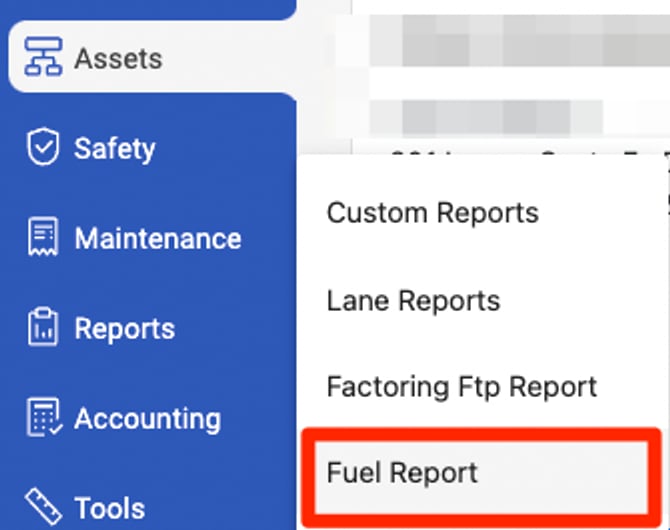 *Alvys toolbar: Reports > Fuel Report*
24. Click the blue **Transaction File Upload** button.
25. In the pop-up window, select **PilotFlyingJ** from the **Integration Type** drop-down menu.
*Alvys toolbar: Reports > Fuel Report*
24. Click the blue **Transaction File Upload** button.
25. In the pop-up window, select **PilotFlyingJ** from the **Integration Type** drop-down menu.
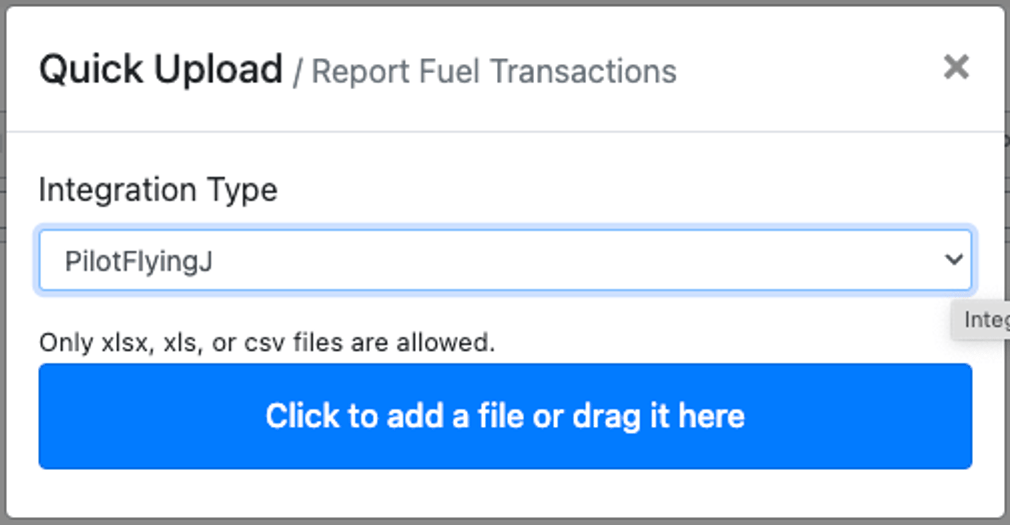 *Quick Upload pop-up with PilotFlyingJ as the Integration Type*
26. Click the blue button to browse for your file, or drag and drop the Excel file you exported from the Pilot Flying J portal.
27. Upload the file.
28. Once the upload completes, use the **Transaction Date** range filter in the Fuel Report to review the imported transactions.
## Field & Data Mapping
* **Matching key:** Alvys matches transactions to driver profiles using the fuel card number. For Pilot Flying J, only the **last 3 digits** of the fuel card number are used. Each driver profile must have the correct last 3 digits entered, with **PilotFlyingJ** selected as the provider, before you upload a transaction file.
* **File format:** Alvys accepts the standard Fuel Card portal Excel export. Custom or reformatted files are not supported.
## Sync Behavior
The Pilot Flying J integration imports fuel transaction data from your Pilot Flying J Fuel Card account into the Alvys Fuel Report.
* **Direction:** One-way, Pilot Flying J to Alvys, via manual Excel file upload. There is no scheduled or automatic import.
⚠️ Only the last 3 digits of the Pilot Flying J fuel card number are used for driver matching. · Entering more or fewer digits will prevent transactions from being matched. · Uploading the same file again may create duplicate entries.
## Verify It's Working
After uploading, use the **Transaction Date** range filter in the Fuel Report to confirm the imported transactions appear and are matched to the correct drivers.
## Troubleshooting
### Fuel transactions are not appearing after upload
Confirm that each driver's fuel card number in Alvys shows the last 3 digits of their Pilot Flying J card and that **PilotFlyingJ** is selected as the provider on the driver's profile. Alvys uses this number to match transactions from the uploaded file to the correct driver.
### The upload pop-up does not show PilotFlyingJ as an option
Confirm the Pilot Flying J integration is active in Management > Integrations. If the integration does not appear, return to the connect steps and reactivate it for the correct subsidiary.
### The Excel file fails to upload
Confirm the file is the unmodified export from the Pilot Flying J portal in Excel format. Modifying the file structure before uploading may cause the import to fail.
## Limits and Unsupported
* Import is manual and one-way (Pilot Flying J to Alvys); there is no scheduled or automatic sync.
* Only the standard Fuel Card portal Excel export is supported. Custom or reformatted files are not supported.
* Only the last 3 digits of the fuel card number are used for matching.
## FAQs
**Q: How many digits of the fuel card number do I enter in the driver profile?**
**A:** For the Pilot Flying J manual import, enter only the last 3 digits of the fuel card number in the driver's profile.
**Q: How often should I upload fuel transaction reports?**
**A:** This depends on your reporting and settlement schedule. Many teams upload weekly or after each billing period.
**Q: What if a driver's transactions are not showing up after I upload the file?**
**A:** Confirm the driver has the correct last 3 digits of their Pilot Flying J fuel card number entered in their profile, and that **PilotFlyingJ** is selected as the provider. If the card number or provider is incorrect, the transactions cannot be matched to that driver.
**Q: Can I upload the same file more than once?**
**A:** Uploading the same file again may result in duplicate entries. Review the Fuel Report before re-uploading to check whether the transactions already appear.
*Quick Upload pop-up with PilotFlyingJ as the Integration Type*
26. Click the blue button to browse for your file, or drag and drop the Excel file you exported from the Pilot Flying J portal.
27. Upload the file.
28. Once the upload completes, use the **Transaction Date** range filter in the Fuel Report to review the imported transactions.
## Field & Data Mapping
* **Matching key:** Alvys matches transactions to driver profiles using the fuel card number. For Pilot Flying J, only the **last 3 digits** of the fuel card number are used. Each driver profile must have the correct last 3 digits entered, with **PilotFlyingJ** selected as the provider, before you upload a transaction file.
* **File format:** Alvys accepts the standard Fuel Card portal Excel export. Custom or reformatted files are not supported.
## Sync Behavior
The Pilot Flying J integration imports fuel transaction data from your Pilot Flying J Fuel Card account into the Alvys Fuel Report.
* **Direction:** One-way, Pilot Flying J to Alvys, via manual Excel file upload. There is no scheduled or automatic import.
⚠️ Only the last 3 digits of the Pilot Flying J fuel card number are used for driver matching. · Entering more or fewer digits will prevent transactions from being matched. · Uploading the same file again may create duplicate entries.
## Verify It's Working
After uploading, use the **Transaction Date** range filter in the Fuel Report to confirm the imported transactions appear and are matched to the correct drivers.
## Troubleshooting
### Fuel transactions are not appearing after upload
Confirm that each driver's fuel card number in Alvys shows the last 3 digits of their Pilot Flying J card and that **PilotFlyingJ** is selected as the provider on the driver's profile. Alvys uses this number to match transactions from the uploaded file to the correct driver.
### The upload pop-up does not show PilotFlyingJ as an option
Confirm the Pilot Flying J integration is active in Management > Integrations. If the integration does not appear, return to the connect steps and reactivate it for the correct subsidiary.
### The Excel file fails to upload
Confirm the file is the unmodified export from the Pilot Flying J portal in Excel format. Modifying the file structure before uploading may cause the import to fail.
## Limits and Unsupported
* Import is manual and one-way (Pilot Flying J to Alvys); there is no scheduled or automatic sync.
* Only the standard Fuel Card portal Excel export is supported. Custom or reformatted files are not supported.
* Only the last 3 digits of the fuel card number are used for matching.
## FAQs
**Q: How many digits of the fuel card number do I enter in the driver profile?**
**A:** For the Pilot Flying J manual import, enter only the last 3 digits of the fuel card number in the driver's profile.
**Q: How often should I upload fuel transaction reports?**
**A:** This depends on your reporting and settlement schedule. Many teams upload weekly or after each billing period.
**Q: What if a driver's transactions are not showing up after I upload the file?**
**A:** Confirm the driver has the correct last 3 digits of their Pilot Flying J fuel card number entered in their profile, and that **PilotFlyingJ** is selected as the provider. If the card number or provider is incorrect, the transactions cannot be matched to that driver.
**Q: Can I upload the same file more than once?**
**A:** Uploading the same file again may result in duplicate entries. Review the Fuel Report before re-uploading to check whether the transactions already appear.