> ## Documentation Index
> Fetch the complete documentation index at: https://docs.alvys.com/llms.txt
> Use this file to discover all available pages before exploring further.
# TCS Fuel Integration
> Import TCS (Transportation Clearinghouse Solutions) fuel card transactions into Alvys via manual CSV upload and apply deductions to driver settlements.
The TCS fuel integration lets you import fuel card transaction data from Transportation Clearinghouse Solutions into Alvys via manual CSV upload: use it to track fuel expenses and apply deductions to driver settlements.
## Overview
The TCS fuel integration (Transportation Clearinghouse Solutions, TCS fuel card import, manual CSV upload) connects TCS fuel card data with Alvys. This is a manual import process: you download a Transactions Download CSV from your TCS system and upload it into Alvys. Alvys then matches each transaction to the correct driver using the last 4 digits of the fuel card number stored on their profile.
Use this integration to track fuel expenses, apply fuel deductions to driver pay, and maintain accurate fuel records in your Fuel Report. The integration is one-way: data flows from TCS into Alvys only.
## Prerequisites
Before setting up this integration, confirm the following:
* You have access in Alvys to manage Integrations.
* You have login credentials for your TCS system.
* Your subsidiaries are already configured in Alvys.
* If you need help locating the Transactions Download report in TCS, contact your TCS Sales Representative.
## How to connect
1. Click your username in the bottom left corner of Alvys, then select **Management (**[https://app.alvys.com/#/manage/integrations](https://app.alvys.com/#/manage/integrations)**)**.
2. Go to the **Integrations** section.
3. Scroll to the **Fuel Cards** drop-down and select the “**Inactive”** button next to **TCS**.
 *TCS integration card with “**Inactive**” button highlighted.*
4. Choose the subsidiary that should use **TCS**.
5. Click the blue “**Save”** button.
💡 No API credentials are required for the TCS integration. Enabling the integration registers TCS as an available upload type in the Fuel Report.
**For Alvys to attribute transactions to the correct driver, each driver must have the last 4 digits of their TCS fuel card number saved on their profile:**
1. From the Alvys toolbar, go to **Assets** and select **Drivers**.
2. Find and double-click a driver to open their profile.
3. In the first section, click the plus sign next to **Fuel Card Numbers**.
*TCS integration card with “**Inactive**” button highlighted.*
*TCS integration card with “**Inactive**” button highlighted.*
4. Choose the subsidiary that should use **TCS**.
5. Click the blue “**Save”** button.
💡 No API credentials are required for the TCS integration. Enabling the integration registers TCS as an available upload type in the Fuel Report.
**For Alvys to attribute transactions to the correct driver, each driver must have the last 4 digits of their TCS fuel card number saved on their profile:**
1. From the Alvys toolbar, go to **Assets** and select **Drivers**.
2. Find and double-click a driver to open their profile.
3. In the first section, click the plus sign next to **Fuel Card Numbers**.
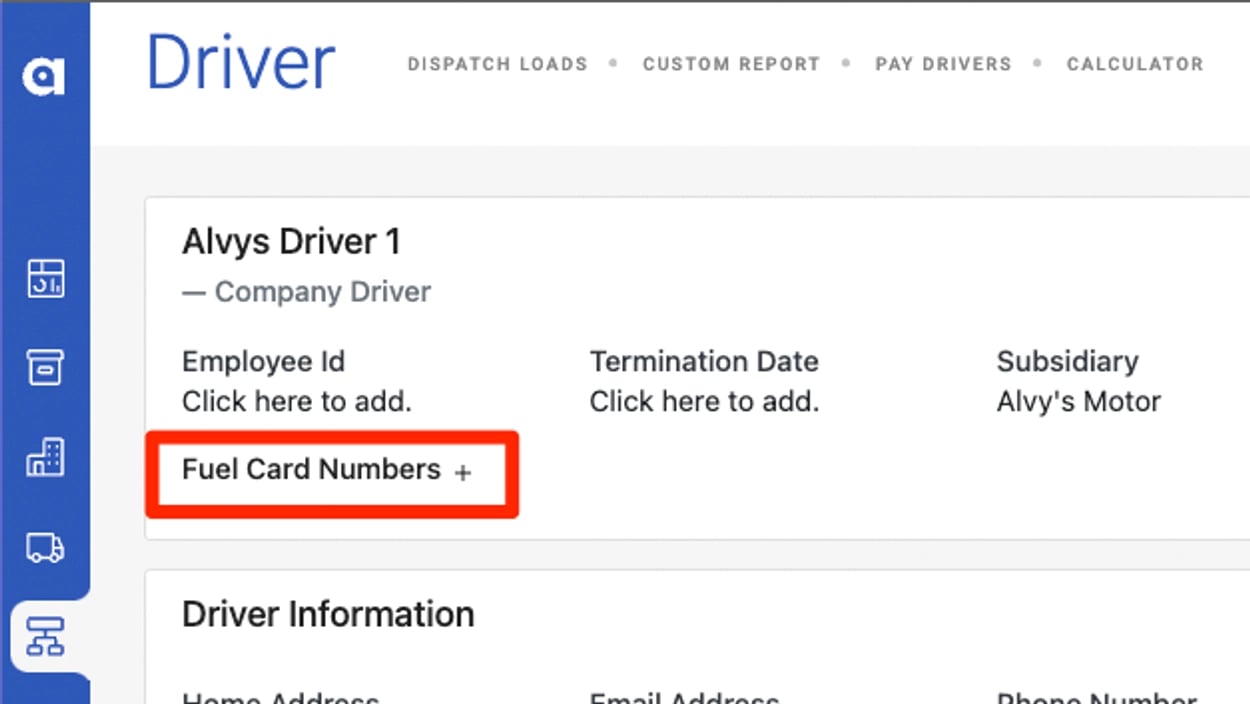 *This image shows the Fuel Card Numbers section of a driver profile with the plus sign highlighted.*
4. Enter only the **last 4 digits** of the TCS fuel card number for this driver.
*This image shows the Fuel Card Numbers section of a driver profile with the plus sign highlighted.*
*This image shows the Fuel Card Numbers section of a driver profile with the plus sign highlighted.*
4. Enter only the **last 4 digits** of the TCS fuel card number for this driver.
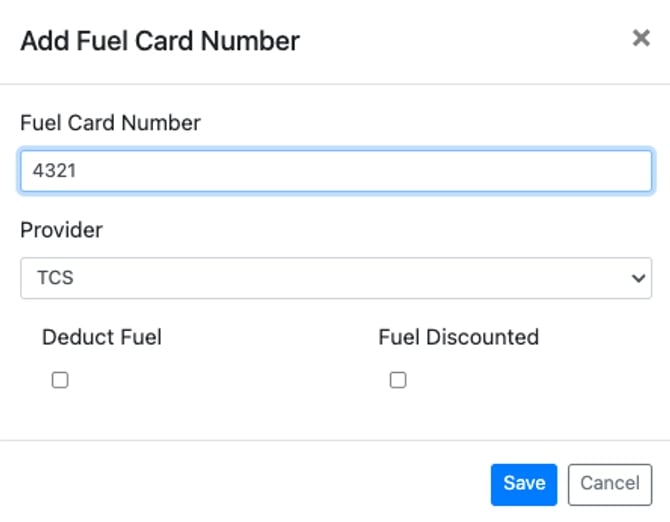 *This image shows the fuel card number entry field with a 4-digit number entered.*
5. Select **TCS** in the Provider dropdown.
6. Set the deduct fuel and discounted fuel checkboxes if applicable.
7. Click **Save**.
Repeat the fuel card steps for each driver who has a TCS fuel card.
### To download fuel transactions from TCS:
1. Log in to your TCS system.
2. Navigate to **Reports**.
3. Scroll down to **Transactions Download**.
4. Select your time period on the right.
5. Download the file to your device as a CSV. If you cannot locate the Transactions Download report, contact your TCS Sales Representative for assistance.
### To upload the file to Alvys (confirm each driver's last 4 fuel card digits are saved first):
* From the Alvys toolbar, go to \*\*Assets \*\*and select **Fuel Report**.
*This image shows the fuel card number entry field with a 4-digit number entered.*
*This image shows the fuel card number entry field with a 4-digit number entered.*
5. Select **TCS** in the Provider dropdown.
6. Set the deduct fuel and discounted fuel checkboxes if applicable.
7. Click **Save**.
Repeat the fuel card steps for each driver who has a TCS fuel card.
### To download fuel transactions from TCS:
1. Log in to your TCS system.
2. Navigate to **Reports**.
3. Scroll down to **Transactions Download**.
4. Select your time period on the right.
5. Download the file to your device as a CSV. If you cannot locate the Transactions Download report, contact your TCS Sales Representative for assistance.
### To upload the file to Alvys (confirm each driver's last 4 fuel card digits are saved first):
* From the Alvys toolbar, go to \*\*Assets \*\*and select **Fuel Report**.
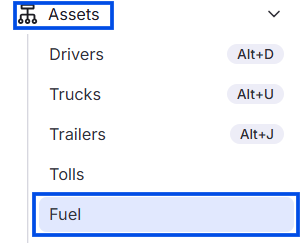 *This image shows the Fuel Report page with the Transaction File Upload button visible.*
* Click the vertical ellipsis icon **(⋮)** next to the “**Add** \*\*Transaction” \*\*button.
*This image shows the Fuel Report page with the Transaction File Upload button visible.*
* Click the vertical ellipsis icon **(⋮)** next to the “**Add** \*\*Transaction” \*\*button.
 *Image showing ellipsis icon next to “Add Transaction” button*
* Select the “**Import Report**” option.
*Image showing ellipsis icon next to “Add Transaction” button*
* Select the “**Import Report**” option.
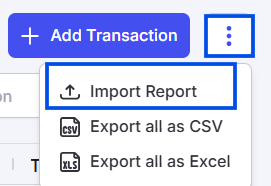 *Image showing Import Report option*
* In the pop-up window, select **EFSCSV** from the **Integration Type** drop-down menu.
*Image showing Import Report option*
* In the pop-up window, select **EFSCSV** from the **Integration Type** drop-down menu.
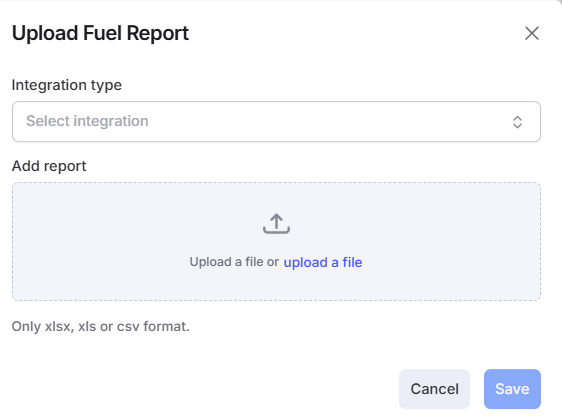 *Image showing ”Upload Fuel Report” form with Integration type and Add report input fields.*
* Upload the CSV file you downloaded from the TCS portal.
* Click the “Save” button
* Once the upload completes, use the **Transaction Date** range filter in the Fuel Report to review imported transactions.
## What syncs
The TCS integration is a manual, one-way sync from TCS into Alvys. After uploading a TCS CSV, Alvys maps transaction data as follows:
* The last 4 digits of the fuel card number on the CSV are matched against the last 4 digits stored in each driver's profile. Transactions are attributed to the driver whose card number matches.
* Transaction date, amount, and gallons are imported into the Fuel Report.
* If the card number on a transaction does not match any driver profile, the transaction will not be attributed to a driver. Add or correct the card number on the driver profile, then re-upload the file.
* Alvys detects duplicate transactions automatically and will not import duplicates. Re-uploading the same file is safe.
* There is no automatic or scheduled sync for this integration.
Only the last 4 digits are used because TCS fuel card data in transaction reports uses only the last 4 digits as the identifier.
⚠️ This integration does not support automatic or scheduled imports.
Entering a full card number will prevent correct matching.
Alvys does not write data back to TCS.
## Troubleshooting
### Driver fuel transactions not appearing after upload
1. Open the driver profile in **Assets > Drivers** and confirm a TCS fuel card number is saved under Fuel Card Numbers. Only the last 4 digits should be entered.
2. Verify the 4-digit card number matches the last 4 digits on the TCS CSV export. Alvys matches on the exact digits stored in the profile.
3. Re-upload the CSV after correcting the card number. Alvys will not re-import a transaction it already has by ID, so if the original upload failed to match, correcting the card number and re-uploading will resolve the match going forward for future transactions.
4. If transactions are still missing, contact Alvys support.
### Upload fails or returns an error
1. Confirm you selected **TCS** (not another provider) in the Integration Type dropdown before uploading.
2. Confirm the file is the Transactions Download CSV from TCS Reports. Modified or reformatted files may not parse correctly.
3. Contact Alvys support if the error persists after verifying the file and integration type.
## FAQs
**Q: Why do I only enter the last 4 digits of the fuel card number?**
**A:** TCS fuel card data in transaction reports uses only the last 4 digits as the identifier. Entering the full card number will prevent correct matching.
**Q: Is the TCS integration automatic or manual?**
**A:** The TCS integration is manual. You download CSV files from TCS Reports and upload them to Alvys periodically.
**Q: What happens if I upload the same transactions twice?**
**A:** Alvys automatically detects duplicate transactions and will not import them again. Re-uploading the same file is safe.
**Q: How often should I upload fuel transaction reports?**
**A:** This depends on your reporting and settlement needs. Many teams upload weekly or monthly to keep fuel data current.
**Q: What if a driver's transactions are not showing up after upload?**
**A:** Confirm the driver has the correct last 4 digits of their TCS fuel card number saved on their profile under Assets > Drivers. If the number is missing or incorrect, add or correct it. Future uploads will then match correctly.
*Image showing ”Upload Fuel Report” form with Integration type and Add report input fields.*
* Upload the CSV file you downloaded from the TCS portal.
* Click the “Save” button
* Once the upload completes, use the **Transaction Date** range filter in the Fuel Report to review imported transactions.
## What syncs
The TCS integration is a manual, one-way sync from TCS into Alvys. After uploading a TCS CSV, Alvys maps transaction data as follows:
* The last 4 digits of the fuel card number on the CSV are matched against the last 4 digits stored in each driver's profile. Transactions are attributed to the driver whose card number matches.
* Transaction date, amount, and gallons are imported into the Fuel Report.
* If the card number on a transaction does not match any driver profile, the transaction will not be attributed to a driver. Add or correct the card number on the driver profile, then re-upload the file.
* Alvys detects duplicate transactions automatically and will not import duplicates. Re-uploading the same file is safe.
* There is no automatic or scheduled sync for this integration.
Only the last 4 digits are used because TCS fuel card data in transaction reports uses only the last 4 digits as the identifier.
⚠️ This integration does not support automatic or scheduled imports.
Entering a full card number will prevent correct matching.
Alvys does not write data back to TCS.
## Troubleshooting
### Driver fuel transactions not appearing after upload
1. Open the driver profile in **Assets > Drivers** and confirm a TCS fuel card number is saved under Fuel Card Numbers. Only the last 4 digits should be entered.
2. Verify the 4-digit card number matches the last 4 digits on the TCS CSV export. Alvys matches on the exact digits stored in the profile.
3. Re-upload the CSV after correcting the card number. Alvys will not re-import a transaction it already has by ID, so if the original upload failed to match, correcting the card number and re-uploading will resolve the match going forward for future transactions.
4. If transactions are still missing, contact Alvys support.
### Upload fails or returns an error
1. Confirm you selected **TCS** (not another provider) in the Integration Type dropdown before uploading.
2. Confirm the file is the Transactions Download CSV from TCS Reports. Modified or reformatted files may not parse correctly.
3. Contact Alvys support if the error persists after verifying the file and integration type.
## FAQs
**Q: Why do I only enter the last 4 digits of the fuel card number?**
**A:** TCS fuel card data in transaction reports uses only the last 4 digits as the identifier. Entering the full card number will prevent correct matching.
**Q: Is the TCS integration automatic or manual?**
**A:** The TCS integration is manual. You download CSV files from TCS Reports and upload them to Alvys periodically.
**Q: What happens if I upload the same transactions twice?**
**A:** Alvys automatically detects duplicate transactions and will not import them again. Re-uploading the same file is safe.
**Q: How often should I upload fuel transaction reports?**
**A:** This depends on your reporting and settlement needs. Many teams upload weekly or monthly to keep fuel data current.
**Q: What if a driver's transactions are not showing up after upload?**
**A:** Confirm the driver has the correct last 4 digits of their TCS fuel card number saved on their profile under Assets > Drivers. If the number is missing or incorrect, add or correct it. Future uploads will then match correctly.