> ## Documentation Index
> Fetch the complete documentation index at: https://docs.alvys.com/llms.txt
> Use this file to discover all available pages before exploring further.
# Triumph Business Capital: Factoring Integration
> Send invoice batches from Alvys to Triumph Business Capital (TBC) via FTP, then upload Triumph portal purchase and payment reports back for load reconciliation.
Send invoice batches from Alvys to Triumph Business Capital via FTP, then upload purchase and payment reports from the Triumph portal back to Alvys for reconciliation.
## Overview
Send invoice batches from Alvys to Triumph Business Capital via FTP, then upload purchase and payment reports from the Triumph portal back to Alvys for reconciliation. Also referred to as Triumph factoring, Triumph Business Capital factoring, or TBC factoring.
The Triumph Business Capital integration connects Alvys to Triumph's FTP server so you can submit invoice batches for factoring directly from Alvys. After Triumph funds the invoices, you download a purchase report from the Triumph portal and upload it to Alvys. When Triumph processes payment, you download a payment report from [mytriumph.com](http://mytriumph.com/) and upload it to Alvys. These uploads update your factoring records in Alvys for reconciliation.
## Prerequisites
Before configuring the integration, confirm the following:
* Your company has an active factoring agreement with Triumph Business Capital.
* You have at least one subsidiary set up in Alvys. The integration must be configured per subsidiary.
* You have an Admin, Partner Admin, or Support role in Alvys to configure the integration in Management > Integrations.
* You have received or will request FTP credentials from Triumph. A separate set of credentials is required for each subsidiary.
## How to connect
### Add your Notice of Assignment
1. Navigate to Company Profile.
2. Locate the **Document Configuration** section of the **General Info** tab. Click the **+** button. The **Manage Important Info** window opens.
3. Select **Notice of Assignment** from the dropdown.
4. Copy and paste the following text exactly as it appears into the Notice of Assignment field:
📋 THIS INVOICE HAS BEEN ASSIGNED TO AND MUST BE PAID DIRECTLY TO, ADVANCE BUSINESS CAPITAL LLC, d/b/a TRIUMPH BUSINESS CAPITAL, P.O. BOX 610028 Dallas, TX 75261-0028, For paperwork requests please email [requests@tbcap.com](mailto:requests@tbcap.com), CLAIMS OR OFFSETS SHOULD BE DIRECTED TO (866) 414-9600, JURISDICTION FOR ANY LEGAL DISPUTES WILL BE IN DALLAS COUNTY, TEXAS
5. Click **Save**.
### Request credentials and configure each subsidiary
1. Contact Triumph Business Capital to request FTP credentials. A separate set of credentials is required for each subsidiary you plan to factor through this integration.
2. After receiving credentials, click the **Profile** button in the upper right corner of Alvys and select **Management**.
3. On the Management page, select the subsidiary you are configuring from the left panel. Scroll to the **Integrations** section and click the blue **Integrate** button. The **Add Integration** pop-up opens.
4. Select **Triumph** from the dropdown.
5. Enter the FTP credentials Triumph provided for this subsidiary, then click **Save**.
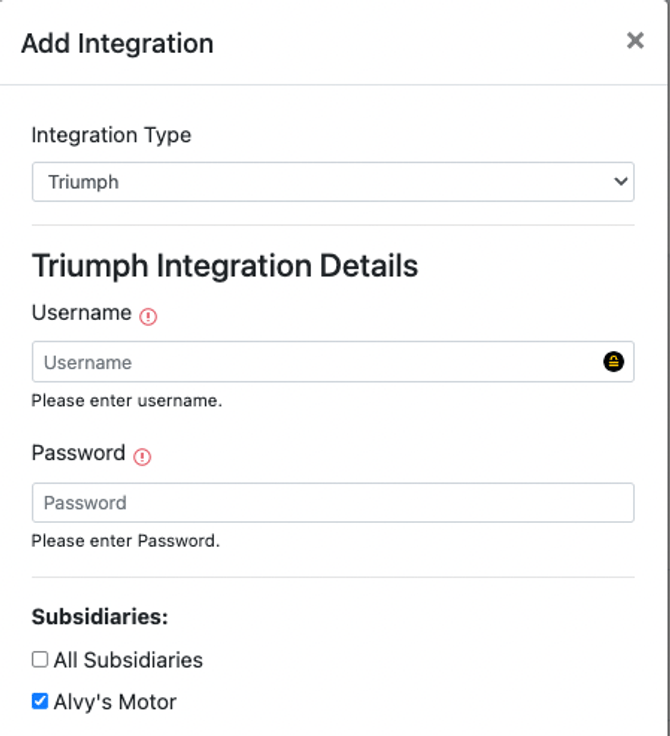 *Credential entry form for Triumph FTP integration in the Add Integration pop-up*
6. Repeat steps 3 through 5 for each additional subsidiary.
7. After configuring all subsidiaries, submit a test batch. Contact your Triumph sales representative to confirm the submission was received successfully.
### How to submit a batch
Users with the **"Billing"** permission can submit invoice batches to Triumph from the Factoring Upload page.
1. Navigate to **Accounting > Factoring Upload**.
2. Select the subsidiary for this batch.
*Credential entry form for Triumph FTP integration in the Add Integration pop-up*
6. Repeat steps 3 through 5 for each additional subsidiary.
7. After configuring all subsidiaries, submit a test batch. Contact your Triumph sales representative to confirm the submission was received successfully.
### How to submit a batch
Users with the **"Billing"** permission can submit invoice batches to Triumph from the Factoring Upload page.
1. Navigate to **Accounting > Factoring Upload**.
2. Select the subsidiary for this batch.
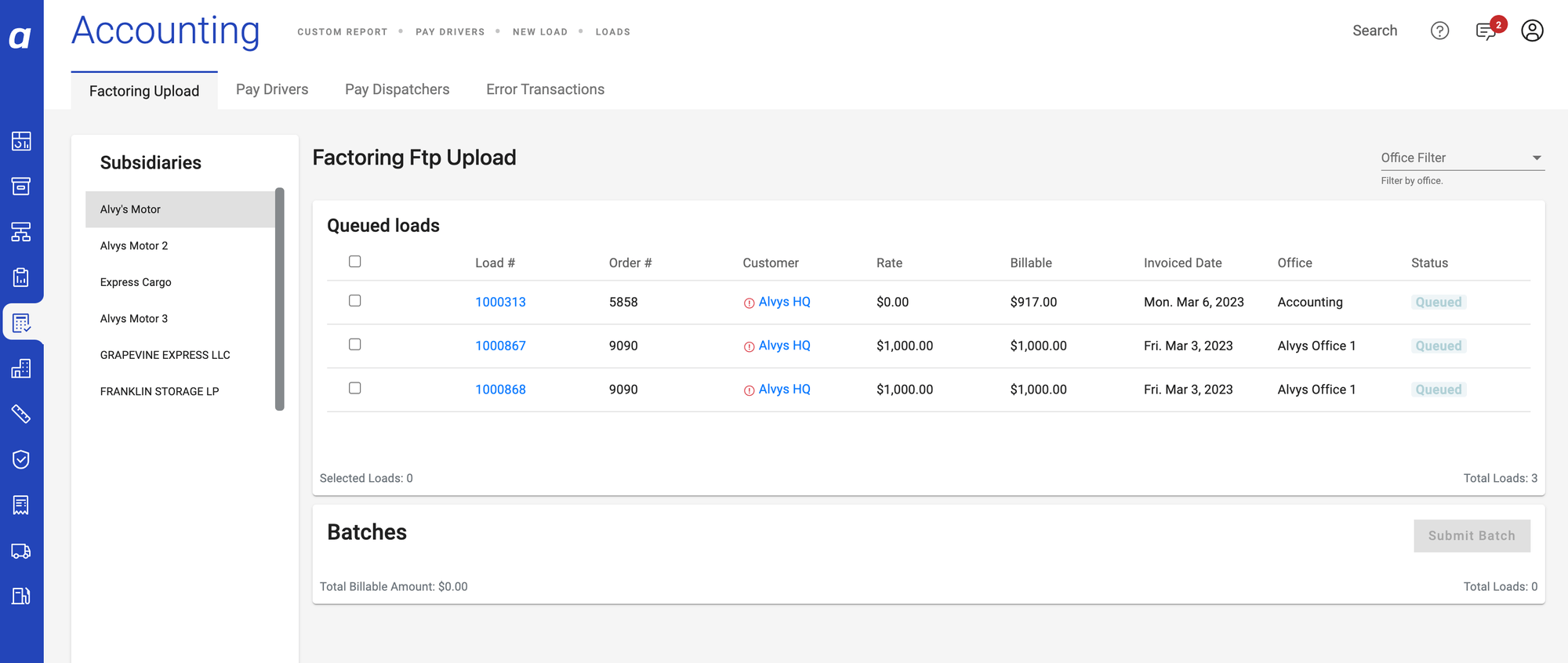 *Subsidiary selection screen on the Factoring Upload page*
3. Select the invoices you want to include in the batch. Only invoices with a status of **Invoiced** are eligible for submission.
*Subsidiary selection screen on the Factoring Upload page*
3. Select the invoices you want to include in the batch. Only invoices with a status of **Invoiced** are eligible for submission.
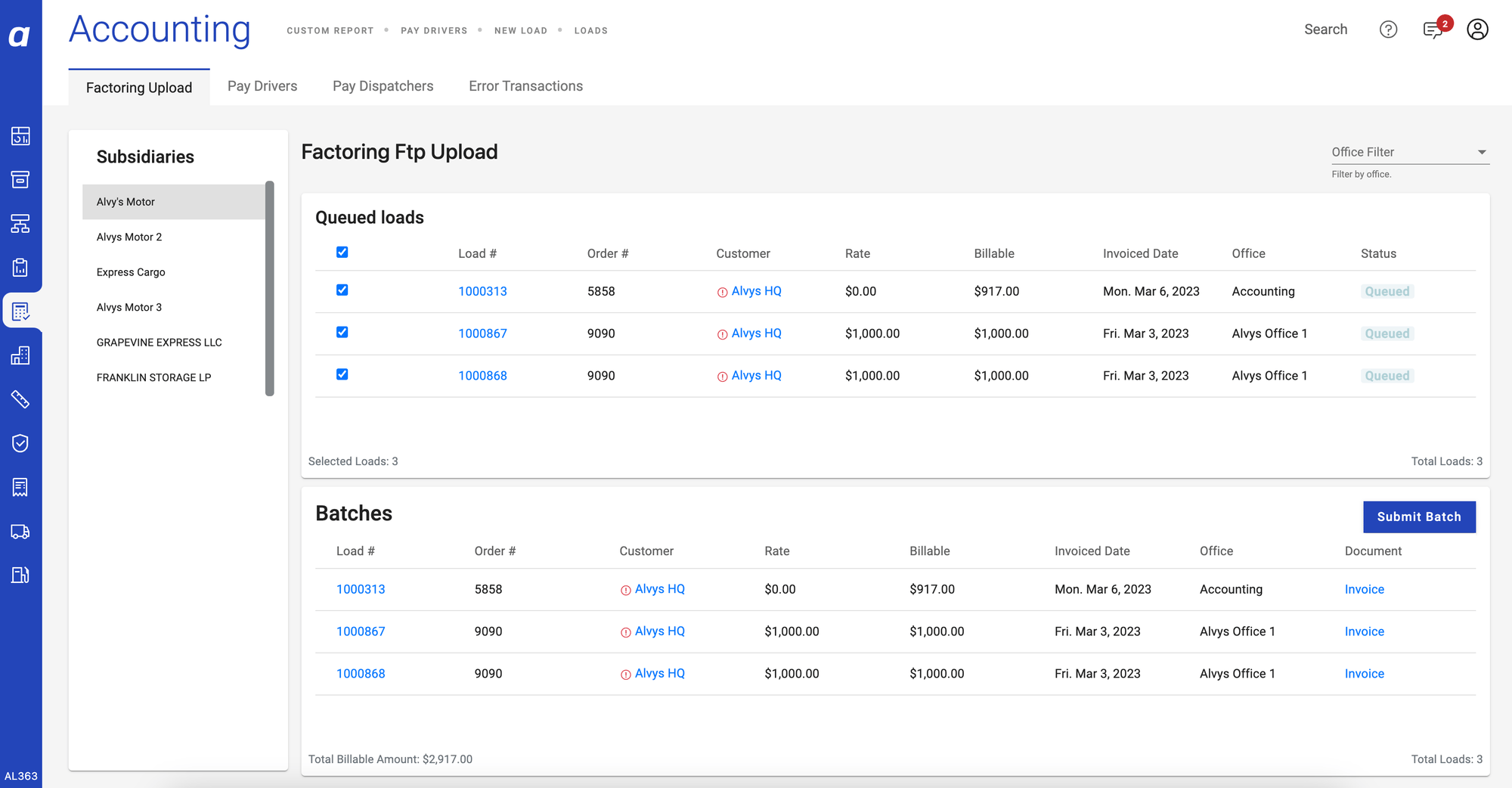 *Invoice selection on the Factoring Upload page*
4. Click **Submit Batch**.
*Invoice selection on the Factoring Upload page*
4. Click **Submit Batch**.
 *Submit Batch button on the Factoring Upload page*
5. Wait for the submission to complete. Do not navigate away from the page until the submission finishes.
### How to upload a purchase report
After Triumph funds your invoices, a purchase report becomes available in the Triumph portal. Download the report and upload it to Alvys for reconciliation.
1. Log in to the Triumph Factoring portal and go to the **Dashboard**.
*Submit Batch button on the Factoring Upload page*
5. Wait for the submission to complete. Do not navigate away from the page until the submission finishes.
### How to upload a purchase report
After Triumph funds your invoices, a purchase report becomes available in the Triumph portal. Download the report and upload it to Alvys for reconciliation.
1. Log in to the Triumph Factoring portal and go to the **Dashboard**.
 *Triumph Factoring portal Dashboard showing the Recent Fundings card*
2. In the **Recent Fundings** card, click the report you want to download.
*Triumph Factoring portal Dashboard showing the Recent Fundings card*
2. In the **Recent Fundings** card, click the report you want to download.
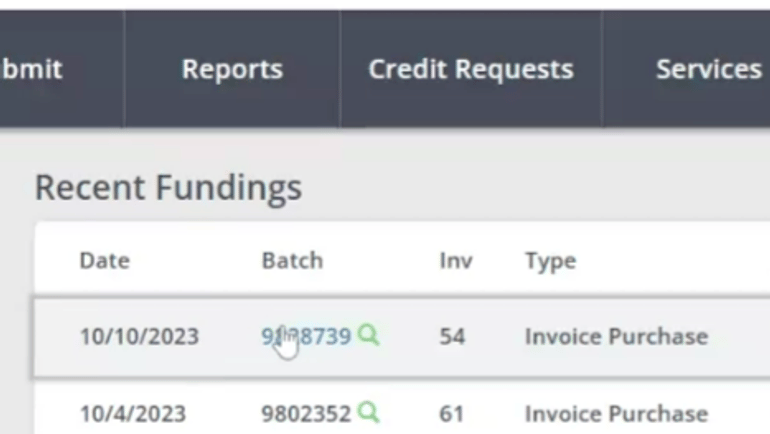 *Recent Fundings card in the Triumph Factoring portal with a selectable report*
3. Click **Export Results**, then select **Export to Excel**. Save the file to your device.
*Recent Fundings card in the Triumph Factoring portal with a selectable report*
3. Click **Export Results**, then select **Export to Excel**. Save the file to your device.
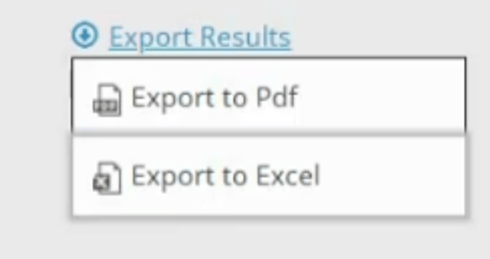 *Export Results menu with Export to Excel option in the Triumph Factoring portal*
4. In Alvys, navigate to **Reports > Factoring**. Click **Upload Purchase Report** in the lower right.
*Export Results menu with Export to Excel option in the Triumph Factoring portal*
4. In Alvys, navigate to **Reports > Factoring**. Click **Upload Purchase Report** in the lower right.
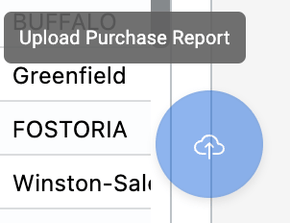 *Upload Purchase Report button on the Factoring Report page in Alvys*
5. Drag and drop the exported file onto the upload area, or click to browse and select the file from your device.
*Upload Purchase Report button on the Factoring Report page in Alvys*
5. Drag and drop the exported file onto the upload area, or click to browse and select the file from your device.
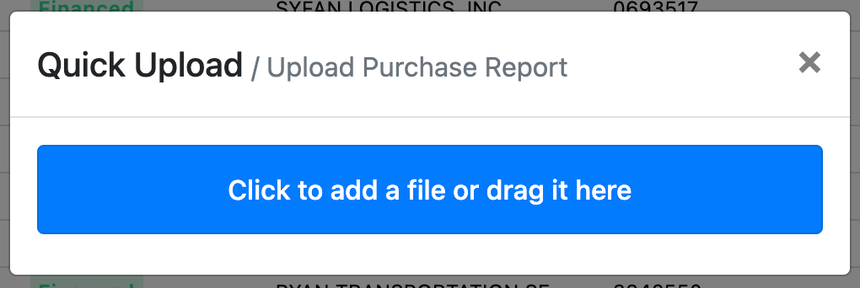 *File drag-and-drop upload area on the Factoring Report page*
6. Click **Upload**.
*File drag-and-drop upload area on the Factoring Report page*
6. Click **Upload**.
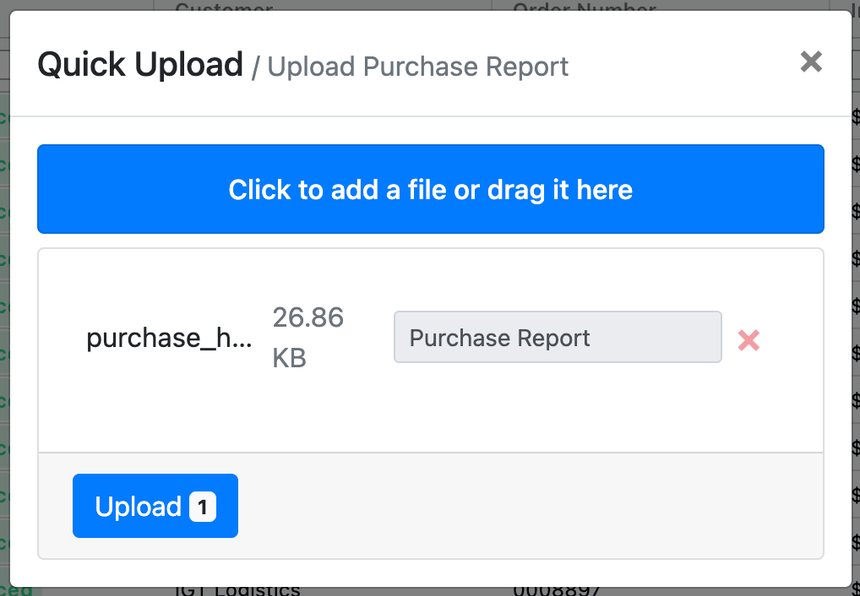 *Upload button on the Factoring Report page*
7. Do not close the page until processing is complete. Processing may take several seconds to a few minutes depending on the size of the file.
### How to upload a payment report
After Triumph processes payment, a payment report becomes available at [mytriumph.com](http://mytriumph.com/). Download the report and upload it to Alvys for reconciliation.
1. Log in to [mytriumph.com](http://mytriumph.com/). Navigate to **Reports**, then select **Payments Received**.
*Upload button on the Factoring Report page*
7. Do not close the page until processing is complete. Processing may take several seconds to a few minutes depending on the size of the file.
### How to upload a payment report
After Triumph processes payment, a payment report becomes available at [mytriumph.com](http://mytriumph.com/). Download the report and upload it to Alvys for reconciliation.
1. Log in to [mytriumph.com](http://mytriumph.com/). Navigate to **Reports**, then select **Payments Received**.
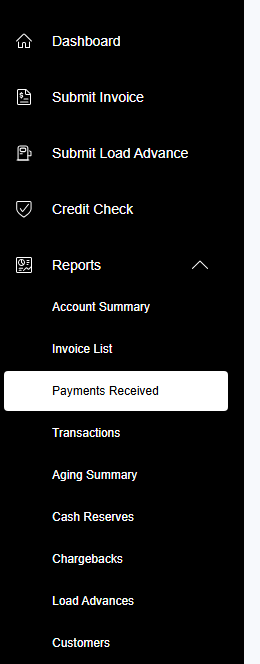 *Reports > Payments Received in the Triumph portal menu*
2. Adjust the timeframe as needed. Click **Export from Detail View** and select Excel format. Save the file to your device.
*Reports > Payments Received in the Triumph portal menu*
2. Adjust the timeframe as needed. Click **Export from Detail View** and select Excel format. Save the file to your device.
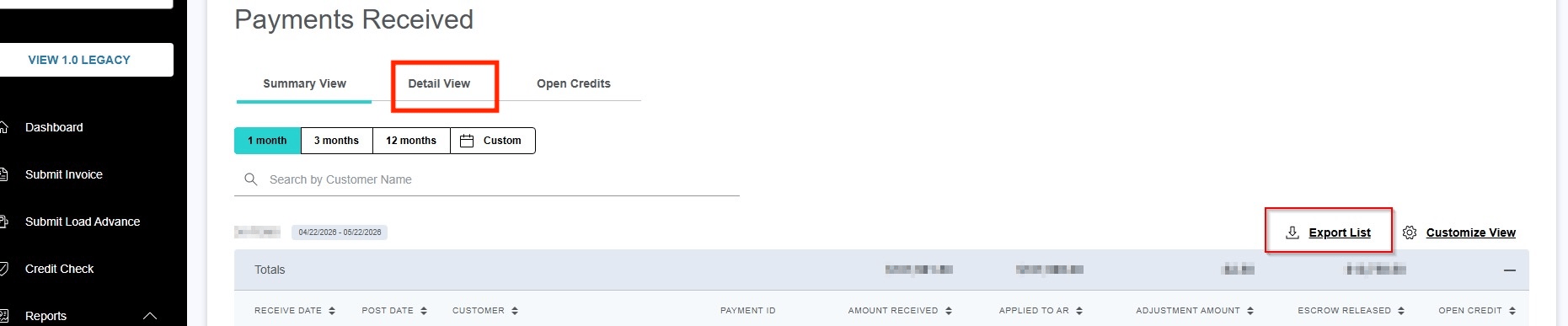 *Exporting the Payments Received report to Excel*
3. In Alvys, navigate to **Reports > Factoring**. Click **Upload Payment Report**.
*Exporting the Payments Received report to Excel*
3. In Alvys, navigate to **Reports > Factoring**. Click **Upload Payment Report**.
 *Upload Payment Report button on the Factoring Report page in Alvys*
4. Drag and drop the exported file onto the upload area, or click to browse and select the file from your device.
*Upload Payment Report button on the Factoring Report page in Alvys*
4. Drag and drop the exported file onto the upload area, or click to browse and select the file from your device.
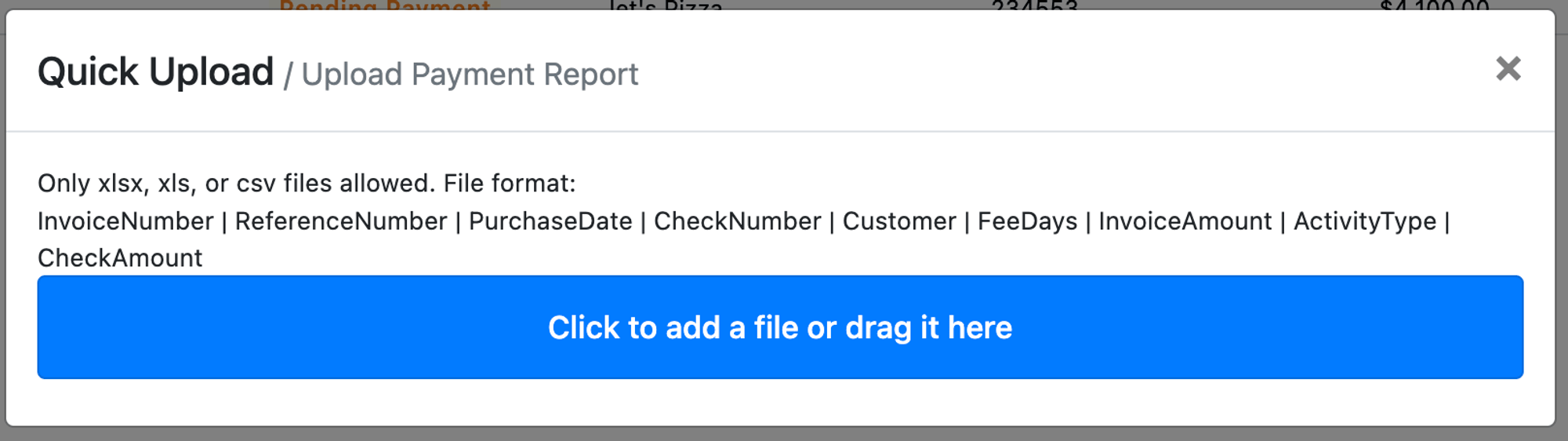 *File drag-and-drop upload area for the payment report*
5. Click **Upload**.
*File drag-and-drop upload area for the payment report*
5. Click **Upload**.
 *Upload button for the payment report on the Factoring Report page*
6. Do not close the page until processing is complete. Processing may take several seconds to a few minutes depending on the size of the file.
## What syncs
When a batch is submitted, Alvys sends the following invoice data to Triumph via FTP: invoice number, invoice amount, debtor name, load reference number, and subsidiary identifier. Triumph uses these fields to create and track the purchase report. No additional field mapping configuration is required in Alvys.
This is a one-way integration. Alvys sends invoice batches outbound to Triumph's FTP server. Triumph does not send data back to Alvys automatically. Purchase reports and payment reports must be downloaded from the Triumph portal and uploaded to Alvys manually.
After submitting your first test batch and uploading reports, confirm the following:
* Contact your Triumph sales representative to verify they received and accepted the FTP batch submission.
* After uploading a purchase report, verify that the corresponding invoices in Alvys reflect the correct factored amounts.
* After uploading a payment report, verify that payment records in Alvys match the amounts in the report.
If invoices do not appear on the Factoring Upload page, confirm they have a status of **Invoiced** in Alvys and that the correct subsidiary is selected.
### Limits and unsupported
* A separate FTP integration must be configured for each subsidiary. One set of FTP credentials cannot cover multiple subsidiaries.
* The integration uses FTP only. No alternative file transfer methods are supported.
* Report uploads (purchase and payment) are manual. There is no automatic sync of report data from the Triumph portal to Alvys.
* Only invoices with a status of **Invoiced** are eligible for batch submission.
## Troubleshooting
### Batch submission does not appear in Triumph portal
1. Confirm the FTP credentials entered in Management > Integrations match the credentials Triumph provided for this subsidiary exactly, including capitalization and special characters.
2. Check that you submitted a test batch after initial setup and that Triumph confirmed receipt. If Triumph did not confirm, resubmit and contact your Triumph sales representative.
3. If credentials are correct and Triumph cannot locate the submission, contact Alvys Support.
### Purchase or payment report upload returns an error
1. Confirm the file was exported from the Triumph portal in Excel (.xlsx) format. Files in other formats are not accepted.
2. Confirm the file is not open in another application before uploading.
3. If the upload continues to fail, contact Alvys Support.
### Invoices do not appear on the Factoring Upload page
1. Confirm the invoices have a status of **Invoiced** in Alvys. Invoices in other statuses are not eligible for batch submission.
2. Confirm the correct subsidiary is selected on the Factoring Upload page. Each subsidiary shows only its own eligible invoices.
3. If invoices are **Invoiced** and the correct subsidiary is selected but invoices still do not appear, contact Alvys Support.
## FAQs
**Q: Why do I need separate FTP credentials for each subsidiary?**
**A:** Triumph Business Capital requires a distinct set of FTP credentials per subsidiary. A single set of credentials cannot cover multiple subsidiaries; each must be configured separately in Management > Integrations.
**Q: What do I do after submitting a test batch?**
**A:** After submitting the test batch, contact your Triumph sales representative to confirm they received and accepted it. Triumph will verify the submission on their end before you proceed with live invoice batches.
**Q: What is the exact Notice of Assignment text required for Triumph Business Capital?**
**A:** The required text is: THIS INVOICE HAS BEEN ASSIGNED TO AND MUST BE PAID DIRECTLY TO, ADVANCE BUSINESS CAPITAL LLC, d/b/a TRIUMPH BUSINESS CAPITAL, P.O. BOX 610028 Dallas, TX 75261-0028, For paperwork requests please email [requests@tbcap.com](mailto:requests@tbcap.com), CLAIMS OR OFFSETS SHOULD BE DIRECTED TO (866) 414-9600, JURISDICTION FOR ANY LEGAL DISPUTES WILL BE IN DALLAS COUNTY, TEXAS.
**Q: How long does it take for a report upload to process?**
**A:** Processing time ranges from a few seconds to a few minutes depending on the size of the file. Do not close the Factoring Report page until processing is complete.
*Upload button for the payment report on the Factoring Report page*
6. Do not close the page until processing is complete. Processing may take several seconds to a few minutes depending on the size of the file.
## What syncs
When a batch is submitted, Alvys sends the following invoice data to Triumph via FTP: invoice number, invoice amount, debtor name, load reference number, and subsidiary identifier. Triumph uses these fields to create and track the purchase report. No additional field mapping configuration is required in Alvys.
This is a one-way integration. Alvys sends invoice batches outbound to Triumph's FTP server. Triumph does not send data back to Alvys automatically. Purchase reports and payment reports must be downloaded from the Triumph portal and uploaded to Alvys manually.
After submitting your first test batch and uploading reports, confirm the following:
* Contact your Triumph sales representative to verify they received and accepted the FTP batch submission.
* After uploading a purchase report, verify that the corresponding invoices in Alvys reflect the correct factored amounts.
* After uploading a payment report, verify that payment records in Alvys match the amounts in the report.
If invoices do not appear on the Factoring Upload page, confirm they have a status of **Invoiced** in Alvys and that the correct subsidiary is selected.
### Limits and unsupported
* A separate FTP integration must be configured for each subsidiary. One set of FTP credentials cannot cover multiple subsidiaries.
* The integration uses FTP only. No alternative file transfer methods are supported.
* Report uploads (purchase and payment) are manual. There is no automatic sync of report data from the Triumph portal to Alvys.
* Only invoices with a status of **Invoiced** are eligible for batch submission.
## Troubleshooting
### Batch submission does not appear in Triumph portal
1. Confirm the FTP credentials entered in Management > Integrations match the credentials Triumph provided for this subsidiary exactly, including capitalization and special characters.
2. Check that you submitted a test batch after initial setup and that Triumph confirmed receipt. If Triumph did not confirm, resubmit and contact your Triumph sales representative.
3. If credentials are correct and Triumph cannot locate the submission, contact Alvys Support.
### Purchase or payment report upload returns an error
1. Confirm the file was exported from the Triumph portal in Excel (.xlsx) format. Files in other formats are not accepted.
2. Confirm the file is not open in another application before uploading.
3. If the upload continues to fail, contact Alvys Support.
### Invoices do not appear on the Factoring Upload page
1. Confirm the invoices have a status of **Invoiced** in Alvys. Invoices in other statuses are not eligible for batch submission.
2. Confirm the correct subsidiary is selected on the Factoring Upload page. Each subsidiary shows only its own eligible invoices.
3. If invoices are **Invoiced** and the correct subsidiary is selected but invoices still do not appear, contact Alvys Support.
## FAQs
**Q: Why do I need separate FTP credentials for each subsidiary?**
**A:** Triumph Business Capital requires a distinct set of FTP credentials per subsidiary. A single set of credentials cannot cover multiple subsidiaries; each must be configured separately in Management > Integrations.
**Q: What do I do after submitting a test batch?**
**A:** After submitting the test batch, contact your Triumph sales representative to confirm they received and accepted it. Triumph will verify the submission on their end before you proceed with live invoice batches.
**Q: What is the exact Notice of Assignment text required for Triumph Business Capital?**
**A:** The required text is: THIS INVOICE HAS BEEN ASSIGNED TO AND MUST BE PAID DIRECTLY TO, ADVANCE BUSINESS CAPITAL LLC, d/b/a TRIUMPH BUSINESS CAPITAL, P.O. BOX 610028 Dallas, TX 75261-0028, For paperwork requests please email [requests@tbcap.com](mailto:requests@tbcap.com), CLAIMS OR OFFSETS SHOULD BE DIRECTED TO (866) 414-9600, JURISDICTION FOR ANY LEGAL DISPUTES WILL BE IN DALLAS COUNTY, TEXAS.
**Q: How long does it take for a report upload to process?**
**A:** Processing time ranges from a few seconds to a few minutes depending on the size of the file. Do not close the Factoring Report page until processing is complete.