> ## Documentation Index
> Fetch the complete documentation index at: https://docs.alvys.com/llms.txt
> Use this file to discover all available pages before exploring further.
# How to Cancel Loads in Alvys
> Cancel loads in Alvys by status, from Open and Covered through Dispatched, In Transit, or Delivered, with troubleshooting tips for stuck loads.
## Summary
Canceling loads in Alvys depends on the load’s status and specific conditions. This guide walks through the cancellation steps by status, plus troubleshooting for common issues.
## General Prerequisites for Load Cancellation
Before attempting to cancel a load, ensure the following:
* You have the necessary permissions to manage and cancel loads.
* The load is in a cancellable status (e.g., **Open**, **Covered**, or **Dispatched**).
* Admin-level user approval (or Support assistance) may be required for certain statuses.
## Step-by-Step Instructions by Load Status
### 1) Canceling Loads in Open or Covered Status
* Open the load in Alvys.
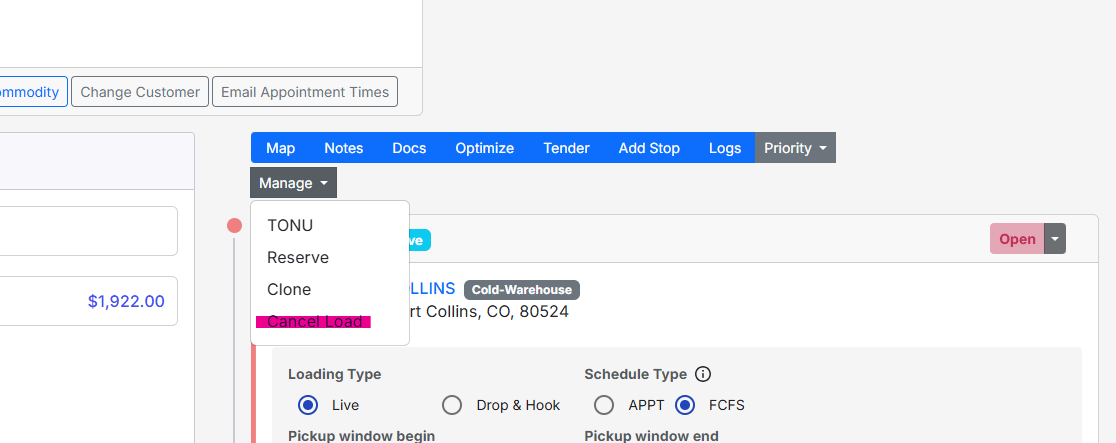
* Navigate to the **Manage** menu.
* Select **Cancel Load**.
* Confirm your action by clicking **Yes** in the pop-up window.
* Optionally, add a note explaining why you are canceling the load.
 ### 2) Canceling Loads in Dispatched Status
* Open the load and click **Manage**.
* If the driver has not checked in to the Pickup stop, the **Cancel Load** option will be available.
**Important:**
You **cannot** cancel loads that are in **Delivered** or **In Transit** status directly.
Loads can only be canceled if they are in one of the following statuses:
* **Open** (no asset assigned)
* **Covered**
* **Dispatched** (only if the driver has not yet checked in to the Pickup stop)
### 3) Canceling Loads in Delivered Status
If a load is **Delivered** but still needs to be canceled, you must work backward through statuses:
* Open the load and go to the Pickup stop.
* Change the Pickup stop status to **Open**.
* Refresh the load by marking the last stop as **Covered**.
* Return to the **Manage** menu and select **Cancel Load**.
### 4) Canceling Loads in In Transit Status
If a load is **In Transit** but still needs to be canceled:
* Open the load and locate the first stop.
* Unmark the first stop as **Picked Up** to revert the load to **Dispatched** status.
* Once in **Dispatched** status, the **Cancel Load** option will appear under **Manage**.
### Canceling Loads in Delivered or In-Transit Status (UI walk-through)
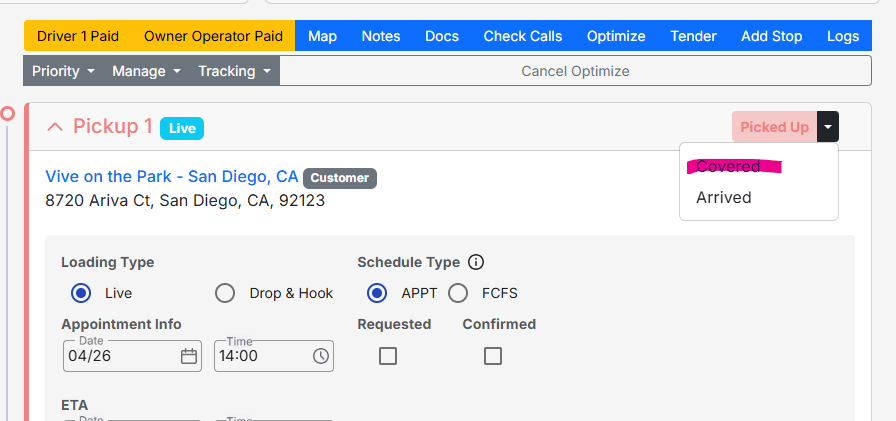
* Open the load and click the **downward arrow** next to the stop status, as shown below.
* Change the status to **Covered** to revert the load to **Dispatched** status.
### 2) Canceling Loads in Dispatched Status
* Open the load and click **Manage**.
* If the driver has not checked in to the Pickup stop, the **Cancel Load** option will be available.
**Important:**
You **cannot** cancel loads that are in **Delivered** or **In Transit** status directly.
Loads can only be canceled if they are in one of the following statuses:
* **Open** (no asset assigned)
* **Covered**
* **Dispatched** (only if the driver has not yet checked in to the Pickup stop)
### 3) Canceling Loads in Delivered Status
If a load is **Delivered** but still needs to be canceled, you must work backward through statuses:
* Open the load and go to the Pickup stop.
* Change the Pickup stop status to **Open**.
* Refresh the load by marking the last stop as **Covered**.
* Return to the **Manage** menu and select **Cancel Load**.
### 4) Canceling Loads in In Transit Status
If a load is **In Transit** but still needs to be canceled:
* Open the load and locate the first stop.
* Unmark the first stop as **Picked Up** to revert the load to **Dispatched** status.
* Once in **Dispatched** status, the **Cancel Load** option will appear under **Manage**.
### Canceling Loads in Delivered or In-Transit Status (UI walk-through)
* Open the load and click the **downward arrow** next to the stop status, as shown below.
* Change the status to **Covered** to revert the load to **Dispatched** status.
 **Why work backward?**
Load statuses follow this progression: **Dispatched → In Transit → Delivered**. To revert a delivered load to **Dispatched**, you must update the statuses starting with the final stop.
Once the load status is reverted to **Dispatched**, you can cancel it using the steps outlined above.
### 5) Canceling Loads in Queued or Invoiced Status
* Support assistance is required to revert the load status to **Released**.
* Once reverted, you can cancel the load yourself.
### 6) Canceling Loads in a Batch
* Remove the load from its batch and set the load status to **Released**.
* Open the load and mark the last stop as **Covered**.
* The **Cancel Load** option will then appear under **Manage**.
### 7) Canceling Non-Revenue Loads
* Non-revenue loads cannot be canceled directly from **Released** status.
* Request Support assistance to handle the cancellation.
### 8) Canceling Loads Already Paid to Drivers
* Remove the payment from the driver’s paystub before attempting to cancel the load.
## Troubleshooting Common Issues
### Missing Cancel Option in the Manage Menu
* Ensure the Pickup stop is set to **Open**.
* Switch to the second or third tab in the load details before accessing the **Manage** menu.
### Unable to Cancel Loads in Completed Status
* Change the load status through admin actions to enable cancellation.
### Cancel Option Not Available for Delivered Loads
* Revert the load status to **Covered** or **Open** before attempting cancellation.
## FAQs
### Do I need to delete the shipper and consignee to cancel a load?
No, you don’t need to delete the shipper or consignee. Ensure all stop statuses are correctly updated before canceling the load.
### Can I cancel a load myself without support assistance?
Yes, as long as the load is in a cancellable status (e.g., **Open**, **Covered**, or **Dispatched**). For other statuses, Support assistance may be required.
## Conclusion
Canceling loads in Alvys requires understanding the load’s current status and following the appropriate steps. For complex scenarios or when the cancel option is unavailable, refer to the troubleshooting tips or contact Support for assistance.
**Why work backward?**
Load statuses follow this progression: **Dispatched → In Transit → Delivered**. To revert a delivered load to **Dispatched**, you must update the statuses starting with the final stop.
Once the load status is reverted to **Dispatched**, you can cancel it using the steps outlined above.
### 5) Canceling Loads in Queued or Invoiced Status
* Support assistance is required to revert the load status to **Released**.
* Once reverted, you can cancel the load yourself.
### 6) Canceling Loads in a Batch
* Remove the load from its batch and set the load status to **Released**.
* Open the load and mark the last stop as **Covered**.
* The **Cancel Load** option will then appear under **Manage**.
### 7) Canceling Non-Revenue Loads
* Non-revenue loads cannot be canceled directly from **Released** status.
* Request Support assistance to handle the cancellation.
### 8) Canceling Loads Already Paid to Drivers
* Remove the payment from the driver’s paystub before attempting to cancel the load.
## Troubleshooting Common Issues
### Missing Cancel Option in the Manage Menu
* Ensure the Pickup stop is set to **Open**.
* Switch to the second or third tab in the load details before accessing the **Manage** menu.
### Unable to Cancel Loads in Completed Status
* Change the load status through admin actions to enable cancellation.
### Cancel Option Not Available for Delivered Loads
* Revert the load status to **Covered** or **Open** before attempting cancellation.
## FAQs
### Do I need to delete the shipper and consignee to cancel a load?
No, you don’t need to delete the shipper or consignee. Ensure all stop statuses are correctly updated before canceling the load.
### Can I cancel a load myself without support assistance?
Yes, as long as the load is in a cancellable status (e.g., **Open**, **Covered**, or **Dispatched**). For other statuses, Support assistance may be required.
## Conclusion
Canceling loads in Alvys requires understanding the load’s current status and following the appropriate steps. For complex scenarios or when the cancel option is unavailable, refer to the troubleshooting tips or contact Support for assistance.