> ## Documentation Index
> Fetch the complete documentation index at: https://docs.alvys.com/llms.txt
> Use this file to discover all available pages before exploring further.
# How to clone a load
> Clone or duplicate a load to reuse customer, stops, and shipment details on a new Open load without copying rates, carrier, or driver data.
Cloning a load (also called duplicating or copying a load) creates a new **Open** load with the same customer, stops, and shipment details as the original. Rates, carrier, driver, and document information are not carried over.
## Overview
The Clone feature lets you duplicate an existing load without re-entering repeat shipment information. The cloned load opens in **Open** status with the same customer, office, stops, equipment requirements, and delivery details as the original. You then assign a carrier, enter rates, and complete any remaining details. Also known as: duplicate a load, copy a load.
Cloning is useful for recurring shipments on the same lane, or when you want to use an existing load as a starting point for a new booking. You can also use Load Templates for common recurring scenarios.
## Before You Start
* No additional role or permission is required to clone a load.
* The Clone option is not available on split loads. If the load has been split into multiple legs, Clone will not appear in the Manage menu.
* The customer on the load must be a Customer or Broker type. If the customer is missing or not a billing type, the clone will fail.
## Steps
1. Open the load you want to clone.
2. Go to **Loads** in the left navigation.
3. Find and open the load you want to duplicate.
4. Click **Manage** and select **Clone**.
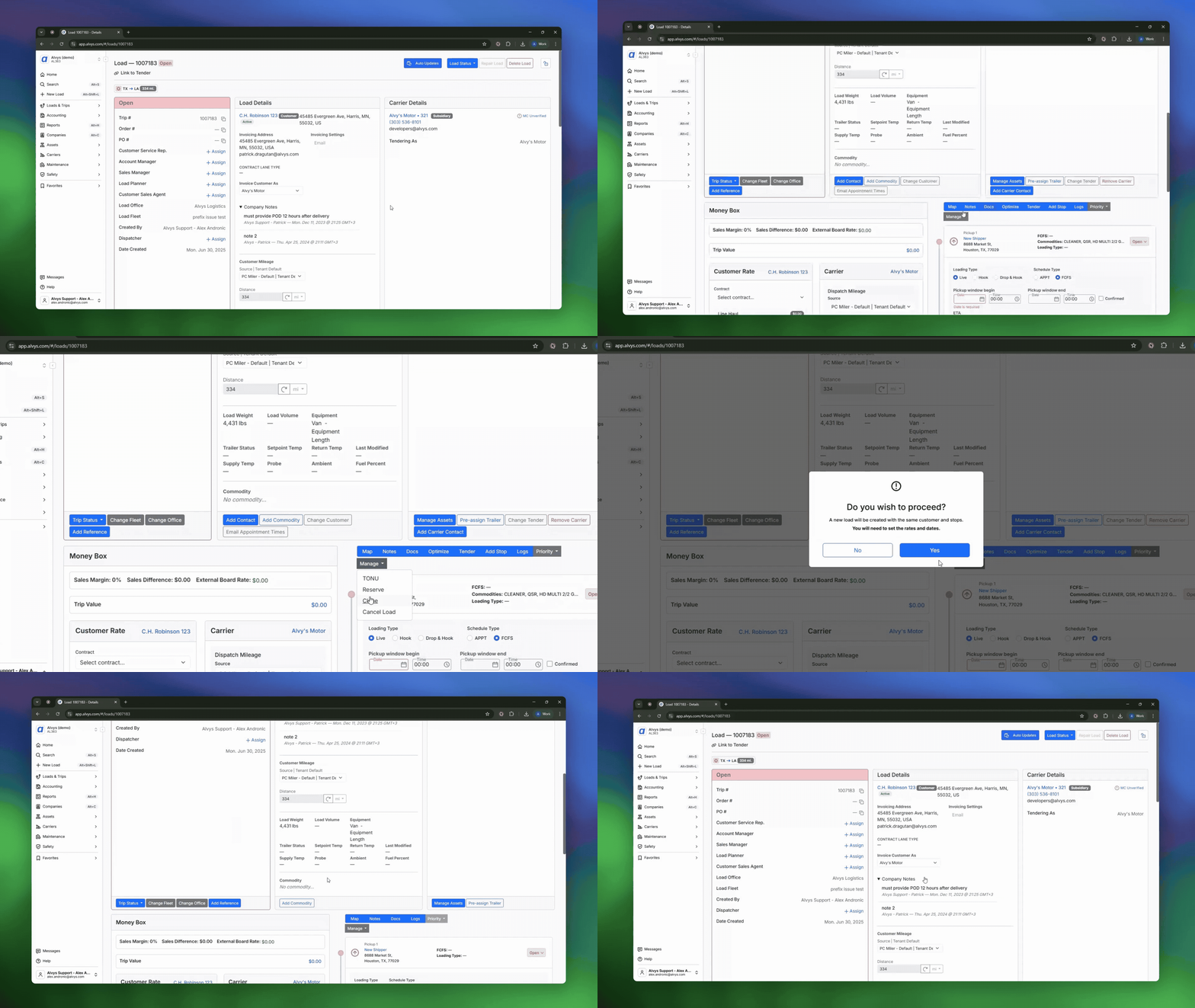 *GIF showing how to clone a load: opening a load, clicking the Manage dropdown, selecting Clone, and confirming to create a new Open load.*
5. On the open load, click the **Manage** dropdown.
6. Select **Clone**.
If Clone does not appear in the Manage menu, the load is a split load and cannot be cloned. See the Troubleshooting section below.
7. Confirm.
8. A dialog appears: "A new load will be created with the same customer and stops. You will need to set the rates and dates."
9. Click **Yes** to confirm.
The new load opens automatically in **Open** status.
## Result
The cloned load is created in **Open** status and is unlocked. The following details are carried over from the original:
* Customer, office, and customer contact
* Delivery date
* General instructions
* Equipment type and length
* Load type, payment terms, and priority
* Load weight and volume
* Stops: pickup and delivery locations
* Temperature settings
* Hazmat and continuous move flags
* Customer team assignments: planner, sales agent, manager, service representative, and account manager
* Fleet
* Load board rate
* Trip references
The following details are not carried over:
* Carrier, driver, truck, and trailer assignments
* Carrier rates, driver pay rates, and fuel surcharge
* Notes
* Documents and attachments
* Stop timestamps (actual pickup and delivery times)
* Pickup dates
* Paid miles and carrier invoice number
## Variations
**Recurring shipments on the same lane:** Clone the most recently completed load each time a new shipment is booked for the same customer and lane. Update the delivery date and any stop details that have changed, then assign a carrier.
**Exploring multiple carrier options:** Because a load can only have one carrier assigned, clone the load to create a separate record for each carrier option you want to evaluate. Delete the loads you do not use.
## Troubleshooting
### Clone option not visible in the Manage menu
1. Check whether the load has been split. Clone is hidden for every leg of a split load.
2. If the load is split and you need a new load with similar details, create a new load manually using the same customer, stops, and shipment information from the original.
3. If the load is not a split load and Clone still does not appear, contact Alvys support.
### Clone does not complete (customer error)
1. Open the original load and verify the customer field shows an active customer.
2. Confirm the customer is set to a Customer or Broker type. Non-billing customer types cannot be used on a cloned load.
3. If the customer appears correct and the clone still fails, contact Alvys support.
## FAQs
**Q: Does cloning a load copy the carrier and driver assignments?**
**A:** No. Carrier, driver, truck, and trailer assignments are not copied. You assign a carrier to the cloned load after it is created.
**Q: Does the cloned load carry over the rates from the original?**
**A:** No. Carrier rates, driver pay rates, and fuel surcharge are not copied. You enter rates on the cloned load separately.
**Q: Are notes and documents copied when I clone a load?**
**A:** No. Notes and documents are not copied. The cloned load starts without any notes or attachments.
**Q: Can I clone a split load?**
**A:** No. The Clone option does not appear for split loads. If you need a similar load, create a new load manually.
**Q: What status does the cloned load start in?**
**A:** The cloned load always starts in **Open** status, regardless of the status of the original load.
## Go Deeper
* [Dispatching a Load](/help/loads-trips/how-to-dispatch-a-load)
* [Creating Load Templates](/help/loads-trips/how-to-create-and-use-load-templates)
*GIF showing how to clone a load: opening a load, clicking the Manage dropdown, selecting Clone, and confirming to create a new Open load.*
5. On the open load, click the **Manage** dropdown.
6. Select **Clone**.
If Clone does not appear in the Manage menu, the load is a split load and cannot be cloned. See the Troubleshooting section below.
7. Confirm.
8. A dialog appears: "A new load will be created with the same customer and stops. You will need to set the rates and dates."
9. Click **Yes** to confirm.
The new load opens automatically in **Open** status.
## Result
The cloned load is created in **Open** status and is unlocked. The following details are carried over from the original:
* Customer, office, and customer contact
* Delivery date
* General instructions
* Equipment type and length
* Load type, payment terms, and priority
* Load weight and volume
* Stops: pickup and delivery locations
* Temperature settings
* Hazmat and continuous move flags
* Customer team assignments: planner, sales agent, manager, service representative, and account manager
* Fleet
* Load board rate
* Trip references
The following details are not carried over:
* Carrier, driver, truck, and trailer assignments
* Carrier rates, driver pay rates, and fuel surcharge
* Notes
* Documents and attachments
* Stop timestamps (actual pickup and delivery times)
* Pickup dates
* Paid miles and carrier invoice number
## Variations
**Recurring shipments on the same lane:** Clone the most recently completed load each time a new shipment is booked for the same customer and lane. Update the delivery date and any stop details that have changed, then assign a carrier.
**Exploring multiple carrier options:** Because a load can only have one carrier assigned, clone the load to create a separate record for each carrier option you want to evaluate. Delete the loads you do not use.
## Troubleshooting
### Clone option not visible in the Manage menu
1. Check whether the load has been split. Clone is hidden for every leg of a split load.
2. If the load is split and you need a new load with similar details, create a new load manually using the same customer, stops, and shipment information from the original.
3. If the load is not a split load and Clone still does not appear, contact Alvys support.
### Clone does not complete (customer error)
1. Open the original load and verify the customer field shows an active customer.
2. Confirm the customer is set to a Customer or Broker type. Non-billing customer types cannot be used on a cloned load.
3. If the customer appears correct and the clone still fails, contact Alvys support.
## FAQs
**Q: Does cloning a load copy the carrier and driver assignments?**
**A:** No. Carrier, driver, truck, and trailer assignments are not copied. You assign a carrier to the cloned load after it is created.
**Q: Does the cloned load carry over the rates from the original?**
**A:** No. Carrier rates, driver pay rates, and fuel surcharge are not copied. You enter rates on the cloned load separately.
**Q: Are notes and documents copied when I clone a load?**
**A:** No. Notes and documents are not copied. The cloned load starts without any notes or attachments.
**Q: Can I clone a split load?**
**A:** No. The Clone option does not appear for split loads. If you need a similar load, create a new load manually.
**Q: What status does the cloned load start in?**
**A:** The cloned load always starts in **Open** status, regardless of the status of the original load.
## Go Deeper
* [Dispatching a Load](/help/loads-trips/how-to-dispatch-a-load)
* [Creating Load Templates](/help/loads-trips/how-to-create-and-use-load-templates)