> ## Documentation Index
> Fetch the complete documentation index at: https://docs.alvys.com/llms.txt
> Use this file to discover all available pages before exploring further.
# How to Create a Load Using Automated Data Entry
> This feature is intended to shorten the time it takes to create a load in Alvys by extracting information from customer rate confirmations.
Automated Data Entry, also called rate con upload, lets you upload a customer rate confirmation PDF, JPEG, or PNG and have Alvys AI extract and prefill the New Load form, reducing manual data entry when creating a revenue load.
## Overview
Automated Data Entry shortens the time it takes to create a load in Alvys by extracting information from a customer rate confirmation document and prefilling the New Load form. Once you upload the rate confirmation, Alvys AI reads the document and populates fields such as customer, billing rate, order number, equipment type, and stop details.
Because rate confirmation layouts vary across customers and brokers, extraction accuracy also varies. Some fields may not be populated and will require manual entry before you can submit the load.
Screenshots on this page may show an older New Load layout. The steps are current: open **New Load**, choose **Revenue**, upload a PDF, JPEG, or PNG rate confirmation (4 MB max), then review the prefilled fields before you submit. For the current form, follow [How to create a load](/help/loads-trips/how-to-create-a-load).
Synonyms: rate con upload, automated load entry, AI load creation, ratecon prefill, document scan load entry.
## Before You Start
Prerequisites:
* You must have a customer rate confirmation document ready to upload. Accepted file types: PDF, JPEG, and PNG. Maximum file size: 4 MB.
* This feature is only available when creating a Revenue load. It is not available for Non-Revenue loads.
Required role: Any logged-in Alvys user can use this feature. No additional permission is required.
## Steps
1. **Open the New Load form**
In the left navigation, click Loads and Trips, then select New Load.
2. **Select the Revenue load type**
At the top of the form, select Revenue as the load type. The upload panel appears on the left side of the form. If you select Non-Revenue, the upload panel does not appear and Automated Data Entry is not available.
3. **Upload the rate confirmation**
In the upload panel, either drag and drop your rate confirmation file into the upload area, or click the upload area to browse and select the file. Accepted file types: PDF, JPEG, and PNG. Maximum file size: 4 MB.
💡 Only PDF, JPEG, and PNG files are accepted. Files larger than 4 MB will be rejected.
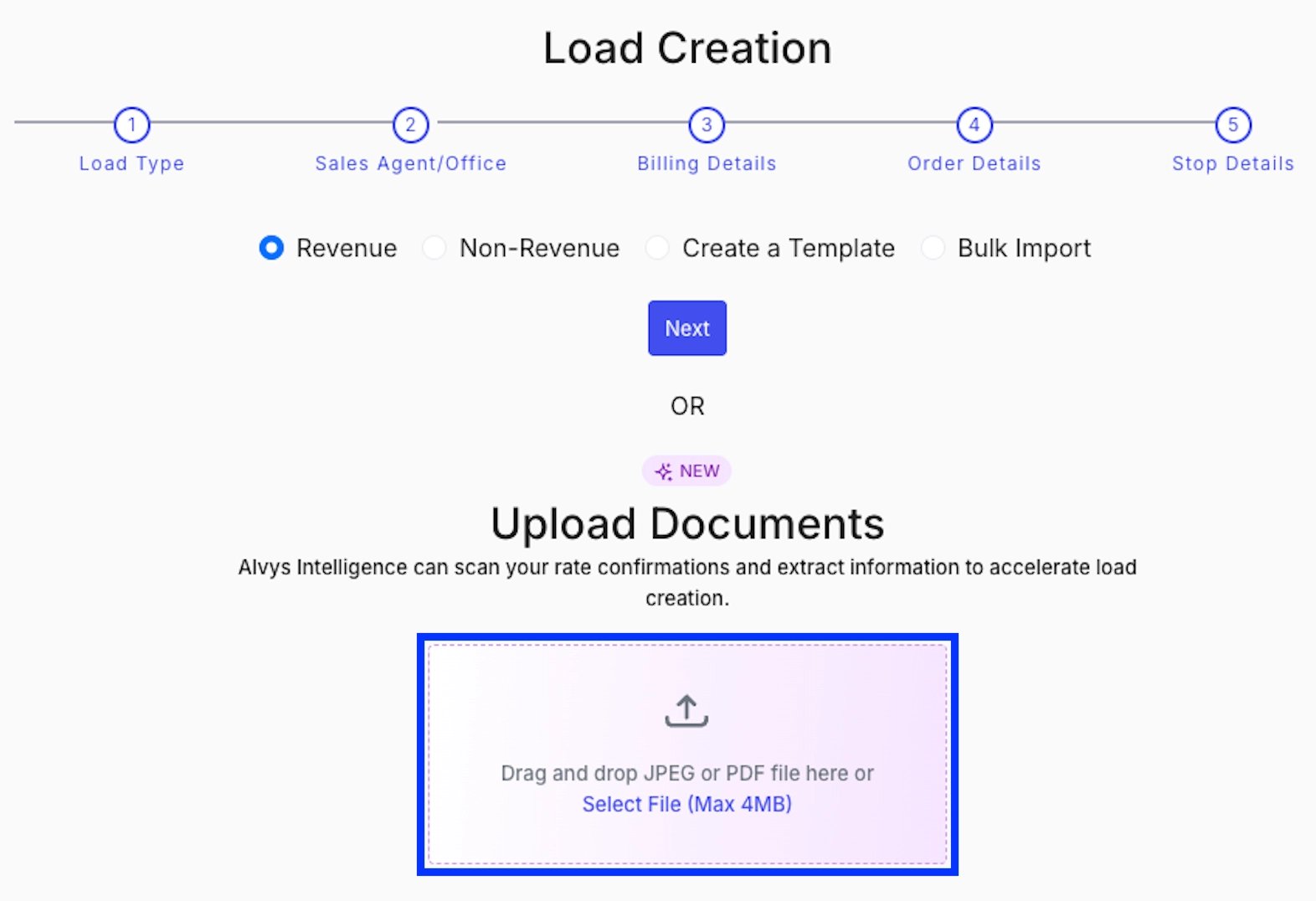 * Load form showing the upload panel with drag-and-drop area. \*
1. **Wait for Alvys AI to process the document**
After you select the file, the upload panel displays "**Uploading**" while the document is being processed. Extraction typically takes 10 to 30 seconds.
* Load form showing the upload panel with drag-and-drop area. \*
1. **Wait for Alvys AI to process the document**
After you select the file, the upload panel displays "**Uploading**" while the document is being processed. Extraction typically takes 10 to 30 seconds.
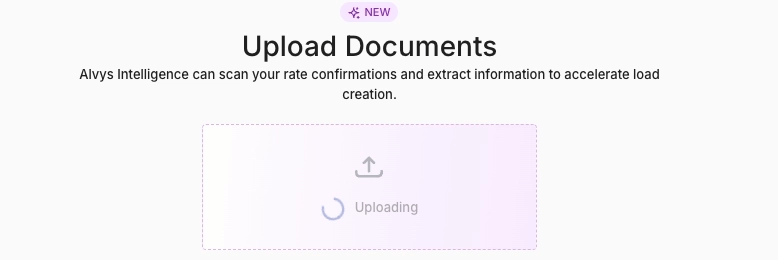 *Upload panel in processing state showing "Uploading" indicator.*
1. **Review the prefilled form**
When extraction is complete, the panel displays "Rate confirmation ready." The load details form on the right is prefilled with the extracted information. Review every field and correct any that are missing or inaccurate. Pay close attention to:
* **Invoice As** must always be selected manually. Alvys AI cannot determine which subsidiary or division the load is booked under, so this field is never prefilled.
* If the customer was not found in your Alvys account, you must search for or create the customer before submitting.
* Any other required fields that were not extracted will be highlighted when you attempt to submit.
💡 The Invoice As field will always need to be selected manually because the software cannot determine which subsidiary the load is booked under beforehand.
*Upload panel in processing state showing "Uploading" indicator.*
1. **Review the prefilled form**
When extraction is complete, the panel displays "Rate confirmation ready." The load details form on the right is prefilled with the extracted information. Review every field and correct any that are missing or inaccurate. Pay close attention to:
* **Invoice As** must always be selected manually. Alvys AI cannot determine which subsidiary or division the load is booked under, so this field is never prefilled.
* If the customer was not found in your Alvys account, you must search for or create the customer before submitting.
* Any other required fields that were not extracted will be highlighted when you attempt to submit.
💡 The Invoice As field will always need to be selected manually because the software cannot determine which subsidiary the load is booked under beforehand.
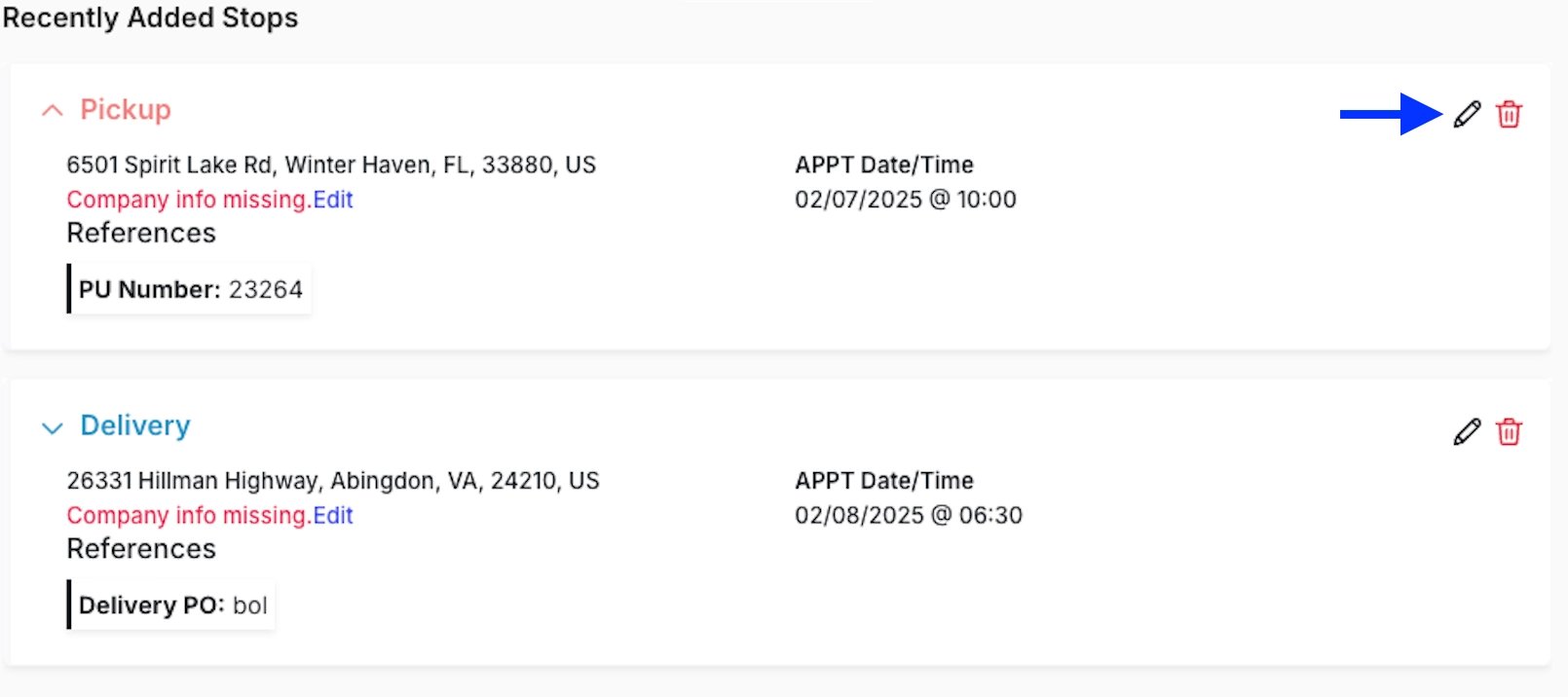 *New Load form with prefilled stop and customer details after successful extraction.*
1. **Confirm and create the load**
After reviewing and completing all required fields, click Create Load. The load is created and the rate confirmation file is attached automatically.
## Result
A new Revenue load is created in Alvys with the extracted data applied. The rate confirmation file is attached to the load record. Any fields that were not extracted remain blank and can be edited after creation.
## Variations
### If extraction fails
If the document cannot be processed, the upload panel shows "Processing Failed." Select Retry to try again with the same file, or Clear to remove the file and start over. If the issue continues, create the load manually using the standard New Load form.
### If the customer is not found
If the extracted customer name does not match any customer in your Alvys account, the Customer field will show a "not found" indicator. Search for the correct customer manually or create a new customer record before submitting.
## Troubleshooting
### Invoice As field is empty after extraction
Alvys AI never prefills the Invoice As field. This is by design. Select the correct subsidiary from the Invoice As dropdown before submitting.
### Customer field is blank or shows a not-found indicator
The extracted customer name did not match any customer in your account. Search for the customer using the Customer field, or create a new customer record.
### File upload fails
Only PDF, JPEG, and PNG files are accepted, up to 4 MB. Convert the file to a supported format or reduce its size and try again. If the issue continues, create the load manually. If no other reason applies, contact Alvys support.
## FAQs
**Q: What file types does Automated Data Entry accept?**
**A:** PDF, JPEG, and PNG files are accepted, up to 4 MB each.
**Q: Can I use Automated Data Entry for Non-Revenue loads?**
**A:** No. The rate confirmation upload panel is only available when the load type is set to Revenue.
**Q: Which fields does Alvys AI extract from the rate confirmation?**
**A:** Alvys AI attempts to extract the customer, billing rate, order number, equipment type and length, stop details (pickup and delivery companies, addresses, and appointment dates and times), and reference numbers. The Invoice As field is never extracted and must always be selected manually.
**Q: Is reference number extraction required?**
**A:** No. Reference numbers are extracted when present but are not required.
**Q: Does the rate confirmation file get attached to the load automatically?**
**A:** Yes. The uploaded rate confirmation file is automatically attached to the load record when the load is created.
## Go Deeper
* [How to Create a Load](/help/loads-trips/how-to-create-a-load)
*New Load form with prefilled stop and customer details after successful extraction.*
1. **Confirm and create the load**
After reviewing and completing all required fields, click Create Load. The load is created and the rate confirmation file is attached automatically.
## Result
A new Revenue load is created in Alvys with the extracted data applied. The rate confirmation file is attached to the load record. Any fields that were not extracted remain blank and can be edited after creation.
## Variations
### If extraction fails
If the document cannot be processed, the upload panel shows "Processing Failed." Select Retry to try again with the same file, or Clear to remove the file and start over. If the issue continues, create the load manually using the standard New Load form.
### If the customer is not found
If the extracted customer name does not match any customer in your Alvys account, the Customer field will show a "not found" indicator. Search for the correct customer manually or create a new customer record before submitting.
## Troubleshooting
### Invoice As field is empty after extraction
Alvys AI never prefills the Invoice As field. This is by design. Select the correct subsidiary from the Invoice As dropdown before submitting.
### Customer field is blank or shows a not-found indicator
The extracted customer name did not match any customer in your account. Search for the customer using the Customer field, or create a new customer record.
### File upload fails
Only PDF, JPEG, and PNG files are accepted, up to 4 MB. Convert the file to a supported format or reduce its size and try again. If the issue continues, create the load manually. If no other reason applies, contact Alvys support.
## FAQs
**Q: What file types does Automated Data Entry accept?**
**A:** PDF, JPEG, and PNG files are accepted, up to 4 MB each.
**Q: Can I use Automated Data Entry for Non-Revenue loads?**
**A:** No. The rate confirmation upload panel is only available when the load type is set to Revenue.
**Q: Which fields does Alvys AI extract from the rate confirmation?**
**A:** Alvys AI attempts to extract the customer, billing rate, order number, equipment type and length, stop details (pickup and delivery companies, addresses, and appointment dates and times), and reference numbers. The Invoice As field is never extracted and must always be selected manually.
**Q: Is reference number extraction required?**
**A:** No. Reference numbers are extracted when present but are not required.
**Q: Does the rate confirmation file get attached to the load automatically?**
**A:** Yes. The uploaded rate confirmation file is automatically attached to the load record when the load is created.
## Go Deeper
* [How to Create a Load](/help/loads-trips/how-to-create-a-load)