> ## Documentation Index
> Fetch the complete documentation index at: https://docs.alvys.com/llms.txt
> Use this file to discover all available pages before exploring further.
# How to Create and Use Load Templates
> Build and manage load templates to reuse stops, equipment, and order details for recurring lanes, with view or manage permission controls.
Load templates let you save a reusable set of load details so you can build new loads faster. Users with view access can create loads from a template; users with manage access can also create, edit, duplicate, and delete templates.
## Overview
Load templateslet you define a standard set of load details once and reuse them every time you need to build a similar load. Instead of entering the same stops, equipment type, and order details from scratch each time, you select a template and fill in only what changes.
The Load Templates page now runs on the same look & feel used everywhere else in Alvys, so filtering, sorting, and column controls work the same way they do on your other pages — and you can save views to jump back to a setup instantly.
Templates are useful for recurring lanes, dedicated customers, or any load type you create frequently. Synonyms: saved load, reusable load, load preset, lane template.
## Before You Start
You need one of the following permissions to access Load Templates:
**"ViewLoadTemplates"**: lets you view the Load Templates tab, select a template, and initiate a new load from it.
**"ManageLoadTemplates"**: lets you do everything **"ViewLoadTemplates"** allows, plus create, edit, duplicate, and delete templates.
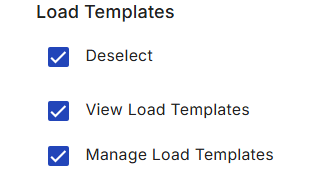 *Image Displaying Load Templates permissions on a sample user profile*
If the Load Templates tab is not visible in your navigation, your user account does not have either of these permissions. Contact your administrator to request access.
To navigate to Load Templates: in the left navigation bar, go to **Loads and Trips**, then select **Load Templates**.
## Steps
\*\*Open the Load Templates page and manage the grid (\*\*Requires **"ViewLoadTemplates"** or **"ManageLoadTemplates"** permission)
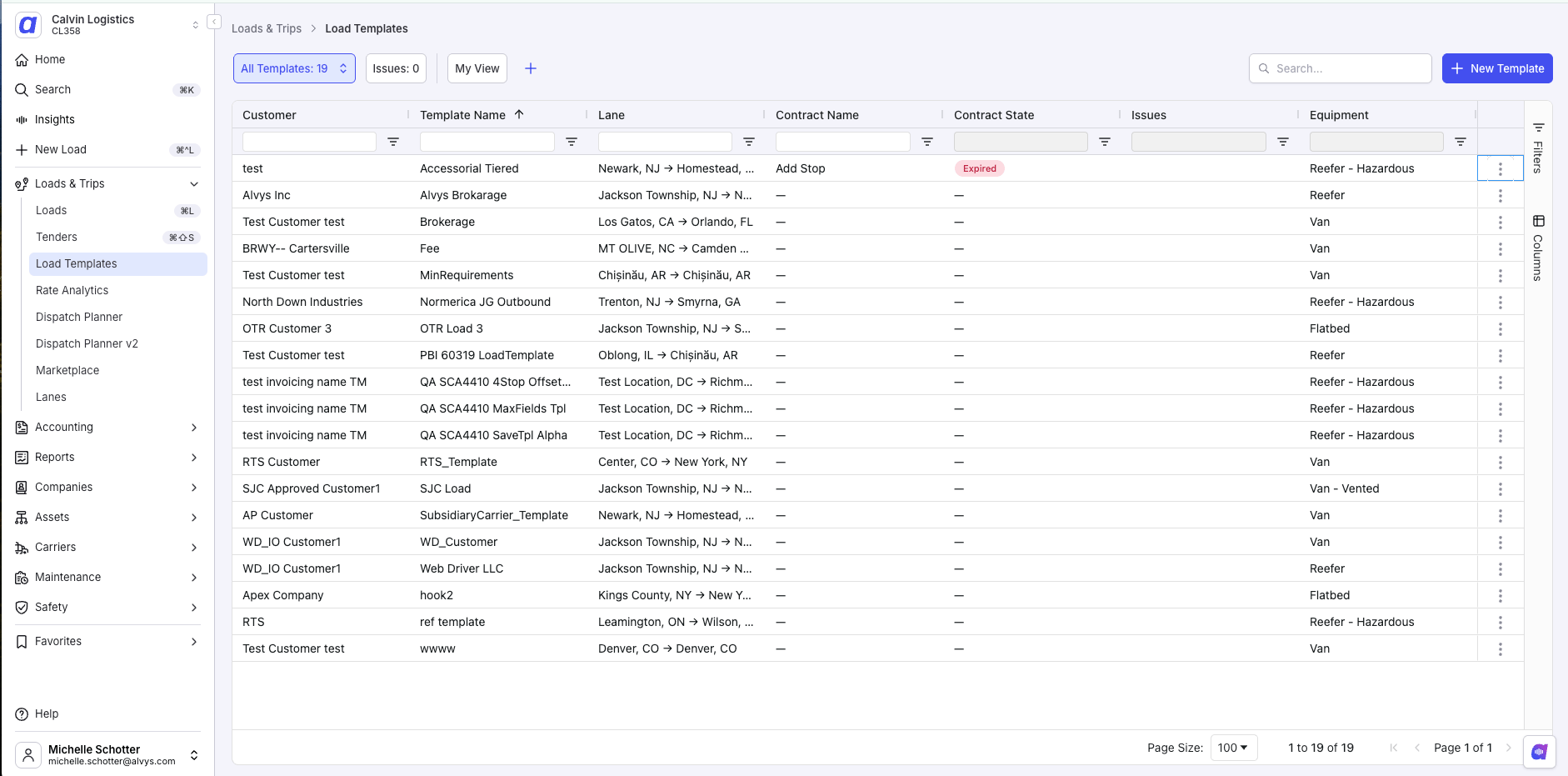
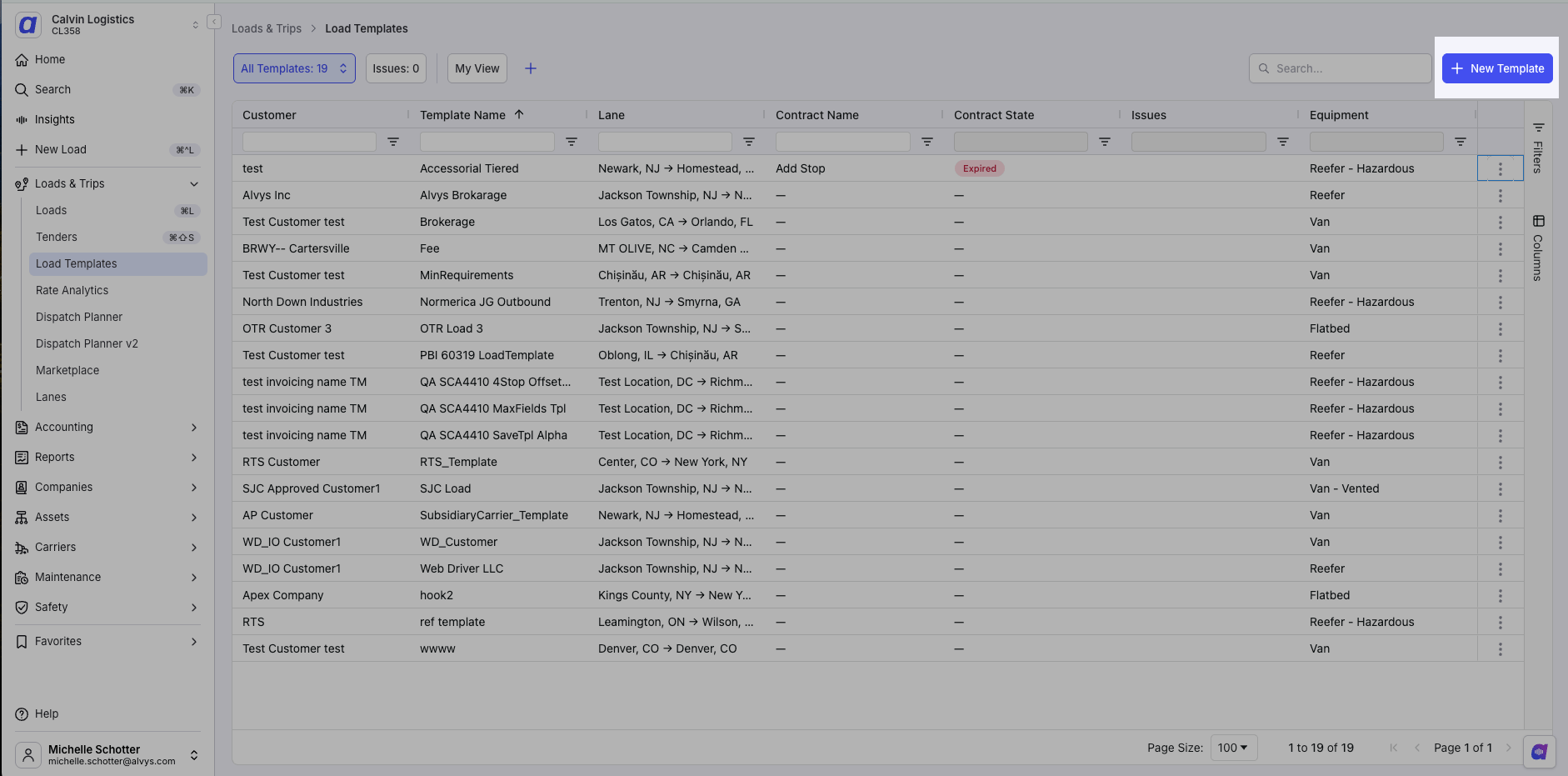
In the left navigation, go to **Loads and Trips** > **Load Templates**.
Work with the grid the same way you do everywhere else in Alvys — filter, sort, and manage columns from the column management sidebar.
By default the grid opens with an alert/issue indicator, **Customer**, **Template Name**, **Lane** (origin > destination), **Contract**, and **Equipment**. Add columns such as **Created By** or **Last Updated** from the column management sidebar.
*Image Displaying Load Templates permissions on a sample user profile*
If the Load Templates tab is not visible in your navigation, your user account does not have either of these permissions. Contact your administrator to request access.
To navigate to Load Templates: in the left navigation bar, go to **Loads and Trips**, then select **Load Templates**.
## Steps
\*\*Open the Load Templates page and manage the grid (\*\*Requires **"ViewLoadTemplates"** or **"ManageLoadTemplates"** permission)
In the left navigation, go to **Loads and Trips** > **Load Templates**.
Work with the grid the same way you do everywhere else in Alvys — filter, sort, and manage columns from the column management sidebar.
By default the grid opens with an alert/issue indicator, **Customer**, **Template Name**, **Lane** (origin > destination), **Contract**, and **Equipment**. Add columns such as **Created By** or **Last Updated** from the column management sidebar.
 \*\*Saved Views (\*\*Requires Saved Views permission)
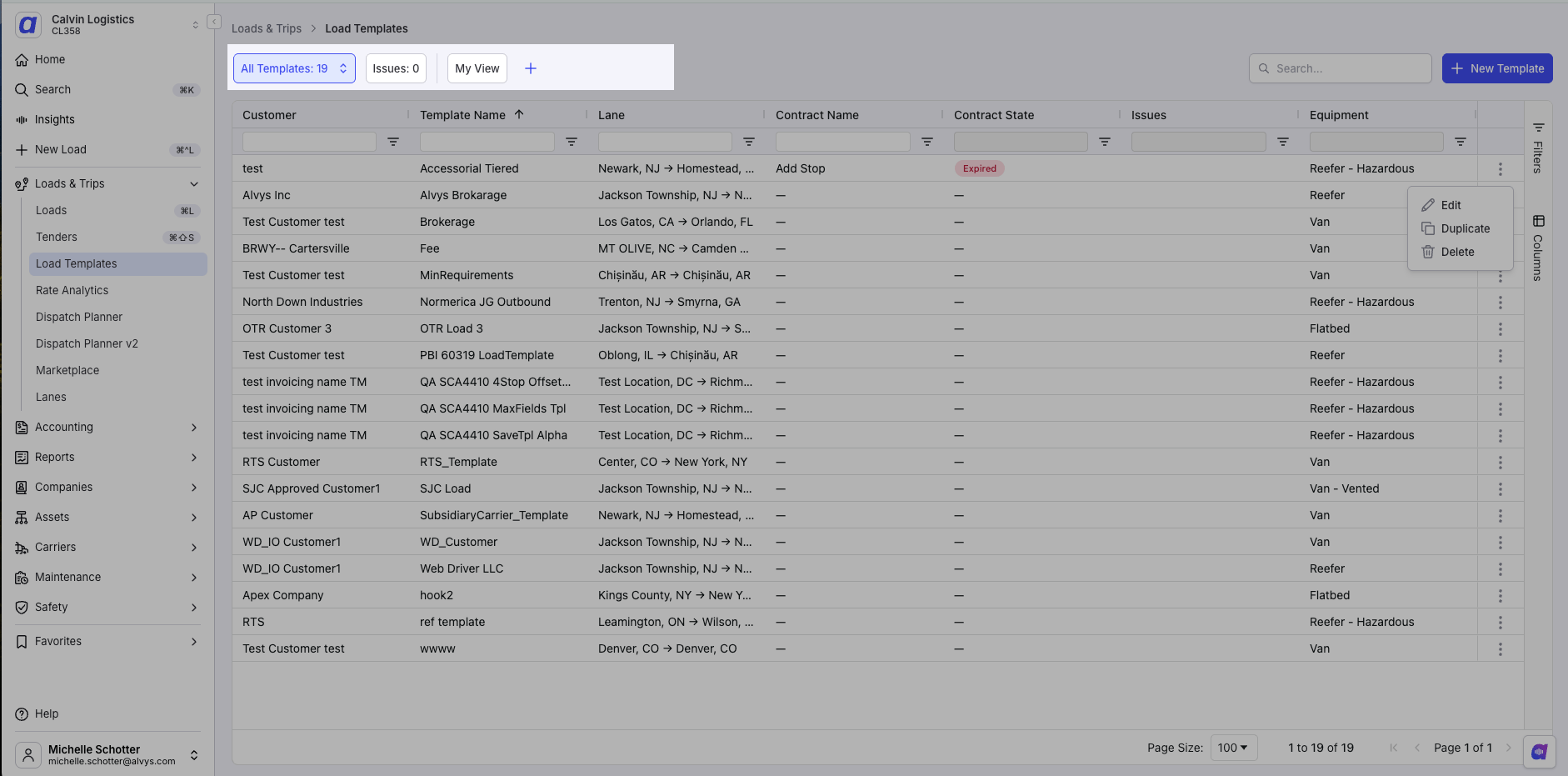
Apply the filters and sorting you want on the Load Templates grid.
Save the configuration as a named view.
Recall any saved view at any time to return to that exact setup. Saved Views work the same way here as they do on other Alvys pages.
\*\*Saved Views (\*\*Requires Saved Views permission)
Apply the filters and sorting you want on the Load Templates grid.
Save the configuration as a named view.
Recall any saved view at any time to return to that exact setup. Saved Views work the same way here as they do on other Alvys pages.
 \*\*Edit, duplicate, or delete a template (\*\*Requires the **"ManageLoadTemplates"** permission)
Go to **Loads and Trips** > **Load Templates**.
Find the template you want to change.
Click the **…** (more) menu on that template to **edit**, **duplicate**, or **delete** it.
\*\*Edit, duplicate, or delete a template (\*\*Requires the **"ManageLoadTemplates"** permission)
Go to **Loads and Trips** > **Load Templates**.
Find the template you want to change.
Click the **…** (more) menu on that template to **edit**, **duplicate**, or **delete** it.
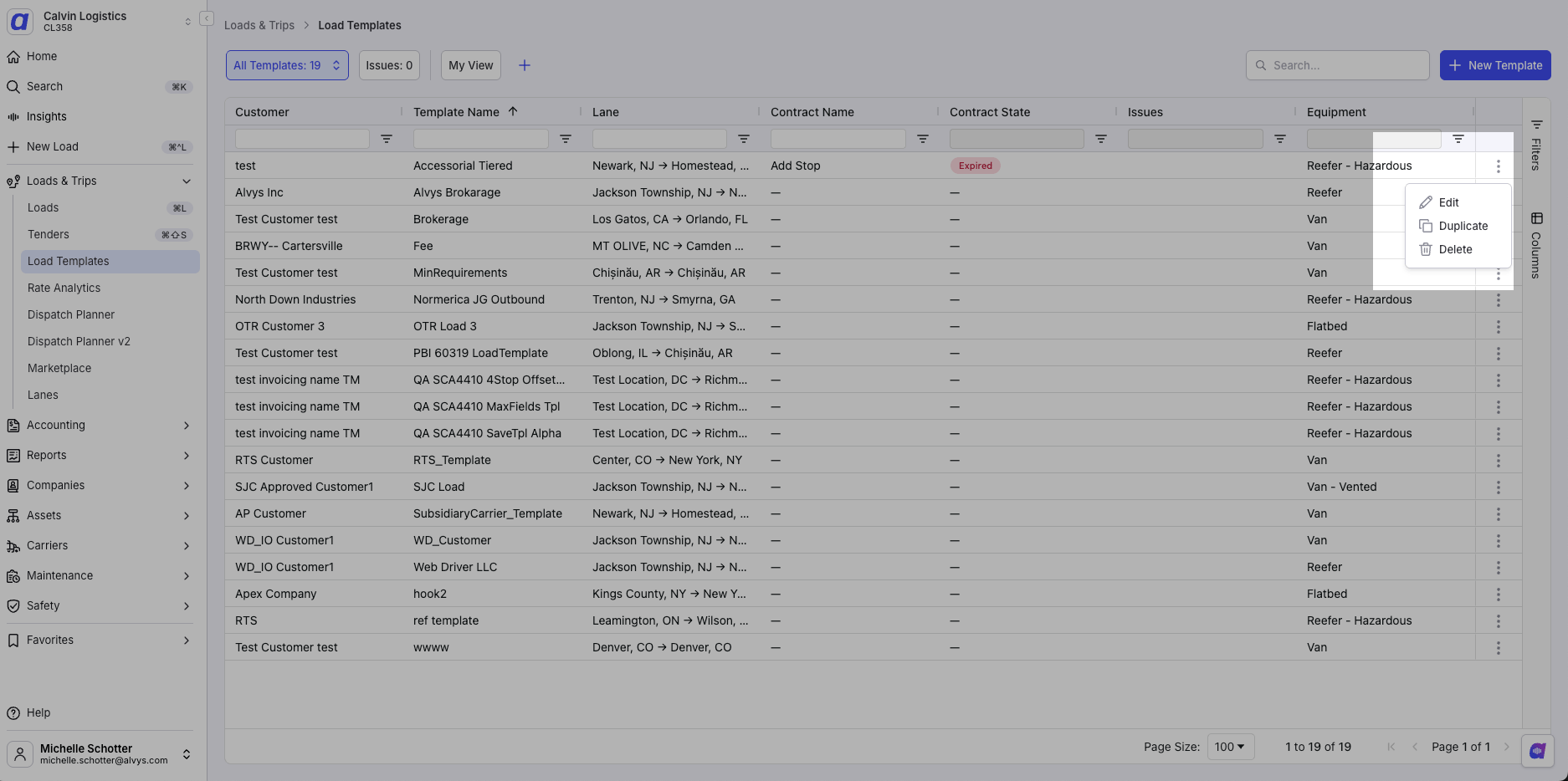 When you edit a template, it opens in the load creation flow, where you have full visibility and editing capabilities. Modify the details as needed and save. Your changes apply to future loads built from the template — they do not change loads that were already created.
\*\*Create a template from the Load Templates page (\*\*Requires the **"ManageLoadTemplates"** permission)
Go to **Loads and Trips** > **Load Templates**.
Click **New Template**.
Enter a name that clearly identifies the lane or load type so you can find it quickly later, then fill in the load details you want to save: customer, sales agent, office, billing rate, "Invoice As", stops, schedule type, equipment, order details, and any other fields relevant to your recurring load.
Save the template. It will now appear on the Load Templates page for any user with **"ViewLoadTemplates"** or **"ManageLoadTemplates"** permission.
When you edit a template, it opens in the load creation flow, where you have full visibility and editing capabilities. Modify the details as needed and save. Your changes apply to future loads built from the template — they do not change loads that were already created.
\*\*Create a template from the Load Templates page (\*\*Requires the **"ManageLoadTemplates"** permission)
Go to **Loads and Trips** > **Load Templates**.
Click **New Template**.
Enter a name that clearly identifies the lane or load type so you can find it quickly later, then fill in the load details you want to save: customer, sales agent, office, billing rate, "Invoice As", stops, schedule type, equipment, order details, and any other fields relevant to your recurring load.
Save the template. It will now appear on the Load Templates page for any user with **"ViewLoadTemplates"** or **"ManageLoadTemplates"** permission.
 \*\*Create a template while building a load (\*\*Requires the **"ManageLoadTemplates"** permission)
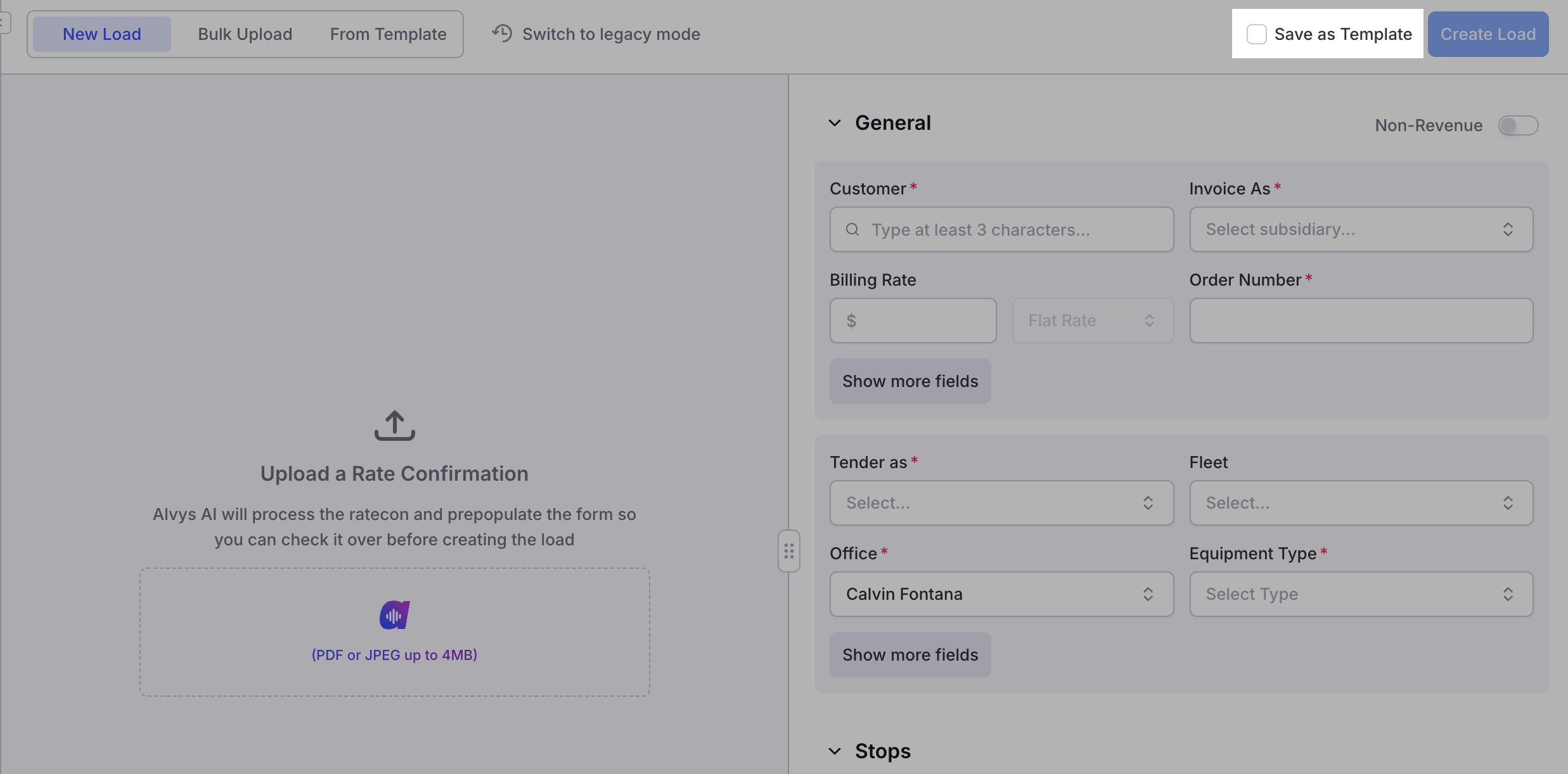
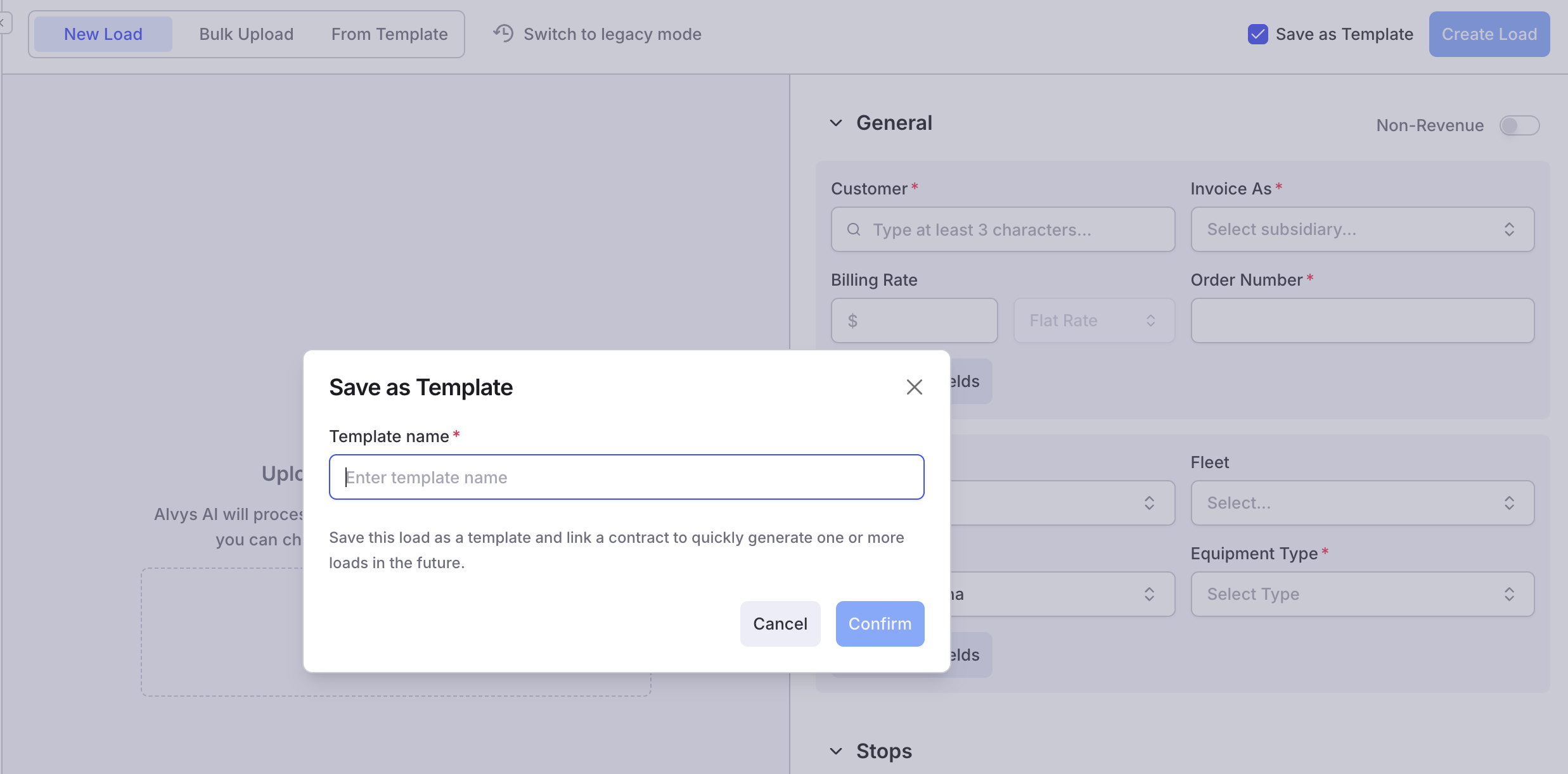
Work through the manual load creation flow. When you are ready, choose and \*\*Save as Template **and** Create load \*\* to create the load and save it as a reusable template. You can also click **Save as Template** at any point in the flow.
\*\*Create a template while building a load (\*\*Requires the **"ManageLoadTemplates"** permission)
Work through the manual load creation flow. When you are ready, choose and \*\*Save as Template **and** Create load \*\* to create the load and save it as a reusable template. You can also click **Save as Template** at any point in the flow.
 \*\*Create loads from a template (\*\*Requires **"ViewLoadTemplates"** or **"ManageLoadTemplates"** permission)
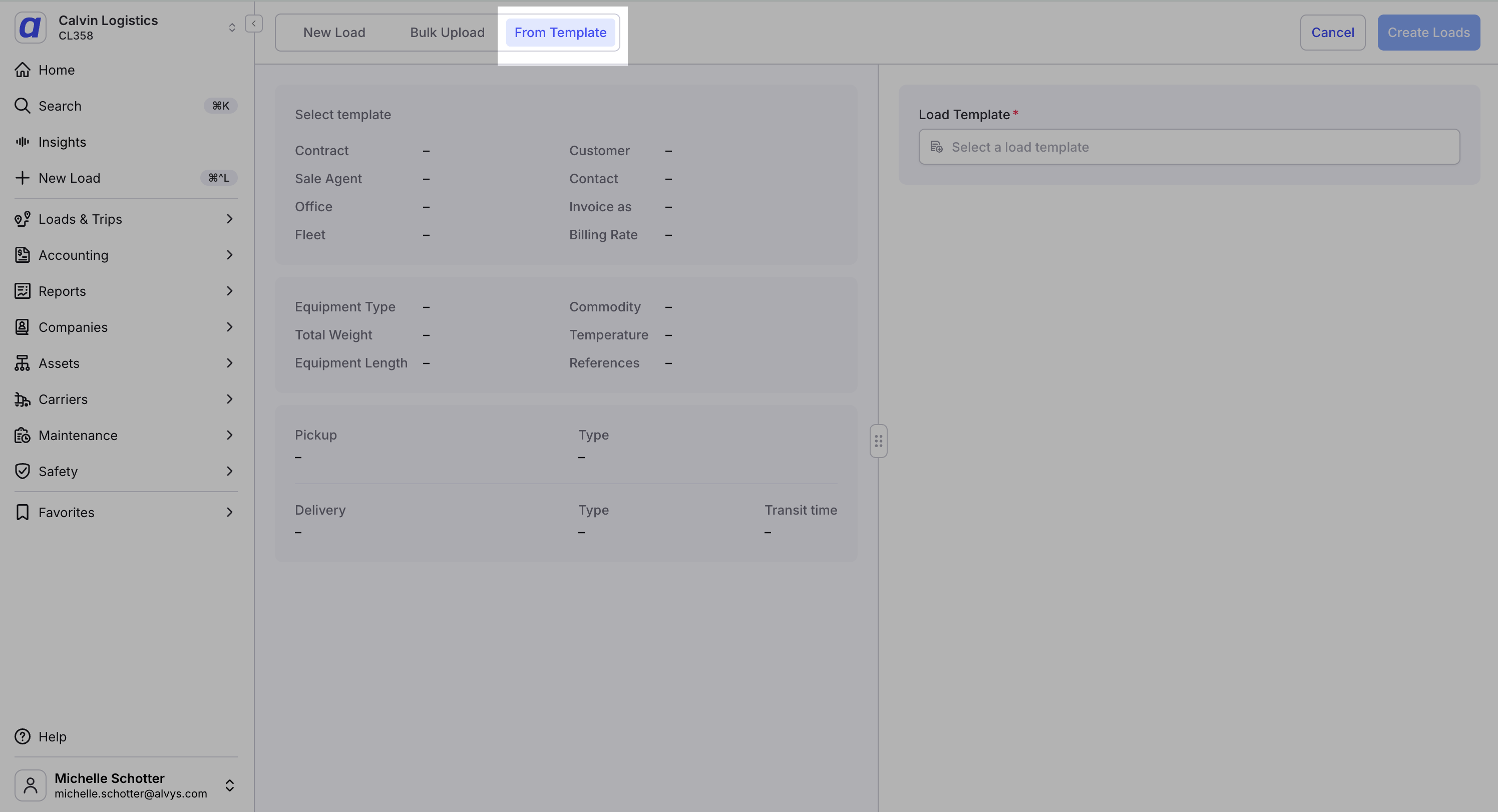
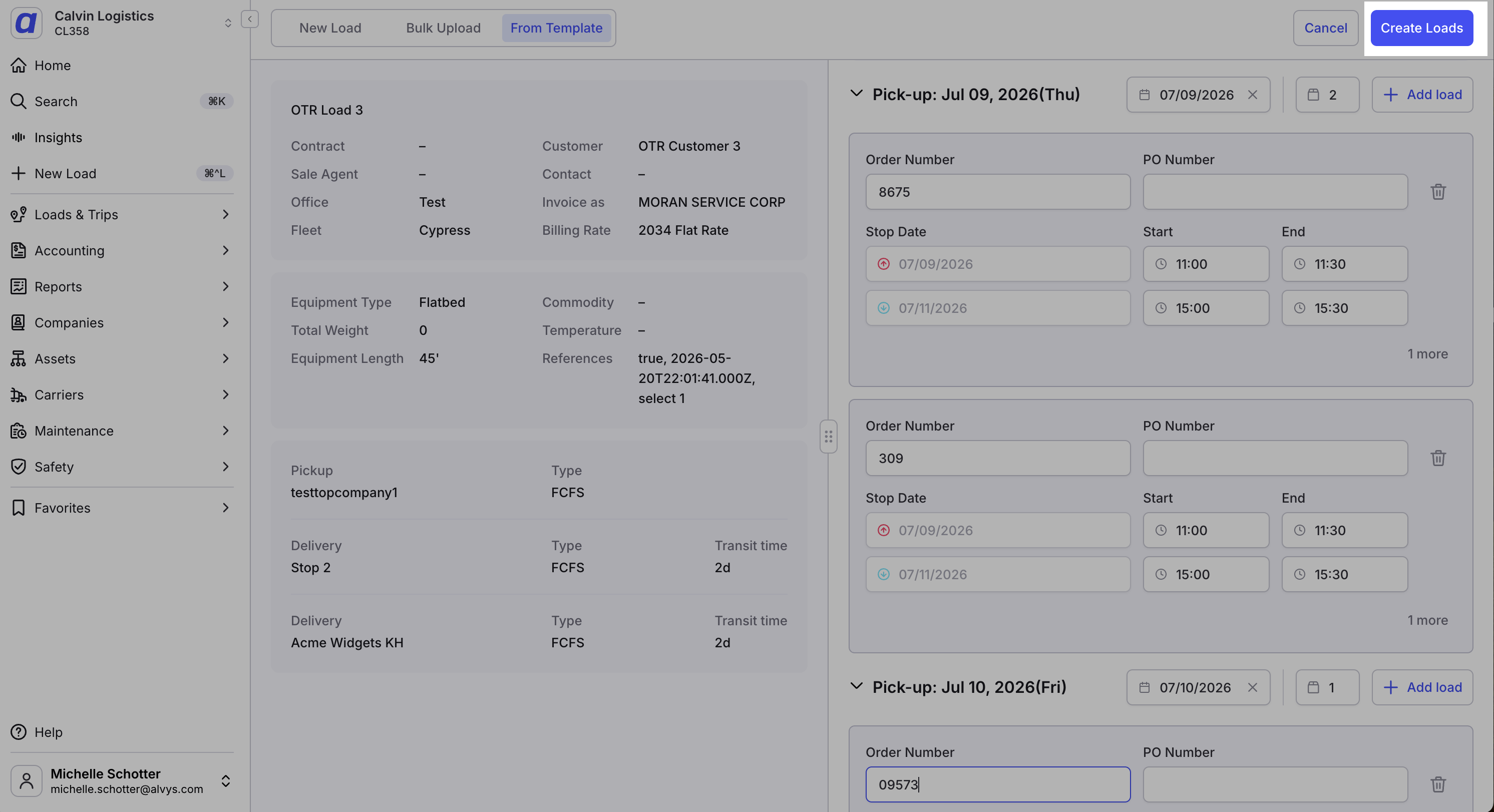
Navigate to the manual load creation page and click **From Template** at the top of the page.
Select a pre-existing load template.
\*\*Create loads from a template (\*\*Requires **"ViewLoadTemplates"** or **"ManageLoadTemplates"** permission)
Navigate to the manual load creation page and click **From Template** at the top of the page.
Select a pre-existing load template.
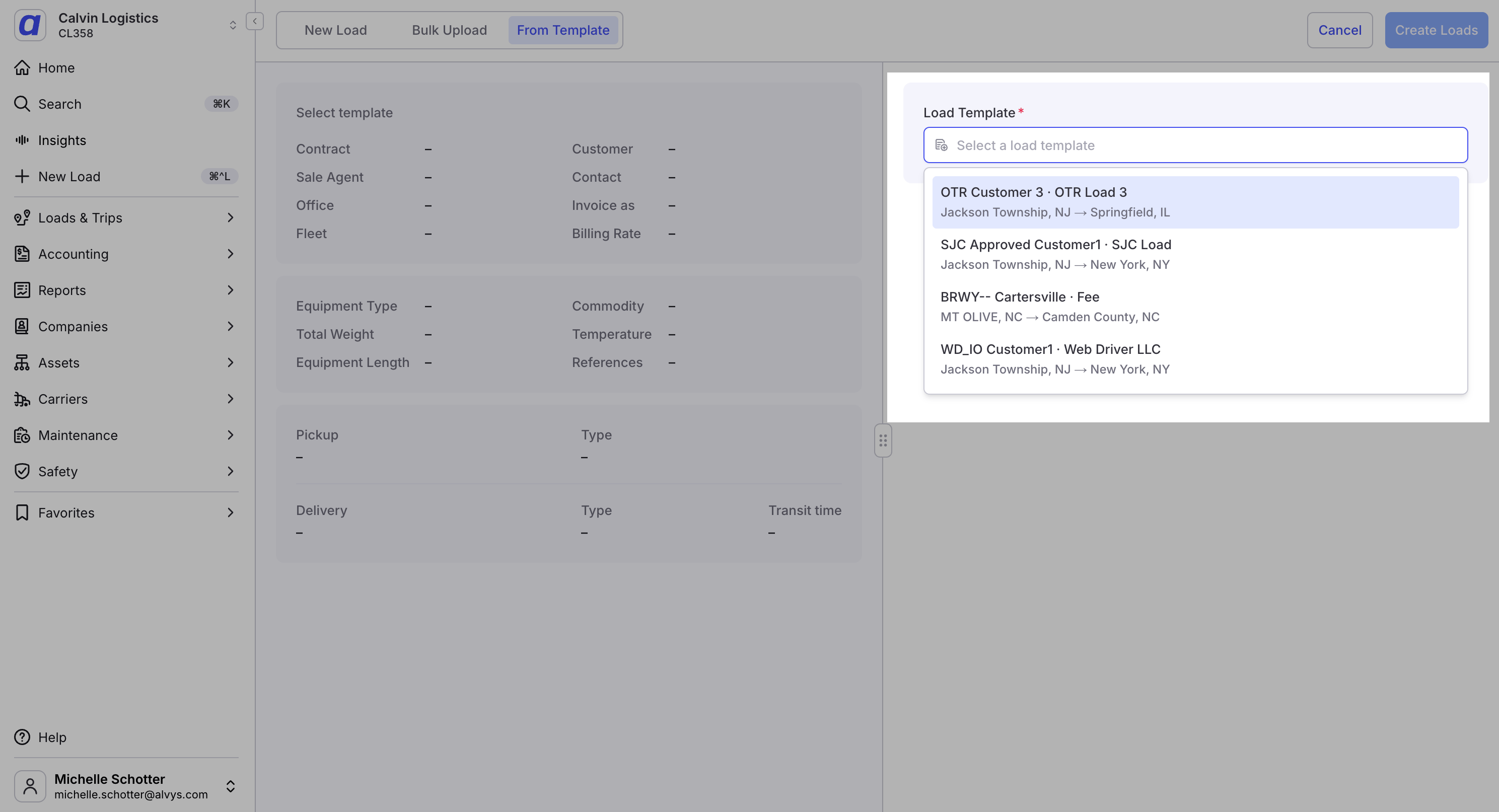 Review the template details shown in the left side panel.
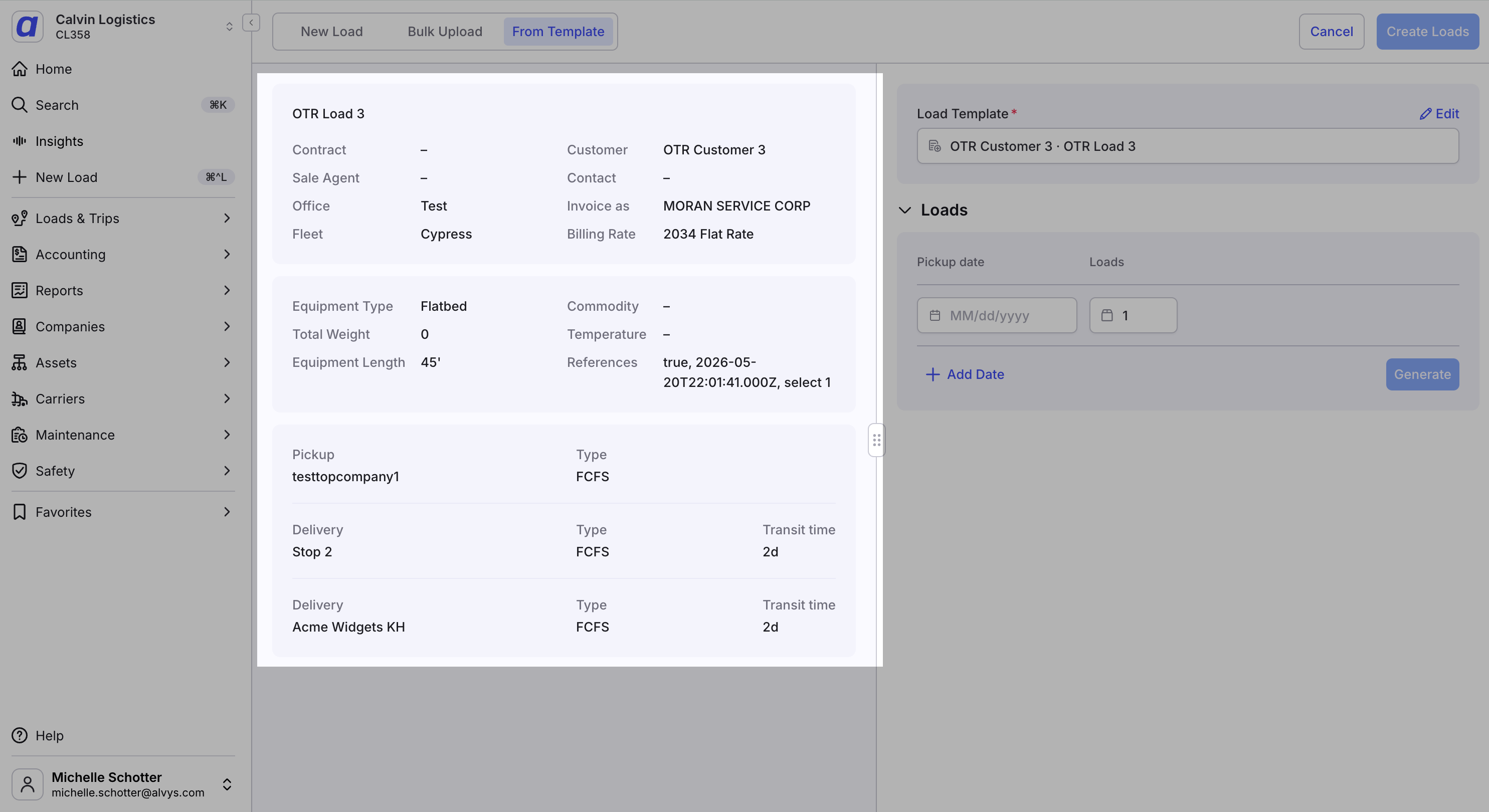 In the Loads section, enter the pickup date and the quantity of loads to create. You can add additional dates, then click **Generate**.
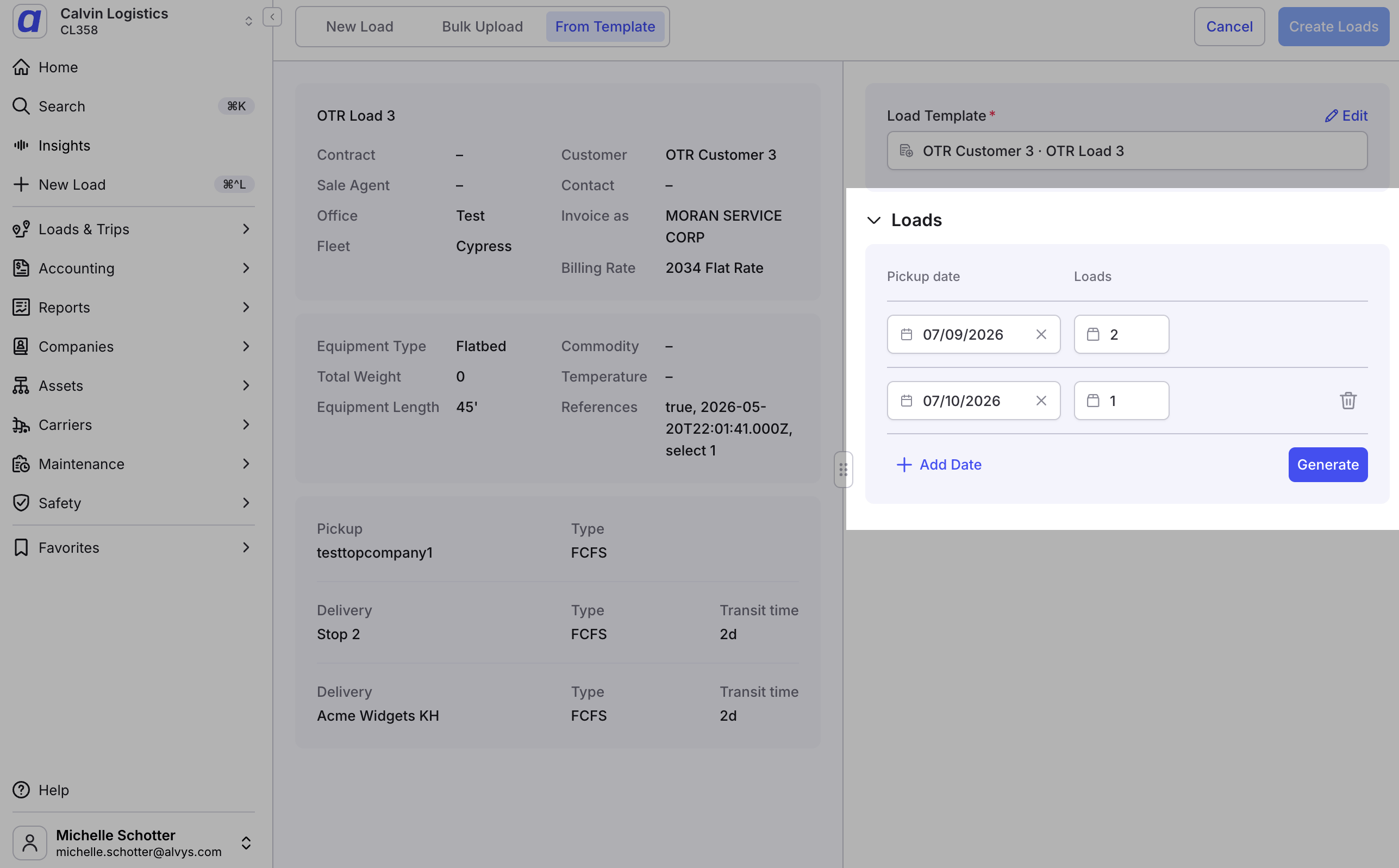 Enter the **Order Number** for each load. You can also edit the stop start and end times, enter a PO Number, or add additional loads.
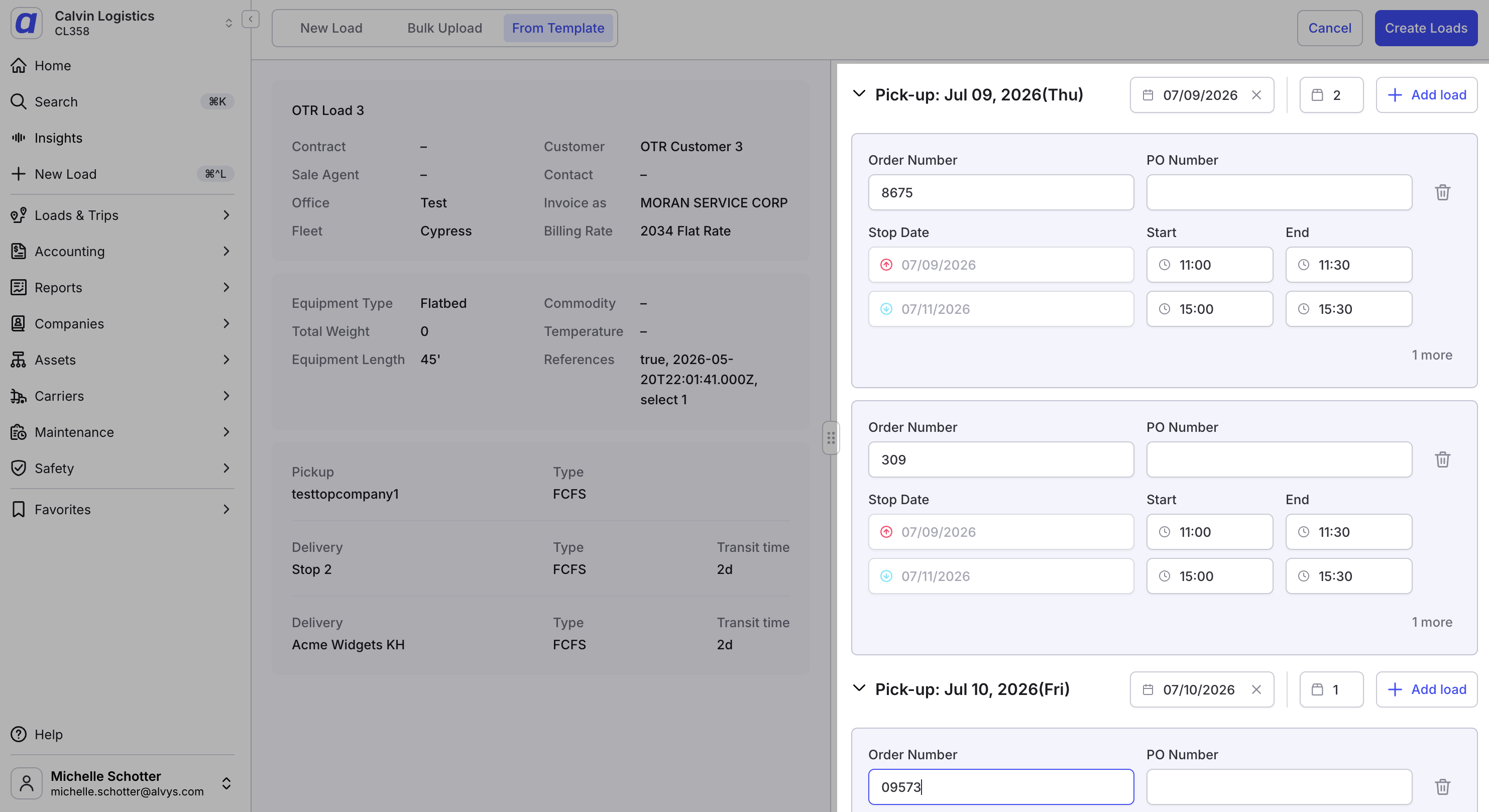 Click **Create Loads**. The loads are created and you are taken to the Load Board, filtered to show your new loads.
 ## Result
After completing these steps:
A new or duplicated template is saved and available for all users with **"ViewLoadTemplates"** or **"ManageLoadTemplates"** permission to use.
A saved view is stored so you can return to your preferred filter, sort, and column setup at any time.
Loads created from a template open pre-filled with the template's details; after generating them you are taken to the Load Board, filtered to your new loads.
An edited template reflects your changes on all future loads built from it (it does not change loads that were already created).
A deleted template is removed from the list and can no longer be used to create new loads.
## Troubleshooting
### Load Templates tab is not visible
Confirm you are logged in to the correct account and company. Ask your administrator to verify that your user profile has either the **"ViewLoadTemplates"** or **"ManageLoadTemplates"** permission enabled; neither permission will show the tab if both are absent. If the permission is enabled but the tab still does not appear, contact Alvys support.
### Create, edit, duplicate, and delete options are not available
The create, edit, duplicate, and delete actions require the **"ManageLoadTemplates"** permission. If you only have **"ViewLoadTemplates"**, you can view the page and create loads from templates, but you cannot modify, duplicate, or delete templates. Ask your administrator to grant **"ManageLoadTemplates"** if you need full template management access.
## FAQs
**Q: Can I create a load template from an existing load?**
**A:** Yes. While working through the manual load creation flow, click **Save as Template** (or choose **Create load & make template**), enter a name, and confirm. You can also create a template directly from the Load Templates page using **New Template**, or from an existing template using the **…** menu's **Duplicate** option.
**Q: Do changes to a template affect loads that were already created from it?**
**A:** No. Editing a template updates only the template itself. Loads that were previously created from that template are not changed.
**Q: Who can see the Load Templates page?**
**A:** Any user with either the **"ViewLoadTemplates"** or **"ManageLoadTemplates"** permission can see and use the Load Templates page.
**Q: Can I duplicate an existing template instead of creating one from scratch?**
**A:** Yes. On the Load Templates page, open the **…** (more) menu on the template you want to copy and select **Duplicate**, then rename and adjust it as needed.
**Q: Can I save my filters and sorting on the Load Templates page?**
**A:** Yes. Apply the filters and sorting you want, then save them as a named view. Saved Views work the same way here as on other Alvys grids, so you can recall your preferred setup at any time.
## Go Deeper
* [Cloning a Load](/help/loads-trips/how-to-clone-a-load): Learn how to copy an existing load to create a new one quickly, which is an alternative approach to reusing load details.
## Result
After completing these steps:
A new or duplicated template is saved and available for all users with **"ViewLoadTemplates"** or **"ManageLoadTemplates"** permission to use.
A saved view is stored so you can return to your preferred filter, sort, and column setup at any time.
Loads created from a template open pre-filled with the template's details; after generating them you are taken to the Load Board, filtered to your new loads.
An edited template reflects your changes on all future loads built from it (it does not change loads that were already created).
A deleted template is removed from the list and can no longer be used to create new loads.
## Troubleshooting
### Load Templates tab is not visible
Confirm you are logged in to the correct account and company. Ask your administrator to verify that your user profile has either the **"ViewLoadTemplates"** or **"ManageLoadTemplates"** permission enabled; neither permission will show the tab if both are absent. If the permission is enabled but the tab still does not appear, contact Alvys support.
### Create, edit, duplicate, and delete options are not available
The create, edit, duplicate, and delete actions require the **"ManageLoadTemplates"** permission. If you only have **"ViewLoadTemplates"**, you can view the page and create loads from templates, but you cannot modify, duplicate, or delete templates. Ask your administrator to grant **"ManageLoadTemplates"** if you need full template management access.
## FAQs
**Q: Can I create a load template from an existing load?**
**A:** Yes. While working through the manual load creation flow, click **Save as Template** (or choose **Create load & make template**), enter a name, and confirm. You can also create a template directly from the Load Templates page using **New Template**, or from an existing template using the **…** menu's **Duplicate** option.
**Q: Do changes to a template affect loads that were already created from it?**
**A:** No. Editing a template updates only the template itself. Loads that were previously created from that template are not changed.
**Q: Who can see the Load Templates page?**
**A:** Any user with either the **"ViewLoadTemplates"** or **"ManageLoadTemplates"** permission can see and use the Load Templates page.
**Q: Can I duplicate an existing template instead of creating one from scratch?**
**A:** Yes. On the Load Templates page, open the **…** (more) menu on the template you want to copy and select **Duplicate**, then rename and adjust it as needed.
**Q: Can I save my filters and sorting on the Load Templates page?**
**A:** Yes. Apply the filters and sorting you want, then save them as a named view. Saved Views work the same way here as on other Alvys grids, so you can recall your preferred setup at any time.
## Go Deeper
* [Cloning a Load](/help/loads-trips/how-to-clone-a-load): Learn how to copy an existing load to create a new one quickly, which is an alternative approach to reusing load details.