> ## Documentation Index
> Fetch the complete documentation index at: https://docs.alvys.com/llms.txt
> Use this file to discover all available pages before exploring further.
# How to Release a Load to Billing
> Release a Delivered or TONU load to billing so accounting can generate invoices, one load at a time or in bulk, using the ReleaseLoads permission.
Releasing a load to billing hands off a **Delivered** or **TONU** load to your accounting team so they can generate the invoice and begin post-delivery processing.
## Overview
Once a load is marked as **Delivered**, it must be released to billing before your accounting team can generate the invoice, review charges, and process payment. This step moves the load from dispatch to accounting.
Synonyms: release to billing, release load, send to billing, release for invoicing, hand off to accounting.
## Before You Start
* The load must be in **Delivered** or **TONU** status.
* You must have the **"ReleaseLoads"** permission. Ask your administrator if you do not see the Release option.
## Steps
### Method 1 — Release a single load
1. Open the load.
2. Click **Manage** (top-right of the load).
3. Select **Release**.
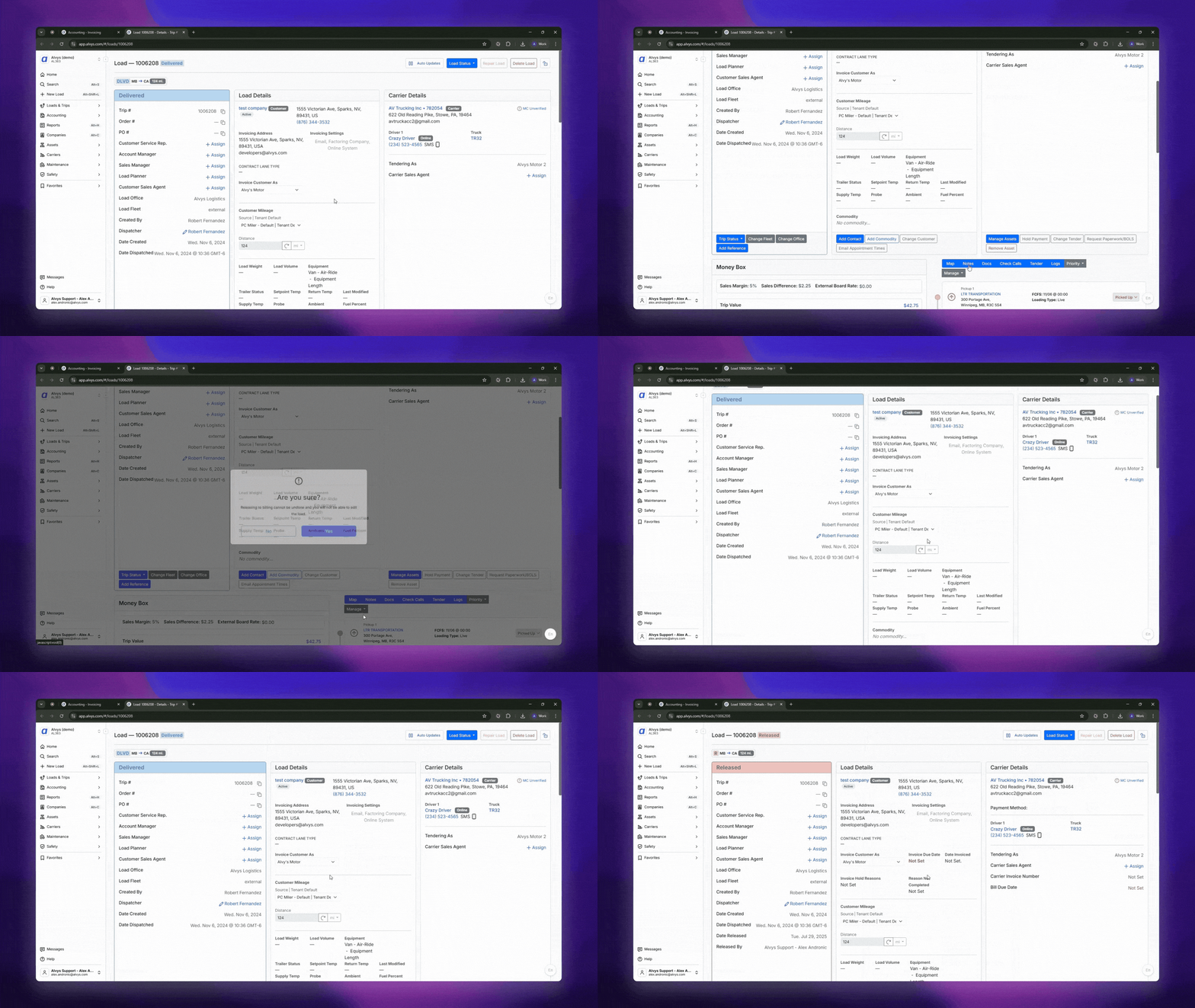 *Screen recording of opening a load, clicking Manage, and selecting Release*
### Method 2 — Release multiple loads at once
1. Go to **Invoicing** in the left navigation.
2. Click the **Incomplete** tab — this shows all Delivered loads not yet released.
3. Select one or more loads.
4. Move the selected loads to the **Released** tab.
⚠️ Loads with missing required information cannot be moved to Released until the gaps are filled.
*Screen recording of opening a load, clicking Manage, and selecting Release*
### Method 2 — Release multiple loads at once
1. Go to **Invoicing** in the left navigation.
2. Click the **Incomplete** tab — this shows all Delivered loads not yet released.
3. Select one or more loads.
4. Move the selected loads to the **Released** tab.
⚠️ Loads with missing required information cannot be moved to Released until the gaps are filled.
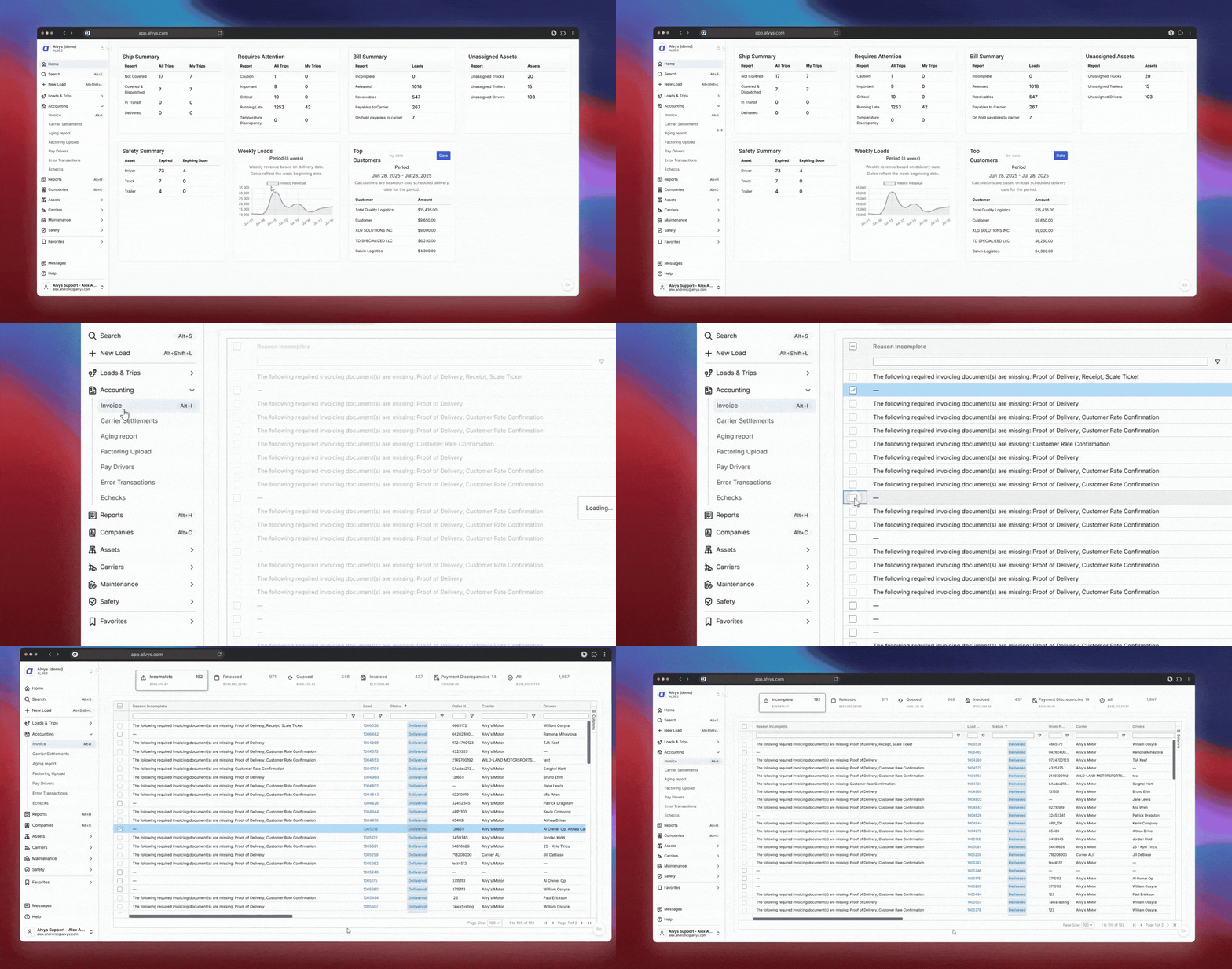 *Screen recording of bulk-selecting loads on the Invoicing > Incomplete tab and releasing them*
## Result
Released loads appear in the **Released** tab under Invoicing. Your accounting team can immediately review charges, attach documents, and generate the invoice.
## Troubleshooting
### Release option is grayed out or missing
The load may not be in the correct status, or required fields may be incomplete. Confirm: (1) the load status is **Delivered** or **TONU**; (2) all required stops are marked complete; (3) any required documents are attached.
### Load is not showing in the Incomplete tab
Only **Delivered** loads appear here. Check the load status: if it is already released, it will appear in the **Released** tab instead.
### Release option is not visible
Your account does not have the **"ReleaseLoads"** permission. Ask your administrator to assign this permission to your account.
## FAQs
**Q: Can I release a load that isn't delivered yet?**
**A:** No. The load must be in **Delivered** status first.
**Q: Can I undo a release?**
**A:** Yes. Open the load, click **Manage**, and select **Revert Status**. The load returns to its previous status (**Delivered** or **TONU**). Reverting from **Released** also requires the **"ReleaseLoads"** permission.
**Q: Who can release loads to billing?**
**A:** Users with the **"ReleaseLoads"** permission. Ask your administrator to check your account settings if you cannot see the Release option.
## Go Deeper
* Billing Permissions — who can release and invoice loads
* Why Can't I Release or Invoice a Load? — troubleshooting guide
* Understanding Load Statuses and How to Revert Them — if a load isn't in Delivered status
*Screen recording of bulk-selecting loads on the Invoicing > Incomplete tab and releasing them*
## Result
Released loads appear in the **Released** tab under Invoicing. Your accounting team can immediately review charges, attach documents, and generate the invoice.
## Troubleshooting
### Release option is grayed out or missing
The load may not be in the correct status, or required fields may be incomplete. Confirm: (1) the load status is **Delivered** or **TONU**; (2) all required stops are marked complete; (3) any required documents are attached.
### Load is not showing in the Incomplete tab
Only **Delivered** loads appear here. Check the load status: if it is already released, it will appear in the **Released** tab instead.
### Release option is not visible
Your account does not have the **"ReleaseLoads"** permission. Ask your administrator to assign this permission to your account.
## FAQs
**Q: Can I release a load that isn't delivered yet?**
**A:** No. The load must be in **Delivered** status first.
**Q: Can I undo a release?**
**A:** Yes. Open the load, click **Manage**, and select **Revert Status**. The load returns to its previous status (**Delivered** or **TONU**). Reverting from **Released** also requires the **"ReleaseLoads"** permission.
**Q: Who can release loads to billing?**
**A:** Users with the **"ReleaseLoads"** permission. Ask your administrator to check your account settings if you cannot see the Release option.
## Go Deeper
* Billing Permissions — who can release and invoice loads
* Why Can't I Release or Invoice a Load? — troubleshooting guide
* Understanding Load Statuses and How to Revert Them — if a load isn't in Delivered status