> ## Documentation Index
> Fetch the complete documentation index at: https://docs.alvys.com/llms.txt
> Use this file to discover all available pages before exploring further.
# How to Switch the Customer on a Released Load
> Change the customer on a Released load by reverting it to Delivered, updating the customer, and re-releasing it using the ReleaseLoads permission.
You cannot change the customer directly on a **Released** load. To update the customer, you must first revert the load to **Delivered** status, make the change, and then release it again.
## Overview
Once a load is in **Released** status, the customer field is locked. This prevents edits to billing records while a load is under accounting review. To swap, replace, or correct the customer, you need to revert the load, change the customer, and re-release it.
## Before You Start
* The load must be in **Released** status.
* You must have the **"ReleaseLoads"** permission to revert and re-release the load. Ask your administrator if you do not see the Revert Status option.
## Steps
1. Revert the load to **Delivered**.
* Open the load.
* Click on the **Manage** dropdown menu
* Select **Revert Status**. The load status changes from **Released** back to **Delivered**.
 *Image showing “Manage” dropdown menu with “Revert Status” button.*
2. Update the customer.
* On the load record, click the “**Change Customer” button**.
* Select the correct customer and confirm the change.
*Image showing “Manage” dropdown menu with “Revert Status” button.*
*Image showing “Manage” dropdown menu with “Revert Status” button.*
2. Update the customer.
* On the load record, click the “**Change Customer” button**.
* Select the correct customer and confirm the change.
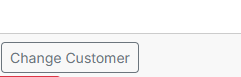 *Image showing the “**Change Customer**” button in the load details section.*
3. Re-release the load.
* Click **Manage** again.
* Select **Release**. The load returns to **Released** status and is available to your accounting team.
*Image showing the “**Change Customer**” button in the load details section.*
*Image showing the “**Change Customer**” button in the load details section.*
3. Re-release the load.
* Click **Manage** again.
* Select **Release**. The load returns to **Released** status and is available to your accounting team.
 *Image showing “Manage” dropdown menu with “Release” button.*
## Result
The load is back in **Released** status with the updated customer. Your accounting team can continue invoice processing.
### Request Assistance
If you prefer not to adjust the load or trip status yourself, you can get help from our support team:
1. **Use the Chat Bot:**
Navigate to the chat feature within Alvys and start a conversation with our **chat bot**..
2. **Choose "Talk to a Person":**
Select the **Talk to a person** option to connect with a support representative. They can assist you with updating the customer without altering the load or trip status.
## FAQs
**Q: Can I change the customer directly on a released load without reverting?**
**A:** No. The customer field is locked on **Released** loads. You must revert the load to **Delivered** first.
**Q: Will reverting the load affect my accounting team's work?**
**A:** Reverting moves the load out of **Released** status. Any in-progress invoice steps will need to be restarted after you re-release the load.
## Troubleshooting
### Revert Status is not visible in the Manage menu
* Your account does not have the **"ReleaseLoads"** permission, which is required to revert a load from **Released** status. Ask your administrator to assign this permission to your account.
### Change Customer is not visible after reverting
Confirm the load is now in **Delivered** status. If the load returned to **TONU** status instead, a TONU date was recorded on the load and it reverted to **TONU** rather than **Delivered**.
## Go Deeper
* [How to Release a Load to Billing](/help/loads-trips/how-to-release-a-load-to-billing)
*Image showing “Manage” dropdown menu with “Release” button.*
## Result
The load is back in **Released** status with the updated customer. Your accounting team can continue invoice processing.
### Request Assistance
If you prefer not to adjust the load or trip status yourself, you can get help from our support team:
1. **Use the Chat Bot:**
Navigate to the chat feature within Alvys and start a conversation with our **chat bot**..
2. **Choose "Talk to a Person":**
Select the **Talk to a person** option to connect with a support representative. They can assist you with updating the customer without altering the load or trip status.
## FAQs
**Q: Can I change the customer directly on a released load without reverting?**
**A:** No. The customer field is locked on **Released** loads. You must revert the load to **Delivered** first.
**Q: Will reverting the load affect my accounting team's work?**
**A:** Reverting moves the load out of **Released** status. Any in-progress invoice steps will need to be restarted after you re-release the load.
## Troubleshooting
### Revert Status is not visible in the Manage menu
* Your account does not have the **"ReleaseLoads"** permission, which is required to revert a load from **Released** status. Ask your administrator to assign this permission to your account.
### Change Customer is not visible after reverting
Confirm the load is now in **Delivered** status. If the load returned to **TONU** status instead, a TONU date was recorded on the load and it reverted to **TONU** rather than **Delivered**.
## Go Deeper
* [How to Release a Load to Billing](/help/loads-trips/how-to-release-a-load-to-billing)