> ## Documentation Index
> Fetch the complete documentation index at: https://docs.alvys.com/llms.txt
> Use this file to discover all available pages before exploring further.
# Stop Dates and Times
> Set stop schedule types (FCFS or APPT) and record actual arrived and departed times as drivers progress through each stop on a trip.
Stop Dates and Times controls how arrived and departed times are set on each stop of a trip. You can set a schedule type (FCFS or APPT) when building or updating a load, and actual arrived and departed times are recorded as the driver progresses through each stop.
## Overview
Every stop on a trip has two kinds of time information: the scheduled time (when the stop is planned to happen) and the actual time (when the driver actually arrived and departed). This article covers both.
Scheduling is set using a schedule type of **FCFS** (First Come First Serve, which uses begin and end window times) or **APPT** (Appointment, which uses a single appointment date and time). Actual arrived and departed times are recorded separately, based on the stop's current status.
The arrived and departed fields on a stop only appear when the stop is in a status that makes those fields relevant:
* The **Arrived** time field appears when the stop status is **Arrived**, **Picked Up**, **Empty**, or **Departed** (for waypoint stops).
* The **Departed** time field appears when the stop status is **Picked Up**, **Empty**, or **Departed** (for waypoint stops).
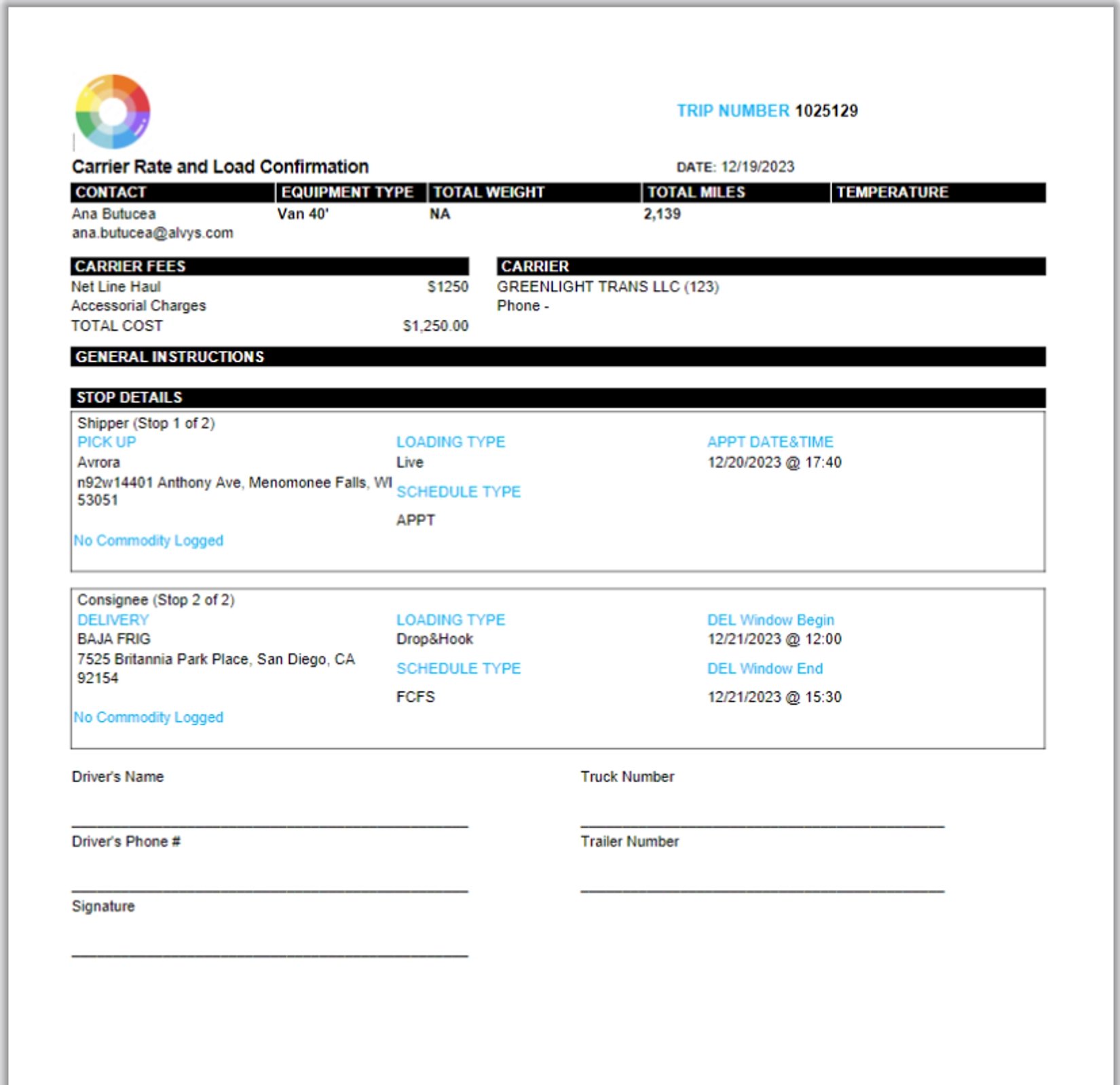
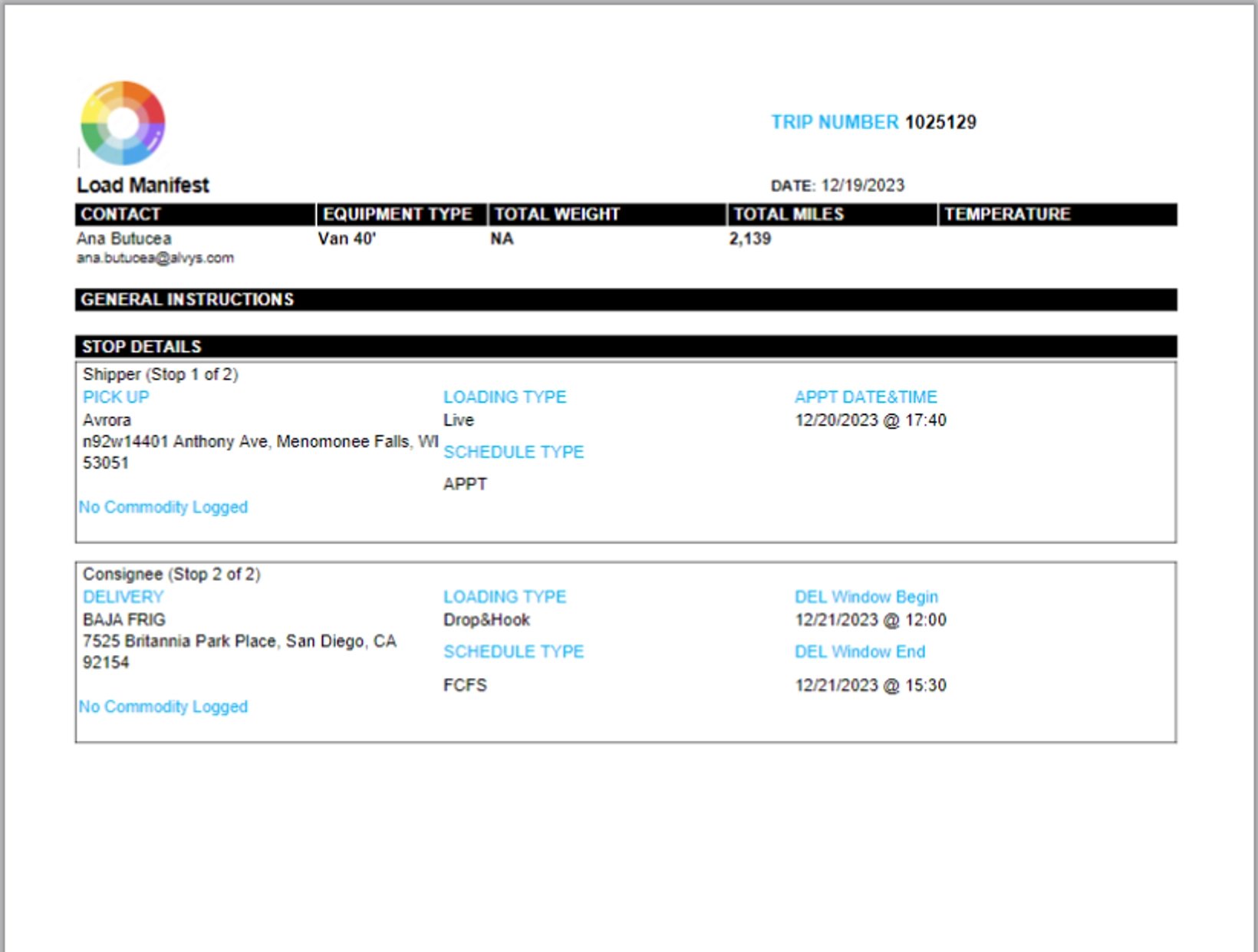
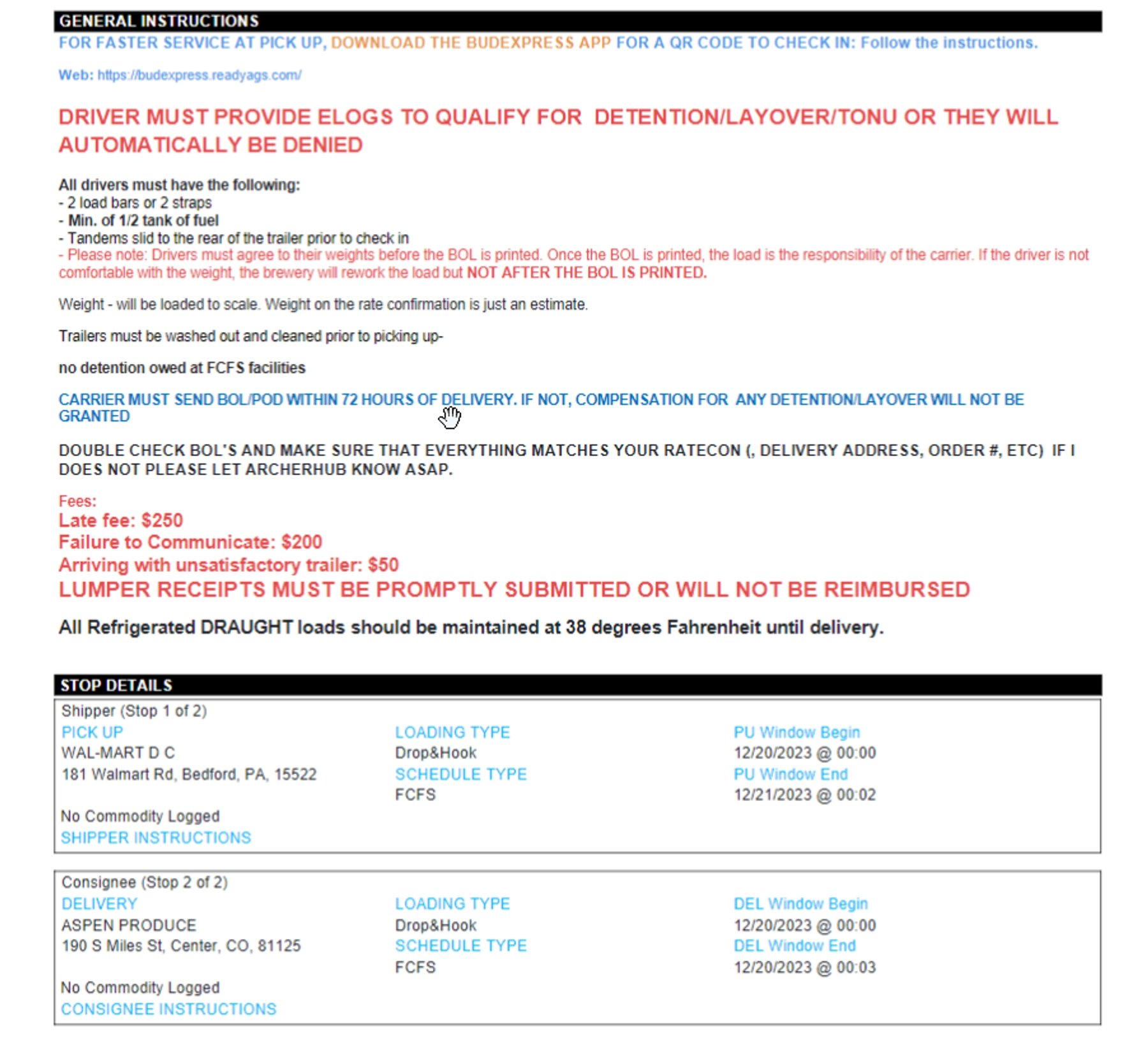
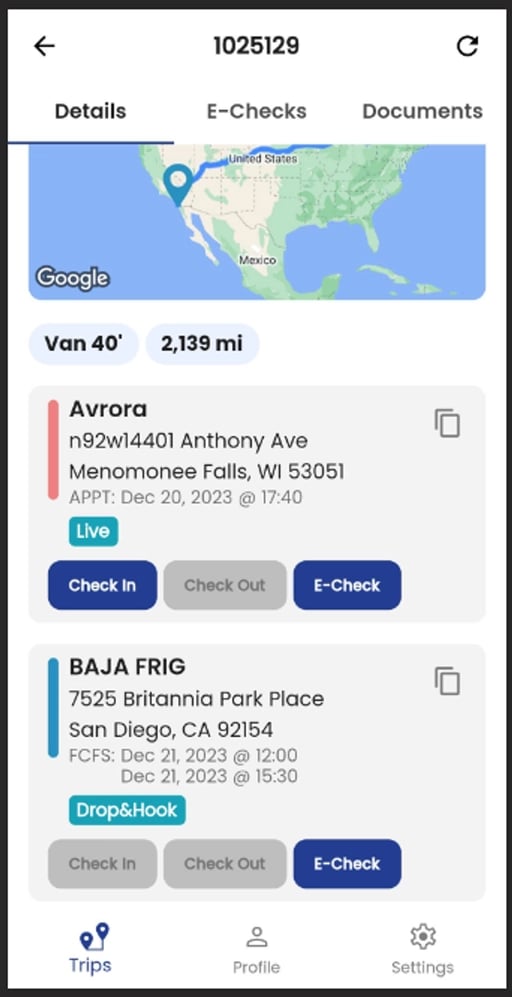
Schedule date and time details are included in the Rate Con, Load Manifest, Bill of Lading, and the driver's mobile app.
## Where to Find It
Stop scheduling and actual times are accessed in three places:
* **New load creation**: in step 4 (Order Details) of the new load form, each stop has a Schedule type field.
* **Existing load**: open a load, go to the Trips section, and open a stop to view or update its schedule type and actual times.
* **Company Profile**: go to **Management > Company Profile > Scheduling Info** to set the default schedule type that auto-fills on new stops.
## Key Concepts
**Schedule type** controls what date and time fields appear on a stop before the load is dispatched:
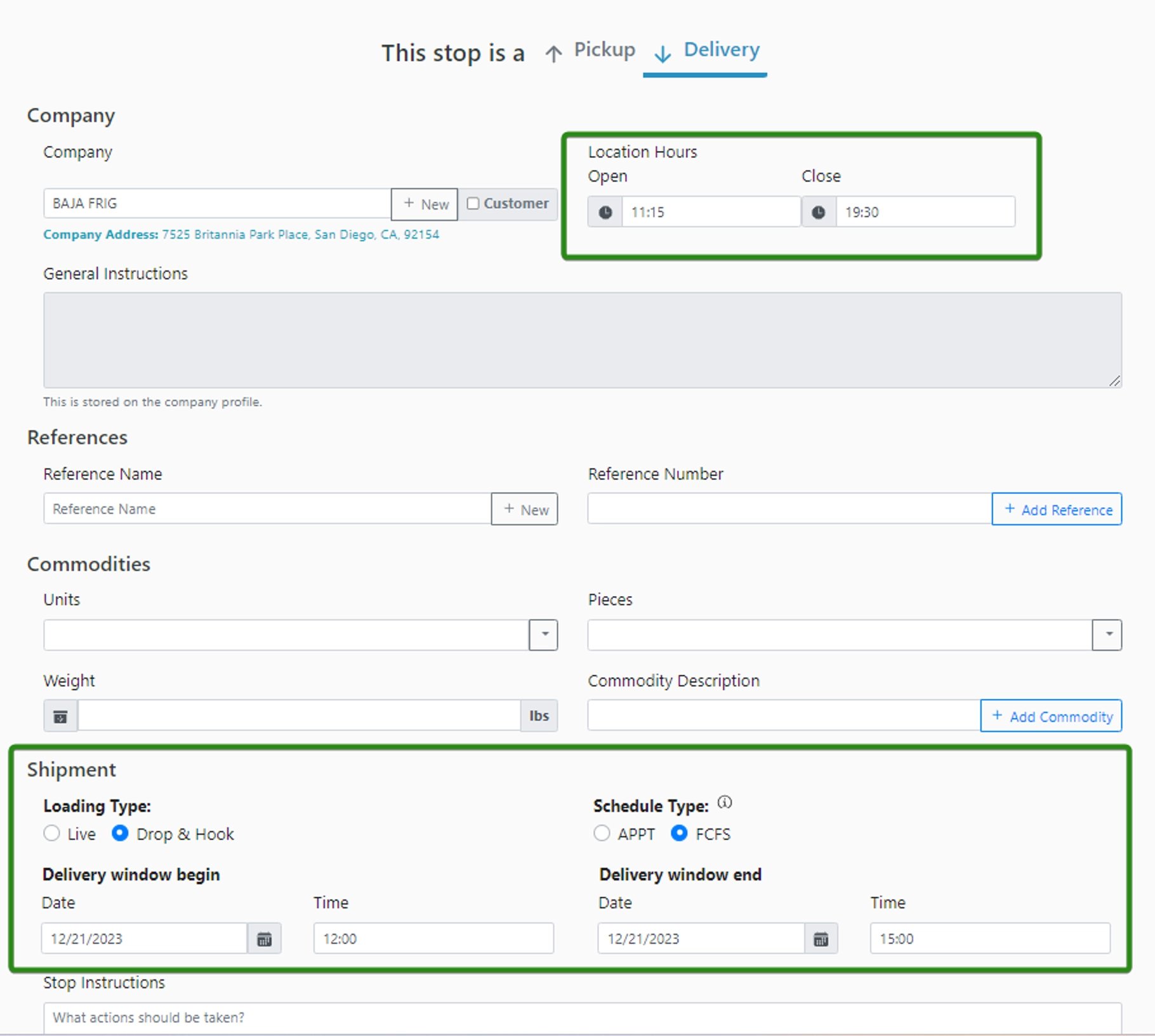
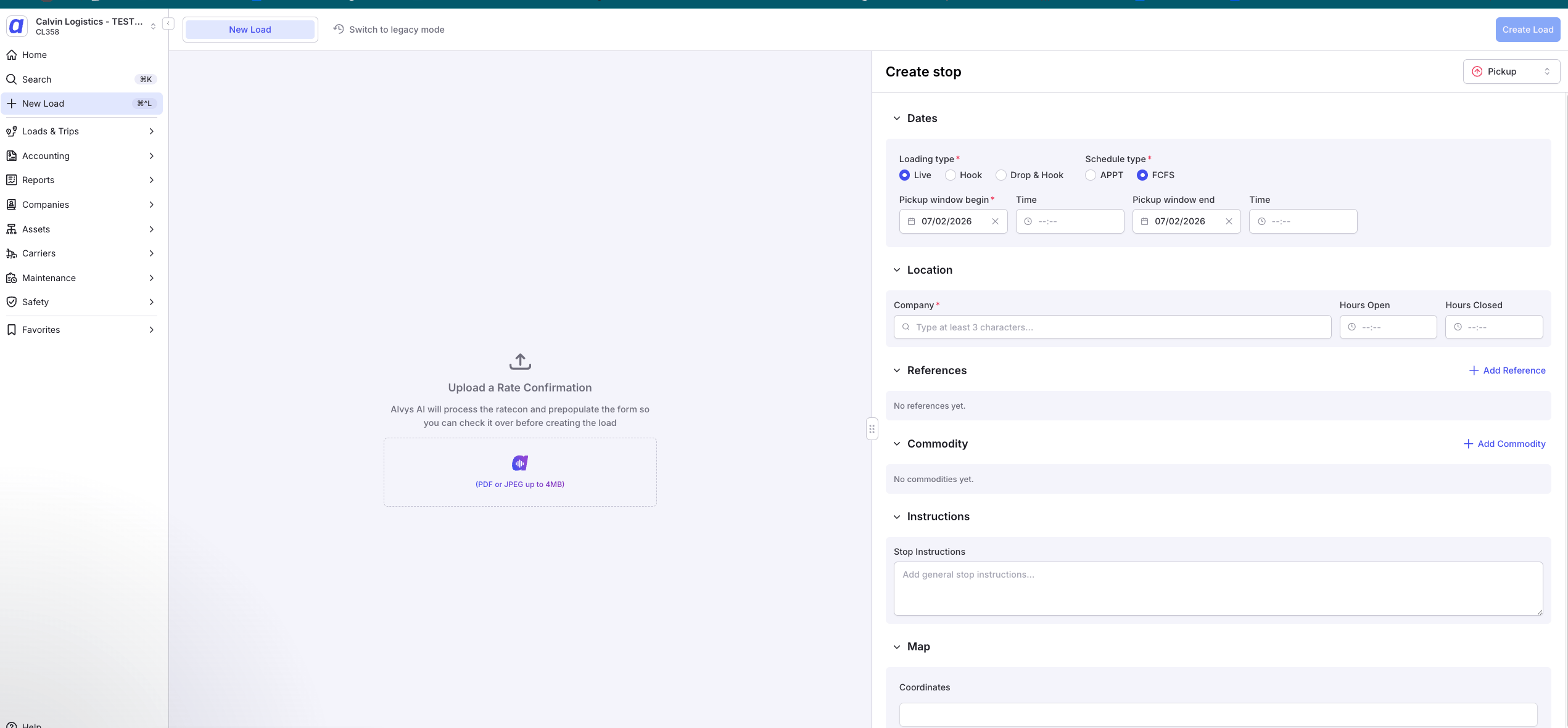
* **FCFS (First Come First Serve)**: requires a Begin Window time and an End Window time. Use this when the facility accepts drivers on a first-come, first-served basis within a time window.
📷 **Image:** FCFS schedule type selected in the new load creation form (Order Details step), displaying Begin Window and End Window time fields.
 📷 **Image:** Additional view of FCFS scheduling configuration in the new load creation form, showing the Begin Window and End Window fields filled in.
* **APPT (Appointment)**: requires a single Appointment Date and time. Use this when the facility requires a confirmed appointment.
📷 **Image:** Additional view of FCFS scheduling configuration in the new load creation form, showing the Begin Window and End Window fields filled in.
* **APPT (Appointment)**: requires a single Appointment Date and time. Use this when the facility requires a confirmed appointment.
 The default schedule type is set in Company Profile under Scheduling Info. Each stop can override the default manually.
📷 **Image:** Company Profile page, Scheduling Info section, where the default schedule type for new stops is configured.
The default schedule type is set in Company Profile under Scheduling Info. Each stop can override the default manually.
📷 **Image:** Company Profile page, Scheduling Info section, where the default schedule type for new stops is configured.
 **Arrived and Departed times** are the actual times recorded as the driver progresses through the stop. These fields only appear when the stop is in a relevant status (see Overview above).
## How to Use It
For step-by-step instructions on setting stop dates and times:
* Setting the schedule type on a new load: follow the steps in the New Load creation flow, step 4 (Order Details).
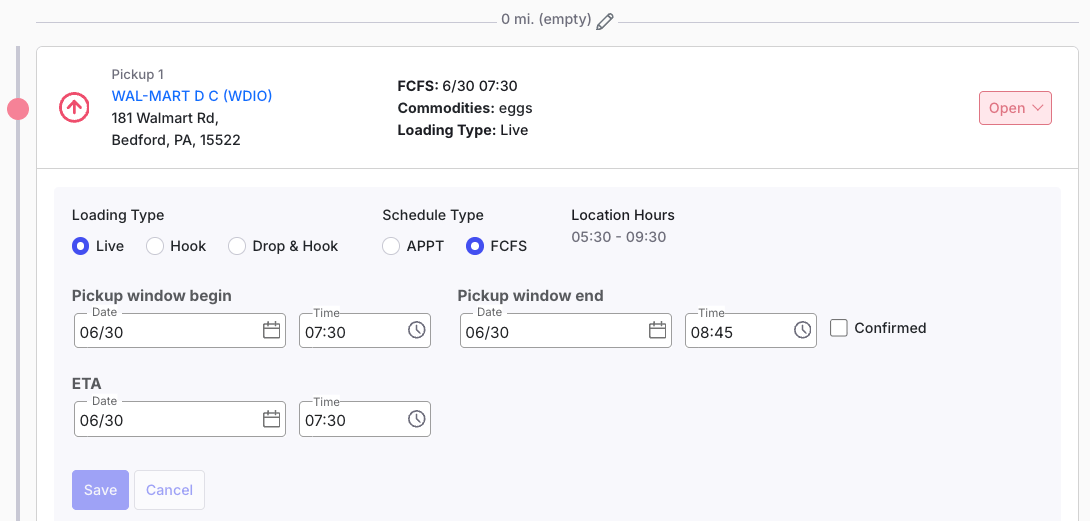
* Updating the schedule type on an existing load: open the load, navigate to the stop, and change the schedule type field. If you navigate away without completing the required fields, the system will show a confirmation prompt before reverting to the original schedule type.
📷 **Image:** Schedule type field on a stop within an existing load, showing the dropdown options for changing between FCFS and APPT.
**Arrived and Departed times** are the actual times recorded as the driver progresses through the stop. These fields only appear when the stop is in a relevant status (see Overview above).
## How to Use It
For step-by-step instructions on setting stop dates and times:
* Setting the schedule type on a new load: follow the steps in the New Load creation flow, step 4 (Order Details).
* Updating the schedule type on an existing load: open the load, navigate to the stop, and change the schedule type field. If you navigate away without completing the required fields, the system will show a confirmation prompt before reverting to the original schedule type.
📷 **Image:** Schedule type field on a stop within an existing load, showing the dropdown options for changing between FCFS and APPT.
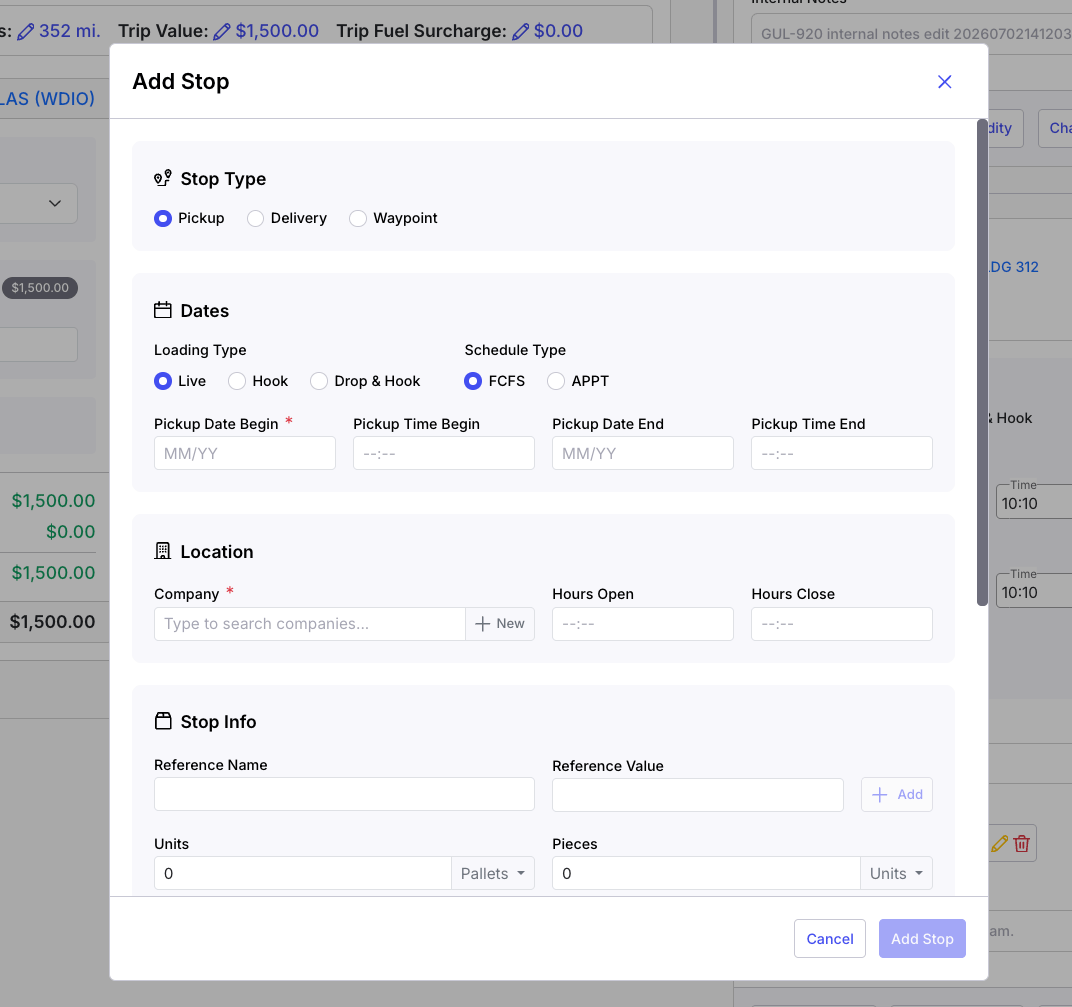
 * Adding a new stop or splitting a trip: when you add a stop or split a trip, select the schedule type for the new stop. The Company Profile default will auto-fill if no manual selection is made. For a split trip, enter the date and time for the stop that divides the trip.
📷 **Image:** Stop schedule type selector shown when adding a new stop or splitting a trip, with FCFS and APPT options available.
* Adding a new stop or splitting a trip: when you add a stop or split a trip, select the schedule type for the new stop. The Company Profile default will auto-fill if no manual selection is made. For a split trip, enter the date and time for the stop that divides the trip.
📷 **Image:** Stop schedule type selector shown when adding a new stop or splitting a trip, with FCFS and APPT options available.
 * Recording actual arrived and departed times: open the stop in an active trip and enter the times directly in the Arrived and Departed fields when they are visible based on stop status.
## Settings and Permissions
Recording and updating arrived and departed times on a stop requires the **"Dispatch"** permission.
The default schedule type for new stops is configured in **Management > Company Profile > Scheduling Info**. Changing this setting requires the Company Profile Manager role.
## Limits and Behavior
* The **Arrived** field is only shown when the stop status is **Arrived**, **Picked Up**, **Empty**, or **Departed** (waypoints only).
* The **Departed** field is only shown when the stop status is **Picked Up**, **Empty**, or **Departed** (waypoints only).
* If you change the schedule type on an existing stop but do not fill in the required fields (Begin/End Window for FCFS, or Appointment Date for APPT), the schedule type reverts to the previous value.
* If you navigate away from a stop after changing the schedule type without saving, a confirmation modal appears asking whether you want to keep the current (unsaved) schedule or discard your changes.
* Waypoint stops support only FCFS schedule type. Appointments cannot be set on waypoints.
* Stop date and time details are automatically included in the Rate Con, Load Manifest, Bill of Lading, and the driver's mobile app after they are saved.
📷 **Image:** Rate Con document displaying stop schedule date and time information in the pickup and delivery sections.
* Recording actual arrived and departed times: open the stop in an active trip and enter the times directly in the Arrived and Departed fields when they are visible based on stop status.
## Settings and Permissions
Recording and updating arrived and departed times on a stop requires the **"Dispatch"** permission.
The default schedule type for new stops is configured in **Management > Company Profile > Scheduling Info**. Changing this setting requires the Company Profile Manager role.
## Limits and Behavior
* The **Arrived** field is only shown when the stop status is **Arrived**, **Picked Up**, **Empty**, or **Departed** (waypoints only).
* The **Departed** field is only shown when the stop status is **Picked Up**, **Empty**, or **Departed** (waypoints only).
* If you change the schedule type on an existing stop but do not fill in the required fields (Begin/End Window for FCFS, or Appointment Date for APPT), the schedule type reverts to the previous value.
* If you navigate away from a stop after changing the schedule type without saving, a confirmation modal appears asking whether you want to keep the current (unsaved) schedule or discard your changes.
* Waypoint stops support only FCFS schedule type. Appointments cannot be set on waypoints.
* Stop date and time details are automatically included in the Rate Con, Load Manifest, Bill of Lading, and the driver's mobile app after they are saved.
📷 **Image:** Rate Con document displaying stop schedule date and time information in the pickup and delivery sections.
 📷 **Image:** Load Manifest document displaying stop date and time information for each stop on the trip.
 📷 **Image:** Bill of Lading document displaying stop date and time information.
 📷 **Image:** Driver mobile app screen displaying stop date and time information, showing the schedule for the driver's current trip.
 ## FAQs
**Q: Why don't I see Arrived or Departed fields on my stop?**
**A:** These fields only appear when the stop is in a status that makes them relevant. The Arrived field appears when the stop status is **Arrived**, **Picked Up**, **Empty**, or **Departed** (waypoints). The Departed field appears when the stop status is **Picked Up**, **Empty**, or **Departed** (waypoints). If the stop is in a different status, these fields are hidden until the status changes.
**Q: What is the difference between FCFS and APPT schedule types?**
**A:** FCFS (First Come First Serve) requires a Begin Window and End Window time, used when the facility accepts drivers during an open window. APPT (Appointment) requires a single confirmed Appointment Date and time. Select the type based on how the facility schedules pickups and deliveries.
**Q: Can I set a default schedule type so I don't have to choose it on every stop?**
**A:** Yes. Go to **Management > Company Profile > Scheduling Info** and set your preferred default. New stops will auto-fill with that schedule type. You can still override it on individual stops.
**Q: What happens if I change the schedule type but don't fill in the required fields?**
**A:** The schedule type will revert to its previous value. The system does not save a partial schedule type change without the required date and time fields completed.
**Q: Are stop times sent to the driver?**
**A:** Yes. Schedule dates and times are sent to the driver's mobile app and are also included in the Rate Con, Load Manifest, and Bill of Lading.
## Go Deeper
* [Stop Time Validations](/help/loads-trips/error-when-recording-arrival-or-departure-time-on-a-stop): Understand the validation rules that prevent arrived and departed times from being saved with conflicting or future timestamps.
## FAQs
**Q: Why don't I see Arrived or Departed fields on my stop?**
**A:** These fields only appear when the stop is in a status that makes them relevant. The Arrived field appears when the stop status is **Arrived**, **Picked Up**, **Empty**, or **Departed** (waypoints). The Departed field appears when the stop status is **Picked Up**, **Empty**, or **Departed** (waypoints). If the stop is in a different status, these fields are hidden until the status changes.
**Q: What is the difference between FCFS and APPT schedule types?**
**A:** FCFS (First Come First Serve) requires a Begin Window and End Window time, used when the facility accepts drivers during an open window. APPT (Appointment) requires a single confirmed Appointment Date and time. Select the type based on how the facility schedules pickups and deliveries.
**Q: Can I set a default schedule type so I don't have to choose it on every stop?**
**A:** Yes. Go to **Management > Company Profile > Scheduling Info** and set your preferred default. New stops will auto-fill with that schedule type. You can still override it on individual stops.
**Q: What happens if I change the schedule type but don't fill in the required fields?**
**A:** The schedule type will revert to its previous value. The system does not save a partial schedule type change without the required date and time fields completed.
**Q: Are stop times sent to the driver?**
**A:** Yes. Schedule dates and times are sent to the driver's mobile app and are also included in the Rate Con, Load Manifest, and Bill of Lading.
## Go Deeper
* [Stop Time Validations](/help/loads-trips/error-when-recording-arrival-or-departure-time-on-a-stop): Understand the validation rules that prevent arrived and departed times from being saved with conflicting or future timestamps.