> ## Documentation Index
> Fetch the complete documentation index at: https://docs.alvys.com/llms.txt
> Use this file to discover all available pages before exploring further.
# Tenders
> Manage new, change, and cancellation tenders on the Alvys Tenders Board, accepting or rejecting via EDI and reviewing load changes in one screen.
## Overview
Learn how to efficiently manage and respond to **new**, **change**, and **cancellation** tenders using the Alvys Tenders Board. Accept or reject tenders, view detailed load changes, and communicate with shippers via EDI—all from one screen.
## Accepting or Rejecting New Tenders
Manage incoming **Original** tenders directly from the **Tenders** board.
### Accept a New Tender
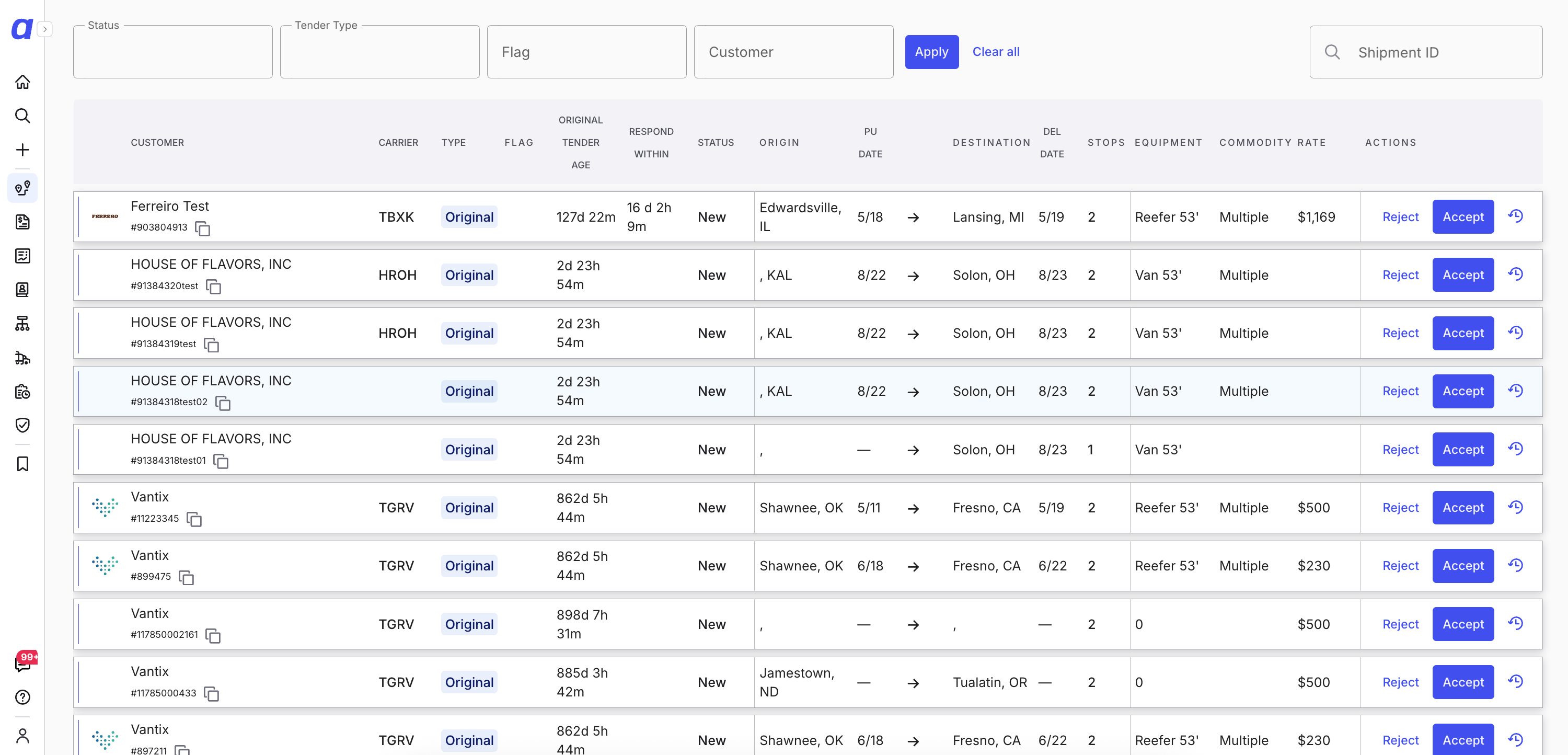 On the Tenders Board, find a tender with type **Original** and status **New**. Click \*\*Accept \*\*and select the companies and fleet in the modal that appears:
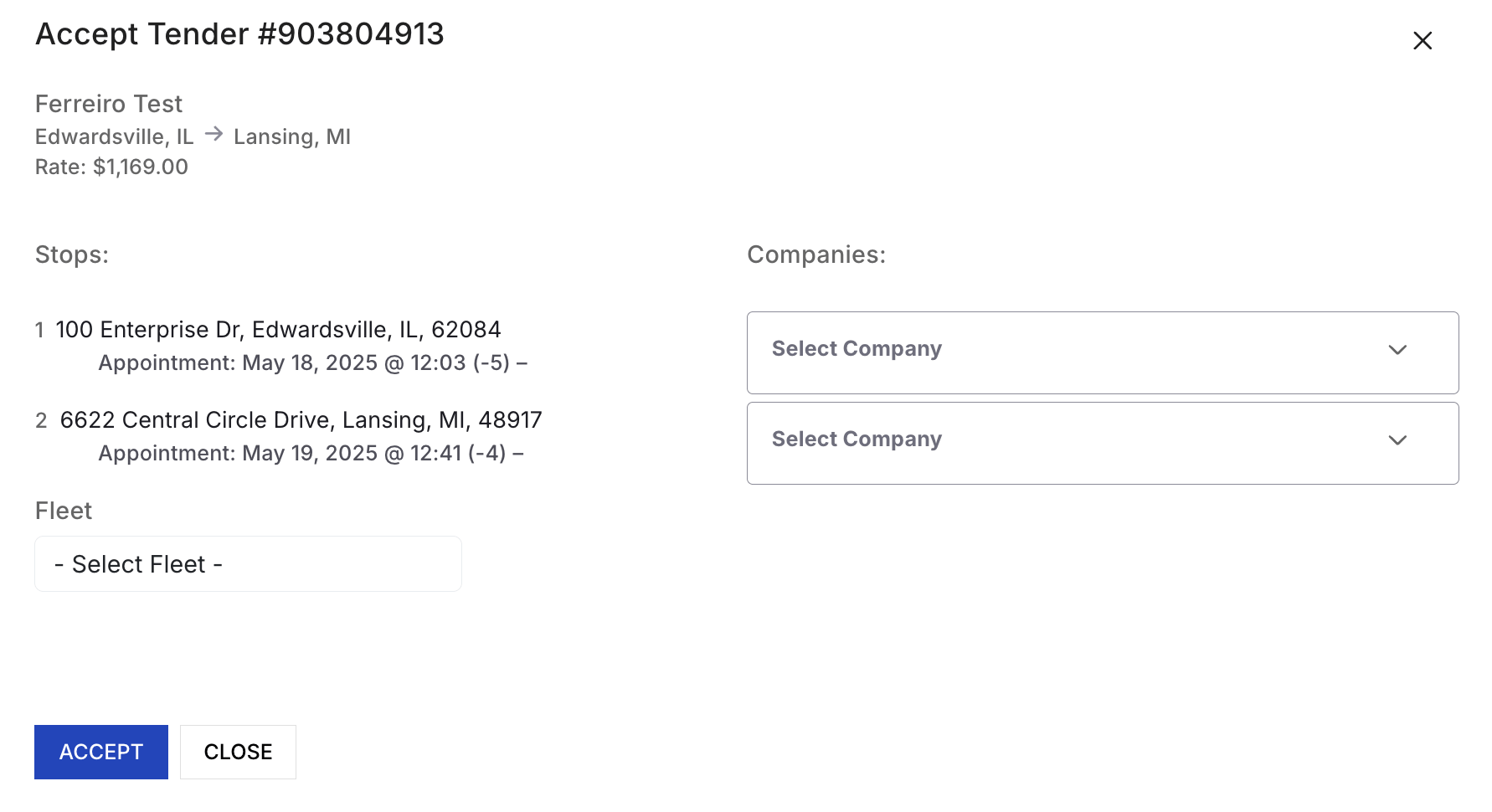 Click **Accept** again to finalize, which will create a load automatically and notify the shipper via EDI.
### Reject a New Tender
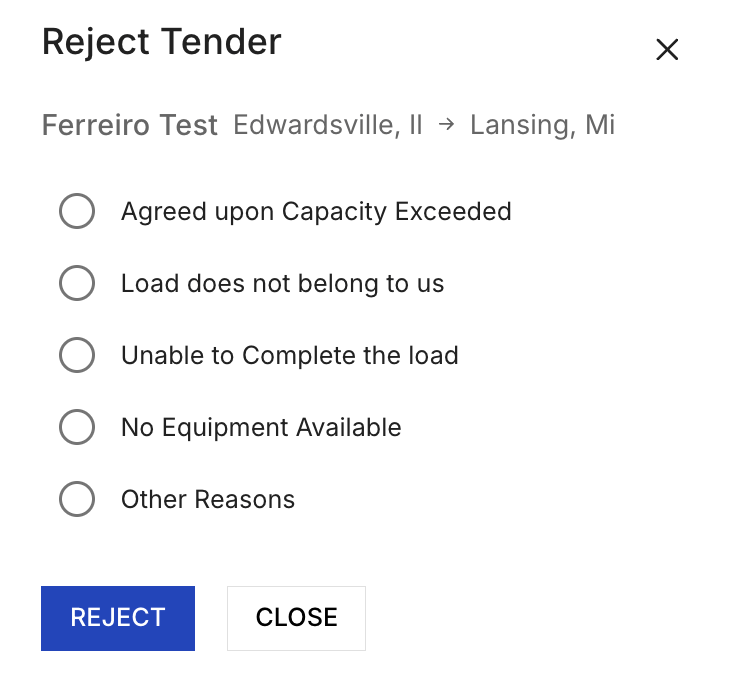
On the Tenders Board, click the **Reject** link on the tender row that you’d like to reject. In the modal that appears choose a rejection reason and click Reject to confirm and send the rejection and reason to the shipper via EDI.
Click **Accept** again to finalize, which will create a load automatically and notify the shipper via EDI.
### Reject a New Tender
On the Tenders Board, click the **Reject** link on the tender row that you’d like to reject. In the modal that appears choose a rejection reason and click Reject to confirm and send the rejection and reason to the shipper via EDI.
 ## Handling Change Tenders
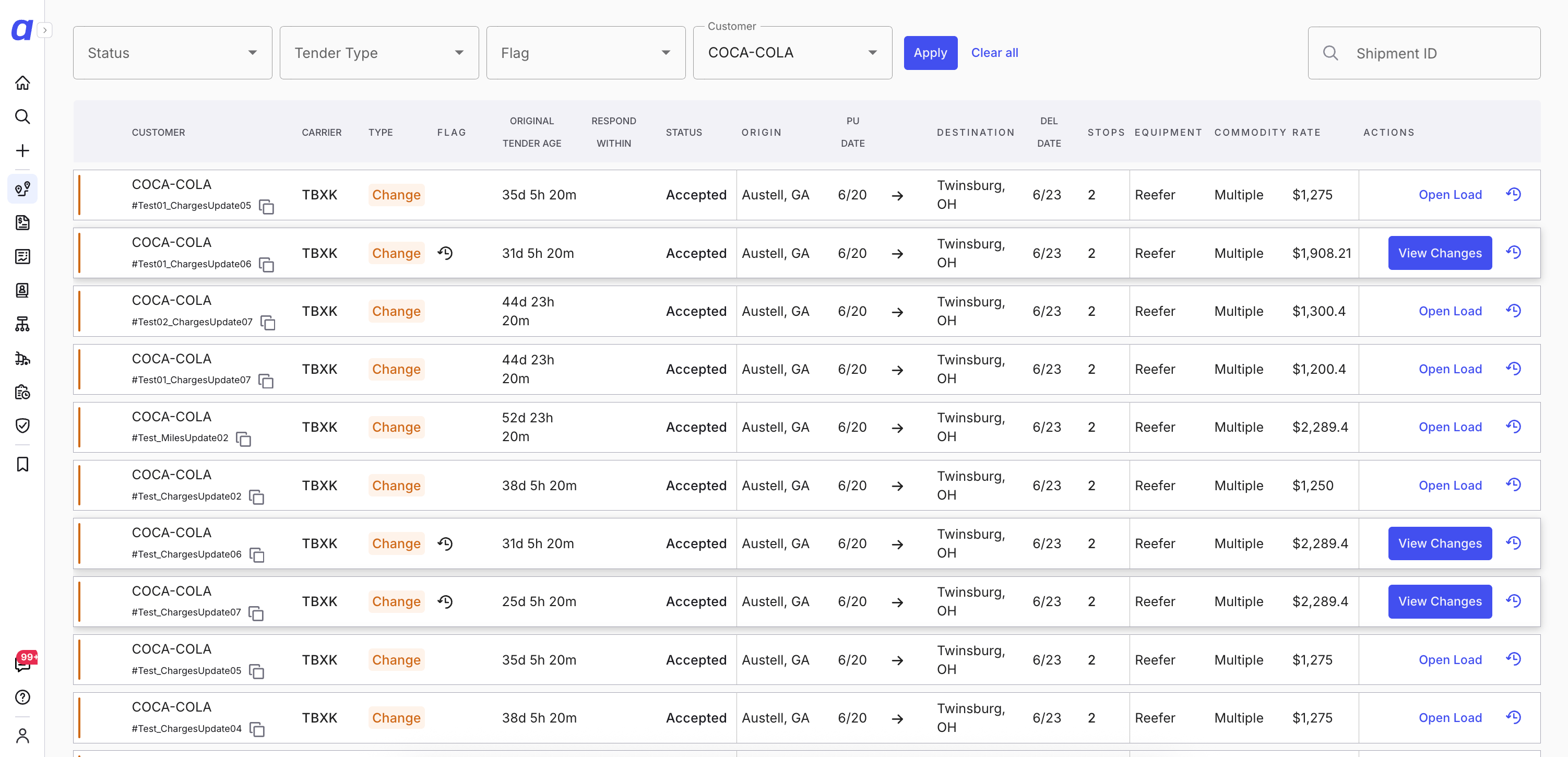
Change tenders appear on the Tenders Board with an **orange “Change”** label.
### Review and Act on a Change Tender
When a tender of type Change arrives you’ll need to review the changes and decide whether to accept it. To begin, click **View Changes** in the **Actions** column.
## Handling Change Tenders
Change tenders appear on the Tenders Board with an **orange “Change”** label.
### Review and Act on a Change Tender
When a tender of type Change arrives you’ll need to review the changes and decide whether to accept it. To begin, click **View Changes** in the **Actions** column.
 A new browser tab will open the **Load Details** page with a sidebar open showing the **Tender Update** where you can review the specifics:
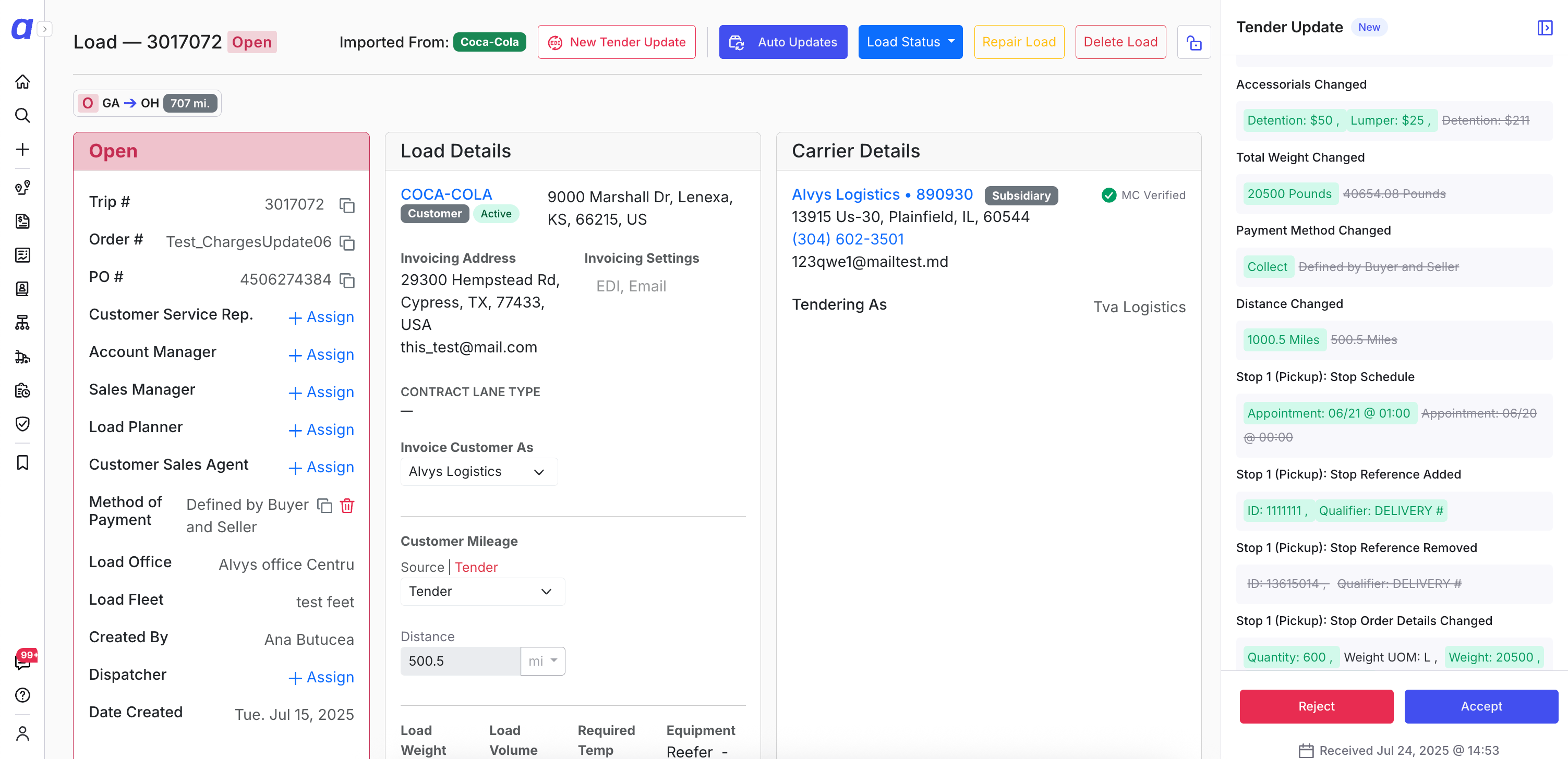 Choose an action:
* **Accept** – approve the update.
* **Reject Tender Only** – reject the update, keep the original load.
* **Reject and Cancel Load** – reject the update and cancel the load (EDI notification is sent).
If you clicked **Accept**, decide how to apply changes:
* Check **Apply all changes to the load** to apply everything at once, or
* Leave it unchecked to apply changes individually.
(Optional) Apply items one by one in the **Tender Update** panel:
* Click **Apply** to update the load with that change.
* Click **Skip** to ignore it.
Choose an action:
* **Accept** – approve the update.
* **Reject Tender Only** – reject the update, keep the original load.
* **Reject and Cancel Load** – reject the update and cancel the load (EDI notification is sent).
If you clicked **Accept**, decide how to apply changes:
* Check **Apply all changes to the load** to apply everything at once, or
* Leave it unchecked to apply changes individually.
(Optional) Apply items one by one in the **Tender Update** panel:
* Click **Apply** to update the load with that change.
* Click **Skip** to ignore it.
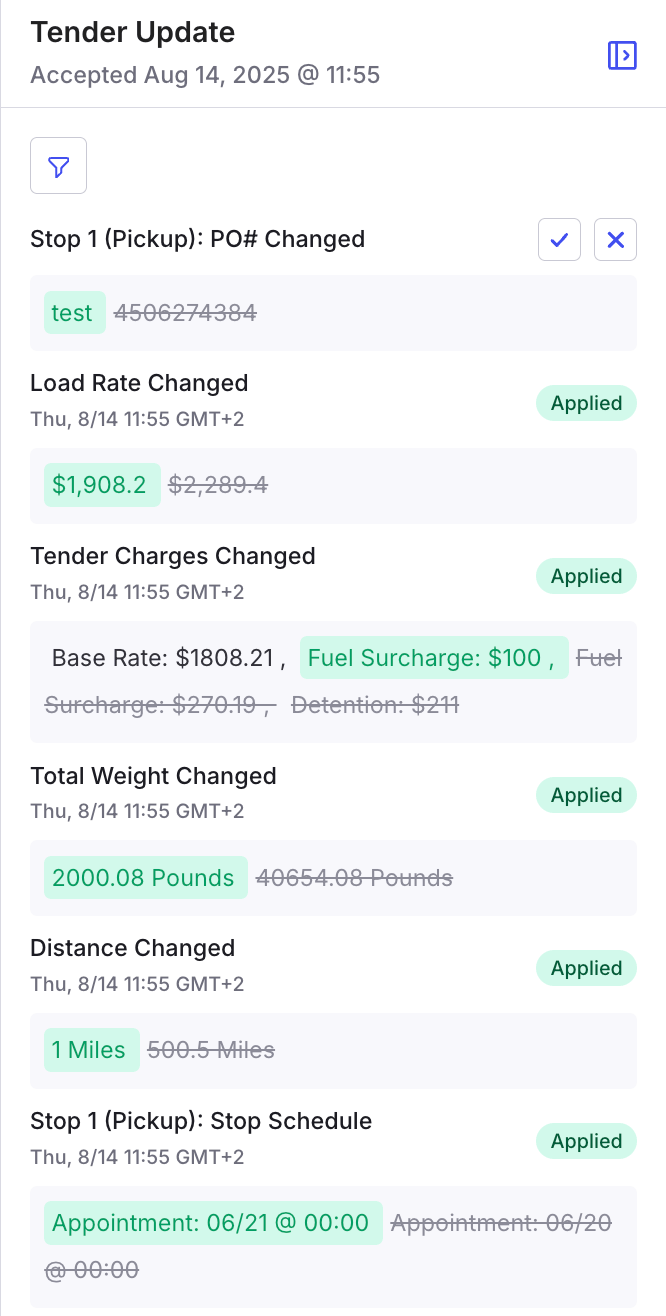 When an applied change triggers the addition of a stop, you’ll be asked to confirm or assign the appropriate Company:
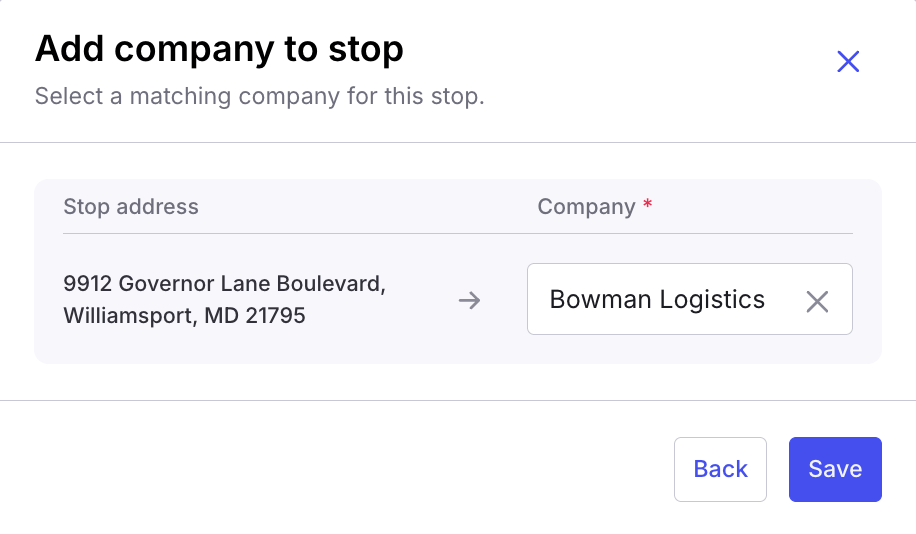 Your selection is recorded and communicated via EDI where applicable; the load is updated according to the changes you applied.
⚠️ Once a change is applied, it cannot be undone (you can still edit the load manually afterward).
## Handling Cancellation Tenders
Cancellation tenders notify you that the shipper wishes to cancel the shipment.
### Cancel a Load from a Cancellation Tender
#### Steps
1. Click **View Changes** on the tender.
2. Review the **Tender Update** panel indicating the cancellation.
3. Click **Cancel Load** (red button) to confirm.
#### Outcome
The load is canceled.
ℹ️ If you believe the cancellation is incorrect, simply close the panel; the load remains active.
## Filtering and Finding Tenders
Quickly locate specific tenders using filters at the top of the Tenders Board.
### Use Filters
#### Steps
1. Set filters such as **Status**, **Type**, **Flag**, or **Customer**.
2. Scroll to load additional results as needed.
#### Outcome
The list reflects only tenders matching your criteria.
Customer names appear only when matching tenders are visible.
## Viewing Tender Details and EDI History
Dive deeper into tender specifics and message flows.
### View Tender Details
#### Steps
1. Click any tender row to expand details.
2. Review fields like **Equipment Type**, **Stops**, **Notes**, **Weight**, **Temperature**, and **Miles**.
#### Outcome
You see current load/tender specifics without leaving the board.
### View EDI Transaction History
#### Steps
1. Click the **round arrow icon** at the far right of the tender row.
2. Review inbound/outbound EDI messages.
3. Click the **download icon** to save any file locally.
#### Outcome
You have a complete audit trail of EDI communications.
## FAQs
#### Do change tenders create a new row?
No. The existing tender row is updated and its type changes to **Change**.
#### What happens if I reject a change tender?
You’ll be prompted for a reason. You can either keep the original load active or cancel the load entirely.
#### Can I undo changes after applying them?
No. Applied changes are permanent, though you can still edit the load manually afterward.
Your selection is recorded and communicated via EDI where applicable; the load is updated according to the changes you applied.
⚠️ Once a change is applied, it cannot be undone (you can still edit the load manually afterward).
## Handling Cancellation Tenders
Cancellation tenders notify you that the shipper wishes to cancel the shipment.
### Cancel a Load from a Cancellation Tender
#### Steps
1. Click **View Changes** on the tender.
2. Review the **Tender Update** panel indicating the cancellation.
3. Click **Cancel Load** (red button) to confirm.
#### Outcome
The load is canceled.
ℹ️ If you believe the cancellation is incorrect, simply close the panel; the load remains active.
## Filtering and Finding Tenders
Quickly locate specific tenders using filters at the top of the Tenders Board.
### Use Filters
#### Steps
1. Set filters such as **Status**, **Type**, **Flag**, or **Customer**.
2. Scroll to load additional results as needed.
#### Outcome
The list reflects only tenders matching your criteria.
Customer names appear only when matching tenders are visible.
## Viewing Tender Details and EDI History
Dive deeper into tender specifics and message flows.
### View Tender Details
#### Steps
1. Click any tender row to expand details.
2. Review fields like **Equipment Type**, **Stops**, **Notes**, **Weight**, **Temperature**, and **Miles**.
#### Outcome
You see current load/tender specifics without leaving the board.
### View EDI Transaction History
#### Steps
1. Click the **round arrow icon** at the far right of the tender row.
2. Review inbound/outbound EDI messages.
3. Click the **download icon** to save any file locally.
#### Outcome
You have a complete audit trail of EDI communications.
## FAQs
#### Do change tenders create a new row?
No. The existing tender row is updated and its type changes to **Change**.
#### What happens if I reject a change tender?
You’ll be prompted for a reason. You can either keep the original load active or cancel the load entirely.
#### Can I undo changes after applying them?
No. Applied changes are permanent, though you can still edit the load manually afterward.