
Webhooks are configured from Settings → Connections → Webhooks.
Each webhook belongs to a specific Subsidiary. When you switch subsidiaries in the UI, you are viewing and managing webhooks for that Subsidiary only. Events are delivered only within that Subsidiary’s context.
Webhook Availability Notice
Webhooks are currently available by request.
To enable this functionality for your account, please contact your Customer Success Manager or Implementation Manager.
Creating a Webhook
-
Navigate to Settings → Webhooks
-
Select a Subsidiary
-
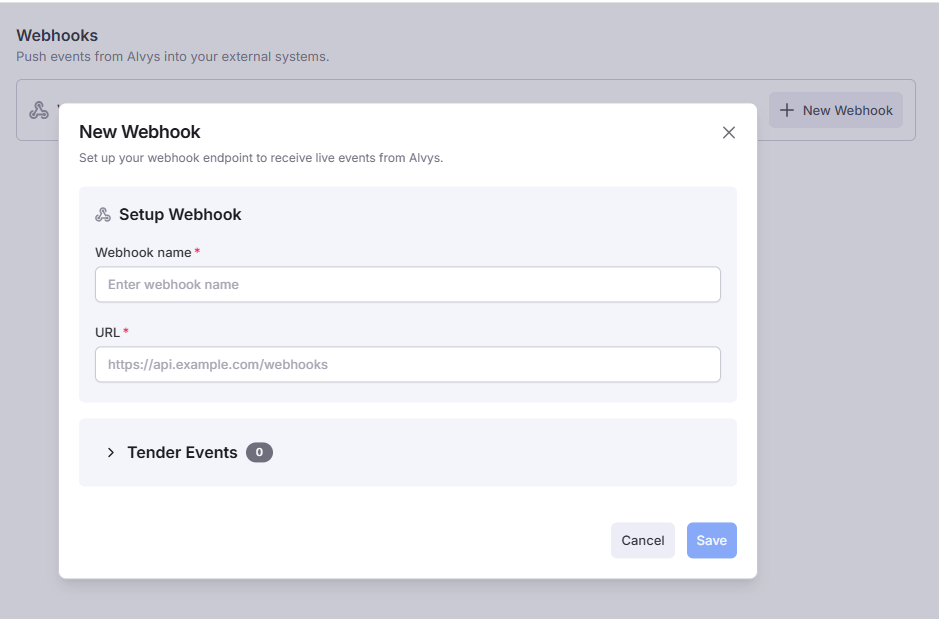
Click Create Webhook
-
Provide:
- Name
- Endpoint URL (HTTPS required)
- At least one subscribed event
The endpoint must be publicly accessible over HTTPS and support TLS 1.2 or higher.
After saving:
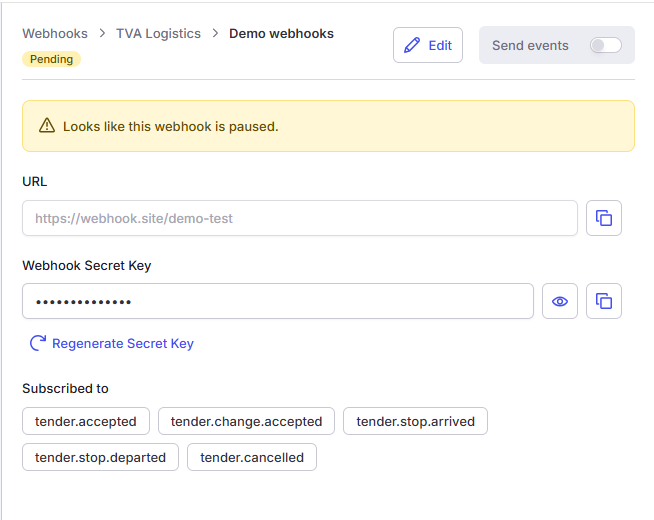
- A signing secret is generated.
- The webhook is created in a Pending state.
- No events are delivered until the webhook is enabled and verified.
Enabling a Webhook
Webhooks are activated using the Send Events toggle.
When enabled, Alvys verifies ownership of your endpoint before delivering business events.
Endpoint Verification
When activation is triggered, Alvys sends an HTTPS POST request to your configured endpoint.
Request
POST https://your-endpoint.com/webhookHeaders:
Content-Type: application/json; charset=utf-8
User-Agent: Alvys-Webhook/1.0
X-Alvys-Event: webhook.verification
X-Alvys-Challenge: {random_token}
traceparent: {w3c-trace-id}
Body:
{
  "type": "webhook.verification",
  "challenge": "{random_token}"
}
Verification requests are not signed.
Required Response
Your endpoint must respond within 3 seconds:
Status:
200 OKBody:
{
  "challenge": "{the_same_random_token}"
}
Requirements:
- The response must be valid JSON.
- The property name must be exactly
challenge. - The value must match exactly (case-sensitive).
- Do not wrap the response.
- Do not return plain text.
If verification succeeds:
- The webhook status changes to Active
- The UI status indicator turns green and displays Connected
- Business events begin to be delivered to the endpoint
If verification fails:
- The webhook remains Disabled
- The UI displays a failed verification state
- No events are delivered
Webhook States
A webhook may be in one of the following states:
- Disabled — Not delivering events
- Pending — Pending Verification in progress
- Connected — Verified and delivering events
- Failed to verify — Verification attempt failed
Updating a Webhook
Changing the Endpoint URL
If the endpoint URL is updated:
- The webhook is automatically set to Pending
- Verification is required again
- No events are delivered until verification succeeds
Updating Subscribed Events
Changes to event selection:
-
Take effect immediately
-
Do not require verification
Include Previous Values
On load.changed and trip.changed events, Alvys can include the previous value of every changed field via data.diff.previousAttributes, so your integration can apply just the delta instead of re-syncing the whole record.
This is opt-in per webhook:
- Enable the Include previous values option on the webhook (or set
IncludePreviousAttributestotruevia the API — see Creating a Webhook). - Defaults to off. When off,
load.changed/trip.changedevents still includedata.diff.changes(what changed) but not the previous values. - Changes take effect immediately and do not require re-verification.
See Change Diffs (data.diff) for the full payload shape.
Rotating the Signing Secret
You can regenerate a webhook’s signing secret from the Webhook details page using the Regenerate Secret Key option.
When the secret is regenerated:
- A new signing secret is created.
- The webhook remains Active.
- Event delivery continues without interruption.
- Endpoint re-verification is not required.
During the rotation window, each delivery includes two signatures:
X-Alvys-Signature: t={timestamp},v1={new_signature},v0={previous_signature}Where:
v1is generated using the new secret.v0is generated using the previous secret.- Your endpoint should accept either signature during this transition period.
After the rotation window ends, only the v1 signature is included in deliveries.
If your integration validates webhook signatures, ensure it supports dual-signature verification during secret rotation.
Manual Disable
Disabling a webhook:
- Immediately stops event delivery
- Preserves configuration
- Allows re-enablement at any time