
Every Alvys user is assigned exactly one role that defines their default permissions, determines what they can see and do, and establishes their level of authority. Alvys roles are arranged in a strict hierarchy.
Overview
Every user who logs into Alvys is assigned exactly one role (sometimes called a user type or access profile). A role is a predefined profile that determines a user’s default set of permissions, including what they can see, what actions they can take, and which other users they can manage. Roles are the foundation of access control in Alvys and establish each user’s baseline permissions at the time of account creation. Roles can be further customized on a per-user basis after the account is created. A role’s position in the hierarchy reflects its level of authority and determines which users a given user is permitted to manage.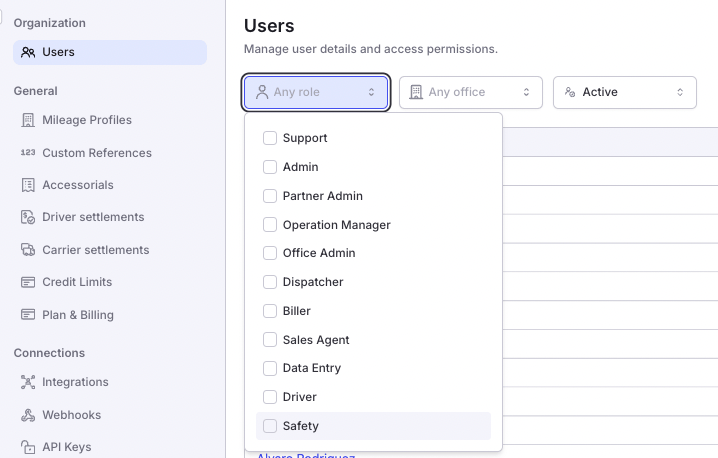
Where to Find It
User roles are managed from Settings → Organization → Users. Navigate there from the Settings menu. Each user row displays the role currently assigned to that account. When creating or editing a user, the role is selected from a dropdown list in the user form.Key Concepts
Roles and Permissions: How They Work Together
A role and a permission are two different things. A role is a named profile, such as Dispatcher or Biller, assigned to a user when their account is created. Each role comes with a default set of permissions that reflect the typical responsibilities of that job. A permission is a specific capability, such as “Generate Invoice” or “View Customer Rate”, that controls a user’s access to a particular action or piece of data. Think of it this way: a role is a job title, and permissions are the keys on that person’s keychain. The role determines which keys they start with. Users with the “Set Permission” permission can then add or remove individual keys without changing the person’s role.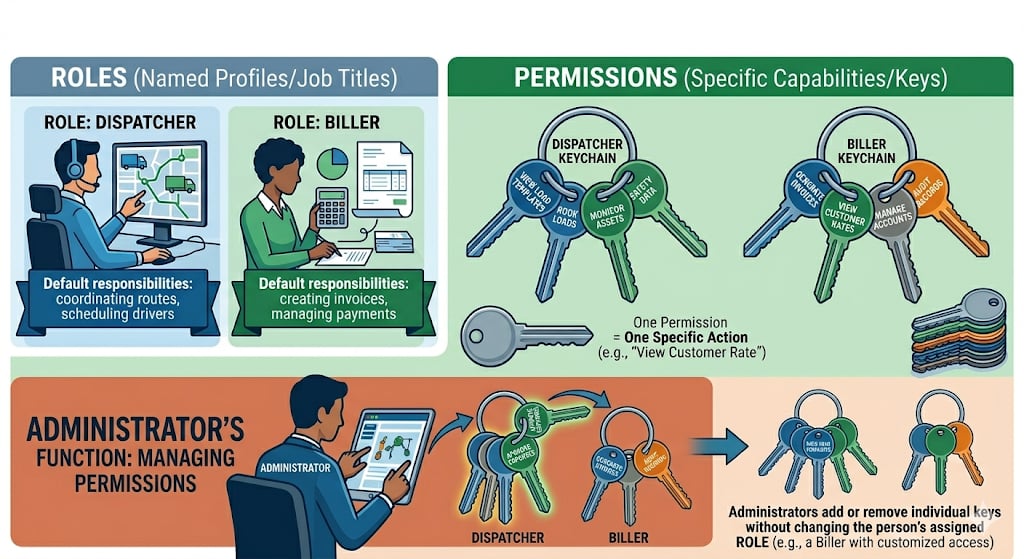
Hierarchy
A role’s position in the hierarchy controls who that user can manage — not how much access the role has. Higher-level roles generally have broader default permissions, but not always. Partner Admin is the highest tenant role. It is the owner role seeded when a company is created, and it ranks above Admin. Other roles are built around specific job functions and include specialized permissions regardless of where they sit. A user’s hierarchy position governs their management reach: users can only manage or modify the permissions of users who sit below them in the hierarchy. For example, a Dispatcher cannot modify an Office Admin’s account settings or permissions, and an Admin cannot act on a Partner Admin. The same ranking decides who can grant or remove another user’s company access and who can reset another user’s MFA.How to Use It
For step-by-step instructions on assigning roles when creating or editing a user account, see How to Add and Manage Users in Alvys.Settings & Permissions
Partner Admin
The Partner Admin is the top tenant role. It is created with the company and is typically held by the owner of the company or a general manager. Partner Admin users receive full permissions and rank above every other role in the company, including Admin. A Partner Admin can grant the Admin role, and only Alvys Support can remove a Partner Admin’s company access or reset a Partner Admin’s MFA.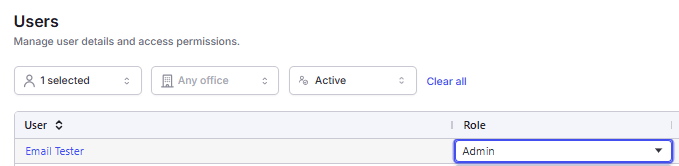
Admin
The Admin role is the broad administrative role for company users, directly below Partner Admin. This role is intended for directors of operations and administrators who need near-complete system access. Admins are responsible for managing the full user lifecycle, including creating, editing, and deactivating users, as well as configuring carriers, customers, and companies. They have the authority to manage load operations end-to-end, access financial reports, configure pay plans, and control team-wide settings and integrations. An Admin cannot act on a Partner Admin, because that role outranks them.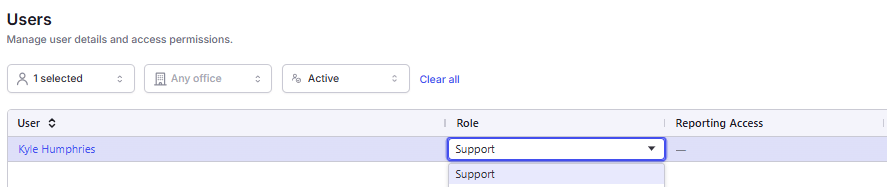
💡 Best practice: Reserve the Admin role for the fewest people necessary, ideally the company owner and one backup manager. Use the Office Admin or Operation Manager role for day-to-day supervisory work.
Operation Manager
The Operation Manager role is designed for middle management and senior operations staff who oversee dispatchers, loads, carriers, and customers. It is positioned between Admin and Office Admin in the hierarchy. This role is the appropriate choice for trusted supervisors such as operations managers, fleet managers, and terminal managers whose primary responsibilities include overseeing daily dispatch and load operations, managing carriers and customers, reviewing financial summaries and reports, and monitoring driver and asset activity.Office Admin
The Office Admin role is designed for users who coordinate and manage general office procedures and policies. This role’s default permissions focus on managing user accounts, companies, assets (trucks, trailers, drivers), load templates, and marketplace access. Office managers, administrative managers, or back-office coordinators are the intended users for this role.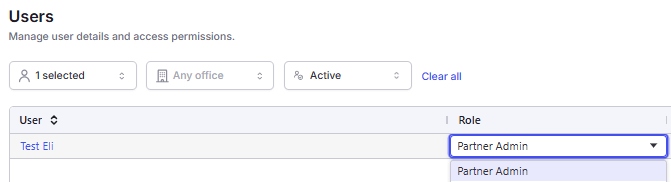
- Maintain carrier and customer records
- Manage rates (customer and carrier)
- Add new users and adjust permissions for lower-level staff
- Work with load templates
- Monitor asset, driver, and safety data
- Access the marketplace to view, book, and bid on loads
Dispatcher
Dispatcher is the primary load management role. Dispatchers are the operational backbone of freight operations; they create and manage loads, assign carriers and drivers, and coordinate pickups and deliveries. This role is intended for freight dispatchers, load planners, load coordinators, and driver managers.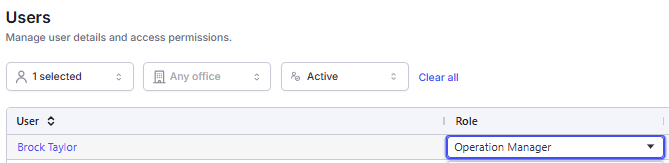
- Create, assign, and track loads
- Book carriers and manage carrier relationships
- Manage customers and companies
- Override stop statuses when needed
- Use load templates for repeating lanes
- Access the load marketplace
- Monitor drivers, trucks, and trailers
- View accident, claim, and roadside inspection records
Biller
The Biller role is designed for users who handle invoicing, settlements, carrier payments, and financial reporting. Billers have the broadest set of financial permissions among non-admin roles. This role is intended for billing clerks, accounts receivable specialists, accounts payable clerks, payroll specialists, and transportation accountants.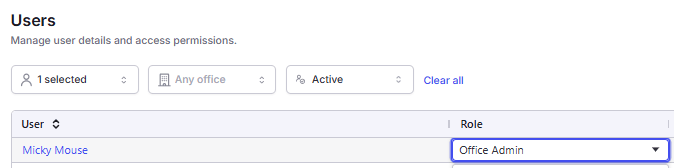
- Generate and manage customer invoices
- Process driver and owner-operator payments
- Manage pay stubs and pay plans
- Approve payable items
- Create and manage carrier statements
- Run financial reports (summary, detailed, statement list, statement items, and driver year-to-date)
- Roll back, void, and override transactions when corrections are needed
- Export financial data
Sales Agent
The Sales Agent role is designed for users who manage customer and carrier relationships, negotiate rates, and support load booking. Sales Agents have a permission set similar to Dispatchers, with full visibility into customer and carrier rates. This role is intended for sales agents, freight brokers, logistics sales representatives, account executives, and business development representatives.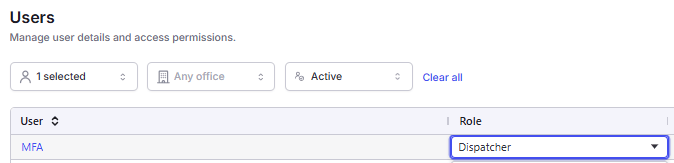
- Create and manage loads for their accounts
- Book carriers and manage carrier relationships
- Create and manage customers and companies
- Work with load templates for repeating business
- View and edit driver rates
Data Entry
The Data Entry role is designed for users who create loads, enter shipment data, and handle tender intake. This role has a targeted permission set centered on load creation and basic operations. This role is intended for data entry clerks, administrative assistants, load builders, and EDI coordinators. Data Entry is the only non-admin role that includes “Participate In Tender” by default, reflecting its use in processing incoming EDI tenders from trading partners.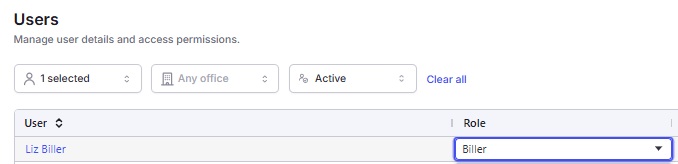
- Enter and maintain carrier, customer, and company records
- Build loads using templates
- Set up and maintain rate records
- Create and participate in tenders
Safety
The Safety role is designed for compliance and safety personnel who monitor fleet safety, manage assets, and review safety reports. This is a specialized, narrow-access role. This role is intended for safety managers, DOT compliance officers, fleet safety coordinators, and risk and compliance specialists.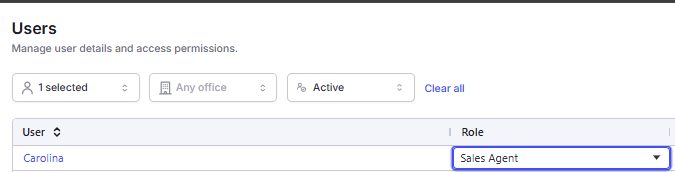
- Monitor vehicle maintenance records
- Review accident and claims records
- Track roadside inspection results
- Generate safety and fuel/toll reports
- Maintain driver and asset records from a compliance perspective
Driver
The Driver role is for company drivers, owner-operators, contractors, and other personnel who use the Alvys Mobile App. This role provides access to the mobile app and carries no desktop permissions. By default, the Driver role has an empty permission set. Each driver’s permissions should be configured explicitly based on their specific responsibilities. For information on mobile app permissions, see App Permissions.
💡 Create drivers in the Driver List by entering essential details such as name, address, and mobile phone number. The mobile phone number serves as the unique identifier linking the driver to the Alvys Mobile App. After successful SMS verification, the system automatically creates a user account with the Driver role under Settings → Organization → Users.
- View and update schedules
- Log trips and manage their driving records
- Update stop statuses on the road via the mobile app
- Submit documents (BOLs, PODs) through the mobile app
- Access pay stubs through the mobile app (if enabled)
Limits & Behavior
Role Hierarchy Summary
Partner Admin sits at the top of the hierarchy, with Admin directly below it; together they provide company-level administrative control. Below those are the operationally focused roles: Operation Manager, Office Admin, Dispatcher, Biller, Sales Agent, and Data Entry. The Safety role provides specialized access for compliance and asset management. The Driver role carries no default permissions and must be explicitly configured. Position in the hierarchy governs management reach only. It does not indicate how many permissions a role receives by default. A user’s position in the hierarchy governs their management reach: users can only manage or modify the permissions of users who sit below them in the hierarchy. For example, a Dispatcher cannot modify an Office Admin’s permissions, and an Admin cannot modify a Partner Admin’s.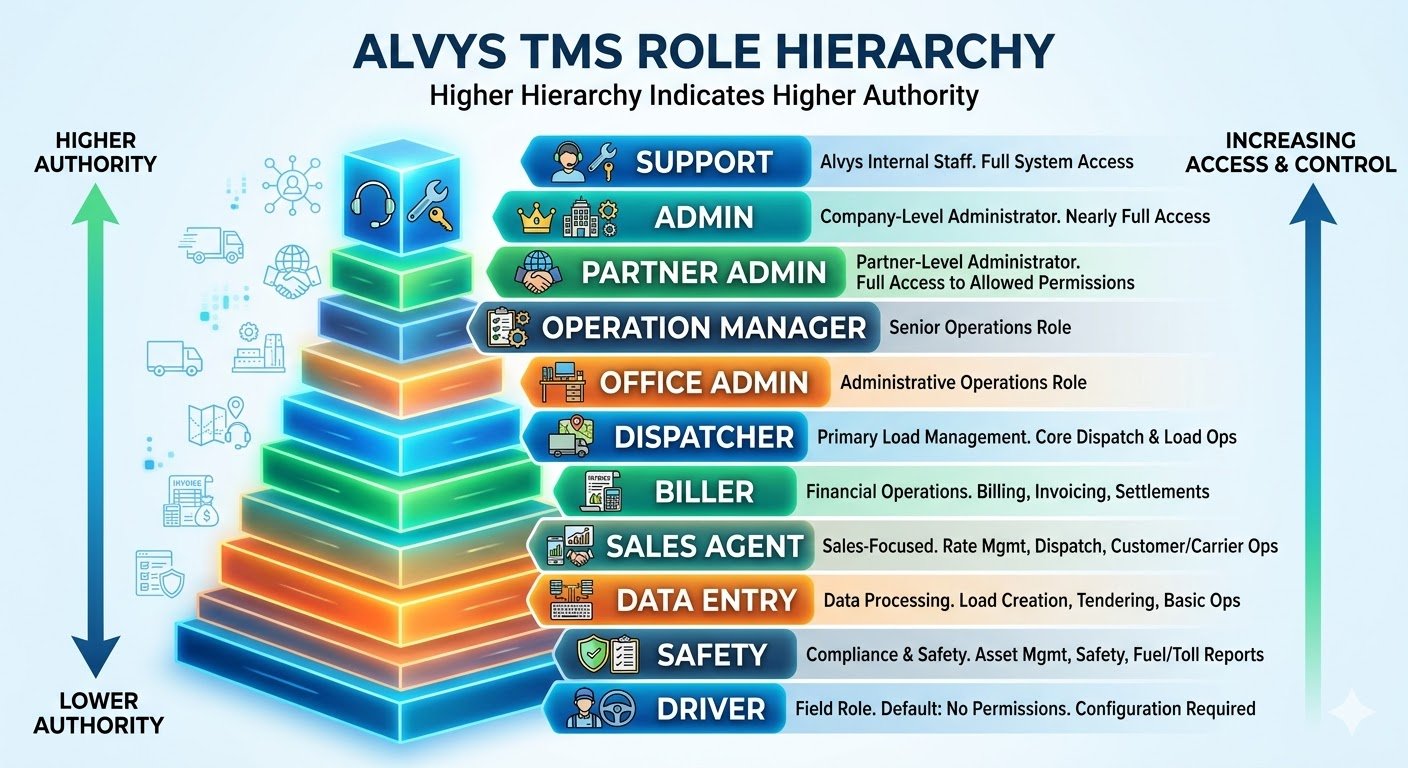
Role Changes Reset Permissions
Changing a user’s role resets all of their permissions to the new role’s defaults. Because a role change can reduce access, it also signs the user out. They will need to sign back in, and their permissions will reflect the new role’s defaults.What Permissions Don’t Control
Not every access limitation in Alvys is controlled by the permissions panel. Some behaviors are determined by role configuration or feature settings rather than individual permission toggles. Common examples include tab and menu visibility for specific roles, the ability for users to edit their own assignment preferences, required fields on carrier onboarding packets, TONU and load-level rate rules, and office-level load sharing.Multi-Factor Authentication (MFA)
MFA setup is managed by each user individually. Admins and Partner Admins can reset MFA for any user they outrank from Settings → Organization → Users — this clears all enrolled authenticators and prompts the user to re-enroll at next sign-in.FAQs
Q: What is the difference between a role and a permission? A: A role is a predefined profile (such as Dispatcher) assigned to a user at account creation that provides a starting set of default permissions and establishes their place in the hierarchy. A permission is an individual toggle for a specific action, such as “Edit Miles” or “View Customer Rate”. Q: Which role ranks highest? A: Partner Admin. It is the owner role seeded when a company is created, and it ranks above Admin. A Partner Admin can grant the Admin role, and an Admin cannot add, remove, or otherwise act on a Partner Admin’s access. Q: Can a user be assigned more than one role at a time? A: Each user profile is assigned exactly one role in a given company. A user who holds a profile in more than one of your companies can hold a different role in each. If a user performs tasks that span multiple roles in the same company, assign the role closest to their primary function and then manually enable the specific permissions they need. Q: What happens to a user’s customized permissions if I change their role? A: Changing a user’s role resets all their permissions to the new role’s defaults. Any previously added or removed permissions are overwritten, so any custom access must be reconfigured after the role change is saved. Changing a role also signs the user out; they sign back in with the new role’s access. Q: Why does the Admin role not have Delete or Contracted Lanes permissions by default? A: The Admin role does not include the Delete permissions or the Contracted Lanes permissions in its default set. An Admin can enable any of them, for themselves or for another user, from Settings → Organization → Users. Note that the Partner Admin role does include these by default — a role’s position in the hierarchy does not determine how many permissions it starts with. Q: What is the primary difference between an Office Admin and an Operation Manager? A: The Office Admin role centers on administrative tasks such as adding new users and managing equipment assets. The Operation Manager role is a supervisory role focused on high-level operational oversight such as reviewing financial summaries and monitoring fleet-wide driver activity. Q: What does the hierarchy position control? A: The hierarchy position determines a user’s organizational authority. A user can only manage or modify the permissions of users who sit at a lower hierarchy level than themselves. It also decides who can grant or remove another user’s company access and who can reset another user’s MFA. For example, a Dispatcher cannot modify the account of an Office Admin. Q: Can a user with the Safety role see load and rate information? A: No. The Safety role is limited to compliance, maintenance, and inspection data. It is designed to allow safety officers to perform their duties without exposing commercial or financial information. Q: If a user needs to do both dispatching and billing, which role should I choose? A: Choose the role that represents their primary responsibility. If they need broad financial access, assign Biller and then enable the “Dispatch” permission toggle so they can also manage loads. Q: Can an Admin reset MFA for another user? A: Yes, for any user they outrank. An Admin or Partner Admin can open the user in Settings → Organization → Users and click Reset MFA. This clears the user’s enrolled authenticators; they will be prompted to set up MFA again at next sign-in. Neither an Admin nor another Partner Admin can reset a Partner Admin’s MFA — those requests must go through Alvys Support.Go Deeper
- How to Add and Manage Users in Alvys
- App Permissions
- Overview of User Permissions
- User Permissions Glossary
- User Roles & Permissions Collection
Next Steps
⏭️ Proceed to How to Add and Manage Users in Alvys to understand how to add new users, edit user profiles, assign roles and permissions, and manage user access in Alvys. This includes guidance on keeping user records accurate and ensuring each team member has the appropriate level of access for their responsibilities.