
Accessorials (also called accessorial charges or add-on fees) are extra charges added to a load beyond the base linehaul rate, such as detention, lumper fees, or fuel surcharges. Admins create accessorial types in Settings; users with the correct permission add them to individual loads in the Money Box.
Overview
Accessorials (also called accessorial charges or add-on fees) are line-item charges applied to loads to capture costs or revenue beyond the standard freight rate. Common types include detention, fuel surcharge, layover, lumper fees, and TONU (Truck Order Not Used; charged when a carrier is dispatched but the load is cancelled without delivery) charges. Creating an accessorial type in Settings makes it available to select on any load. Adding it to a load records the charge against that load’s financials. An accessorial type created in Settings > Accessorials only defines the type, the allowed rate types, and some usage rules. It does not dictate who is charged or how much. Each time you add an accessorial charge to a load, you choose independently which party it applies to (Customer, Carrier, Driver, or Owner Operator) and the amount for that charge. The same type can be a $50 customer charge on one load and a $75 driver charge on another.Before You Start
Creating accessorial types requires Admin or Partner Admin role access. Adding accessorials to loads requires the “Add Accessorials” permission on the user profile.Steps
-
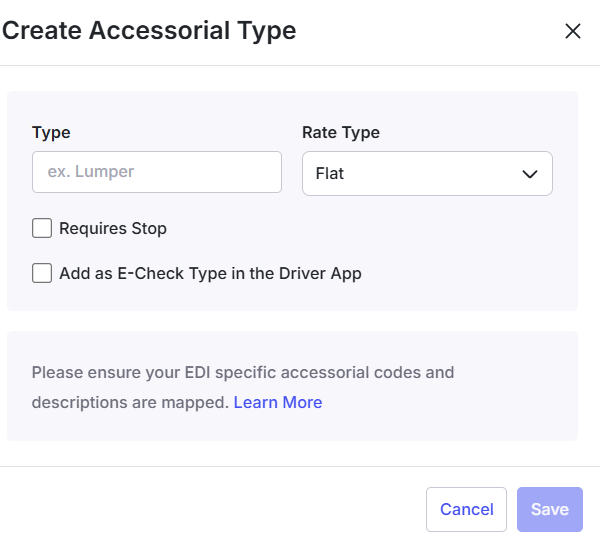
Create an accessorial type (Admins only). Navigate to Settings > Accessorials. Click the Create Accessorial Type button. Enter a type/name, choose which rate types are allowed, whether a stop is required, and whether it should also be available in the Driver App as an E-Check type, then save.

- Open the load. Navigate to Loads and Trips and open the load to which you want to add a charge.
- Open the Money Box. On the load details page, scroll to the Money Box section and expand it.
-
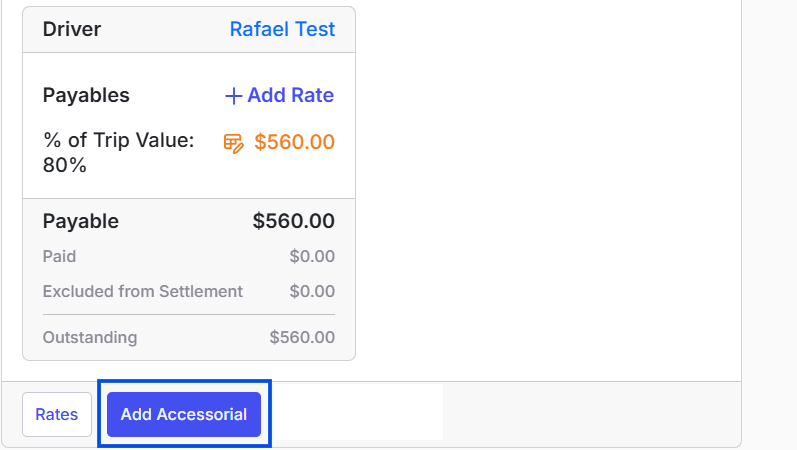
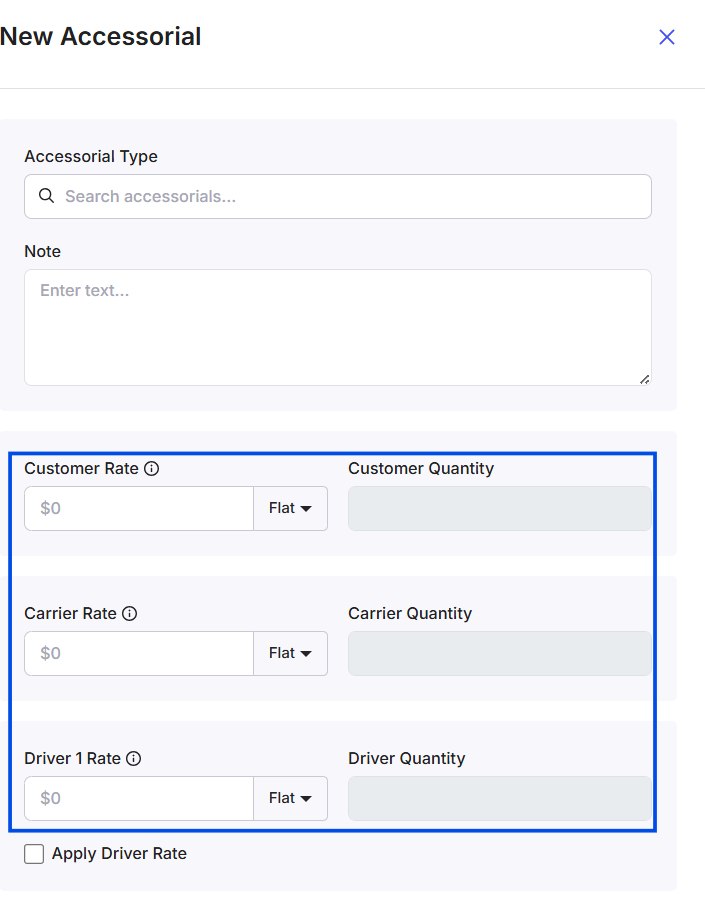
Add the accessorial. Click the Add Accessorial button in the Money Box. Select the accessorial type from the list. Choose which entity/party the charge applies to (Customer, Carrier, Driver, or Owner Operator) and enter the amount for that party. To split one charge across two parties (for example, billing the customer and deducting from the driver for the same event), check both and enter each amount independently; they are not linked. Enter any notes, then save.
- Confirm the charge appears. The accessorial appears as a line item in the Money Box. Verify the amount and type are correct before invoicing.
Result
The accessorial charge is recorded on the load. Where it flows depends on the party you selected when you added it: Customer-side charges flow into the customer-facing invoice, and Driver or Owner Operator charges flow into the corresponding pay settlement.Variations
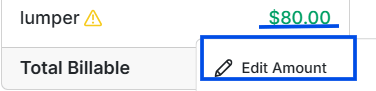
Editing an accessorial type (Settings): In Settings > Accessorials, you can change which rate types are allowed, whether a stop is required, and the Driver App E-Check flag on an existing type. The type’s name cannot be changed once created, and there is no default amount stored on the type to edit. Every load’s accessorial amount is entered independently, so nothing you change here affects charges already recorded on existing loads.
Troubleshooting
Add Accessorial button is not visible in the Money Box
- Verify the “Add Accessorials” permission is enabled on your user profile. If it is not, contact your administrator to have it added.
-
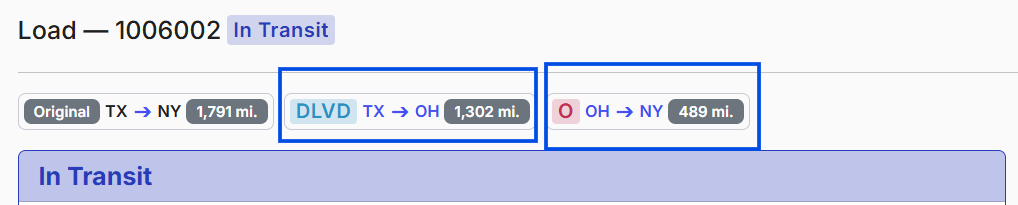
If the load has been split into multiple trips, the Add Accessorial button is intentionally hidden on the original/parent trip. Add the charge from the individual split trip instead.
An accessorial type is not in the list
- Confirm the accessorial type has been created in Settings > Accessorials. An Admin or Partner Admin must add it before it is available to select on loads.
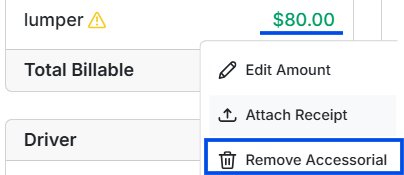
Accessorial cannot be removed from the load
- The accessorial has already been included in a processed driver pay statement or a sent invoice. Contact your accounting team if the charge needs to be corrected after processing.
A manually added accessorial disappeared after a lane contract change
- Alvys keeps manually added customer accessorials when you apply, change, or remove a customer lane contract, and removes only the lines that came from the previous contract template. If a line was added before that behavior shipped, it may still be recorded as contract-owned and cleared with the template. Re-add the charge; new manual lines persist through later contract changes.
I need to change which entity (Customer/Carrier/Driver/Owner Operator) an accessorial type applies to, and there is no option for it
- There isn’t one, and that is expected: an accessorial type never stores a party/side at all. Which entity/party a charge applies to is chosen fresh every time you add it to a load (see Step 4, “Add the accessorial”, above), not on the type. If a charge was added to the wrong entity, remove it and re-add it with the correct party selected. There is no “edit the type’s side” path because there is no side stored on the type to begin with.
An accessorial I added isn’t showing up on a driver’s statement
- If the driver’s statement has already been processed, a newly added or changed accessorial will not automatically appear on it. Reopen the trip from draft, or revert the processed statement, to trigger a recompute that includes the new charge.
”Input data is invalid” when adding an accessorial
- This usually means the party you selected does not match the trip’s Brokerage/Carrier designation. For example, a Carrier charge on a non-brokerage trip, or a Driver/Owner Operator charge on a brokerage trip. Check the party you selected against the trip type, or correct the trip’s brokerage/carrier designation if it is wrong.
An unexpected charge appears in the customer Money Box after issuing an e-check
- Issuing an e-check automatically creates a matching customer-side charge so it can be invoiced. If you do not intend to bill the customer for it, remove it manually from the customer Money Box. There is currently no setting to suppress this automatic charge.
FAQs
Q: Can I set a default amount for an accessorial type? A: No. Accessorial types (Settings > Accessorials) do not store an amount. Every accessorial’s amount is entered independently each time it is added to a load, so there is nothing to default. Q: Do accessorials appear on the customer invoice automatically? A: Accessorials added on the Customer side are included in the invoice when the load is invoiced. The side is chosen on the charge itself when you add it to the load, not on the accessorial type. Q: Will my manually added accessorials survive a lane contract change? A: Yes. Applying, changing, or removing a customer lane contract clears only the accessorial lines that came from the previous contract template. Manually added customer accessorials stay on the load, and a manual line and a template line of the same charge type are both kept. Q: Who can create accessorial types? A: Admins and Partner Admins can create and manage types in Settings > Accessorials. Operations Managers and Billers can add accessorials to loads using the “Add Accessorials” permission. Q: Can I deduct an amount from an owner-operator’s or driver’s pay using an accessorial? A: Yes. Add the charge as a Driver or Owner Operator accessorial and enter a negative amount. It will reduce that settlement by the amount entered. Q: How can I see who added, changed, or removed an accessorial on a load? A: Open the load and click Logs. Every accessorial action is logged individually, showing the accessorial type, the amount, who performed the action, and when. Q: Can I pay a driver a percentage of an accessorial charge instead of a flat amount? A: Yes. Set a percentage on the driver’s profile under Accessorial Rate (configured per accessorial type), then check Apply Driver Rate when adding that accessorial to a load. This has to be set on each driver individually; there is currently no way to apply it across a group or your whole fleet at once. Accessorial payouts are also handled separately from a driver’s general ”% of Trip Value” pay rule, so this per-accessorial rate is the only way to make an accessorial payout proportional rather than a flat number. Q: If I add an accessorial to a load, does it automatically show up on a paired driver’s or owner-operator’s settlement too? A: No. Line-haul pay (like % of Trip Value, per-mile, or per-trip) automatically splits between a driver and their paired owner-operator, but accessorials do not work that way. A charge only lands on the settlement of whichever party you picked when you added it (see Step 4, “Add the accessorial”, above). If you need the same charge reflected on someone else’s settlement too, you have to add it there yourself, or handle it as a manual deduction. Q: Why doesn’t “Freight Amount” change when I add an accessorial? A: That is expected. Freight Amount shows Line Haul + Fuel Surcharge only and never includes accessorials. Total Billable, shown separately in the Money Box, does include any Customer-side accessorials and updates as soon as you add one. If you are trying to confirm an accessorial was added correctly, check Total Billable (or the accessorial line item itself), not Freight Amount. Q: I paid for something out of pocket on behalf of a driver (like a lumper). Should I add it as an accessorial, or use a deduction/reimbursement? A: If the expense is already an accessorial-type charge on the load (a lumper fee, detention, and so on), add it as a Driver or Owner Operator accessorial (see Step 4, “Add the accessorial”, above). That keeps it tied to the load, so it shows up correctly in the accessorial breakdown and any related reports. Use the Deduction/Reimbursement option for amounts that are not an accessorial charge on a specific load, such as general reimbursements and miscellaneous deductions. Do not run the same expense through both, or it will get counted twice. Q: Why don’t fuel surcharge (FSC) or stop-off charges show up in the Carrier Rate or Carrier Payable? A: It comes down to whether carrier accessorials are even available on that load:- Brokered loads (you are paying an outside carrier): carrier accessorials are available. Add one for FSC, a stop-off, or anything else to the carrier, and it automatically rolls into the Carrier Payable total right alongside the linehaul rate.
- Carrier-managed loads (your own carrier or subsidiary is hauling it, not a brokered relationship): carrier accessorials are not available at all. The Add Accessorial screen will not even list “Carrier” as an option; only Customer, Driver, and Owner Operator.