
Overview
The Pay Drivers module allows users with the “PayDriver” permission to process driver payments directly from within Alvys. It includes a global Statement Date field that applies across all drivers, a Cutoff Date that filters eligible items by delivery date, and support for Per Diem Credits and Per Day Rates. These features give you precise control over what gets paid, at what rate, and when.Where to Find It
Go to Accounting > Driver Settlements to access the Pay Drivers module.Key Concepts
Statement Date
The Statement Date field appears in the top left corner of the Pay Drivers module. The date entered here serves as the statement date for all drivers in that payment run. You can override the Statement Date for a specific driver by entering a date directly on that driver’s row, without changing the global Statement Date for the rest of the run.Cutoff Date
The Cutoff Date filters which items appear for payment. Only items with a delivery date on or before the Cutoff Date are included. For trips marked as TONU (truck order not used, truck ordered not used), the system uses the TONU date rather than the delivery date. The Cutoff Date works in combination with your other active filter settings.Default Selection
Once a Cutoff Date is set, all eligible items are selected by default. You can deselect individual items before processing if needed.Per Diem Credits
Per Diem Credits allow you to pay drivers a per-mile credit toward travel expenses rather than a standard wage. This is configured at the driver rate level on the driver profile.Per Day Rates
Per Day Rates provide fixed daily compensation for drivers. Days paid using a Per Day Rate appear in the Time category on the driver statement.How to Use It
Setting Per Diem Rates
- Open the driver’s profile from Drivers and scroll to the Rates section.
- Click Add Rate and select Per Diem as the rate type.
- Choose Per Total Miles as the mileage basis, enter the per-mile rate amount, and click Save.
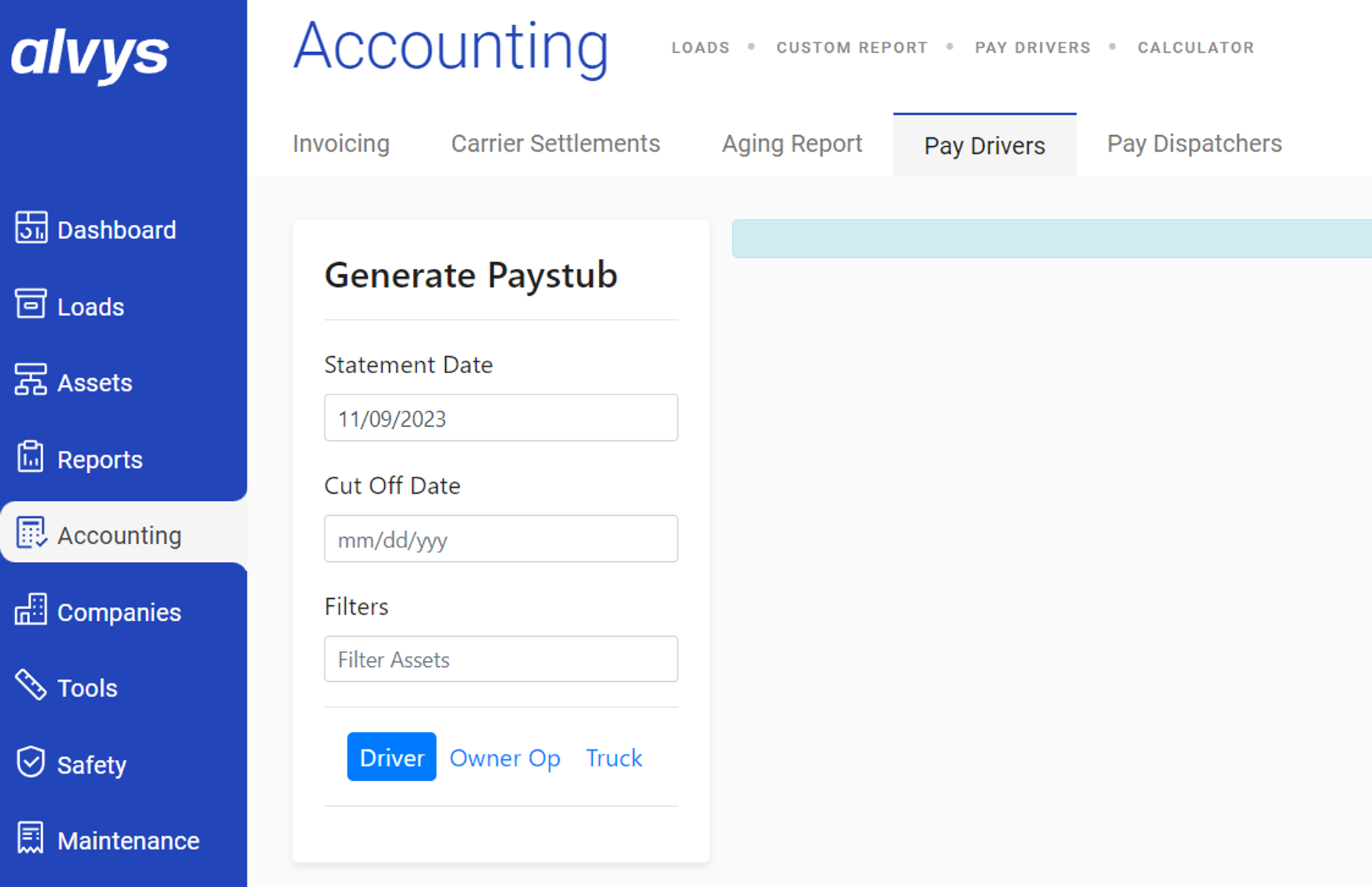 Image showing the Per Diem rate setup in the driver profile Rates section
Setting Per Day Rates
- Open the driver’s profile from Drivers and scroll to the Rates section.
- Click Add Rate and select the Per Day rate type.
- Enter the daily rate amount and click Save.
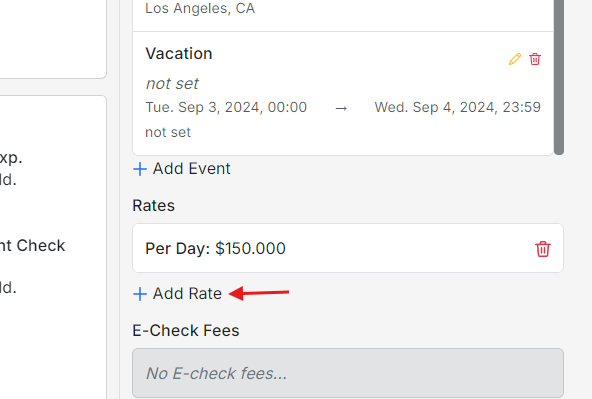 Image showing the Per Day rate setup in the driver profile Rates section
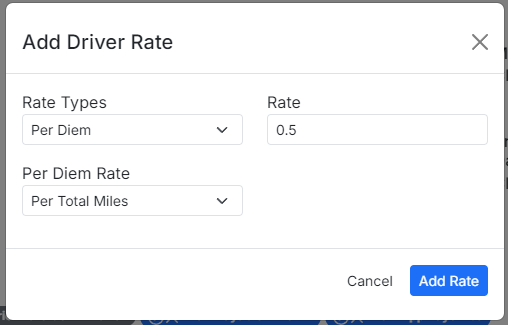 Image showing the Time category on a driver statement with Per Day Rate entries