
Overview
Balance-based deductions let you set up recurring driver deductions using a starting balance and a maximum amount rather than a fixed end date or occurrence count. Deductions apply automatically each period until the total balance is paid off, which is useful for loans, trailer rent, equipment payments, and similar long-term obligations. The system tracks progress toward the total automatically and stops deductions when the balance reaches zero. This approach is useful for managing long-term driver obligations such as:- Trailer or equipment rental
- Driver loans
- Insurance advances
- Training reimbursements
Before you start
Before setting up a balance-based deduction:- The driver must be active in Alvys.
- The deduction category you want to use must support recurring schedules.
- All users have permission to manage deductions on driver profiles. No special role is required.
Steps
- Open the driver’s Deductions tab:
- Go to Assets > Drivers.
- Select the driver you want to set up the deduction for.
- Click the Deductions tab on the driver profile.
- Add a new deduction:
- Click Add Deduction.
- Select the deduction category that applies (for example: Trailer Rent, Loan, Equipment).
- Configure the balance-based fields:
- Frequency: Select how often the deduction should run (for example: weekly, biweekly, monthly, every statement).
- Maximum Amount: Enter the total amount owed. This is the full balance the driver needs to pay off.
- Starting Balance: Enter any amount already paid, if applicable. Leave at zero if starting fresh.
-
Payment Amount: Enter the amount to deduct each period. When balance-based fields are filled in, the end date and occurrence count fields are automatically disabled; the system uses the balance to determine when to stop.
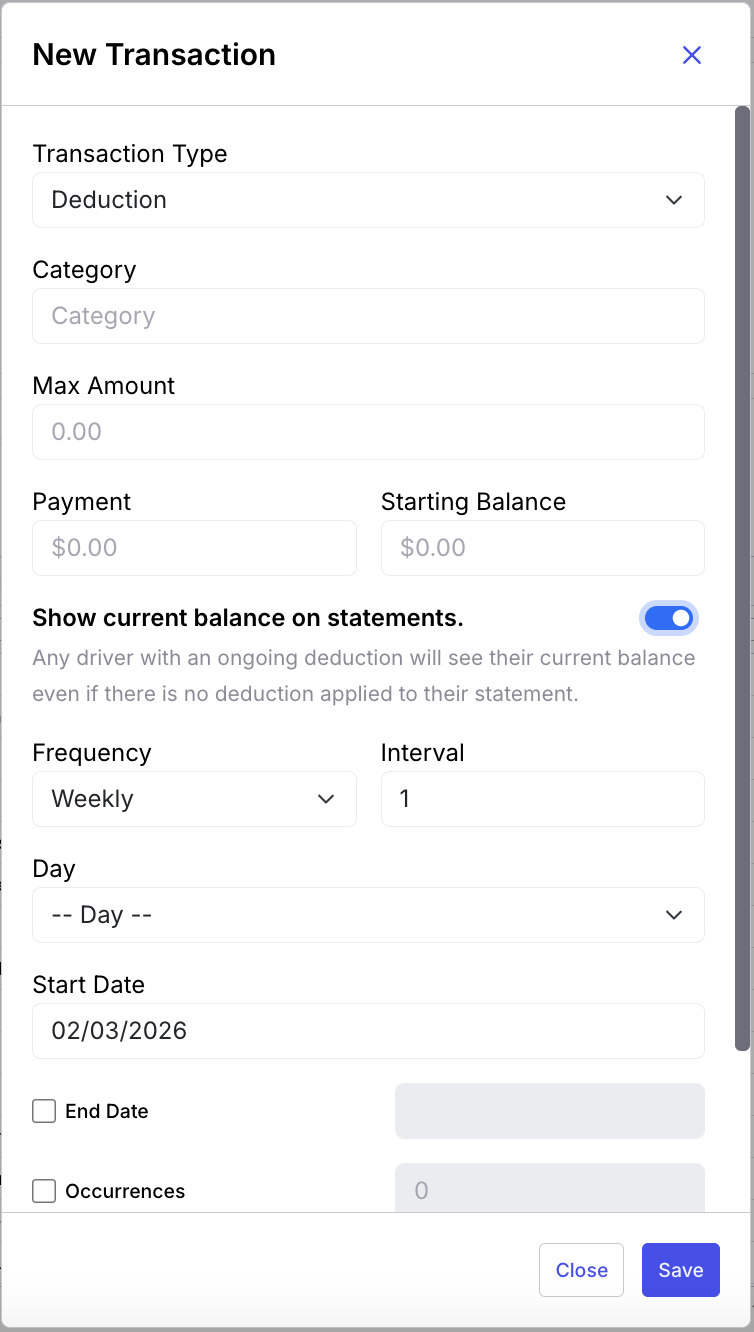 Upload balance-based-deduction-setup-form.png here. This image shows: the Add Deduction form on a driver profile with the Maximum Amount, Starting Balance, and Payment Amount fields filled in alongside the frequency selector.
- Save the deduction:
- Click Save. The deduction is now active. It will run on the configured schedule and stop automatically when the remaining balance reaches zero.
Result
After saving:- The deduction appears in the Deductions tab with the Maximum Amount, Starting Balance, and Remaining Balance columns visible.
- Each time a statement is generated, the payment amount is deducted and the remaining balance updates.
- When the remaining balance reaches zero, the deduction stops automatically. No manual end date or occurrence count is needed.
Variations
Show Remaining Balance on Driver Statements
You can choose to display the remaining balance on the driver’s statement so the driver can see what they still owe, even on periods when no deduction is taken. To enable this:- Open the deduction on the driver’s Deductions tab.
- Turn on Show current balance on statements.
- Click Save.
Viewing Balance Columns in the Deductions List
The Deductions tab includes the following balance-related columns for quick review:- Maximum Amount: The total originally owed.
- Starting Balance: The amount that was already paid when the deduction was created.
- Remaining Balance: The current outstanding balance, updated after each statement.
Example
A driver rents a trailer for $50,000:- Maximum Amount: $50,000
- Starting Balance: $10,000 (already paid before setup)
- Payment Amount: $1,000
- Frequency: Weekly
Troubleshooting
Deduction is not stopping after the balance should be paid off
- Open the deduction on the driver’s Deductions tab and confirm the Maximum Amount and Starting Balance are entered correctly.
- Confirm that statements have been generated for each period the deduction should have run. Balances update only when a statement is generated; deductions do not apply without a statement.
- If the remaining balance appears incorrect, contact Alvys support with the driver name, deduction category, and the date range of statements generated.