
📋 Module: Accounting > Pay Dispatchers
Overview
The Pay Dispatchers module (dispatcher pay, dispatcher commissions, dispatcher payouts) manages dispatcher commission calculations and payment statements directly within Alvys. Once enabled, it appears under Accounting and lets you assign dispatchers to trips, configure commission rates, generate pay statements, and track payment status.Where to Find It
Go to Accounting > Pay Dispatchers after the module has been enabled for your account. The module has two primary areas: the Unassigned tab for trips without a dispatcher assigned, and individual dispatcher tabs showing each dispatcher’s trips, commissions, and statement history. The Statements tab shows all generated statements.Key Concepts
Statement statuses
Dispatcher pay statements move through four statuses: Unpaid is the initial state. Trips and accessorials are available but no statement has been created. Draft is the editing phase. A draft is created by selecting trips and accessorials and clicking Save as Draft. Drafts can be edited, emailed, downloaded, or reverted. A draft can be downloaded immediately after creation or from the Statements tab. Processed means the statement has been finalized. Processed statements cannot be edited. They can be reverted, emailed, or downloaded. A statement moves to Processed by clicking Generate Statement from a draft, or directly from unpaid trips. Paid is set manually. To mark a statement as paid, open the dispatcher profile, go to the Statements tab, open the dropdown next to the statement, select Paid, complete the Change Paystub Status to Paid dialog, and click Save.Global Statement Date and local statement date
The Global Statement Date applies to all dispatchers in a payment run unless overridden. A local statement date set on an individual dispatcher’s tab applies only to that dispatcher’s statement and overrides the global date for them.Cutoff Date
The Cutoff Date filters which trips appear for payment. Only trips with a delivery date on or before the Cutoff Date are included in the current run.How to Use It
Assigning a dispatcher to unassigned trips
Trips that have no dispatcher assigned appear in the Unassigned tab. These trips can carry any of the following statuses: TONU, Delivered, Released, Queued, Invoiced, Financed, or Completed.-
Select the trips you want to assign using the checkboxes.
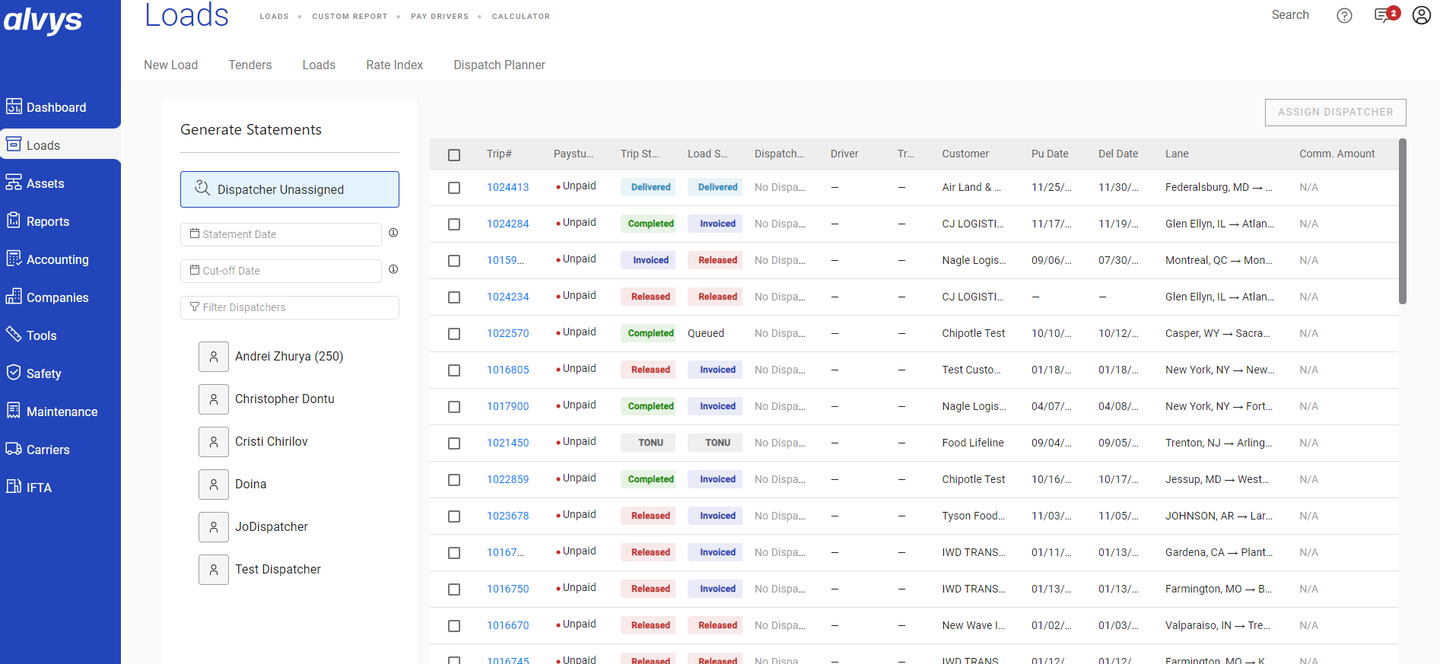 Image showing trip rows selected via checkboxes in the Unassigned tab.
Image showing trip rows selected via checkboxes in the Unassigned tab.
Image showing trip rows selected via checkboxes in the Unassigned tab.
- Click Assign Dispatcher.
- Select a dispatcher from the dropdown.
- Click Save.
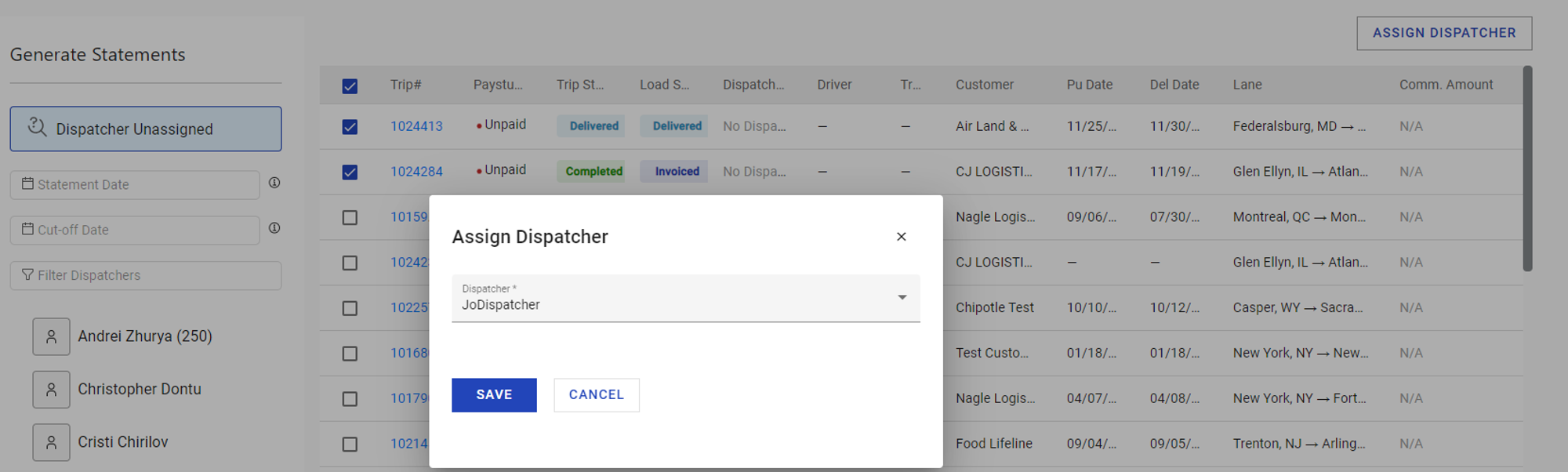 Image showing the Assign Dispatcher dropdown with a dispatcher selected and the Save button.
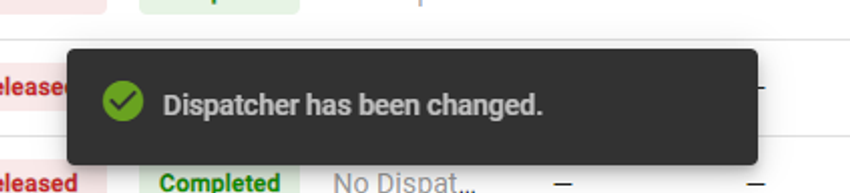 Image showing the success confirmation message after assigning a dispatcher to trips.
Setting the Global Statement Date and Cutoff Date
- Enter a date in the Global Statement Date field at the top of the module. Tooltips explain the effect of each date field.
- Enter a date in the Cutoff Date field. Only trips delivered on or before this date are included in the run.
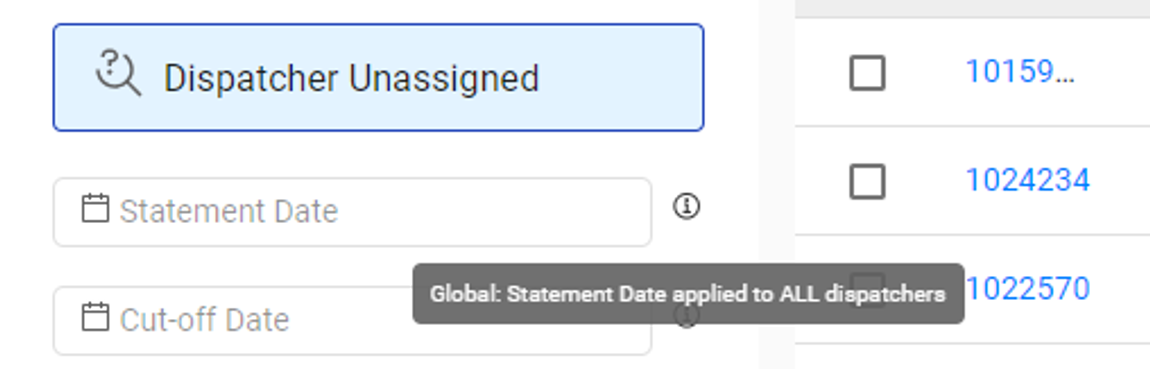 Image showing the Global Statement Date and Cutoff Date fields with tooltips visible.
Filtering dispatchers
Use the dispatcher filter to navigate when working with a large number of dispatchers.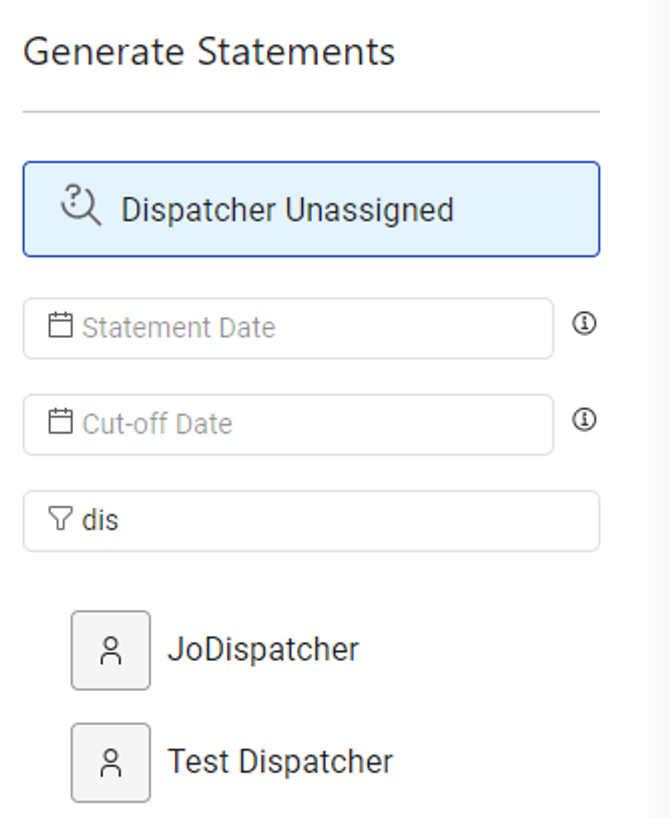 Image showing the dispatcher filter in use.
Configuring commission rates for a dispatcher
A dispatcher tab appears for each user who meets all three conditions: active account, Dispatcher role, and payment details configured on their profile.- Open the dispatcher’s tab.
- Set the trip commission: either a fixed amount per trip or a percentage of the trip value.
- Set the accessorial commission: percentage of accessorial value only.
- Select the accessorials to include using the checkboxes.
- Click Save.
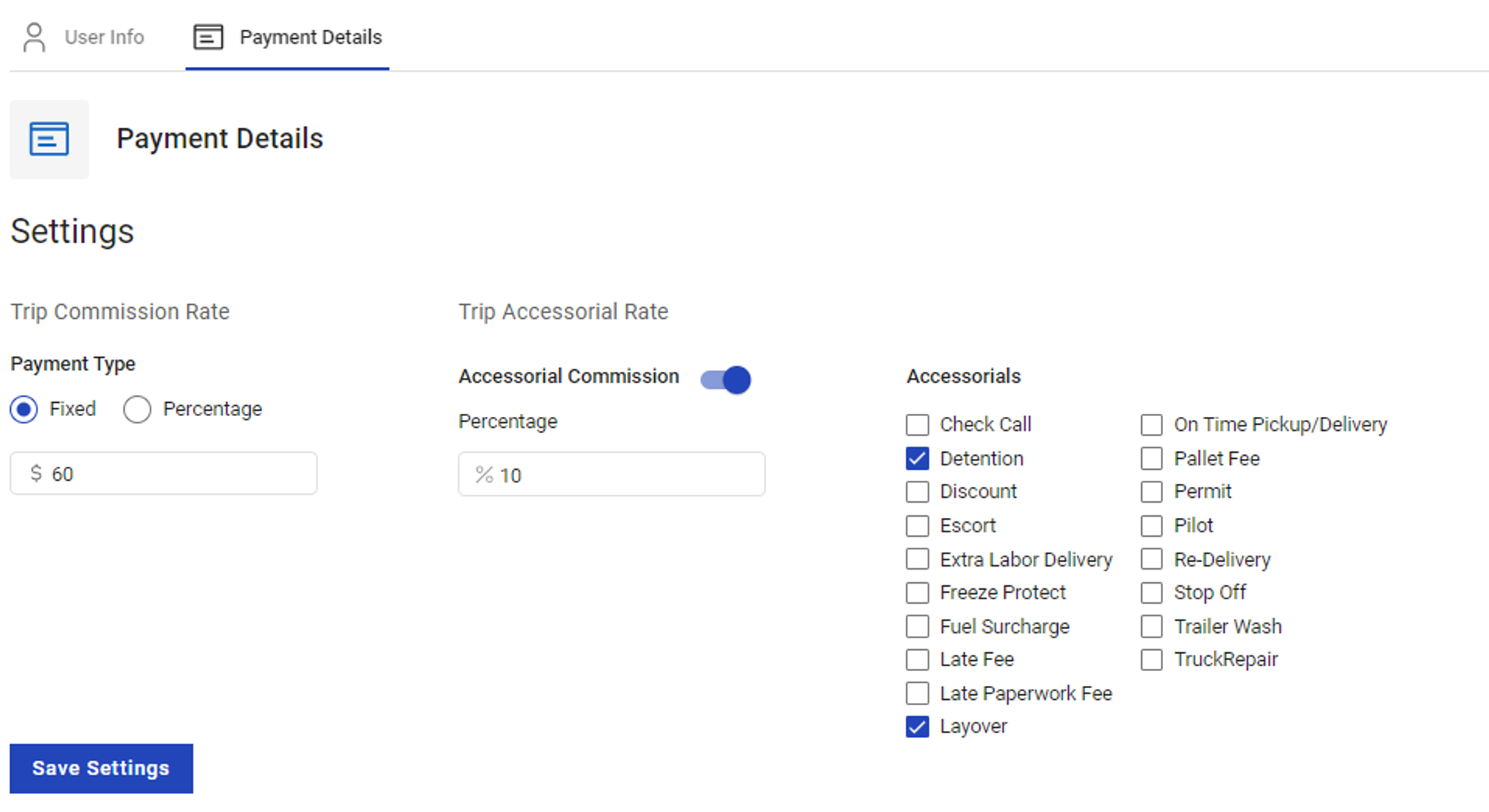 Image showing the trip commission field, accessorial commission field, and accessorial checkboxes.
Setting a local statement date
Enter a date in the local statement date field on the individual dispatcher’s tab. This overrides the Global Statement Date for that dispatcher’s statement only. Image showing the local statement date field on an individual dispatcher tab.
Creating a draft statement
- From a dispatcher’s tab, select the trips and accessorials to include.
- Click Save as Draft.
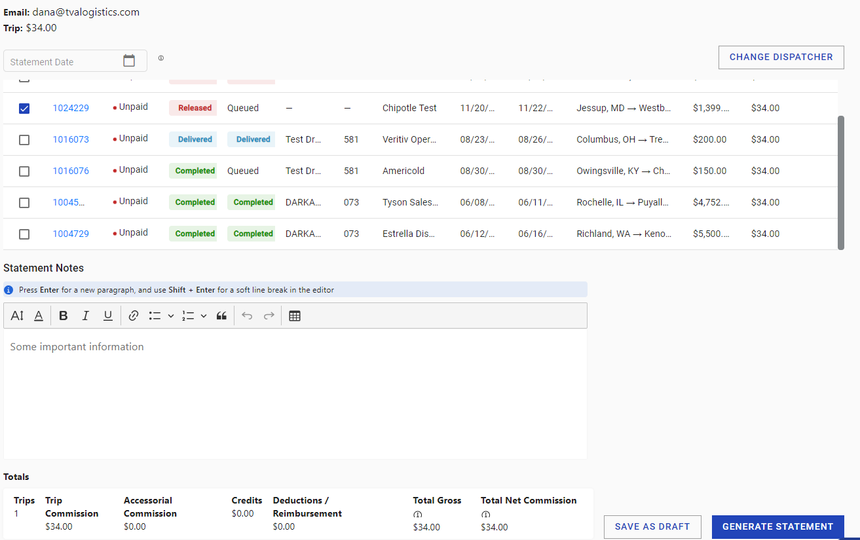 Image showing selected trips and accessorials with the Save as Draft button.
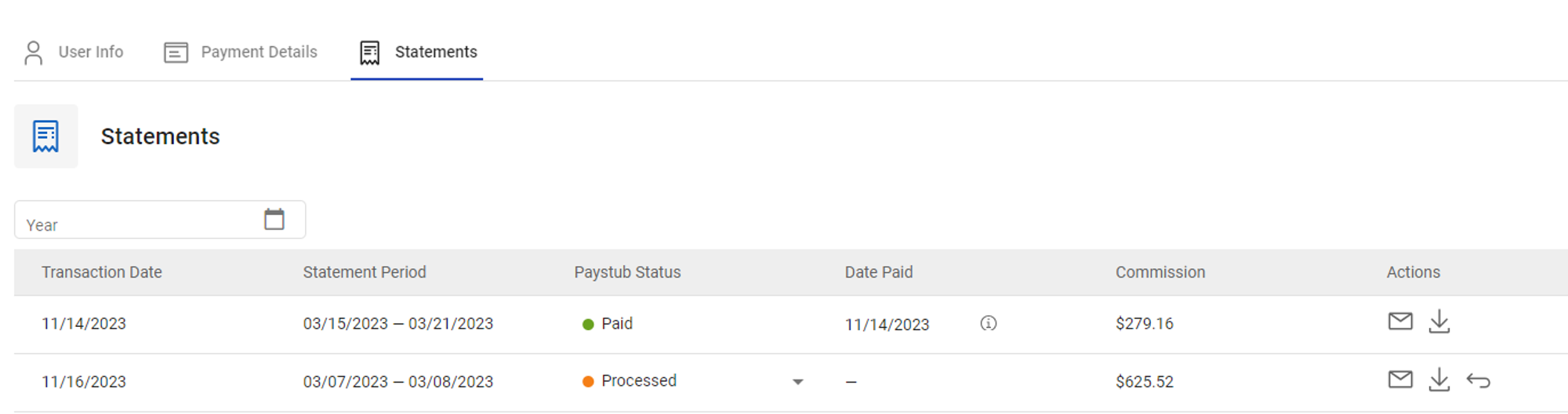 Image showing a draft statement in the Statements tab with Edit, Email, Download, and Revert actions.
Generating a processed statement
To generate from a draft, open the draft and click Generate Statement. To generate from unpaid trips directly, select trips and accessorials and click Generate Statement without saving a draft first. The statement moves to Processed status and can be emailed or downloaded. Use Revert to move it back to Draft if changes are needed.Marking a statement as paid
- Open the dispatcher profile and go to the Statements tab.
- Open the dropdown next to the statement and select Paid.
- Complete the Change Paystub Status to Paid dialog.
- Click Save.
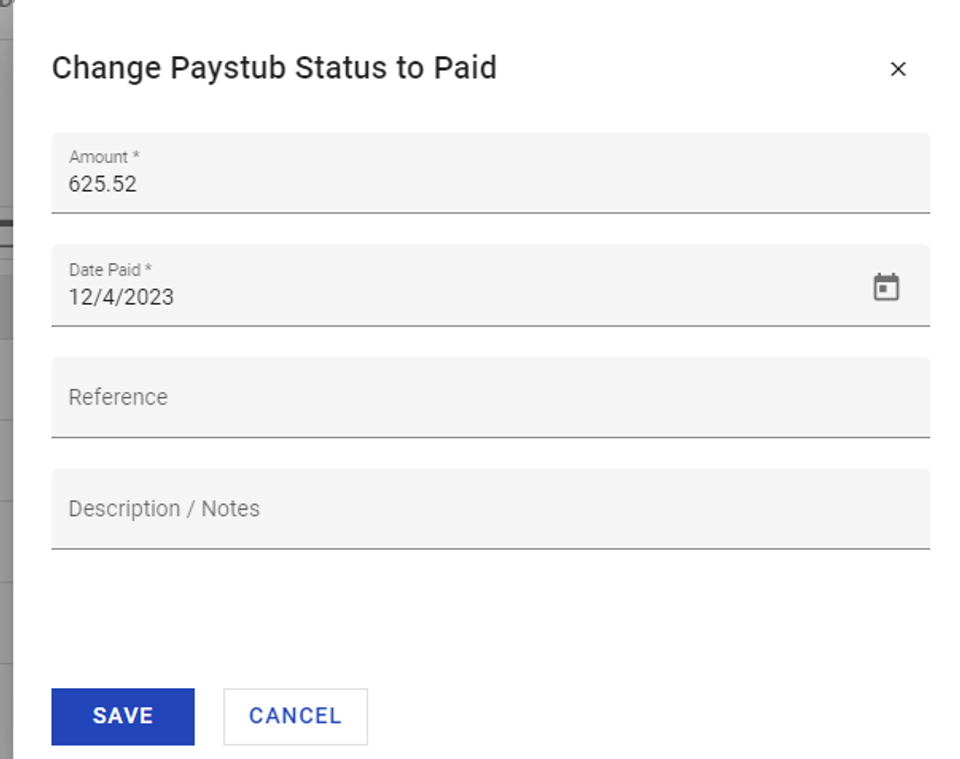 Change Paystub Status to Paid dialog