
This article explains the four additional load permissions in Alvys that govern Load Templates and Load Rate History: who can view and use saved load templates, who can create and manage them, and which type of historical rate data a user can access.
Overview
Alvys organizes load permissions into sub-categories. This article covers four permissions outside the core load management and dispatch groups: two that control access to Load Templates, and two that control access to Load Rate History. Together they govern whether a user can build loads faster using saved configurations, and whether that user can see historical pricing data to inform rate decisions. Load Templates help teams create recurring loads without re-entering the same details each time. Load Rate History gives users market context and company-specific pricing data to support rate negotiations and pricing decisions.Where to Find It
These permissions are set at the individual user level inside the User Management interface. To reach it:- Select your username in the bottom-left corner.
- Navigate to Management > Company Profile and select the Users tab.
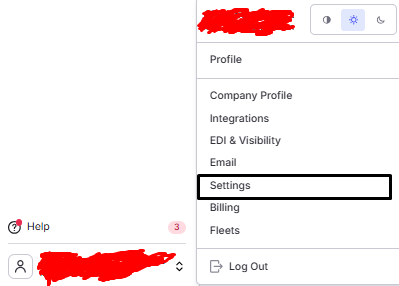 *Image showing navigation to Company profile *
- Choose an existing user to edit, or select Add User to create a new profile.
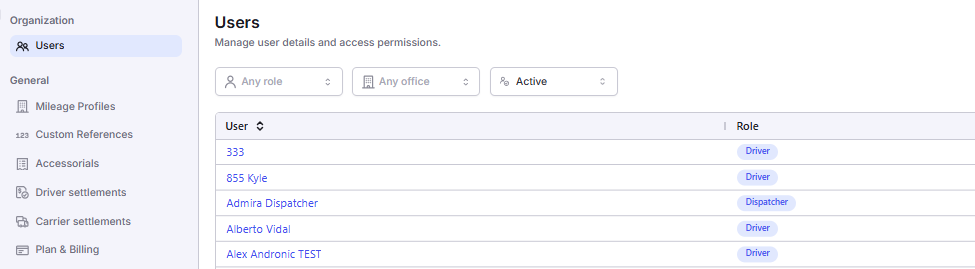 Company Profile with the Users tab selected in the left navigation.
- Scroll to the Permissions section.
- Locate the Load Rate History category to find the View Alvys Rates History and View Tenant Rates History checkboxes.
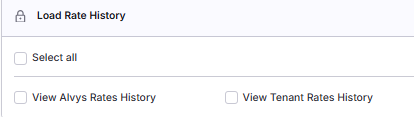 Permissions panel with the Load Rate History category expanded, displaying View Alvys Rates History and View Tenant Rates History checkboxes.
- Locate the Load Templates category to find the View Load Templates and Manage Load Templates checkboxes.
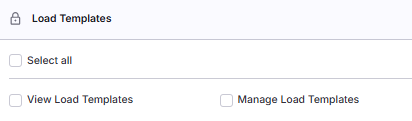 Shows: Permissions panel with the Load Templates category expanded, displaying View Load Templates and Manage Load Templates checkboxes.
Key Concepts
What is a lane? A lane is a defined origin-to-destination freight route, such as Chicago, IL to Atlanta, GA for a 53-foot dry van. Rate history is organized by lane and equipment type. What is a load template? A load template is a pre-saved set of load details (shipper address, consignee address, commodity, equipment type, special instructions) that can be applied to a new load in a single step. Templates are most useful for dedicated lanes and recurring loads.Settings & Permissions
View Load Templates
“ViewLoadTemplates” controls whether a user can access the Load Templates page, view the existing template library, and build new loads from those templates. Selecting a template when creating a load automatically populates the load fields with the template’s saved information; the user can then edit any field before saving.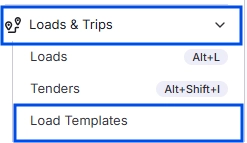 Load Templates page accessed from the Loads navigation, with the template library list and a button to create a new load from a template.
 Load Templates list page showing saved templates with template name, route, and equipment type columns.
✅ Best practice: Grant View Load Templates to all dispatchers who create loads regularly. Combine it with a well-organized, clearly named template library so dispatchers can find the right template quickly.
Manage Load Templates
“ManageLoadTemplates” allows a user to create new templates, edit existing ones, and delete templates that are no longer needed. It is the administrative complement to View Load Templates: where View is for using the library, Manage is for building and maintaining it. A user with Manage Load Templates can:- Create new load templates
- Edit existing templates
- Delete templates that are outdated or duplicated
 Load Templates page with Edit and Delete action buttons visible on template rows, available only to users with the Manage Load Templates permission.
✅ Best practice: Limit Manage Load Templates to Office Admins and Operations Managers who are responsible for maintaining the template library. Most operational users should have View Load Templates without Manage.
View Alvys Rates History
“ViewAlvysRateHistory” enables a user to access rate history data aggregated anonymously across all Alvys tenants. With this permission, users gain a market-level perspective: what rates have been charged and paid for a lane across the entire Alvys platform, not just within their own company. The Rates button in the Money Box footer on a trip’s detail page becomes visible when a user has either View Alvys Rates History or View Tenant Rates History. Clicking it opens a dialog showing historical pricing data.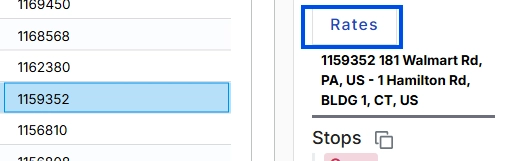 Load Board with a load selected and the side tray open, showing trip detail including the Money Box.
- Shows: Money Box footer on the trip detail page with the Rates button highlighted.*
- 🟠 Orange line: Shipper-to-Carrier contract rates (stable, direct-to-shipper pricing)
- 🟢 Green line: Broker-to-Carrier spot market rates (volatile, reflects current carrier availability)
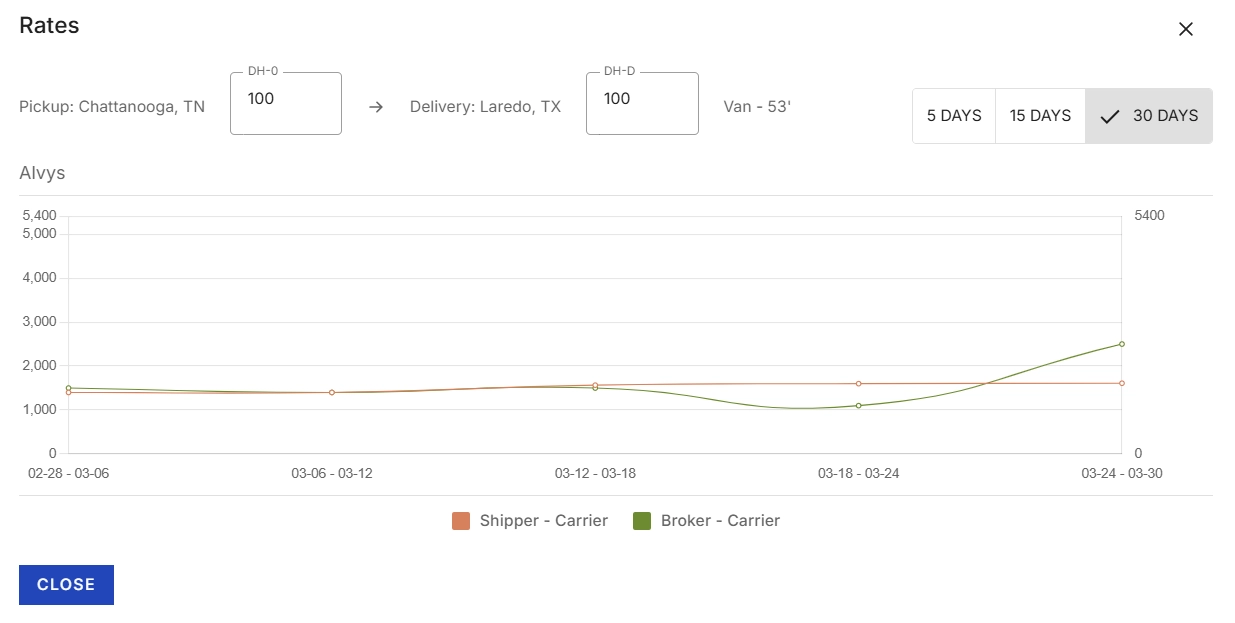 Shows: Alvys Rates History chart with orange Shipper-Carrier contract rate line and green Broker-Carrier spot market line, with Equipment Type, Deadhead Radius, and Timeframe filter controls.
💡 Best practice: Grant View Alvys Rates History to dispatchers, pricing staff, and operations managers who are regularly involved in rate setting or carrier negotiations.
View Tenant Rates History
“ViewTenantRateHistory” gives a user access to your company’s own historical rate data for specific lanes: what rates your company has actually charged customers and paid carriers on each lane, over time. The Rates button in the Money Box footer becomes visible when the user has View Tenant Rates History OR View Alvys Rates History. Either permission makes the button visible. When both permissions are granted, the rates dialog shows two charts side by side: a Tenant chart (your company’s history) on the left, and an Alvys market benchmark chart on the right.Money Box footer with the Rates button visible (same button as in View Alvys Rates History).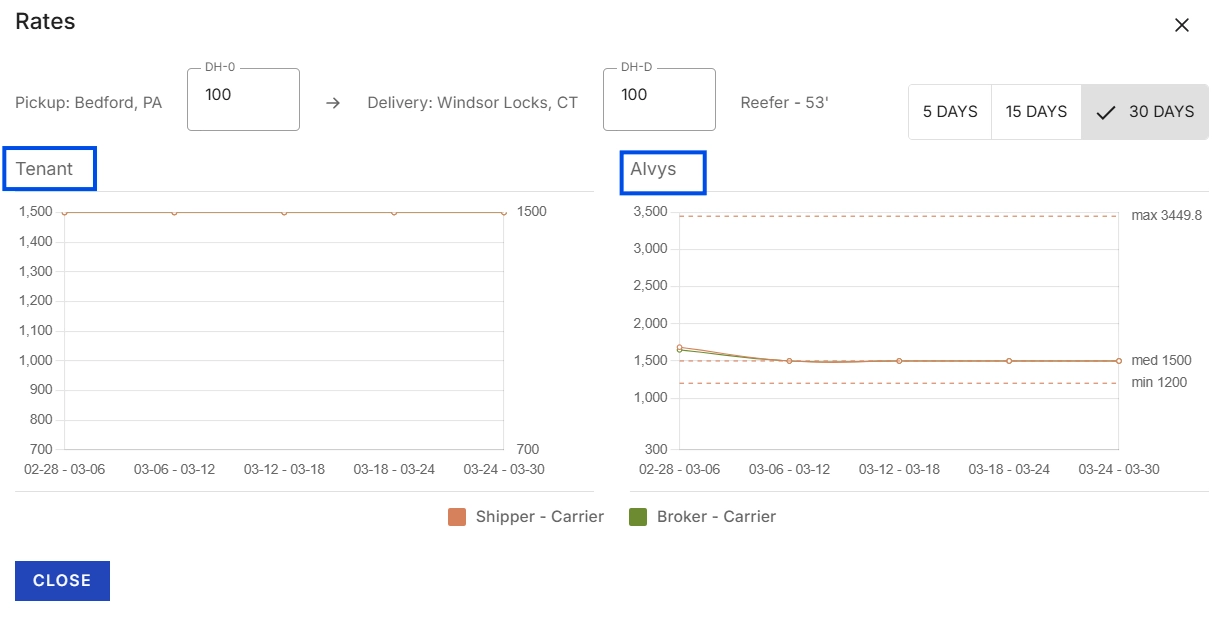 Rate history dialog with the Tenant chart (company’s own historical rates) on the left and the Alvys market benchmark chart on the right, displayed side by side.
💡 Best practice: Grant View Tenant Rates History alongside View Alvys Rates History for a complete view of both company-specific historical rates and platform-wide market benchmarks.
Limits & Behavior
- The Rates button in the Money Box is hidden unless the user holds at least one of the two Load Rate History permissions.
- Rate history is filtered by equipment type, deadhead radius, and timeframe (5, 15, or 30 days). No other filter options are available.
- Load templates are shared across the team. Deleting a template affects all users who rely on it.
- Building a load from a template does not modify the original template. It is a read-level action covered by “ViewLoadTemplates”.