
Use the Billing page in Alvys to review your subscription details, view invoices and payment history, and manage your payment method. Linking and unlinking Stripe accounts requires the Support role.
Overview
The Billing page in Alvys gives you visibility into your subscription plan (your service plan or account), current charges, upcoming invoices, and payment history. From this page, you can update the payment method associated with each subscription. Alvys uses Stripe to process subscription payments; depending on your bank or card statement, charges may appear with Stripe in the descriptor. Support users can also link or unlink your company’s Stripe account directly from this page.Before You Start
Required role to access the Billing page: Admin, Partner Admin, or Support. If you do not see a Billing option in your user menu, your account does not have the required role. Linking or unlinking a Stripe account additionally requires the Support role. Admins and Partner Admins can view billing details and manage payment methods but cannot perform the Link Stripe or Unlink Stripe actions.Steps
- Open the Billing page Click your user icon in the bottom-left corner of Alvys and select Billing. You can also navigate directly to Administration > Billing.
-
Review subscription and billing details
From the Billing page you can:
- Review your current plan and charges.
- View upcoming invoices and payment history.
- Update your payment method for any active subscription (card or ACH, if available for your account).
- Download invoices or receipts where applicable.
- Update your payment method To update your payment method, locate the payment method section on the Billing page and follow the on-screen prompts. Each active subscription can have its own payment method assigned. To switch to ACH bank transfer and avoid the 2.9% card processing fee, see How to Switch to ACH Payments for Alvys Billing.
-
Link a Stripe account (Support only)
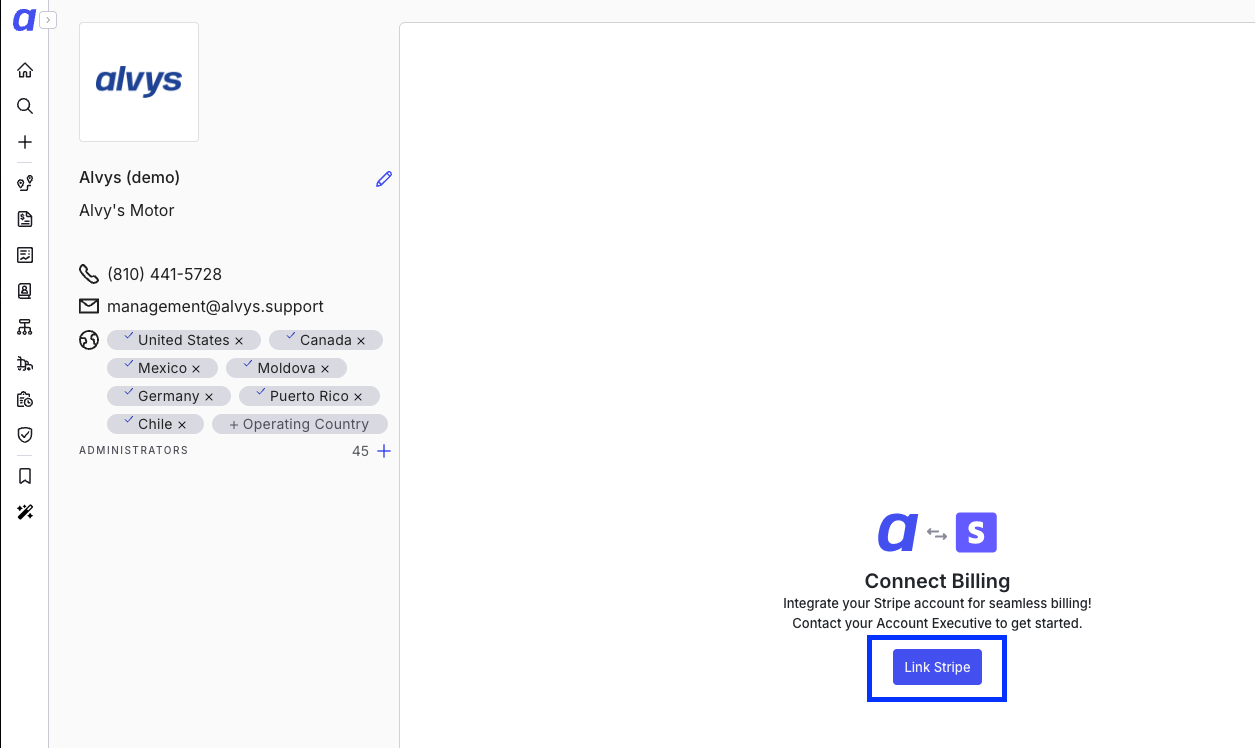 Screenshot of the Billing page showing the Link Stripe button and the modal dialog for searching and selecting a customer’s Stripe account.
- Click the Link Stripe button on the Billing page.
- A modal dialog will appear. Use the search field to find and select the customer’s Stripe account.
- Follow the on-screen prompts to complete the linking process. The company profile billing data will automatically refresh to reflect the linked account.
-
Unlink a Stripe account (Support only)
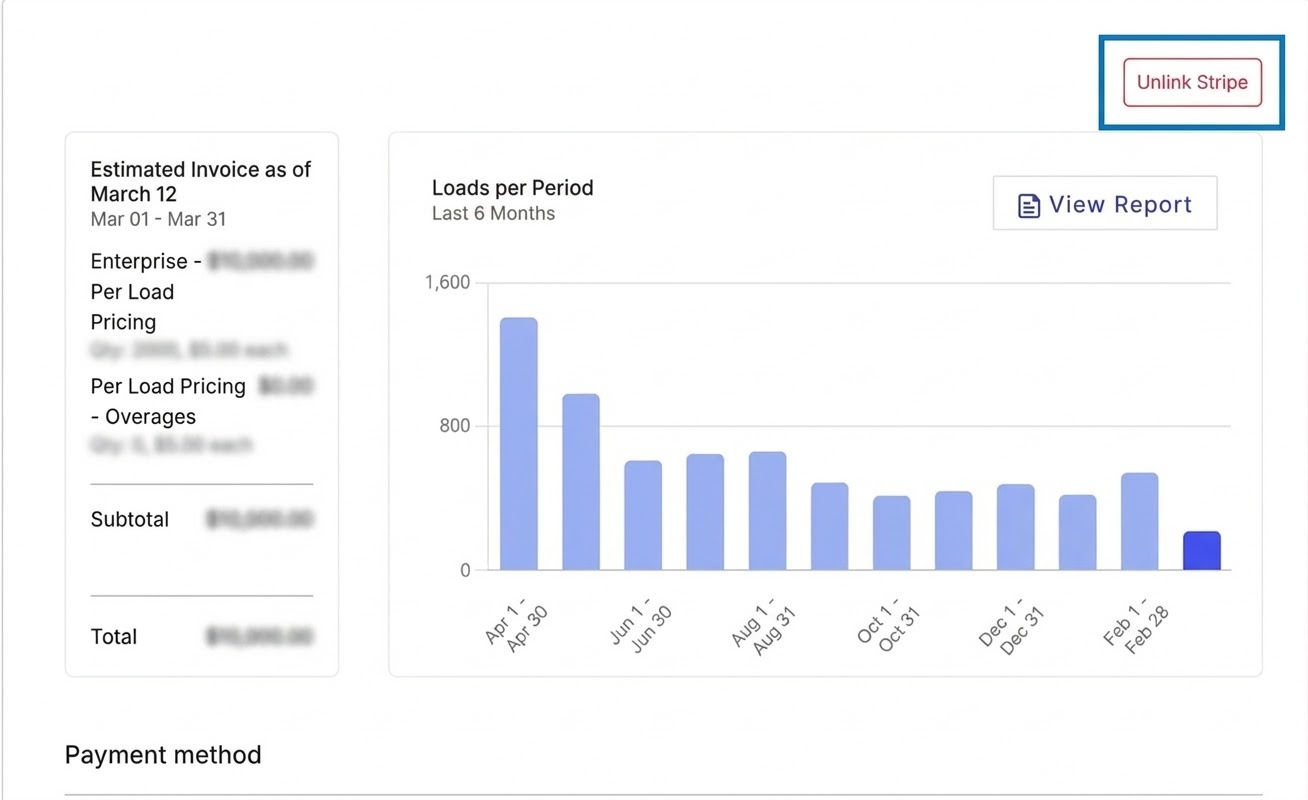 Screenshot of the Billing page showing the Unlink Stripe button and the confirmation dialog
- Click the Unlink Stripe button on the Billing page.
- A confirmation dialog will appear asking you to confirm the action.
- Review the information and confirm to proceed. The company profile billing data will automatically refresh to reflect the unlinked state.