
Offices are organizational units in Alvys that group users and loads together, limiting each user’s data access to the loads and customers linked to their assigned office.
Overview
Setting up offices in Alvys, also called subsidiaries or organizational units, helps limit the scope of information users can access by associating them with specific offices. It also improves data organization by ensuring users only see loads and customers relevant to their assigned office. When creating or editing an office, you can configure which other offices it shares load data with. Users from one office can access loads from another office when load sharing (data sharing) is enabled between those offices. Deletion of an office requires contacting Alvys Support, as there is no self-service delete option for offices.Prerequisites
You must have the “Admin” or “Partner Admin” role to create and edit offices. “Office Admin” users can view the Offices section but cannot create or edit offices.Steps
Navigate to Offices.- Click Management in the top navigation bar.
- Select Company Profile from the menu.
- Click the Offices tab. Create a new office.
- Click Add Office to open the office creation form.
-
Fill in the following fields:
- Name: Enter a name for the office.
- Address: Enter the office address.
- Commission Rates: Set the commission rates that apply to loads associated with this office.
- Data Sharing: Select which other offices this office will share load data with. Users assigned to this office will be able to view loads from the shared offices.
-
Click Save to create the office.
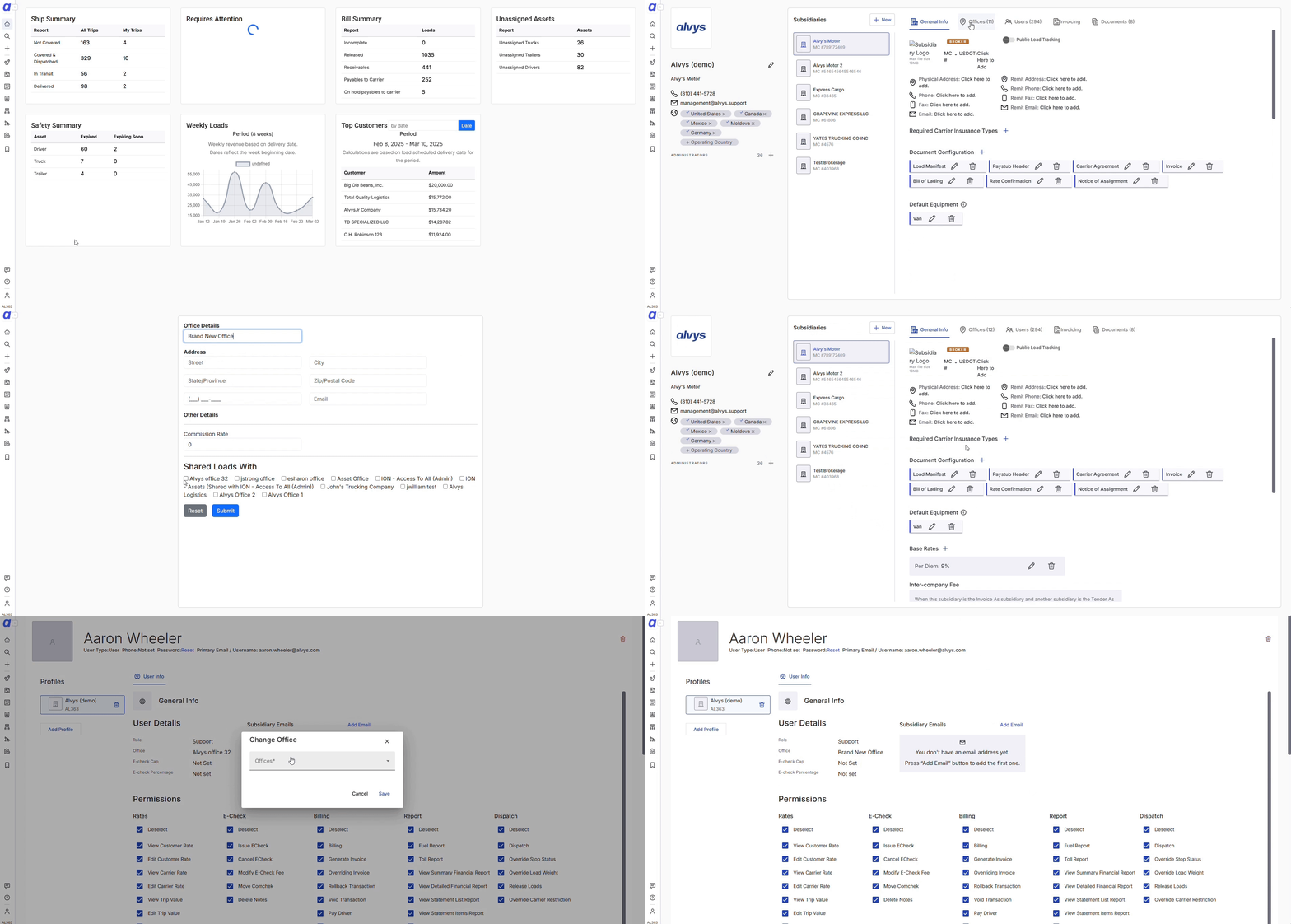 GIF showing the process of navigating to Offices and creating a new office including name, address, commission rates, and data sharing fields
- Assign users to the office.
- When adding a new user, assign them to the appropriate office during the user creation process (Management > Company Profile > Users > Add User).
- For existing users, open their user profile and update the Office field to associate them with the correct office.
- Users assigned to an office can generally view only the loads and customers linked to that office, unless load sharing is configured between offices.
- Configure load sharing (optional).
- Open an existing office by clicking on its name in the Offices list.
- Under the Data Sharing section, select the offices whose loads this office’s users should be able to access.
-
Save the changes.
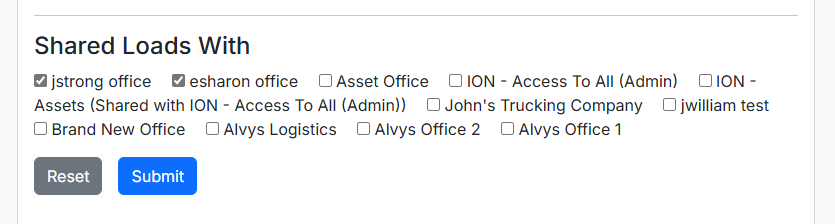 Screenshot showing the Data Sharing configuration panel on an office, with other offices listed for selection
Troubleshooting
Add Office button is not visible
- Confirm you are signed in with the “Admin” or “Partner Admin” role. “Office Admin” and other roles cannot create offices and will not see the Add Office button.
- If you have an “Admin” or “Partner Admin” role and the button is still not visible, contact Alvys Support with your account name and role for investigation.
Users can see loads from other offices they should not access
- Open the office record for the user’s assigned office (Management > Company Profile > Offices > click the office name).
- Review the Data Sharing section. Remove any offices that should not be sharing data with this office and save.
- If the issue persists after removing data sharing, contact Alvys Support.
User is not seeing loads associated with their office
- Open the user’s profile (Management > Company Profile > Users) and confirm the Office field is set to the correct office.
- If the office assignment is correct and the user still cannot see the expected loads, verify that those loads are linked to the correct office. Contact Alvys Support if the issue continues.