
Create and manage fleets, also called truck groups or asset groups, to organize assets by region, division, or trailer type for use in dispatch planning and reporting.
Overview
A fleet (also called a truck group, asset group, or vehicle group) is a named grouping of trucks. Fleets help you organize your assets by region, division, trailer type, or any other category that fits your operation. Once a fleet is created, you can assign trucks to it and use fleet filters in the Dispatch Planner and reporting tools. Use this article to create a new fleet, assign trucks to it, and update or delete fleets as your operations change. Fleets are managed from Management > Fleets. Access to this section requires the Admin, Partner Admin, or Support role. Dispatchers and other roles do not have access to the Management section.Prerequisites
- You must have the Admin, Partner Admin, or Support role. If the Management menu is not visible in your left navigation, your role does not include access to this area. Contact your company administrator to verify your role.
- Have the fleet name ready before you begin. Each fleet name must be unique within your company.
- To assign trucks to a fleet, those truck records must already exist in Alvys. If trucks have not been added yet, create them first under Assets > Trucks.
Steps
Navigate to Fleets:- Select your username in the bottom left corner
- Select Fleets from the Management submenu. The Fleets list opens and shows all fleets currently configured for your company.
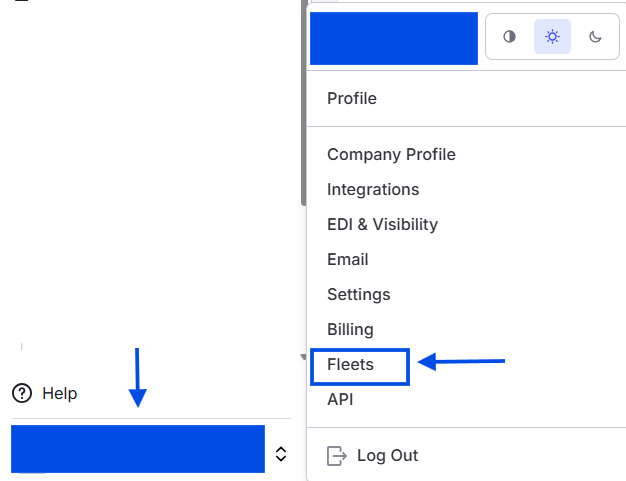 Image showing navigation to the fleets page
- Click Add Fleet in the upper right corner of the Fleets page.
- In the dialog that appears, enter the Fleet Name.
- Click Add Fleet to confirm. The new fleet is created and appears in the Fleets list.
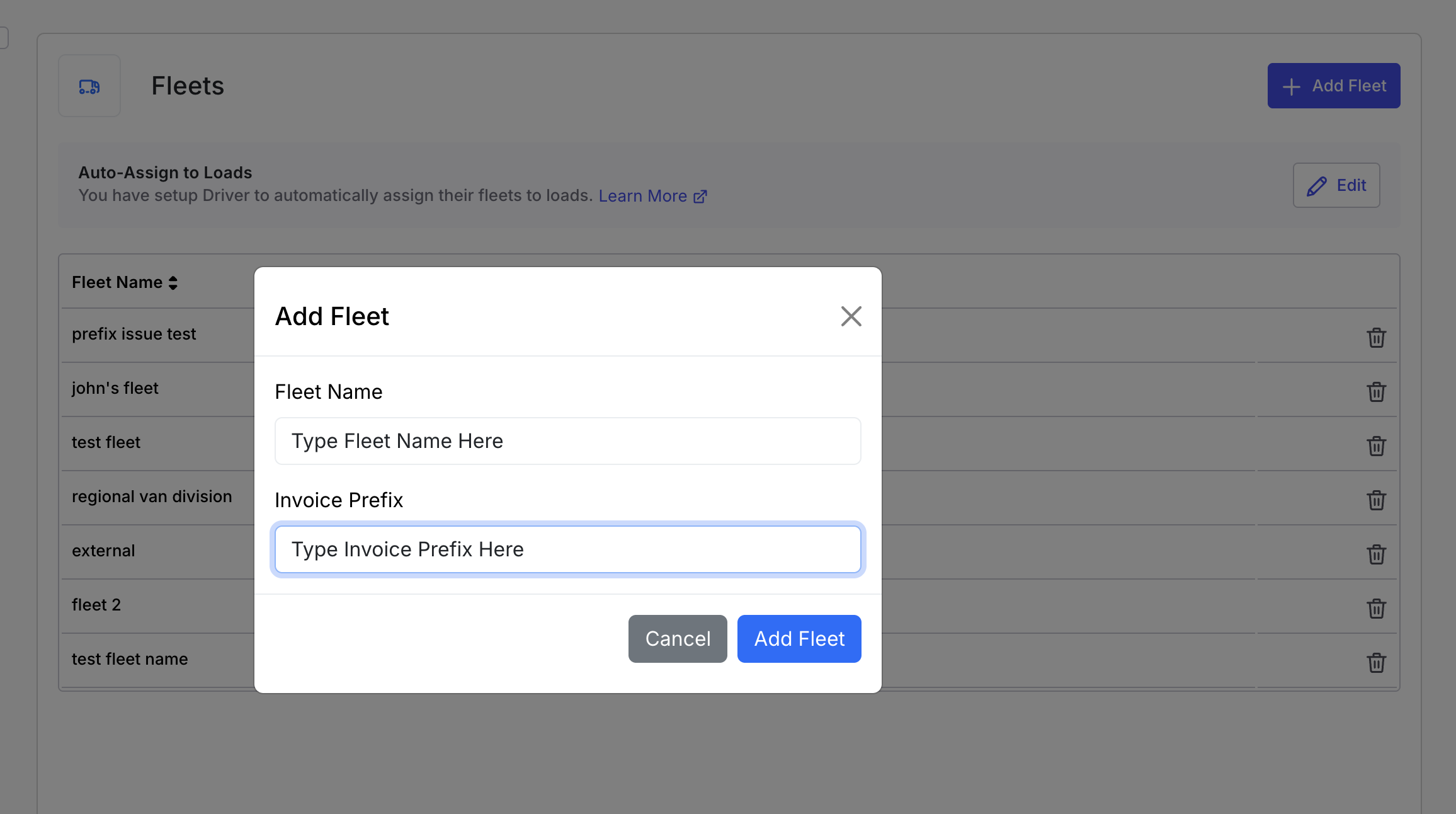 Image displaying “Add Fleet” form with fleet input details and add fleet buttons
Delete a fleet
- Navigate to the Fleets List (https://app.alvys.com/#/manage/fleets).
- Click the Delete icon (🗑) for the specific fleet.
- Confirm the deletion in the dialog.
Invoice Prefix
Each fleet can have an optional invoice prefix. An invoice prefix is a short code that appears at the start of the invoice number for any load assigned to that fleet. This makes it easier to identify fleet-specific invoices in Alvys and in external accounting systems such as QuickBooks, Sage Intacct etc. **Steps: **- Navigate to the Fleets List (https://app.alvys.com/#/manage/fleets).
- **Add or Edit Fleet: **You can either click “Add Fleet” to create a new one, or select an existing fleet from the list to modify it by clicking the row.
- **Enter Invoice Prefix: **In the fleet details form (for adding or editing), locate the “Invoice Prefix” field.
- Fill out your chosen prefix (e.g., “RF-” for a Reefer Fleet).
- Click “Submit” to apply the prefix to the fleet
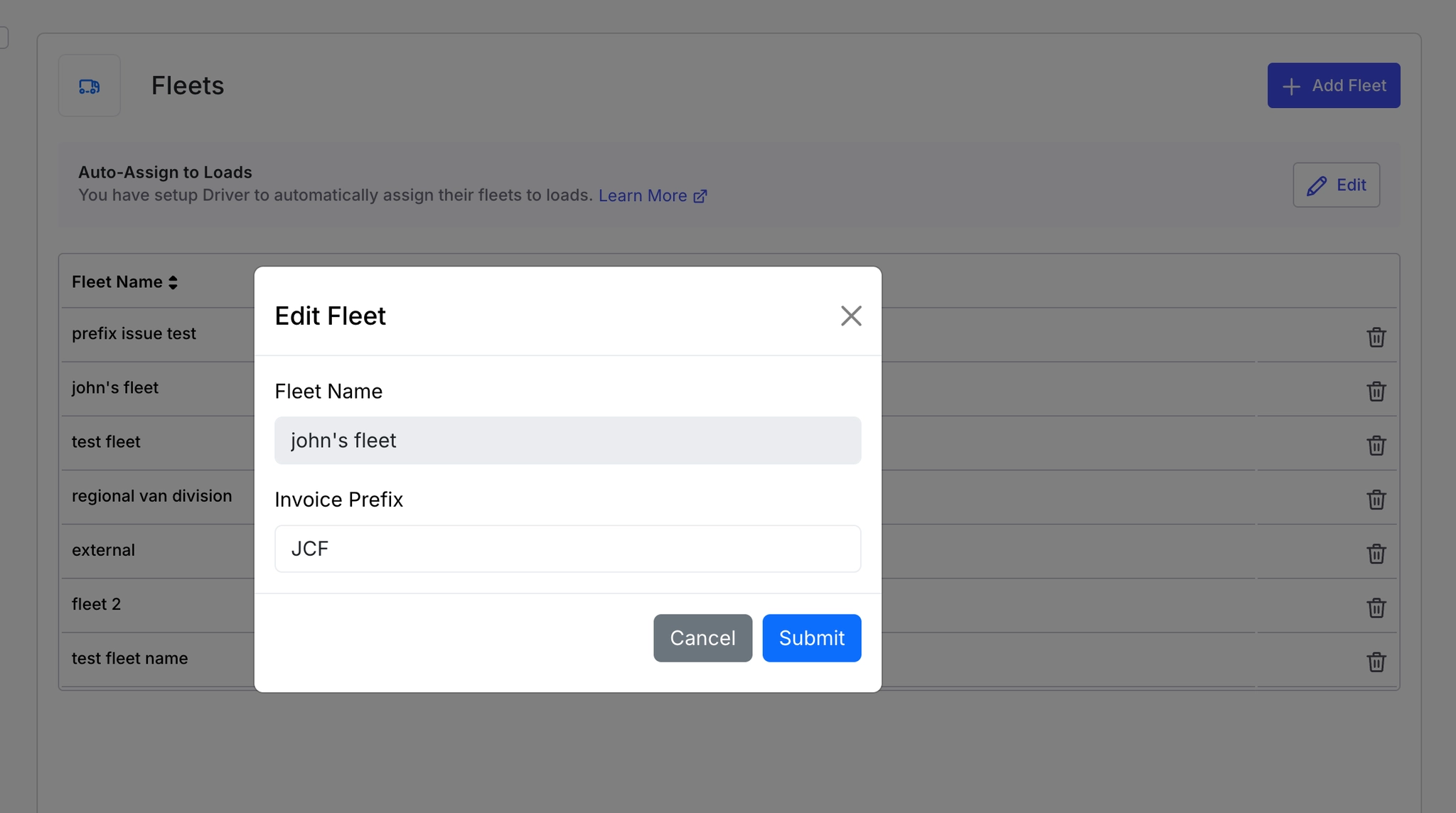 Image displaying “Edit Fleet” form with editable “Invoice Prefix” input field.
Assigning drivers and trailers to a fleet
To assign a driver to a fleet, open the driver record from the Drivers list in Assets (https://app.alvys.com/assets/drivers), locate the Fleet field, select the desired fleet, and click Save.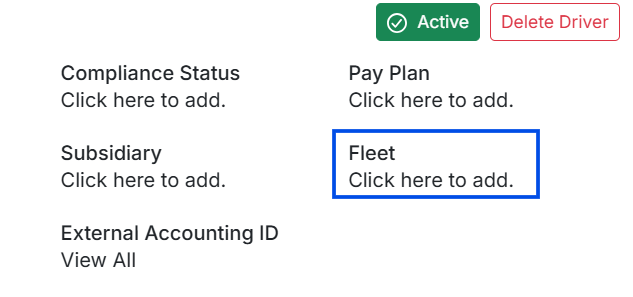 Image showing sample driver profile with “Fleet” input field.
 Image showing sample truck profile with “Fleet” input field
Assigning a load to a fleet
- To assign a fleet to a new load, locate the Fleet field in the new load form during load creation and select the desired fleet.
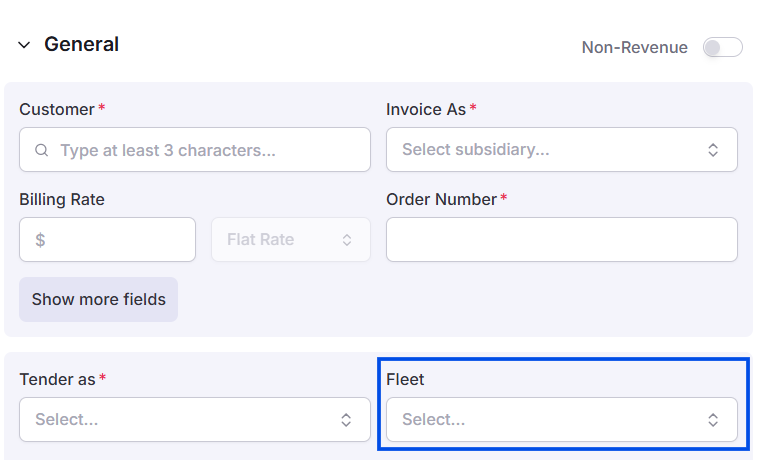 *Image Displaying New load form with Fleet field *
- To assign a fleet to an existing load, open the load from the Loads Board, click the Assign Fleet button, select the fleet, and click Update.
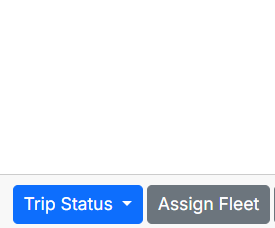 Image showing “Assign Fleet” button on load details page
Where Does Fleet Information Appear?
Once a fleet is assigned to a load or an asset, the fleet name appears in several places across Alvys. This section shows where to find it.Loads Board
The fleet assigned to a load appears as a column on the Loads Board, letting you quickly see which fleet each load belongs to without opening the load.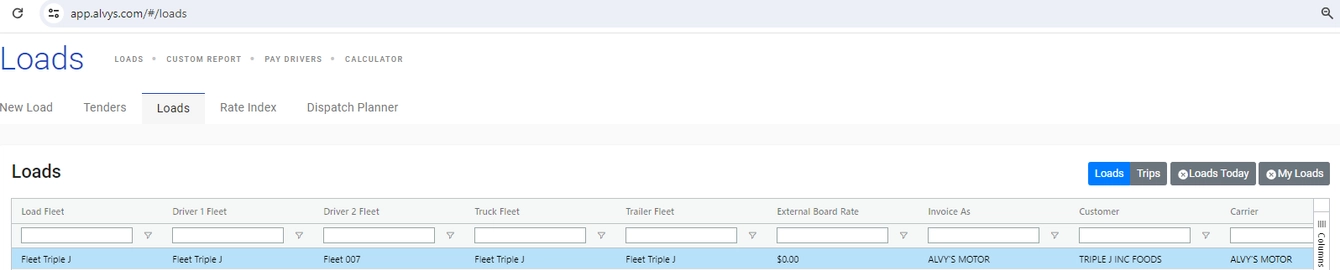 Image showing Fleet columns on Alvys load board.
Load Summary
The fleet assigned to a load is shown in the Load Summary section when you open a load from the Loads Board.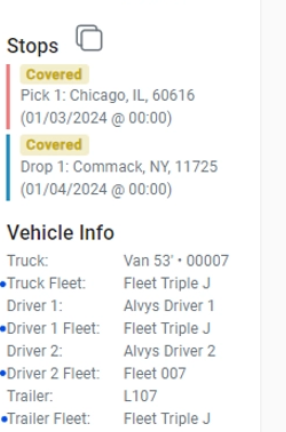 *Image displaying load summary *
Load Details Page
The fleet assignment appears in the load details alongside other dispatch information such as driver and truck assignments.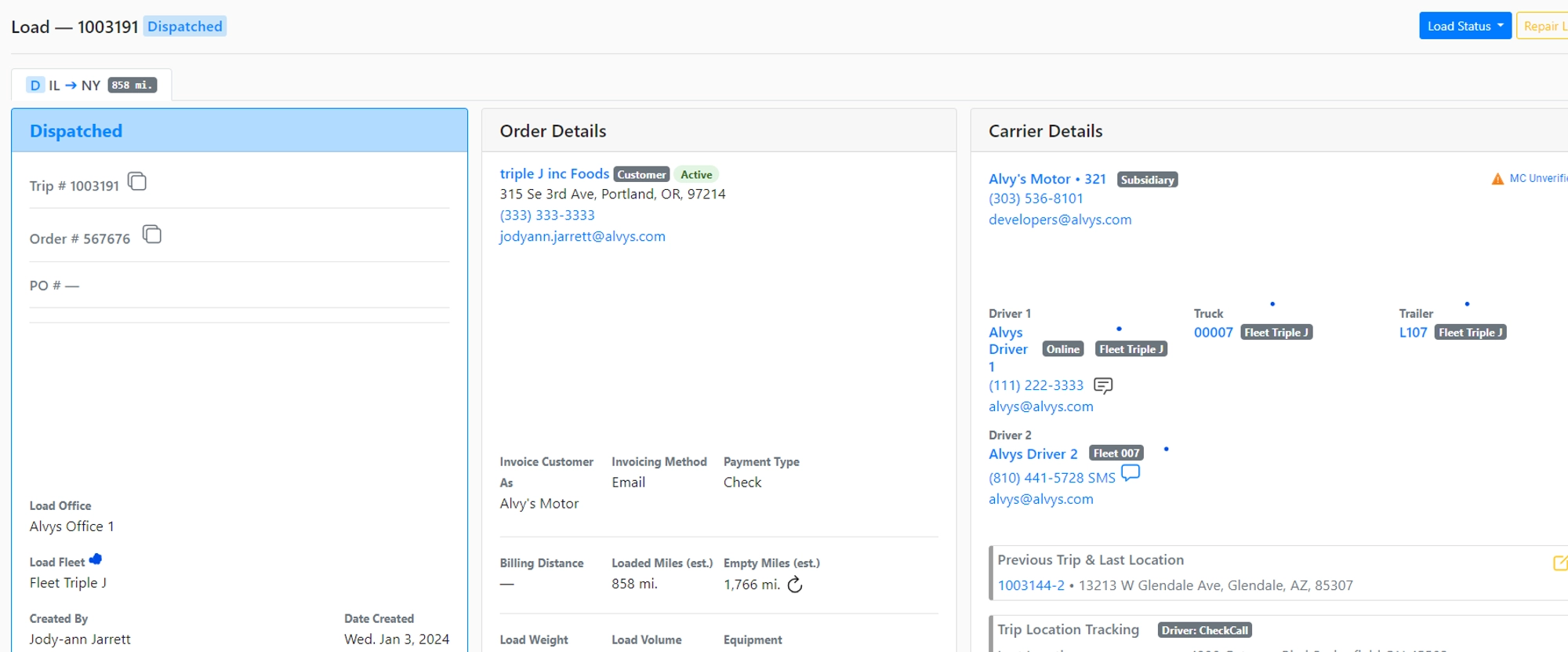 Image showing fleet details on the load details page for a sample load.
Asset Profiles
Fleet assignments are visible on Driver, Truck, and Trailer profile pages. The Fleet field on each asset profile shows which fleet that asset belongs to.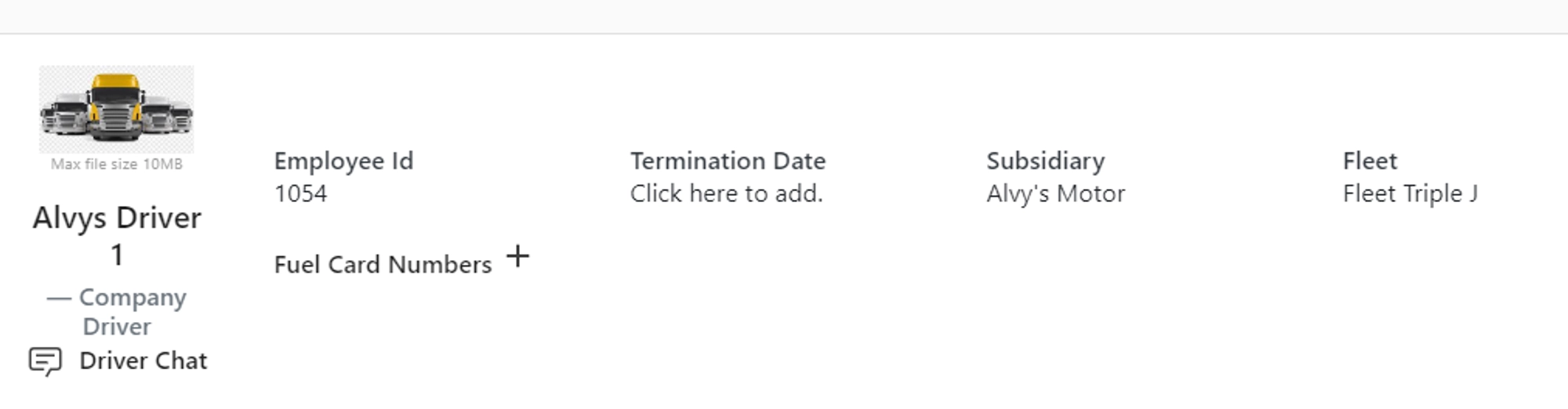 Image showing sample driver profile with fleet assigned.