Driver and Asset Events are reminders or scheduled actions you can set on drivers, trucks, and trailers in Alvys. Use them to stay on top of maintenance, time off, compliance resets, and documentation renewals.
Overview
Driver and Asset Events in Alvys help you track, monitor, and manage critical actions and timelines tied to drivers, trucks, and trailers. Adding events (also called driver events, asset events, availability events, scheduled events, or reminders) for your assets and drivers lets you streamline operations and stay promptly informed of any required maintenance, documentation renewal, time off, compliance reset, or other key update. Event types include vacation, sick or emergency, restart, hometime, and repair. You can add events from a driver or asset profile, and you can also add, edit, or delete driver events directly from either Dispatch Planner.Before You Start
Before adding an event, make sure of the following:- You are signed in to your Alvys account.
- To add a driver event, you need the “View Drivers” permission so you can open the Drivers list and profiles.
- To add a truck event, you need the “View Trucks” permission so you can open the Trucks list and profiles.
- To add a trailer event, you need the “View Trailers” permission so you can open the Trailers list and profiles.
- Decide which driver, truck, or trailer the event applies to, and have the event date, location, and any notes ready.
Steps
- Open the driver or asset profile. Go to the Drivers, Trucks, or Trailers list under Assets, then click the asset to open its profile.
-
Find the Events section. In the asset’s profile, look for the Events section. This is typically located in the sidebar or as a tab within the profile view.
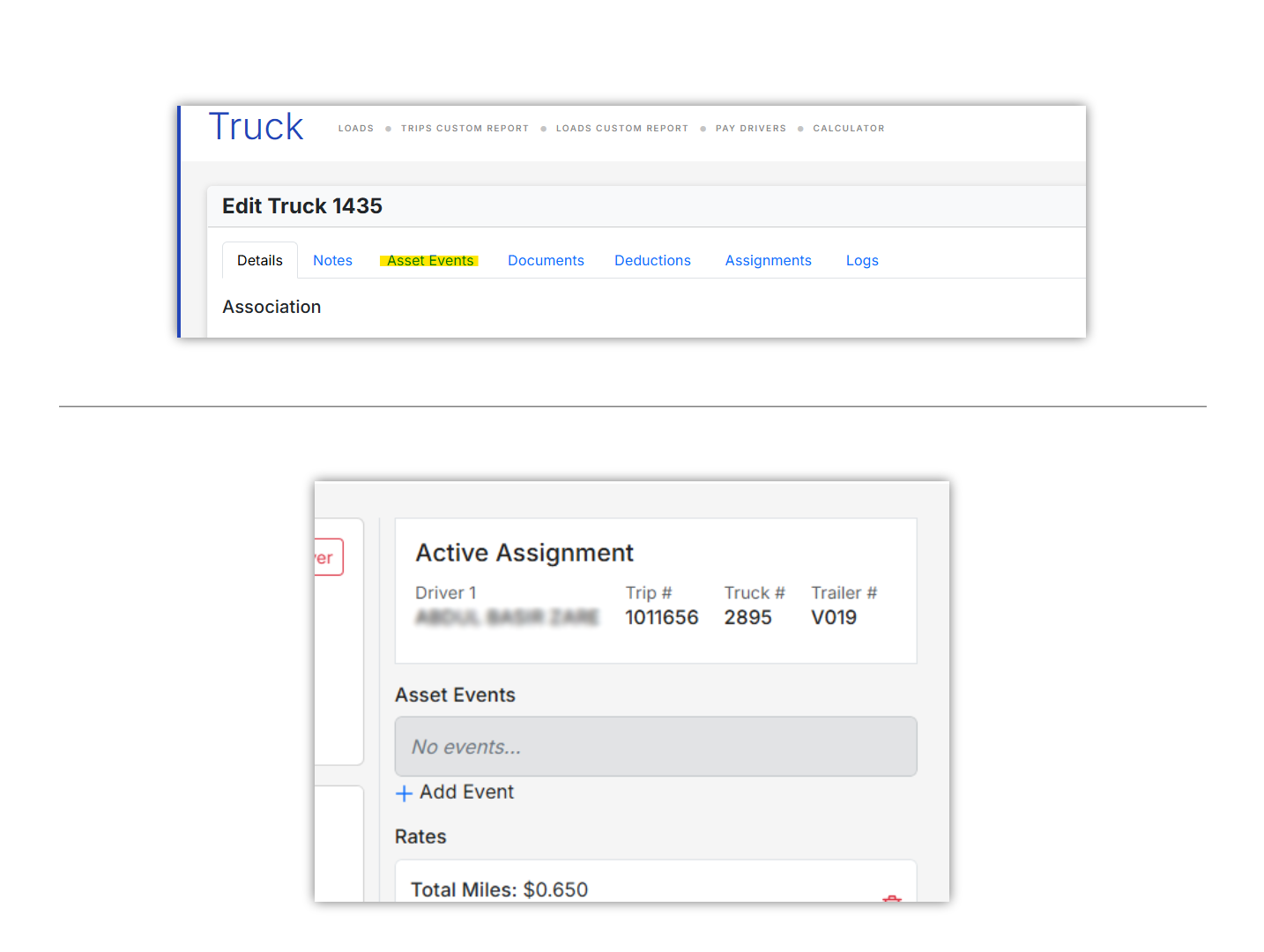 Asset Events in profile
Asset Events in profile
Asset Events in profile
-
Add a new event. Click the Add Event button. A form appears where you enter the event details; complete it, then select Add Event:
- Driver Event Type: Vacation (scheduled paid time off); Sick or Emergency (urgent, unplanned time off due to illness or a medical appointment); Restart (mandatory 34-hour HOS reset period, used to confirm compliance); Hometime (scheduled home visit or specific personal event, for example a graduation); Other (a catch-all for miscellaneous events).
- Truck or Trailer Event Type: Repair (maintenance); Other (a catch-all for miscellaneous events).
- Date: set the date and time for the event.
- Description: enter any specific details or notes related to the event.
- Address: if the event takes place at a specific location, you can include the address.
Result
The event is saved to the driver, truck, or trailer profile and appears in that asset’s Events section. You and your team can now see the scheduled event and use it to stay ahead of maintenance, time off, compliance resets, and other key updates.Variations
You can also add, edit, or delete Driver Events directly from both Dispatch Planners.Add a driver event from Dispatch Planner v1
Click into any driver row, then click Create Primary Driver Event to create the event.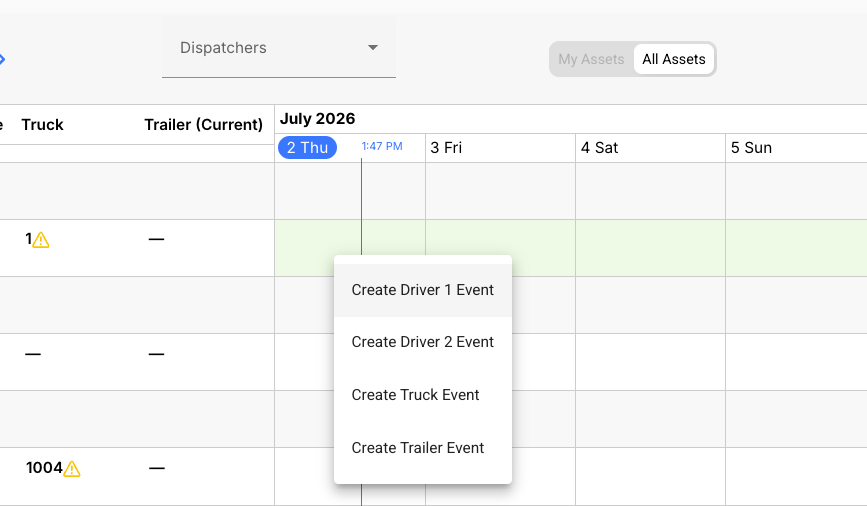
Add a driver event from Dispatch Planner v2
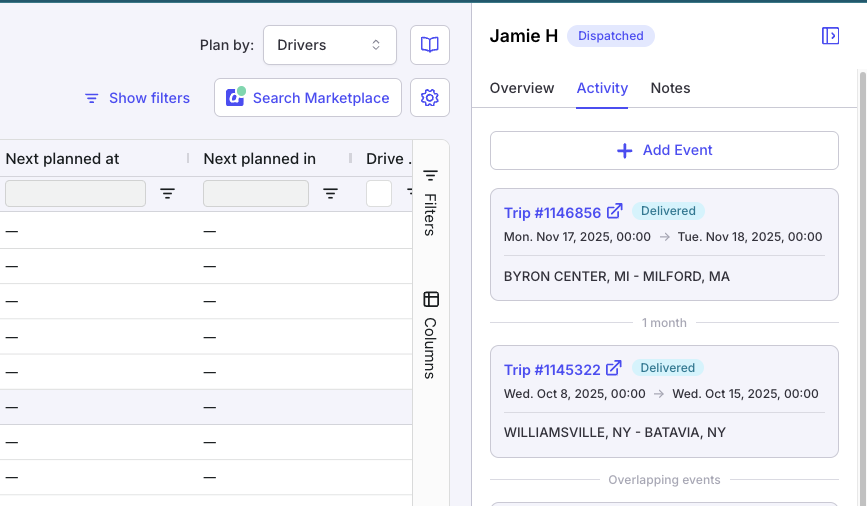
Click the calendar icon on any driver row to open the side panel with Driver Activity, then click Add Event.