
Overview
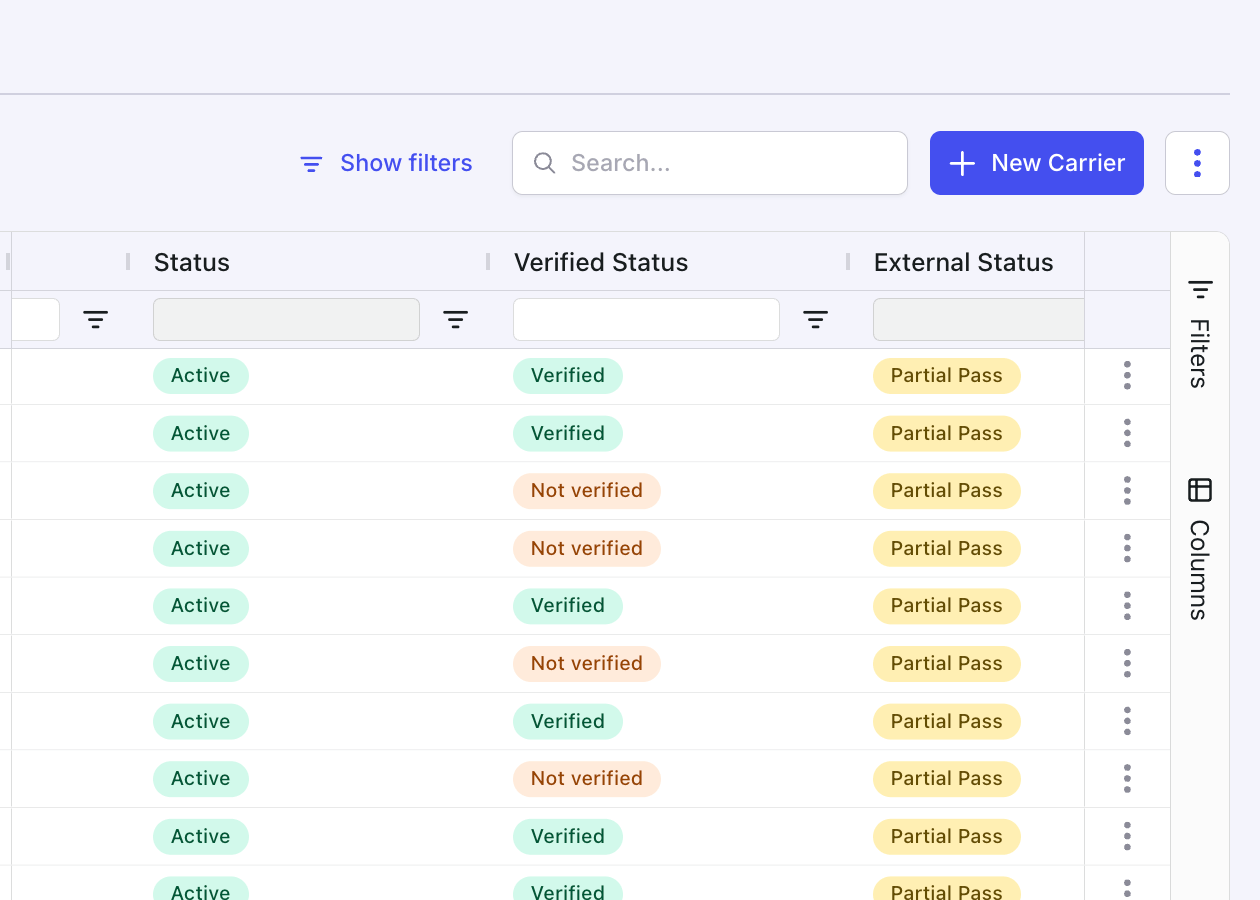
Carrier verification (also called MC verification or FMCSA check) confirms that a carrier representative is authorized to act on behalf of the FMCSA-registered owner. Carrier verification lets your brokerage confirm that the person representing a motor carrier is authorized by the owner registered with the FMCSA. Alvys sends a 6-digit code to the FMCSA owner’s email address and/or mobile number. Once the code is entered and accepted, the carrier’s status updates to “Verified”. You can trigger verification from four locations in Alvys: Carrier Packet, Carrier Profile, Rate Confirmation, and Carrier Onboarding Packet. Before verifying, Alvys requires at least one of the carrier’s MC number or USDOT number, and at least one delivery method (email or phone). The FMCSA owner must have an email address or mobile number on file with the FMCSA. You can check the current verification status of any carrier in three places:- The Carriers list (Verified Status column)
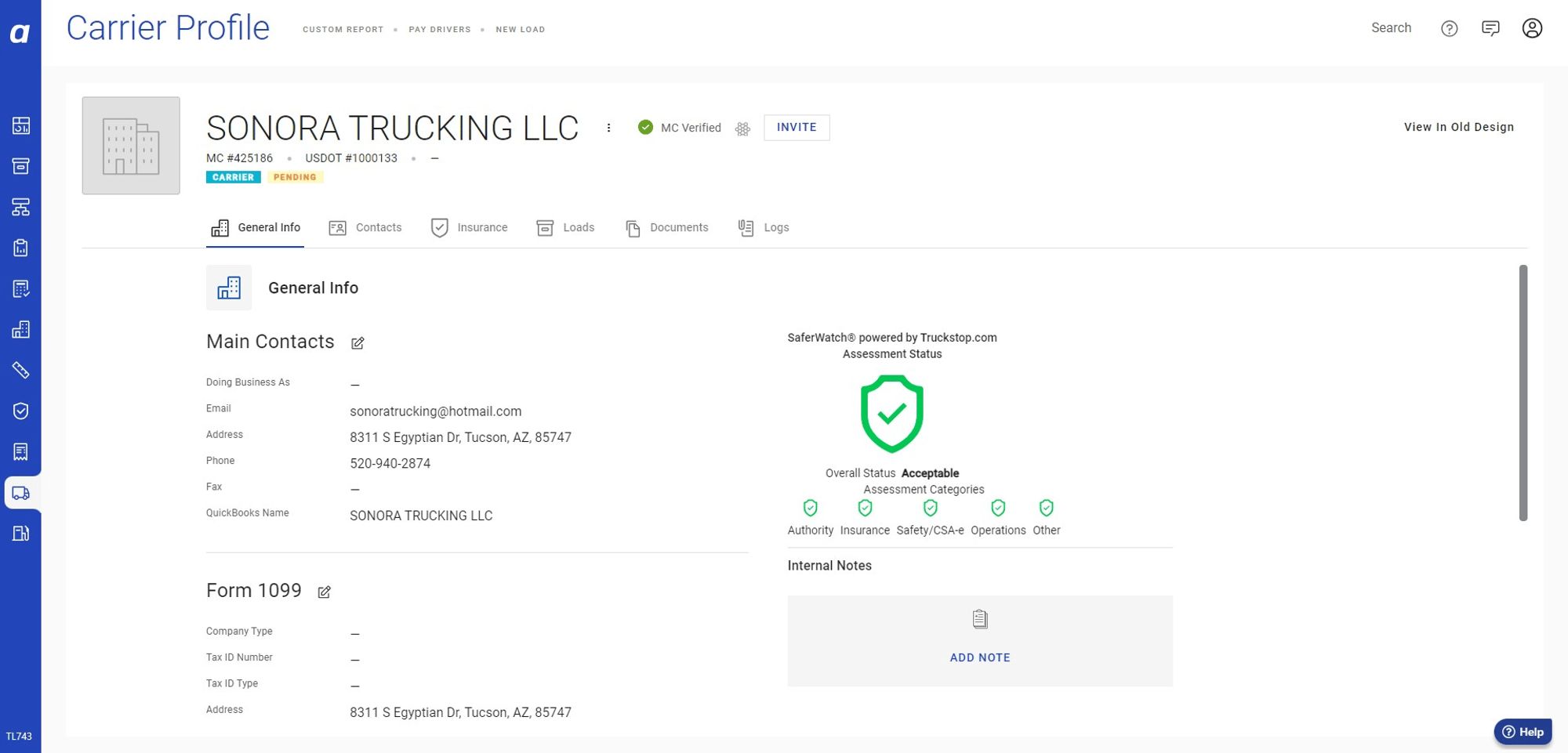
- The carrier’s profile page
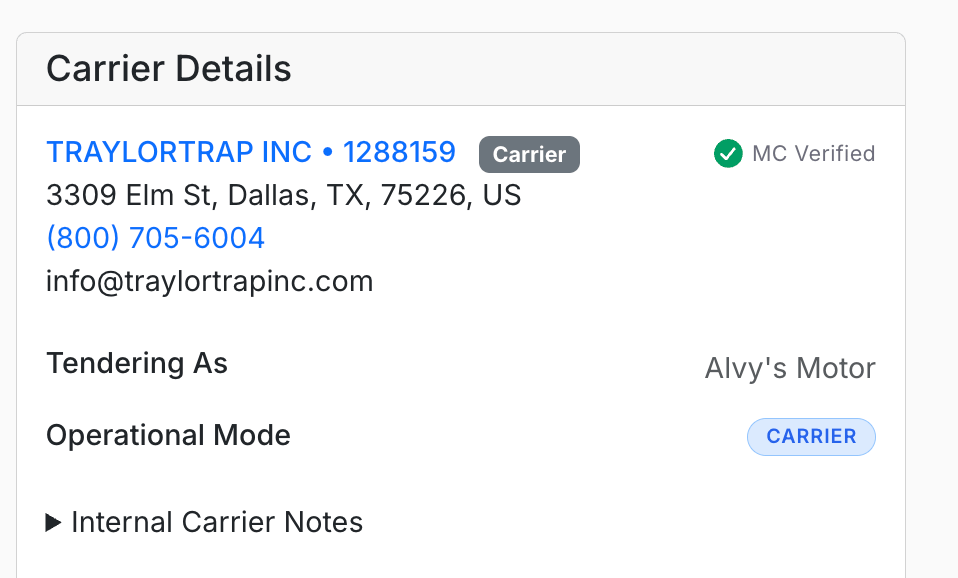
- The Carrier details section of any load
Prerequisites
No special permission is required to trigger carrier verification. Any user logged in to Alvys (all users) can initiate and complete verification. You will need:- The carrier’s MC number or USDOT number (at least one is required)
- Access to the carrier’s FMCSA-registered email address or mobile phone, OR the ability to contact the carrier owner to obtain the code
Steps
- Open the carrier verification form. Verification can be triggered from four locations. Navigate to whichever is most convenient for your current workflow.
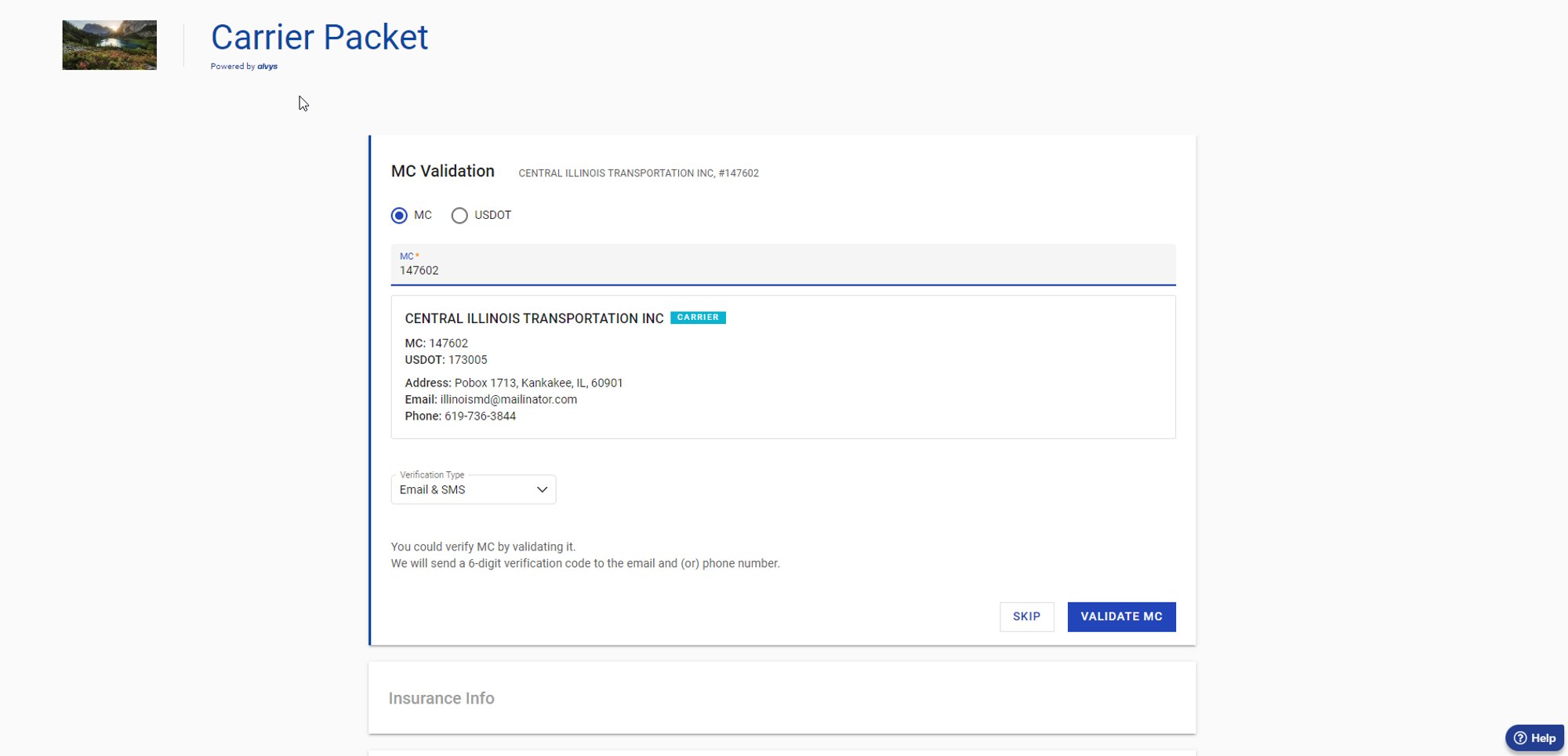
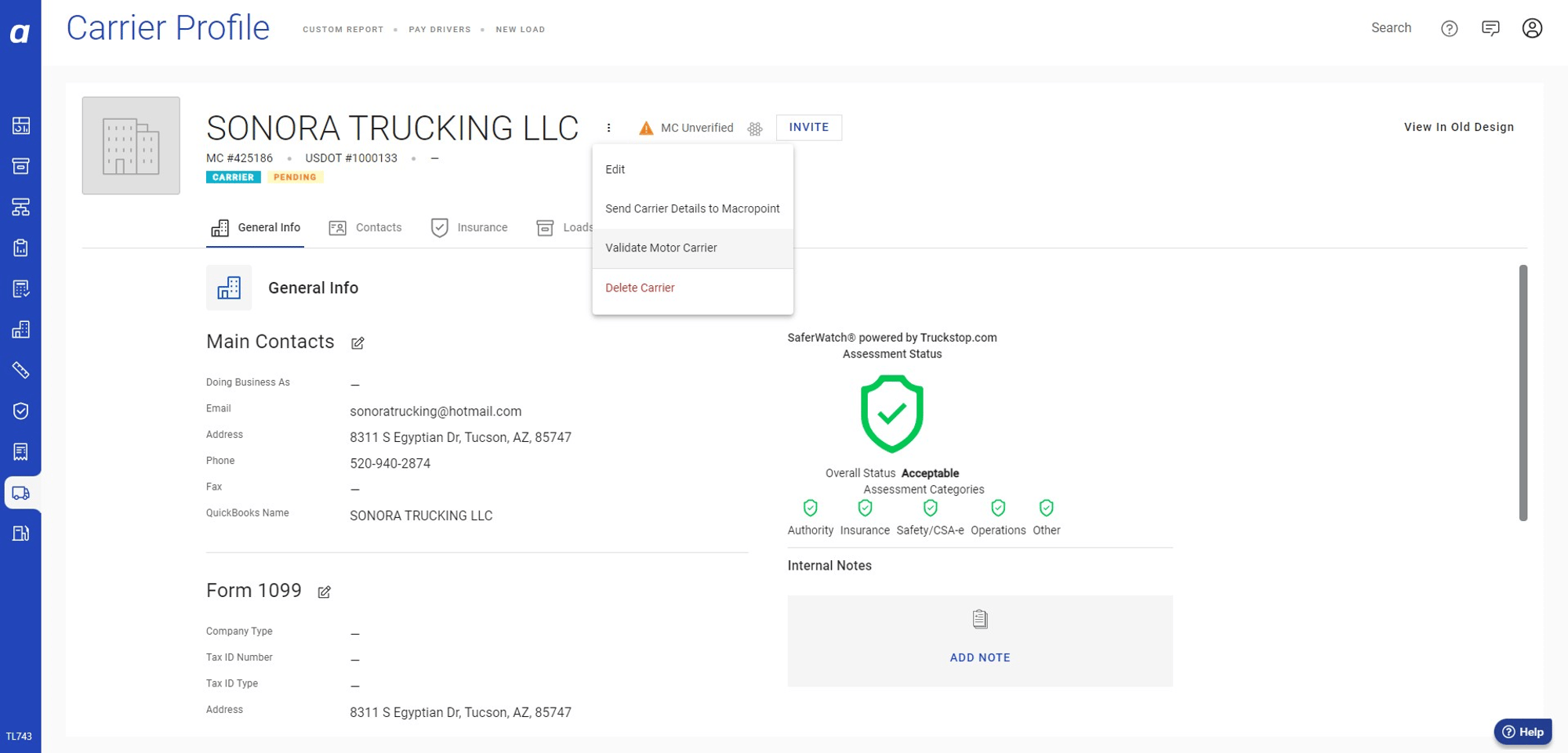
- Select a verification method. Once the Motor Carrier Validation form is open, choose how the 6-digit code will be sent to the FMCSA owner.
- Email and SMS: Sends the code to both the FMCSA-registered email and mobile number simultaneously.
- Email only: Sends the code to the FMCSA-registered email address only.
- SMS only: Sends the code to the FMCSA-registered mobile number only.
- Select your preferred option and confirm to send the code.
- Retrieve the verification code. After sending, the code is delivered to the FMCSA owner. Retrieve it using one of these two methods.
- Method A, code via email or SMS: If you or the carrier owner has access to the FMCSA-registered email or phone, retrieve the 6-digit code from the message received.
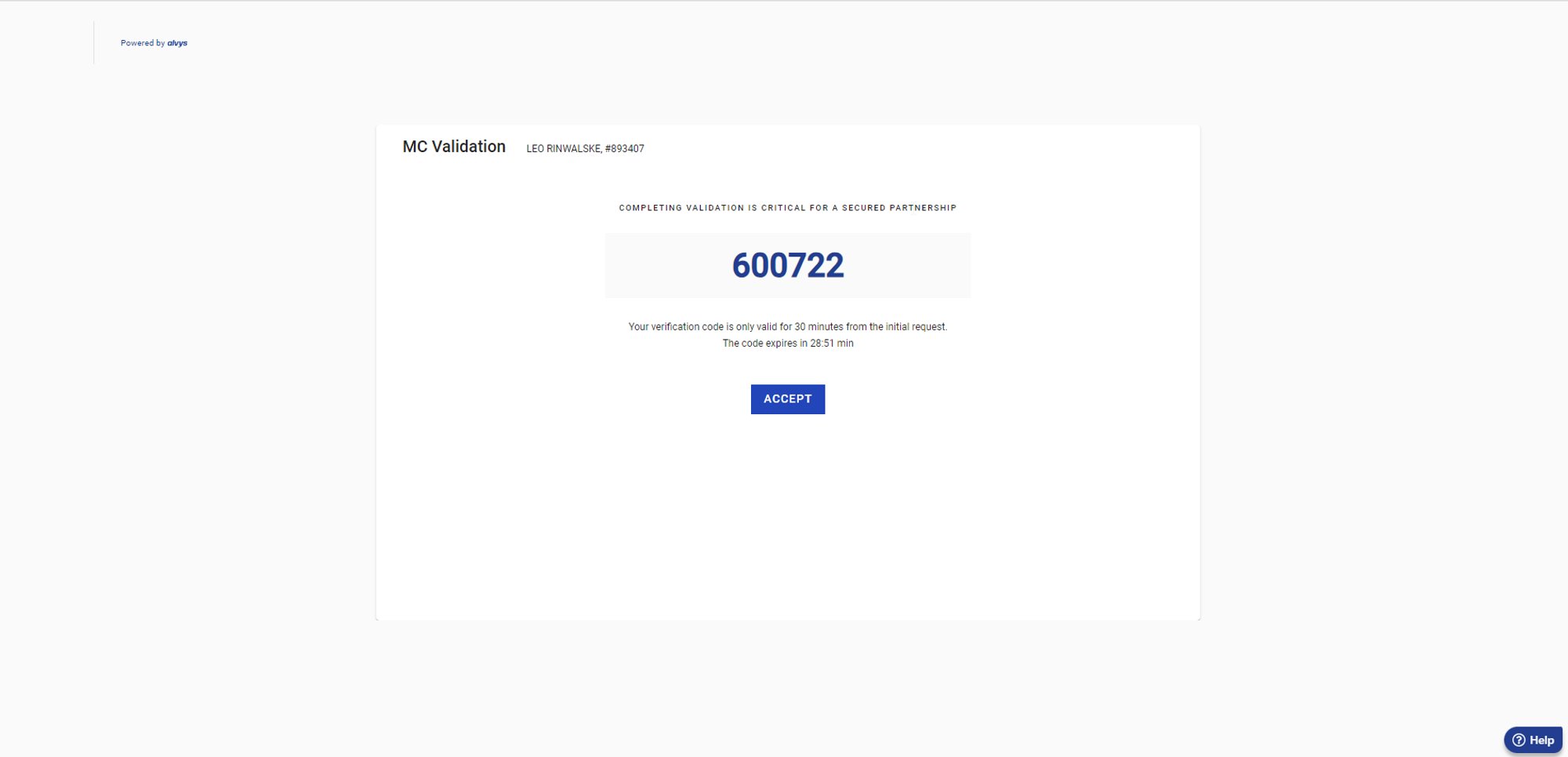

- Method B, contact the carrier owner directly: If you do not have access to the FMCSA-registered email or phone, contact the carrier owner and ask them to read you the code from the message they received. Enter the code once they provide it.
- Enter the code in the validation form. Enter the 6-digit code in the Motor Carrier Validation form and submit.
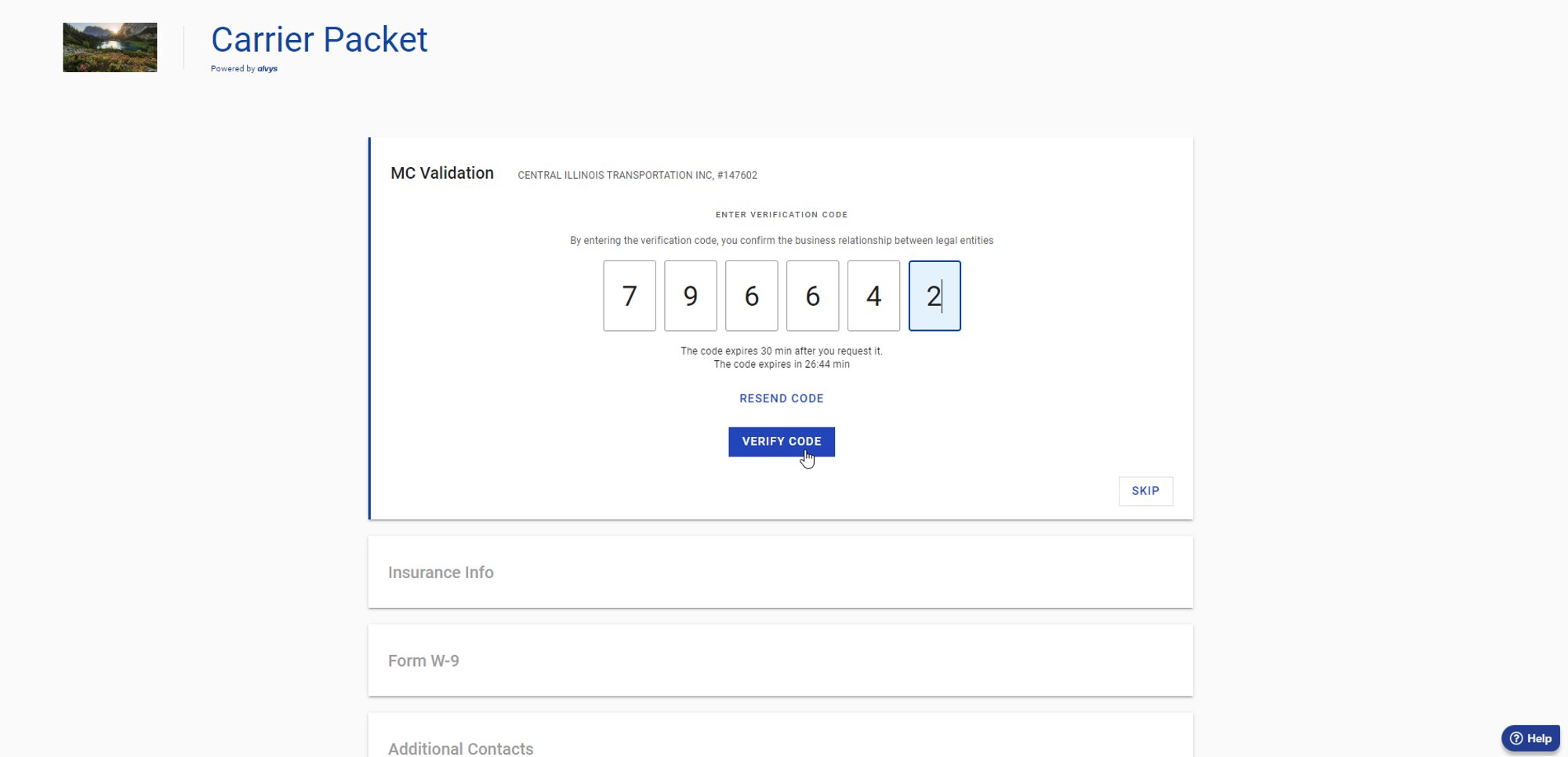
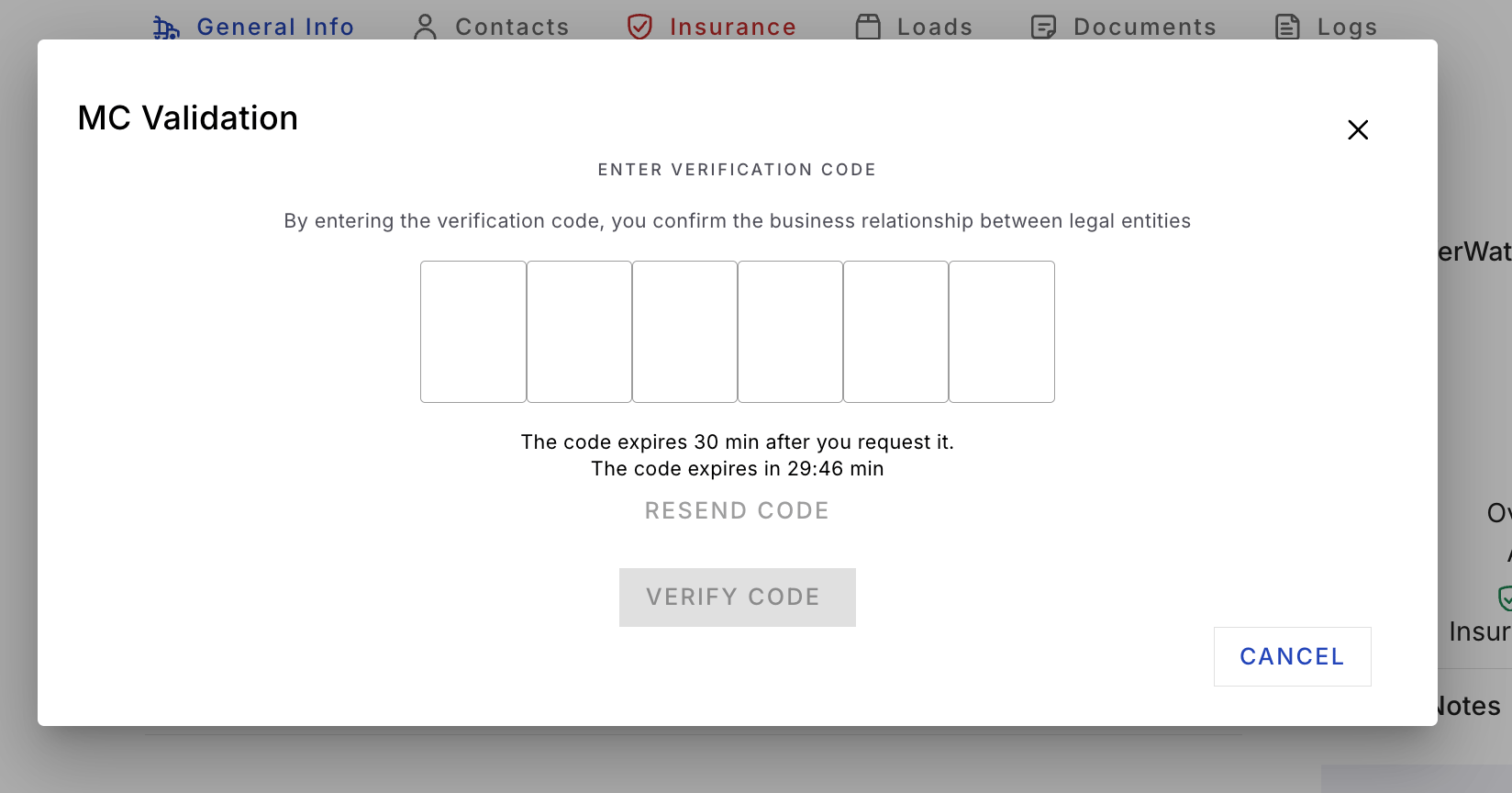
- Motor Carrier Validation form with an alternate view of the code entry step.*
- Confirm the result. After submitting, the system validates the code.
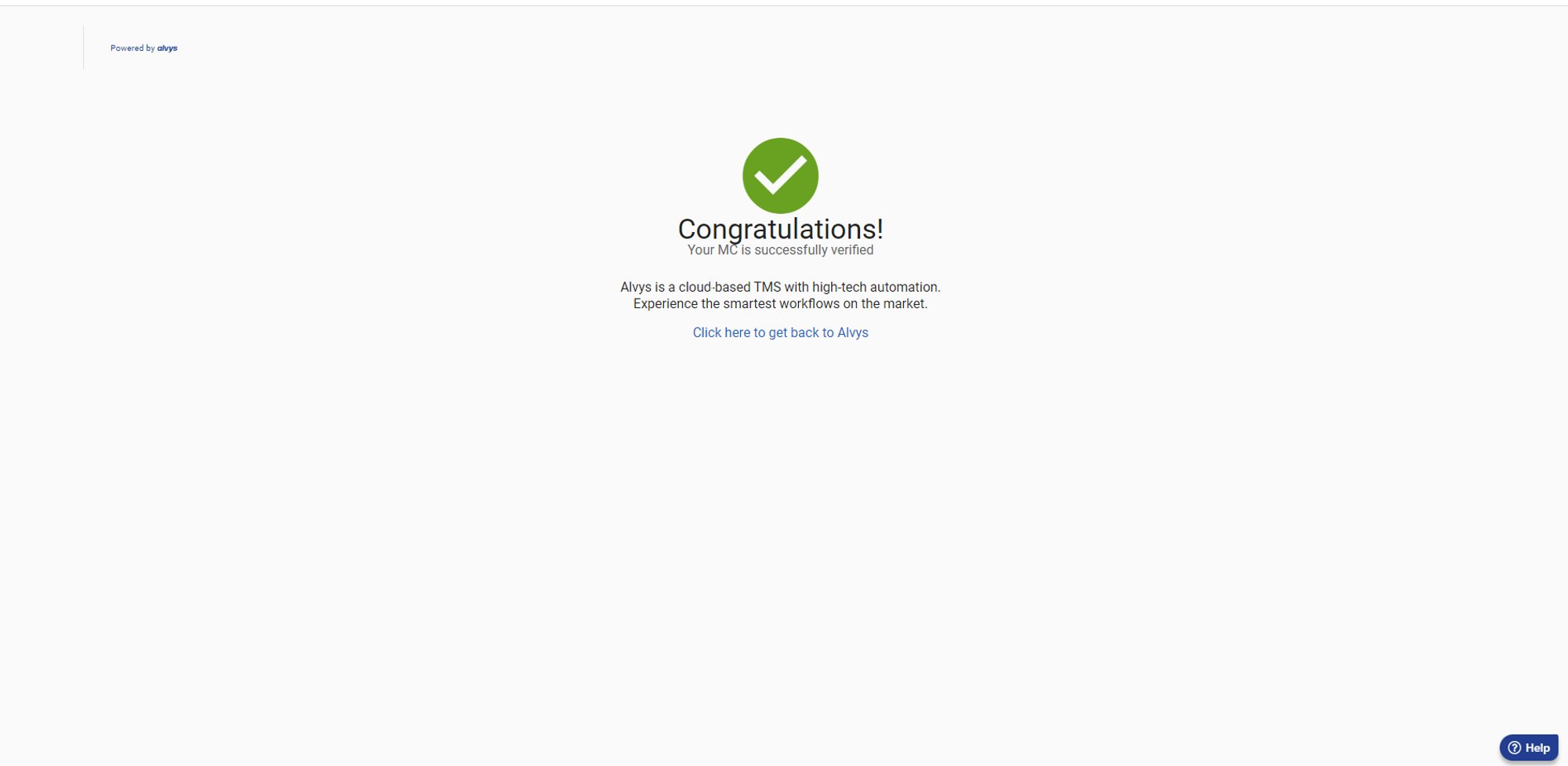
- If the code matches and has not expired, a success message appears and the carrier’s status updates to “Verified”.
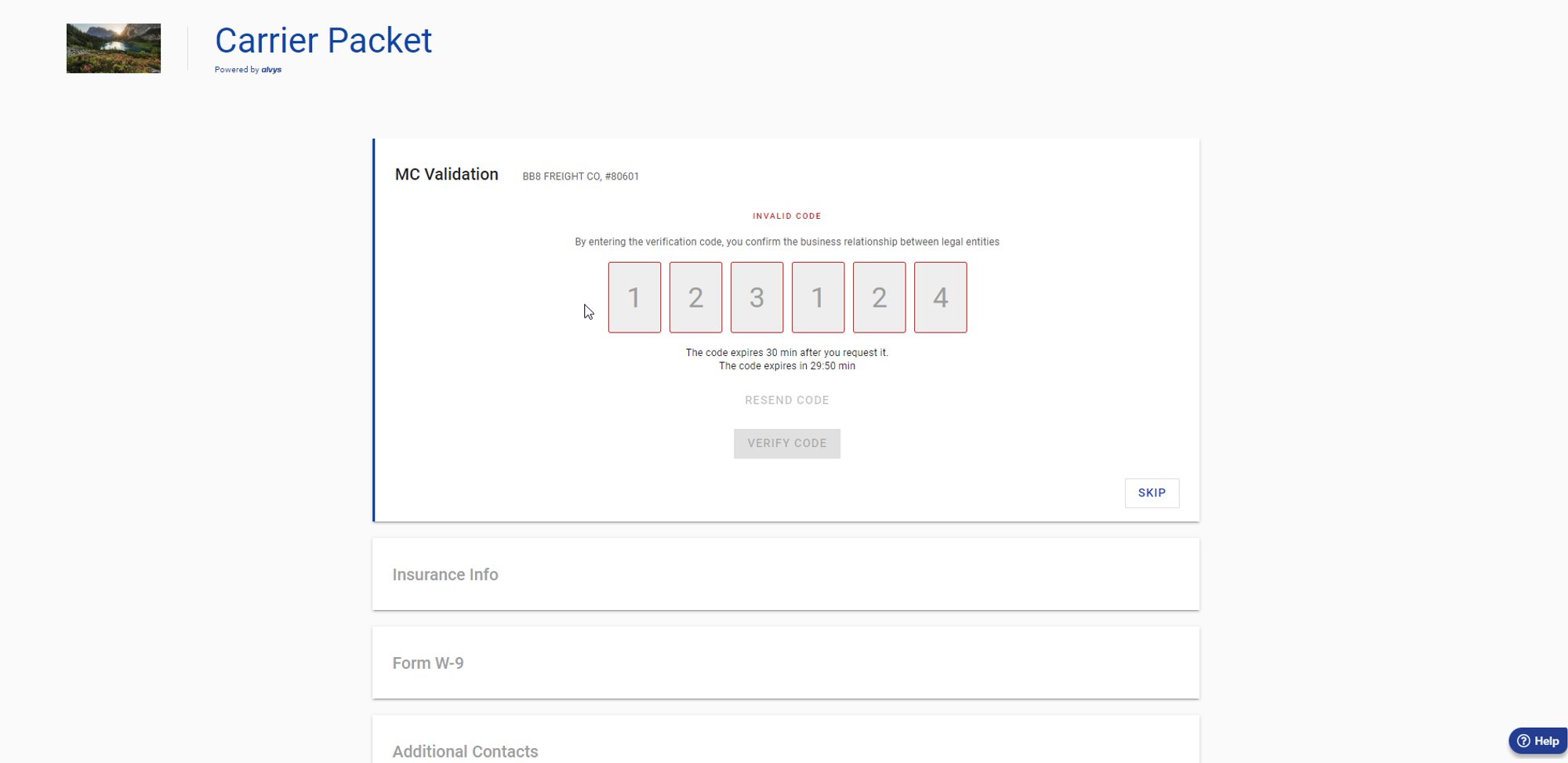
- If the code does not match or has expired, an error message appears. You can request a new code and try again.
Verifying via the FMCSA email link
If Email is selected as a delivery method and you have access to the FMCSA-registered email inbox, you can verify without entering a code manually:- Open the verification email sent to the FMCSA owner’s email address.
- Click the verification link in the email.
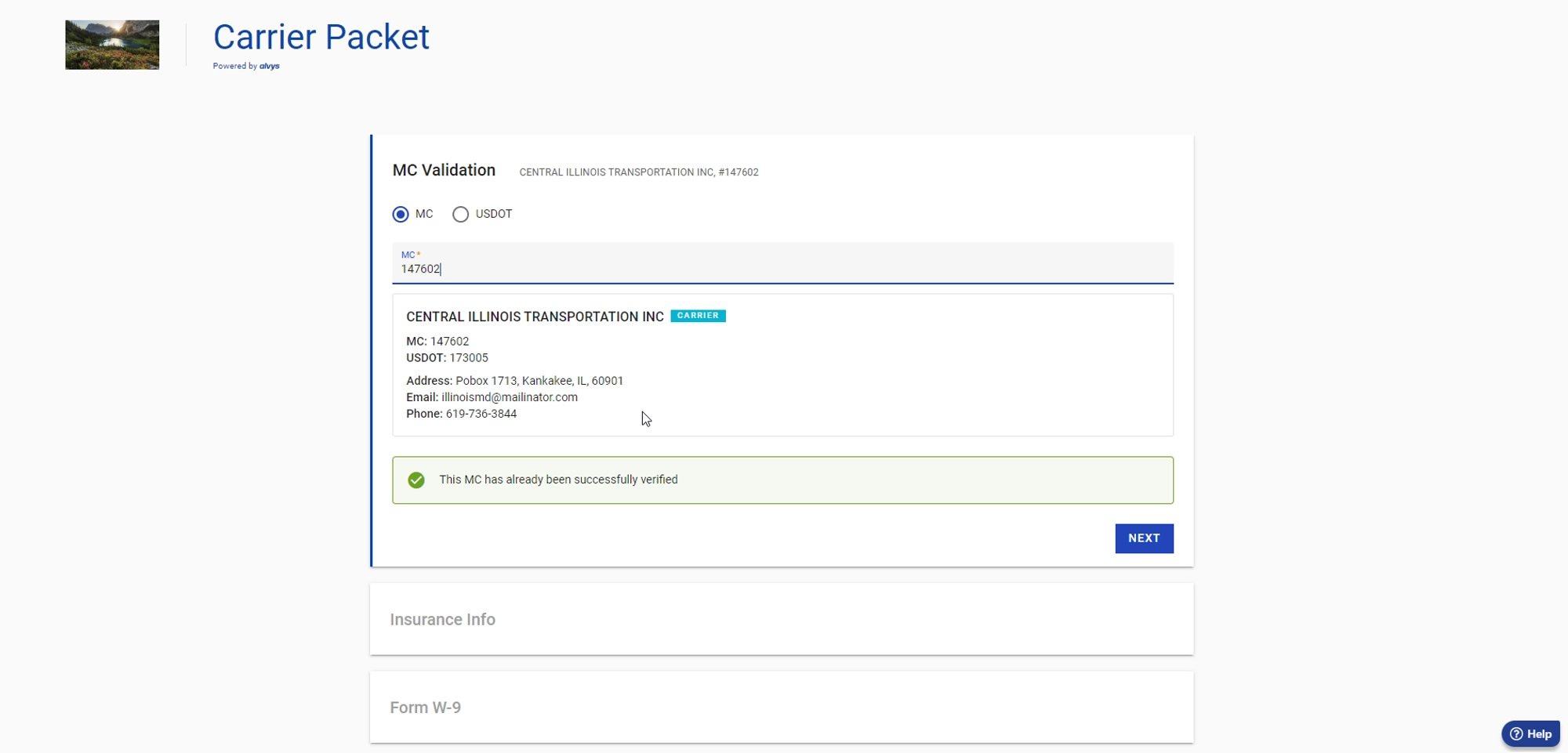
- The confirmation page opens in a browser. Confirm the carrier on that page.
Pending verification
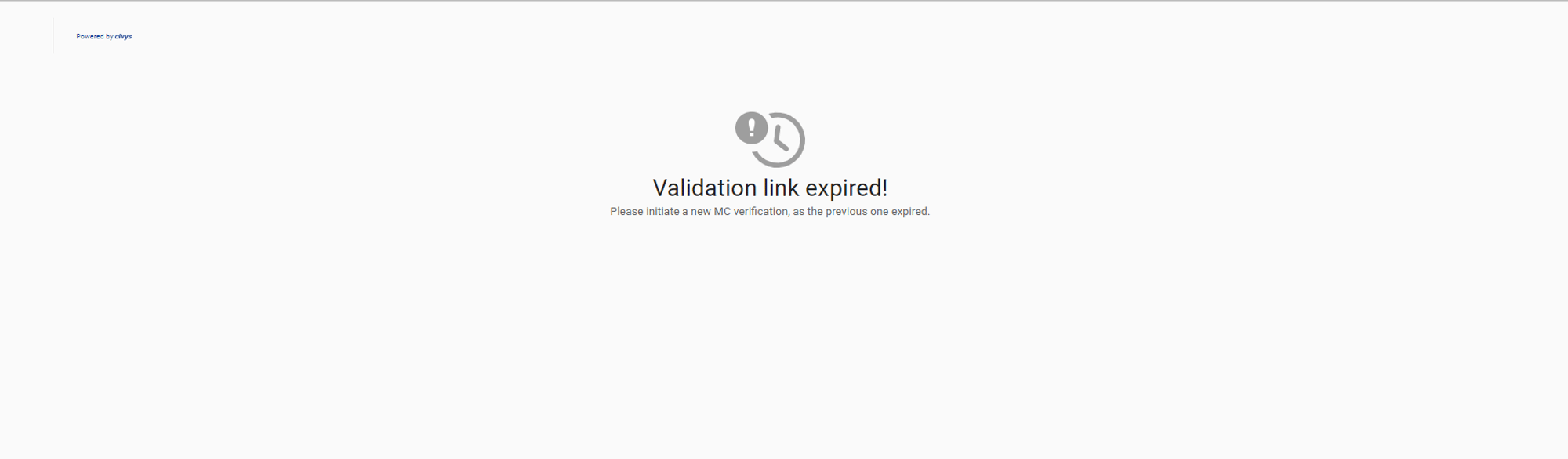
If a code has already been sent and is still within its valid period, the form shows a pending state rather than offering a new code. Wait for the pending code to be used or expire before requesting a new one.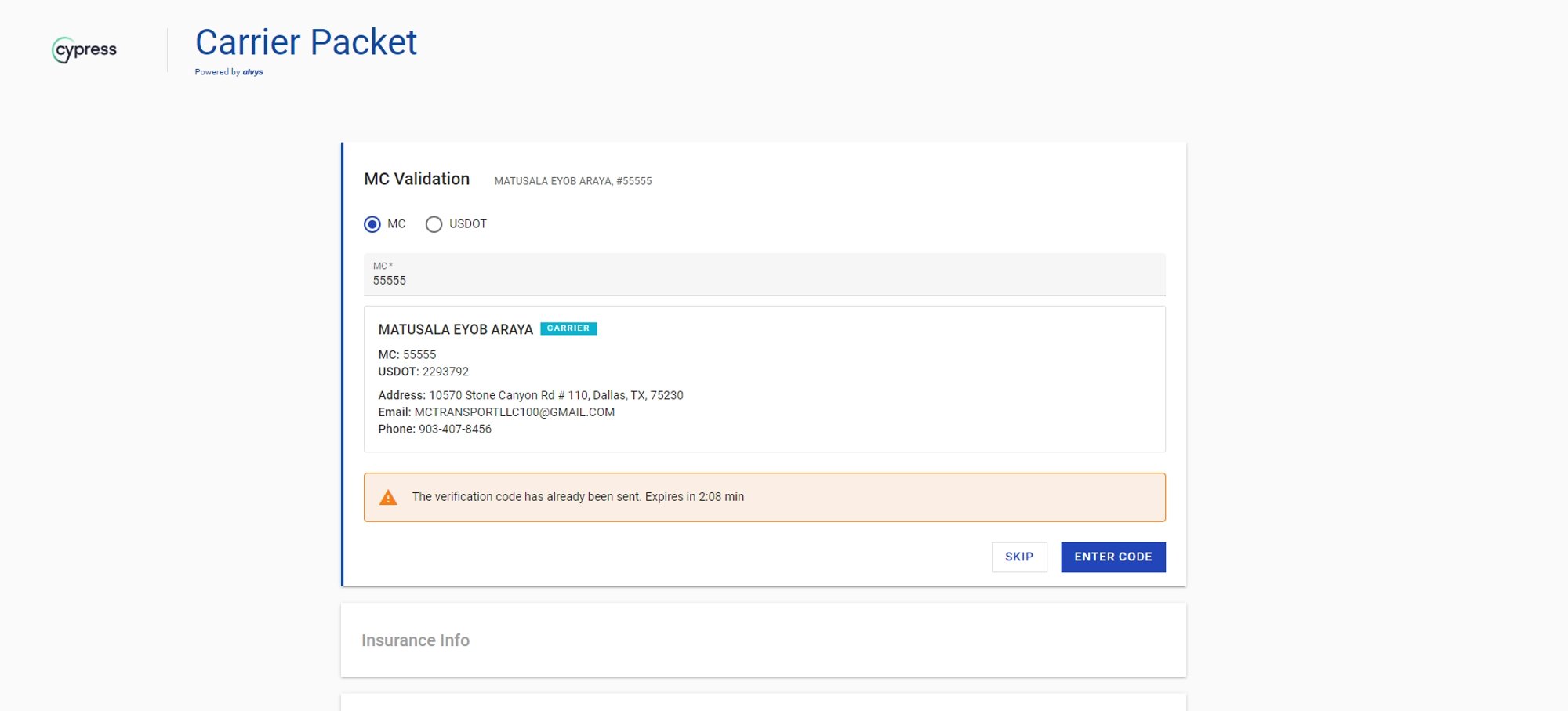
Troubleshooting
Verification code not received
- Confirm the carrier has an email address or mobile number registered with the FMCSA that matches what is on file in Alvys.
- Check whether a verification is already pending. If a previous code was sent and has not expired, the form will show a pending state. Wait for it to expire before requesting a new one.
- If the carrier owner has not received the code after a few minutes, ask them to check their spam or junk folder (for email) or verify the mobile number registered with the FMCSA is correct.
- If none of the above resolves the issue, contact Alvys support.
Error message appears after entering the code
- Confirm the code was entered exactly as received, including all 6 digits with no extra spaces.
- Check whether the code has expired. Codes are valid for a limited time after being sent. If expired, request a new code.
- If you continue to receive an error after requesting and entering a new code, contact Alvys support.
Verification status shows Not verified after successful entry
- Refresh the page to reload the carrier’s current status.
- Check whether the confirmation message appeared after submission. A success message confirms the status was updated. If no message appeared, the verification may not have completed.
- If the status still shows “Not verified” after refreshing and the success message did appear, contact Alvys support.