
Overview
Alvys uses multi-factor authentication (MFA), also called two-factor authentication or 2FA, to add a second layer of protection to your account. In addition to your password, MFA requires you to verify your identity using something you have: a code from an authenticator app, an SMS text message, or a hardware security key. MFA is enforced for all users. You will be prompted to set it up when you sign in if it has not yet been configured on your account. Setting up more than one method is strongly recommended so you always have a backup if one method becomes unavailable.Prerequisites
- You must have an active Alvys account.
- To use an authenticator app, download one before starting: Google Authenticator, Microsoft Authenticator, Authy, 1Password, or any TOTP-compatible app.
- To use SMS, confirm your country is in the supported list in the FAQs section below.
- To use a security key, have your FIDO2/WebAuthn hardware device (such as a YubiKey or Feitian key) ready.
Steps
- Sign in to Alvys.
- Go to the Alvys sign-in screen and enter your username and password.
- After signing in, Alvys will prompt you to set up MFA if it has not been configured.
-
You will be asked to choose at least one verification method.
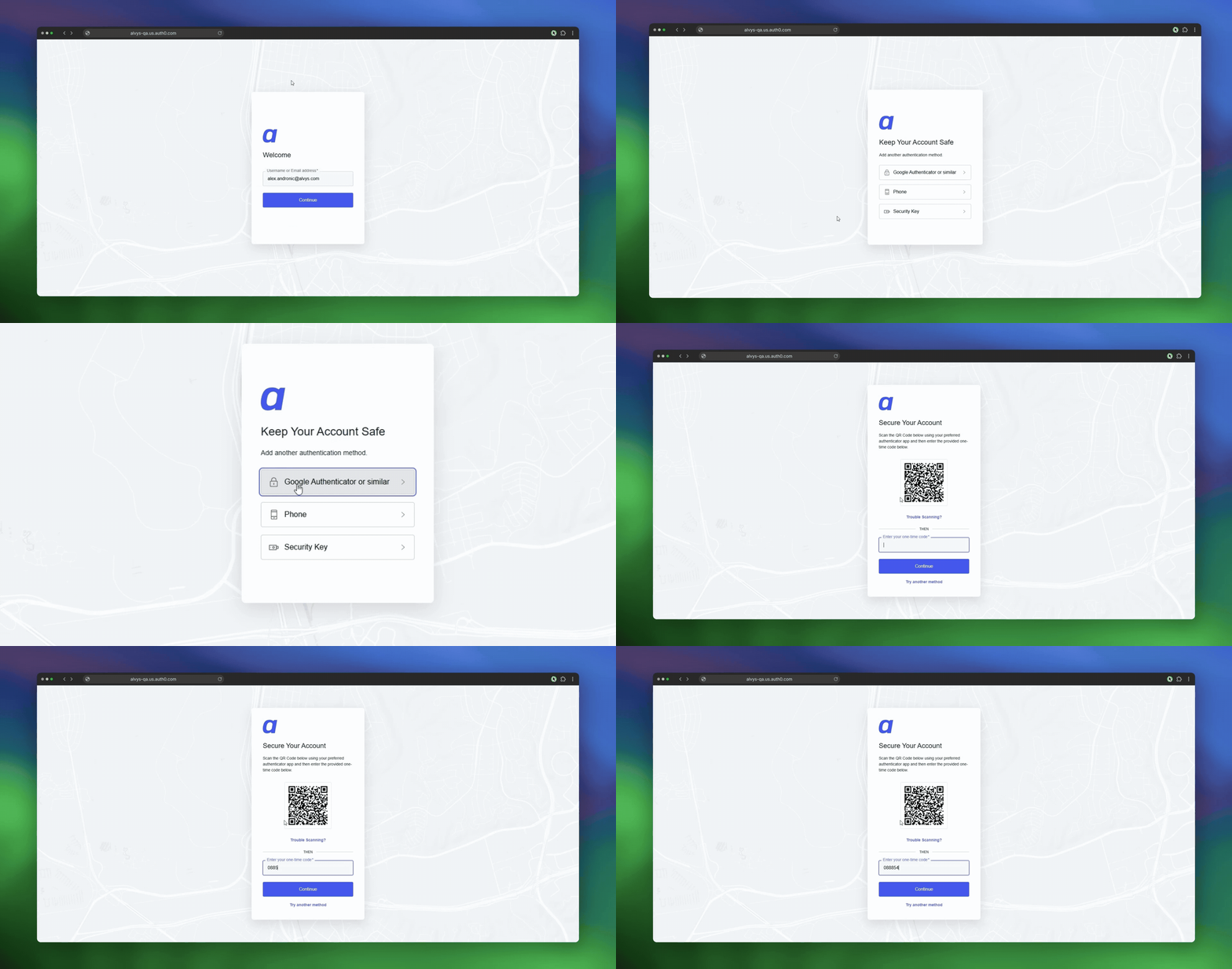 MFA setup prompt screen shown after sign-in, displaying the three method options
- Choose your authentication method.
- Select one of the three available methods: Authenticator App, Phone (SMS), or Security Key.
-
Follow the steps for your chosen method below.
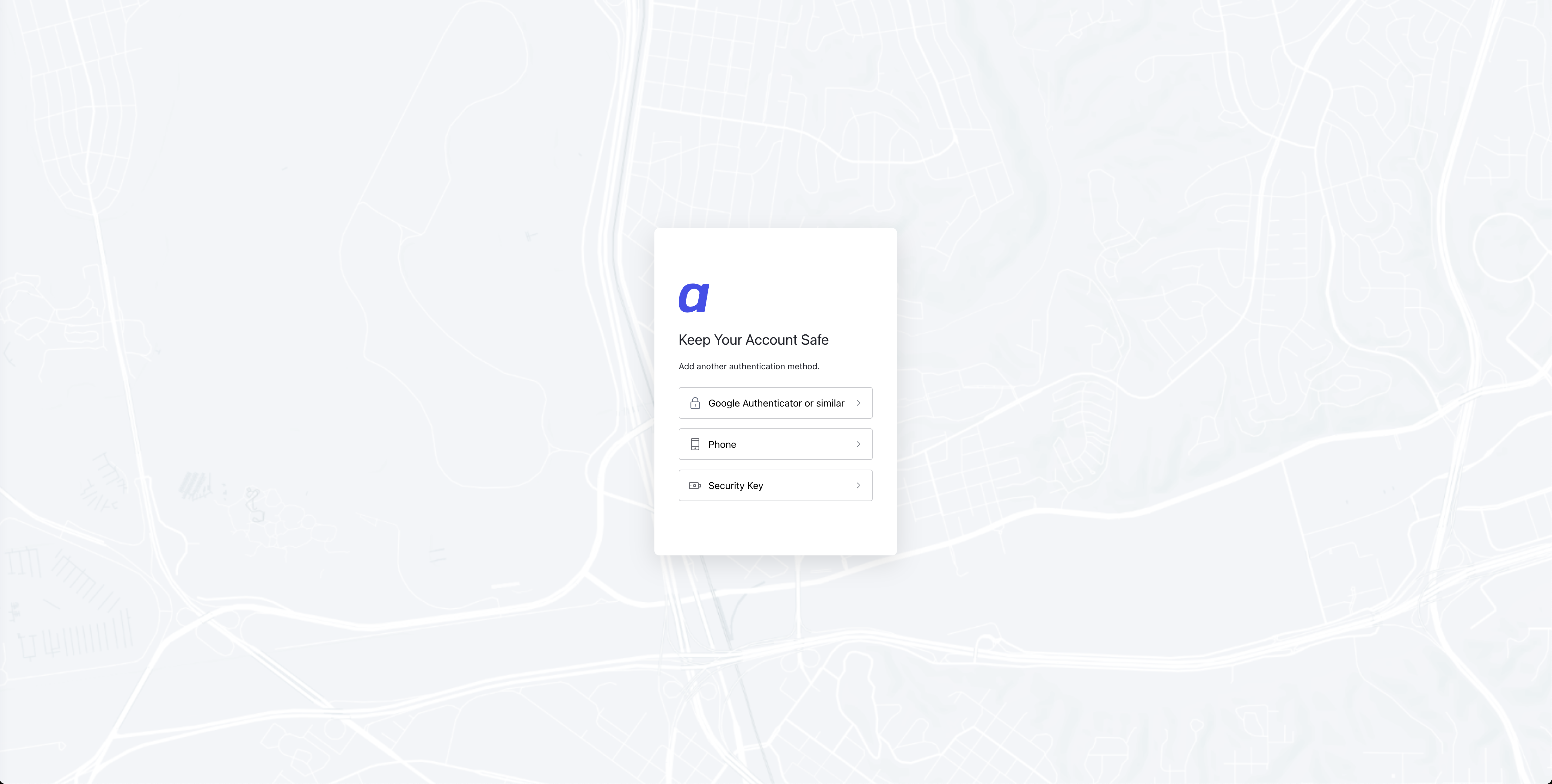 Screen showing the method selection step with Authenticator App, Phone (SMS), and Security Key options
- Set up an authenticator app (recommended).
- Select Authenticator App when prompted.
- Open your authenticator app on your phone.
- Scan the QR code displayed in Alvys. If your app does not support scanning, enter the code manually instead.
- Your app will begin generating a 6-digit code that refreshes every 30 seconds.
- Enter the current 6-digit code in Alvys to complete setup.
-
On future sign-ins, open your authenticator app and enter the current code when prompted.
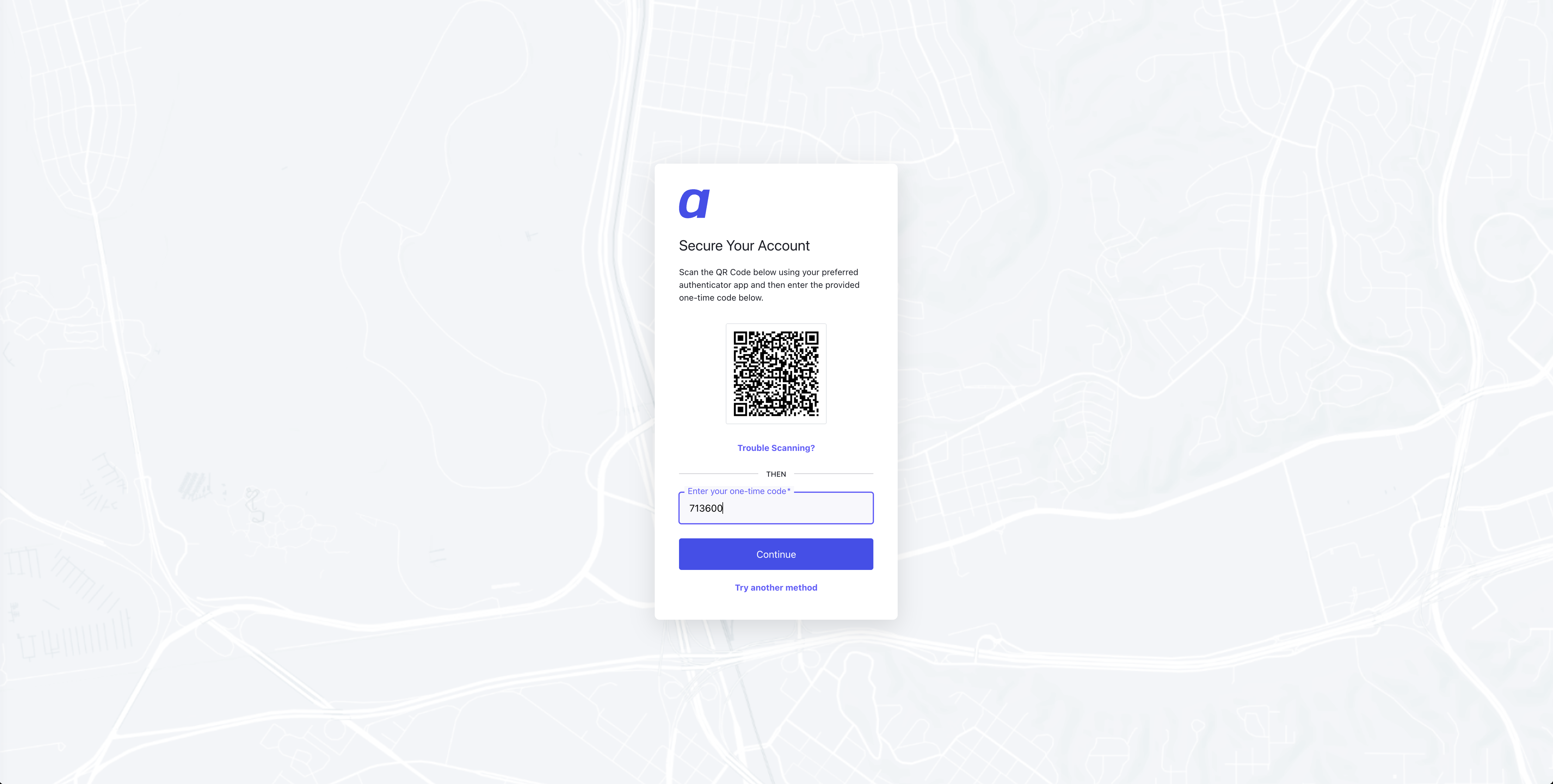 *QR code scan screen shown during authenticator app setup in Alvys. *
- Set up SMS verification (alternative).
- Select Phone (SMS) when prompted.
- Enter your mobile phone number including the country code.
- Alvys will send a 6-digit code to that number via text message.
- Enter the code in Alvys to complete setup.
- SMS is less secure than an authenticator app. Use it as a backup method rather than your primary method. SMS is only available in supported countries; see the FAQs below for the full list.
- Set up a security key (alternative).
- Select Security Key when prompted.
- Insert or tap your FIDO2/WebAuthn hardware key (such as a YubiKey or Feitian device).
- Follow the on-screen instructions to register the key.
- On future sign-ins, insert or tap your key when prompted to verify your identity.
Troubleshooting
SMS code not received
- Confirm your country is in the supported list (see FAQs below). SMS is not available in all countries.
- Verify you have mobile coverage and that the phone number you entered is correct.
- Click Resend Code on the Alvys screen to request a new code.
- If the issue continues after resending, some carriers delay delivery. Switch to an authenticator app instead, as it does not rely on mobile coverage.
Authenticator app code not accepted
- Check that your phone’s date and time are set to automatic. Authenticator apps require accurate time synchronization; a time drift of more than 30 seconds will produce codes that fail.
- If the time is correct and codes still fail, remove your Alvys account from the authenticator app and add it again using a new QR code from Alvys.
Cannot sign in after losing phone or key
- Try any other MFA method you have configured on your account.
- If you cannot access any configured method, contact Alvys Support through the in-app messenger or at support@alvys.com to have your MFA reset.