
Applies to: Admin, Partner Admin, SupportModule: Reports & Analytics
Overview
Alvys Insights is an AI-powered chat interface that lets you ask questions about your operational and financial data in plain English. Instead of building reports or navigating dashboards, you type a question and get an instant answer with supporting data tables. People also call it Alvys Insights, the AI assistant, conversational analytics, or simply “ask a question” analytics. Insights respects your account’s existing permissions and data security policies, so every user only sees the data they are authorized to access. This is enforced at the data layer, which means the AI cannot bypass or override your account’s security policies. Insights is currently in Preview.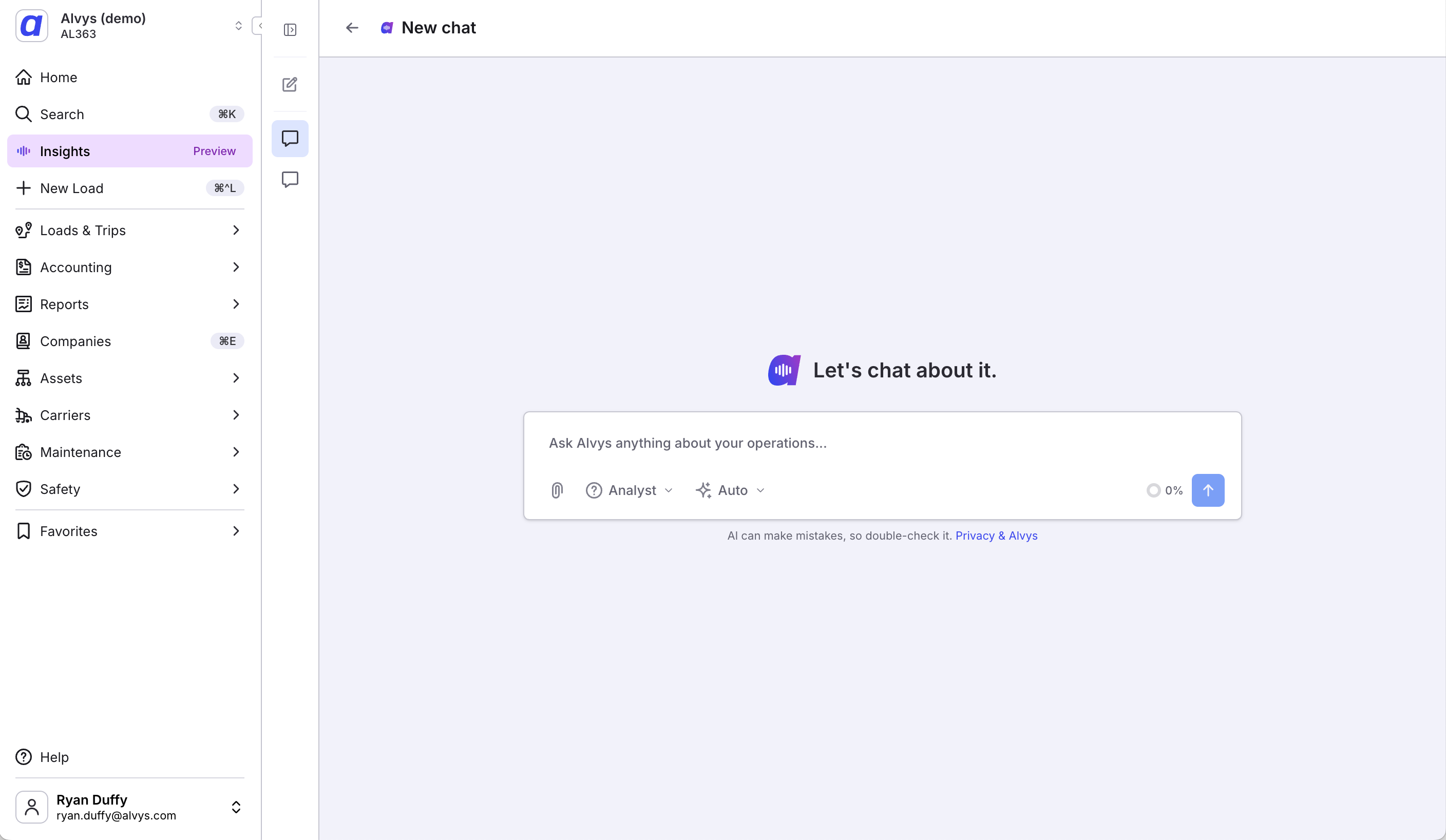 Insights chat interface overview.
Before You Start
You need the “ViewInsights” permission on your account. This permission is granted by default to the Admin, Partner Admin, and Support roles. If you are on another role, an administrator must grant it explicitly under Company Profile then Users. To see sensitive personal data, you also need the “ViewPII” permission, also granted by default to the Admin, Partner Admin, and Support roles. If your permissions were changed after you signed in, log out and log back in so a new session is created and the updated permissions take effect.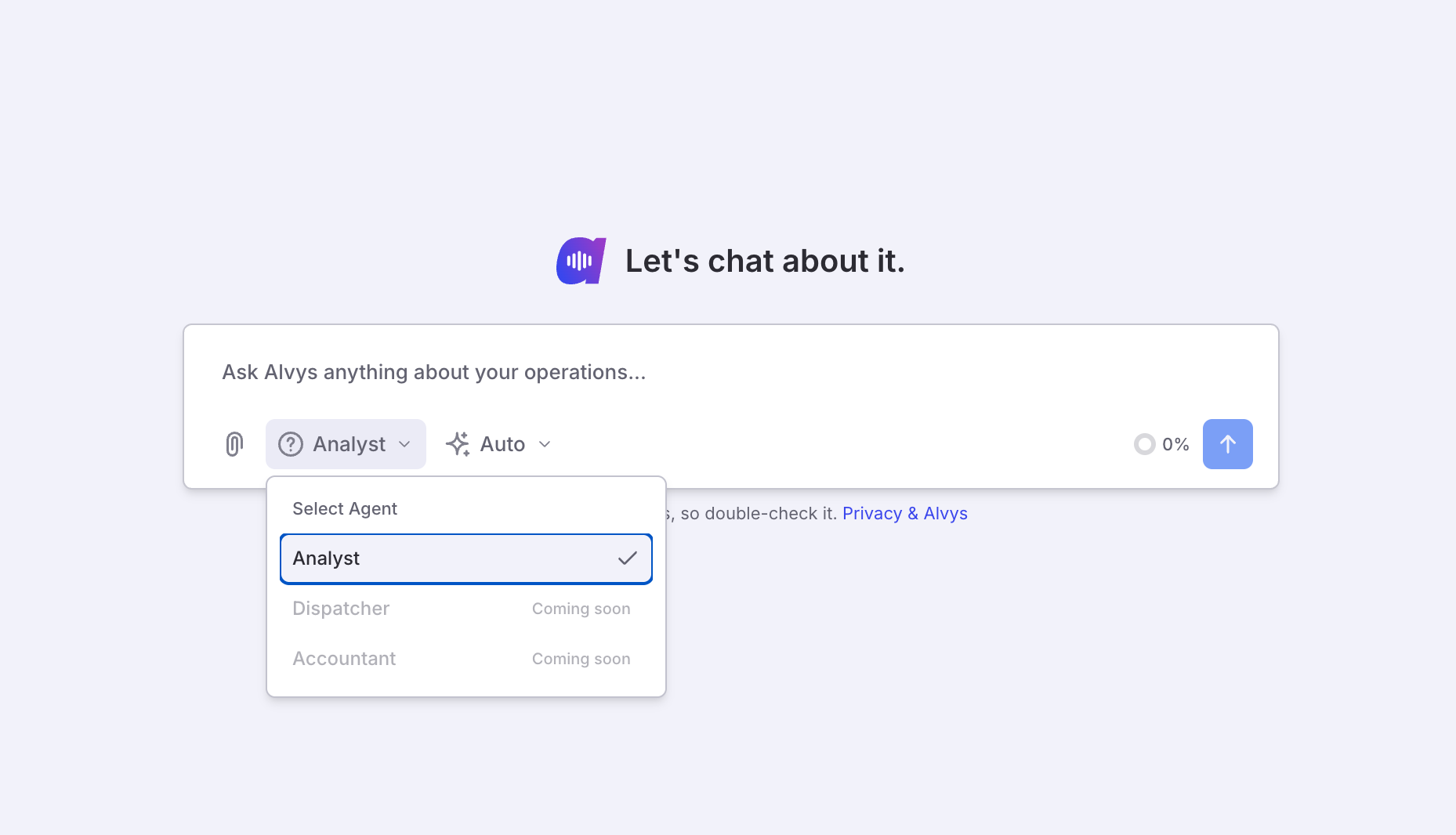 Selecting an agent from the Analyst dropdown.
Understanding Responses
When you ask a question, Insights responds with a natural-language summary of the answer along with a Results table showing the underlying data.Understanding & Validating Results
You can interact with responses and validate what you’re seeing in several ways:- View Details — Open the full dataset behind a chart/table to review all rows, and copy or download results. (If a dataset is large, the initial visualization may show only top results.)
- Copy or download results — Use the copy/download controls to export the data.
- Diagnostics and Explain the Logic — Ask follow-up questions like “How was this calculated?” or “What logic was used?” to get a plain-English explanation.
- Give feedback — Use the thumbs up/down icons to rate the quality of responses.
- Choose how the chat window displays. You can view the chat as a Floating window, as a Sidebar, or in Fullscreen. Switch between these display modes using the view controls in the chat window.
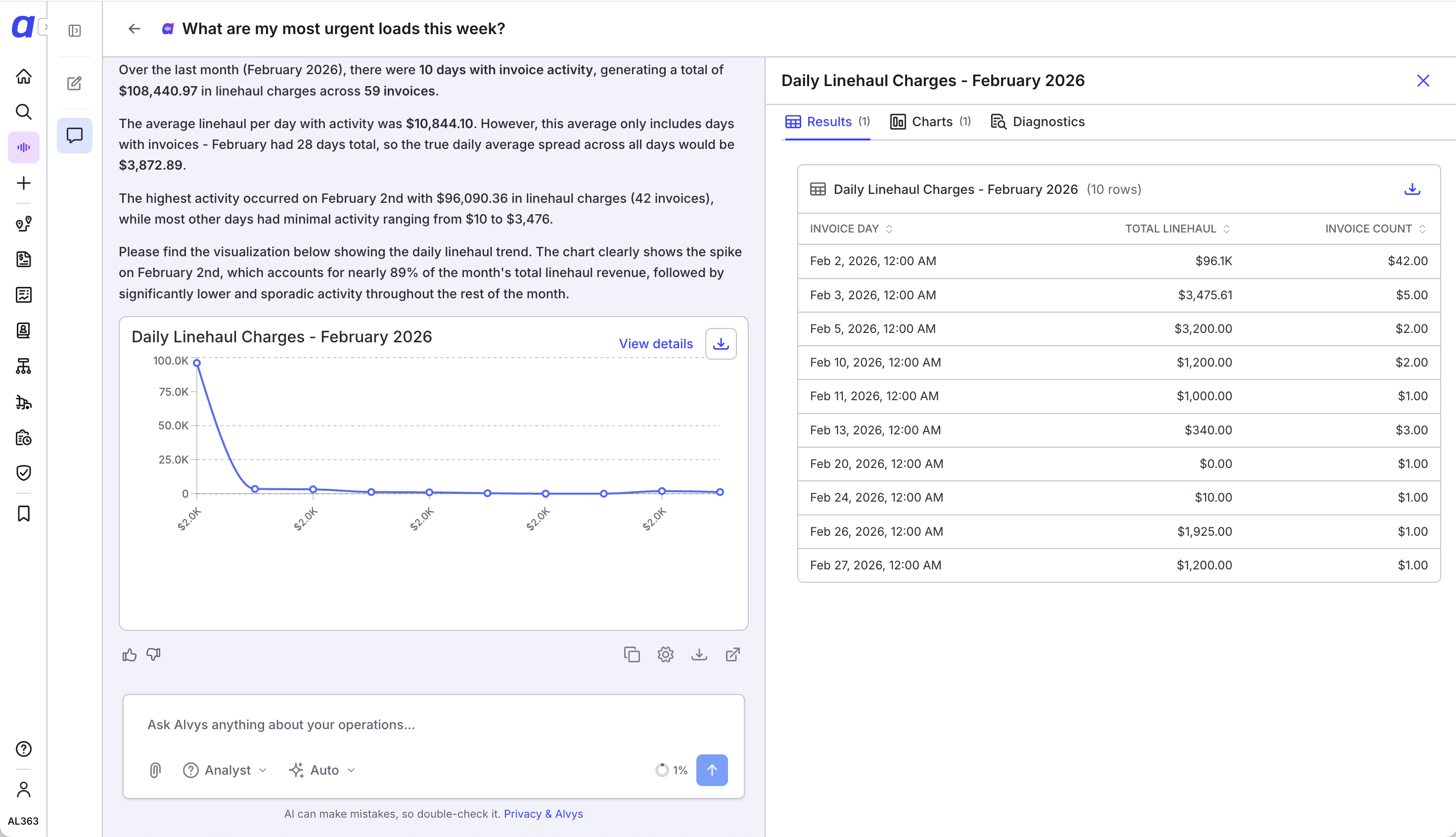 Validating results with View Details, copy, download, and feedback controls.
Result
When you ask a question, Insights responds with a natural-language summary along with a Results table showing the underlying data. You can validate and work with what you see: View Details opens the full dataset behind a chart or table so you can review all rows, then copy or download the results (if a dataset is large, the initial visualization may show only top results); Copy or download results uses the copy and download controls; Diagnostics and explain the logic lets you ask follow-up questions such as “How was this calculated?” to get a plain-English explanation; and Give feedback uses the thumbs up and thumbs down icons. Your recent conversations are saved in the left sidebar under Recents.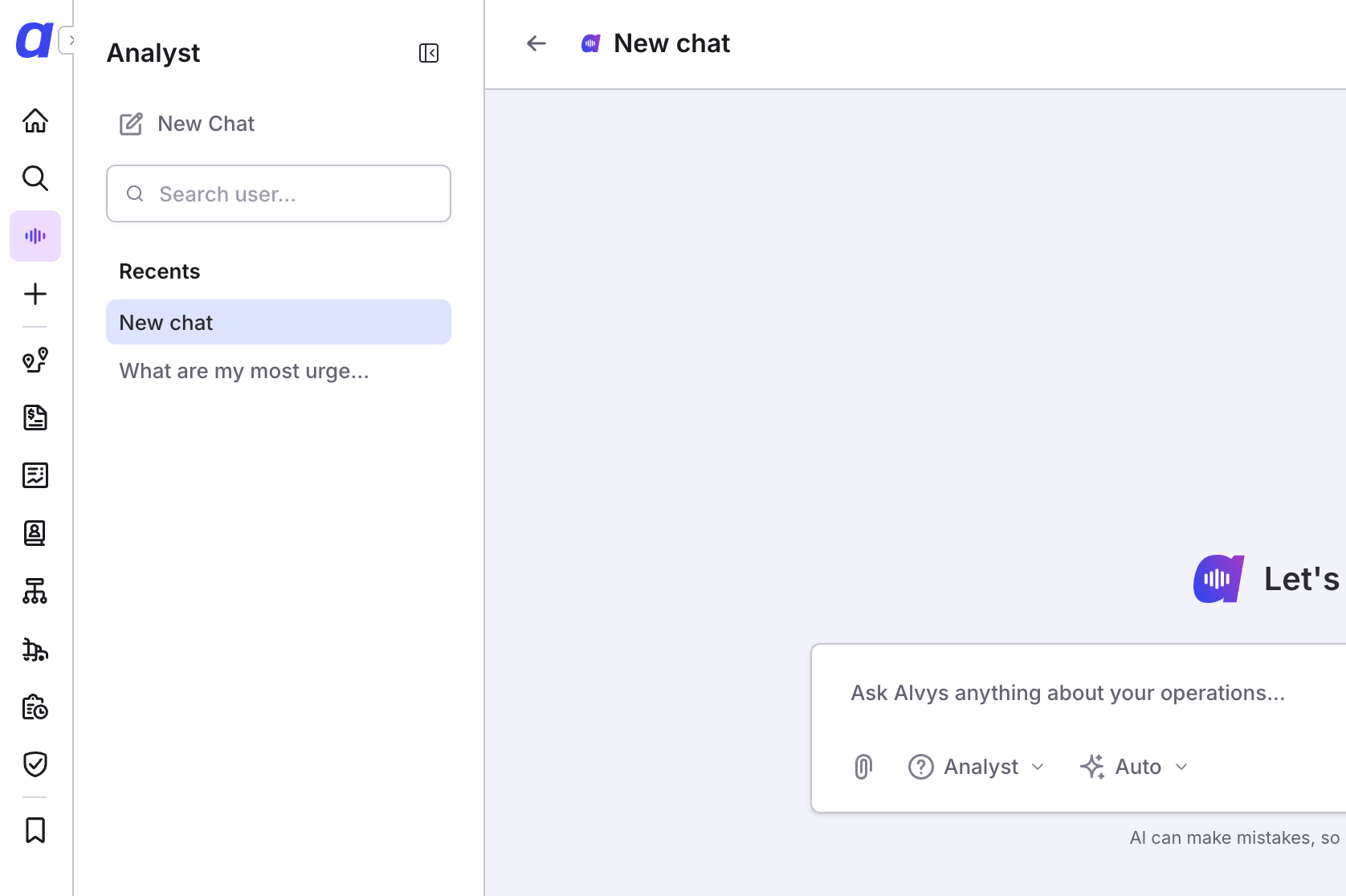 Sidebar showing “Recents” to access previous search history
Variations
Ask clear, specific questions
The more specific your question, the better the response. Examples: “How many loads were delivered last month?”; “What is the total revenue by customer for Q1 2026?”; “Show me all active drivers and their current status”; “What are our top 5 lanes by load count this year?”; “How much did we spend on fuel last quarter?”Follow up and refine
Ask follow-up questions within the same chat to refine or drill into results. After asking about total loads, you might follow up with “Break that down by customer” or “Show me only the ones from Texas.”Understand how permissions shape your results
Permissions are evaluated at the group level, not field by field. If you have at least one relevant permission within a permission group, the data in that category becomes visible. If you do not have any permissions in a particular group, those fields appear masked. Insights uses a two-tier system: for most operational data fields (addresses, financial amounts, driver pay, vehicle information, employee IDs) you need at least one matching permission from the relevant permission group; for highly sensitive personal data (names, email addresses, phone numbers, dates of birth, driver license numbers, insurance details, geolocation) you need both the “ViewPII” permission and at least one permission from the relevant group. If you have the domain permission but not “ViewPII”, these fields stay masked.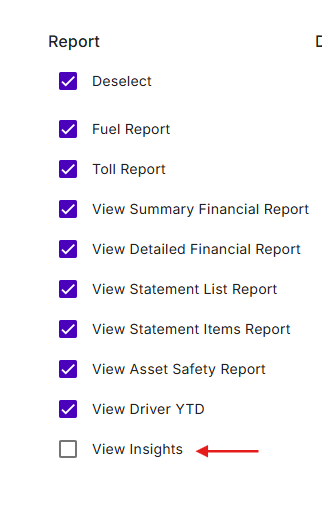 View Insights permission setting.
Keep AI accuracy in mind
Insights is powered by AI, which can occasionally make mistakes. Always double-check critical data points against your Alvys reports. A disclaimer at the bottom of the chat reminds you: “AI can make mistakes, so double-check it.”Troubleshooting
Some fields appear masked or hidden in results
When you lack the required permissions, sensitive fields are automatically masked.- Identify which category is masked. Financial amounts (invoice totals, rates, pay) require at least one financial permission such as Billing, Invoice, View Customer Rate, or View Driver Rates. Personal contact info (email, phone, name) requires “ViewPII” plus a relevant domain permission. Vehicle identifiers (VIN, license plates) require asset permissions such as View Trucks, View Trailers, or Edit Asset.
- Ask your administrator to review your permissions under Company Profile then Users.
Insights says data is not available even though it exists in the application
This happens when your permissions restrict access to that data. In some cases, sensitive fields are not just masked but fully hidden, so Insights treats them as unavailable.- Confirm with your administrator that you hold the required permission group for that data.
- If the data is personal data, confirm you also have the “ViewPII” permission.
A recent permission change has not taken effect
- Log out of Alvys.
- Log back in so a new session is created and the updated permissions are applied.
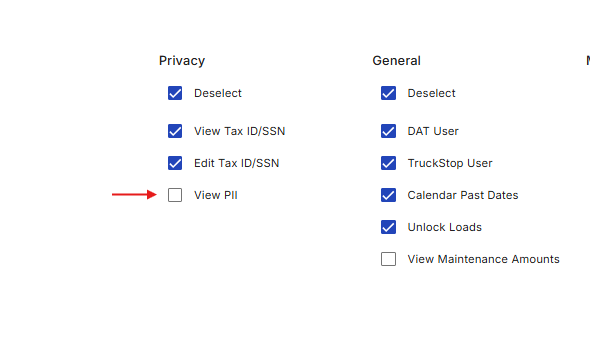 Permissions settings in user profile
ℹ️ Note: The View PII permission is enabled by default for the following roles: Admin and Partner Admin Roles. Other users need to have it explicitly granted by an administrator.
What Gets Masked
When you lack the required permissions, sensitive fields are automatically masked in Insights responses. Instead of seeing actual values, you’ll see placeholder or redacted content. This ensures that even if the AI references a data field in its response, you will never see data you are not authorized to view. Examples of data categories and what controls them:- Financial amounts (invoice totals, rates, pay amounts) — Requires at least one financial permission such as Billing, Invoice, View Customer Rate, View Driver Rates, or similar
- Personal contact info (email, phone, name) — Requires View PII plus a relevant domain permission
- Vehicle identifiers (VIN, license plates) — Requires asset-related permissions like View Trucks, View Trailers, or Edit Asset
ℹ️ Tip: If you’re seeing masked data in your Insights responses and believe you should have access, contact your administrator to review your user permissions under Company Profile > Users.
Tips for Getting the Best Results
Ask Clear, Specific Questions
The more specific your question, the better the response. Here are some example questions you might ask:- “How many loads were delivered last month?”
- “What is the total revenue by customer for Q1 2026?”
- “Show me all active drivers and their current status”
- “What are our top 5 lanes by load count this year?”
- “How much did we spend on fuel last quarter?”