
📋 Applies to: Admin · Partner Admin · Carrier · BrokerModule: Marketplace
Overview
Alvys Brokers, Carriers, and Shippers can now connect seamlessly in the Alvys Marketplace. Carriers can discover, bid, and negotiate quality freight, while Brokers can tap into the Alvys carrier network to cover loads faster and with confidence.Configuring the Alvys Marketplace Integration (Optional)
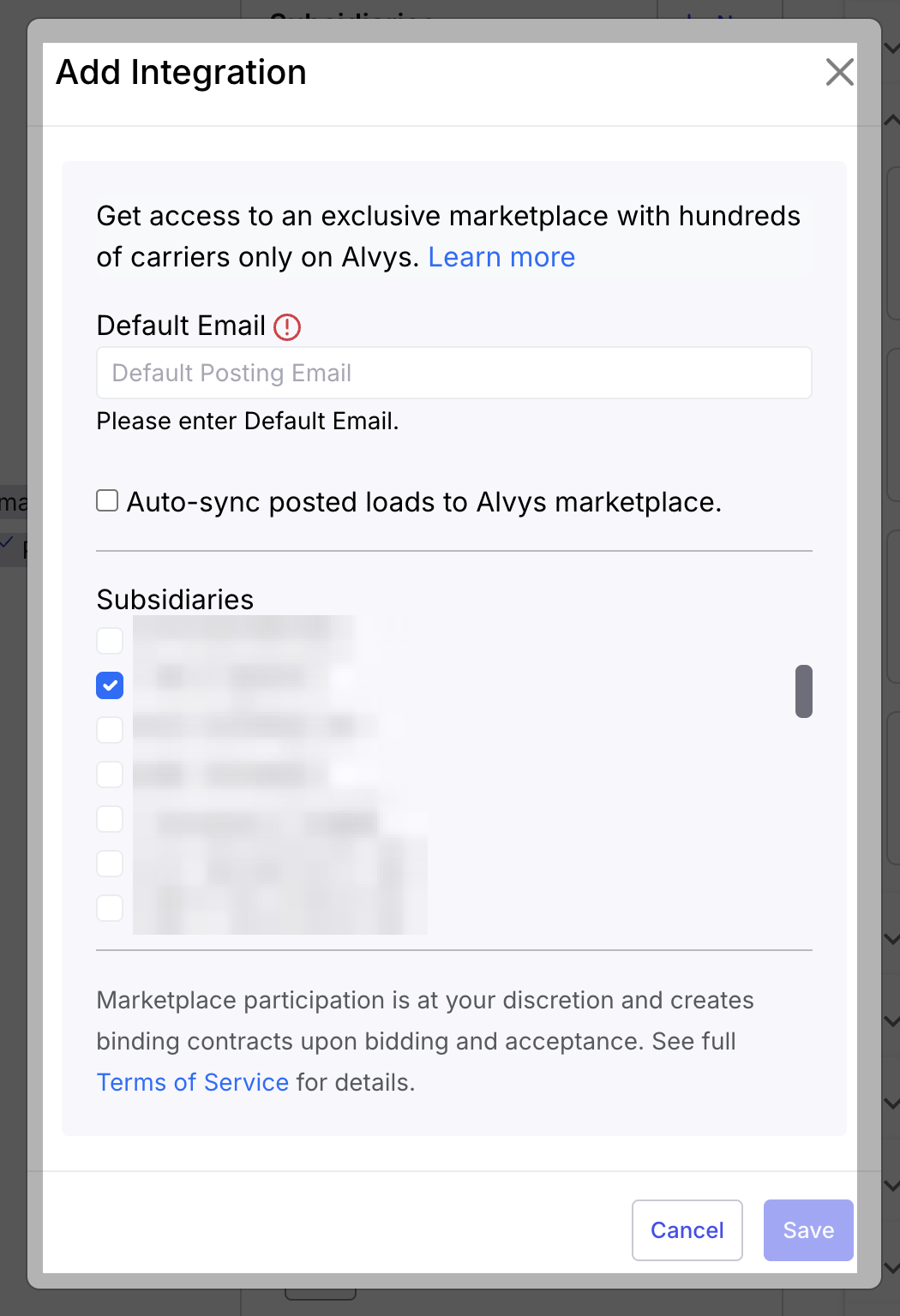
During the Beta, the Alvys integration card is automatically enabled and no set up is required. You can find the integration settings by navigating to User Profile > Integrations > Marketplace > Alvys.
Searching for Loads and Submitting Bids (For Carriers)
Navigate to the “Marketplace” section from the main menu.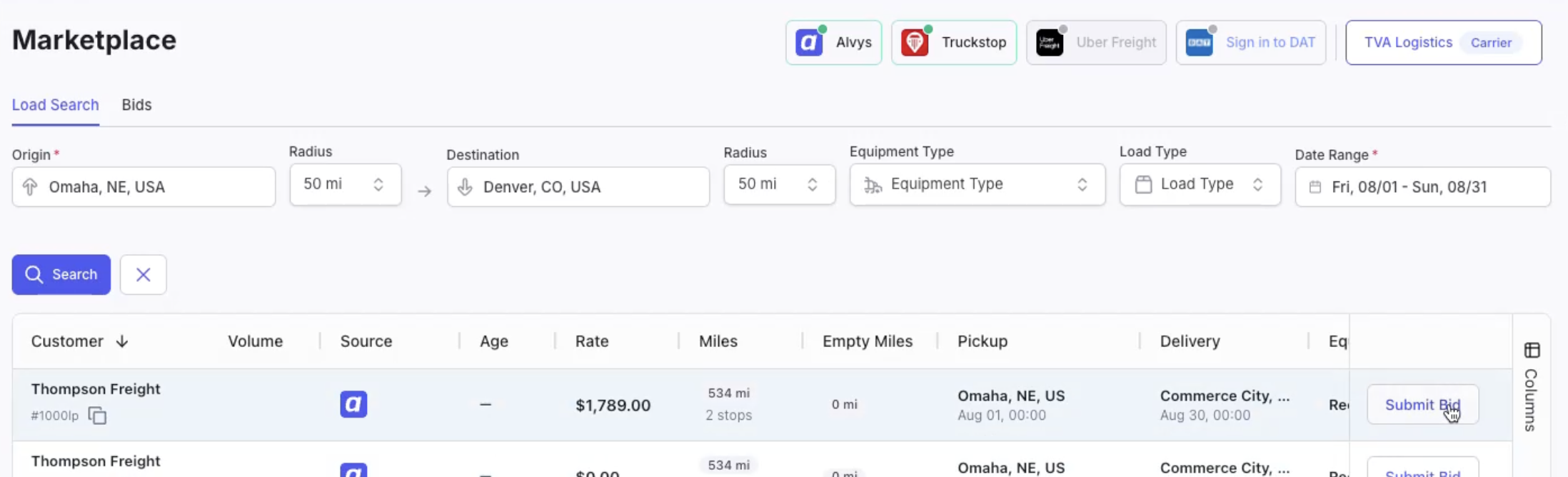
- Use the search bar to find loads. You are required to provide an origin and a range of dates. You can also provide a destination to narrow results.
- The search results will display loads from enabled data partners (DAT, Uber Freight, Truckstop, or Alvys), indicated in the “Source” column.
- Click on any load in the search results to view more details. This includes stops along the way, advertised rates, and any comments or contact information.
- For loads with multiple pickups, the total miles for the trip and empty miles will be displayed.
- To submit a bid, click “Submit Bid” for the desired load.
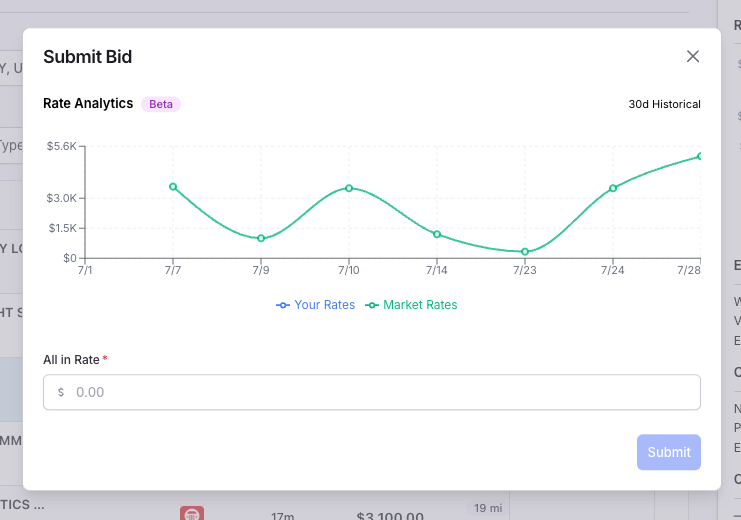
- In the “Submit Bid” modal, you can enter your “All-in Rate.” The modal may also show historical data from the past 30 days for rates applied on that specific lane to help you make an informed bid. Once submitted, you will see confirmation, and a pointer to navigate to the “Bids” tab of the Marketplace, where you can manage negotiations.
- Once a bid is submitted, the load will be cleared from your search results, and an indication with the UID of your submitted bid will appear.
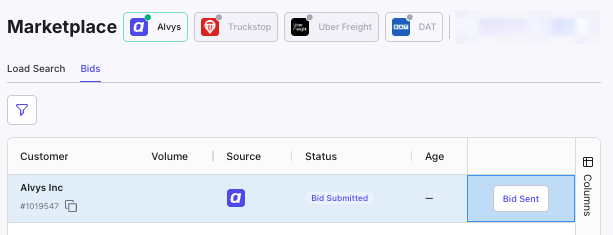
- Navigate to the Bids tab to see your bids and their current status (e.g., “Bid Submitted”). The Call to Action section will confirm your bid has been sent.
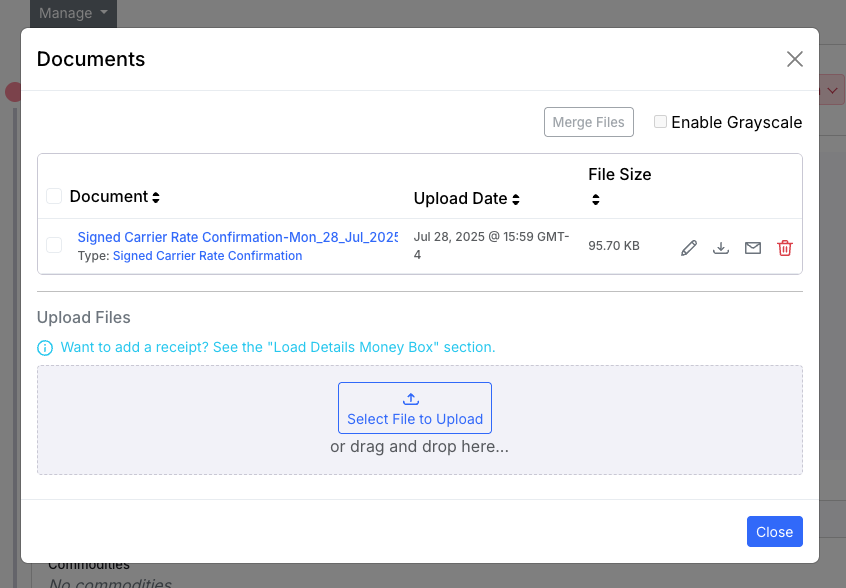
Completed in the Marketplace Bids tab, with an action to view the Load. Carrier will also receive a carrier packet via email if they have not previously done business with the associated broker.
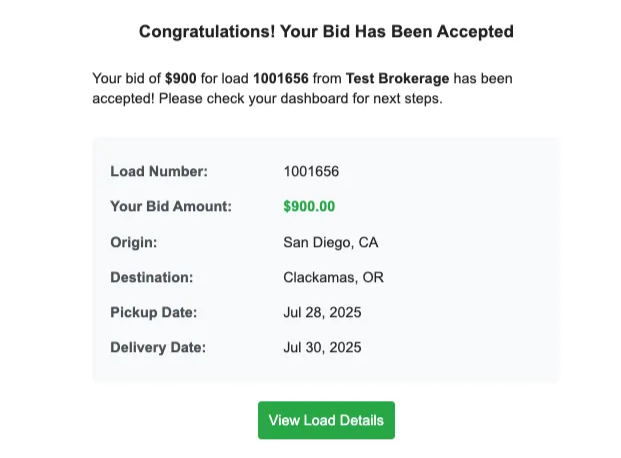 Email confirmation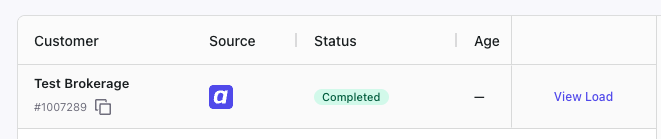
Posting Loads to Marketplace (For Brokers)
For open loads without a carrier assigned, you will see a new “Marketplace” tab in the Load Details Page.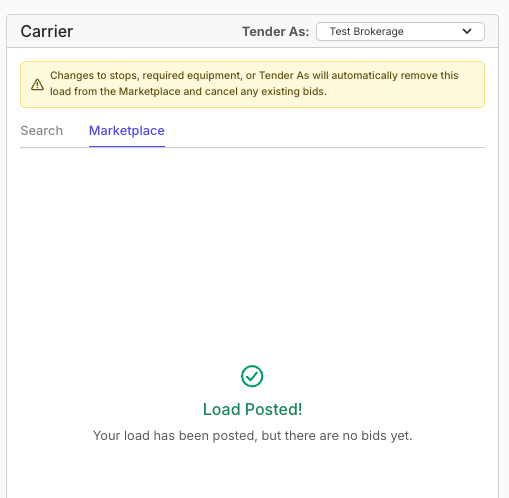
Editing a Posted Load
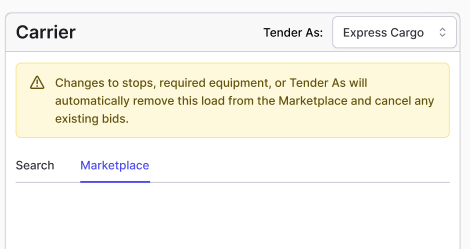
- Tender As
- Assign a carrier that did not submit a Marketplace bid
- Edit stop info (add/remove, change sequence, adjust dates/times, etc)
- Change equipment type
Working with Bids
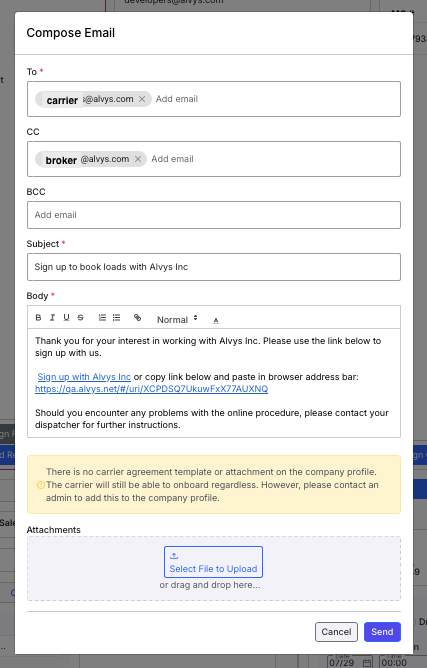
As bids come in, manage them in the same portion of the Load Details page, taking actions on bids like editing the Carrier Details, emailing the point of contact, or assigning the load: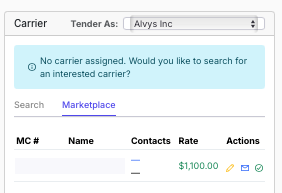
New and improved Rate Analytics
The Alvys Rate Analyticsmodule provides essential tools to research and inform better bids for compelling charges to serve particular lanes, or consider bids from carriers.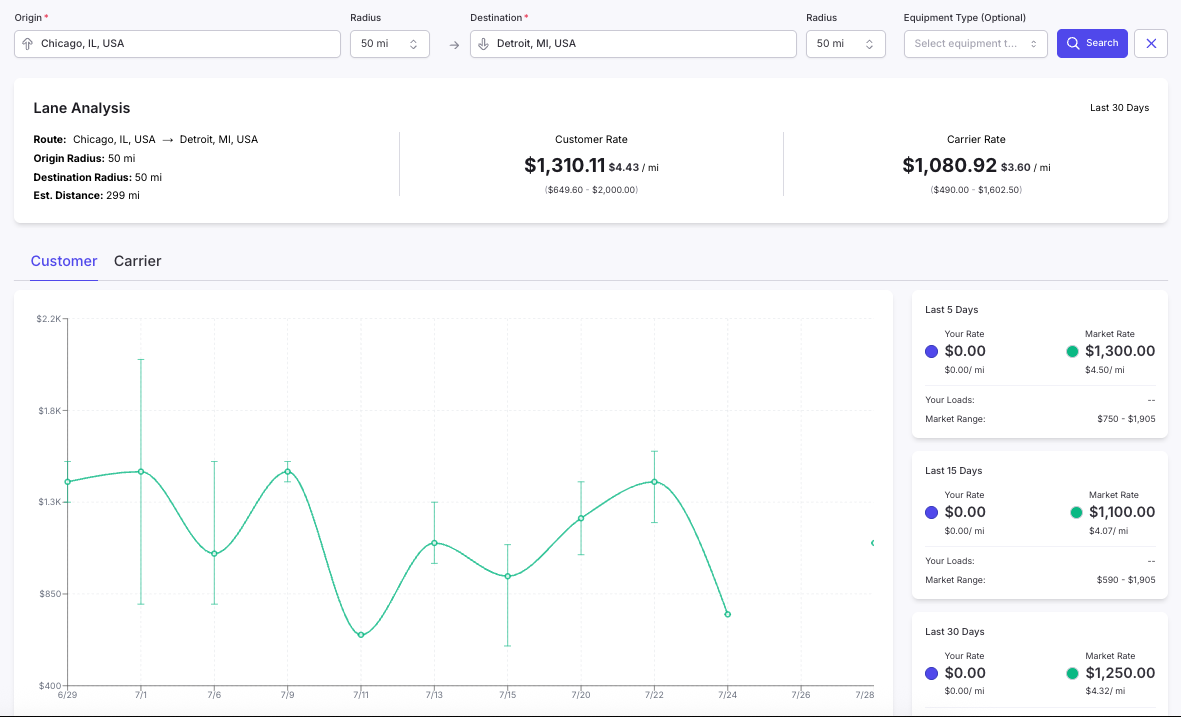
Accessing the Rate Analytics Module
You can access the Rate Analytics module in two ways: From the Marketplace (When Submitting a Bid)- Navigate to the Marketplace in Alvys.
- Select a load you are interested in bidding on.
- Initiate the bid submission process.
- The Rate Analytics module will be integrated into the bid submission screen to help you create a compelling offer. As a Standalone Module
- From the Alvys navigation bar, click on Loads and Trips.
- From the dropdown menu, select Rate Analytics.
Using the Rate Analytics Module
Once you access the Rate Analytics module, follow these steps to conduct your research:- Enter Origin and Destination:
- In the Origin field, type the starting location for the lane you are researching. This field is required.
- In the Destination field, type the ending location for the lane you are researching. This field is required.
- Specify Mileage Radii (Optional):
- To broaden or narrow your search, you can enter a mileage radius for both the origin and destination. This allows Alvys to include data from areas surrounding your specified locations.
- Select Equipment Types (Optional):
- Choose the relevant Equipment types from the dropdown menu to filter the rate data by specific vehicle types. This helps you get more precise analytics for the equipment you plan to use.
Understanding Rate Trends
After you enter your search criteria, Alvys will display comprehensive rate trends. These trends provide valuable insights into both your historical performance and the broader market:- Customer and Carrier Rate Trends: Alvys shows you what you have been charging (customer rates) or paying (carrier rates) for similar lanes. It also presents what we observe in the market. Rate data is aggregated and anonymized in accordance with Alvys Terms & Conditions and Privacy Policy.
- Timeframes: Rate trends are displayed for the last 5, 15, and 30 days. This allows you to identify short-term and medium-term fluctuations in market rates.