
The Orbcomm Platform integration connects your Orbcomm-equipped trailers to Alvys, automatically pulling trailer location, temperature, and reefer status data into the Asset Map and dispatch planning.
Overview
The Orbcomm Platform integration, also called Orbcomm telematics or Orbcomm asset tracking, connects your Orbcomm-equipped trailers to Alvys, automatically pulling trailer location, temperature, and reefer status data into the Asset Map and dispatch planning. The integration is one-way: Orbcomm sends trailer location and temperature data to Alvys. Once connected, Alvys automatically syncs trailer location data and reefer temperature readings so you can monitor assets on the Asset Map and use live location in dispatch planning. This integration supports trailers only. Trucks are not tracked through Orbcomm Platform. Hours of Service (HOS) monitoring and IFTA reporting are not available through this integration.Prerequisites
Before you can connect Orbcomm Platform to Alvys, you need:- An active Orbcomm account with a designated Orbcomm Customer Success Manager
- Integration credentials from Orbcomm (a Username, Password, and Org Key, provided after an integration request is submitted to Orbcomm)
- The Orbcomm Asset ID for each trailer you want to track (available in your Orbcomm portal)
- An “Admin”, “Partner Admin”, or “Support” role in Alvys
How to connect
- Request integration credentials from Orbcomm. Contact your Orbcomm Customer Success Manager and ask them to submit an integration request on your behalf. Once Orbcomm completes the setup, they will send you a Username, Password, and Org Key.
- Open the Integrations tab in Alvys. Click your profile icon in the lower-left corner of Alvys to open “Company Profile”. Select the subsidiary you want to configure, then click the “Integrations” tab.
-
Open the Orbcomm Platform card. Scroll down to the “ELD” section and click the pencil (edit) icon on the “Orbcomm Platform” card.
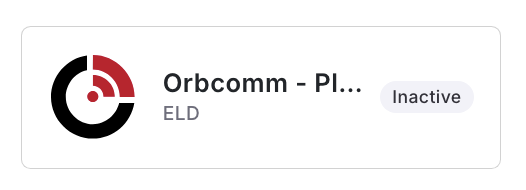 ELD section showing the Orbcomm Platform card
-
Enter your credentials and select subsidiaries. Enter your Orbcomm Platform “Username”, “Password”, and “Org Key”. Select the “Subsidiaries” whose assets will use this integration, then click “Save”.
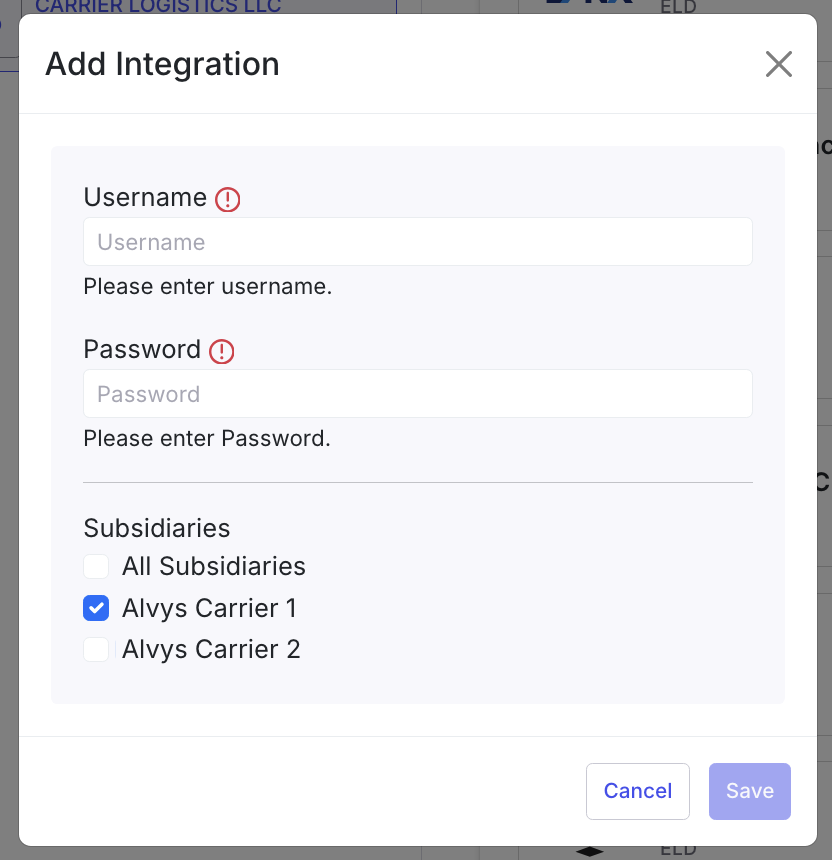 Orbcomm Platform credentials dialog showing Username, Password, and Subsidiaries fields.
Link each trailer to its Orbcomm Asset ID
Each trailer in Alvys must be linked to its corresponding Orbcomm Asset ID individually. There is no automated field mapping.- Go to “Assets” in the left menu and select “Trailers”. Double-click the trailer you want to configure, then scroll down to the “ELD Integrations” section and click “Add Integration”.
-
Select “OrbcommPlatform” from the dropdown, enter the “Orbcomm Asset ID” in the Integration ID field, then click “Save”.
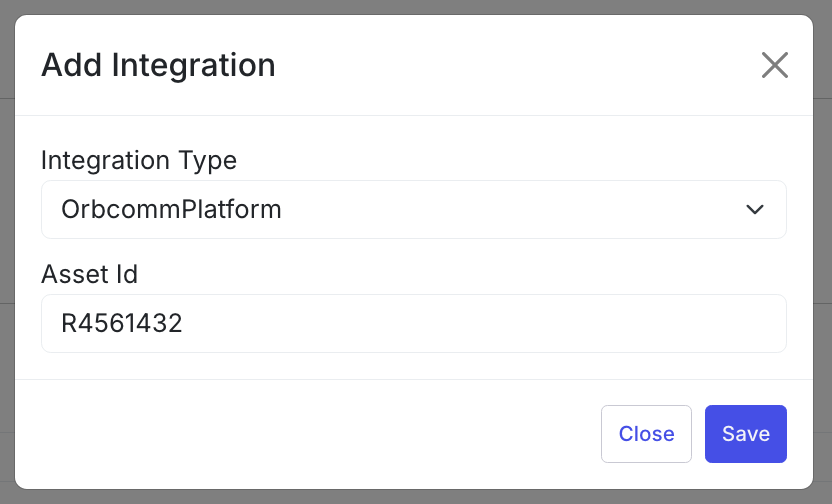 Trailer detail showing the ELD Integrations section with OrbcommPlatform selected in the dropdown and the Integration ID field.
Verify it’s working
After completing setup, confirm the integration is active:- Go to “Assets > Trailers” and open a trailer you configured.
- Confirm that location and temperature data appear on the trailer detail page.
- Navigate to the Asset Map (“Assets > Map”) and verify the trailer appears with a current location pin.
What syncs
- Direction: One-way. Orbcomm sends data to Alvys; Alvys does not send any data back to Orbcomm.
- Asset types synced: Trailers only. Trucks are not supported by this integration.
- Data synced per trailer: GPS coordinates, speed, total distance, reefer operation mode, setpoint temperature (up to 3 zones), return air temperature (up to 3 zones), discharge/supply air temperature (up to 3 zones), remote probe temperatures (up to 3), ambient temperature, and reefer fuel percent.
- HOS and IFTA: Hours of Service monitoring and IFTA mileage reporting are not available through Orbcomm Platform.
Troubleshooting
Credentials rejected when saving
- Confirm the Username and Password were entered exactly as provided by Orbcomm, with no extra spaces.
- Contact your Orbcomm Customer Success Manager to verify that the integration request was fully completed on their end and that your credentials are active.
- If the credentials are confirmed correct and the error still appears, contact Alvys support.
Trailer location not appearing on the Asset Map
- Confirm the trailer has an Orbcomm Asset ID entered in the ELD Integrations section of its record.
- Confirm the Orbcomm Asset ID matches exactly what is registered for that trailer in your Orbcomm portal.
- Confirm the trailer is powered on and actively transmitting location data in your Orbcomm portal.
- If the Asset ID is correct and the trailer is reporting in Orbcomm but not appearing in Alvys, contact Alvys support.